

I recently planned to join the V2EX community, but the current registration mechanism is not very friendly to newcomers. After some research, I put together a complete process from purchasing tokens to successfully registering. If you also plan to register without an invitation code by holding tokens, or if you encounter the awkward situation where clicking does nothing when connecting the Phantom wallet, I hope this hands-on record helps you avoid the pitfalls.
1. Registration Method Comparison: Invitation Code or Tokens?
Before starting, let’s compare the two mainstream ways to enter V2EX currently:
Getting an invitation code: This is the traditional method, which requires finding veteran users to generate one using points. However, invitation codes from veteran users are extremely precious and hard to snag through public channels, making the social cost very high.
Purchasing V2EX tokens: This is a new method based on the Solana chain. As long as your Solana address holds at least 10K V2EX Coin, you can register directly. See Figure 1.
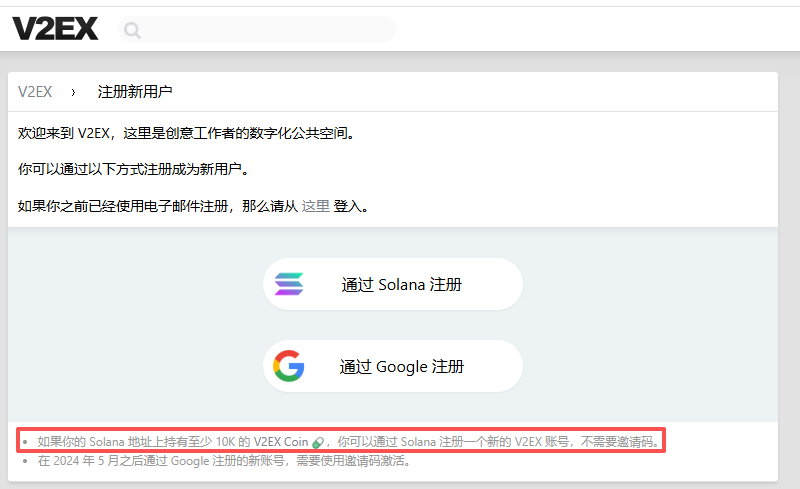
For friends who have a small budget and want to quickly enter the community, directly purchasing tokens is obviously a more controllable and efficient plan.
2. Preparation: Obtaining SOL and Transferring to a Web3 Wallet
V2EX’s token runs on the Solana chain, so we need to prepare some SOL first for assets and Gas fees.
- Purchase SOL on OKX
First, register and log in to the OKX exchange, and complete identity verification. In the “Buy Crypto” or “Spot Trading” section, use fiat currency to purchase USDT, and then exchange it for SOL. - Withdraw to the OKX Web3 wallet
For convenience in subsequent operations, I recommend first withdrawing SOL from the exchange account to the OKX Web3 wallet. This is both safe and ensures that you control the address (mnemonic phrase).
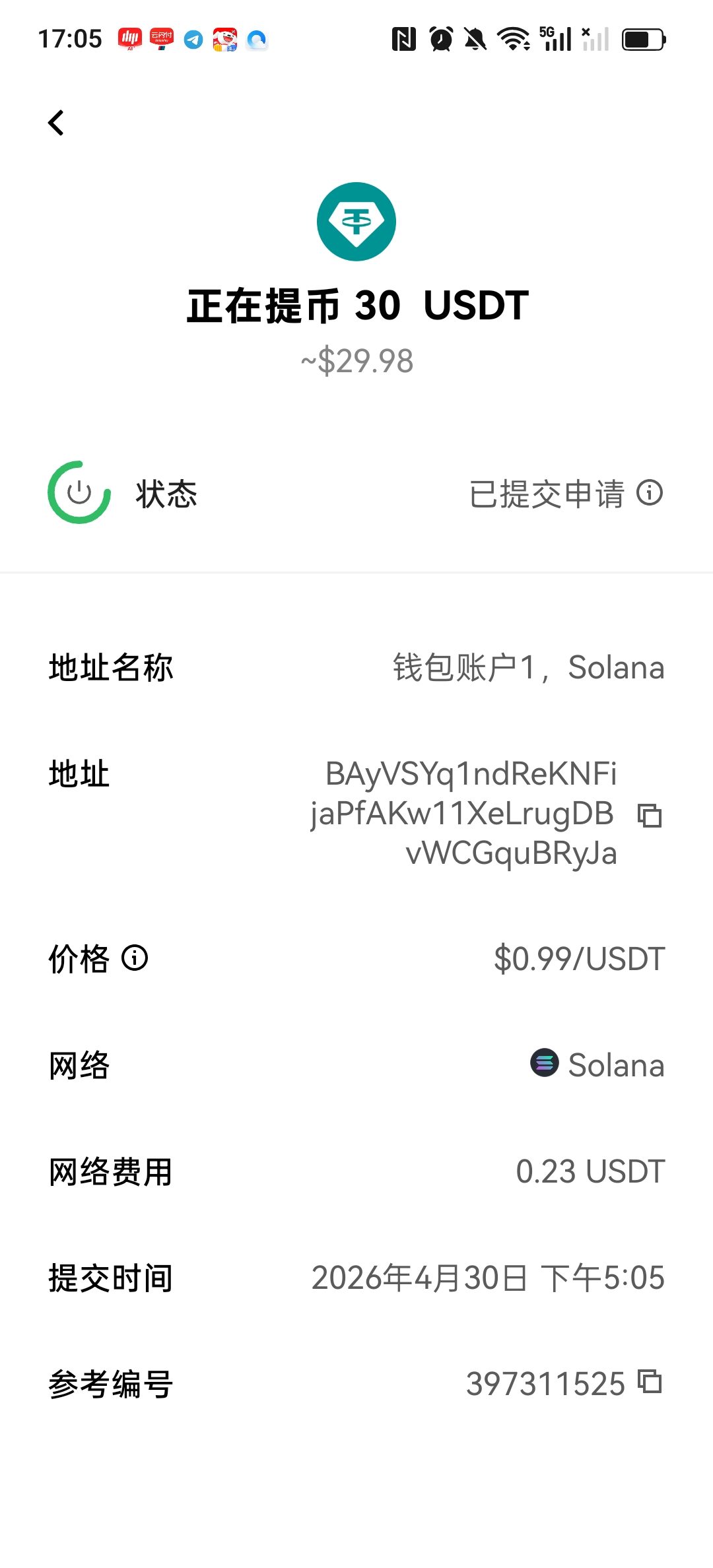
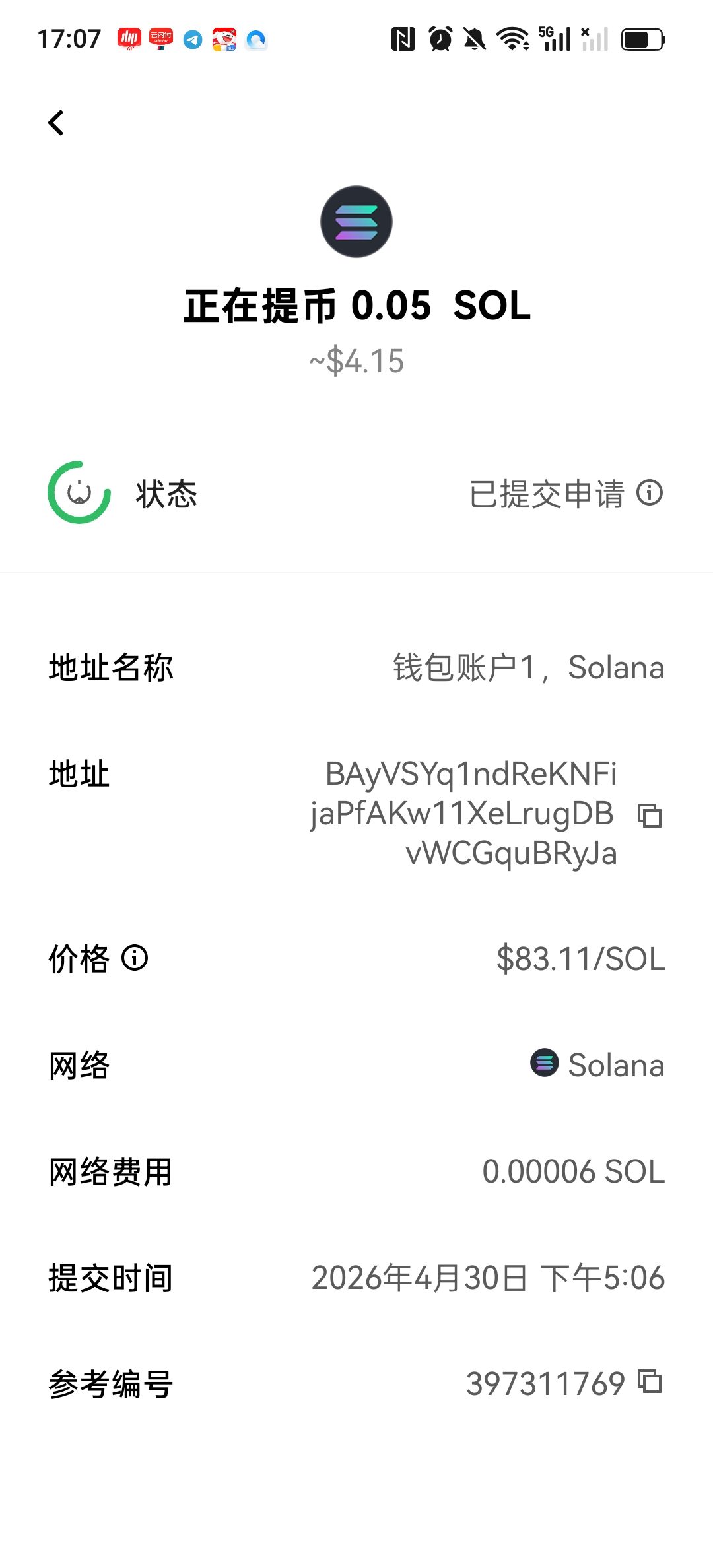
On the “Assets” page of the OKX App, click “Withdraw”, and select USDT (30) and SOL (0.05).
Fill in the Solana address of your OKX Web3 wallet in the recipient address bar (make sure to switch the network to Solana).
Special attention: The withdrawal network must be the Solana chain, otherwise the assets will be lost. (See Figure 2 and Figure 3)
- Swap for V2EX tokens in DEX
After USDT and SOL arrive in the OKX Web3 wallet, we can start swapping. There is a key prerequisite step here that many beginners easily overlook:
Switch the network to Solana
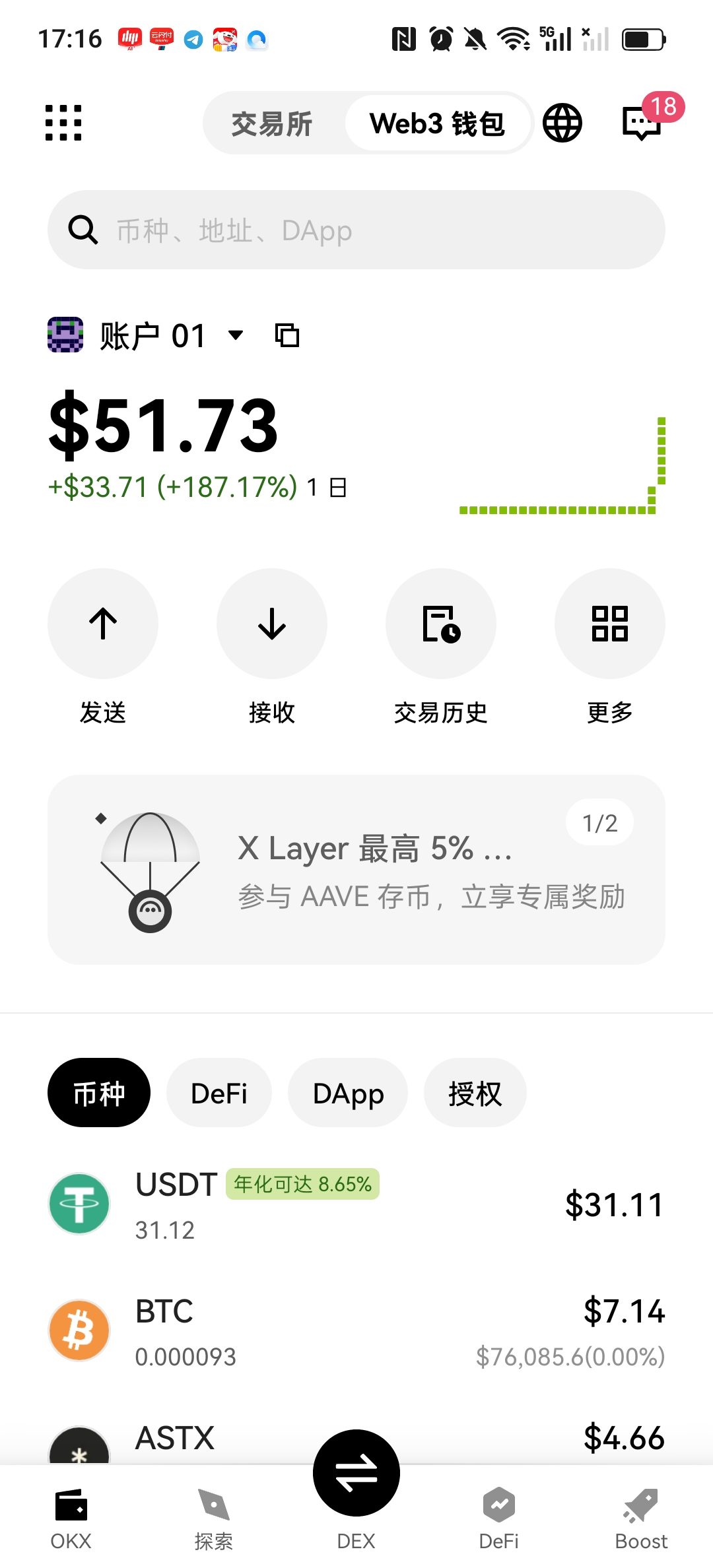
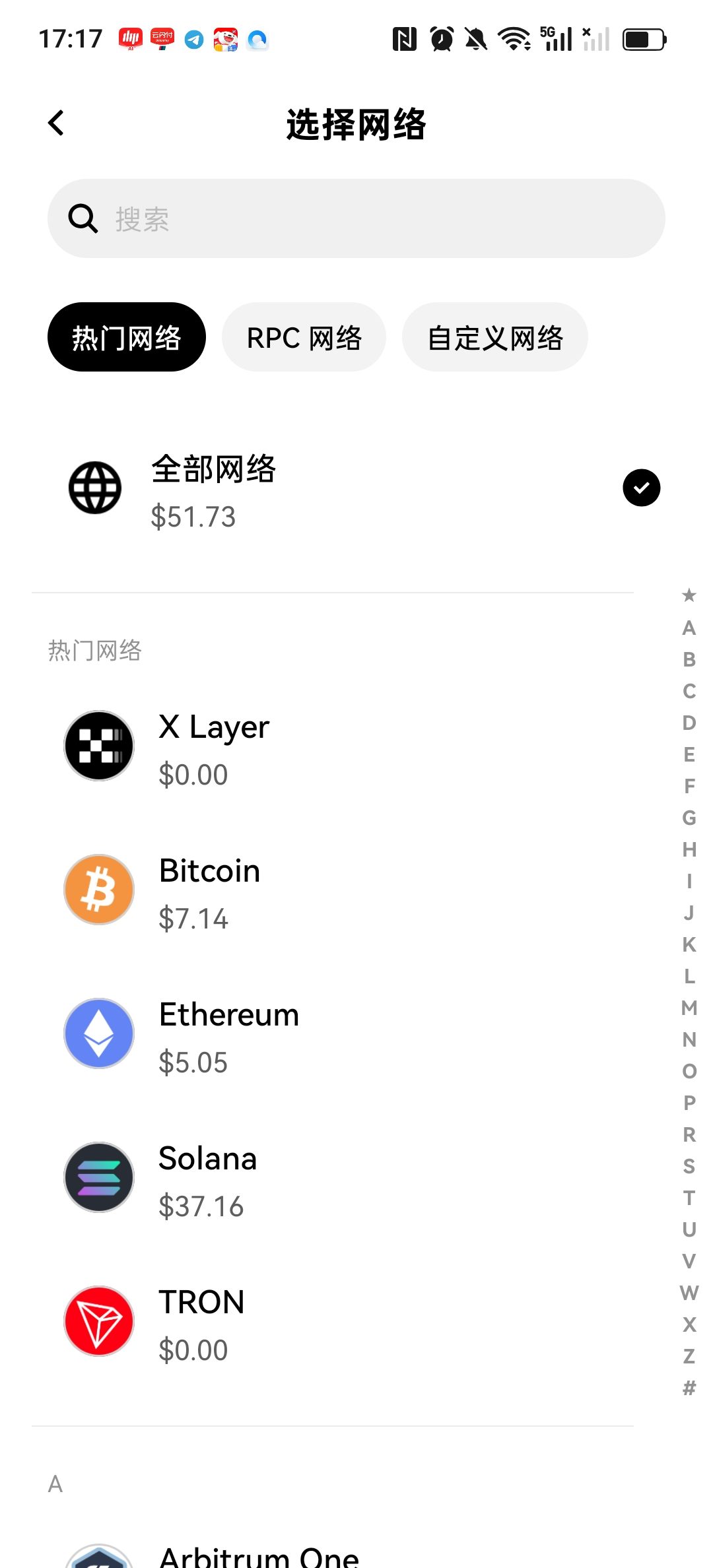
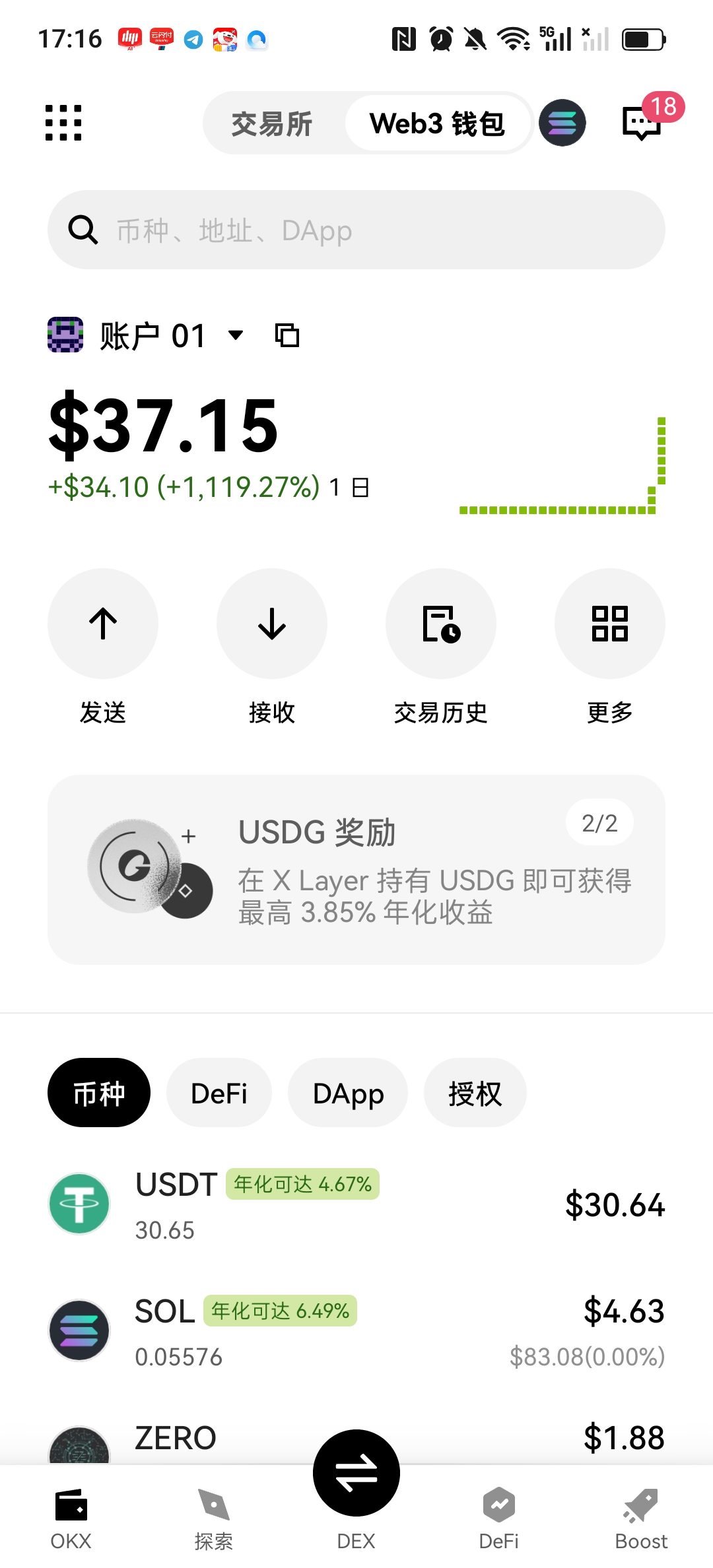
First, find the current network identifier at the top of the wallet homepage (it may default to “All Networks”), as shown in Figure 4.
Click it and select the Solana network in the list. (See Figure 5)
Note: This step is very important! Because your SOL assets and V2EX tokens are both on the Solana chain, if you do not switch the network, the DEX will not be able to recognize your assets. See Figure 6.
Connect to DEX for swapping
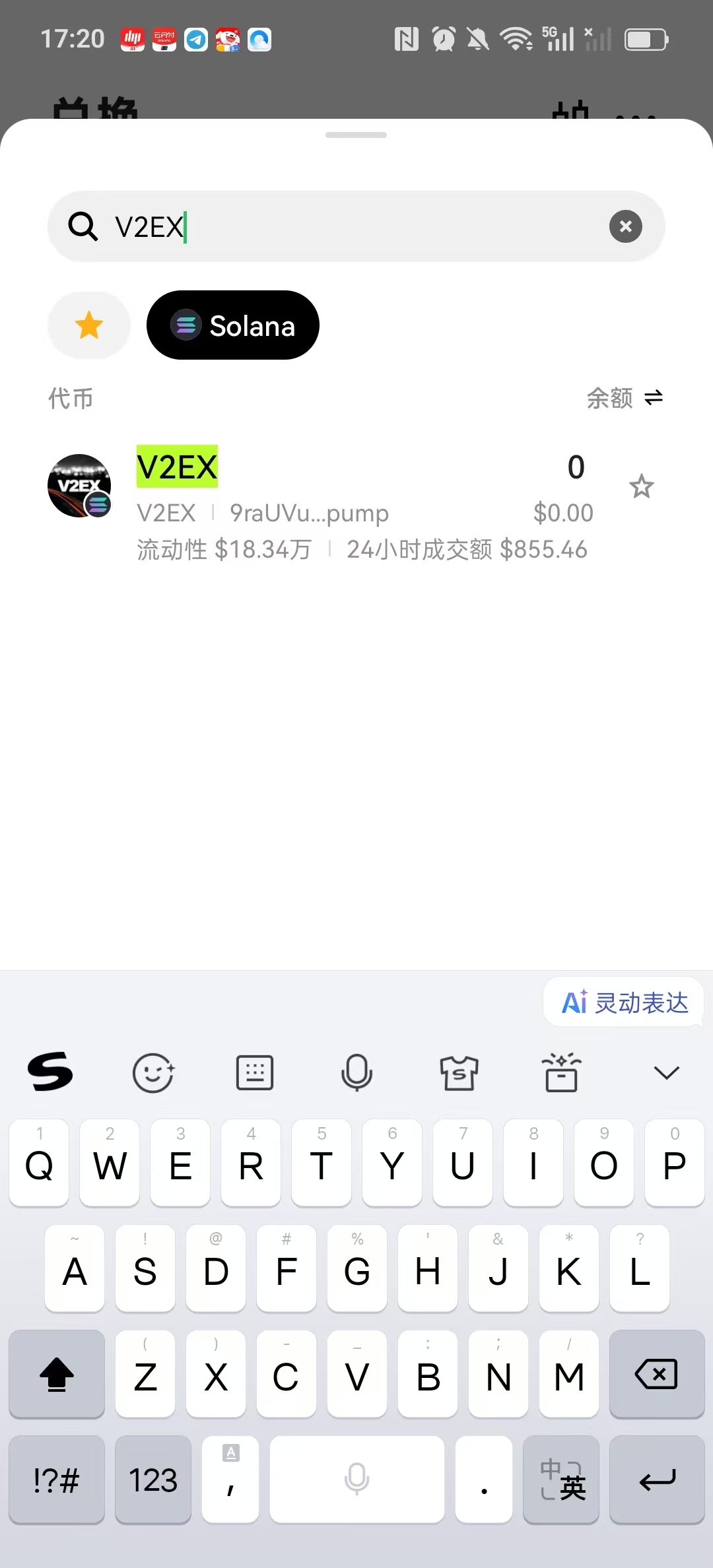
After the network is successfully switched, click the “DEX” entry at the bottom. In the Swap interface, select USDT at the top, and search for and select the V2EX token at the bottom. See Figure 7.
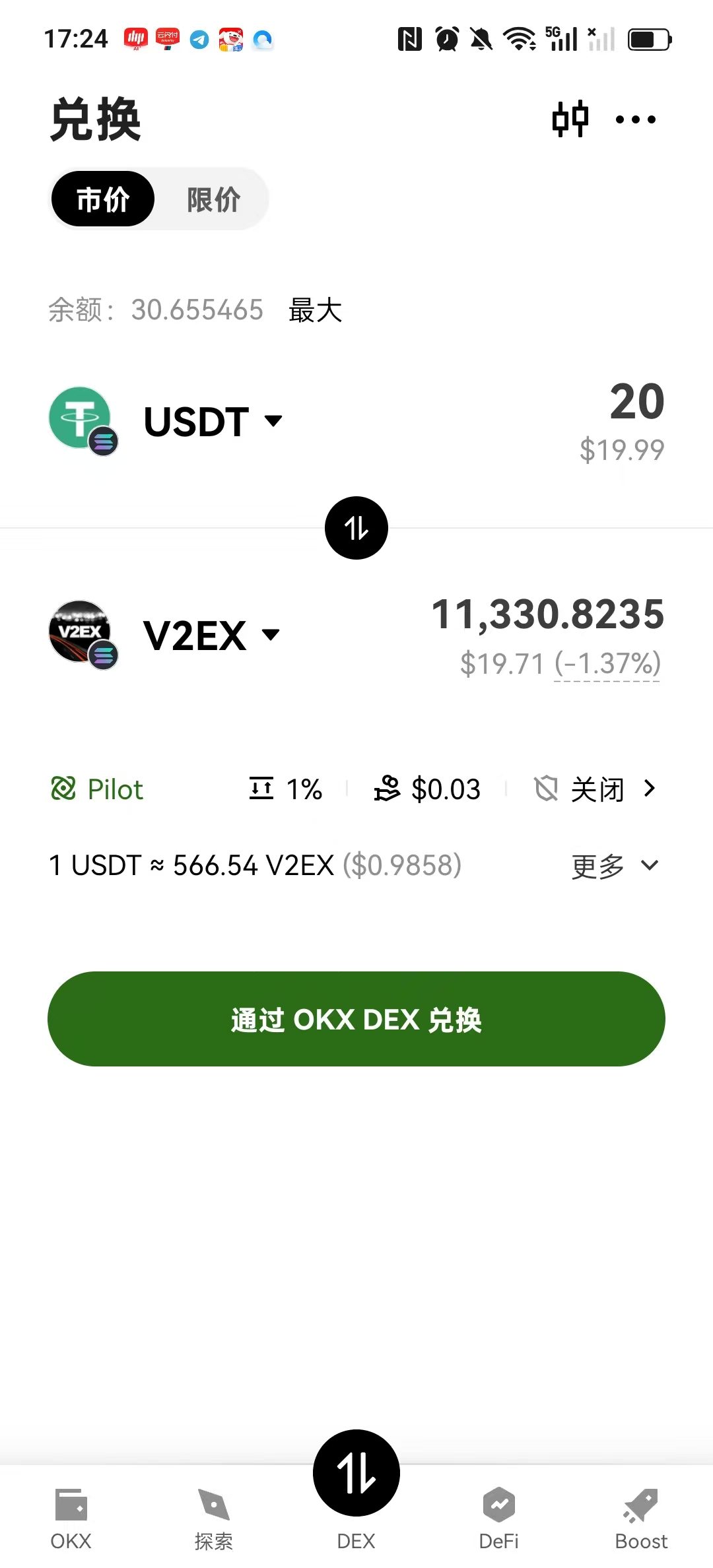
Enter the USDT amount as 20, and the amount you want to swap will automatically generate as 11330 (it is recommended to swap a bit more to ensure exceeding the 10K registration threshold). See Figure 8.
Key step: Verification through official clues
There are many fake tokens with the same name on the market. To be absolutely sure, I used a “follow the vine” method to verify the authenticity:
Return to the V2EX registration page and carefully read the prompt: “If your Solana address holds at least 10K V2EX Coin…”.
You will find that “V2EX Coin” is actually a hyperlink. Clicking it will automatically redirect to the token detail page on Pump.fun (address is 9raU…pump).
Check the first and last characters: Note down the beginning (9raU) and end of this official contract address, then when selecting a token in the DEX trading pair, open the details to compare the contract address. Only when the two match exactly is it the real official token.
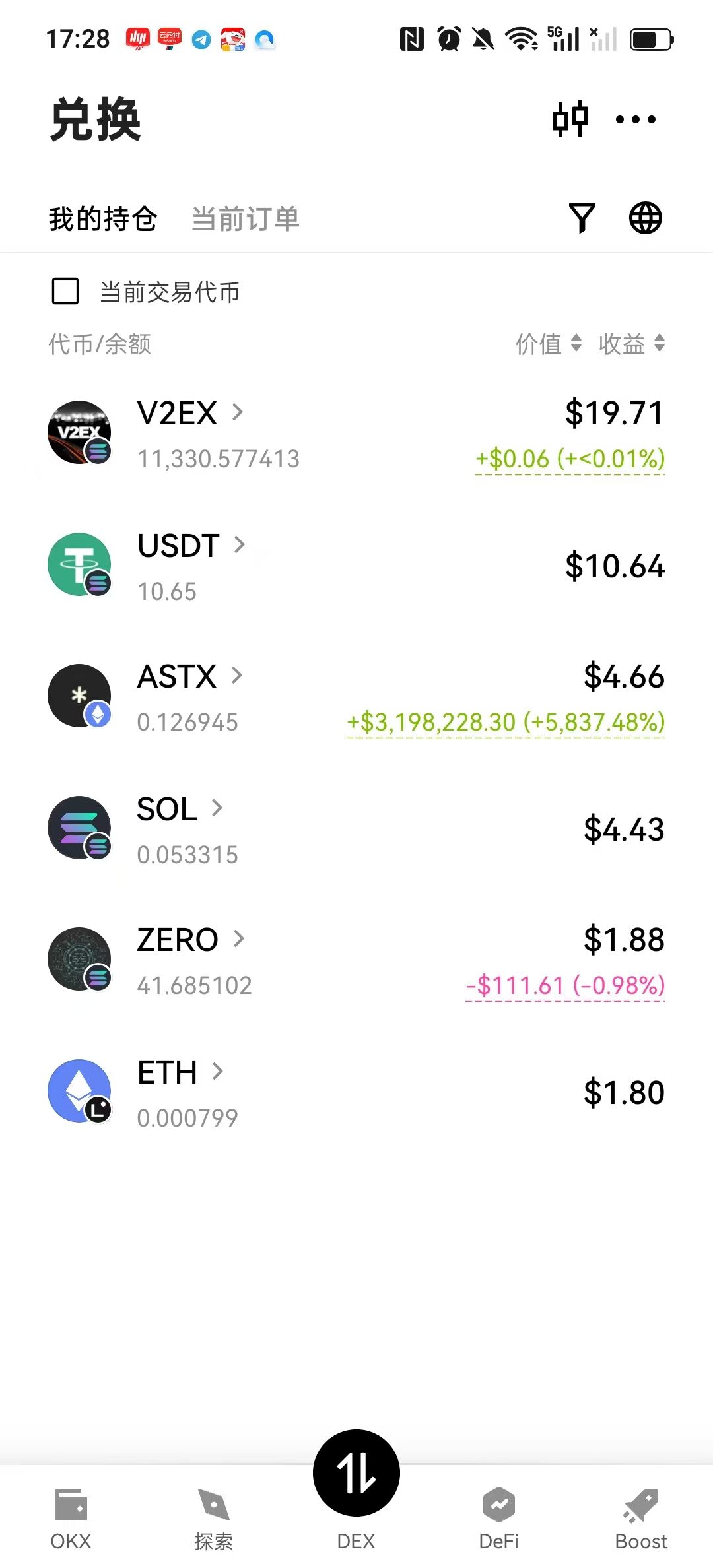
After a successful swap, you should be able to see the V2EX token balance in your OKX Web3 wallet. (See Figure 9)
3. Registration in Action: Encountering Phantom Plugin Freeze
With enough tokens in hand, I confidently opened the V2EX registration page and clicked “Register via Solana”. As a result, I got stuck at the very first step.
The page just popped up a cold little prompt: “No wallet address found in Phantom. Please create or import a wallet first.” (See Figure 10)
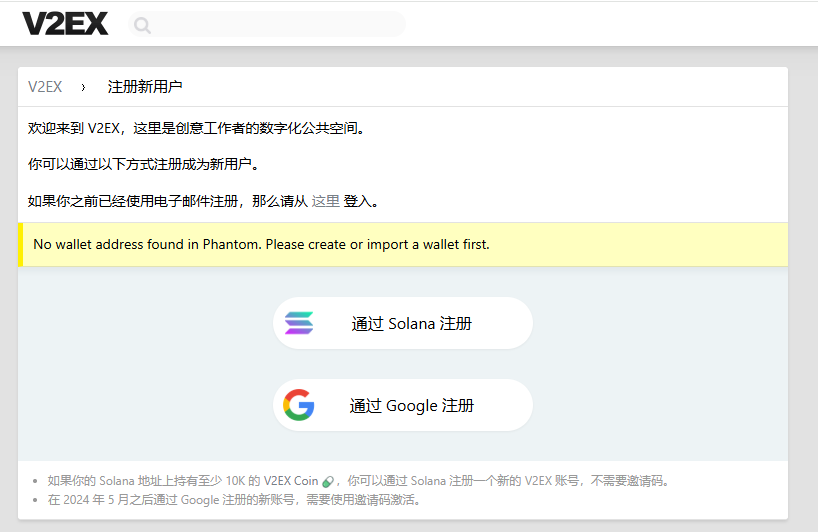
I had clearly installed and logged into the Phantom plugin, so why couldn’t the webpage read it? I tried to find the WalletConnect QR code entrance around this prompt box, wanting to use my mobile wallet to scan and connect, but after searching every corner of the popup, there was nothing but this line of text.
Since scanning was not an option, I suspected the browser plugin had frozen. Following conventional troubleshooting logic, I tried a few gentle fixes:
Manually toggle the Phantom switch off and then on again on the extensions page (chrome://extensions/).
Clear the plugin’s local cache data.
But after trying all this, clicking the Phantom icon at the top of the browser still yielded no popup response. The plugin seemed completely “zombified”, with no reaction at all upon clicking.
4. A Ray of Hope: Pinning the Plugin and Importing the Wallet
Before considering uninstalling and reinstalling, I tried a very simple operation, which unexpectedly solved the problem directly:
In the Chrome browser’s extension list (the puzzle icon in the top right corner), find the Phantom extension and click the “pin” icon next to it to pin it. At this point, the Phantom icon will stay permanently on the browser’s top toolbar. (See Figure 11)
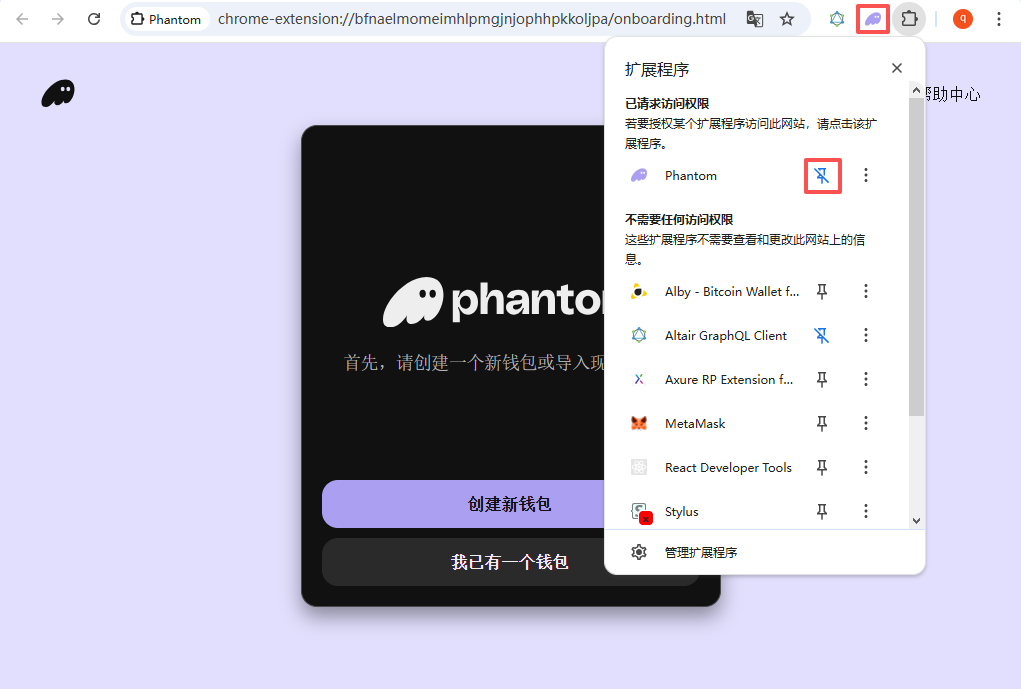
Returning to the V2EX page and clicking register again, I then manually clicked the pinned Phantom icon at the top, and the wallet popup was miraculously awakened!
In the popup window, I selected “I already have a wallet” and entered the 12 mnemonic phrases previously exported from OKX to import it.
A special note here: importing a mnemonic phrase is not creating a new wallet, but restoring an identity. After entering it, I successfully entered the wallet homepage.
5. False Alarm: Asset Display Anomaly and On-Chain Verification
After entering the wallet, I encountered another scary situation: although the total balance (fiat estimation) displayed by the wallet was correct, the token list below kept spinning, prompting “Unable to fetch assets”. (See Figure 12)
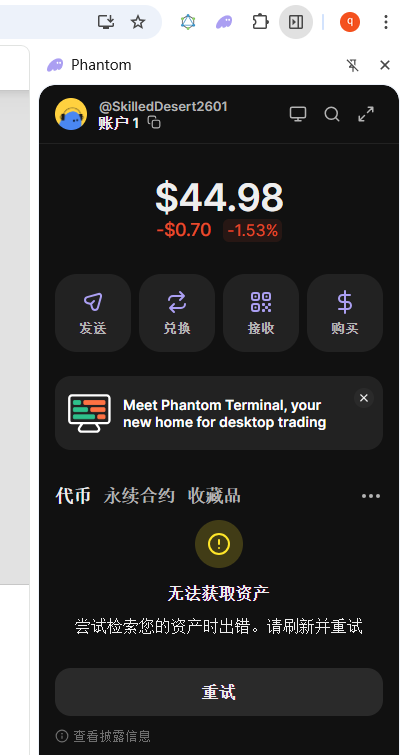
At the time, I was very worried that this would affect V2EX registration. After all, the registration threshold explicitly requires “holding at least 10K V2EX Coin”. If the wallet frontend cannot read the tokens, wouldn’t it be impossible to pass verification?
Later I realized that this was merely a display issue caused by the Phantom local interface loading lag. V2EX’s verification mechanism directly queries the address’s asset status on the Solana chain and does not rely on the wallet’s frontend interface display. As long as the on-chain assets genuinely exist, it does not affect registration.
6. Successful Landing: Authorization and Signature
Since I confirmed the assets were fine, I returned to the V2EX page and clicked “Register via Solana” again.
This time, Phantom finally popped up a normal interaction window. The system prompted, “Confirming will allow this site to view the balance and activity of the selected account”. (See Figure 13)
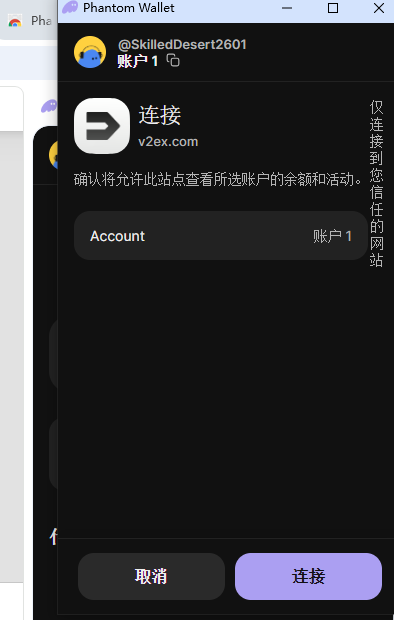
This step is necessary because V2EX needs to read on-chain data to verify whether I meet the 10K token holding threshold. Rest assured, this is only a “view” permission and will absolutely not use or transfer any assets in your wallet.
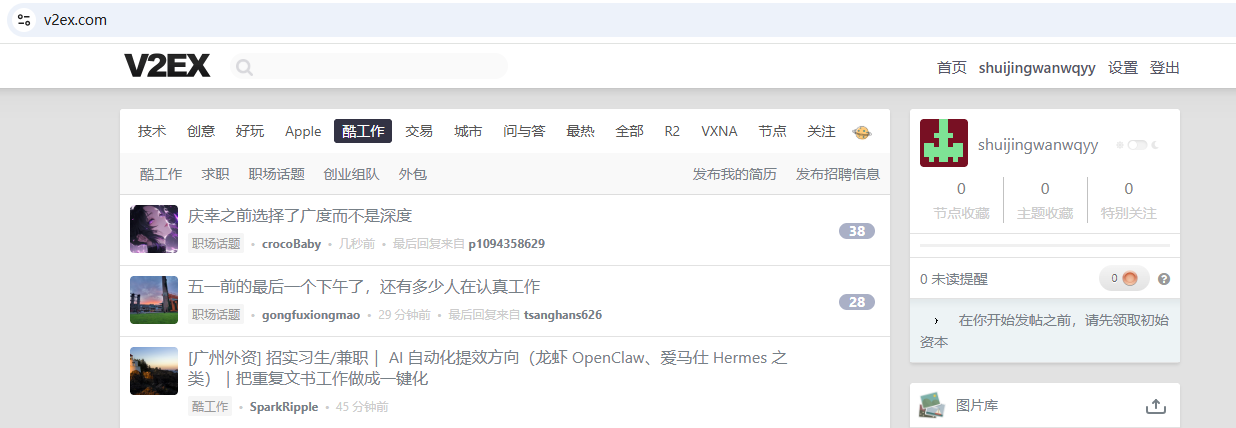
After clicking “Confirm”, a signature request immediately followed. Once the signature was completed, the page instantly redirected to the homepage, already in a successfully logged-in state. (See Figure 14)
7. Summary
Looking back at this registration process, the core difficulties actually lay in understanding the Chrome plugin’s wake-up mechanism and on-chain interaction:
When the plugin won’t wake up: Don’t get stuck on the popup. Try “pinning” the Phantom plugin to the top toolbar, which usually solves most freezing issues.
Don’t panic if the token list fails to load: As long as the total balance matches, or it can be found on a blockchain explorer, the on-chain verification will pass.
I hope this detailed account helps you if you are stuck on the registration journey. Have fun on V2EX!
评论
一条对“A Complete Guide to Registering on V2EX: Buy V2EX Tokens and Fix Phantom Plugin Freezes”的回复
[…] The direct reason has been found, it should be related to the installation of the wallet extension phantom I installed some time ago. It is the problem caused by Unisat Wallet + Phantom . Reference:V2EX Registration Raiders: From purchasing V2EX tokens to solving the Phantom plugin stuck to go ash… […]