

As a blogger who has run a technical blog for a long time, I recently planned to gradually translate my site’s 1,000+ original Chinese articles into English to expand my audience. After comparing several WordPress multilingual plugins, I ultimately chose Polylang (free version) paired with Chrome Built-in AI for fast translation. The entire process—from plugin setup and synchronization configuration to translating individual posts and pages, and finally troubleshooting—involved a few minor pitfalls. I have also summarized a highly efficient, reusable workflow. Today, I will review the entire process in detail using 18 practical screenshots. This guide is for bloggers with similar multilingual translation needs; it is packed with practical tips, and beginners can follow along directly.
First, let me clarify the core premise: my blog uses Chinese as the default language, and I plan to translate the Chinese articles into English one by one. After translation, I will only publish them and will not edit any Chinese or English articles afterward. My core requirements are “efficient translation, time synchronization, normal language switching, and correct sorting.” The ultimate goal is to have corresponding Chinese and English versions, allowing users to switch freely via the language switcher, with articles listed in reverse chronological order by publication date. I have already translated several articles, and all functions are running normally. Below is the complete practical workflow.
1. Preliminary Preparation: Plugin Installation and Basic Configuration
To do a good job, one must first sharpen one’s tools. The core of this preliminary phase is setting up the Polylang plugin correctly. This is the key to smooth translation and proper functionality later on. All settings are tailored to the “only create, never edit” use case to avoid unnecessary operations and potential risks.
1.1 Plugin Installation and Activation
Operation path: WordPress Dashboard → Plugins → Add New → Search for “Polylang” → Install and Activate.
Corresponding scenario: On the plugin search results page, the Polylang plugin logo is clear. Click “Install,” wait for the installation to complete, and then click “Activate.” Once activated, a “Languages” option will appear in the left-hand admin menu, leading to the language settings interface.
Note: There is no need to install the Polylang Pro version; the free version fully satisfies the translation needs of a personal blog. It supports core features like multilingual switching, post translation linking, and basic metadata synchronization without extra cost.
1.2 Adding Languages and Default Settings
Operation path: Dashboard → Languages → Languages → Add New Language.
Corresponding scenario: In the main language settings interface, Chinese (Simplified) is displayed by default. Click “Add New Language,” select “English (United States)” from the dropdown menu. Polylang comes with 132 predefined languages, so there is no need to create one manually. After selecting it, click “Add New Language” to complete adding English.
Corresponding scenario: After adding English, the language list shows Chinese (default language) and English. You can set the language order, display name, and URL structure (I chose the “language code as a subdirectory” mode, meaning the Chinese path is xxx.com/xxx and the English path is xxx.com/en/xxx, which is SEO-friendly and easy to distinguish). Once configured, click “Save Changes.”
Key settings: Keep Chinese as the default language, with English as the secondary language. For the URL structure, choose “Directory name” to avoid using subdomains (which are complex to set up and not suitable for personal blogs). The default language code “en” is fine and needs no modification.
1.3 Synchronization Settings (Core! See Figure 17)
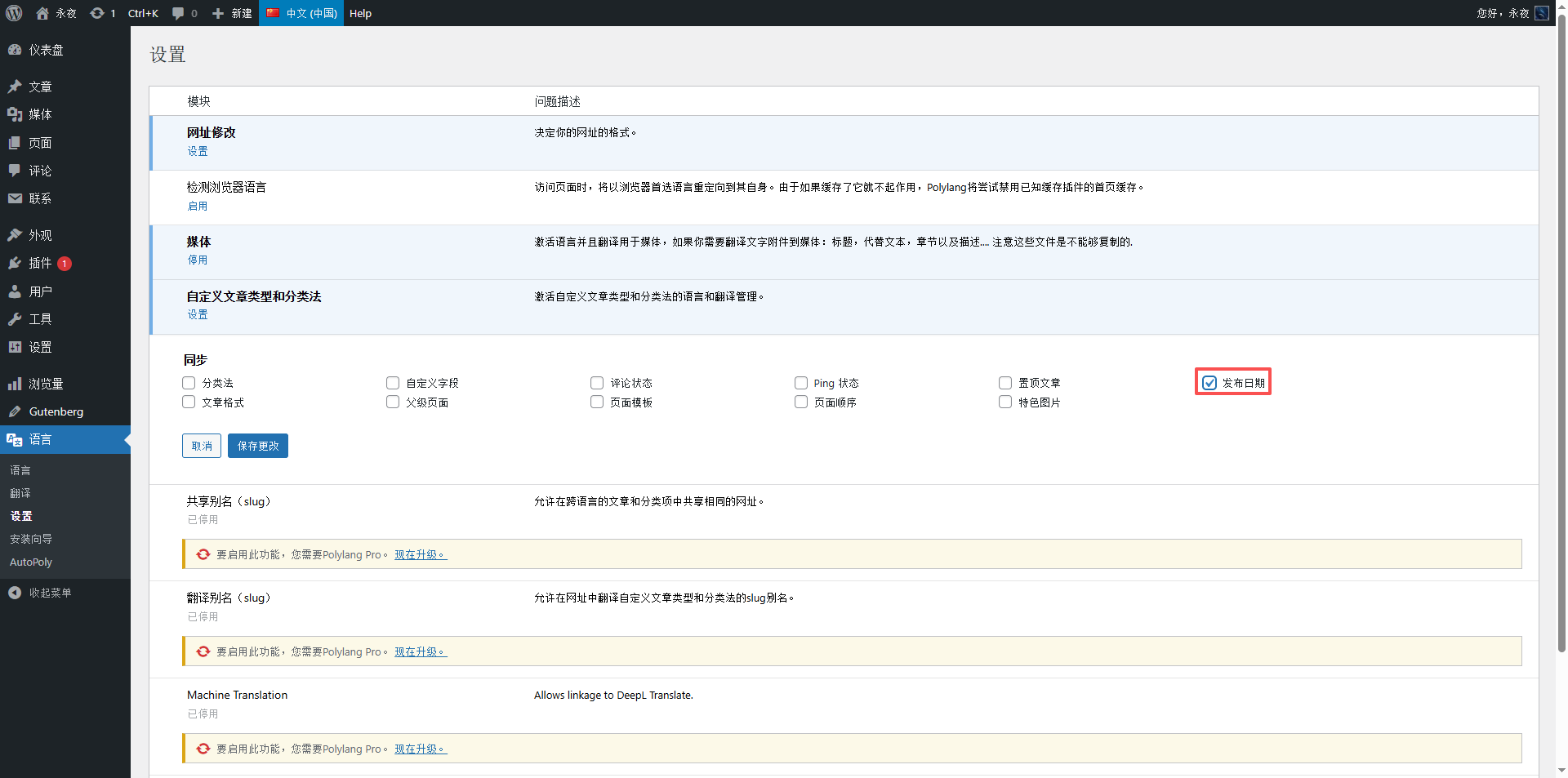
This is the most critical step, directly affecting time synchronization and taxonomy synchronization for translated articles. Based on my “only create, never edit” scenario, the synchronization settings are as follows (you can copy these exactly, no changes needed):
Operation path: Dashboard → Languages → Settings → Synchronization.
Scenario corresponding to Figure 17: In the synchronization settings interface, check only the following 1 option, and leave all other options unchecked:
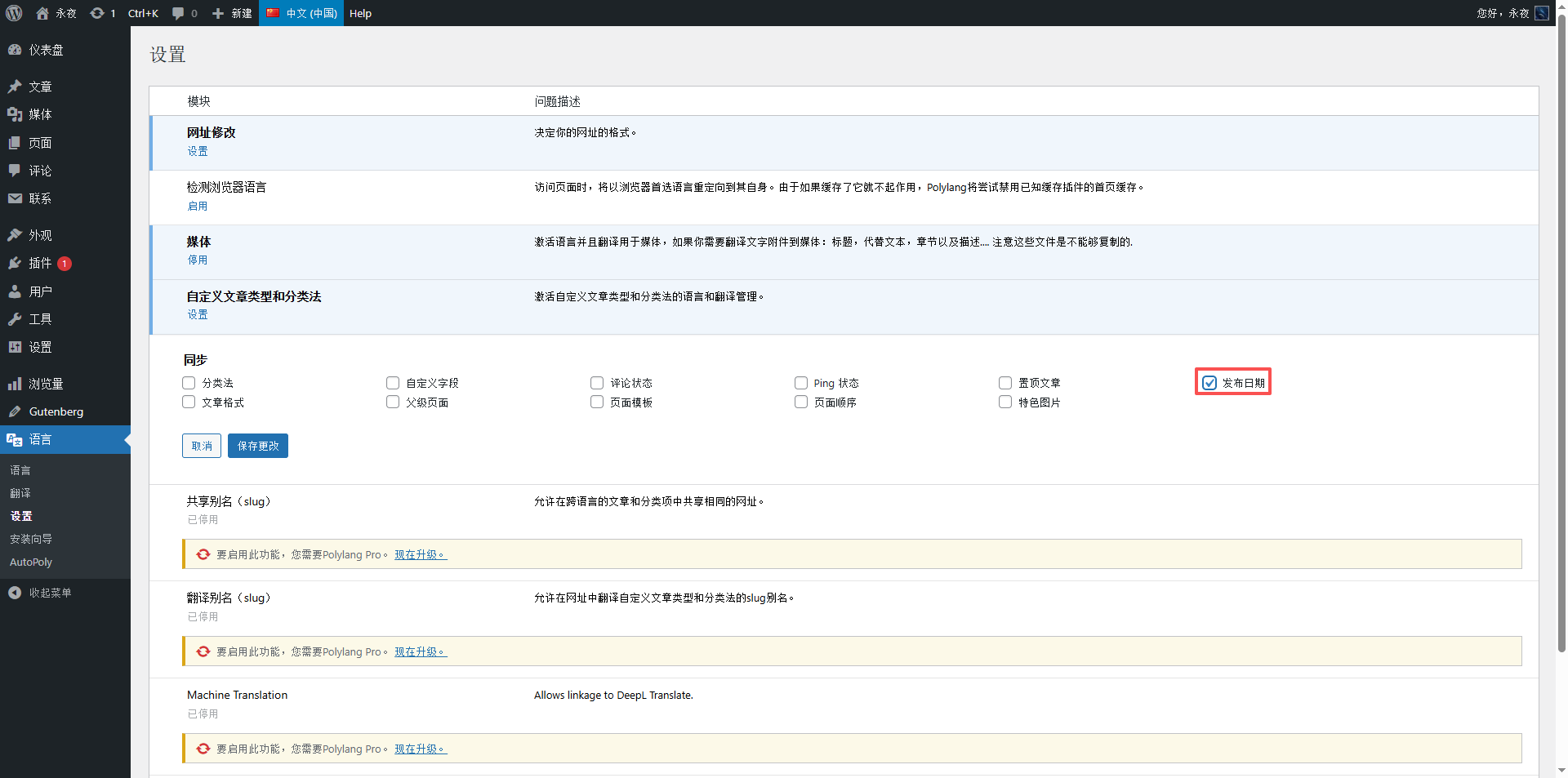
- ✅ Published date: Check this! This is the only option I checked. In my use case, checking this ensures that when creating a new English translation, it automatically inherits the publication date of the Chinese original. No manual modification is needed. Since I do not edit articles afterward, there is no risk of bidirectional overwriting. This perfectly solves the pain point of the publication date defaulting to the current time after translation.
- ❌ Taxonomies: Unchecked. While it can sync categories and tags, I do not need this sync feature, so I leave it unchecked as needed.
- ❌ Custom fields: Unchecked. No need to sync custom post metadata, avoiding unnecessary sync associations.
- ❌ Comment status: Unchecked. No need to keep comment statuses identical across Chinese and English articles; they can be set independently.
- ❌ Ping status: Unchecked. No need to sync ping settings; configuring them separately is more flexible.
- ❌ Sticky posts: Unchecked. Chinese and English articles can be stickied independently, preventing mutual interference.
- ❌ Post format: Unchecked. No need to sync post formats; they can be adjusted independently based on the English audience’s needs.
- ❌ Parent page: Unchecked. No need to sync parent page associations; page hierarchy can be set independently.
- ❌ Page template: Unchecked. No need to sync page templates; the English page layout can be adjusted as needed.
- ❌ Page order: Unchecked. No need to sync page sorting; the English page structure can be set independently.
- ❌ Featured image: Unchecked. No need to sync featured images; they can be uploaded or adjusted independently for the English version.
After completing the settings, click “Save Changes.” An important note here: many bloggers worry that checking “Published date” will cause bidirectional overwriting during subsequent edits. However, I explicitly stated that I “do not edit any articles after translation,” so checking only this option has nothing but benefits—it automatically inherits the time, requires no manual adjustment, and causes no overwriting issues. This has been tested and proven effective. Leaving all other options unchecked avoids unnecessary sync associations and better fits my actual usage needs.
2. Core Workflow: Complete Post Translation Process
Post translation is the core环节. I adopted a “sort by page views, translate one by one” model, prioritizing high-traffic articles to maximize translation efficiency and value. The entire process is divided into “select Chinese article → create English translation → AI translation → detail check → publish.” Each step has corresponding figures with full details.
2.1 Filtering Articles to Translate
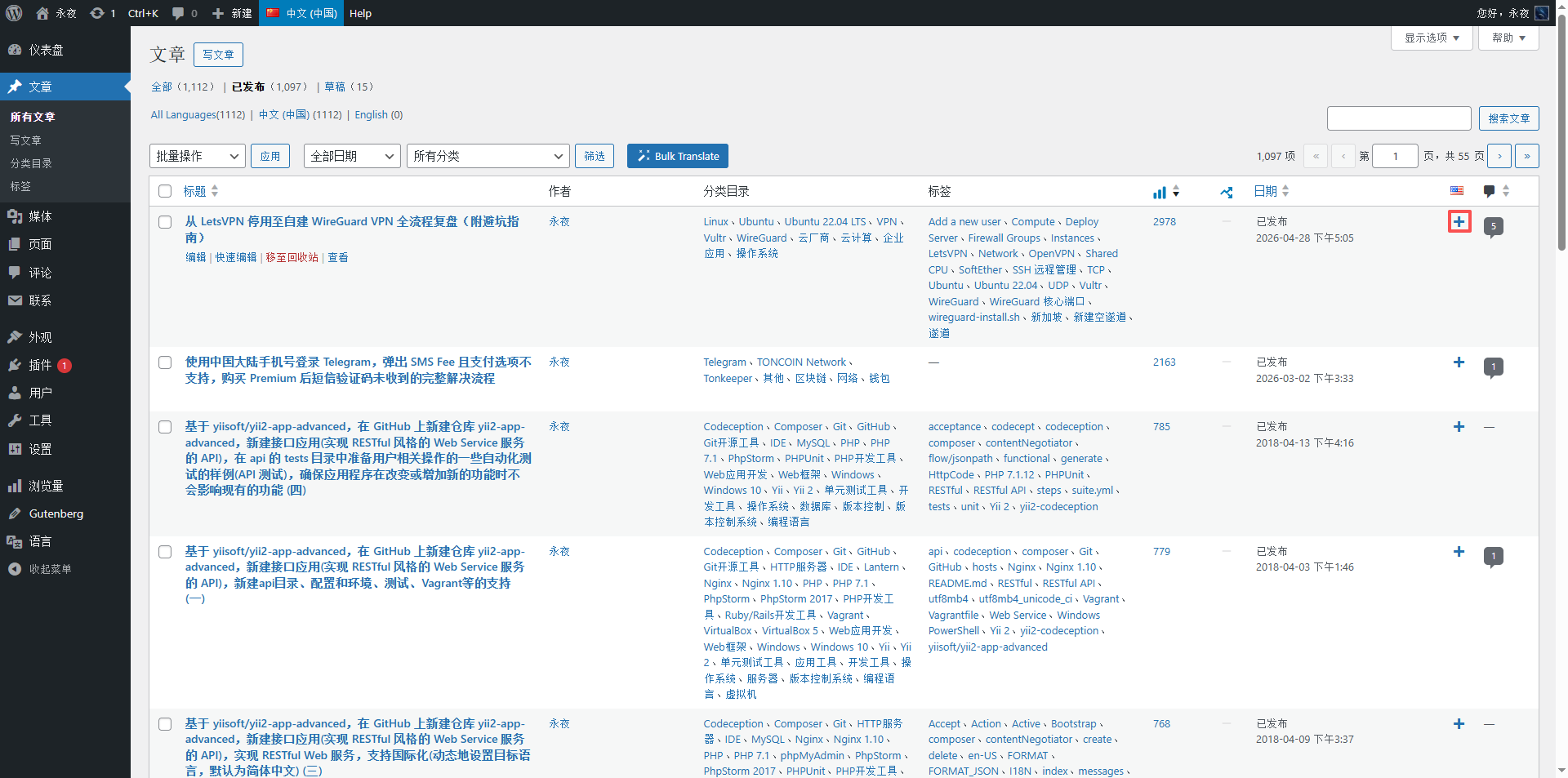
Operation path: Dashboard → Posts → All Posts → sort by “Page Views” (high to low).
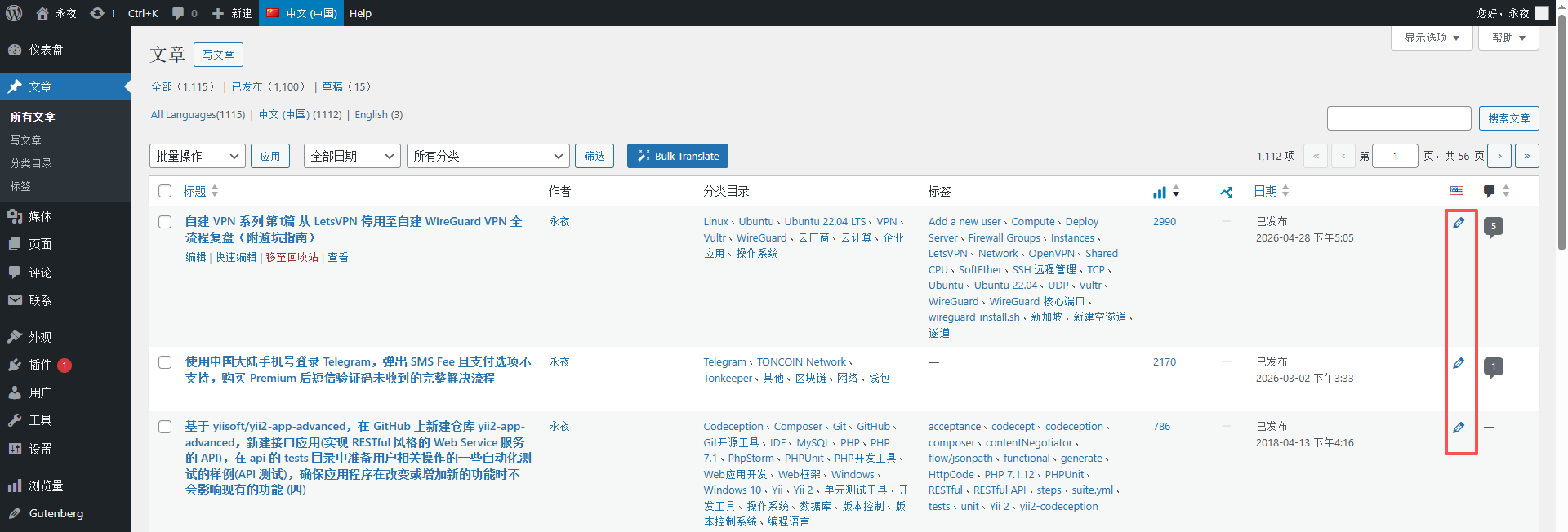
Scenario corresponding to Figure 8: On the post list page, after sorting by page views, high-traffic articles appear at the top. I selected the first article to translate (using my recently translated “Self-hosted VPN Series Part 1” as an example). Clicking the post title enters the Chinese post edit page, ready to create a new English translation.
Tip: You can bulk-mark articles for translation on the post list page to avoid duplicate translations or omissions. I currently plan to translate in batches, doing 10 articles at a time, gradually completing the translation of 1,000+ articles.
2.2 Creating a New English Translation
Operation path: Chinese post edit page → right-side “Languages” module → click the “+” icon next to English (new translation).
Scenario corresponding to Figure 6: On the right side of the Chinese post edit page, the Languages module shows “Chinese (Published)” and “English (Not translated).” Clicking the “+” icon next to English redirects to the English post edit page. At this point, the system automatically copies all metadata from the Chinese post (publication date, categories, tags, featured image, etc.), requiring no manual addition—this is the result of the earlier synchronization settings. Polylang defaults to copying all metadata when creating a new translation; regardless of whether synchronization is checked, it copies the data once upon creation. The synchronization settings only affect bidirectional syncing during subsequent edits.
Key reminder: You must click the “+” icon to create a new English translation from within the Chinese post edit page. Never create an English post from the “Posts → Add New” page and then link it to the Chinese post; otherwise, it will fail to automatically inherit metadata, and the publication date will default to “now,” increasing manual correction costs.
2.3 AI Translation
I use Chrome Built-in AI for translation. It requires no manual input, is highly efficient, and involves simple steps, detailed as follows:
Operation path: Click “Translate Now” → select “Chrome Built-in AI” → wait for automatic translation to complete.
Scenario corresponding to Figure 10: On the English post edit page, click the “Translate Now” button to bring up the translation options. Select Chrome Built-in AI (no need to install additional plugins; it is built into the Chrome browser, offers high translation accuracy, and is suitable for technical articles).
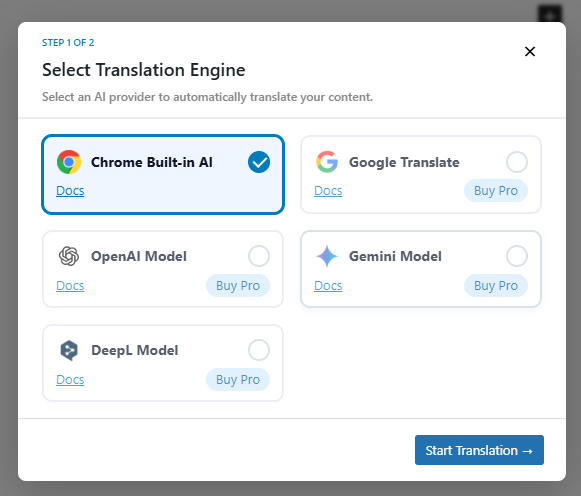
Scenario corresponding to Figure 12: After translation is complete, the English article’s title, body text, and paragraph formatting have all been automatically translated. The AI automatically preserves the original’s paragraph structure, code blocks, image references, etc., requiring no manual formatting adjustments—credit goes to the AutoPoly plugin’s adaptation here. It works perfectly with Polylang to achieve automatic copying and translation of elements like titles, content, and images, reducing workload by 90%.
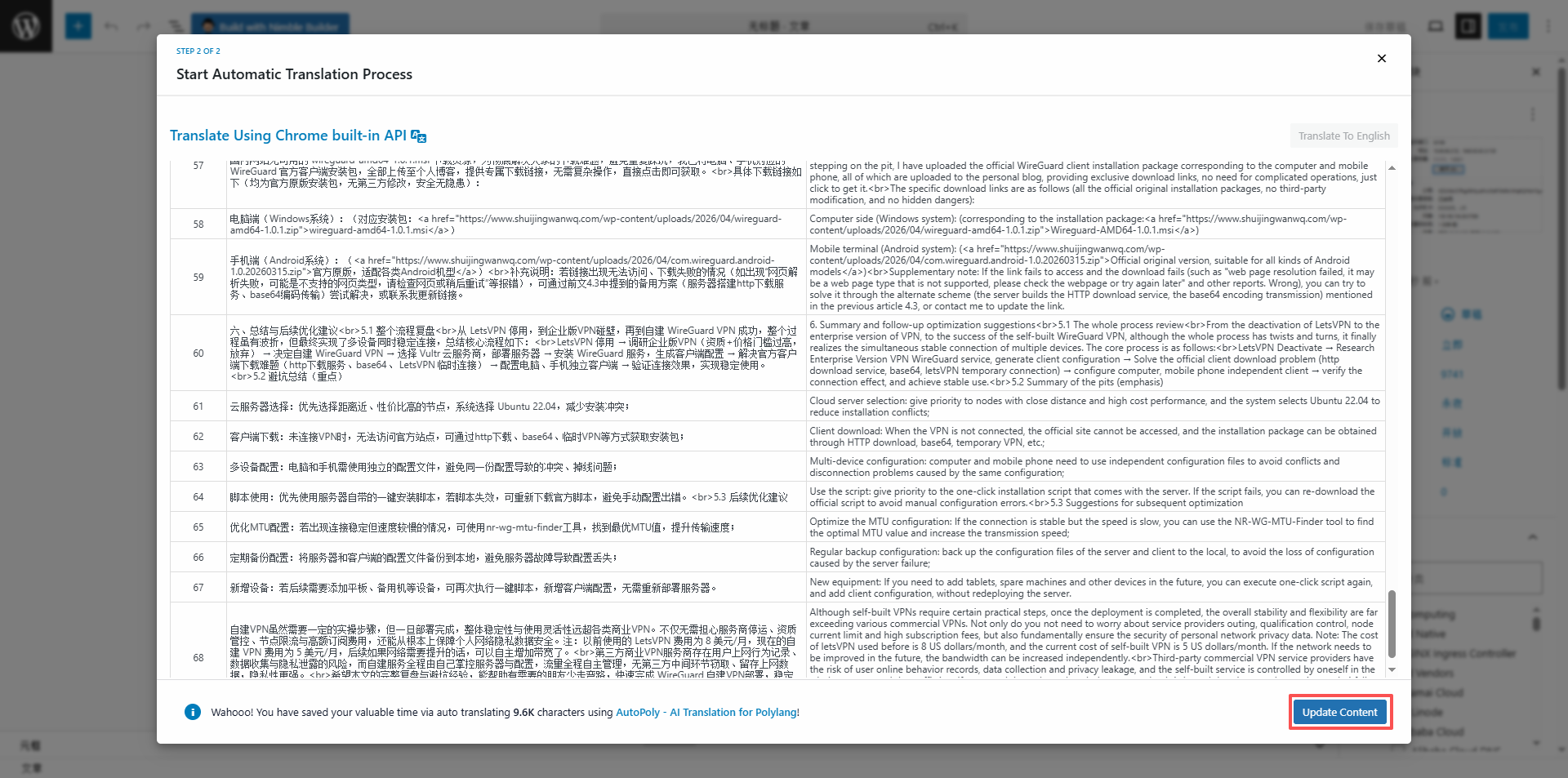
Minor detail: After translation, I recommend a quick read-through. Focus on checking the accuracy of technical term translations (for example, terms like “WireGuard,” “Vultr,” and “SSH” are usually translated accurately by the AI and need no modification) and ensure punctuation and paragraph line breaks are correct to guarantee translation quality.
2.4 Detail Check and Adjustment
Once translated, extensive modifications are unnecessary. Focus on checking 3 core details to ensure the English article displays correctly and corresponds to the Chinese version:
Scenario corresponding to Figure 14: Check the publication date and metadata. Confirm the publication date matches the Chinese original, and that categories, tags, and the featured image are correctly synced with no omissions or errors. If needed, you can modify the English title (to better suit English audience habits), but I chose to keep it consistent with the Chinese title for easy user identification.
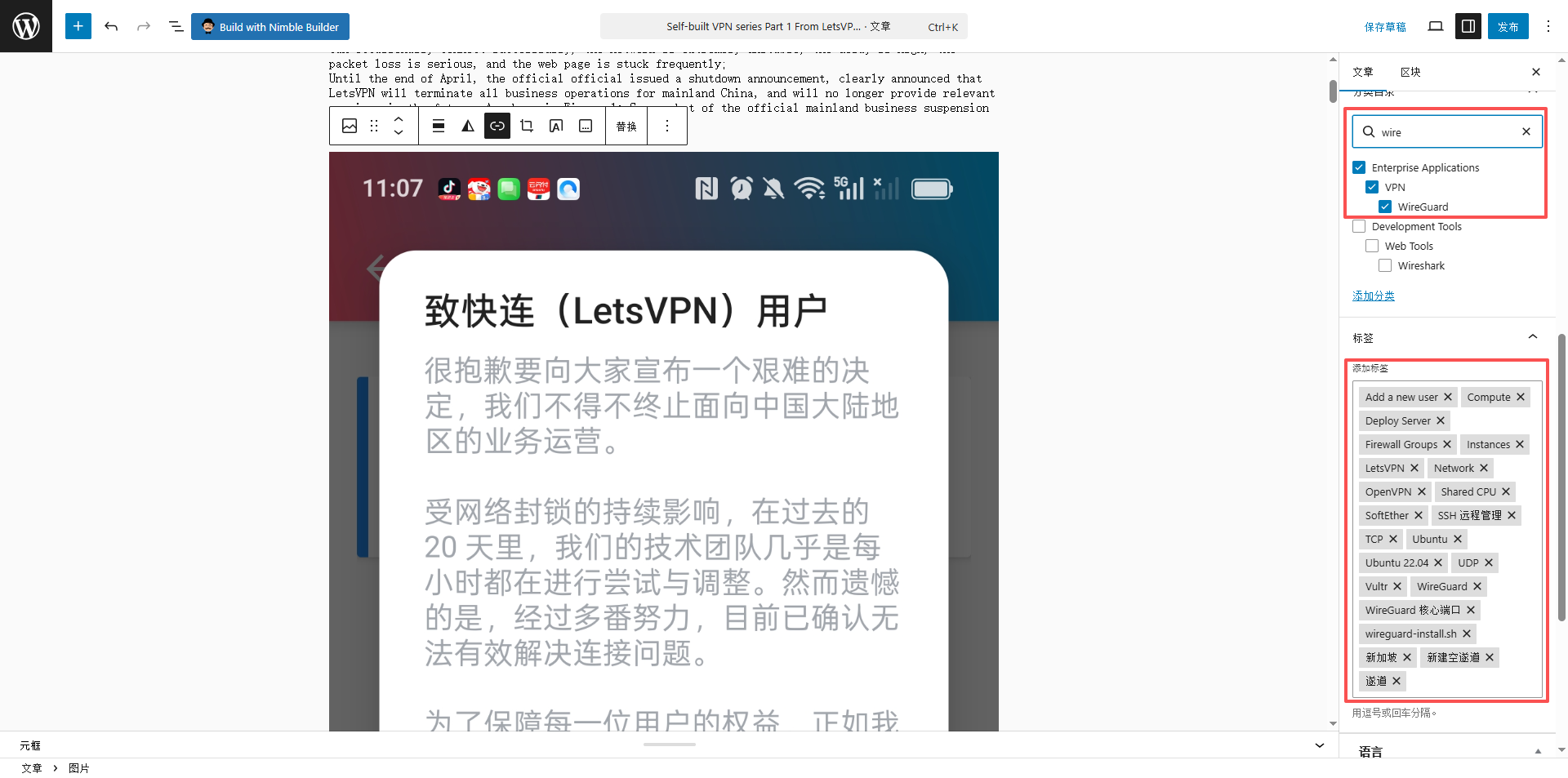
Scenario corresponding to Figure 13: Check the article formatting. Focus on elements like code blocks, images, and references to ensure the formatting isn’t broken after translation (for instance, code blocks in the Chinese article remain in code format after translation, requiring no re-editing). Also, check the article links to ensure internal links within the text have been automatically synced to the English version (Polylang automatically links Chinese and English article URLs, requiring no manual modification).
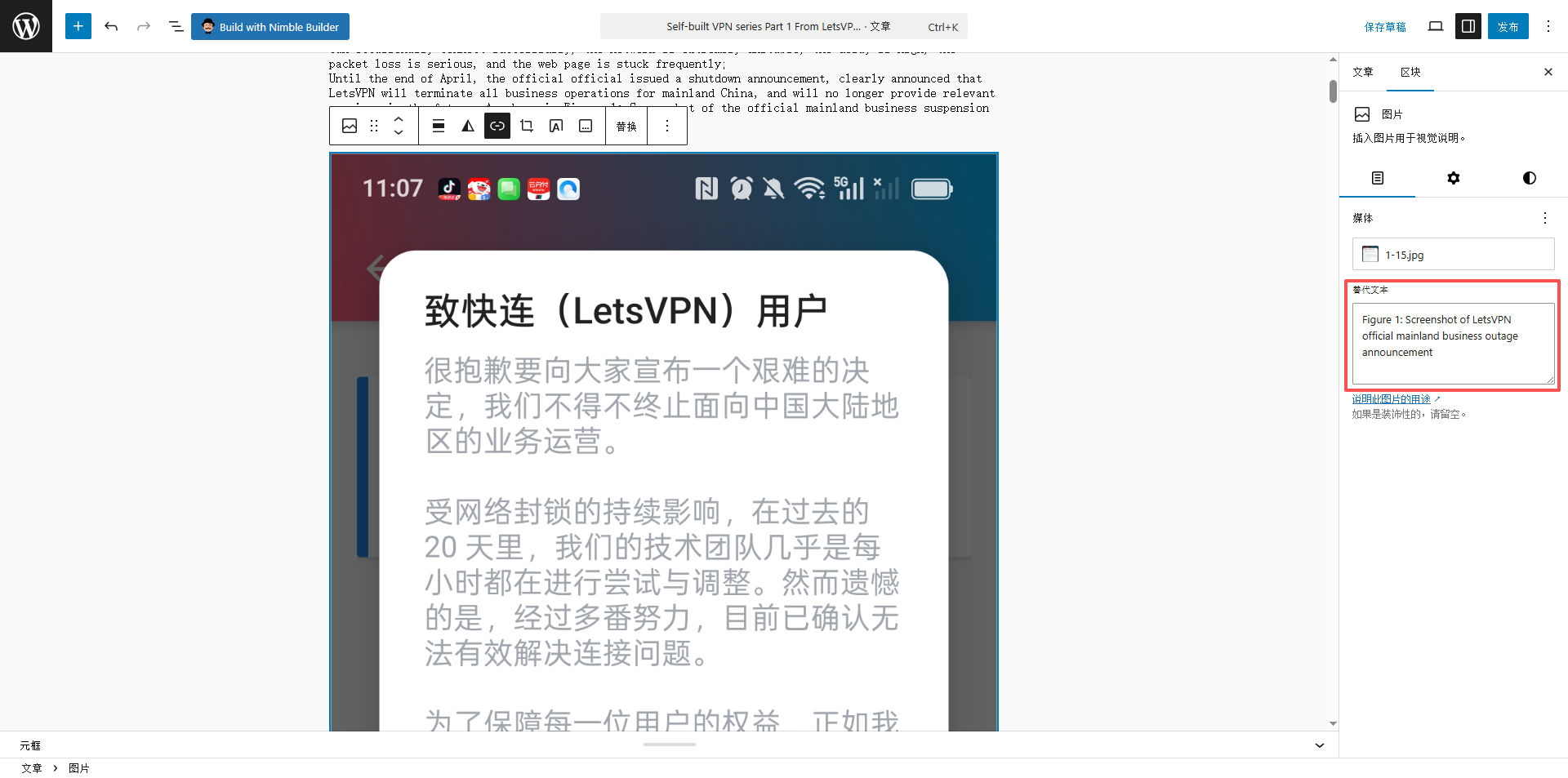
Addendum: If formatting issues occur after translation, you can click the “block” in the editor and manually adjust paragraph alignment and code block formats. Typically, AI translation does not cause such issues unless the original formatting is non-standard.
2.5 Publishing the English Translated Article
Operation path: English post edit page → right-side “Publish” module → click the “Publish” button (if no draft has been saved previously, click “Save Draft” first, check for errors, and then publish).
Scenario corresponding to Figure 18: Final check before publishing. After confirming all details are correct, click the “Publish” button. The system will prompt “Post published,” and the English article is officially live.
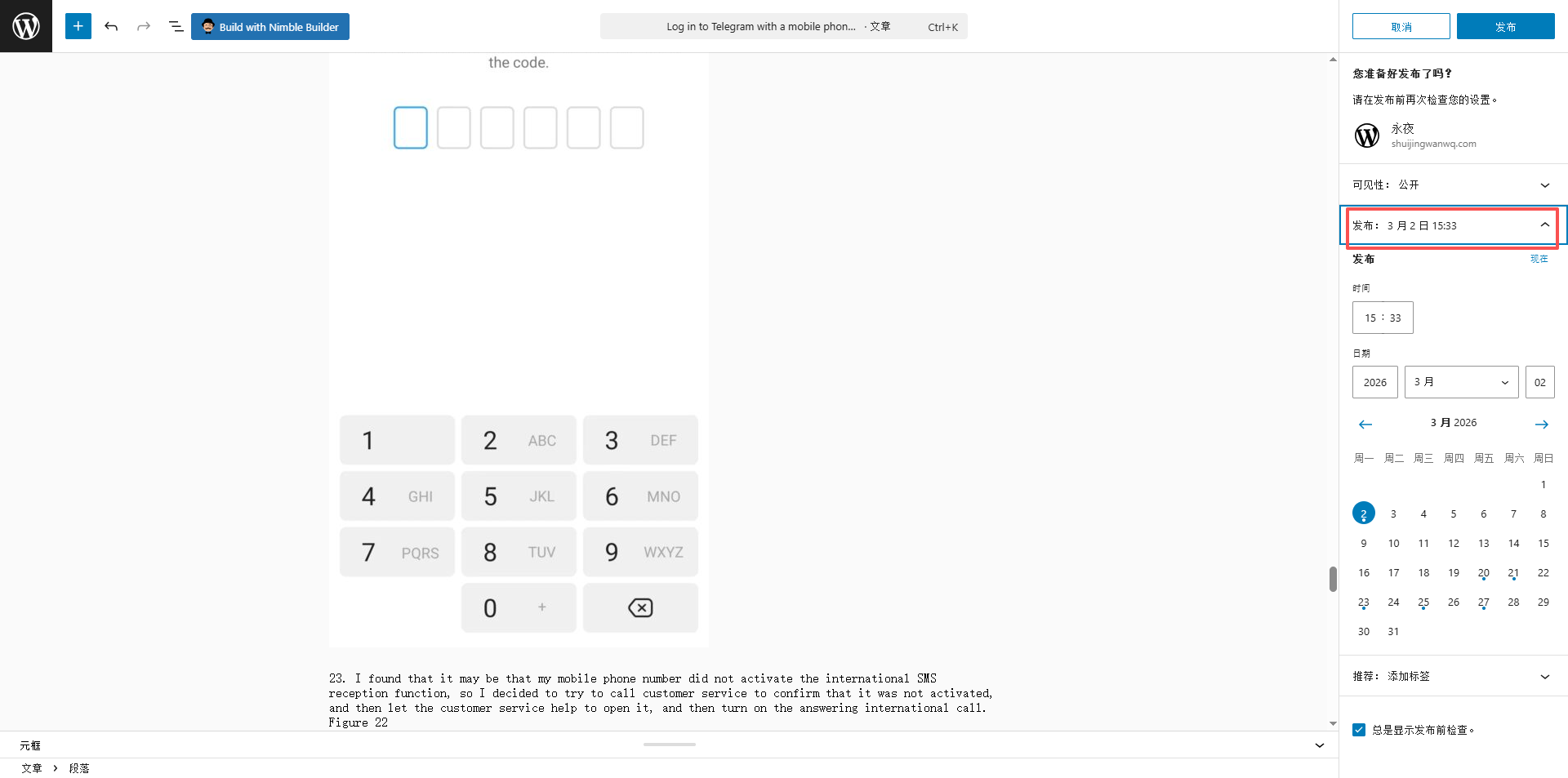
Scenario corresponding to Figure 19: After publishing, return to the Chinese post edit page. The right-side Languages module shows “English (Published).” Clicking the English article title redirects directly to the English article detail page to view the final result. Meanwhile, the English article’s URL path is “xxx.com/en/2026/04/28/9741/”, and the Chinese article’s path is “xxx.com/2026/04/28/9601/”. The paths correspond correctly, and language switching works normally.
3. Supplementary Workflow: Page Translation Process
Besides post translation, website pages (such as the homepage, About page, category pages, etc.) also need translation. The process is similar to post translation, but there are a few minor details to note, explained in detail with figures below:
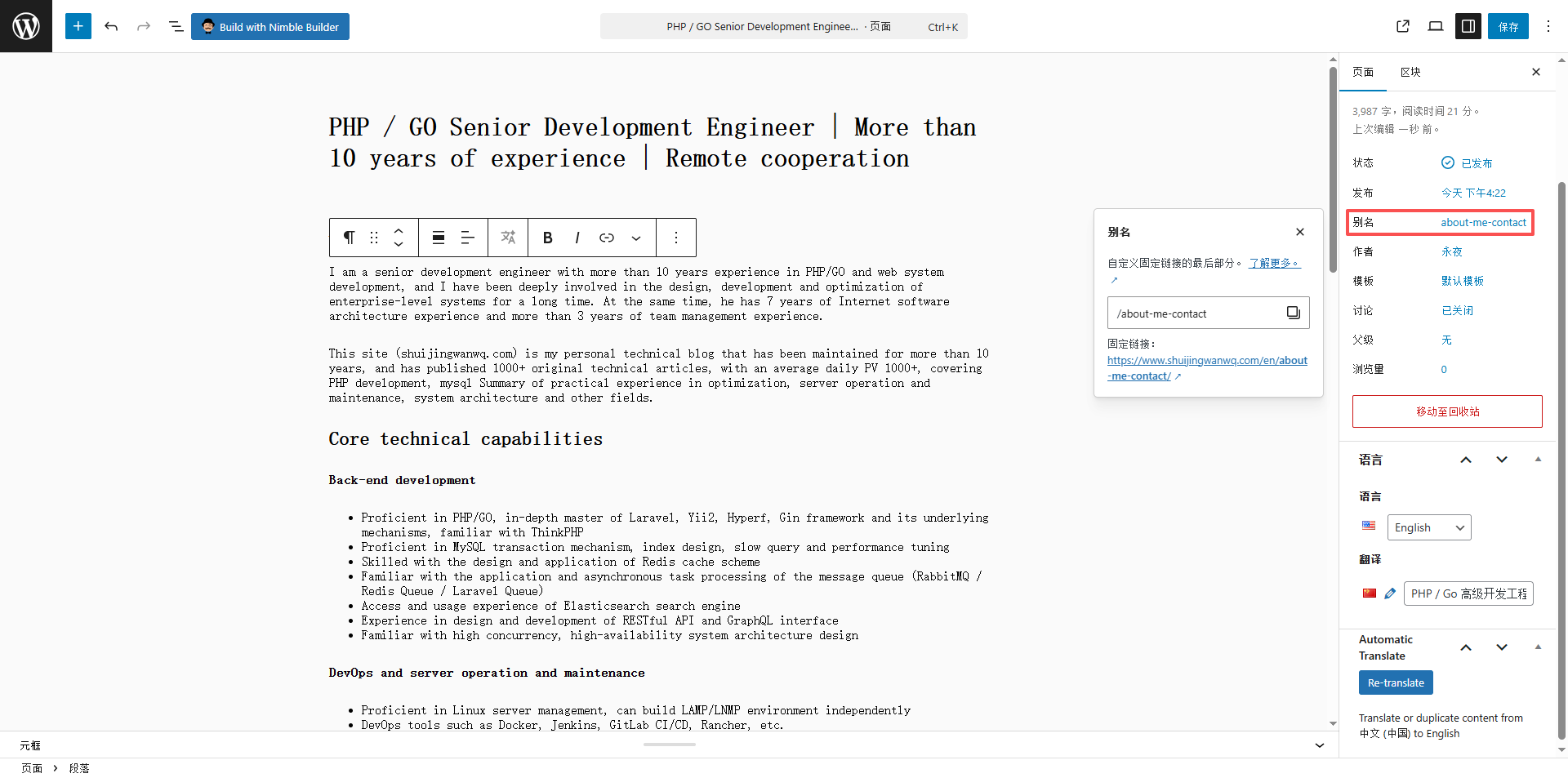
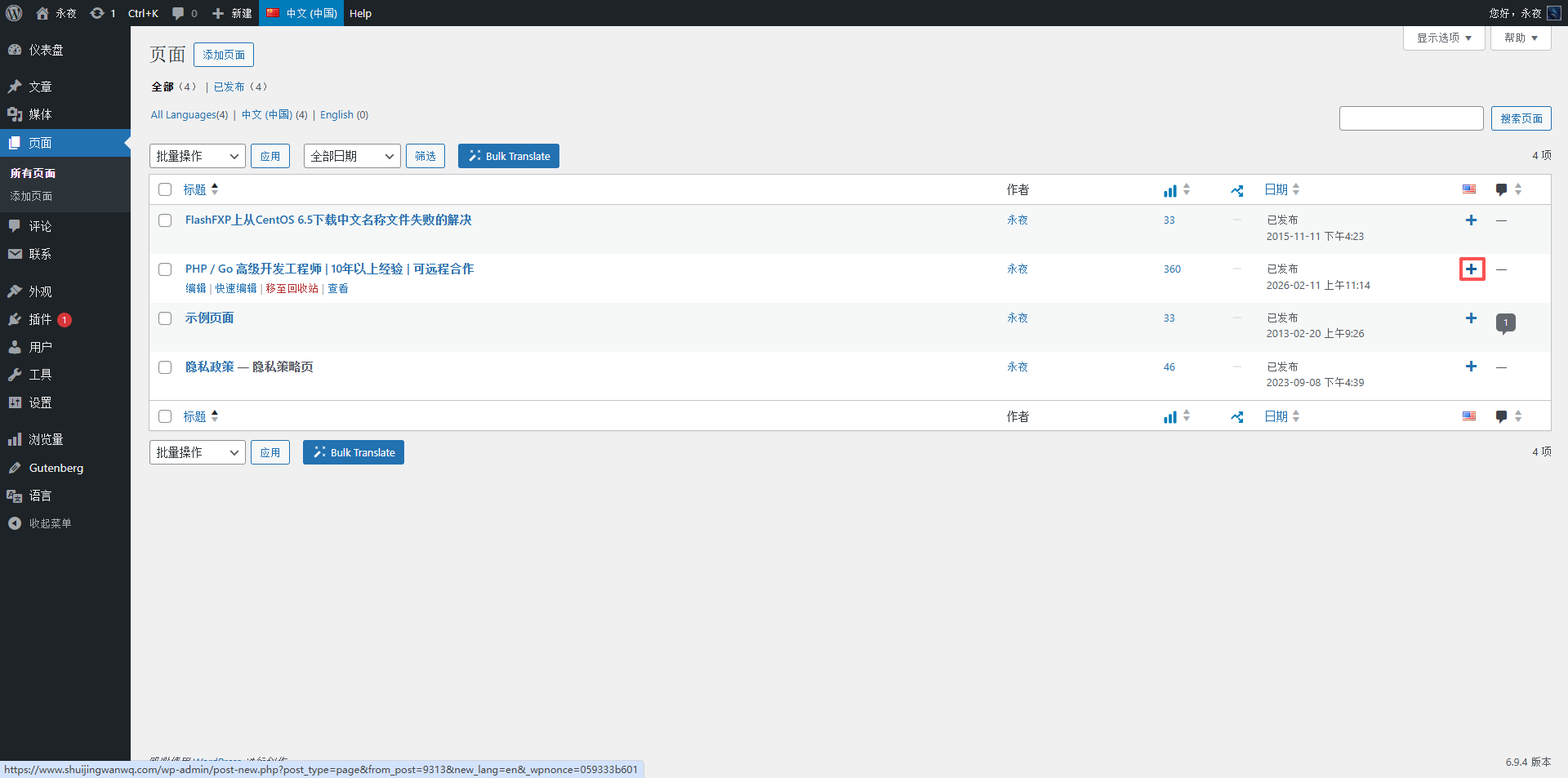
Operation path: Dashboard → Pages → All Pages → select the page to translate (e.g., the “About Me” page) → enter the page edit screen → right-side Languages module → click the English “+” icon → create new English translation → AI translation → check → publish.
Scenario corresponding to Figure 1: On the page list screen, in the right-side Languages module, click the English “+” icon to create a new English page translation. The system automatically copies the Chinese page’s layout, template, content, etc., consistent with the post translation logic.
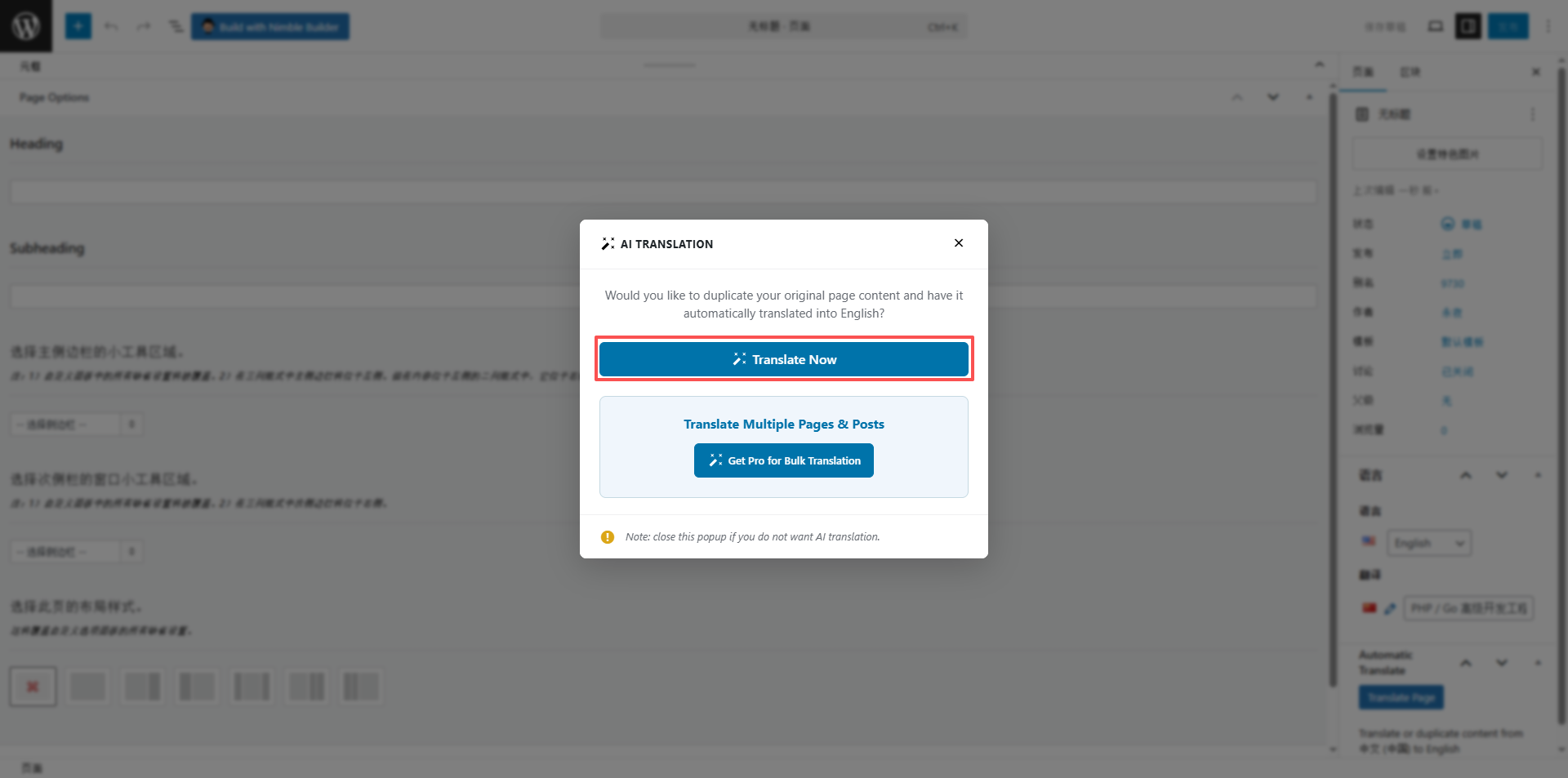
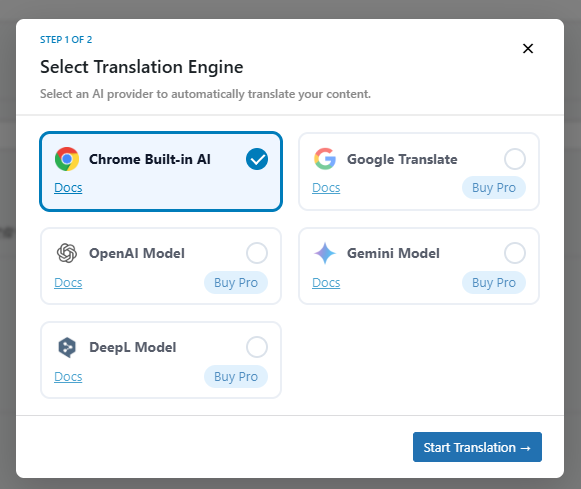
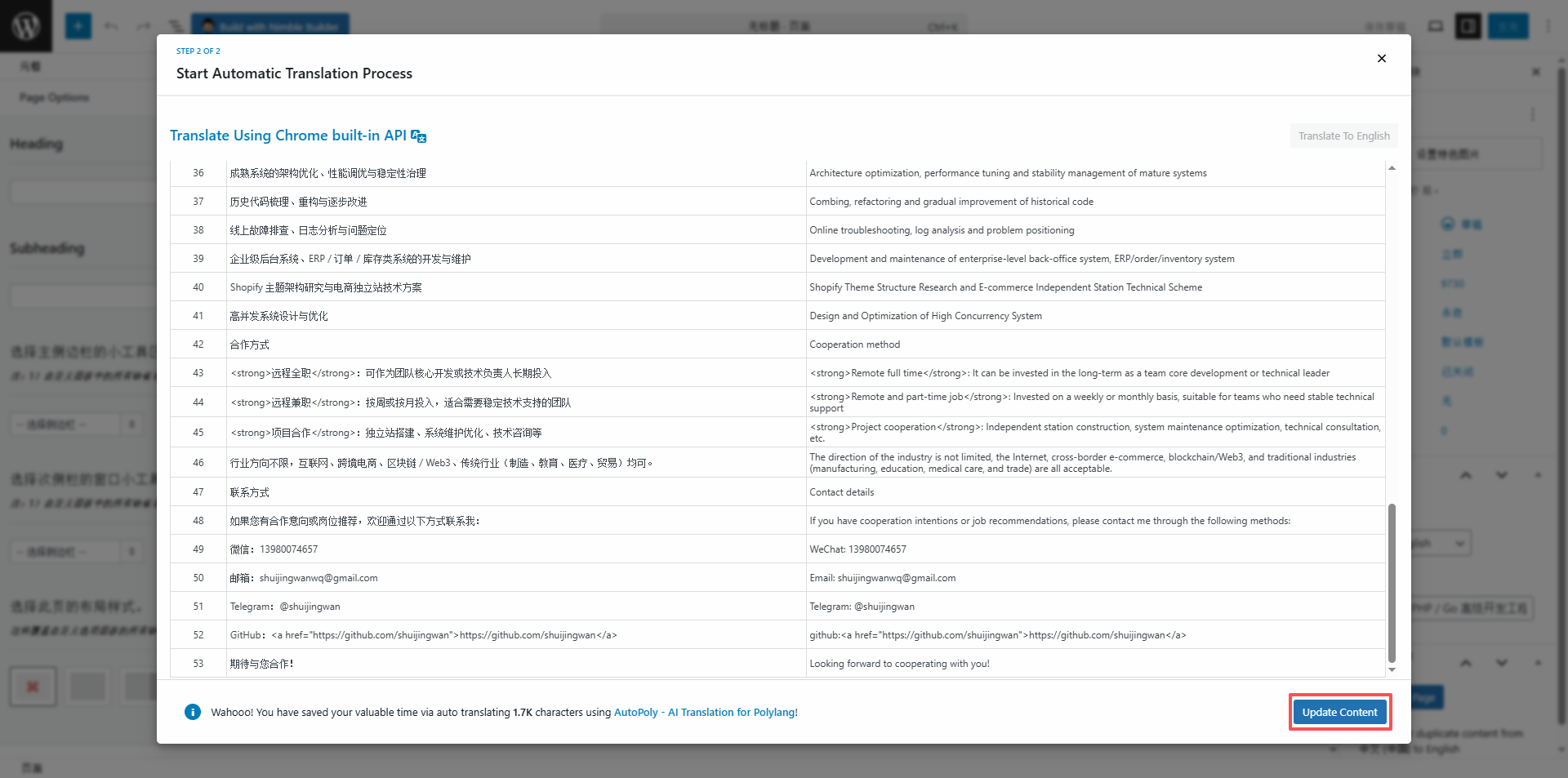
Scenario corresponding to Figure 2 and Figure 3: The English page AI translation process is identical to post translation. Click “Translate Now” → select Chrome Built-in AI, and wait for the translation to complete. The translation preserves the Chinese page’s layout, images, links, and other elements.
Scenario corresponding to Figure 5 and Figure 6: After the page translation is complete, check whether the page layout is broken, links are working, and content is accurate. Once confirmed correct, click “Publish.” After publishing, page language switching works normally; users can click the language switcher to freely switch between Chinese and English pages while the layout remains consistent.
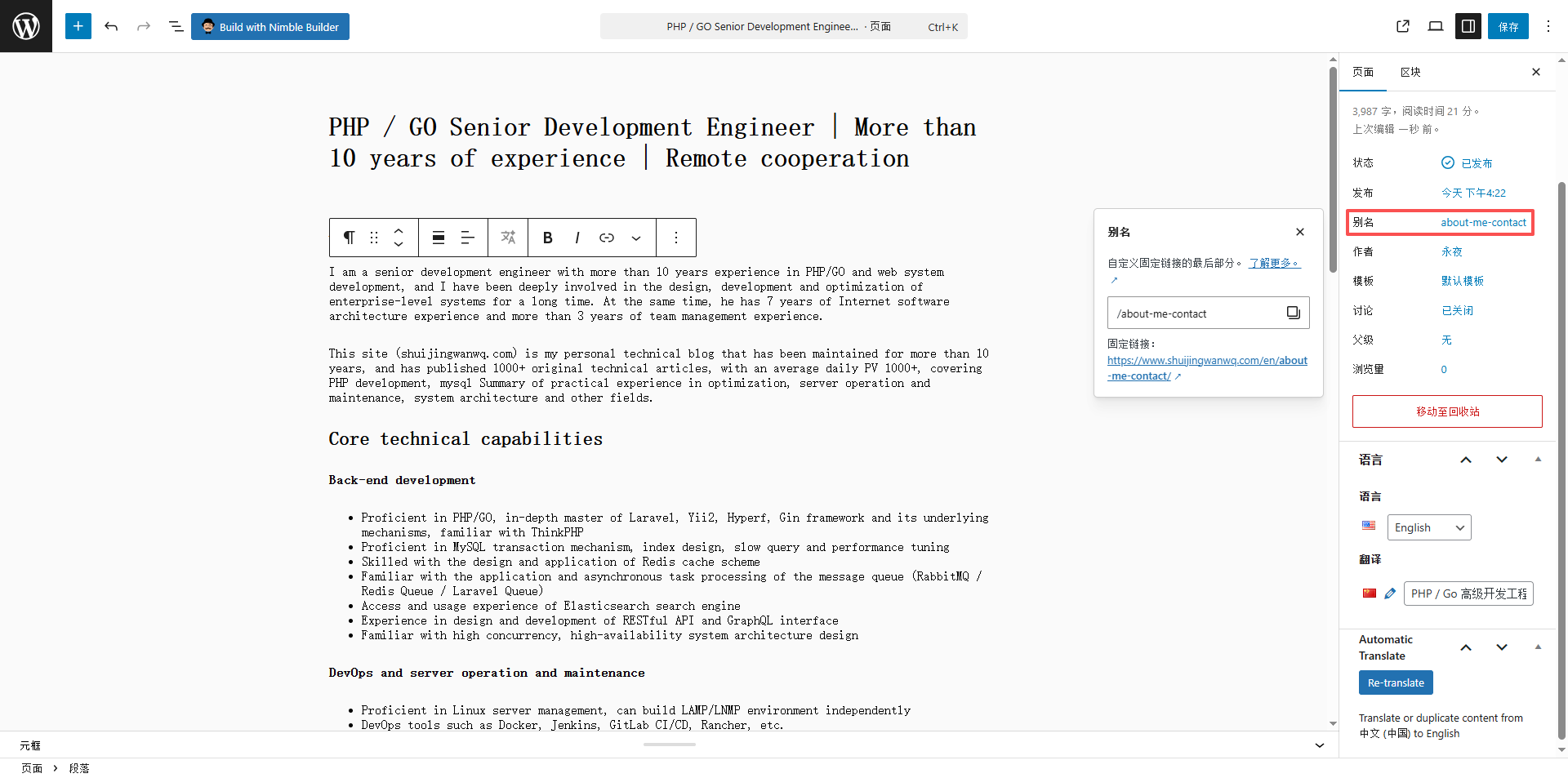
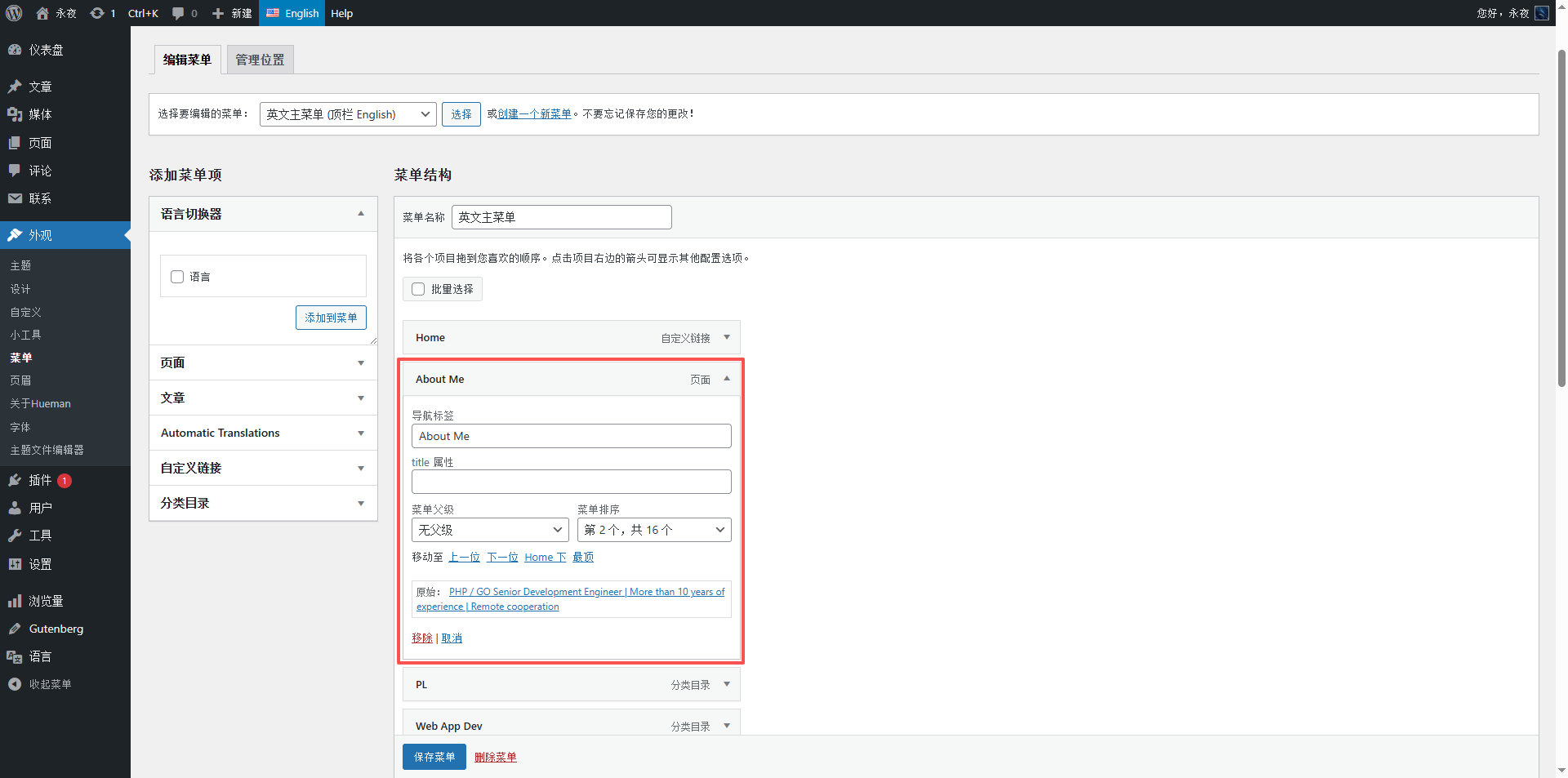
Key detail (see Figure 7): After translating a page, you must check the page links in the navigation menu to ensure the Chinese and English menus correspond correctly (Polylang automatically syncs menu links, requiring no manual modification). This avoids the issue of “clicking an English menu item and redirecting to a Chinese page.”
4. Effect Verification and Pitfall Avoidance Guide
4.1 Final Effect Verification
Scenario corresponding to Figure 20: The website frontend effect. The top language switcher (Chinese/English)—after clicking English, the entire site switches to the English version. The article list is sorted in reverse chronological order by publication date (consistent with the Chinese article sorting). Clicking any English article allows normal viewing, and language switching is smooth. Meanwhile, the English articles’ publication dates, categories, and tags correspond exactly to the Chinese original; the URL paths are standard and SEO-friendly.
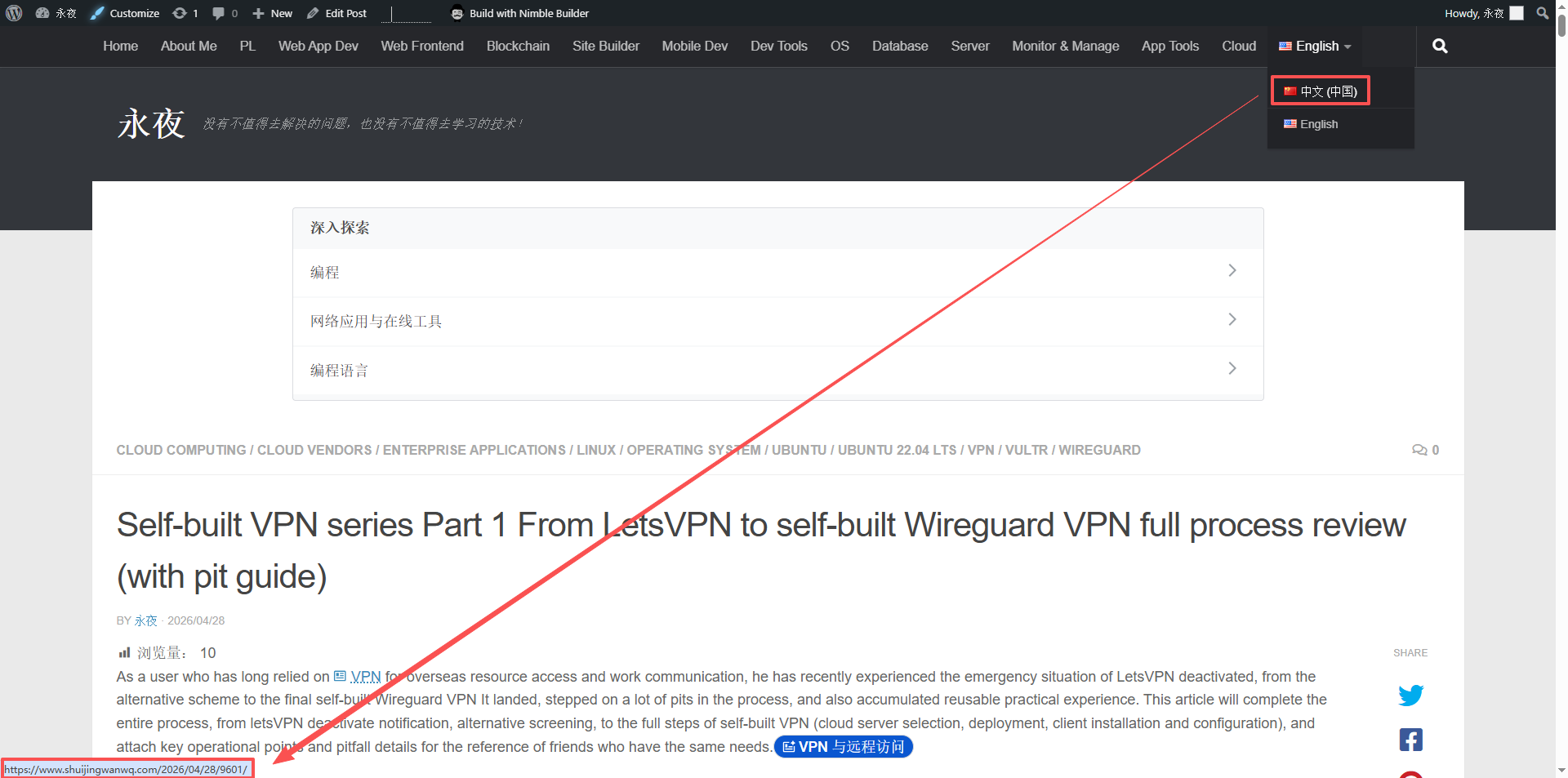
Verification points:
- Language switching: Click the language switcher; Chinese and English versions switch smoothly with no lag and no redirect errors.
- Sorting: The English article list is sorted in reverse chronological order, consistent with the Chinese article sorting, as expected.
- Link correspondence: Chinese and English article URL paths correspond correctly. Clicking the language switch on a Chinese article redirects directly to the corresponding English article, and vice versa.
- Metadata synchronization: Publication date, categories, tags, featured image, etc., are all correctly synced with no omissions or errors.
4.2 Pitfall Avoidance Guide (Important! Pitfalls I personally encountered)
Based on my practical experience, I have compiled the 5 most common pitfalls. Beginners should definitely avoid these to save time:
- Pitfall 1: Improper synchronization settings causing the publication date to fail to inherit. Initially, I did not check “Published date” synchronization. When creating a new English translation, the publication date defaulted to “now.” Later, I adjusted the synchronization settings to permanently check “Published date,” which perfectly solved the issue with zero risk of overwriting (since I do not edit the articles).
- Pitfall 2: Wrong translation creation path, failing to inherit metadata. If you create an English article from the “Add New Post” page and then link it to the Chinese article, it cannot automatically inherit metadata like the publication date and categories. You must click the “+” icon to create a new translation from within the Chinese post edit page; this is Polylang’s default copy logic.
- Pitfall 3: Forgetting to check technical terms after translation, leading to translation errors. In technical articles, terms like “WireGuard,” “SSH,” and “Vultr” are usually translated accurately by the AI, but a quick browse-through is still necessary to avoid translation deviations (for example, mistranslating “Ubuntu 22.04 LTS”).
5. Practical Summary and Future Plans
After practically translating multiple articles and pages, the combination of the Polylang plugin and Chrome Built-in AI fully satisfies the multilingual translation needs of a personal blog. The operation is simple, highly efficient, and requires no extra payment, making it suitable for beginner bloggers. Based on my use case (only create, never edit), the core points are summarized as follows:
- Synchronization settings: Permanently check “Published date,” and check others as needed. No need to toggle these back and forth temporarily, which is worry-free and efficient;
- Translation path: Always click the “+” icon from the Chinese article/page edit page to create a new English translation, ensuring all metadata is automatically inherited;
- Translation tool: Chrome Built-in AI has a high translation accuracy rate. Paired with the AutoPoly plugin, it can automatically copy formatting, images, and other elements, reducing manual operations;
- Effect verification: After translating each article/page, check language switching, sorting, links, etc., upon publishing to ensure there are no issues.
Future plans: Continue sorting by page views and translate the remaining 1,000+ Chinese articles in batches. At the same time, regularly check the display effect of translated articles to ensure normal synchronization between Chinese and English versions. If new languages (such as Japanese or Korean) need to be added later, they can be added directly in Polylang; the operation logic is identical to adding English, and there is no need to reconfigure synchronization settings.