

When maintaining a WordPress site, we often need to change the “Administration Email Address” in the backend. For security reasons, WordPress sends a confirmation email to the new address whenever you modify the email. The new email only takes effect after you click the confirmation link.
However, many site owners encounter a frustrating problem: the confirmation email is never received! Whether the email fails to send because the server is not configured with SMTP, or it gets blocked by the email system, the result is that the email address cannot be changed. This article will share how to bypass this limitation by directly modifying the database.
1. WordPress Backend Stuck in Confirmation State
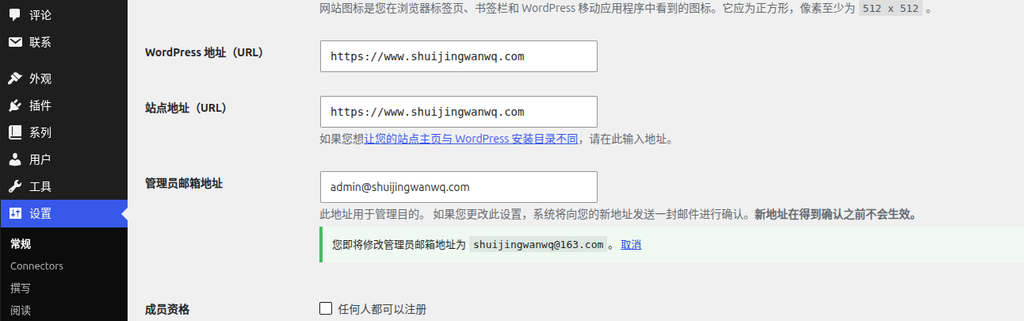
After we change the administrator email in “Settings -> General” in the backend and save, a banner prompt appears at the top of the page: “You are about to change the administration email address to xxx@xxx.com. Cancel”. At this point, the new email has not taken effect. If you never receive the confirmation email, you will remain stuck in this state.
2. Locating the Email Record in the Database
Since we cannot confirm it from the frontend, we will modify it directly at the database level. Log in to your database management tool (such as phpMyAdmin, Navicat, etc.) and locate the database corresponding to your website.
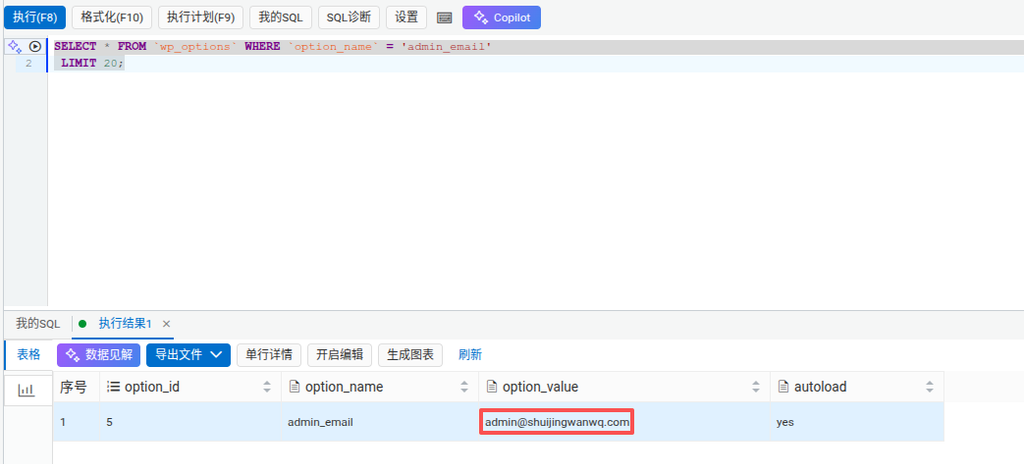
We can precisely query the record that currently stores the administrator email by executing the following SQL statement:
SELECT * FROM `wp_options` WHERE `option_name` = 'admin_email' LIMIT 20;After execution, you can clearly see that the option_value field still contains the old email address.
3. Executing SQL to Force Update the Email
Once the record is found, we only need to execute a simple UPDATE statement to force the email to be changed to the new address we need:
UPDATE wp_options SET option_value = 'shuijingwanwq@163.com' WHERE option_name = 'admin_email';4. Modification Successful, Backend Restored to Normal
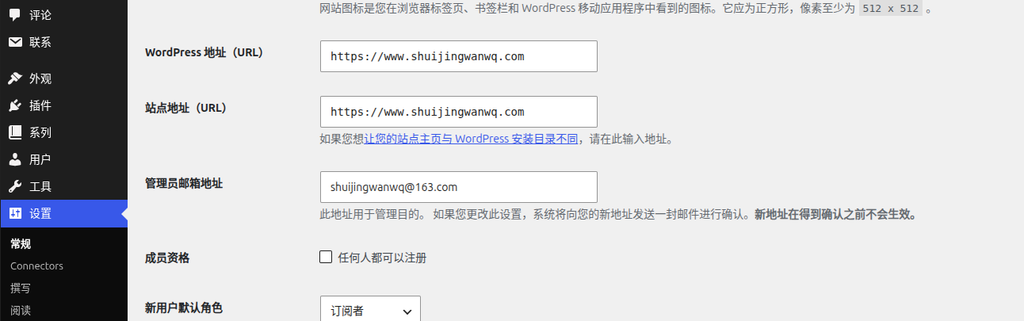
After executing the SQL statement, refresh the WordPress “General Settings” page. You will be pleasantly surprised to find that the administrator email has been successfully updated to the new one, and the previous annoying confirmation prompt stating “You are about to change the administration email address” has disappeared. The problem is perfectly solved!
Summary
When WordPress fails to confirm the administrator email due to server email functionality defects, directly modifying the wp_options field value in the admin_email table is the fastest and most effective solution. If you encounter the same problem, give this method a try!