

As a technical blogger, the quality of code presentation directly impacts the reader’s experience. I had been using the SyntaxHighlighter Evolved plugin, but as my expectations for user experience grew, I gradually identified several pain points with it. After repeated trials and comparisons, I ultimately chose Code Block Pro.
Below is my complete migration journey and testing report.
1. Why Stop Patching SyntaxHighlighter?
My initial thought was simple: since I was comfortable using SyntaxHighlighter Evolved, I would just add CSS and JS on top of it to manually implement language labels and a copy button.
However, after multiple attempts, I gave up.
There are three reasons:
- Complex DOM structure: The HTML structure rendered by SyntaxHighlighter is deeply nested, making it difficult for CSS selectors to accurately target the desired elements.
- High risk of JS conflicts: Adding custom JS easily conflicts with the plugin’s built-in scripts, causing highlighting to fail.
- High maintenance cost: With every plugin update, the custom code could be overwritten or broken.
The final conclusion: rather than patching it, it is better to switch directly to a plugin that natively supports these features.
2. Two Core Pain Points of SyntaxHighlighter Evolved
Before deciding to switch, I outlined the two most unbearable issues with SyntaxHighlighter Evolved (the WordPress version I used for testing was 7.0):
Pain Point 1: No Language Label or Copy Button
These are the most basic functional requirements. Readers need to know what language the code is written in, and they need a one-click copy button.
Figure 1: Code block rendered by SyntaxHighlighter Evolved, with no language label and no copy button
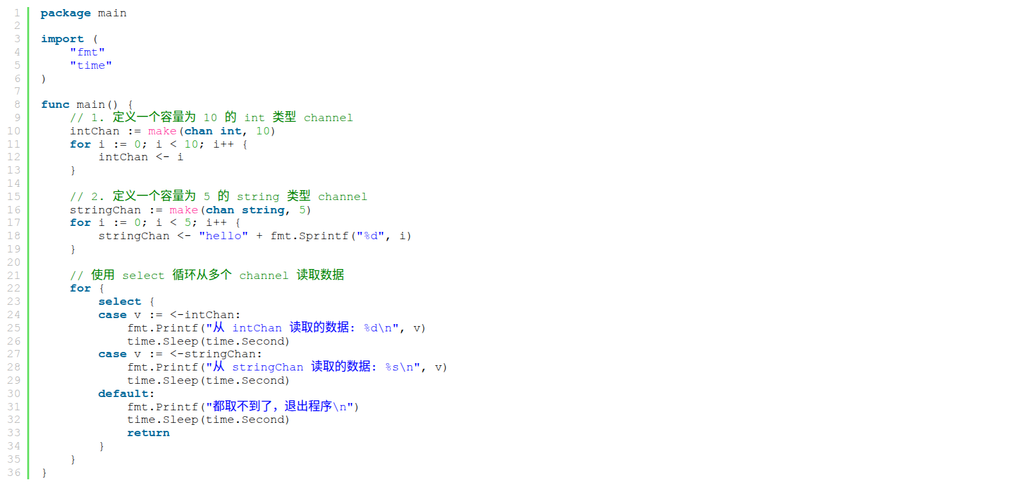
As seen in the image above, the top of the code block is completely empty, with no prompt information and no copy button.
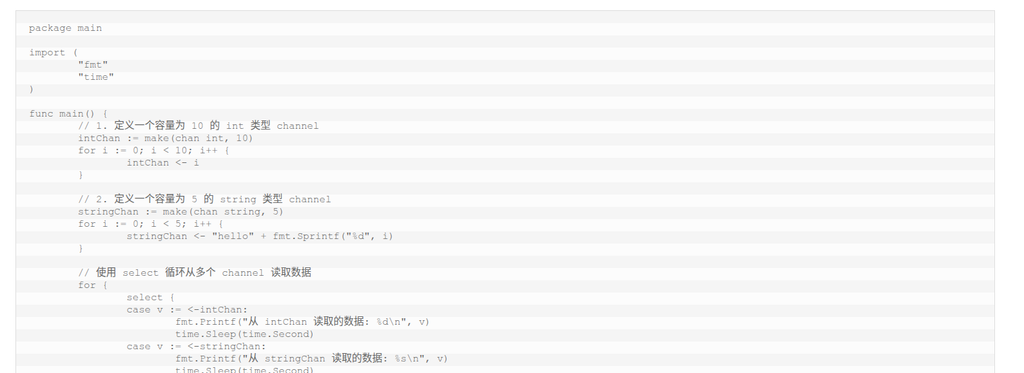
Pain Point 2: Front-end Rendering Causes Page Flickering
This is a more severe technical issue. SyntaxHighlighter Evolved uses front-end JavaScript rendering (based on highlight.js), following this process:
- Browser loads the page → code is displayed as plain text
- Loads JS files → parses the code
- Applies highlighting styles → code turns colorful
During this process, readers see the code suddenly “change” from plain text to colorful, causing a flicker that significantly impacts the first impression.
Figure 2: Plain text is displayed first upon page load, flickering before turning into colorful highlighting
3. Why Did I Ultimately Choose Code Block Pro?
While researching alternatives, I focused on several dimensions: rendering method, language support, theme variety, and most importantly, compatibility with old articles.
Code Block Pro ultimately won for the following reasons:
| Comparison Dimension | SyntaxHighlighter Evolved | Code Block Pro |
|---|---|---|
| Rendering method | Front-end JS rendering (flickers) | Server-side rendering (no flickering) |
| Language label | ❌ Not supported | ✅ Supported |
| Copy button | ❌ Not supported | ✅ Supported |
| Highlighting engine | highlight.js | Same engine as VS Code |
| Language support | About 30 | 140+ |
| Themes | A few fixed styles | 25+, including Light Plus, Dark Plus, etc. |
Why Choose the Light Plus Theme?
You might have noticed that I ultimately chose the Light Plus theme (white background).
The reason is simple: I found that code examples generated by current mainstream AI coding assistants (such as ChatGPT, Claude, Copilot, etc.) almost exclusively use Light themes with white backgrounds.
This has become an industry-default presentation habit:
- White backgrounds are clearer to read in light mode
- Screenshots of AI-generated code mostly use light themes
- Most technical documentation and blogs also use light code backgrounds
Therefore, to keep the code examples in my blog consistent with the style of AI-generated code, I chose the Light Plus theme.
4. Installation and Testing Process
4.1 Installing Code Block Pro
Search for and install Code Block Pro in the WordPress dashboard.
Figure 3: Searching for Code Block Pro in the plugin marketplace and installing it
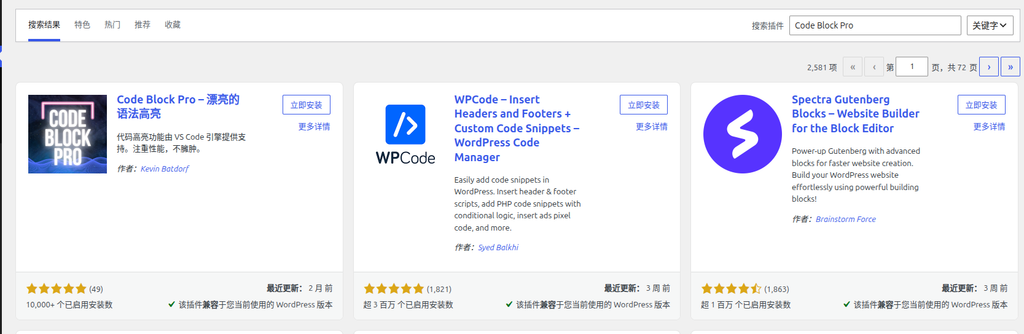
Click “Install Now” and activate it.
4.2 Configuring the Code Block
Add a Code Pro block in the Gutenberg editor, paste the Go language test code, and configure it in detail using the right-hand panel.
Figure 4: Code Block Pro settings panel and live preview
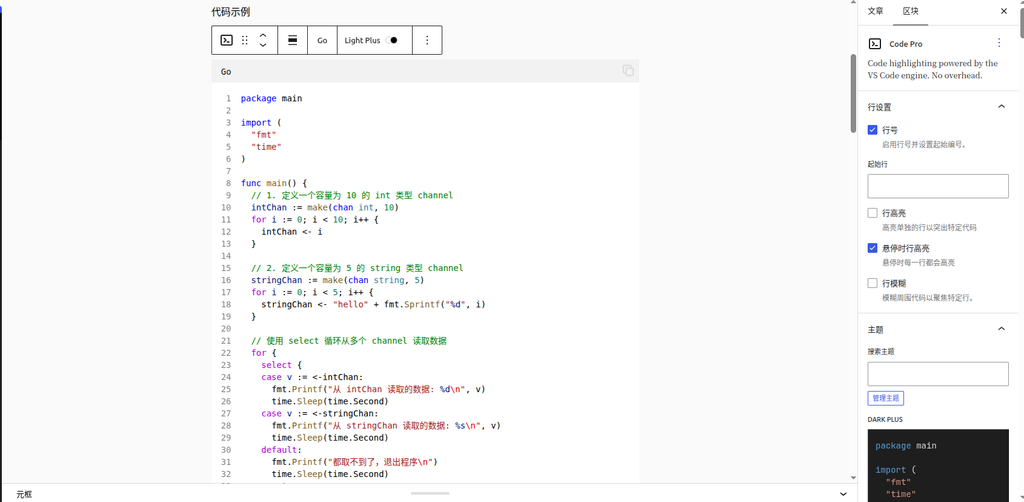
Key configuration options:
- Language: Select Go (supports 140+ languages)
- Theme: Select Light Plus (white background, consistent with AI-generated style)
- Line numbers: Enabled, starting number set to 1
- Line highlighting: Highlight specific code lines as needed
4.3 Compatibility Test: Can the New and Old Plugins Coexist?
This was my biggest concern. If Code Block Pro conflicted with SyntaxHighlighter Evolved, all old articles would be affected.
I inserted both types of code blocks into the same article:
- One using Code Block Pro (inserted via the Gutenberg Code Pro block)
- One using SyntaxHighlighter Evolved (inserted via the SyntaxHighlighter Code block)
The test results were as follows:
Figure 5: The new and old plugins coexist independently in the same article without interfering with each other
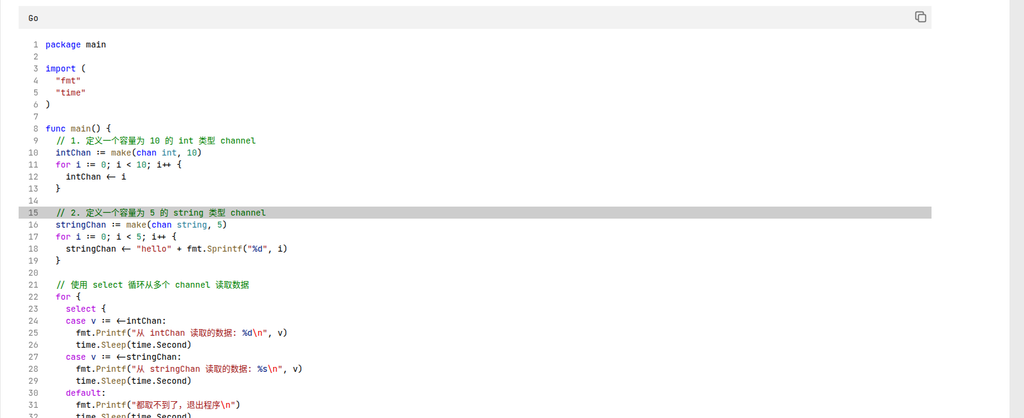
The conclusion is very clear: the two coexist perfectly.
- Code Block Pro only processes code inserted via the Code Pro block
- SyntaxHighlighter Evolved continues to process old code inserted via the SyntaxHighlighter Code block
- Their CSS and JS do not pollute each other; each renders independently
5. Migration Strategy: Gradual Replacement, No Need to Modify Everything at Once
Based on the compatibility test above, I formulated the following migration strategy:
Option 1: Gradual Migration (Recommended)
For old articles, temporarily keep the code blocks using SyntaxHighlighter Evolved without making any modifications. Use Code Block Pro exclusively for new articles.
Benefits of this approach:
- Zero risk, no need to batch modify historical articles
- New and old articles each use the most suitable plugin
- Over time, the proportion of old articles naturally decreases
Option 2: Keep Old Articles, Use New Plugin for New Articles
If you, like me, have a large number of historical articles, this is the most practical approach.
If you have already installed and activated Code Block Pro, the Code Pro block should display normally in the default block editor of WordPress 7.0. You just need to insert it into new articles.
6. Final Experience Summary
After thorough testing and comparison, I summarized the core experiences of the two plugins as follows:
| Experience Dimension | SyntaxHighlighter Evolved | Code Block Pro |
|---|---|---|
| Loading speed | ⭐⭐ Flickering delay | ⭐⭐⭐⭐⭐ Instant display |
| Highlighting effect | ⭐⭐⭐ Traditional style | ⭐⭐⭐⭐⭐ VS Code level |
| Language support | ⭐⭐ About 30 | ⭐⭐⭐⭐⭐ 140+ |
| Language label | ❌ | ✅ |
| Copy button | ❌ | ✅ |
| Theme variety | ⭐⭐ | ⭐⭐⭐⭐⭐ 25+ |
| Compatibility with old articles | — | ✅ Perfect coexistence |
7. Conclusion
If you are also a SyntaxHighlighter Evolved user, troubled by the flickering issue and the lack of a language label/copy button, I strongly recommend trying Code Block Pro.
Not only does it solve all the above pain points, but it also gives you a VS Code-like code reading experience in WordPress. Moreover, because it coexists perfectly with the old plugin, you can migrate gradually with zero risk, without needing to modify all historical articles at once.
I hope this testing report is helpful to you. If you have any questions, feel free to discuss in the comments section!