

A practical record of building my own website, using purely native block operations, installing no plugins, and modifying no code. It adapts to the Twenty Twenty-Five full-site editing (FSE) block theme, using the default template: Text Blog Home. The site runs the Polylang bilingual plugin. After the modification, the Chinese and English homepage layouts are fully synchronized, with no blocks lost, hidden, or misaligned.
Status Before Modification
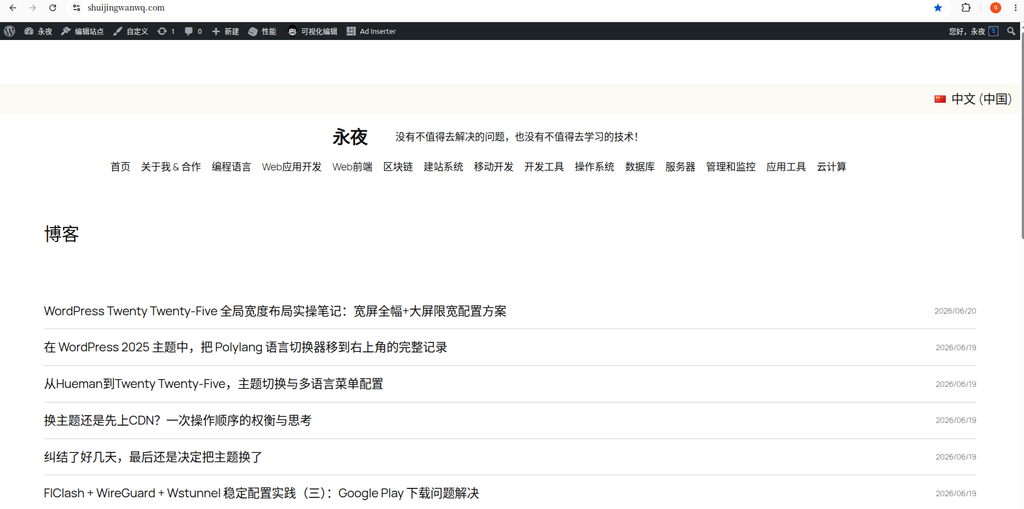
The theme comes with the Text Blog Home template, which defaults to a single-column article list for the entire site. It has no sidebar, making it impossible to place categories, search, tags, or calendar navigation. This does not match the browsing habits of a traditional technical blog. (Corresponds to Figure 1)
Personal Practice Sharing | 7-Step Modification Process (Purely personal review, beginners can use as reference)
Step 1: Create a Columns Container
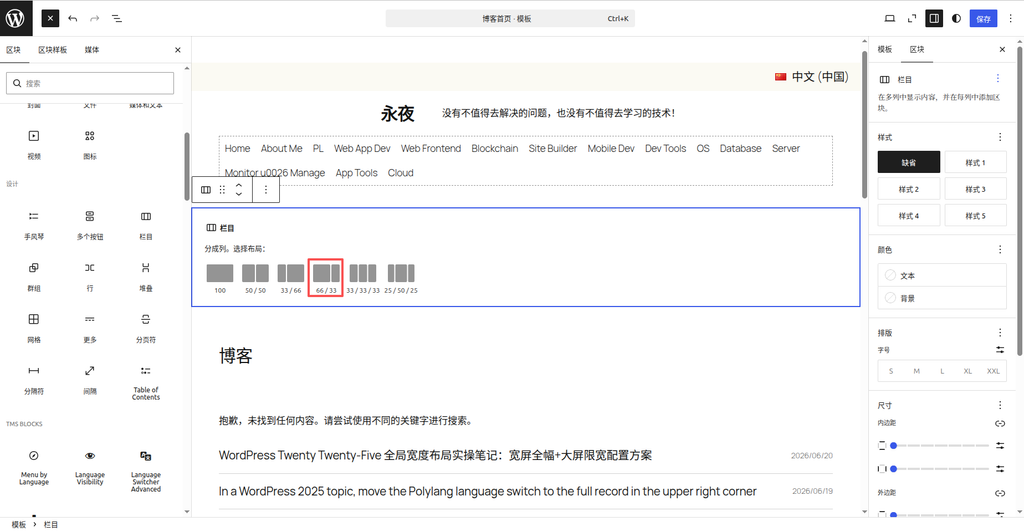
Go to the Site Editor → Edit the Text Blog Home template. In the blank area at the top, add a Columns block and directly select the preset layout ratio: 66 / 33
Reason for selection: This is the optimal ratio for a technical blog. The left side provides ample reading width for articles, while the right sidebar houses navigation tools. It looks great on large screens and automatically stacks responsively on mobile phones. (Corresponds to Figure 2)
Step 2: Migrate the Original Homepage Article Body
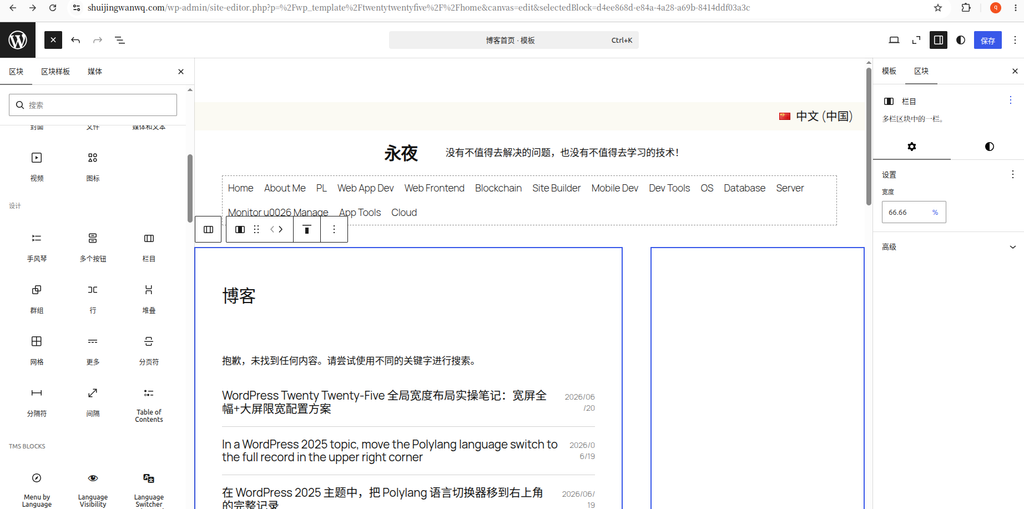
Locate the outer Group block of the original single-column articles (which contains the blog title, article list, and all pagination content), and drag and drop the entire thing into the left 66% column container.
⚠️ Key point: You must drag the outer Group block. Do not drag the article list alone, to avoid losing the title and pagination components. (Corresponds to Figure 3)
Step 3: Build a Fixed Container in the Right 33% Column
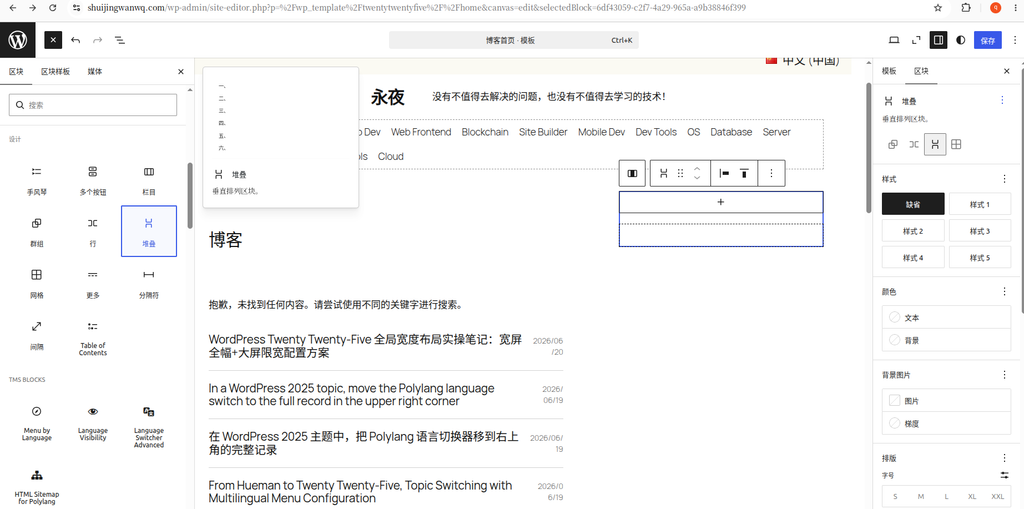
Select the blank 33% column on the right, and add a Stack block inside it.
Core pitfall-avoidance key point (the biggest pitfall encountered this time):
- In a single WordPress column cell, the top level can only hold 1 block. If you directly add Search or Categories, they will become invisible after saving, disappearing from the editor canvas, though they remain visible in the list view.
- Do not use a Row, and do not stack blocks directly. You must use a Stack as the outer universal container.
- The Stack comes with built-in vertical spacing, which suits the top-to-bottom arrangement of a sidebar, eliminating the need to manually adjust margins. (Corresponds to Figure 4)
Step 4: Add Functional Blocks Sequentially Inside the Sidebar Stack
Inside the Stack container, add native blocks sequentially from top to bottom. No plugins are required:
- Search Form
- Categories List
- Tag Cloud
- Calendar Block
Since they are all nested inside the Stack, the blocks will not disappear or hide upon saving. (Corresponds to Figure 5)
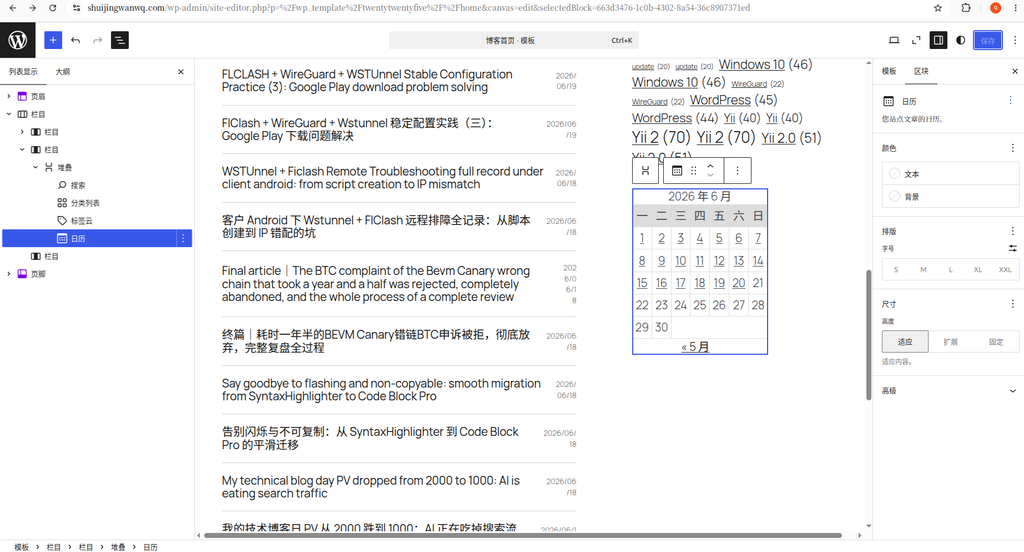
Step 5: Bilingual Frontend Results After Modification
This modification adapts to the Polylang bilingual site, with the layout globally synchronized. No secondary template modifications are needed:
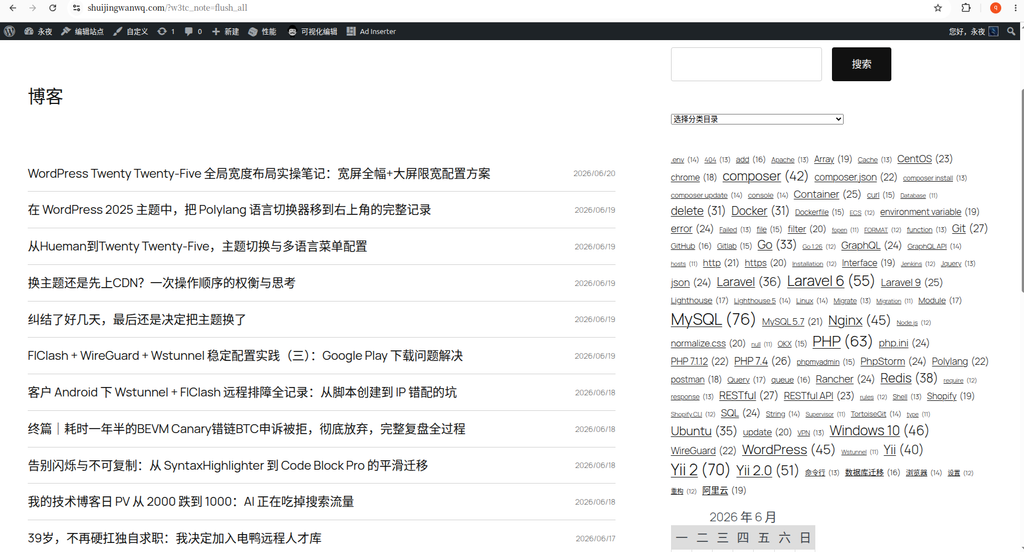
- 中文(中国) frontend homepage: 66 main content articles + 33 standardized sidebar, with blocks displaying normally (Corresponds to Figure 6)
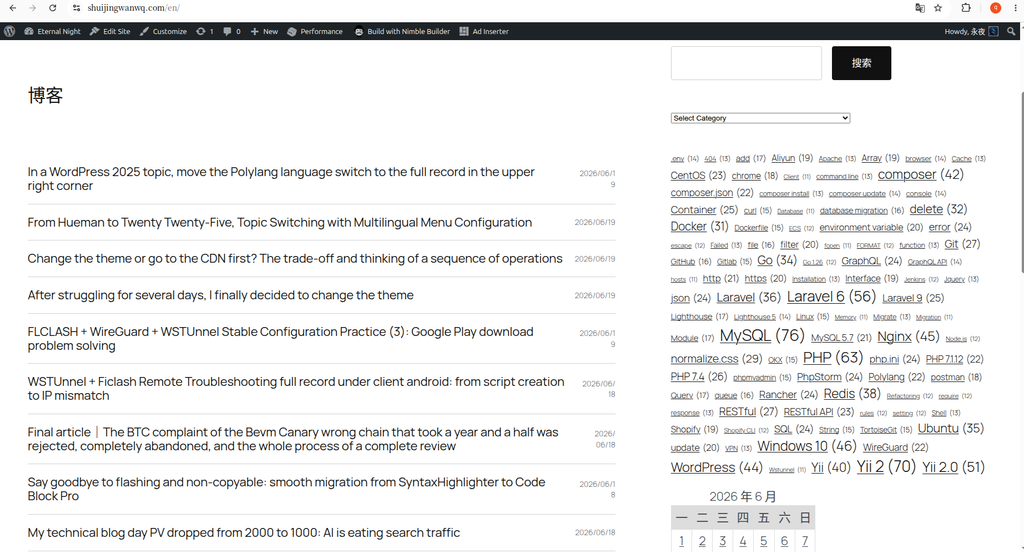
- English frontend homepage: The layout structure is completely identical. Categories, tags, and blocks automatically adapt to the language. The layout does not break, and no blocks are lost (Corresponds to Figure 7)
Must-Read Notes for This Modification (Solves 99% of Block Invisibility and Loss Issues)
1. Block Hierarchy Iron Rules (Must Obey)
Outer Columns 66/33
├─Left 66% = Place the outer Group block of the articles
└─Right 33% = Place only 1 Stack
└─Inside the Stack: Place all Search/Categories/Tags/CalendarStrictly prohibited: Placing multiple independent blocks directly inside the 33% column. After saving, they will become invisible on the editor canvas and only visible in the list view.
2. Column Ratio Selection Recommendations
- ✅ Preferred: 66/33 (Dedicated for technical blogs, recommended)
- ❌ Do not select: 50/50, 33/66 (Distorted reading width for text/code)
- ❌ Do not select: Three-column 33/33/33 (Too crowded for a personal blog, poor code display experience)
Personal Pitfall: The Real Reason for Sidebar Block Invisibility (Encountered Personally)
Personal operational issue: The Search and Categories blocks were invisible on the editing page canvas, but they fully existed in the list view in the top left corner, with nothing lost.
Real cause: It was not a CSS issue or a plugin conflict. It was my operational error — I placed the Categories List and Search blocks parallel to the Stack block, instead of nesting them inside the Stack. The top level of the 33% column contained multiple blocks (Stack, Categories, etc.) simultaneously, causing the theme to render abnormally and become invisible on the canvas.
Solution: Delete the parallel independent blocks, and move Search, Categories, Tags, and Calendar entirely inside the Stack. Visibility will immediately be restored.
4. Polylang Bilingual Adaptation Key Points
- For the entire Columns + Stack structure, you only need to modify the template once; the bilingual setup shares the layout.
- For the Categories List block, enable block multilingual adaptation to automatically switch between Chinese and English categories.
- Do not assign fixed language IDs to blocks, to prevent blocks from disappearing after switching languages.
5. Block Distinction Q&A
- Columns: Creates the left/right page split (66/33 in this case)
- Stack: Stacks multiple functional blocks vertically in the sidebar (must use)
- Row: Places content side-by-side horizontally. Not used at all in this modification.
Modification Summary
The new Twenty Twenty-Five block theme lacks the traditional one-click sidebar toggle in the backend. You can only build a classic two-column layout using a two-layer container of Columns + Stack.
The entire process requires zero code and no plugins, and is bilingual compatible. After the modification, it returns to a traditional blog browsing structure, allowing visitors to quickly search for category and tag content via the sidebar, perfectly suiting the use case of a technical blog.