

This site recently switched to the Twenty Twenty-Five theme, and I am gradually refining the pages. The site uses a classic Text Blog two-column layout: a 66% main content column paired with a 33% sidebar for tags.
The original plain text title list had obvious shortcomings: the page looked empty with too much whitespace, and the visual experience was monotonous. Additionally, a large number of historical articles on the site do not have featured cover images uploaded. If a large left-aligned image template were used, image-less entries would display large blank areas, fragmenting the page’s visual flow.
After comparing the two built-in Query Loop preset patterns provided by the theme, I ultimately chose the “Small image and title” template to reconstruct the article list. This approach matches the minimalist tone of a text-oriented tech blog while remaining compatible with older articles lacking cover images. The entire process uses native blocks for custom hierarchy, allowing for lossless adaptation on a bilingual site. Below is the complete record of this modification process.
1. Current State Before Modification
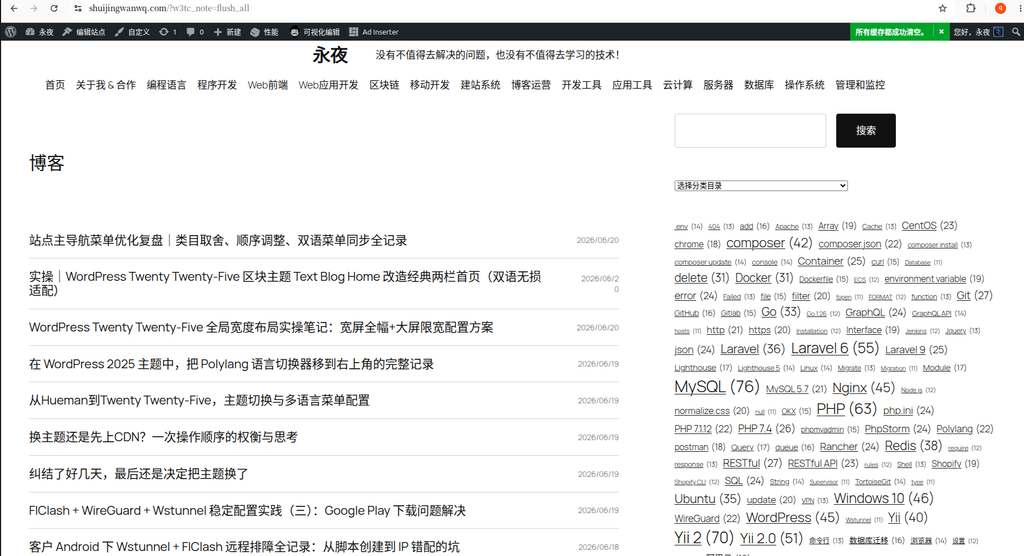
The default plain text list used right after switching themes had three core pain points:
- The 66% wide main column only displayed article titles, lacking auxiliary information such as categories, publication dates, and excerpts. The large amount of whitespace made the page look thin and empty.
- The page lacked clear visual hierarchy. All article entries shared the exact same styling, giving the browsing experience no rhythmic focal points.
- The list was purely a wall of text, lacking image elements to act as a visual buffer. This made reading through large amounts of technical content feel quite dry.
The overall 66/33 two-column framework of the page remains unchanged; I only modified the internal structure of the middle Text blog query loop article loop block.
2. Step 1: Apply the Official “Small Image and Title” Preset Pattern (Figure 2)
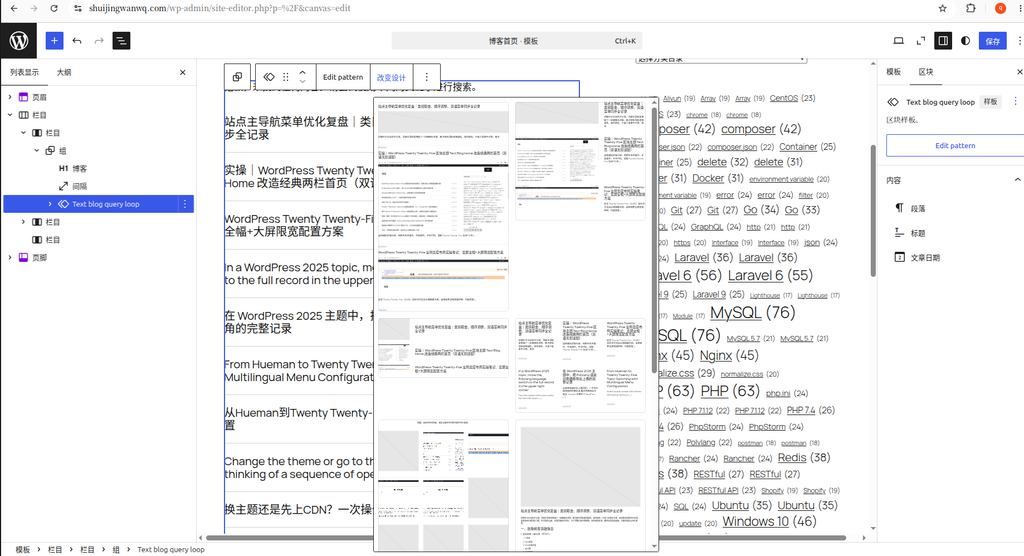
The Twenty Twenty-Five FSE full site editor comes with several ready-made Query Loop design patterns, eliminating the need to manually build an article template from scratch:
- In the backend, go to “Appearance → Editor” and open the [Blog Home] template;
- In the left list view, select the blue-highlighted
Text blog query loopquery loop block; - Click Change Design in the top toolbar, and select “Small image and title” from the popped-up pattern preview library;
- After applying the pattern with one click, the system automatically generates the accompanying post template. It natively features a narrow small thumbnail on the left, perfectly accommodating the many historical articles without cover images.
Selection Rationale
The other alternative was the “Image on left” large image-text template. The reasons for ultimately discarding it are:
Hundreds of older articles on the site do not have featured covers configured. When using the large image template, image-less entries leave a large blank space on the left, causing severe visual fragmentation. The small image template’s thumbnail placeholder area is narrow; even without a cover, it only leaves a slim margin of whitespace with minimal visual disharmony. It also requires no additional conditional styles to hide the image, resulting in lower long-term maintenance costs, which fits this site’s text-first tech blog positioning.
3. Initial Preview Effect of the Pattern (Figure 3)
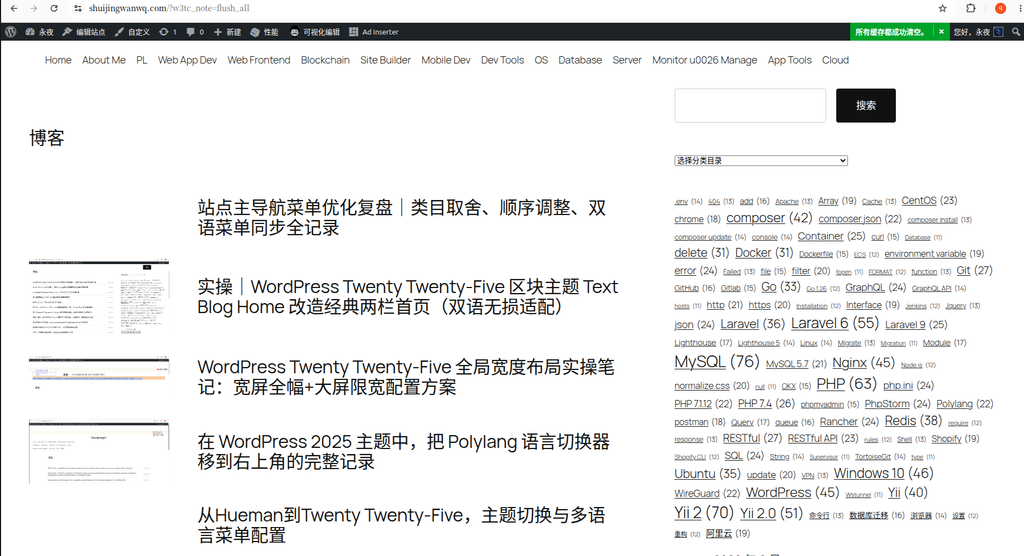
The initial frontend display effect after applying the template:
- It automatically generates a small featured thumbnail on the left, retaining only the article title on the right;
- It lacks auxiliary information like categories, publication dates, and excerpts, meaning the monotony of the wide column issue is not resolved;
- Article entries have no dividing lines and the block spacing is compact, making the boundary between consecutive articles ambiguous;
- The page structure is flat and singular, lacking rich information hierarchy to support visual fullness.
The initial pattern only completes the basic image-text structure. It requires manual adjustment and expansion of the internal block hierarchy to enrich the page’s information dimensions.
4. Customizing the Post Template Hierarchy Structure
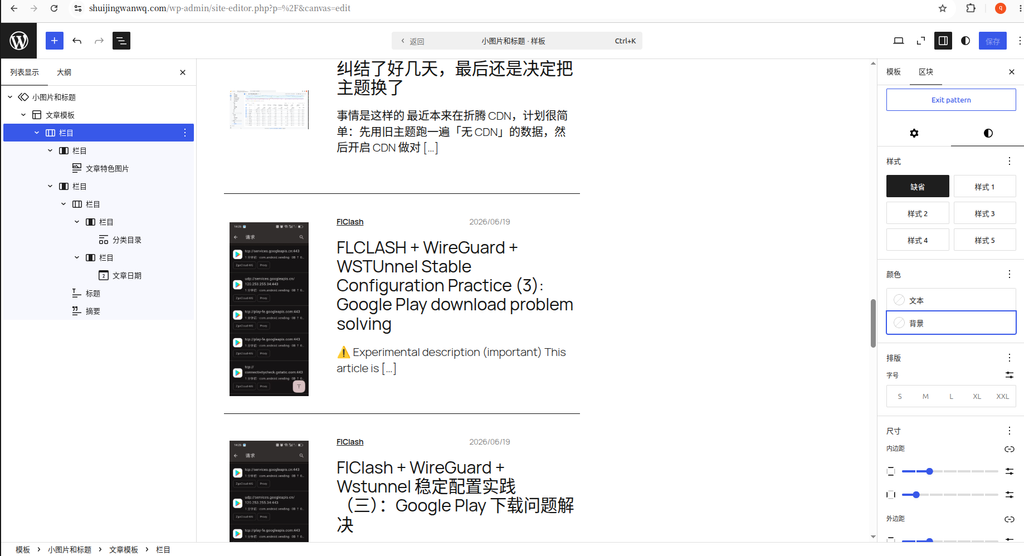
Entering the pattern editing interface, I rearranged the block order inside the [Post Template]. The final complete hierarchy is as follows:
Post Template (outermost parent container)
├─ Column (two-column 50/50 split, top info bar)
│  ├─ Left column: Category block (colored rounded tag style enabled)
│  └─ Right column: Post Date block (light gray small text, right-aligned)
├─ Post Title (H3 level, customizable font size, independently adjust spacing with excerpt)
└─ Post Excerpt (secondary gray text, controllable number of display lines)Layered Design Rationale
- Top 50/50 column split: Displaying categories and dates up front allows visitors to quickly grasp the article’s category and publication time as soon as they open the page. Front-loading this information improves readability. The evenly split left-right layout provides visual balance, avoiding any sense of disproportionate weight.
- Independent title layer: As the core reading subject, the title’s spacing from blocks above and below can be freely adjusted according to personal aesthetics, creating a visual distinction from the top meta information and the bottom excerpt.
- Excerpt supplementation: Fills the blank space in the 66% wide column, adds textual density to the page, alleviates monotony, and simultaneously helps visitors quickly determine the core content of the article.
- Retains the pattern’s native left-side small thumbnail without altering the basic image-text structure, reducing the probability of style conflicts.
5. Refined Global Style Tweaks (Key Optimization Points)
There is no need to copy all size and spacing parameters exactly; you can freely drag and adjust them according to your own page aesthetics. I am only explaining the direction of the adjustments:
- Top 50/50 column styling
- Categories: Enable tag mode, pair it with a theme-color rounded background, and independently adjust the spacing between tags to add color accents to the page.
- Post date: Reduce the font size, set the text to a secondary light gray, and right-align it. De-emphasize its weight to prevent it from stealing the visual focus from the title.
- Independently adjust the bottom margin of the column to separate it from the title below, preventing text from crowding and stacking.
- Text block spacing control
- Adjust the bottom whitespace of the post title as needed to create a hierarchical distinction from the excerpt.
- Unify the excerpt color to light gray and set the truncation line count manually to prevent overly long text from stretching the page too much.
- Overall beautification of the outer post template
- Adjust the bottom margin to reserve comfortable whitespace for each article, enhancing the breathing room for reading.
- Add a 1px light gray thin dividing line at the bottom to clearly distinguish between consecutive articles.
- Set top and bottom padding for the container to prevent content from sticking directly to the block borders.
6. Final Homepage Effect After Modification (Figure 5)
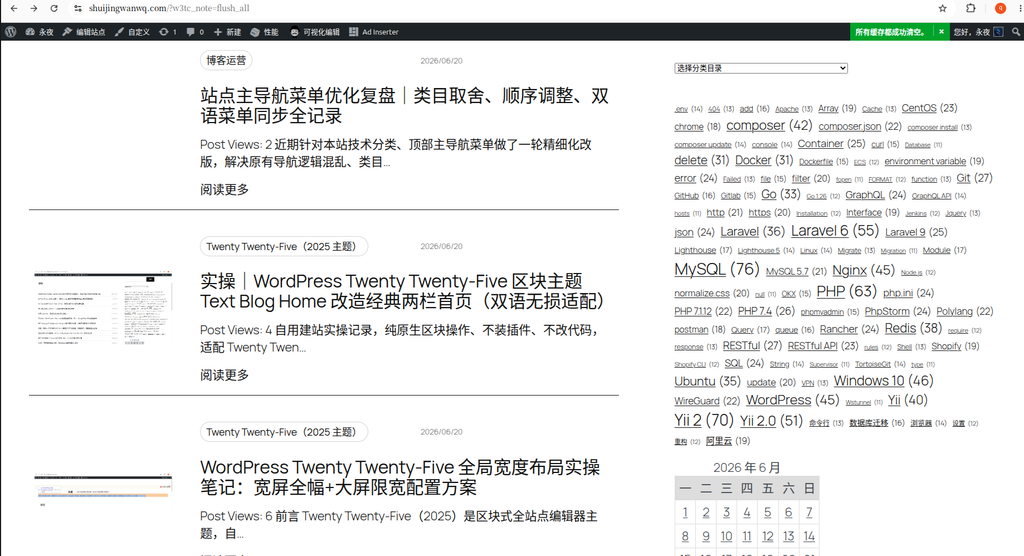
Highlights of the final frontend effect after saving all adjustments:
- Perfectly compatible with cover-less articles: The blank placeholder for the left small thumbnail is slim and does not fragment the page, eliminating the need to batch-fill covers for historical articles.
- Complete and clear information hierarchy: Category tags + publication date are displayed up front, the title is prominent, and the excerpt supplements the content. The 66% wide column is full and not empty.
- Comfortable visual rhythm: Dividing lines + whitespace distinguish individual entries, enriching the page’s layers and getting rid of the flat, dry feeling.
- Zero bilingual misalignment: Uses entirely WordPress native dynamic blocks (categories, date, title, excerpt, featured image). The Polylang bilingual plugin can automatically sync Chinese and English content, eliminating the need to maintain two independent templates.
- Adheres to the Text Blog minimalist positioning, without piling up redundant modules (comments, author avatars, multi-image slideshows are all discarded, focusing purely on the technical text reading experience).
7. Pitfall Avoidance Summary (Notes on Bilingual FSE Template Modification)
- Adjust all spacing, colors, and sizes exclusively using the native block settings panel on the right. Do not hand-write custom CSS to avoid style breakage on Chinese and English pages.
- Do not insert static text or static images. Use dynamic post blocks throughout to ensure content is automatically read in the corresponding language in a bilingual environment.
- When you want to switch the image-text pattern later, simply select
Text blog query loopagain → “Change Design” to switch. Your customized block hierarchy will be preserved, requiring no complete reconstruction. - Archive pages and category pages can be modified synchronously: Open the archive template, find the Query Loop within the page, and repeat this operation to unify the article list display style across the entire site.
Postscript
This modification did not alter the original 66/33 classic two-column page framework; it only optimized the internal article loop list. By relying on the theme’s official preset pattern, modification costs were reduced. Then, through simple layered expansion, the page’s richness was supplemented, balancing the two major needs of a “minimalist text blog” and a “full, non-monotonous page”. At the same time, it accommodates a large number of historical articles without covers. This is a low-maintenance, highly adaptable homepage optimization solution, and the various parameters can still be flexibly adjusted as the theme is refined in the future.