

While maintaining my blog recently, I noticed that the spacing between list items in the sidebar’s “Most Viewed Posts” widget was too small. The text was crammed together, which not only looked unappealing but also made it difficult for readers to scan quickly. After some trial and error, I managed to solve this problem perfectly using custom CSS. This article documents the exact steps I took and provides the ready-to-use code, hoping to help others facing the same issue.
Current Problem: Default Spacing Is Too Tight
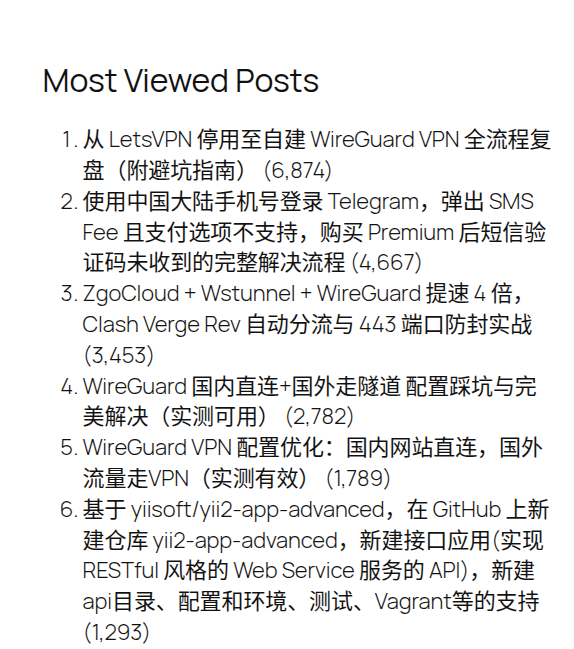
As shown in the image below, the list items are packed tightly together with no visual breathing room. This becomes especially cramped when longer titles wrap to the next line:
⚠️ Pitfall Reminder: The Block’s Built-in “Additional CSS” Is a Trap
Many people (myself included) would immediately think of finding the “Additional CSS” input box in the block editor’s “Advanced” settings (see image below), confidently paste the full selector code into it, only to find that nothing changes.
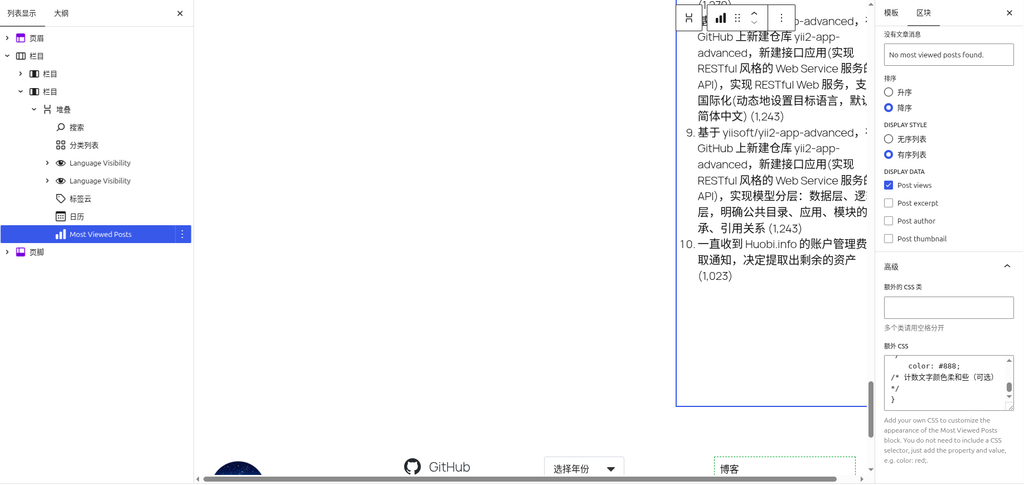
If you look closely below this input box, there is actually a line of small gray text that explains:
“Add your own CSS to customize the appearance of the Most Viewed Posts block. You do not need to include a CSS selector, just add the property and value, e.g. color: red;.”
Translated, this means: You do not need to write a selector, only the property and value, for example, color: red;.
This implies:
- This input box only accepts pure CSS declarations (like
margin-bottom: 20px;), - The styles are applied to the block’s outermost container (
<div>), - It cannot reach the internal
<li>elements to adjust the list item spacing.
I completely missed this prompt at first. I repeatedly pasted the full .wp-block-post-views-counter-most-viewed-posts ol li { ... } and saw no effect, wasting a lot of time troubleshooting caching issues and theme conflicts. It wasn’t until I stumbled upon that explanation that it dawned on me—I was taking the wrong approach.
Therefore, the block’s built-in “Additional CSS” does not suit our needs; we must use a different method.
✅ Correct Solution: Use the Site Editor’s (FSE) Global “Additional CSS”
If you are using a WordPress block theme (i.e., a Full Site Editing theme), add custom CSS via the following path:
Steps
- Go to your WordPress dashboard, click Appearance → Editor in the left menu to open the Site Editor.
(If your theme does not have an “Editor” option, it is not a block theme. You can still use the Additional CSS under “Appearance → Customize”, but this article focuses on the block theme environment.) - At the top of the Site Editor, click the “Styles” icon (usually a circular palette or pencil icon). The Styles panel will pop out on the right.
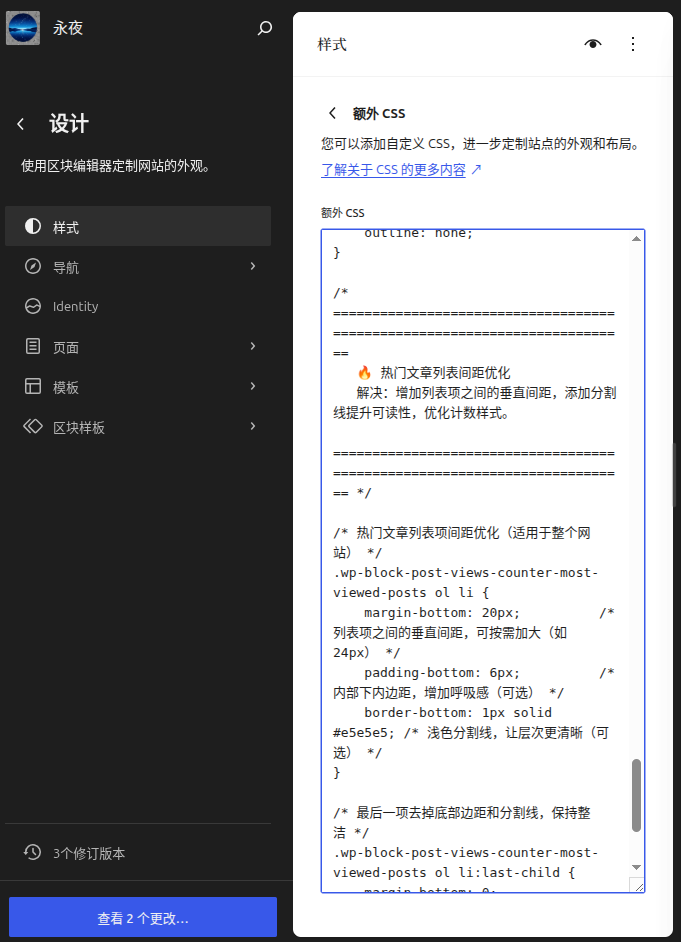
- In the Styles panel, scroll down to find the “Additional CSS” section (as shown below).
- Paste the CSS code we prepared completely into the text box, then click “Save” to publish.
- Clear your site cache (plugin cache, CDN, etc.) and refresh the front-end page to see the effect.
📝 CSS Code Breakdown
I used clearly commented code to make future adjustments easier. The core logic is:
- Add a bottom margin to each list item (
margin-bottom) to increase the vertical spacing; - Add a light divider line (
border-bottom) to make the hierarchy of items clearer; - Remove the extra margin and divider line from the last item to keep it clean;
- Fine-tune the styling of the counter numbers to make them look more harmonious.
/* ==========================================================================
   🔥 热门文章列表间距优化
   解决:增加列表项之间的垂直间距,添加分割线提升可读性,优化计数样式。
   ========================================================================== */

/* 热门文章列表项间距优化(适用于整个网站) */
.wp-block-post-views-counter-most-viewed-posts ol li {
    margin-bottom: 20px;          /* 列表项之间的垂直间距,可按需加大(如 24px) */
    padding-bottom: 6px;          /* 内部下内边距,增加呼吸感(可选) */
    border-bottom: 1px solid #e5e5e5; /* 浅色分割线,让层次更清晰(可选) */
}

/* 最后一项去掉底部边距和分割线,保持整洁 */
.wp-block-post-views-counter-most-viewed-posts ol li:last-child {
    margin-bottom: 0;
    border-bottom: none;
}

/* 让计数数字与标题更和谐(可选) */
.wp-block-post-views-counter-most-viewed-posts ol li .count {
    margin-left: 8px;
    font-size: 0.85em;
    color: #999;
}🎯 Final Result: Comfortable Spacing and Clear Hierarchy
After applying the styles above, the Most Viewed Posts list became well-spaced. There is a clear gap between each entry, and the divider lines further guide the eye, significantly improving the overall browsing experience:

Comparing the screenshots before and after the adjustment (Figure 1 and Figure 5), the effect is immediate. If you feel that a 20px spacing is still not large enough, simply change the value of margin-bottom, for example to 28px or 32px.
💡 Notes
- If your theme’s built-in styles have a higher priority, you can append
!importantto the property value to force an override (e.g.,margin-bottom: 20px !important;). - Be sure to clear your site cache (plugin cache, CDN cache, etc.) and refresh your browser to ensure you see the updates.
- This selector only targets the specific
wp-block-post-views-counter-most-viewed-postsblock and will not affect other lists, so you can use it with confidence. - If your theme is not a block theme (lacks the “Editor” menu), please use the Additional CSS under “Appearance → Customize” instead; it works just as well.
I hope this blog post helps you. If you encounter any issues during the process, feel free to leave a comment!