

Recently, while updating my blog’s “About Me & Contact” page, I noticed a horizontal scrollbar suddenly appearing at the bottom of the page.
At first, I thought it was a CSS issue, but I eventually discovered that the real cause was the “Full Width” setting in a Gutenberg block.
This article documents the complete troubleshooting process, so I can quickly locate the issue if I encounter similar problems in the future.
Symptom
Page:
https://www.shuijingwanwq.com/about-me-contact/
A horizontal scrollbar appeared at the bottom of the desktop browser.

The page content itself did not contain any unusually wide images or tables, so my initial reaction was confusion.
Step 1: Identify what is stretching the page
First, I opened the browser developer tools (F12).
I executed the following in the Console:
[...document.querySelectorAll('*')]
.filter(el => el.scrollWidth > document.documentElement.clientWidth)
.map(el => ({
    tag: el.tagName,
    class: el.className,
    id: el.id,
    width: el.scrollWidth
}))
The output looked like this:
HTML
BODY
wp-site-blocks
MAIN
entry-content alignfull
The most important line here is:
entry-content alignfull
This indicated that the entire content area was exceeding the viewport width, rather than a specific image or div.
Step 2: Suspect CSS
Initially, I suspected:
- An image was too wide
- iframe
- table
- pre
- A plugin was outputting a fixed width
I was even about to just write:
body{
    overflow-x:hidden;
}
But that would only hide the problem, not actually fix it.
Therefore, I did not proceed with modifying the CSS.
Step 3: Check the page editor
Since the problem occurred at:
entry-content alignfull
It likely originated from Gutenberg.
I opened the page editor.
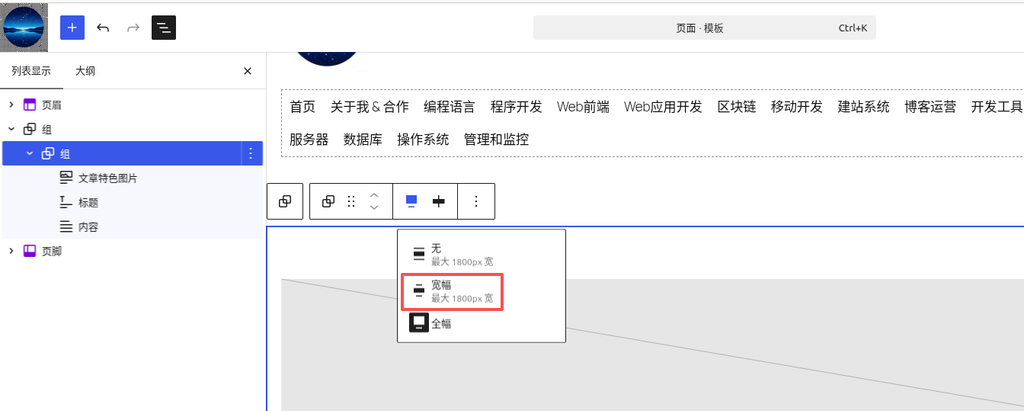
I checked the outermost Group block.
I found:
Alignment:

Full Width
So, I tried changing it to:
Wide Width
Saved.
Refreshed the page.
The horizontal scrollbar disappeared immediately.
Root cause
The actual problem was not the CSS.
It was:
Group

Alignment

Full Width
After changing it to:
Wide Width
It returned to normal.
This indicates that the current theme (Twenty Twenty-Five) and my website’s current layout have a compatibility issue with the calculation of Full Width on certain pages.
Why could the console locate it?
Because the executed JS finds:
scrollWidth > viewport
That is:
Which elements have an actual width exceeding the browser’s viewport width.
If the output is:
img
It means an image is too wide.
If the output is:
table
It means a table is too wide.
If the output is:
pre
It means a code block is too wide.
This time, the output was:
entry-content alignfull
So I quickly locked onto the entire content container.
My summarized troubleshooting process
If I encounter a horizontal scrollbar on a WordPress page in the future, I plan to consistently follow this troubleshooting order.
Step 1
Console:
[...document.querySelectorAll('*')]
.filter(el => el.scrollWidth > document.documentElement.clientWidth)
Find the element that is actually too wide.
Step 2
If it is:
img
table
iframe
pre
Check the corresponding content directly.
Step 3
If it is:
entry-content

wp-block-group

alignfull
Check first if the following are set to:
Group

Columns

Cover

Gallery
Whether they are set to:
Full Width
If not necessary, change to:
Wide Width
Then retest.
Step 4
Only consider modifying the CSS as a last resort.
Do not start by applying:
overflow-x:hidden;
Otherwise, you are just masking the problem instead of actually fixing it.
Takeaway
The biggest takeaway this time was not just fixing the horizontal scrollbar.
It was forming a repeatable troubleshooting process for the future:
First, use the browser developer tools to locate the overflowing element, then return to the WordPress block editor to check the corresponding block, and only consider CSS fixes last.
Compared to directly modifying styles, this method locates the issue faster and makes it easier to find the root cause.