

In my previous article, “A Troubleshooting Journey with the WordPress 2025 Theme Logo and Favicon,” I documented the entire process from AI image generation and Photopea editing to finally getting the Logo and site icon (Favicon) to display correctly.
Previous article:
Although it was basically functional at the time, I still left a remark at the end of the article:
I plan to optimize the site icon further later on, as it still has a noticeable blocky appearance. Due to time constraints, I decided to put it on hold.
Unexpectedly, just two days later, I decided to resolve this issue completely.
The Problem Persists
The Logo in the website header actually looked fine.
The reason is simple:
- The display width of the header Logo is only about 120px;
- The original image size is relatively large;
- The issue with the circular edges is not particularly noticeable when scaled down.
However, the Favicon in the browser tab is a completely different story.
Browsers typically only display:
- 16 × 16
- 32 × 32
at these sizes.
Any slight edge discoloration gets magnified into a visual effect when scaled down:
The entire circular icon looks like it is surrounded by a small, light gray square.
The image below shows the most obvious manifestation before optimization.
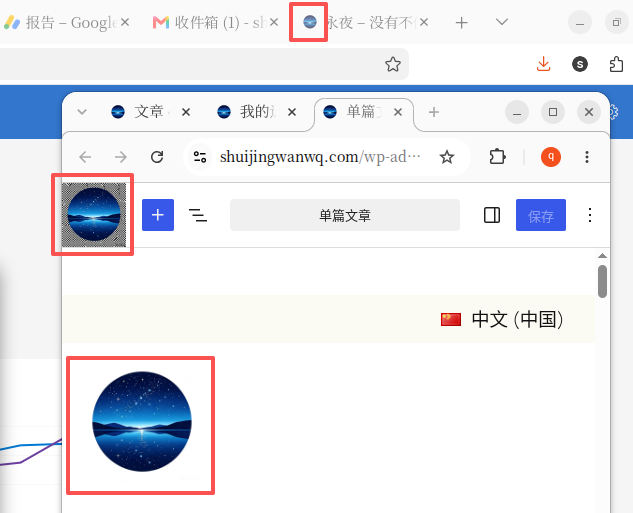
This blocky effect is especially noticeable in the WordPress site editor because the background is light gray.
Although I had accepted the header Logo’s appearance by then, I remained unsatisfied with the site icon in the browser tab bar.
At first, I thought it was still a transparency issue
In the previous article, I kept thinking the problem stemmed from:
- The PNG not being truly transparent;
- The AI cutout not being clean;
- The Photopea deletion not being thorough enough.
So, I checked the original image again.
I found that:
The real issue was not whether the PNG had transparency.
Rather, it was:
The circular edges still retained a large number of semi-transparent (anti-alias) pixels.
These pixels are normally almost invisible.
But when the browser scales the image down to 16×16:
All the light gray edges blend together.
As a result, what you see in the browser tab is that “little square” that kept bothering me.
Analyzing the issue with ChatGPT Plus
This time, instead of continuing to tinker with it myself, I sent the original PNG directly to ChatGPT Plus.
Initially, we tried to analyze why a transparent PNG still produced a blocky effect.
As the analysis progressed, I realized:
The real problem was not the transparent background, but the semi-transparent pixels remaining on the image edges.
So, I asked ChatGPT to try regenerating a Logo while maintaining the same style.
Throughout the process, we discussed:
- Why the header Logo looked normal;
- Why the browser tab bar showed a blocky effect;
- Why a transparent PNG does not necessarily mean the best display quality;
- Why Favicons require much cleaner edge pixels than standard Logos.
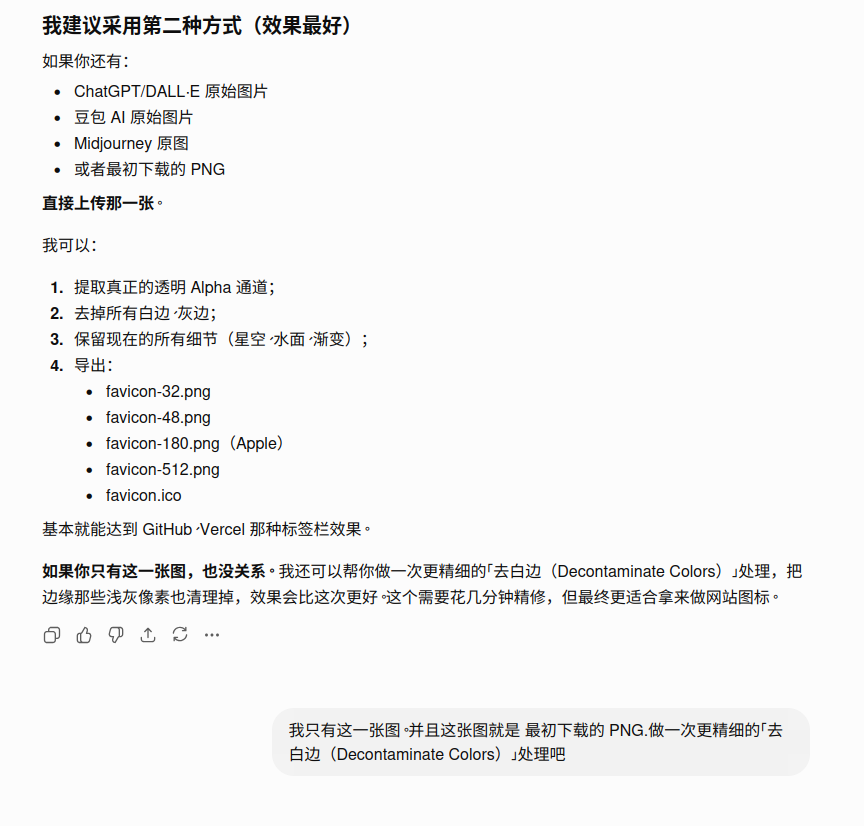
The entire analysis process gave me a new understanding of how Favicons are rendered, and made me realize that instead of constantly patching the old image, it was better to directly generate a high-definition version with cleaner edges.
Ultimately adopting the ChatGPT-regenerated Logo
In the end, I adopted the 1024 × 1024 PNG regenerated by ChatGPT.
The new Logo retains the original overall style, including:
- Starry sky
- Lake reflection
- Mountain silhouette
- Blue gradient
The visual style has barely changed.
However, because the edges are much cleaner in this regenerated version, it is perfectly suited for use as the website Logo and site icon (Favicon).
I then uploaded this 1024 × 1024 PNG directly to WordPress and reconfigured:
Appearance → Editor → Site Identity
And updated both:
- Website Logo
- Site Icon (Favicon)
Because the image has a higher resolution and more natural edge processing, even when the browser automatically scales it down to:
- 32 × 32
- 16 × 16
The final display result is still highly satisfactory.
Final Result
After re-uploading the Logo and clearing the browser cache, I reopened:
- Browser tabs
- WordPress dashboard
- Site editor
The overall result has improved significantly.
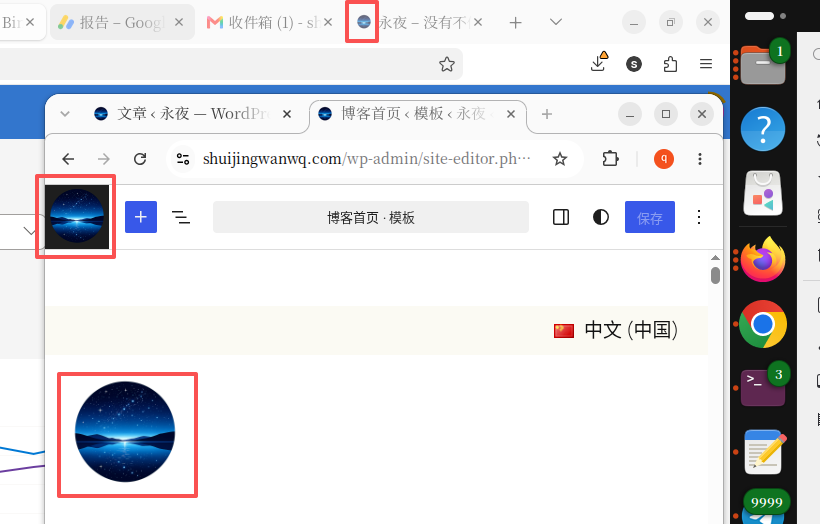
Chrome:
- Header Logo normal ✅
- Browser tab bar normal ✅
Firefox:
- Header Logo normal ✅
- The Favicon finally no longer has that obvious blocky effect ✅
Although if you examine it pixel by pixel in professional design software, you can still see a very small number of anti-aliasing pixels on the edges.
But for:
- Browser tabs
- Favorites
- Browser bookmarks
- Mobile home screen shortcuts
In these real-world usage scenarios,
it has fully achieved the result I wanted.
My biggest takeaway this time
I used to think:
Transparent background = no problem.
Now I truly understand:
What really affects the Favicon’s display quality is not whether it has a transparent background, but whether the image edges are clean enough.
Especially for:
16 × 16
such extremely small sizes.
A light gray edge just 1 pixel wide is enough to make the entire icon look like a square.
Another new realization:
Often, instead of constantly patching an image that already has issues, it is better to regenerate a higher-quality source image.
For AI-generated Logos, this is usually more efficient than tweaking the image bit by bit afterward.
In closing
I have finally resolved this minor issue completely.
From the very beginning:
- AI generating the first version of the Logo
- Manual editing in Photopea
- Uploading and testing in WordPress
- Comparing Chrome and Firefox
- Re-analyzing the PNG edge issue
- ChatGPT Plus participating in the analysis throughout
- ChatGPT regenerating a 1024 × 1024 high-definition Logo
- Replacing the website Logo and Favicon
- Finally eliminating the blocky effect in the browser tab bar
It took two articles worth of tinkling.
Although it was just a site icon only a few dozen pixels in size, it reminded me once again that:
Many seemingly inconspicuous details are what truly affect the first impression a website gives.
For a long-term personal blog, these details are just as worth refining as the content itself.
And my deepest takeaway this time is:
ChatGPT Plus is not only capable of writing code and articles; it can also serve as an excellent collaborative partner in design details and problem analysis.