

Introduction: Through the practical operations in the previous four articles, we have completed the Chinese and English translations of blog post categories and tags, and the core multilingual content framework is essentially in place. This article focuses on the key step of “menu translation.” As the navigation core of the blog, menus directly affect the visitor browsing experience. For multilingual sites in particular, the precise correspondence and correct display of Chinese and English menus are fundamental to ensuring smooth access for multilingual visitors.
This hands-on guide is based on a WordPress blog using the Polylang plugin for multilingual switching, paired with AutoPoly – AI Translation For Polylang for assisted translation, under the Hueman theme. I encountered several pitfalls during the process (such as menus not displaying and English categories being unsearchable), all of which have been resolved. This article fully documents the workflow, troubleshooting steps, and solutions, accompanied by 11 screenshots for easy reference.
1. Prerequisites (Must Read)
Before starting the menu translation, confirm that the following three prerequisites are met to avoid issues later:
- The Polylang plugin and AutoPoly – AI Translation For Polylang plugin are installed and activated, and the basic language settings are complete (Chinese as the default language, English as the secondary language);
- The Chinese and English translations and pairings for all post categories and tags are complete (Chinese categories correspond one-to-one with English categories, and all are bound to their respective languages);
- The menu locations for the Hueman theme are clear (the Hueman theme only supports adding a language switcher to the menu; its display position will be optimized later).
2. Core Steps: Building and Translating Chinese and English Menus
The core logic of this operation: build two independent menus (a Chinese main menu and an English main menu), bind them to their respective language menu locations, add the English categories to the English main menu, and finally optimize the menu layout and add a language switcher. This process avoids plugin pitfalls to ensure both Chinese and English menus display correctly.
Step 1: Create Two Independent Menus and Bind Them to Respective Language Locations
The Hueman theme supports multilingual menu locations. You need to create independent menus for Chinese and English respectively to prevent menus from failing to display due to language confusion.
- Go to WordPress Dashboard → Appearance → Menus;
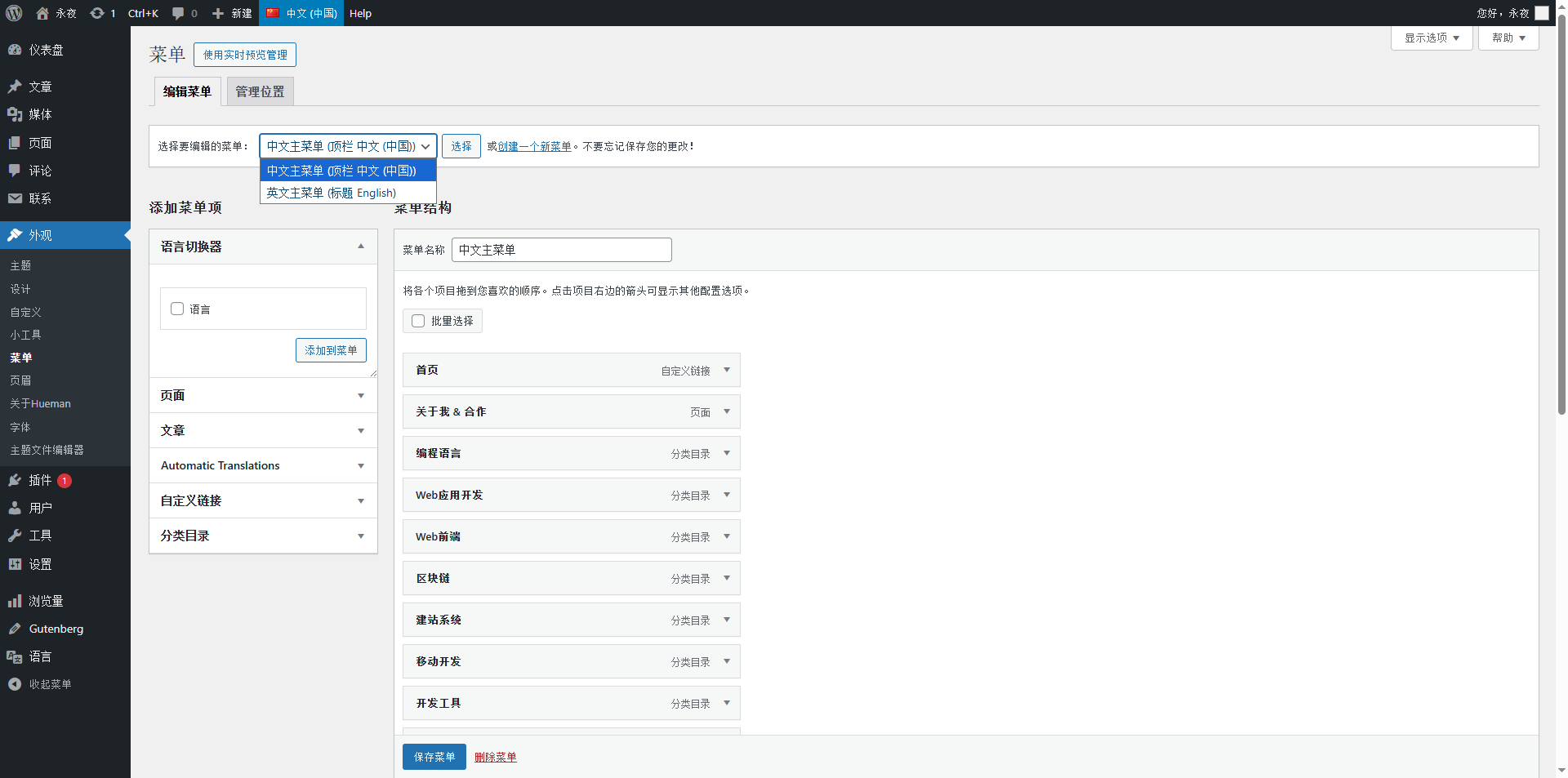
- Click “Create a new menu” to create the first menu, name it “Chinese Main Menu,” and bind the language to “中文(中国)” by default;
- In Menu Settings, bind the “Chinese Main Menu” to the “顶栏 中文 (中国)” location (the Chinese menu location for the Hueman theme);
- Repeat the above steps to create the second menu, name it “English Main Menu,” switch the language to “English,” and bind it to the “顶栏 English” location;
- Save both menus. The backend has now bound the menus to their language locations, laying the foundation for adding categories and translations later.
Figure 1: Screenshot of creating the Chinese main menu (showing menu naming, language binding, and location binding)
Figure 4: Screenshot of creating the English main menu (showing menu naming, English language binding, and Top Bar English location binding)
Step 2: Configure the Chinese Main Menu (Reuse Existing Categories, No Need to Recreate)
The Chinese main menu can directly reuse the previously created Chinese categories. No extra operations are needed; just verify that the categories are fully added and logically ordered.
- In “Appearance → Menus,” select “Chinese Main Menu”;
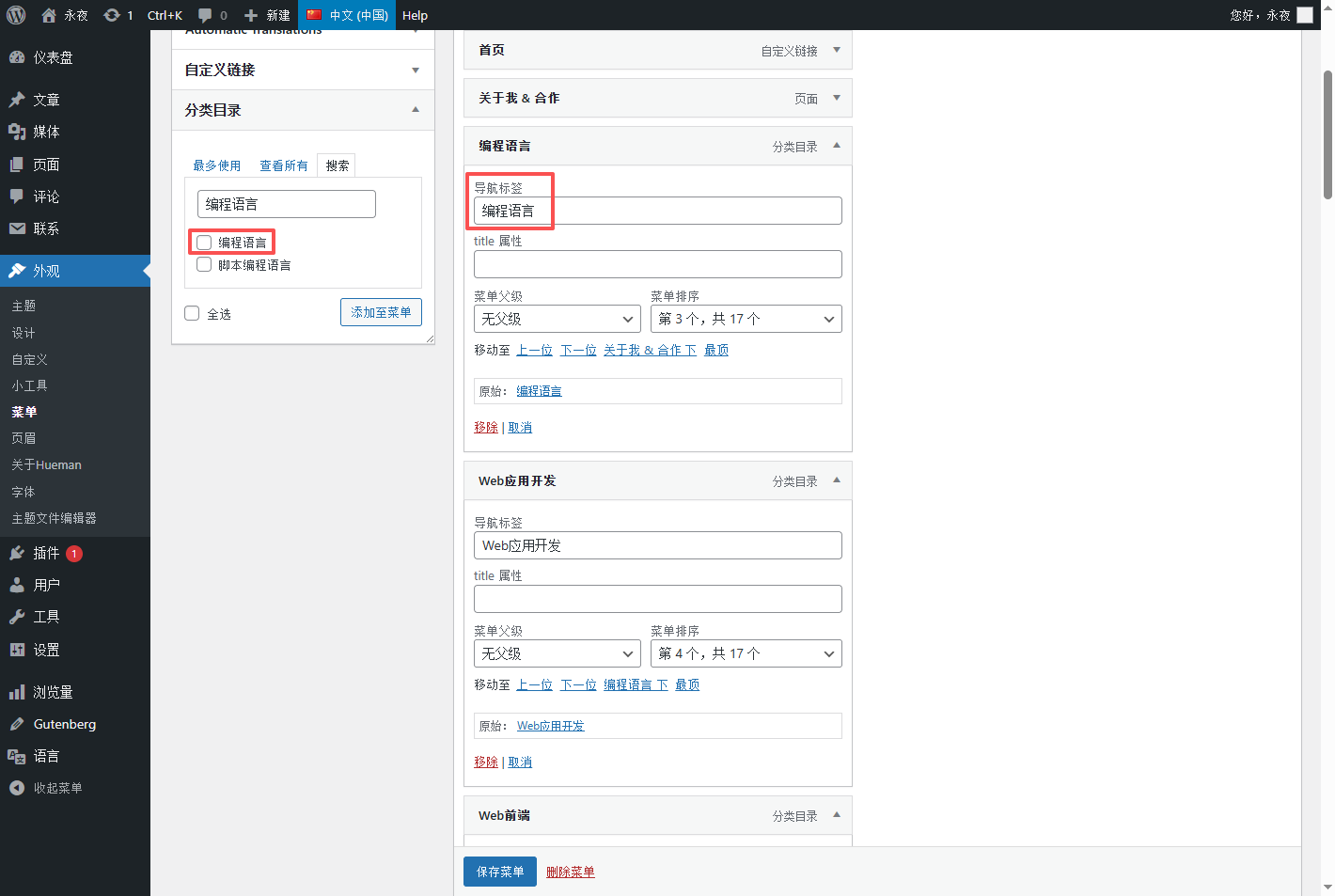
- Find “Categories” on the left, search for and check all Chinese categories (Programming Language, Web Application Development, Web Front End, etc.), and click “Add to Menu”;
- Drag the menu items to order them as “Home → About Me & Collaboration → Various Tech Categories” to ensure clear navigation logic;
- Save the menu. The Chinese main menu configuration is now complete, and the front-end Chinese site will display the navigation correctly.
Figure 2: Screenshot of adding categories to the Chinese main menu (showing category selection and adding to menu)
Step 3: Configure the English Main Menu (Copy the Chinese Menu, Translate and Replace Categories)
The core principle of the English main menu is “consistent structure with the Chinese main menu, with one-to-one category correspondence.” The easiest way is to copy the Chinese main menu, replace the categories with English ones, and translate the menu labels.
- In “Appearance → Menus,” select “Chinese Main Menu” and copy all menu items as they are (you can check all menu items, copy their names, and paste them into the English menu);
- Switch to “English Main Menu” and paste the copied menu items to add them. The menu structure will now be identical to the Chinese main menu;
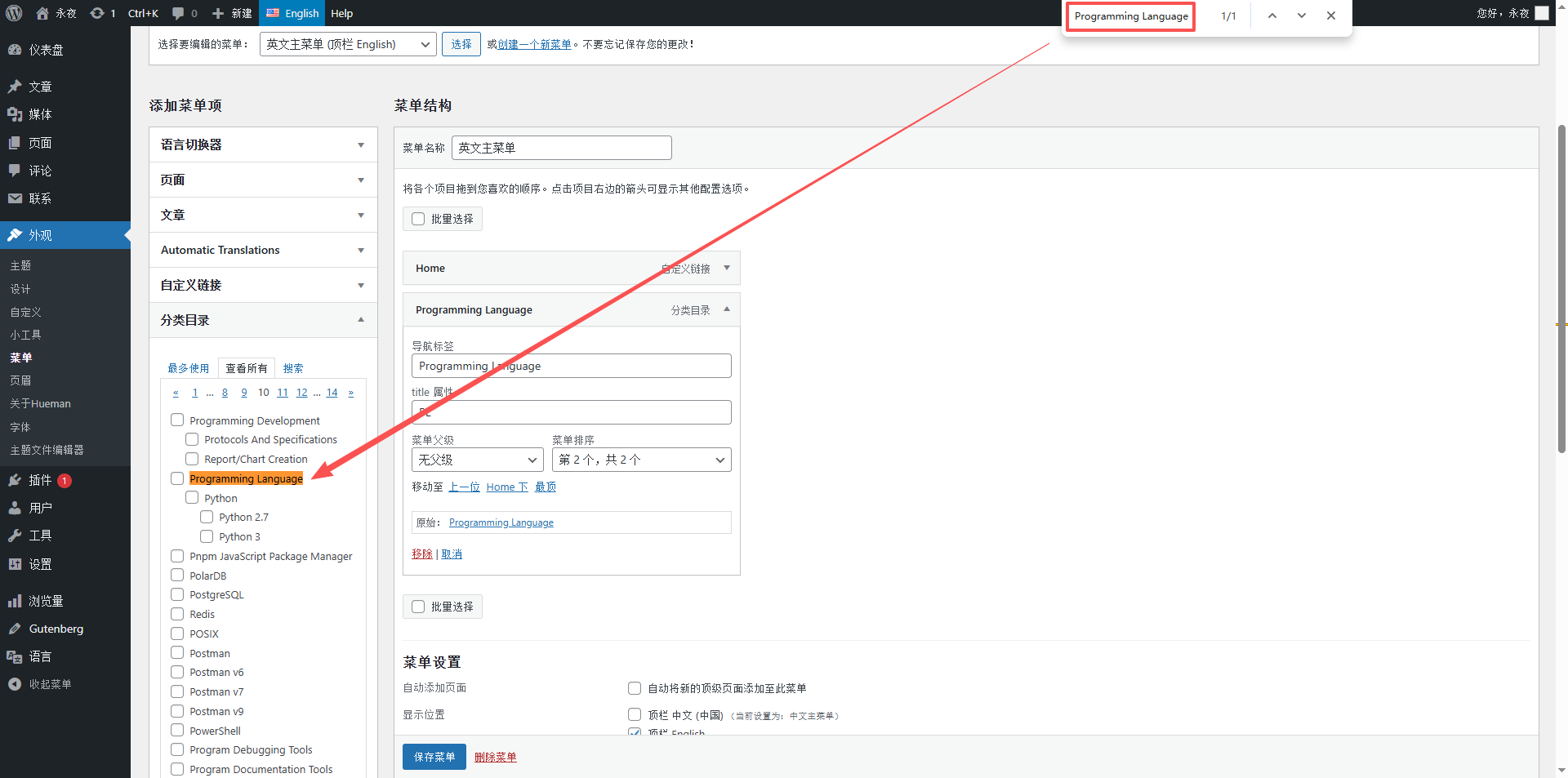
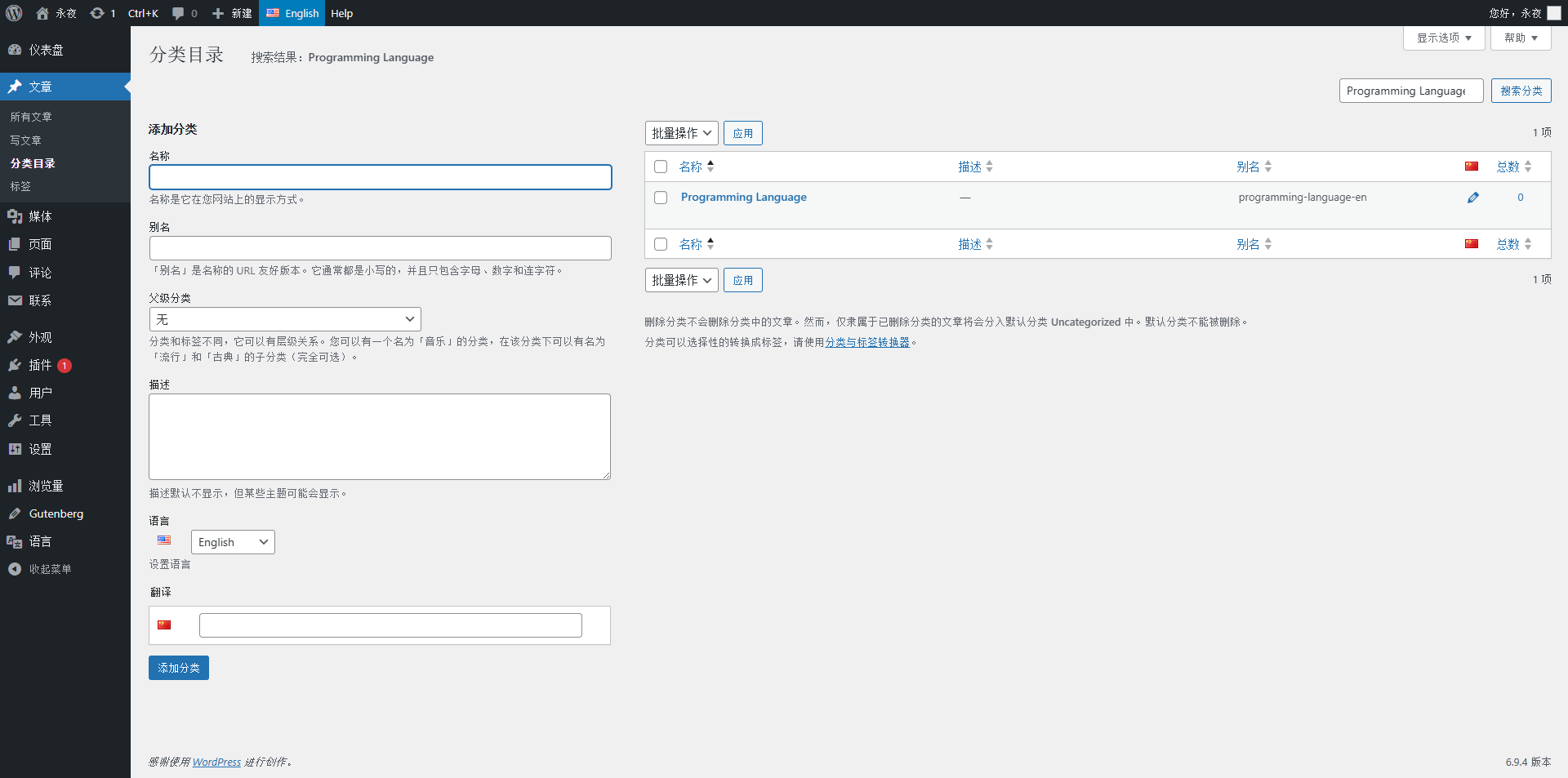
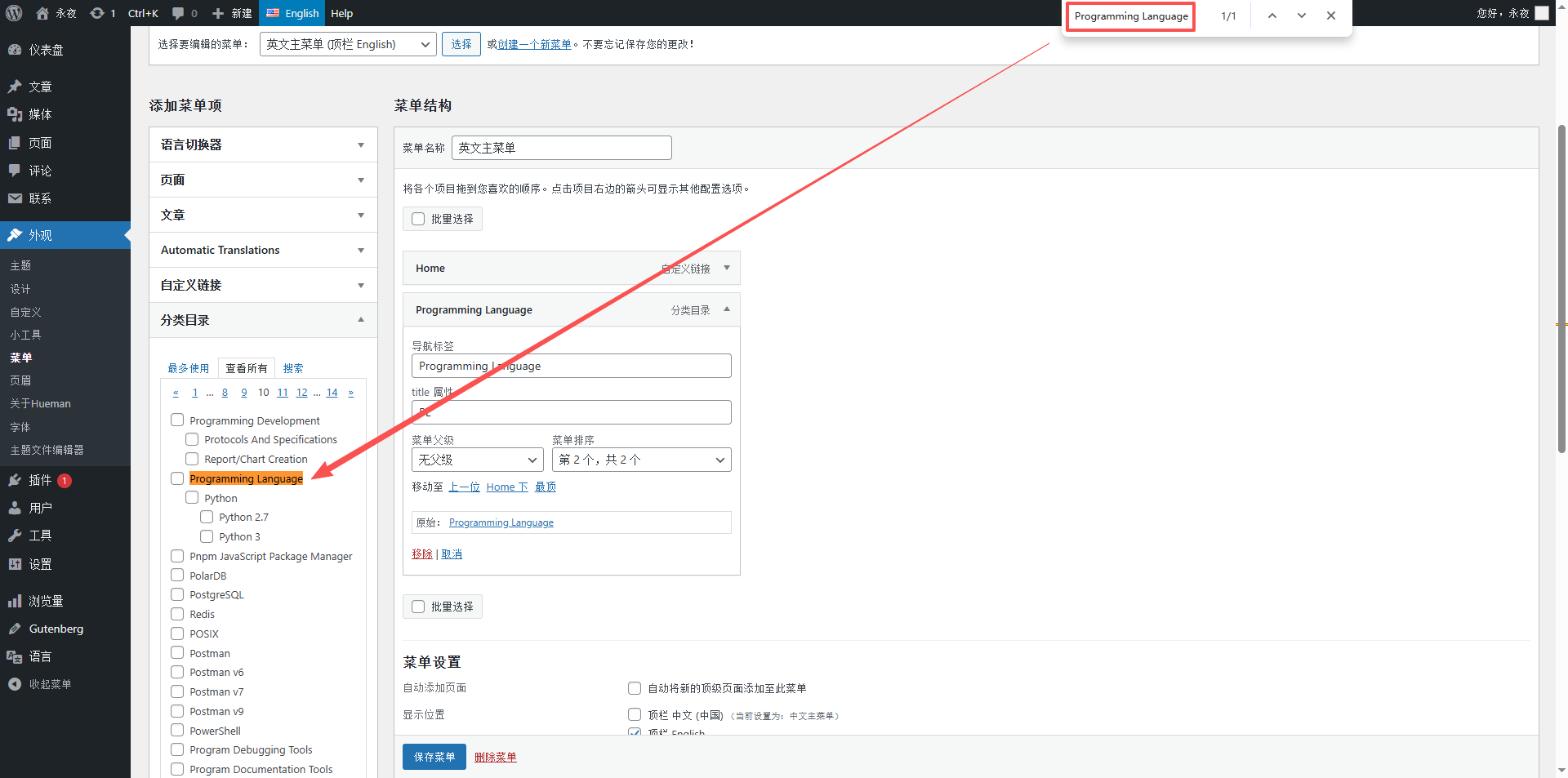
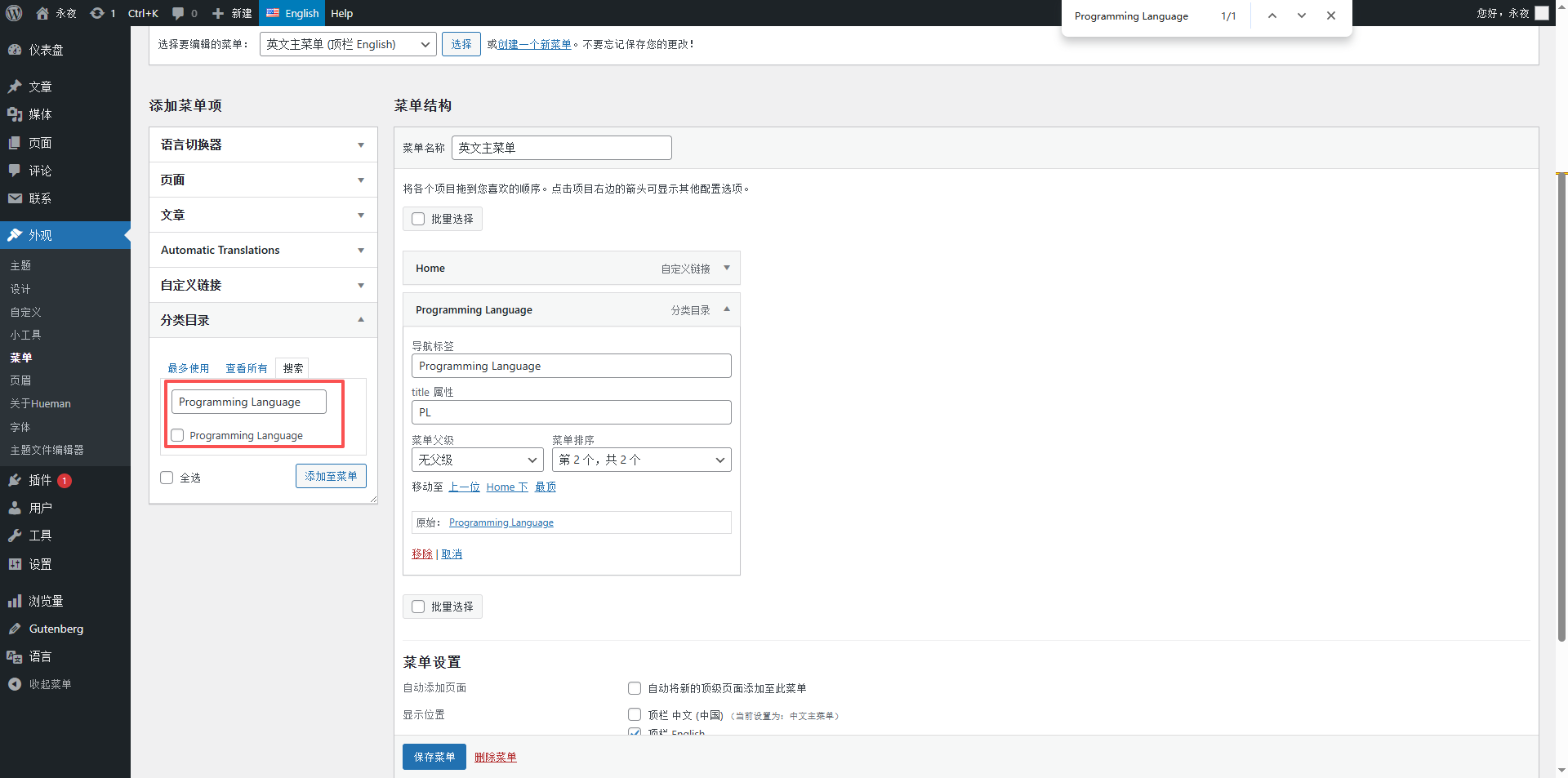
- Delete all Chinese categories in the English main menu and replace them with the corresponding English categories. Here we hit the first pitfall: in the English environment, searching for an English category (like Programming Language) under “Categories” returns no results. However, searching for an English category (like Programming Language) in the category list under the English language does return results. See Figure 3
- Solution: The WordPress backend categories use asynchronous lazy loading and only load the first page. You must manually page through all 14 pages of categories to load them into the backend cache. After that, searching for English categories will work normally (specific steps: go to Posts → Categories, switch to English, page through all 14 pages, then return to the menu page to search);
- Search for and check all corresponding English categories, add them to the English main menu, and keep the same order as the Chinese main menu;
- Translate and streamline the menu item labels (navigation display text) for the English main menu. This prevents labels from being too long and causing menu line wraps. Streamlining principle: longer than an abbreviation, shorter than the full name, balancing readability and aesthetics (specific streamlined names are listed below);
- Save the English main menu. The English main menu configuration is now complete.
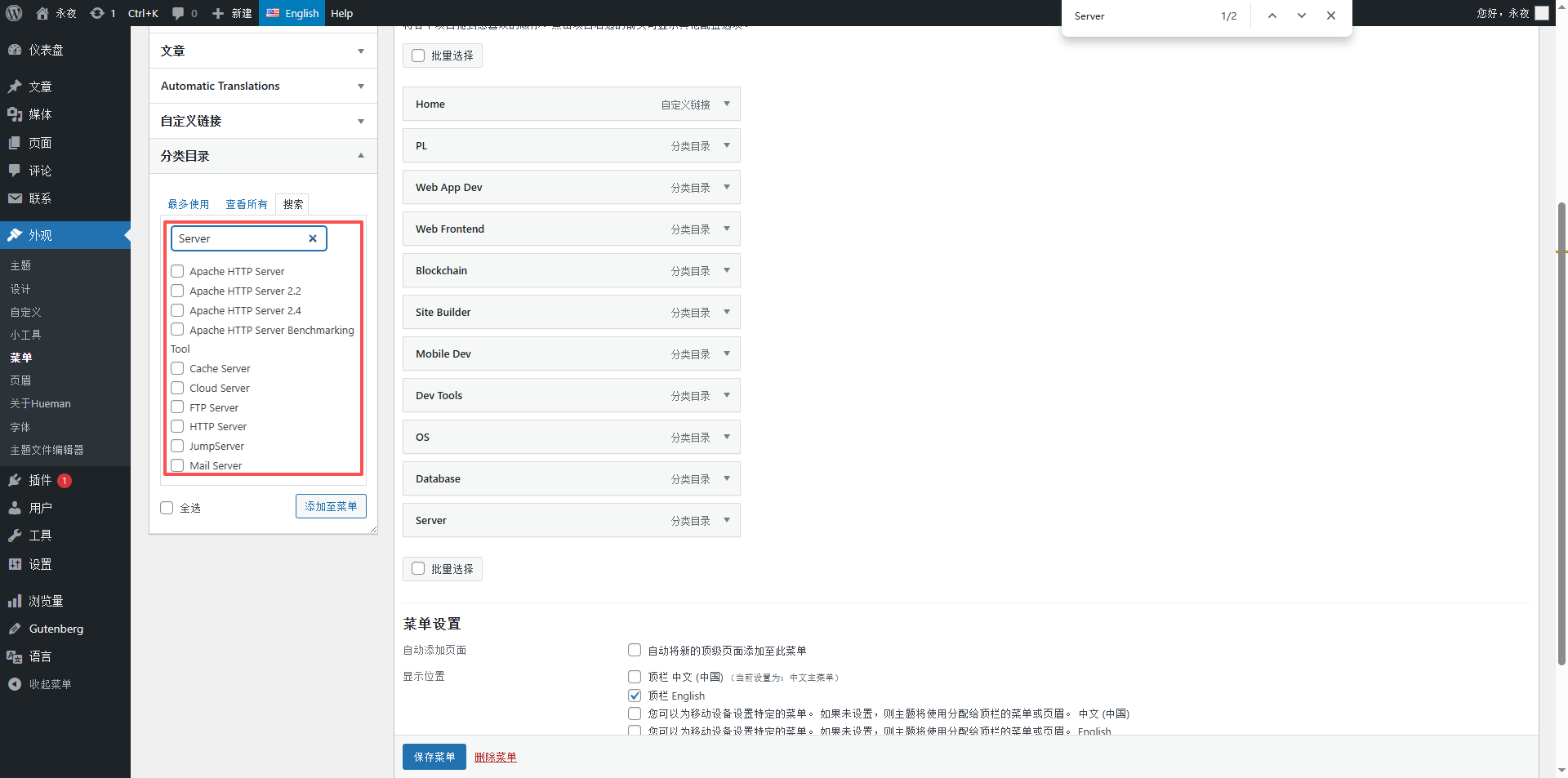
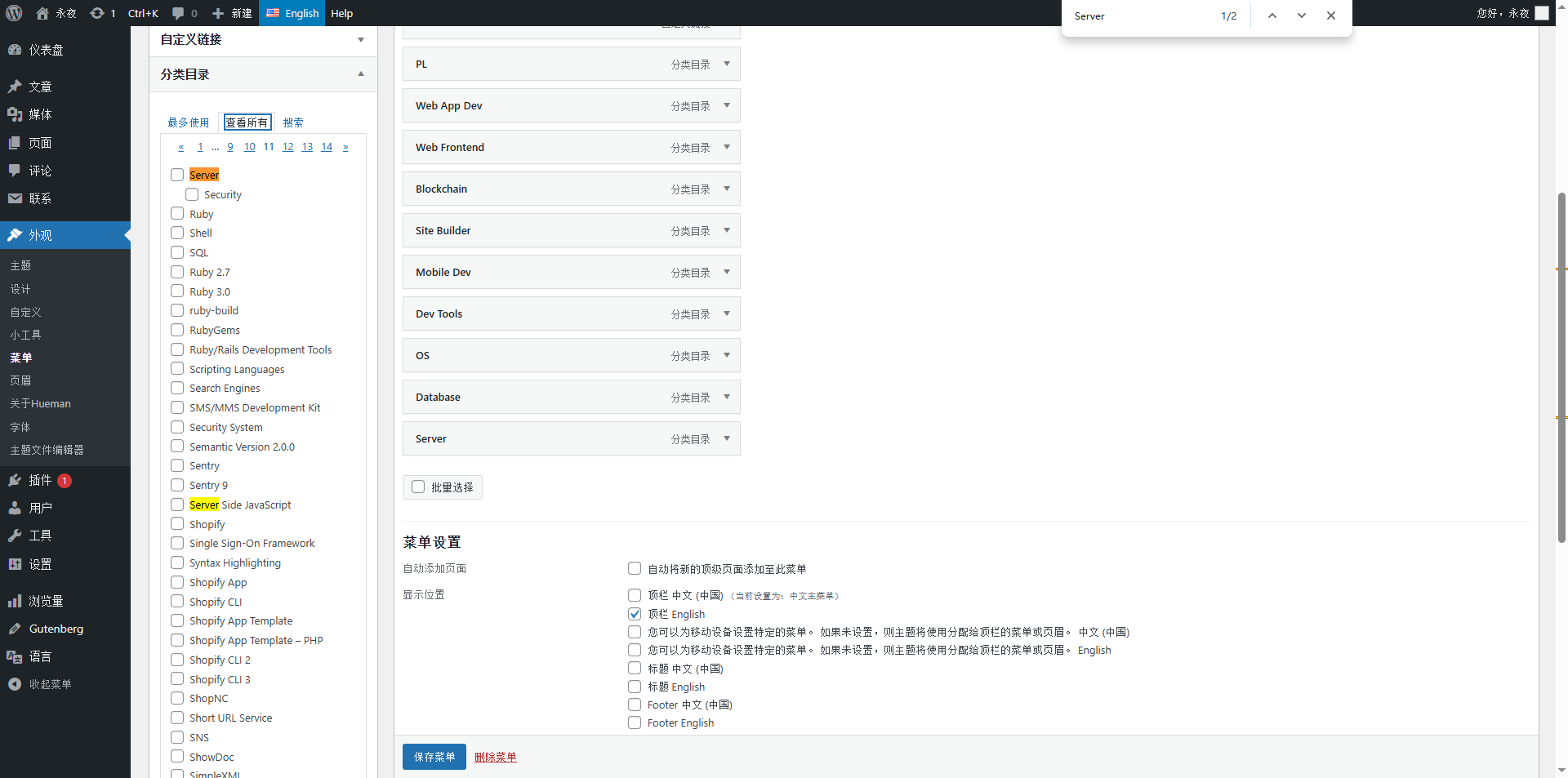
- “Server” could not be found via search, so I ultimately decided to page through and use the browser’s built-in search function. See Figure 8
Figure 4: Screenshot of paging through categories to load the cache (showing the operation of paging through all 14 pages of English categories)
Figure 5: Screenshot of adding English categories to the English main menu (showing searching for English categories and adding them to the menu)
Figure 7: Screenshot of streamlining English main menu labels (showing the translated and streamlined menu labels)
Step 4: Menu Optimization: Remove Redundant Menu Items and Add a Language Switcher
The Hueman theme only supports adding a language switcher to the menu. The current menu contains 17 items (Home, About Me, and 15 categories), making the layout crowded. We need to remove redundant menu items to free up space for the language switcher.
- Selecting redundant menu items: Prioritize deleting the “Other” category. This category serves as a catch-all for miscellaneous items, is not a core technical category, and has low user traffic. Deleting it will not affect navigation logic. If you prefer not to delete “Other,” an alternative is to delete “Programming Development” (which semantically overlaps with “Programming Language”);
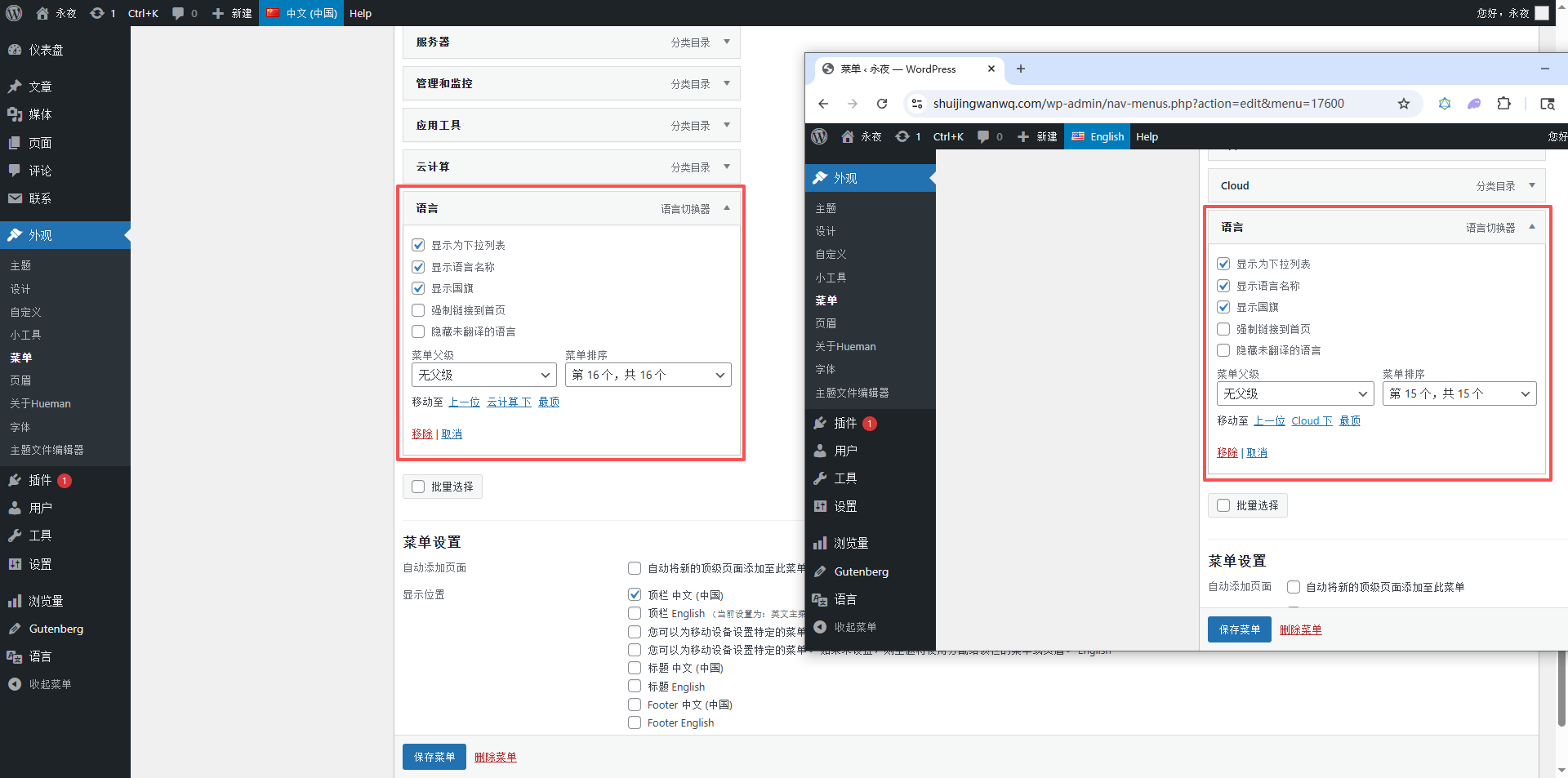
- After removing the redundant menu items, open “Screen Options” in the upper right corner of the menu page and check “Language Switcher”;
- Find “Language Switcher” on the left, check “English” (for the Chinese main menu) and “中文(中国)” (for the English main menu), and add them to the far right of their respective menus;
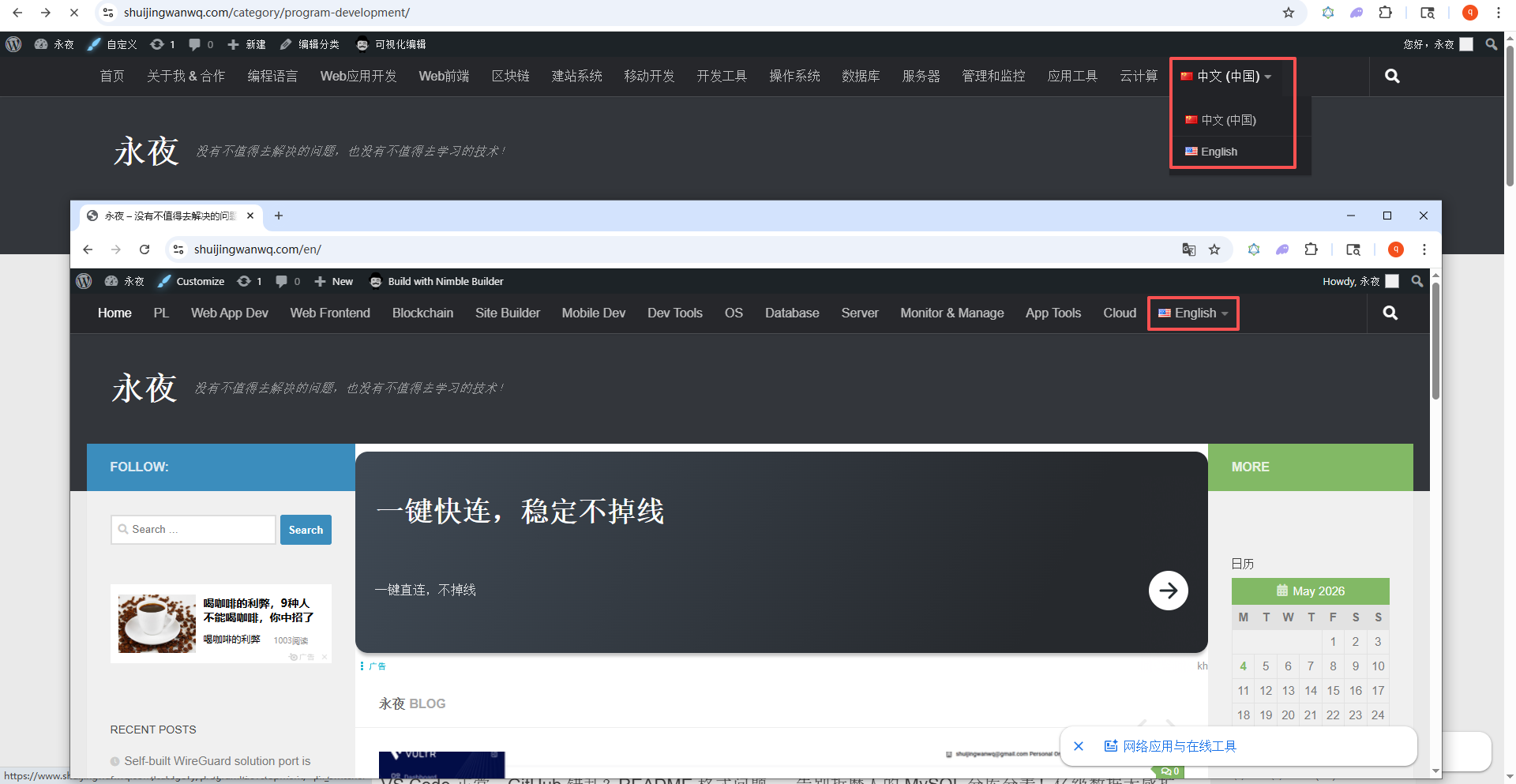
- Save the menu. Both Chinese and English menus now have a language switcher. Visitors can freely switch between the Chinese site (https://www.shuijingwanwq.com/) and the English site (https://www.shuijingwanwq.com/en/) using the switcher.
Figure 10: Screenshot of the final result after menu optimization (showing the complete menu after removing redundant items and adding the language switcher)
3. Streamlined Chinese and English Menu Names
Considering the professional nature of a tech blog and menu aesthetics (preventing line wraps), here are the corresponding streamlined names for the Chinese and English menus. Just replace the English main menu labels directly:
- 编程语言 — Programming Language — PL
- Web应用开发 — Web Application Development — Web App Dev
- Web前端 — Web Front End — Web Frontend
- 区块链 — Blockchain — Blockchain
- 建站系统 — Website Building System — Site System
- 移动开发 — Mobile Development — Mobile Dev
- 开发工具 — Development Tools — Dev Tools
- 操作系统 — Operating System — OS System
- 数据库 — Database — Database
- 服务器 — Server — Server
- 程序开发 — Programming Development — Program Dev (Deleted, can be used as backup)
- 管理和监控 — Management And Monitoring — Manage & Monitor
- 应用工具 — Application Tools — App Utilities
- 云计算 — Cloud Computing — Cloud Compute
- 其他 — Uncategorized — Other Categories (Deleted, can be used as backup)
Figure 11: Final result showing the language switcher on the front end.
4. Common Pitfalls and Solutions (Important!)
I encountered three core pitfalls during this process, all of which are common issues when pairing the Polylang plugin with the Hueman theme. The solutions are documented below to help you avoid the same traps:
- Pitfall 1: Neither Chinese nor English menus display → Solution: Confirm that both menus are bound to their respective language menu locations (Chinese main menu bound to Top Bar Chinese, English main menu bound to Top Bar English). Do not bind them to the wrong locations (e.g., binding the English menu to “Title English”);
- Pitfall 2: English categories cannot be searched in the English menu → Solution: Manually page through all category pages (14 pages in this article) to force all categories to load into the backend cache. You will then be able to search normally;
- Pitfall 3: No language switching option on the menu page → Solution: Switch to the corresponding language (中文/English) in the top admin bar of the backend, then enter the menu page. If there are still no options, go to Polylang settings and check “Display the language switcher in the admin bar”.
5. Summary
Menu translation is a core part of blog multilingualization. The key points are “two independent menus, precise language binding, and one-to-one category correspondence.” Due to the constraints of the Hueman theme, this implementation placed the language switcher on the right side of the menu and optimized the layout by removing redundant items, ensuring both navigation integrity and aesthetic appeal.
Key reminders: When adding categories to the English menu, be sure to load the full category cache first (page through all pages) to avoid being unable to search for English categories. Menu label streamlining should balance professionalism and conciseness, avoiding labels that are too long or too short. Adding the language switcher ensures that the Chinese and English menus correspond to each other, allowing visitors to switch freely.