

While maintaining WordPress websites, we often encounter console errors. These errors can sometimes look intimidating, but not all of them will cause a site to crash. This article will share a real-world case, demonstrating how to troubleshoot and resolve these errors step by step to get your site back to a healthy state.
1. First Signs: “Red Text” in the Console
Recently, while inspecting my WordPress website, I noticed several unsettling red error messages in the browser developer tools console:
Uncaught TypeError: Cannot read properties of undefined (reading 'msie')Uncaught TypeError: jQuery(...).fancybox is not a function[Violation] Permissions policy violation: unload is not allowed in this document.
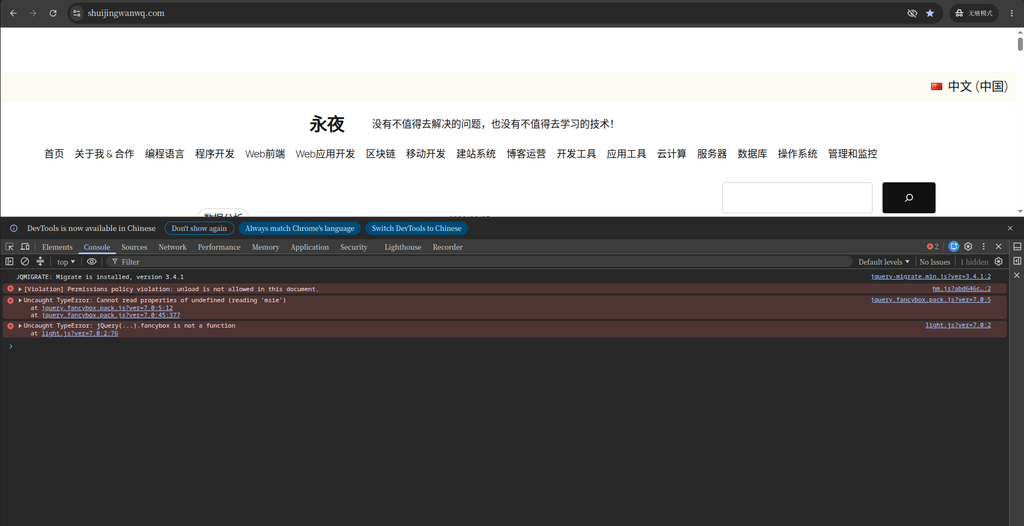
Although these error messages look complex, careful analysis allows us to find the root cause of the problem.
2. Problem Analysis: Sources and Causes of the Errors
2.1 The jQuery and Fancybox Compatibility Disaster
The first two errors, Cannot read properties of undefined (reading 'msie') and jQuery(...).fancybox is not a function, both point to a common source: a plugin named “Light – Responsive LightBox”.
- Cause of the error: This plugin relies on a jQuery library called Fancybox. However, the version of this library is very outdated, and it attempts to access a property that was removed in newer versions of jQuery,
$.browser.msie(used to detect the Internet Explorer browser). Because this property isundefinedin the current environment, the code throws anTypeErrorwhen trying to read its properties. This error prevents the Fancybox plugin from initializing correctly, so when thefancyboxmethod is subsequently called, the browser reports that “it is not a function”. - Direct impact: All images or galleries on the site that rely on this lightbox plugin can no longer display the zoom effect properly, significantly degrading the user experience.
2.2 The Baidu Tongji “Permission” Warning
The third error, [Violation] Permissions policy violation: unload is not allowed in this document., comes from another common service: Baidu Tongji.
- Cause of the error: The Baidu Tongji tracking script
hm.jsattempts to use the browser’sunloadevent to send final statistics when the user leaves the page. However, to improve performance and user experience, modern browsers now disable theunloadevent by default. As a result, the browser throws this “Permissions policy violation” warning. - Direct impact: This warning will not cause website functionality to fail, nor will it affect Baidu Tongji’s core data collection. It is merely a “notification” indicating that a third-party script is using a method deprecated by modern browsers.
3. Solutions: Addressing the Root Cause
We adopted different strategies for these two issues of different natures.
3.1 Resolving the jQuery Conflict: Removing the Outdated Plugin
For core functional errors caused by a plugin, the most direct and effective solution is to remove the problematic plugin.
- Deactivate and delete the plugin: Log in to the WordPress dashboard, go to the “Plugins” page, find the “Light – Responsive LightBox” plugin, and click “Delete”.
- Clear the cache: After deleting the plugin, be sure to clear the website’s cache (including WordPress caching plugins, server cache, and browser cache) to ensure the new state takes effect.
3.2 Ignoring the Baidu Tongji Warning
As for the Baidu Tongji unload warning, we chose to temporarily ignore it.
- Reason: This error originates from Baidu’s official script, not from our website configuration. It does not affect the normal operation of the website, nor will it cause data loss. Waiting for Baidu to officially update its tracking code is the best choice, requiring no manual intervention on our part.
4. Result Verification: Errors Gone, Website Restored to Health
After deleting the plugin and clearing the cache, I refreshed the page again and checked the console. The results were satisfactory!
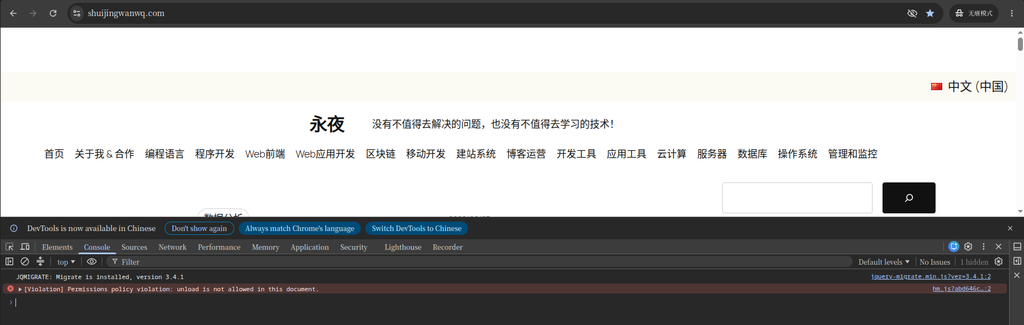
As shown in the image above, the two jQuery errors that previously caused functionality to fail have completely disappeared, leaving only the harmless Baidu Tongji warning.
5. Summary and Recommendations
Through this experience, I have summarized the following lessons, hoping they will help everyone better maintain their WordPress websites:
- Prioritize functional errors: When errors appear in the console, first focus on those that cause website functionality to fail (such as
TypeError), and prioritize resolving them. - Beware of outdated plugins: Many compatibility errors stem from using outdated plugins or themes. Regularly checking and updating them is key to keeping a website healthy.
- Leverage native WordPress features: WordPress version 5.4 and above has built-in lightbox functionality for the Gallery block, allowing you to achieve image zoom effects without additional plugins, which avoids many compatibility issues.
- Understand third-party script warnings: For warnings from third-party services (like Baidu Tongji), unless they severely impact website functionality, you can temporarily ignore them and wait for the service provider to update their code.
- Check the console regularly: As a website administrator, regularly checking the console helps you discover and resolve potential issues promptly, keeping your website in optimal condition.
I hope this blog post helps you better understand and resolve console errors on your WordPress website! If you encounter other issues during your troubleshooting process, feel free to continue the discussion.