

Recently, while streamlining my blog writing workflow, I ran into another minor issue affecting my efficiency.
Although it only required a few extra clicks each time, I write technical blogs almost daily. Over the long term, this repetitive action became something worth optimizing.
Ultimately, by analyzing the Gutenberg Block registration mechanism and utilizing WPCode, I managed to retain backward compatibility for historical posts using SyntaxHighlighter Evolved, while automatically converting new posts to Code Block Pro.
This article documents the entire troubleshooting and resolution process, hoping to provide some reference for friends encountering similar issues.
Problem Background
My blog currently has two code highlighting plugins installed simultaneously:
- SyntaxHighlighter Evolved: Used for historical posts, has been in use for years.
- Code Block Pro: Used for new posts, features a more modern interface and supports more functionalities, so I decided to use it exclusively going forward.
However, during the actual writing process, I discovered an issue that noticeably impacted efficiency.
When I copy content containing code blocks directly from ChatGPT or a Markdown document into the WordPress Gutenberg editor, the system defaults to creating not Code Block Pro, but SyntaxHighlighter Code.
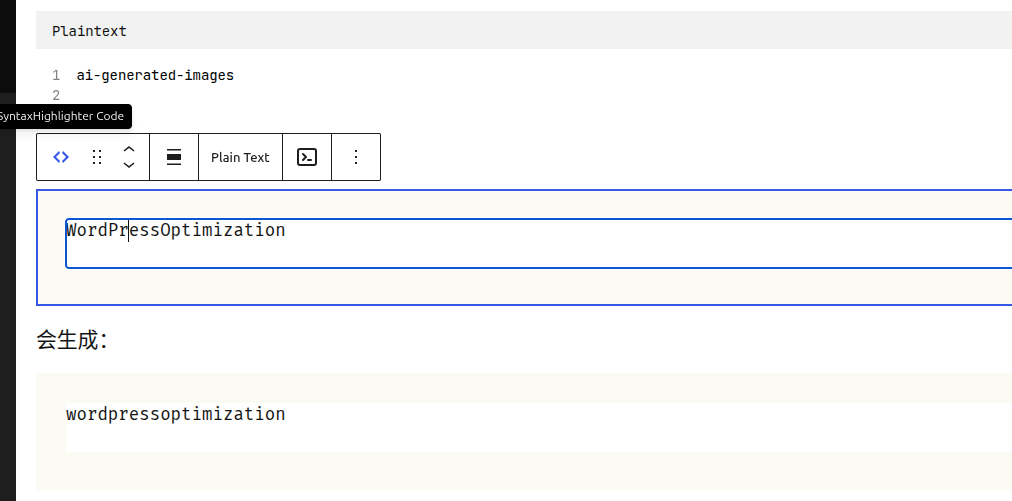
Subsequently, I had to manually perform:
SyntaxHighlighter Code
        ↓
Transform
        ↓
Code Block Pro
If an article contains a dozen code blocks, this repetitive operation must be performed many times.
Although it only takes a few seconds each time, in the long run, it severely impacts writing efficiency.
Why not just uninstall SyntaxHighlighter Evolved?
Initially, the solution I thought of was to simply deactivate SyntaxHighlighter Evolved.
But after checking my historical posts, I quickly realized this approach was unfeasible.
The code blocks in historical posts are actually saved as:
<!-- wp:syntaxhighlighter/code {"language":"yaml"} -->
<pre class="wp-block-syntaxhighlighter-code">
...
</pre>
<!-- /wp:syntaxhighlighter/code -->
This means all my historical posts rely entirely on the syntaxhighlighter/code Gutenberg Block.
If I deactivate the plugin directly, although the post content won’t be lost, all code highlighting effects will stop working.
Therefore, I ultimately established the following principle:
Keep historical posts untouched, and continue using Code Block Pro for new posts.
Analyzing the Gutenberg Block
To find the root cause, I opened the browser developer tools and executed the following in the Console:
wp.blocks.getBlockTypes().map(x => x.name)
I found that three code blocks were registered simultaneously in the editor:
core/code
syntaxhighlighter/code
kevinbatdorf/code-block-pro
Continuing to inspect the SyntaxHighlighter Block:
wp.blocks.getBlockType("syntaxhighlighter/code")
I found that it registered the following transform rules:
transforms: {
from: [
{
type: "enter"
},
{
type: "raw"
},
{
type: "block"
}
]
}
The most critical one among them is:
type: "raw"
This means that when I paste code blocks from Markdown or HTML, SyntaxHighlighter takes over first, automatically generating a SyntaxHighlighter Code Block.
Code Block Pro itself does not register a corresponding raw transform rule, so it cannot automatically take over the paste behavior.
Final Solution
Since I cannot modify historical posts and do not want to uninstall SyntaxHighlighter, the approach became:
Only modify the Gutenberg editor behavior without affecting the front-end display.
Ultimately, I used WPCode to add a backend-only PHP Snippet.
This snippet listens for newly created:
core/codesyntaxhighlighter/code
And subsequently converts them automatically to:
kevinbatdorf/code-block-pro
The entire process is fully automated.
The WPCode configuration is as follows:
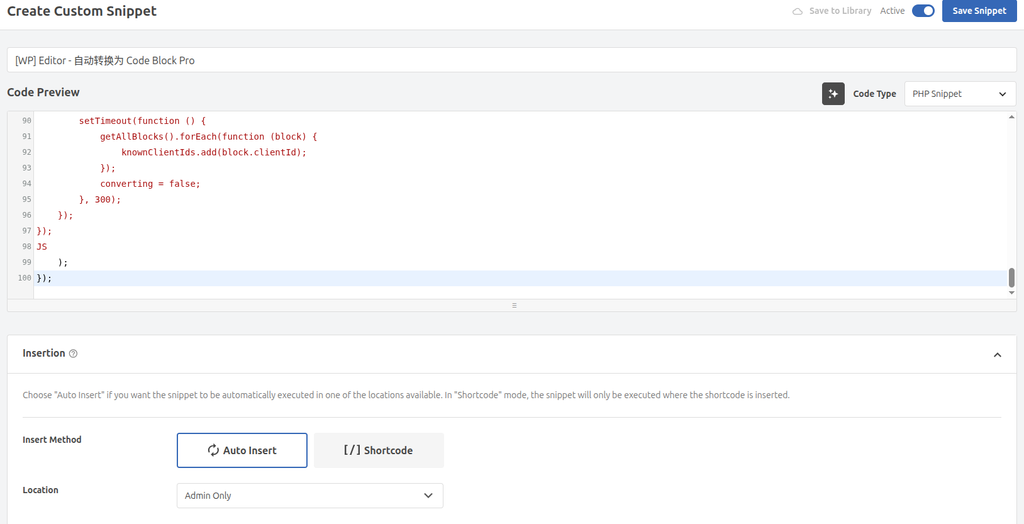
Name:
[WP] Editor - Auto Convert to Code Block Pro
Configuration:
- Code Type: PHP Snippet
- Insert Method: Auto Insert
- Location: Admin Only
Because it runs only in the backend editor, it does not affect front-end pages or historical posts.
The complete code is as follows:
/**
* 后台编辑器:新粘贴/新插入的 core/code 或 syntaxhighlighter/code
* 自动转换为 Code Block Pro。
* 不处理打开文章时已经存在的历史代码块。
*/
add_action('enqueue_block_editor_assets', function () {
wp_add_inline_script(
'wp-blocks',
<<<JS
wp.domReady(function () {
if (!wp.data || !wp.blocks) return;
const TARGET = 'kevinbatdorf/code-block-pro';
const SOURCES = ['core/code', 'syntaxhighlighter/code'];
let knownClientIds = new Set();
let initialized = false;
let converting = false;
function flattenBlocks(blocks, result = []) {
blocks.forEach(function (block) {
result.push(block);
if (block.innerBlocks && block.innerBlocks.length) {
flattenBlocks(block.innerBlocks, result);
}
});
return result;
}
function getAllBlocks() {
return flattenBlocks(
wp.data.select('core/block-editor').getBlocks()
);
}
function rememberExistingBlocks() {
getAllBlocks().forEach(function (block) {
knownClientIds.add(block.clientId);
});
initialized = true;
}
setTimeout(rememberExistingBlocks, 1200);
wp.data.subscribe(function () {
if (!initialized || converting) return;
const blocks = getAllBlocks();
const candidates = blocks.filter(function (block) {
return SOURCES.includes(block.name) && !knownClientIds.has(block.clientId);
});
if (!candidates.length) {
blocks.forEach(function (block) {
knownClientIds.add(block.clientId);
});
return;
}
converting = true;
candidates.forEach(function (block) {
let converted = null;
if (wp.blocks.switchToBlockType) {
converted = wp.blocks.switchToBlockType(block, TARGET);
}
if (Array.isArray(converted)) {
converted = converted[0];
}
if (!converted && wp.blocks.createBlock) {
const attrs = block.attributes || {};
const code = attrs.code || attrs.content || attrs.text || '';
const language = attrs.language || attrs.lang || 'text';
converted = wp.blocks.createBlock(TARGET, {
code: code,
language: language
});
}
if (converted) {
wp.data.dispatch('core/block-editor').replaceBlock(block.clientId, converted);
knownClientIds.add(converted.clientId);
}
});
setTimeout(function () {
getAllBlocks().forEach(function (block) {
knownClientIds.add(block.clientId);
});
converting = false;
}, 300);
});
});
JS
);
});Final Result
After adding the snippet, I tested it again.
Pasting Markdown content generated by ChatGPT directly into the editor:
Before:
Ctrl + V
↓
SyntaxHighlighter Code
        ↓
Transform
        ↓
Code Block Pro
Now:
Ctrl + V
        ↓
Code Block Pro
The entire process is now automated.
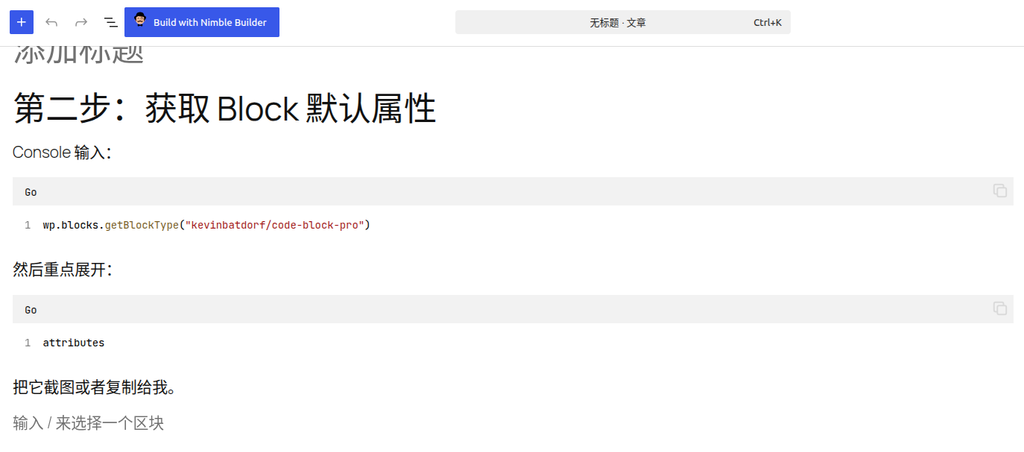
Currently, the only minor issue is:
Code Block Pro inherits the last used language by default. For example, if Go was selected in the previous post, the default language will still be Go the next time a code block is created.
However, for my writing habits, this is completely acceptable.
An article typically revolves around a single language, such as:
- Go
- PHP
- Bash
- YAML
Therefore, I only need to occasionally change the language for specific code blocks, which already saves a significant amount of repetitive operations compared to before.
Summary
The problem solved by this optimization is not a complex one.
It simply eliminates the repetitive clicking within each article over and over again.
However, for those who persistently write technical blogs over the long term, these high-frequency repetitive actions are often the most worthwhile to optimize.
Throughout the optimization process, I did not modify any plugin source code or migrate historical posts. Instead, I customized the editor behavior using the Gutenberg Block API, browser developer tools, and WPCode.
Ultimately, I achieved:
- Retained backward compatibility for historical posts using SyntaxHighlighter Evolved;
- Set Code Block Pro as the default for new posts;
- Did not affect front-end display;
- Significantly improved daily writing efficiency.
If I encounter similar issues in the future, I will prioritize:
Analyzing the working mechanism of the Gutenberg Block first, and then deciding whether to customize editor behavior via WPCode, rather than rushing to switch plugins or modify historical data.
Often, just a few dozen lines of code are enough to make the daily writing process much smoother.