

Symptom
One day, while editing a post in the WordPress dashboard as usual, I went to set a featured image for the post. I clicked the “Set featured image” button, but nothing happened. The media library popup did not appear, and the page seemed frozen.
I opened the browser developer tools (F12), and a red error message clearly appeared in the console (see Figure 1):
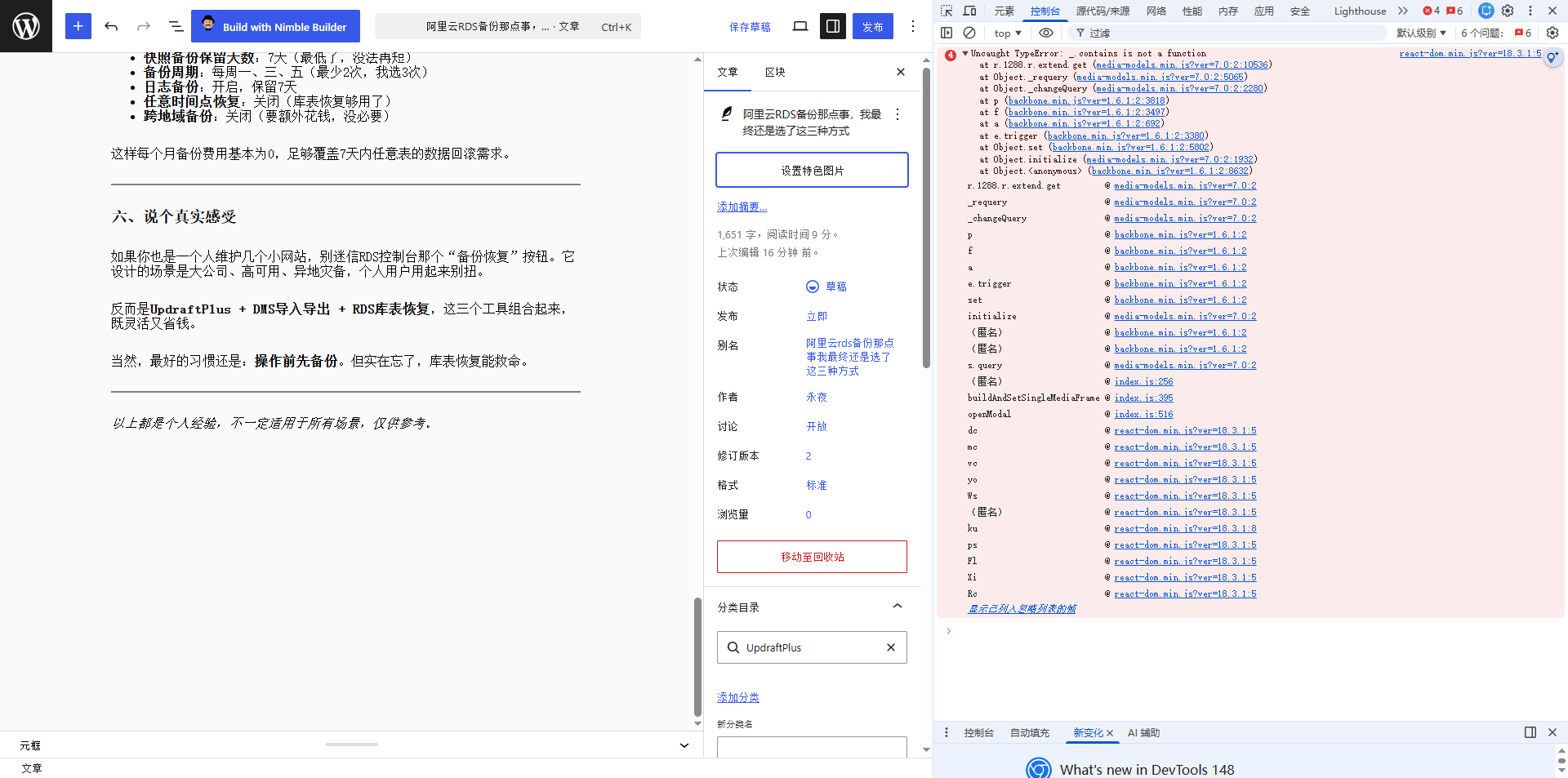
Uncaught TypeError: _.contains is not a function
    at r.1288.r.extend.get (media-models.min.js?ver=7.0:2:10536)
    at Object._requery (media-models.min.js?ver=7.0:2:5065)
    at Object._changeQuery (media-models.min.js?ver=7.0:2:2280)
    at p (backbone.min.js?ver=1.6.1:2:3818)
...Every time I clicked “Set featured image”, another error was added. This meant that the WordPress dashboard’s core media library script (media-models.min.js) could not find a JavaScript function named _.contains during execution.
Initial Guess: Browser Cache?
I refreshed with F5, but the problem persisted. I forced a refresh with Ctrl+F5 (bypassing the cache), and surprisingly, it worked! The featured image could be set normally again (see Figure 2). However, the next time I created a new post, the problem returned, and I had to force refresh again.
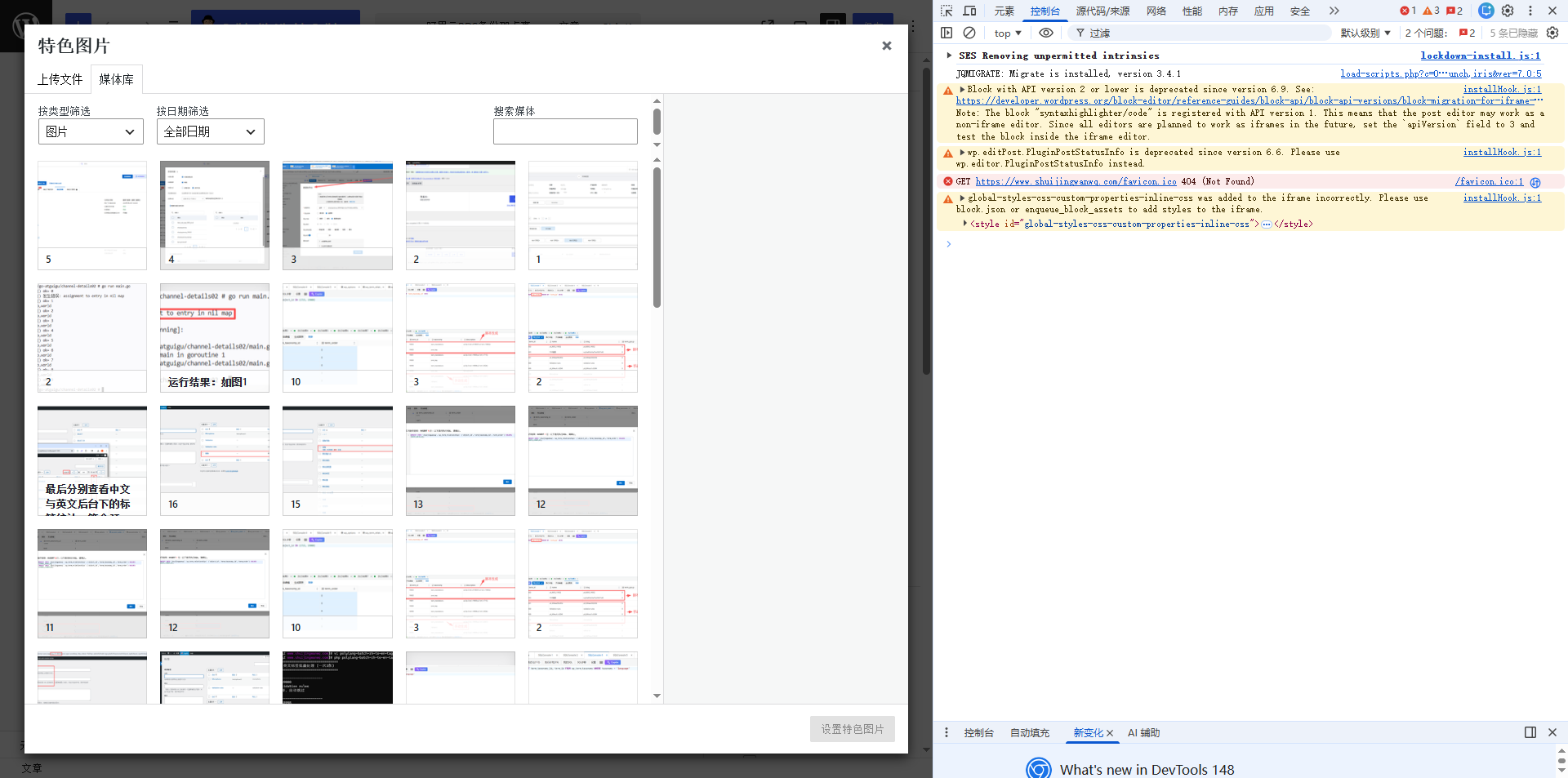
This was strange: the forced refresh had already redownloaded the correct script, so why couldn’t the browser “remember” it?
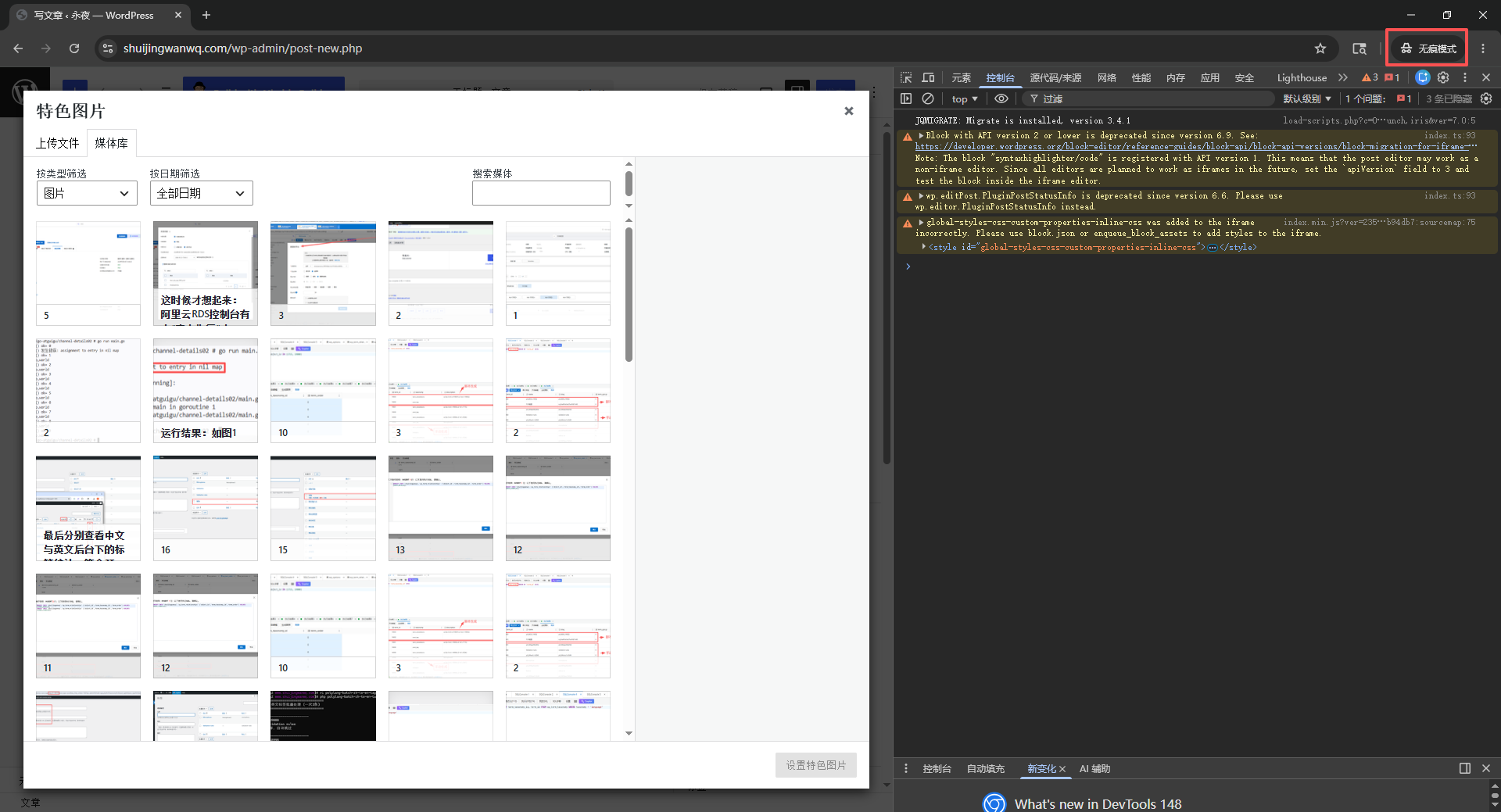
I tried Chrome Incognito mode, and it worked perfectly on the first click, with no errors in the console (see Figure 3). This indicated that the problem was definitely related to some persistent data or extensions in normal mode.
Ruling Out Service Workers
I knew that modern browsers have Service Workers (an independent caching mechanism), and that many PWA sites use them to intercept network requests. Could it be that my WordPress site had registered a Service Worker that cached the old JS files?
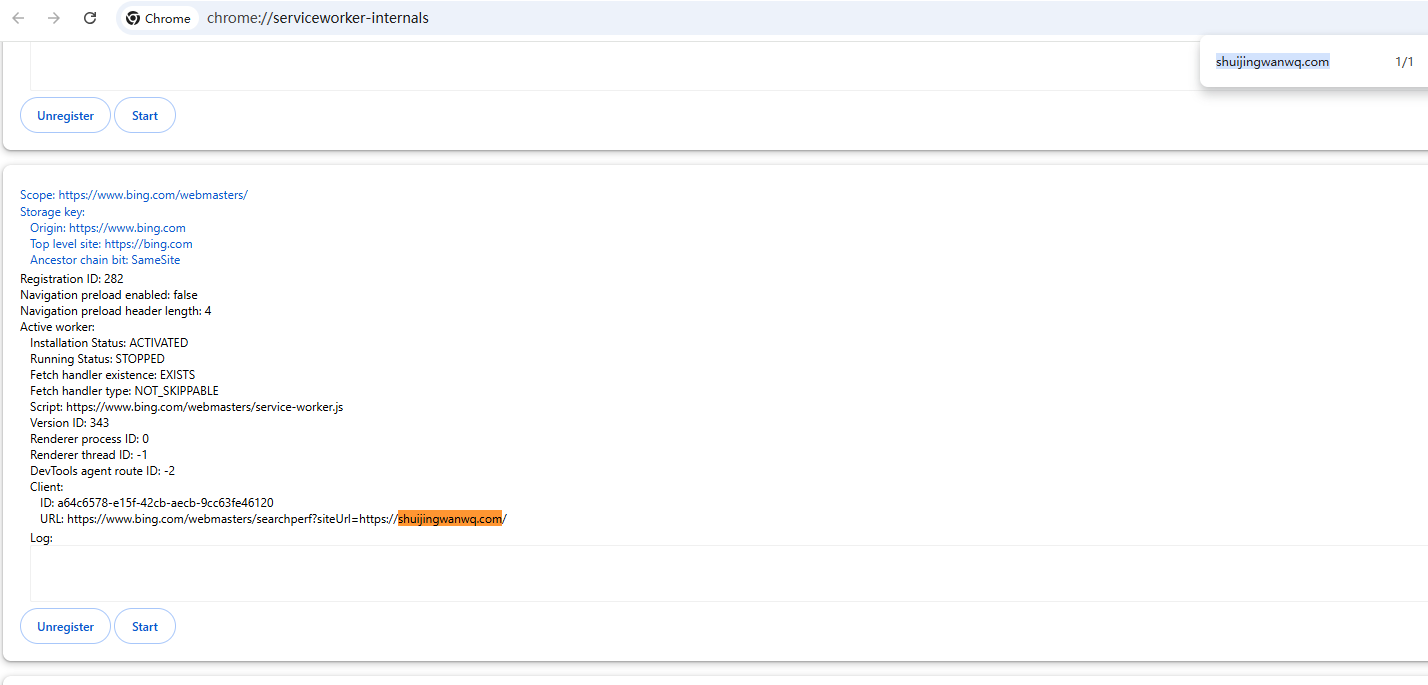
I opened chrome://serviceworker-internals/ and carefully reviewed all registered Service Workers. There were a bunch in the list, but they were all browser extensions (chrome-extension://) or third-party websites (Google, Bing, Notion, etc.); none belonged to my WordPress domain (see Figure 4). This ruled out the possibility of a Service Worker.
Turning to Browser Extensions
Incognito mode disables all extensions by default, while normal mode loads them all. The only difference between the two was the extensions. Therefore, the problem almost certainly lay with one or more browser extensions.
I had many extensions installed: 6 crypto wallets (MetaMask, Phantom, Tonkeeper, Alby, OneKey, UniSat Wallet), plus Stylus, WPS Browser Assistant, React Developer Tools, and so on. It was time to troubleshoot them one by one.
First Batch Test
I first disabled all extensions, then went back to the WordPress dashboard and clicked “Set featured image”—it worked! This confirmed it was an extension conflict.
Individual Wallet Extension Tests
Next, I tried enabling only all 6 crypto wallet extensions and disabling everything else. The result: the problem reproduced (no response on click, error reported).
Could it be the wallet extensions’ fault? I tried enabling only MetaMask and turning everything else off. Test: Normal.
Enabled only Phantom: Normal.
Enabled only Tonkeeper: Normal.
…Every single one worked fine when enabled alone.
The problem seemed to occur only when multiple wallets were enabled simultaneously.
Pinpointing the Specific Combination via Bisection
I had 6 wallets, and the error occurred when all were enabled. I tried disabling one of them and keeping the other 5 enabled.
- Disabled UniSat Wallet → other 5 enabled → Normal!
- Disabled MetaMask → other 5 enabled → Still errors? Wait, no, let me test this rigorously again.
After repeated cross-validation, I finally reached a definitive conclusion:
When UniSat Wallet and MetaMask are enabled simultaneously, the error is always triggered.
When UniSat Wallet and Phantom are enabled simultaneously, the error is similarly triggered.
However, enabling UniSat alone, or alongside other wallets (like Tonkeeper, Alby, OneKey), caused no problems.
This was very interesting: the problem was not caused by a single extension, but rather by an interaction conflict between UniSat Wallet and either MetaMask or Phantom.
Single Extension Verification
To confirm, I ran one final test: enabled only UniSat Wallet and disabled all other extensions (including MetaMask, Phantom, etc.). The result: functioned normally. This showed that UniSat itself did not break the WordPress dashboard; the conflict only arose when it was present alongside certain other wallets.
Root Cause of the Conflict
These crypto wallet extensions inject JavaScript global objects (like window.ethereum) into the page, and each may load its own version of the lodash or underscore library, overwriting the global _ variable.
WordPress’s media-models.min.js relies on the _.contains method provided by the older version of Underscore.js. Once _ is replaced by an extension (or a library it depends on) with an object that lacks the contains method (for example, in newer versions of Lodash, this method was renamed to _.includes), it throws the _.contains is not a function error.
When UniSat and MetaMask (or Phantom) run simultaneously, their contention over _ leads to version incompatibility, ultimately exposing the fragile dependency in WordPress’s code.
Solutions
With the root cause identified, the solution became clear:
Temporary Workaround (Recommended)
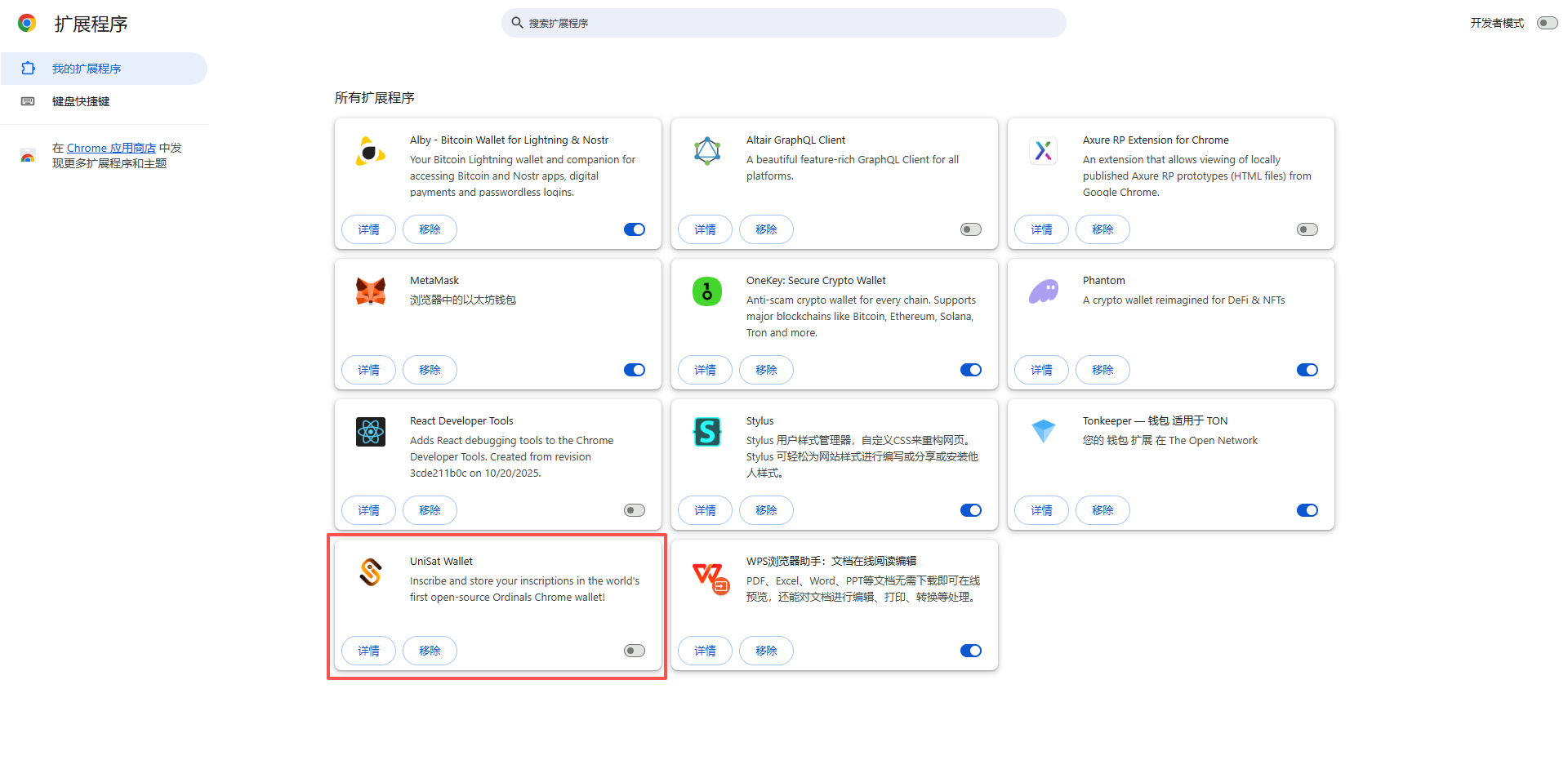
When writing posts in the WordPress dashboard, temporarily disable UniSat Wallet (see Figure 5) (or disable MetaMask/Phantom, depending on your needs). You can quickly toggle it via Chrome’s extension management panel, or install an extension manager (like SimpleExtManager) to switch groups with one click.
The direct cause has been found, and it should be related to the Phantom wallet extension I installed a while ago. The problem was caused precisely by UniSat Wallet + Phantom. Reference: V2EX Registration Complete Guide: From Buying V2EX Tokens to Solving the Phantom Plugin Freeze
Long-Term Solutions
- Report to the extension developers: Submit an issue on GitHub or via official support channels, describing the WordPress dashboard conflict, along with the error stack trace and reproduction steps. Hopefully, they will fix the pollution of the global
_in a new version. - Use multiple Chrome profiles: Create a new Chrome profile dedicated specifically to website management, without installing any crypto wallet extensions. Switch to this profile when writing posts for complete isolation.
- Modify WordPress code (not recommended): You can force a reload of Underscore.js in the theme’s
functions.php, but this only treats the symptom and not the root cause, and may impact performance.
Summary and Reflection
This troubleshooting experience gave me a profound realization:
- Browser extensions are the hidden culprits behind website dashboard failures. When encountering a problem where “Incognito mode works, but normal mode doesn’t”, you should suspect an extension conflict first.
- Do not be fooled by surface symptoms: At first, I thought it was the cache, then a Service Worker, and finally I narrowed it down to the extensions. Every step must be verified with controlled experiments.
- When multiple extensions coexist, the conflict may not be “one-to-one”, but rather “one-to-many” or “many-to-many”. You need to patiently use the bisection method and pairwise testing to gradually narrow down the scope.
- WordPress’s frontend code relies on outdated JS libraries, making it prone to conflicts with modern browser extensions. Hopefully, WordPress will upgrade its media library scripts in the future to reduce reliance on external global variables.
I hope this article helps WordPress users who encounter the same problem. If you also experience a similar issue where clicking “Set featured image” does nothing, try disabling all extensions first to see if it is an extension conflict. If it is, you can follow the method in this article to locate it step by step.
Appendix: Extension versions I used (for reference)
- UniSat Wallet: Latest version
- MetaMask: Latest version
- Phantom: Latest version
- Chrome: Stable version (version number omitted)