

Preface
Twenty Twenty-Five (2025) is a block-based full site editing theme that comes with two sets of global width controls: 内容宽度, 宽幅宽度, which can achieve the effect of “filling the screen on small displays while automatically centering with whitespace on high-resolution large displays”.
Based on my actual testing on a 1920×1080 Ubuntu 26.04 device, this article fully documents the global width settings and the troubleshooting process for the header navigation width restriction issue. I have kept the theory as simple as possible to facilitate future debugging and testing.
1. Theme Default Global Width Parameters (Figure 1)
TT25 ships with a conservative set of narrow parameters suitable for traditional text blogs, which is also the initial state for the vast majority of users:
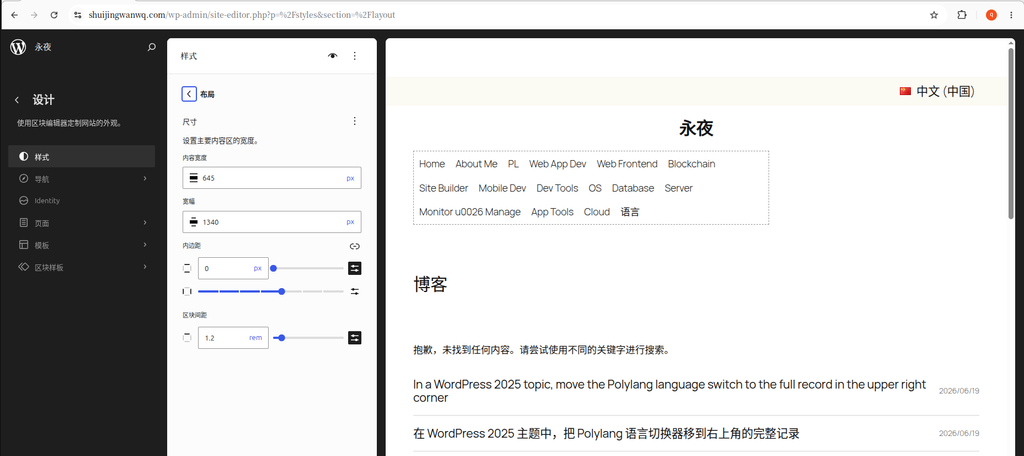
- Content width: 645px (standard width for article body text and normal paragraphs)
- Wide width: 1340px (upper limit for large images, multi-column cards, and wide modules)
- Root padding: 0 top and bottom, normal left and right
Shortcomings of the default configuration:
On 1920, 2K, and 4K large displays, large blank spaces appear on both sides of the page, failing to utilize the horizontal screen space. This does not conform to current and future large-screen browsing trends.
2. Custom Global Width Settings Adapted for Future Large Screens (Figure 2)
My device: Ubuntu 26.04, monitor resolution 1920×1080
Adjustment goal: Fully fill the width on small and medium screens, and limit the maximum width on high-resolution large screens to avoid reading fatigue caused by excessively long horizontal lines of text.
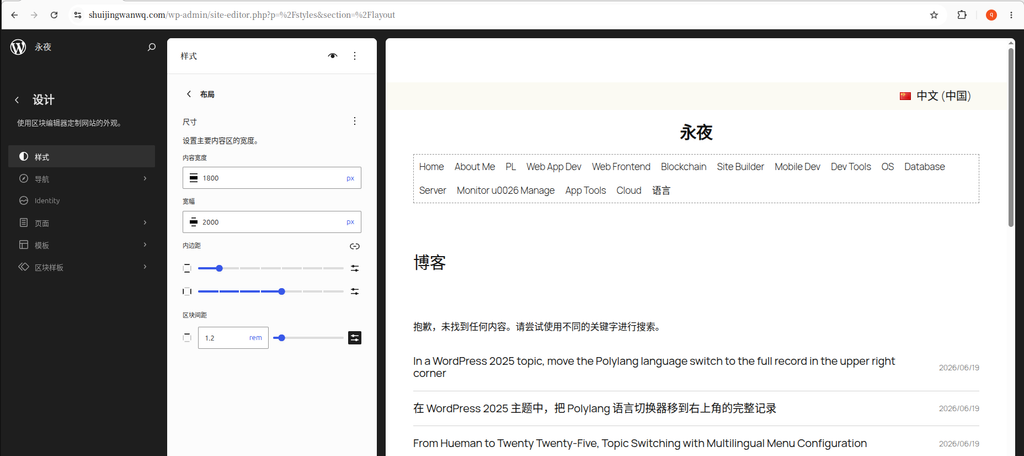
Final Global Parameter Configuration
- Content width:
1800px(upper limit for body text and normal text blocks) - Wide width:
2000px(upper limit for banners, header, multi-column cards, and large image modules) - Root padding: minimum top and bottom, normal left and right
Settings Entry Point
Dashboard → Appearance → Editor → Design (Styles icon) → Layout panel. Simply fill in the values and save.
Effect Logic (Simplified Understanding)
- Browser width < 1800px: The page automatically fills the screen with no forced whitespace on either side;
- Browser width 1800~2000px: The body text fills the screen, and wide modules fully expand;
- Browser width > 2000px (2K/4K ultra-wide screens): The content locks to the maximum width and centers automatically, with whitespace on both sides to optimize reading.
3. Actual Display Effect on the Frontend Article Page (Figure 3)
After modifying the global widths and unifying the template alignment, the frontend article detail page behaves as follows:
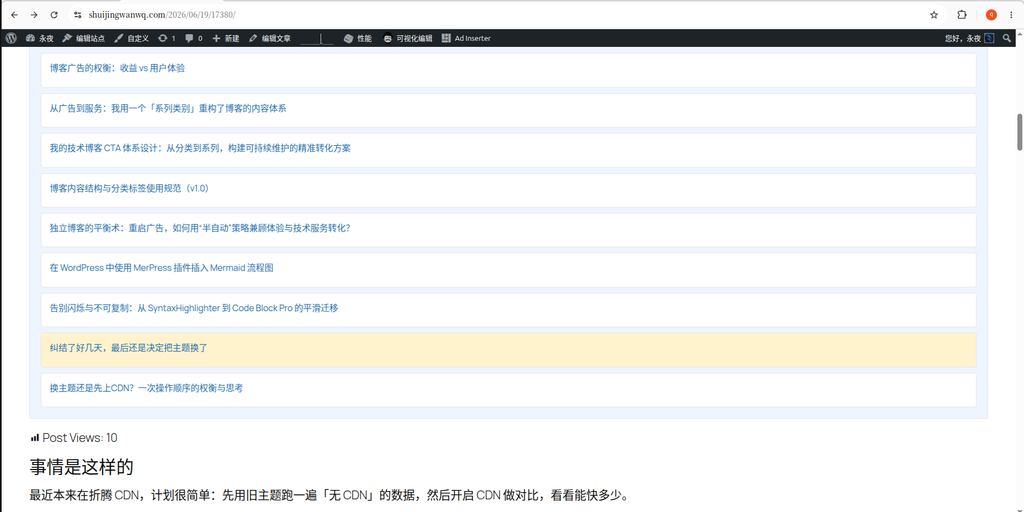
- Normal text paragraphs are constrained by the 1800px content width and centered on wide screens;
- Images, tables, and multi-column lists inserted with wide alignment will extend to the 2000px upper limit;
- For visitors on narrow screens such as 1280px or mobile phones, the page fills completely without left or right whitespace.
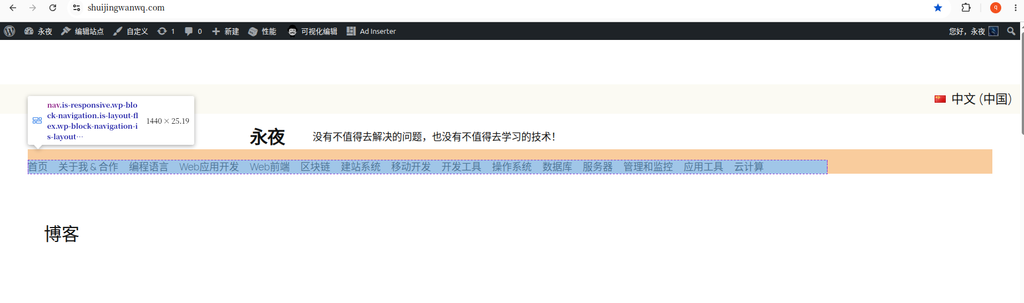
4. Header Navigation Width Anomaly: Navigation Restricted by Content Width (Figure 4)
Testing Approach
Directly modifying the live site parameters carries a high risk, so I first ran a controlled test using smaller dimensions to visually distinguish the two width boundaries:
Temporary test parameters: Content width 1440px, Wide width 1680px
Visual distinction: The blue navigation block represents the 1440 content width, and the orange outer header container represents the 1680 wide width.
Issue Phenomenon
The header navigation is restricted to 1440px, and large blank spaces appear on both sides of the orange header. Even though a 1680px wide width is set, the navigation cannot fill the wide area.
Root Cause
- The outer header and inner navigation groups have “Inner blocks use content width” enabled by default. When this toggle is active, it forces all inner blocks to shrink to the “Content width”, directly ignoring the global wide width dimensions;
- Additional note: This toggle is not a global master switch. It does not exist in the global styles panel; it is only found within the block settings panel of an individual group / container.
5. Solution: Turn Off the Group’s “Inner Blocks Use Content Width” (Figure 5)
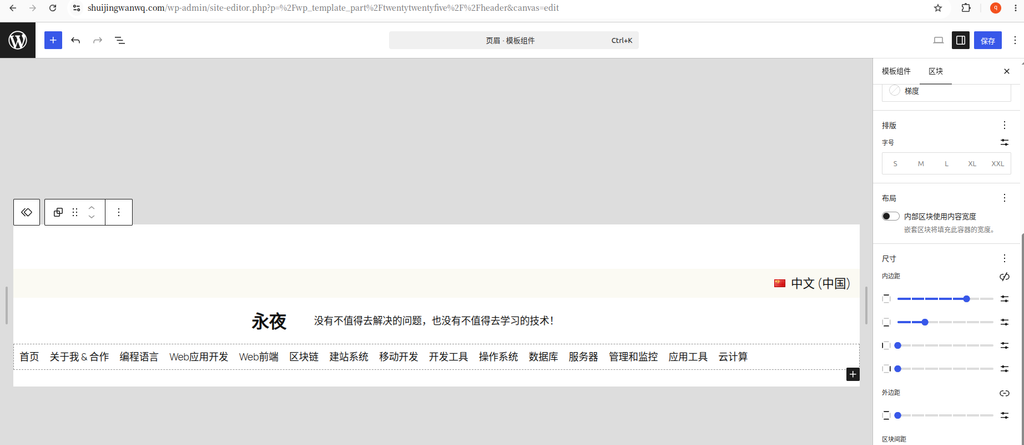
Operation steps (executed within the header template):
- Site Editor → top template dropdown, switch to the Header template;
- Select the outermost orange root group of the header, and go to the right-side “Block – Layout”;
- Uncheck “Inner blocks use content width”;
- Next, select the blue inner navigation group that wraps the menu and turn off the same toggle;
Only after turning off both container layers will the forced 1440px content width restriction be lifted.
6. Final Visual Effect After Turning Off the Toggle (Figure 6)
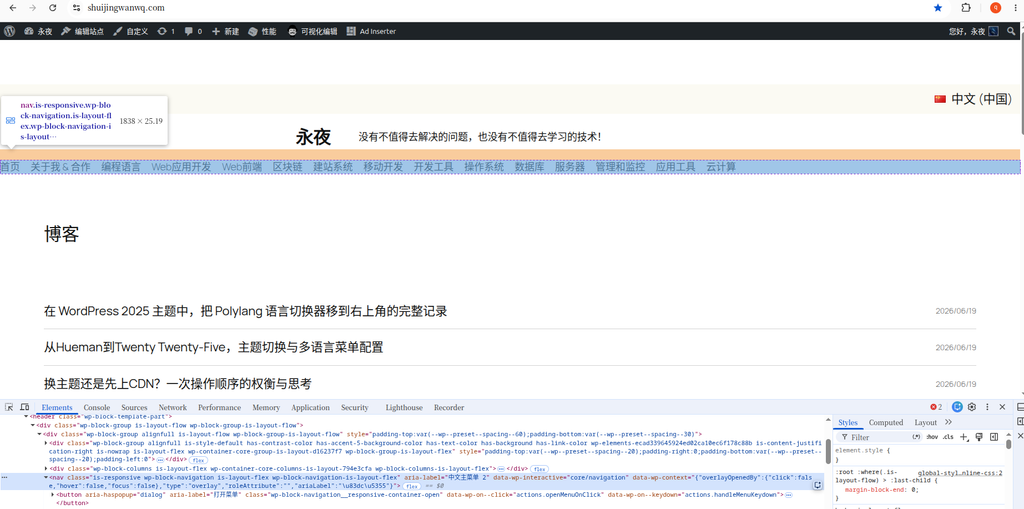
Once both group toggles are fully turned off, the page dimensions change:
- The blue navigation block width becomes 1838px, and the orange header container simultaneously stretches to the same width;
- The navigation completely fills the header, the orange whitespace on both sides disappears entirely, achieving a full wide-width visual effect;
Additional Notes
The editor canvas will ignore the global 2000px maximum width limit, causing the preview values to be larger. Accessing the site from a frontend incognito window will strictly adhere to the global wide width upper limit, automatically centering with whitespace on screens wider than 2000px.
7. Subsequent Debugging Summary
- Maintain long-term live parameters: Content width 1800px, Wide width 2000px, to accommodate future large-screen devices;
- Set the outer group of all pages, posts, archives, and search templates to uniformly use Full width alignment;
- Permanently turn off “Inner blocks use content width” for both the header and footer group layers, eliminating the need for repeated modifications;
- You can subsequently test with different width values on your own. Once global parameters are modified, they take effect synchronously across the entire site, and the header requires no secondary adjustments.