Elegantly adding multiple sets of analytics code using the WPCode plugin, and resolving the data loss issue when accessing Google Analytics from within China
📋 Background and Goals
When adding analytics code to a WordPress website, I ran into a frustrating challenge: how to deploy multiple analytics tools simultaneously without compromising site performance, while ensuring data accuracy? Particularly for websites targeting Chinese users, the access stability issues of Google Analytics (GA4) in mainland China can lead to the loss of some traffic data. My requirements were clear: I needed the powerful GA4 to analyze overseas traffic while accommodating the access experience of domestic users; I also wanted to add Microsoft Clarity to see exactly how users browse pages. I originally thought it would be a simple three-step process of “copy, paste, and save,” but I unexpectedly ran into quite a few pitfalls in practice. Today, I am sharing my implementation process and troubleshooting approach, hoping it helps others who are also struggling with analytics code.
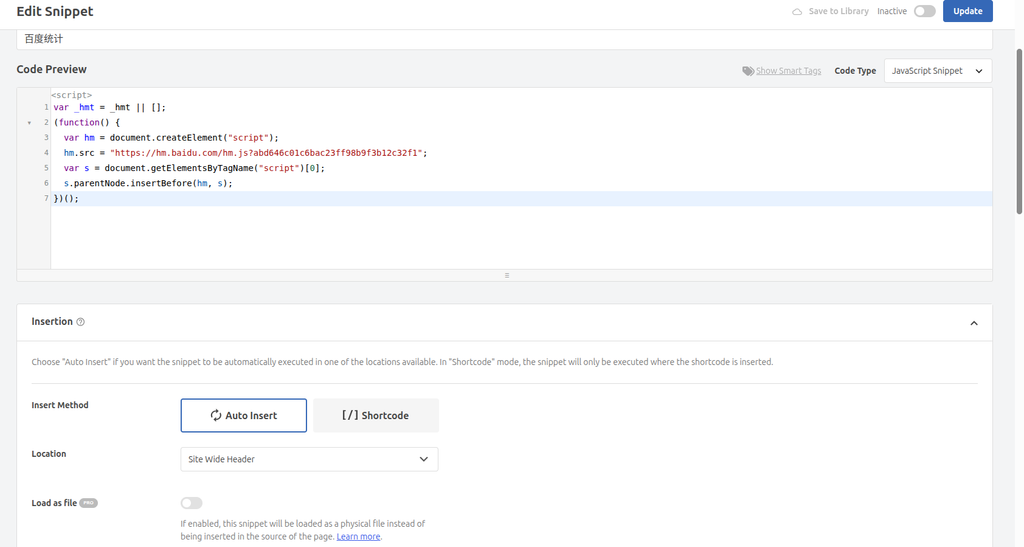
To keep theme files from becoming cluttered, I always prefer using the WPCode plugin to manage various third-party scripts. First, I deployed Baidu Analytics, which has the most stable access in China. When creating a new code snippet in WPCode, I selected the JavaScript Snippet type. After pasting the code, I set the location to Site Wide Header, and for the device type, I chose Any device type (desktop and mobile) to ensure coverage across all accessing devices.
Baidu Analytics code added successfully; placed in the Header for early loading Things went very smoothly with Baidu Analytics. However, when I deployed GA4 next, WPCode threw an error.
Step 2: Add Google Analytics 4 Code (Encountering an Error)
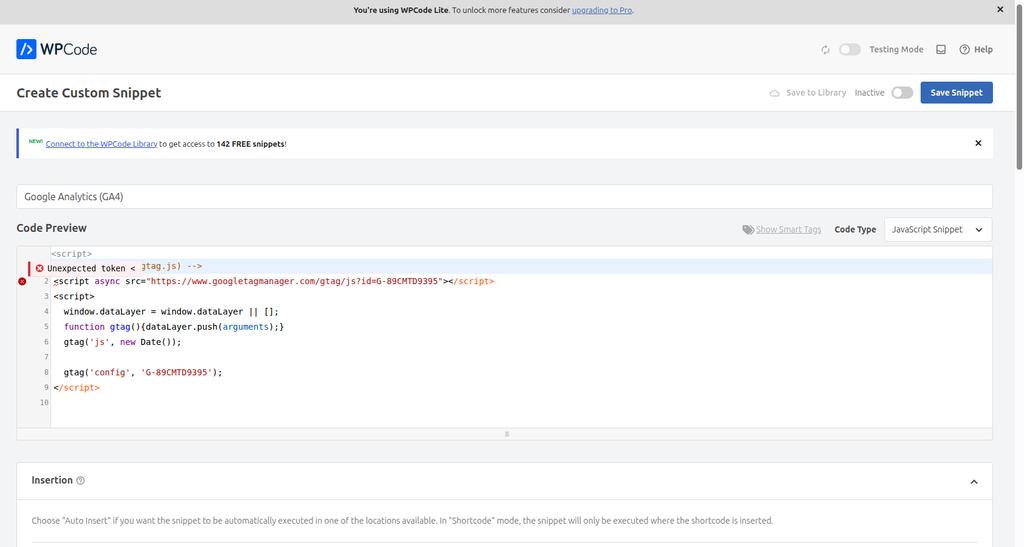
I followed the same pattern, pasting the GA4 code that starts with <script>, and again selected the JavaScript Snippet code type. When I tried to save, the system threw an error directly: Unexpected token <.
Selecting the JS snippet type for the GA4 code triggered a syntax error I was a bit confused at first, but after looking closely, I realized: the GA4 code is a complete HTML tag (containing <script> and </script>), while the JavaScript Snippet type requires pure JS logic inside. Encountering the opening < naturally caused a syntax parsing error.
Step 3: Resolve the GA4 Code Addition Issue
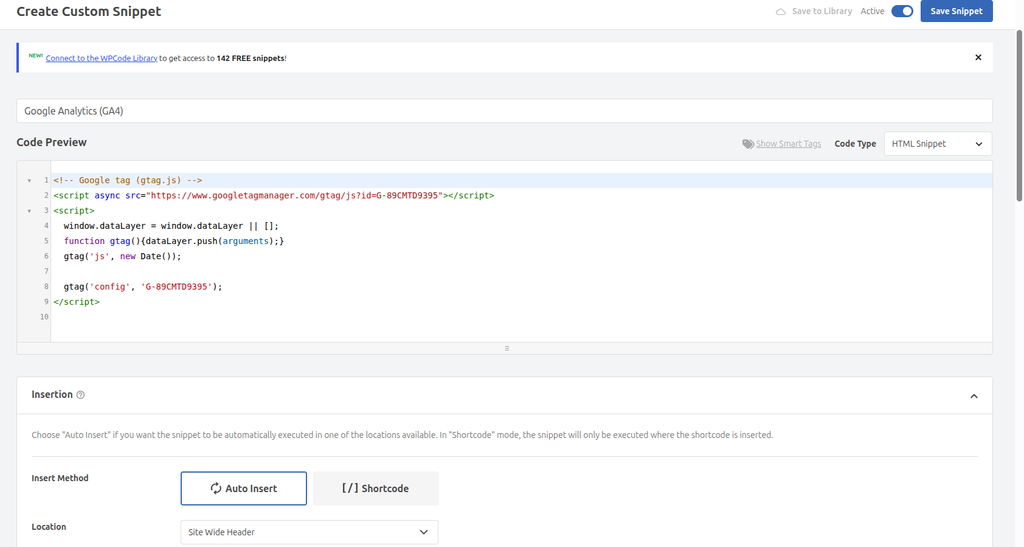
Once I identified the cause, the fix was quick. I changed the code type to HTML Snippet, pasted the GA4 code again, and this time it saved successfully without any errors.
After switching to the HTML Snippet type, the GA4 code saved successfully
💡 Key Takeaway: In WPCode, code containing HTML tags (like analytics code) must be assigned the HTML Snippet type, while pure JavaScript code should use the JavaScript Snippet type. This is the key to avoiding the “Unexpected token” error.
Step 4: Install the Microsoft Clarity Plugin
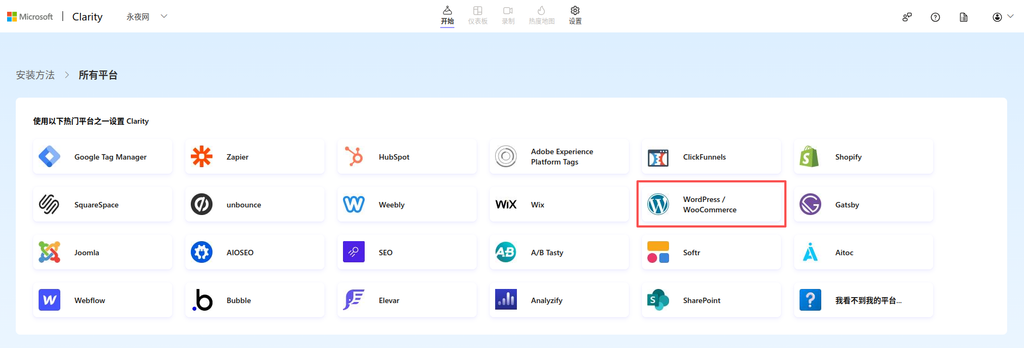
Technically, Clarity’s code could also be managed using WPCode. However, considering that Clarity’s main features are session recording and heatmaps, its script is relatively heavy. Although WPCode can also place it in the Footer, I checked the Clarity official website and found that they actually offer a dedicated WordPress plugin. Since there is a native plugin, it eliminates the hassle of manually managing code placement. The plugin automatically injects the code optimally (usually asynchronously at the bottom of the page), so there is no need to worry about affecting above-the-fold loading speed. Plus, you can view the overview directly in the WP dashboard, which is a great bonus. So, following the official website’s guide, I selected the WordPress platform.
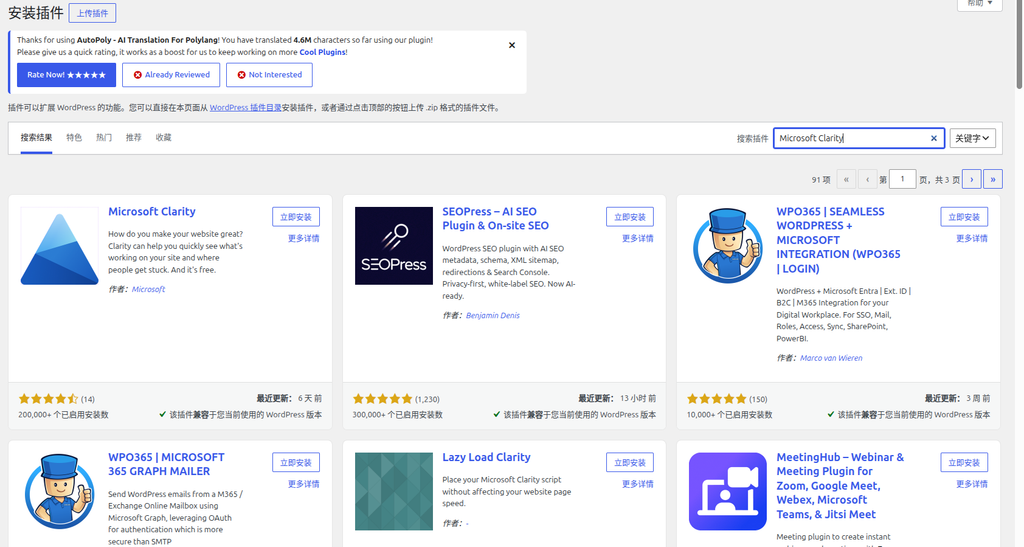
Clarity’s official WordPress plugin installation guide I went straight back to the blog dashboard, searched for “Microsoft Clarity,” and installed and activated it with one click.
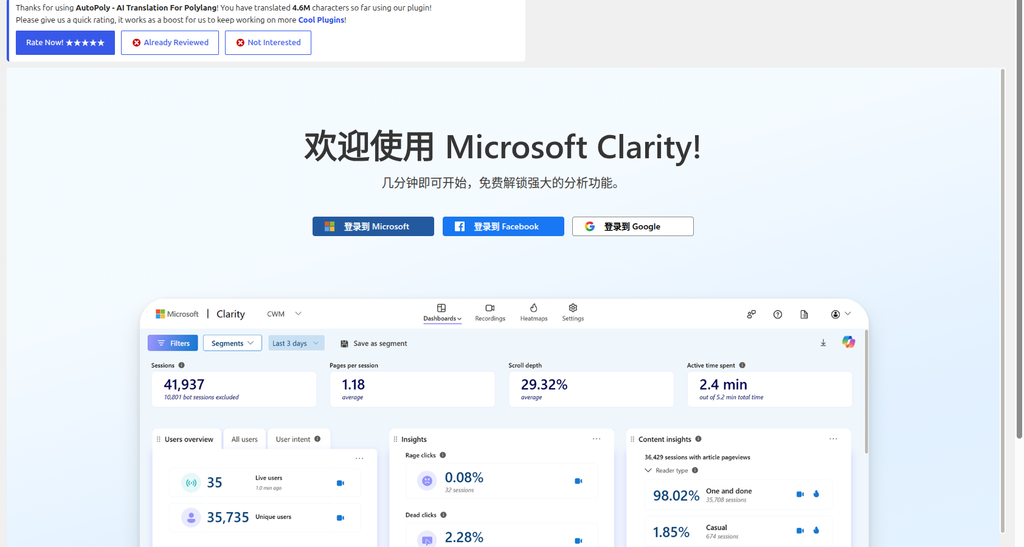
One-click plugin installation via dashboard search Once activated, a Clarity option appears in the sidebar. Clicking it and following the prompts, I logged in to authorize with my Microsoft account.
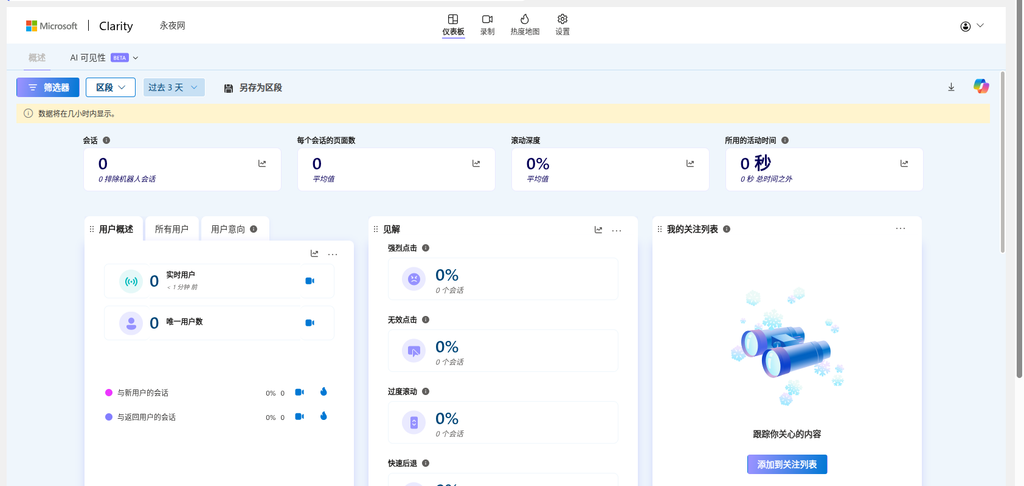
Logging into the Microsoft account directly from the dashboard After authorization, the page automatically linked to the project I had created in the Clarity dashboard. The entire deployment process was incredibly smooth.
Status panel after the plugin connects successfully
🔍 Verification and Testing: Network Request Analysis
Deploying the code doesn’t mean everything is done. Especially for GA4, I still had a question mark over whether it could send data normally in a domestic network environment. To figure out the actual situation, I turned off my VPN to simulate the most realistic domestic visitor environment, opened the browser’s incognito mode, pressed F12 to bring up the Developer Tools, switched to the Network panel, and prepared to see the truth for myself.
Google Analytics 4 Request Analysis
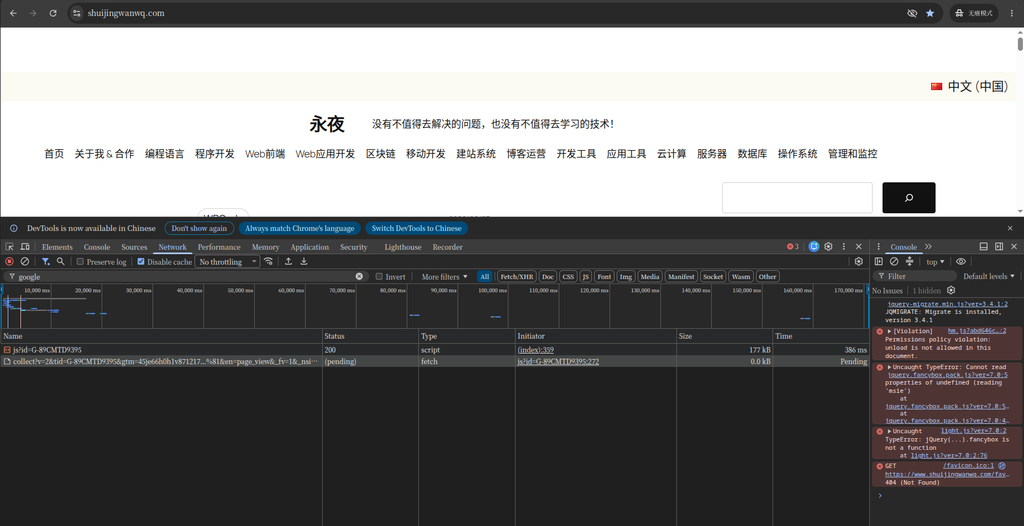
Filtering by google in the Network panel and refreshing the page, I observed a very interesting phenomenon:
GA4 request status captured in the Network panel As shown in the screenshot, GA4’s operation actually consists of two steps:
Loading the core script: Requests https://www.googletagmanager.com/gtag/js?id=G-89CMTD9395, and this request returns a status code of 200 (Success). This indicates that the GA4 code library was downloaded successfully.
Reporting analytics data: Requests https://www.google-analytics.com/g/collect?... (a long request containing information like the page address and title), but this request’s status remains Pending. What does this mean? It means there is no issue with the code installation, but due to domestic network interference with the google-analytics.com data collection endpoint, the data simply cannot be sent out. Ultimately, this page view (PV) is lost in the GA4 backend.
Baidu Analytics Request Analysis
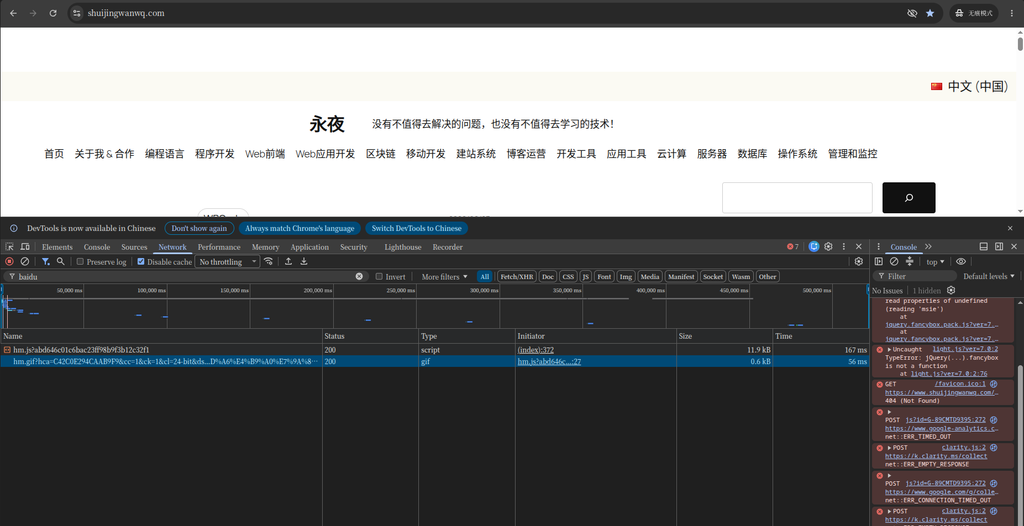
Since GA4 is unreliable in China, how does Baidu Analytics perform? In the same Network panel, I changed the filter keyword to baidu.
Both core requests for Baidu Analytics successfully return 200 Similar to GA4, Baidu Analytics also has two key requests, and both succeeded:
https://hm.baidu.com/hm.js?...: Status 200, responsible for loading Baidu Analytics’ core JS script.
https://hm.baidu.com/hm.gif?...: Status 200, this is the request that actually sends the data. Baidu Analytics is clever; it carries parameters by requesting a 1×1 pixel transparent GIF image. This old-fashioned method, which has excellent cross-domain compatibility, is exceptionally robust on domestic networks. Seeing these two 200 responses, I knew the data of domestic visitors had been securely recorded in the Baidu Analytics backend.
Comparative Conclusion
Baidu Analytics’ access stability in China is far higher than that of GA4. It can reliably record all domestic visitor traffic data, serving as the foundational tool for domestic traffic analytics. GA4, while powerful, does indeed suffer from unstable data collection issues in domestic network environments.
📊 Final Strategy: Three Tools Working Together
Based on the test results, I finalized the collaborative strategy using the three tools:
Provides accurate domestic PV/UV data, integrated with Baidu Search
Daily
Google Analytics 4
Overseas traffic analysis
Analyzes international user behavior, measures overseas marketing effectiveness
Weekly
Microsoft Clarity
User behavior visualization
Provides session recordings and heatmaps to identify UX issues
Weekly in-depth analysis
💡 Best Practices and Recommendations
1. Code Deployment Best Practices
📖 Detailed code deployment recommendations
Use the WPCode plugin: Avoid directly editing theme files, facilitating easier code management and migration
Code type selection:
HTML Snippet: Suitable for code containing HTML tags (e.g., GA4, Clarity code)
JavaScript Snippet: Suitable for pure JavaScript code
Location settings:
Header: Analytics code, verification code
Footer: Heavier scripts like Clarity, to prevent impacting page load speed (if deployed via WPCode)
Device type: Always select Any device type to ensure coverage for all device users
Clarity deployment: It is recommended to use the official WordPress plugin, which automatically optimizes the loading position
2. Network Request Verification Method
🔧 How to verify if the analytics code is working properly
Open Developer Tools: Press F12 on the website page to open Developer Tools
Switch to the Network panel: Refresh the page and observe the network requests
Filter key requests:
Baidu Analytics: Filter hm.gif (data reporting) and hm.js (script loading)
GA4: Filter collect (data collection) and gtag/js (script loading)
Clarity: Filter clarity.ms
Check status codes: Ensure the key request status codes are 200, with no pending or failed statuses
3. Data Analysis Strategy
📊 How to effectively utilize data from the three tools
Domestic traffic analysis: Rely on Baidu Analytics, focusing on traffic sources, keywords, and page views
Overseas traffic analysis: Primarily use GA4 to analyze user paths, conversion funnels, and audience demographics
In-depth behavior analysis: Use Clarity’s session recordings and heatmaps to discover page design issues
Integrated analysis: Regularly compare data from the three tools to identify discrepancies and optimize the analytics deployment
⚠️ Common Issues and Solutions
❓ Frequently Asked Questions
Q1: Why is GA4 data inaccurate in China?
A1: GA4’s data collection requests (google-analytics.com) are unstable for access within China, frequently experiencing interference or resets, which leads to data loss. The core script (googletagmanager.com) might load successfully, but the data cannot be sent.
Q2: Why is there a large discrepancy between Baidu Analytics and GA4 data?
A2: The main reasons include: 1) GA4 experiences partial request failures in China; 2) The two tools have different tracking mechanisms; 3) Differences in time zones and filter settings. It is recommended to rely on Baidu Analytics for analyzing domestic traffic.
Q3: Will Microsoft Clarity affect website speed?
A3: Clarity uses asynchronous loading, which has minimal impact on website speed. Its script loads in the background without blocking page rendering, and it is free with no traffic limits.
Q4: How can I avoid code conflicts in WPCode?
A4: 1) Use an independent code snippet for each analytics tool; 2) Avoid duplicate deployments of the same code; 3) Regularly check the status of code snippets to ensure there are no errors.
🎉 Summary and Results
By deploying Baidu Analytics, Google Analytics 4, and Microsoft Clarity, I built a comprehensive website analytics system:
Resolved the domestic data loss issue: Baidu Analytics ensures that domestic traffic data is fully recorded
Retained overseas analysis capabilities: GA4 continues to analyze international user behavior
Obtained in-depth behavioral insights: Clarity provides session recordings and heatmaps to optimize user experience
💡 Final Recommendation: For WordPress websites targeting Chinese users, Baidu Analytics + Microsoft Clarity is an essential base combination, with GA4 serving as a supplement for analyzing overseas traffic. Managing all analytics code centrally through the WPCode plugin makes maintenance easy and avoids the risks of directly modifying theme files. Through this strategy, I resolved Google Analytics’ data collection issues in mainland China while gaining comprehensive website analytics capabilities, laying a solid foundation for data-driven website optimization.