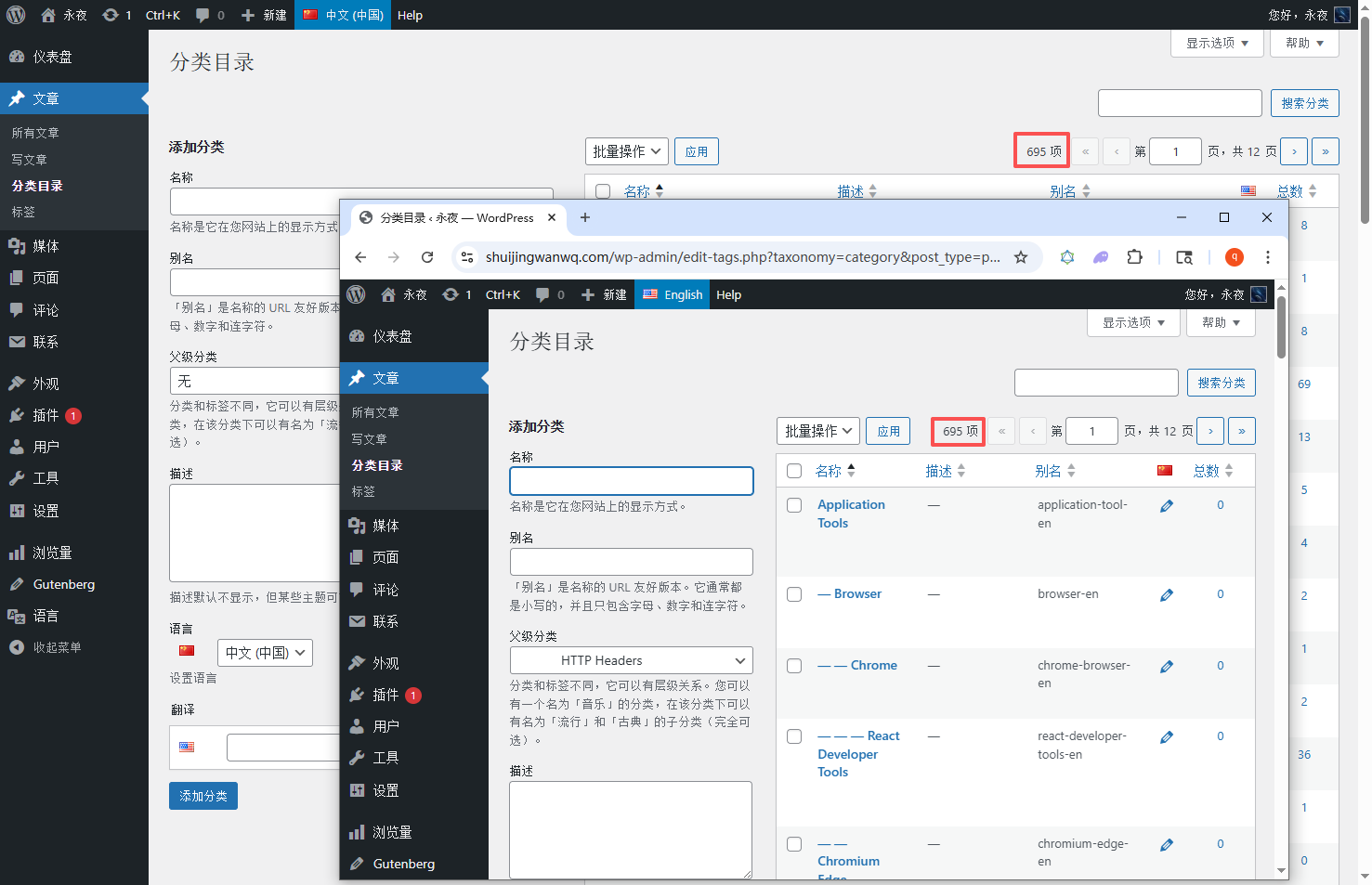
In my previous post, I shared how to select and configure a multilingual plugin. Today, I am moving on to the most time-consuming and patience-testing step: translating categories. My blog has a total of 695 categories, and it took me 4 hours to manually translate them all. My fingers are almost worn out 😭. I hit quite a few snags along the way, so today I am sharing the complete workflow and pitfall-avoidance tips to help you save time and avoid detours. I also hope more bloggers can successfully go multilingual and bring their content to a wider audience.
First, let me explain my category structure: among the 695 categories, over 200 are in Chinese, and the rest are in English (added sporadically before). The categories have a strict hierarchical relationship (Level 1 → Level 2 → Level 3 → Level 4 → Level 5). For example, the Level 1 category is “IT Community”, the Level 2 category is “CSS Frameworks”, and the Level 3 category is “Bootstrap”. For a content-sharing blog, categories are the core entry point for users to find content. This is especially true for overseas users; clear and standardized English categories allow them to quickly find the technical content they need. Therefore, category translation must not only preserve the hierarchy but also ensure standard formatting and semantic accuracy.
Core prerequisite: The free version of AutoPoly does not support automatic category translation, so you must translate them manually. Furthermore, you must translate them hierarchically from top to bottom (first Level 1, then Level 2, then Level 3, then Level 4, then Level 5). Otherwise, subcategories will become “orphan categories,” completely disrupting the hierarchy and affecting how overseas users find content. (See Figure 1)
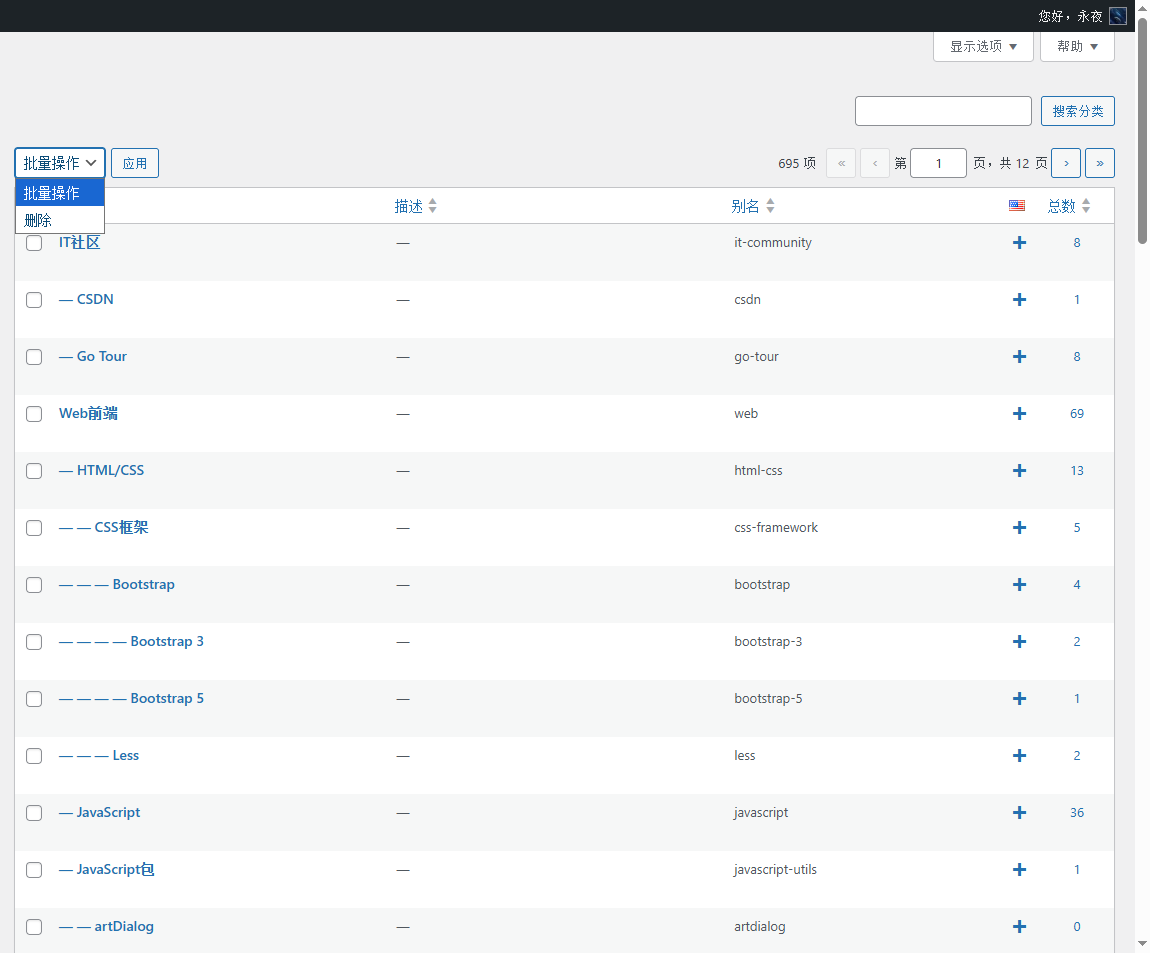
1. Category Translation Preparation (Mandatory)
1. Define translation standards (to avoid bulk modifications later and ensure a good user experience):
① English category names: Capitalize the first letter of each word (Title Case). For example, translate “应用工具” as “Application Tools” (the plural form better fits the semantics of a section and aligns with the reading habits of English-speaking users);
② English category slugs: Use all lowercase letters and connect words with hyphens, such as “application-tools”. This makes it easier for overseas users to remember and for search engines to index. Try to keep it consistent with the Chinese slug;
③ Note: Polylang automatically appends an “-en” suffix to English category slugs (to prevent duplication with Chinese slugs). There is no need to modify this manually; it does not affect overseas users’ ability to find content or impact SEO.
2. Filter categories by level (crucial for saving time and avoiding confusion):
Categories have a hierarchy, so you cannot translate them randomly. You must first filter out the Level 1 categories, translate them, and then filter out Level 2, Level 3, Level 4, and Level 5. Since the WordPress backend does not have a hierarchical filtering feature by default, I used a piece of JS code to filter the corresponding level with one click (tested and working):
① Show only Level 1 categories (hide Level 2, Level 3, Level 4, Level 5) (See Figure 2):
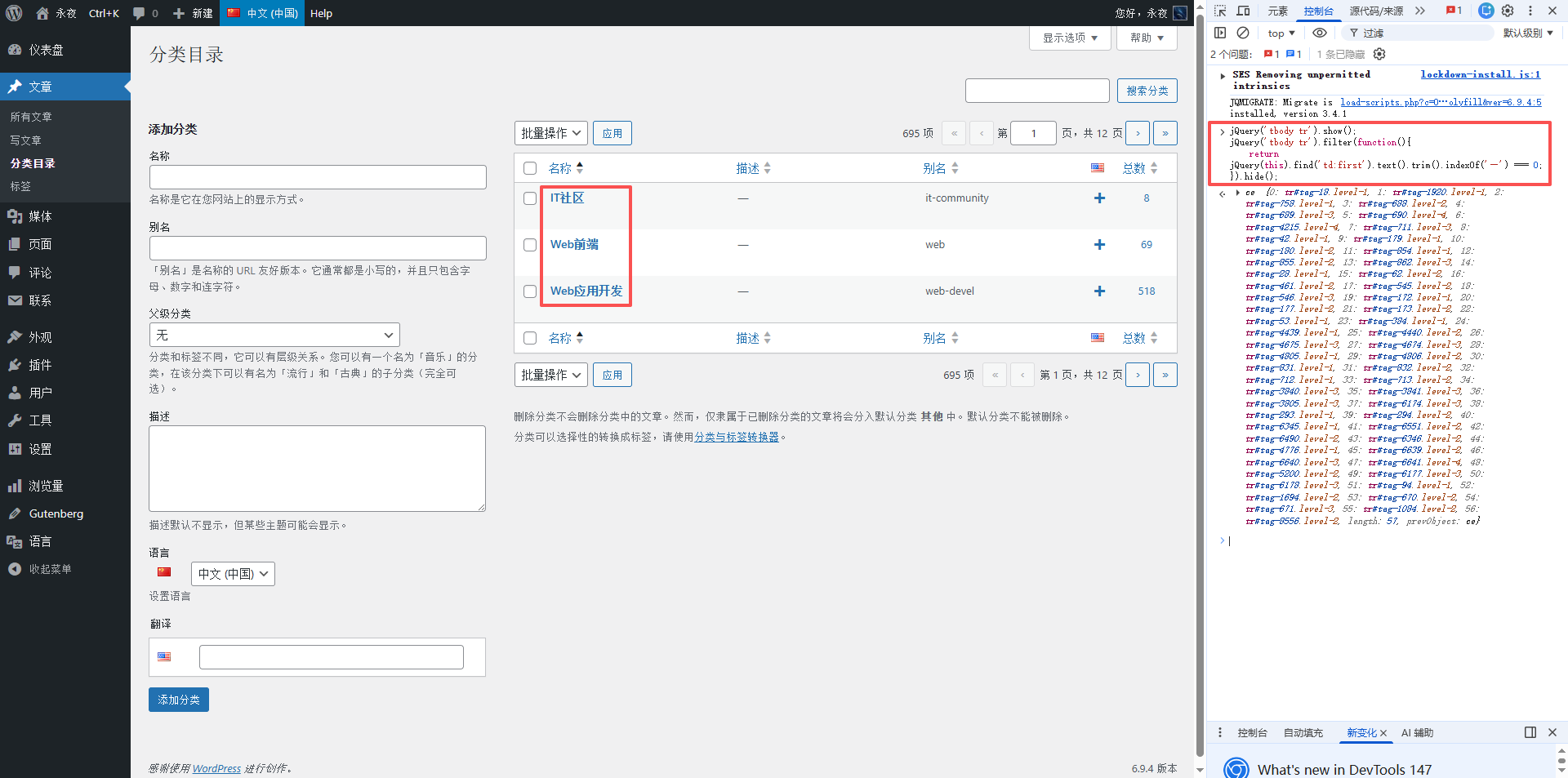
jQuery('tbody tr').show();
jQuery('tbody tr').filter(function(){
    return jQuery(this).find('td:first').text().trim().indexOf('—') === 0;
}).hide();
② Show only Level 2 categories (hide Level 1, Level 3, Level 4, Level 5) (See Figure 5):
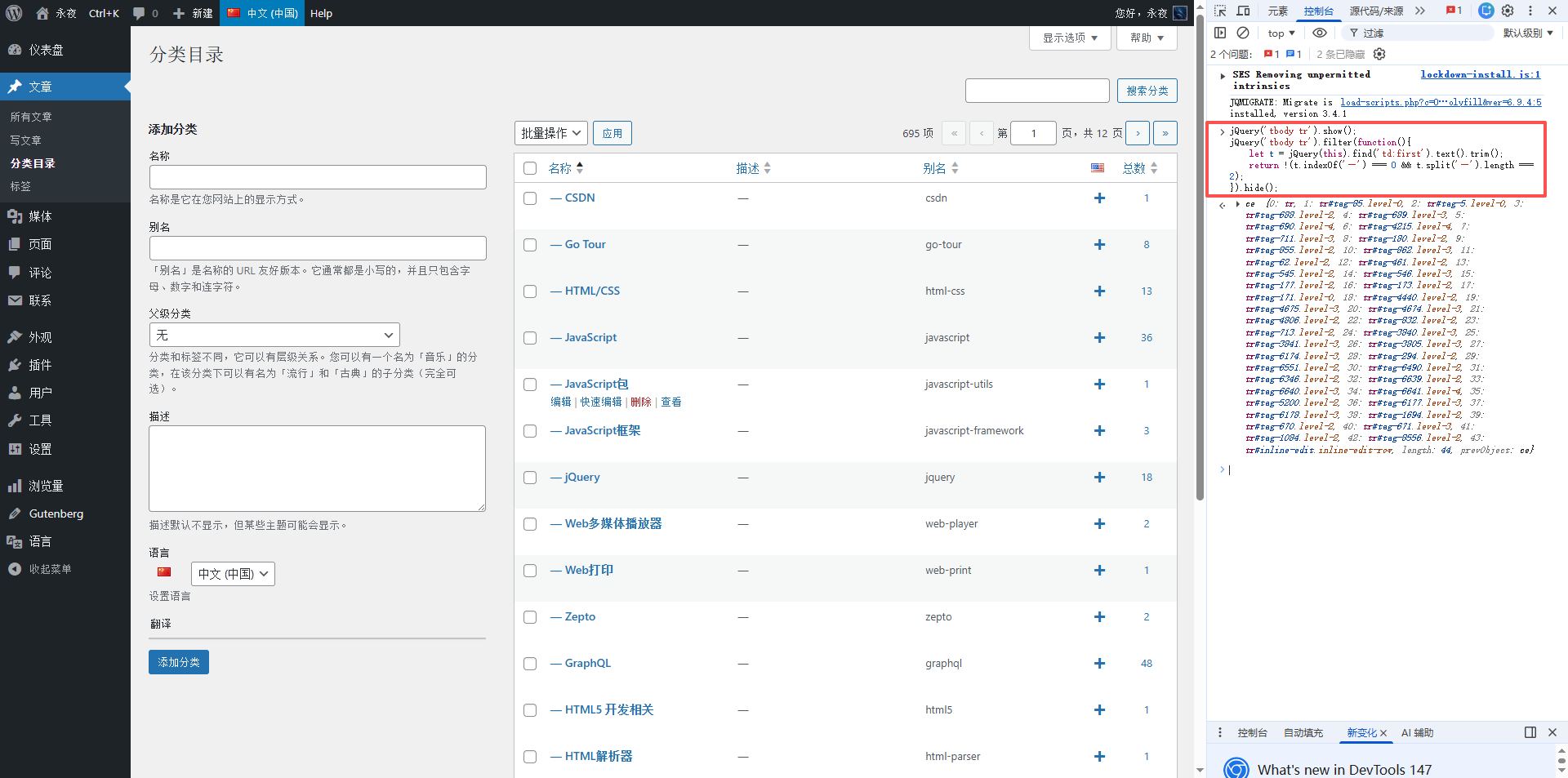
jQuery('tbody tr').show();
jQuery('tbody tr').filter(function(){
    let t = jQuery(this).find('td:first').text().trim();
    return !(t.indexOf('—') === 0 && t.split('—').length === 2);
}).hide();
③ Show only Level 3 categories (hide Level 1, Level 2, Level 4, Level 5) (See Figure 7):
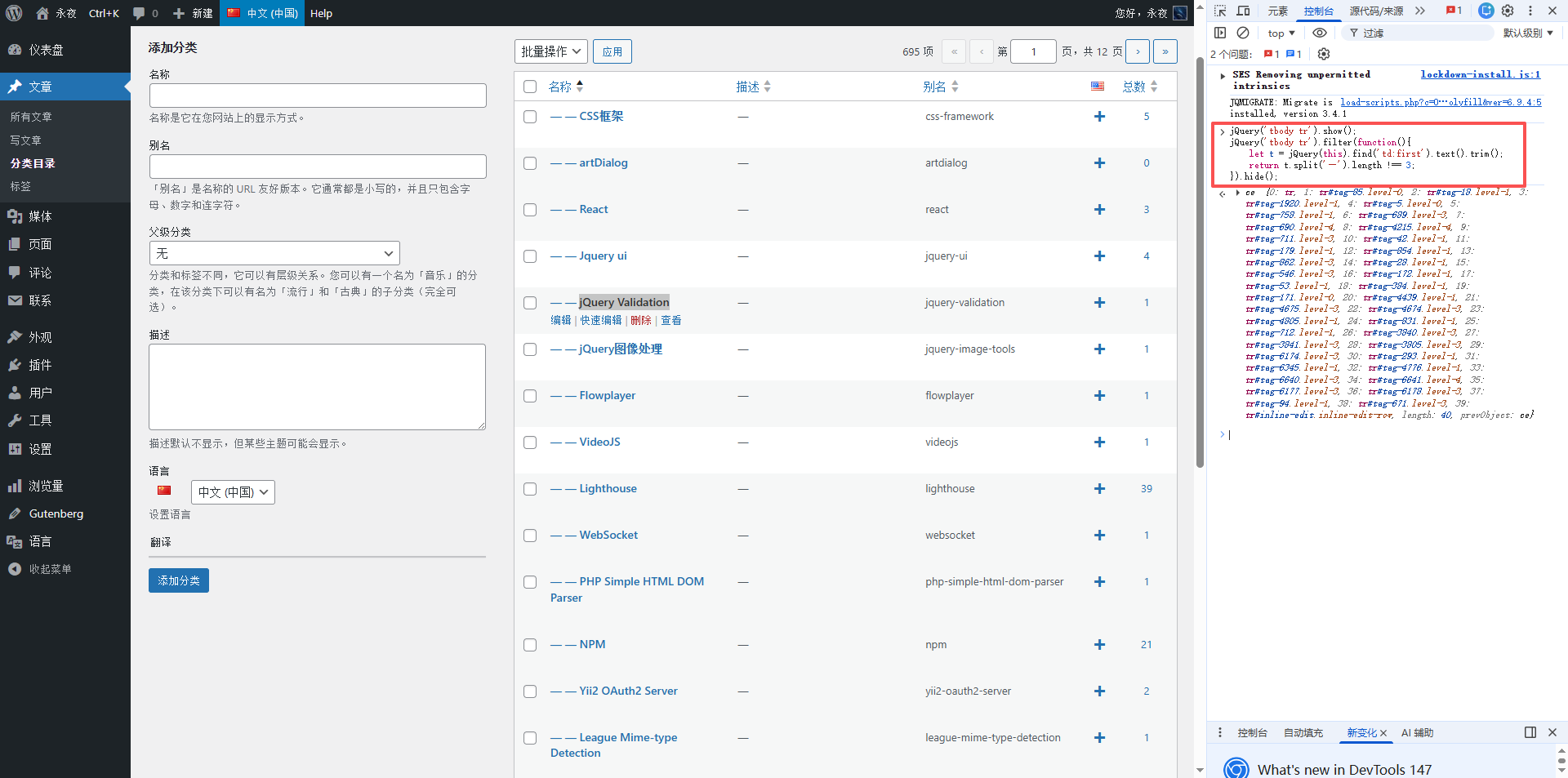
jQuery('tbody tr').show();
jQuery('tbody tr').filter(function(){
    let t = jQuery(this).find('td:first').text().trim();
    return t.split('—').length !== 3;
}).hide();
④ Show only Level 3 categories (hide Level 1, Level 2, Level 4, Level 5) (See Figure 8):
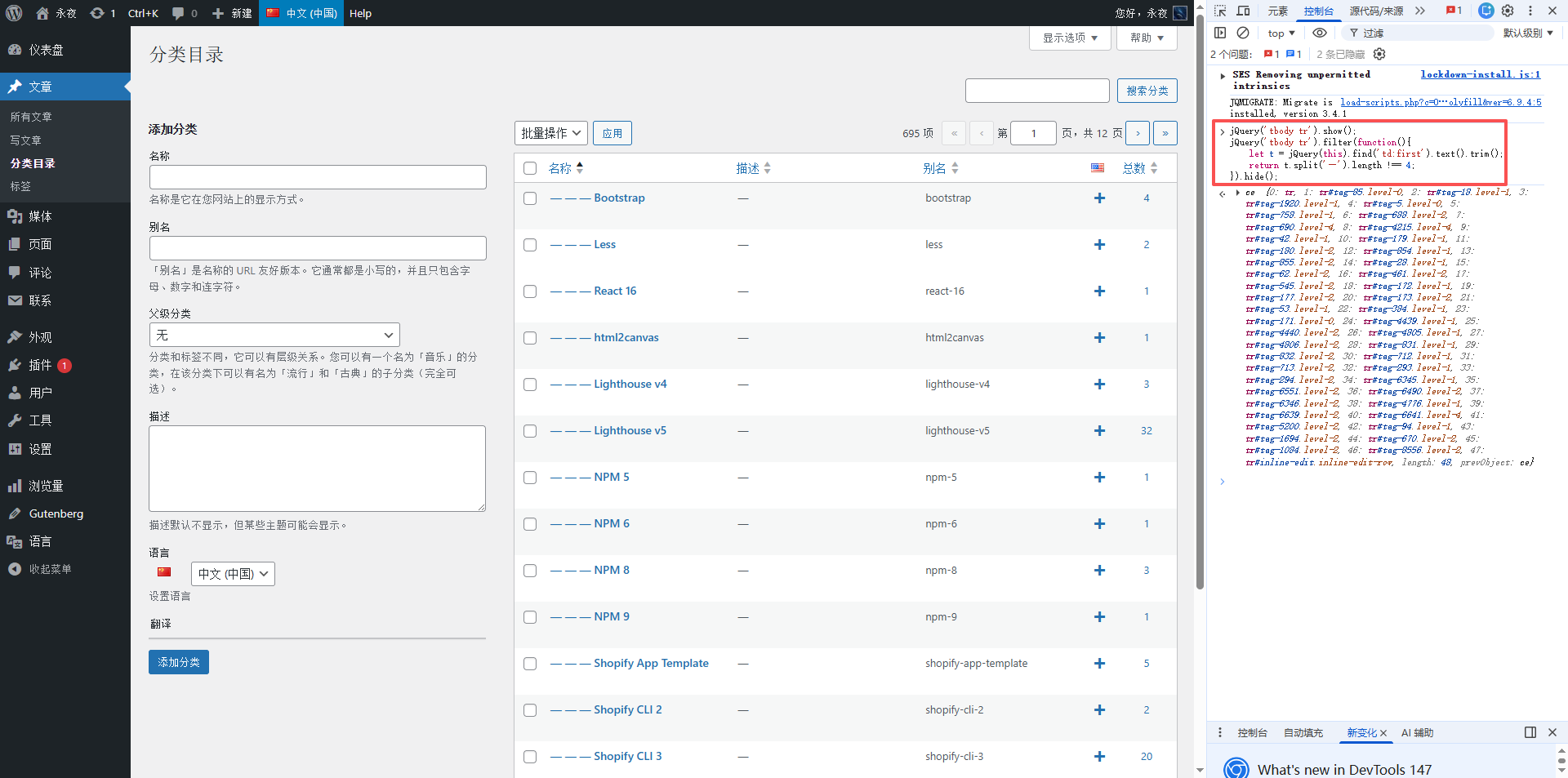
jQuery('tbody tr').show();
jQuery('tbody tr').filter(function(){
    let t = jQuery(this).find('td:first').text().trim();
    return t.split('—').length !== 4;
}).hide();
⑤ Show only Level 3 categories (hide Level 1, Level 2, Level 4, Level 5) (See Figure 9):
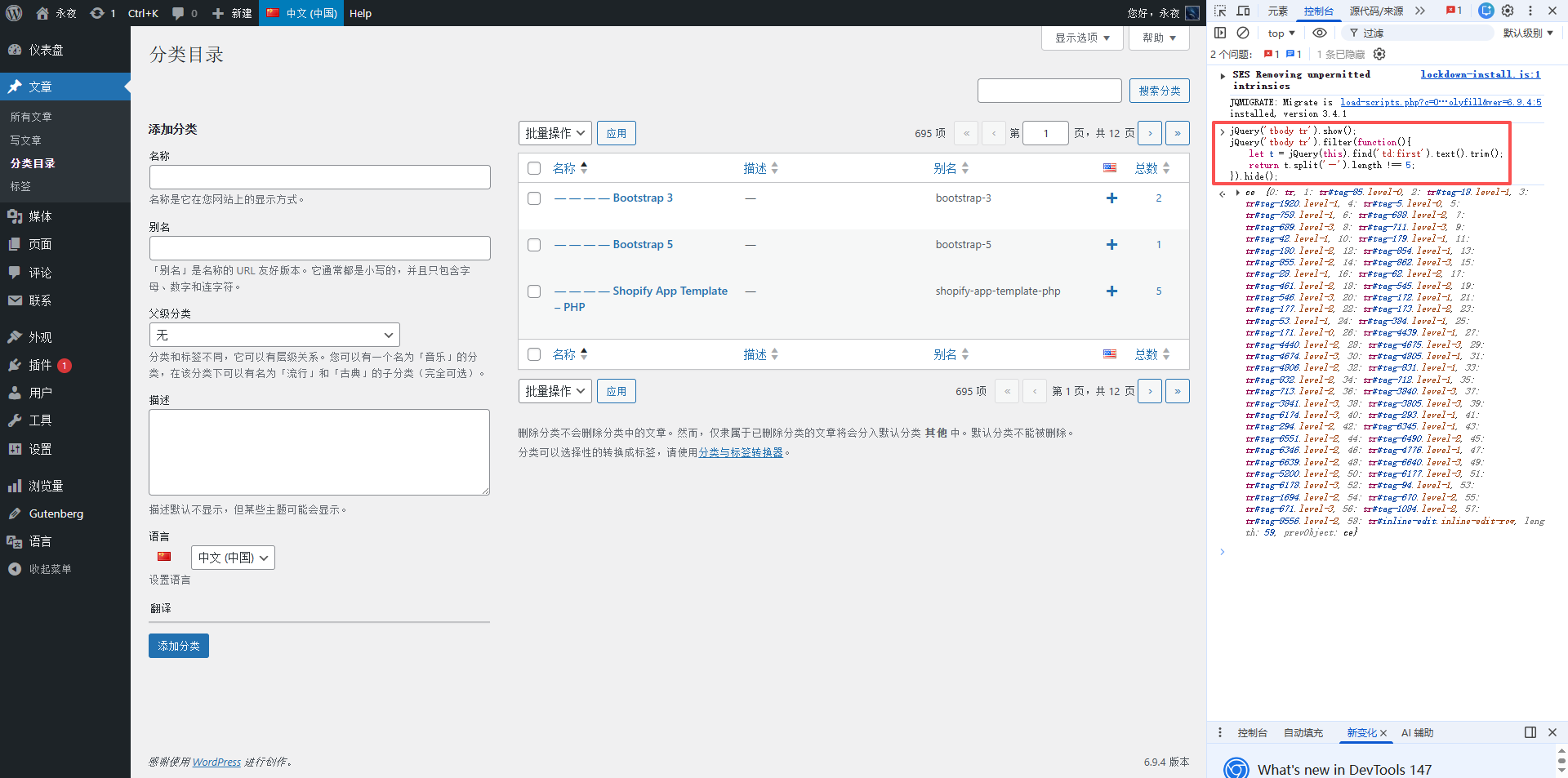
jQuery('tbody tr').show();
jQuery('tbody tr').filter(function(){
    let t = jQuery(this).find('td:first').text().trim();
    return t.split('—').length !== 5;
}).hide();
How to use: Go to the backend → Posts → Categories, press F12 to open the console, paste the corresponding code, and press Enter to filter with one click. Refreshing the page restores all categories, which saves a lot of manual filtering time.
2. Complete Category Translation Workflow (Step by Step)
Do this entirely within the Chinese backend. Do not create new categories in the English backend, as this will disrupt the hierarchy. Using the Level 1 category “IT Community” as an example, here is the step-by-step guide:
1. Switch the backend to Chinese (China), go to Posts → Categories, paste the Level 1 filtering code from above, and filter out all Level 1 categories;
2. Find the “IT Community” category, click the “+” icon on the right (Add translation), and select “English”;
3. The English category edit window will pop up. Fill in the translated content (focus on semantic accuracy to help overseas users understand it) (See Figure 3):
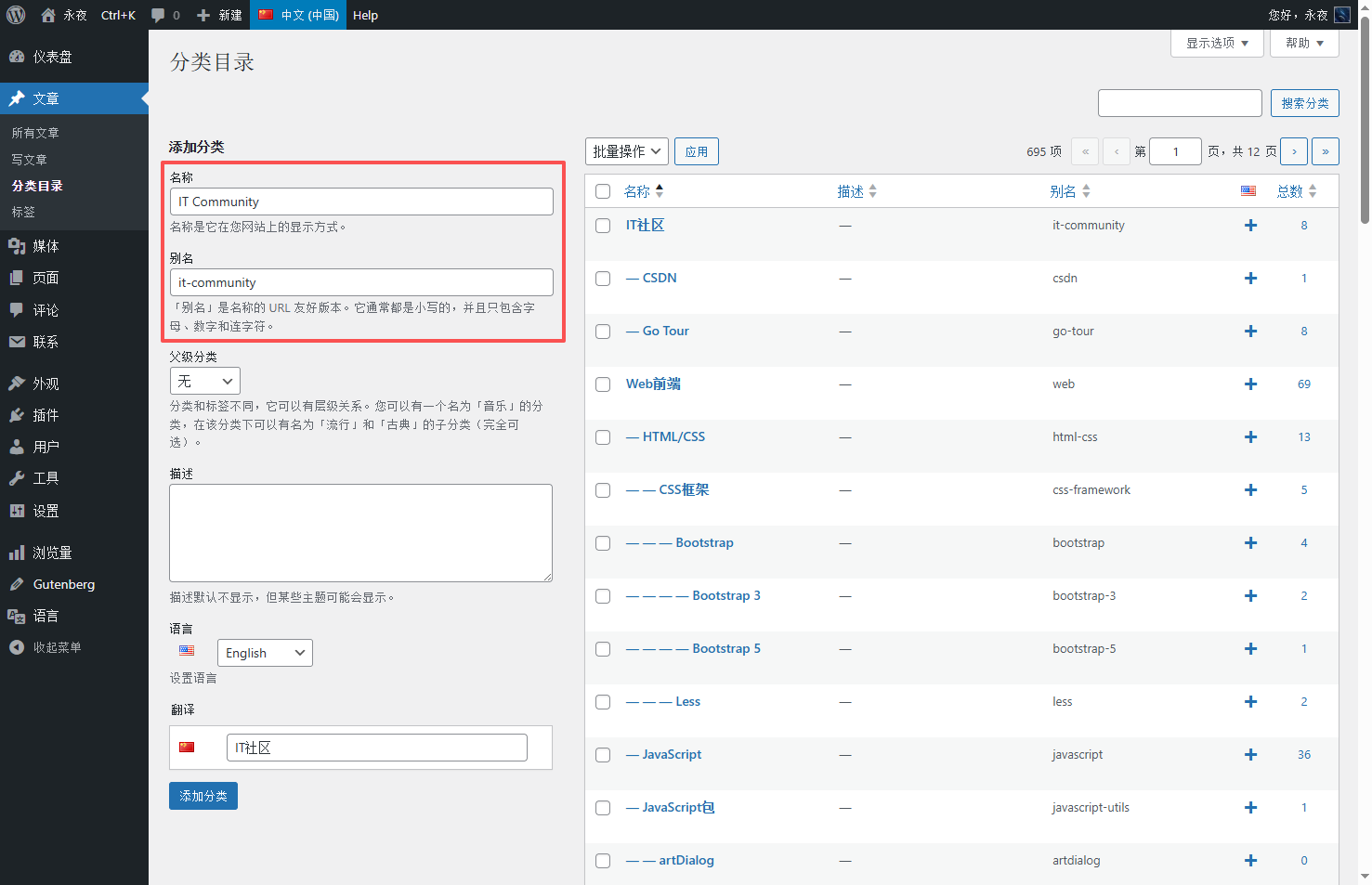
① Category name: Enter the translated English text (e.g., “IT Community”);
② Category slug: Enter the English slug consistent with the Chinese slug (e.g., “it-community”);
③ Parent category: No need to select one (this is a Level 1 category);
④ Description: Can be left blank;
4. Click “Add Category” to save it;
5. After finishing one page, you can click the next page, then in the console, press the ⬆ key to quickly bring up the last executed JS command without needing to copy and paste again;
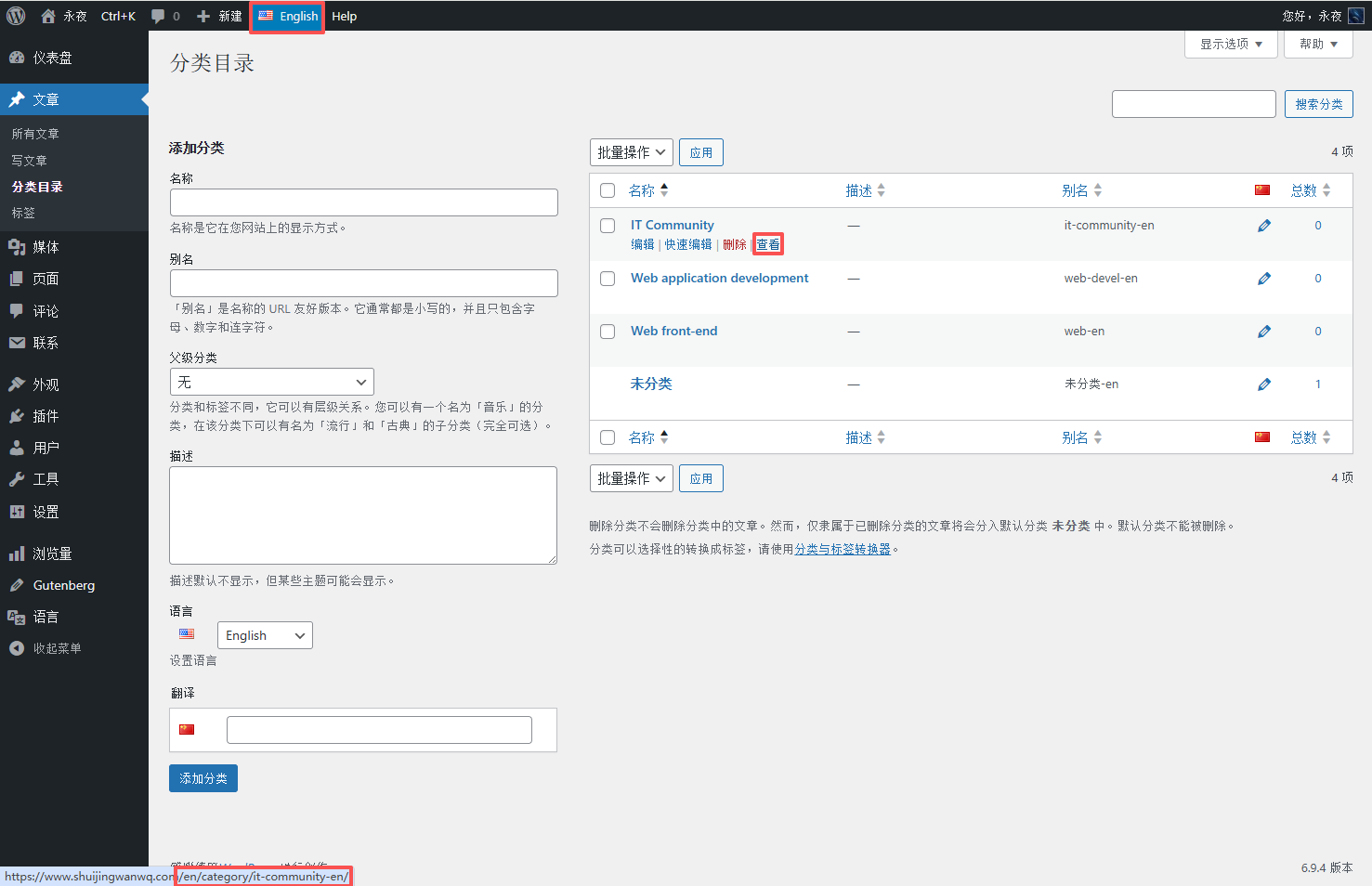
6. Switch the language at the top to English, and hover your mouse over the “View” link. You will notice its URL is https://www.shuijingwanwq.com/en/category/it-community-en/ . This confirms that after adding and saving a category, Polylang automatically appends the “-en” suffix, turning it into “it-community-en”, and the category link includes /en, which is exactly as expected (See Figure 4);
7. Repeat steps 2-4 until all Level 1 categories are translated (Level 1 categories are the core entry point for users to find content, so prioritize translating them);
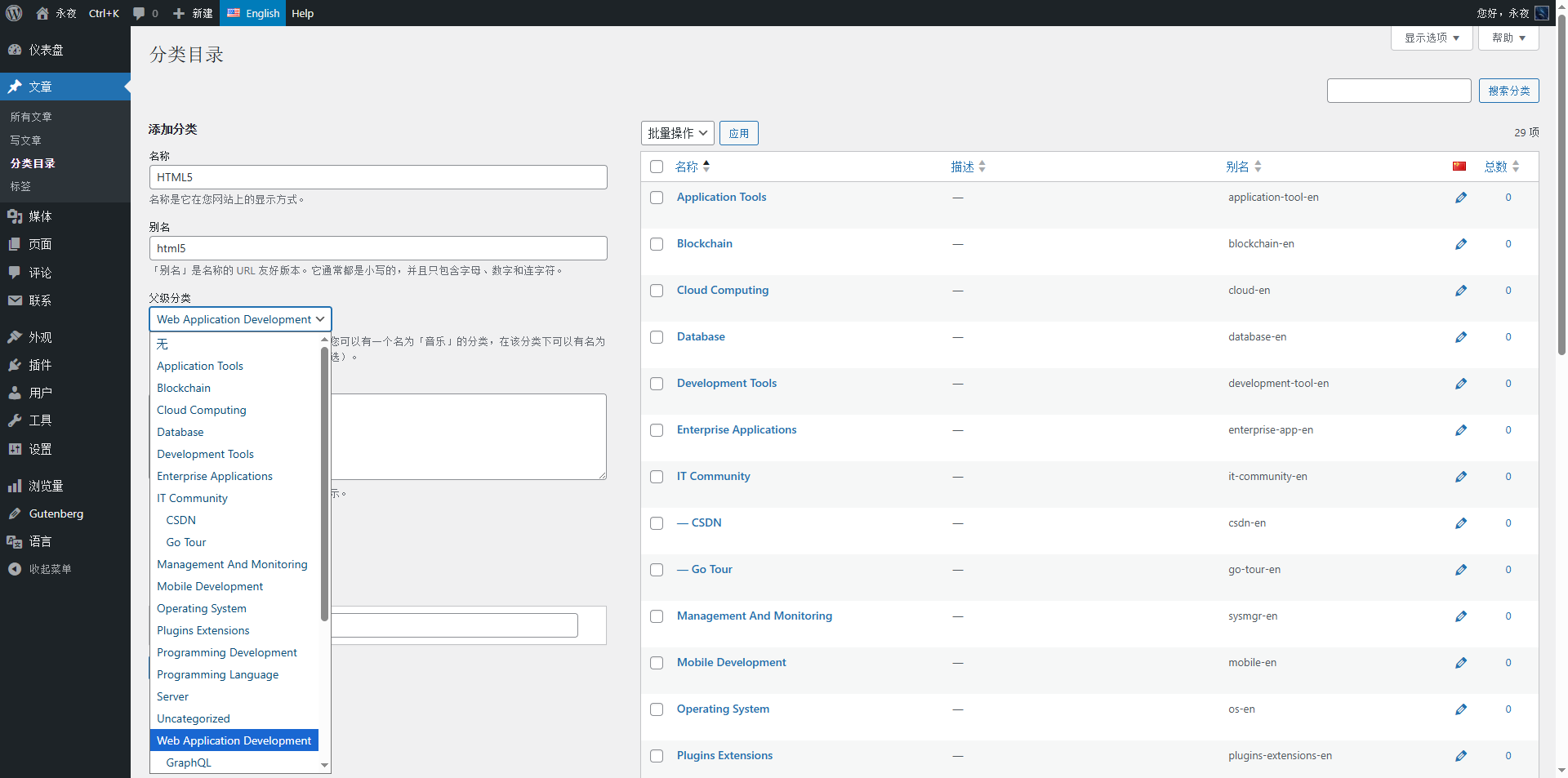
8. Once Level 1 categories are translated, paste the Level 2 category filtering code to filter out all Level 2 categories. Repeat steps 2-4 to translate the Level 2 categories (at this point, the parent category will automatically match the already translated English Level 1 category, so no manual selection is needed), ensuring a clear hierarchy (See Figure 6);
9. After translating the Level 2 categories, use the same method to translate Level 3, Level 4, and Level 5 categories, ensuring every category is accurately translated for overseas users to find;
10. A quick tip: When you find the “IT Community” category and click the “+” icon on the right, I recommend opening it in a new tab. You can then use these keyboard shortcuts:
Switch to the next tab: Ctrl + Tab
Switch back to the previous tab: Ctrl + Shift + Tab
This makes it easy to switch back and forth between the category list page and the add category page, allowing you to quickly copy the category slug and name. It also prevents the page from automatically redirecting back to the category list after adding a category, which would cause the JS-filtered category hierarchy to be lost;
11. After finishing a category level, you need to check it page by page again to ensure all Chinese categories have corresponding English categories. However, you might find that for some Chinese categories, adding the corresponding English category and saving it repeatedly fails. In this case, you need to delete the corresponding English category and add it again.
3. Three Pitfalls Encountered During Translation (Must Read)
1. Skipping levels causes hierarchy disruption: At first, I wanted to save time by translating Level 2 categories first. After translating them, the Level 2 categories turned into Level 1 categories, which confused overseas users trying to find content. I had to delete and retranslate them, wasting half an hour. Remember: You must translate level by level in the order of “Level 1 → Level 2 → Level 3 → Level 4 → Level 5”. The parent category must have an English translation first to ensure a clear hierarchy.
2. Manually modifying English slugs causes conflicts: I once tried to remove the “-en” suffix from the English slug to keep it consistent with the Chinese slug. After saving, the “-en” suffix was still automatically added. I later realized this is a mandatory rule in Polylang to avoid conflicts, so there is no need to modify it—just let it be.
3. Confusion between singular and plural category names: For example, for “应用工具”, I initially translated it as “Application Tool” (singular). Later, I realized that a section is a collection, and English-speaking users are more accustomed to the plural form “Application Tools”, so I had to modify them in bulk, wasting time. I recommend deciding before translating: use plurals for section-style categories and singulars for specific single items, aligning with the reading habits of English-speaking users.
4. Summary and Future Plans
695 categories, manually translated in 4 hours. Although tiring, it was highly rewarding—once this step was completed, the category structure for the English site was set up. Overseas users can quickly find the technical content they need through standardized and clear English categories, and my content can finally cross language barriers to reach a wider audience.
Here is a small piece of advice: you do not have to finish translating categories all at once. You can do it in batches, such as translating 200 a day over 3-4 days, to avoid excessive finger fatigue. Additionally, when you encounter category names that are hard to translate, do not get stuck on them. Just use simple, easy-to-understand English. The key is semantic accuracy and user comprehension. After all, our core goal is sharing, not pursuing perfection.
Now that the category translation is done, the next task is even more massive: translating 8062 tags. Tags supplement content, and accurate English tags allow overseas users to find relevant content more precisely. I plan to use SQL to bulk-generate English translation entries, and then manually modify the tags containing Chinese. In the next post, I will share the detailed practical workflow for tag translation and how to use SQL statements (beginner-friendly throughout), so stay tuned~
Finally, here is a screenshot of the category results after my translation (See Figure 11). The total number of Chinese and English categories is equal. The English category names are standardized, the hierarchy is clear, and it perfectly replicates the Chinese category structure. This enables overseas users to quickly find the content they need and lays a solid foundation for my future content sharing.