

This article documents a complete troubleshooting journey of configuring the wstunnel client + FIClash proxy on Termux. The ultimate root cause turned out to be a mismatch between the IP address in the YAML file and the server side. I also outline the issues encountered along the way, such as scripts failing to generate, domain replacement errors, and processes disappearing, complete with screenshots and notes for future reference.
1. Project Background
The user followed my tutorial at https://www.shuijingwanwq.com/2026/06/02/15520/ to deploy the following on an Android phone:
- Termux running the wstunnel client
- FIClash (an Android GUI client for the Clash core) as the proxy client
I provided my self-hosted VPN server information (domain wg.shuijingwanwq.com, IP 154.21.196.249). The user copied the tutorial steps exactly, but ultimately the phone could not access the internet.
2. Chain of Pitfalls During Script Creation
Screenshot 1 — User asks “Where can I find the domain and IP?”
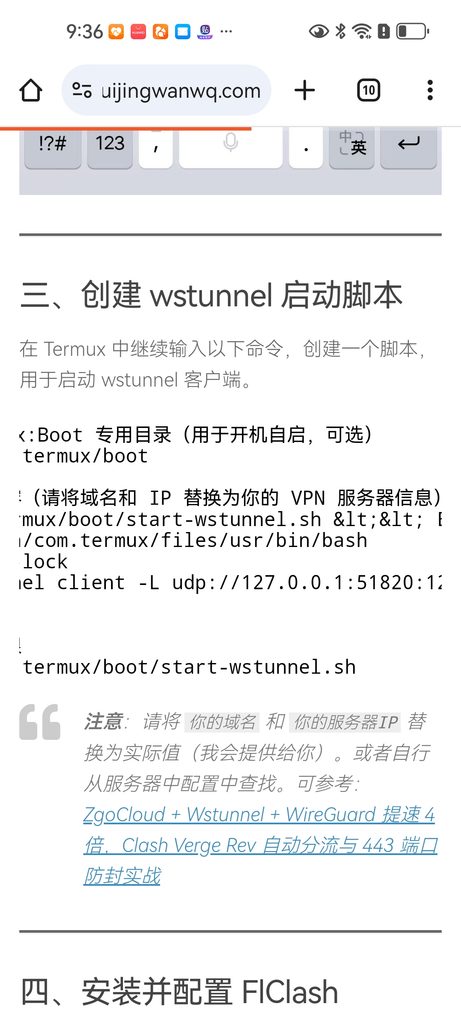
Problem: The user did not have their own VPN and was using the trial service I provided, so they could have just used wg.shuijingwanwq.com and 154.21.196.249 from the examples for the domain and IP. However, the user failed to understand this, leading to a long delay in replacing them.
Solution: I explicitly told the user to just copy the domain and IP from the example for the trial scenario.
Screenshot 2 — “No such file or directory” prompt when granting permissions
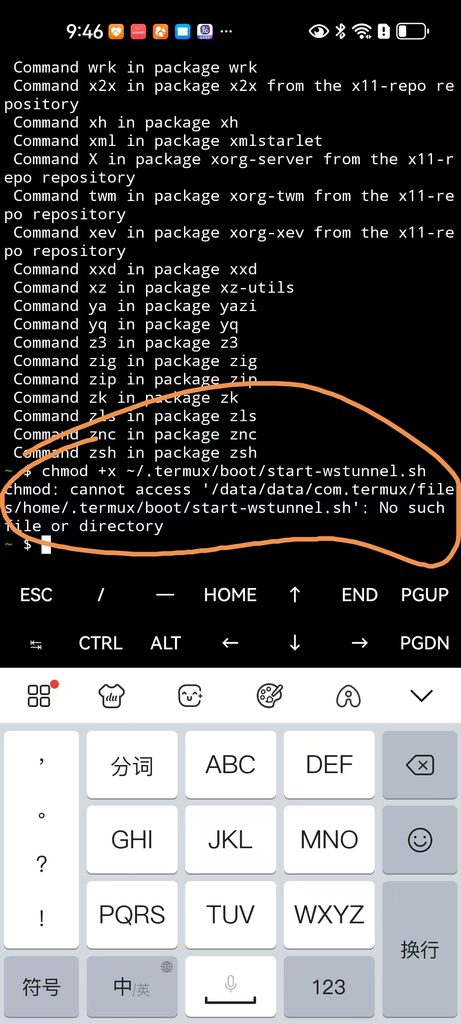
Investigation: The user’s command did contain start-wstunnel.sh (with .sh), but the file did not exist.
Root cause: When the user executed cat > ~/.termux/boot/start-wstunnel.sh << EOF, << in my original blog post may have been incorrectly escaped to << (a display issue). This caused an error when the copied command was actually cat > ... << EOF, meaning the file was never generated at all.
Lesson learned: << is shell heredoc syntax and must be entered exactly as is. I have since fixed the escaping issue in the blog post.
Screenshot 3 — wstunnel error caused by unreplaced “your domain”
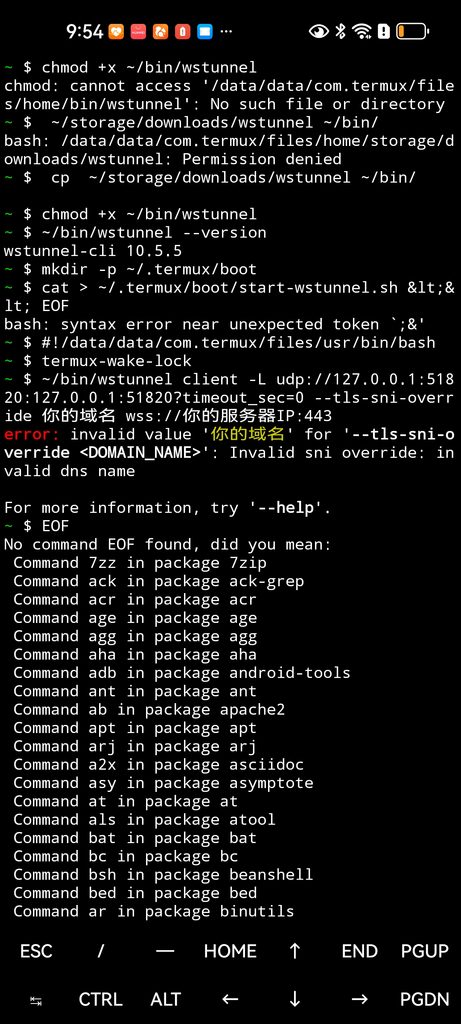
When attempting to manually enter the command, the user completely retained the “your domain” and “your server IP” placeholders from the tutorial without making any replacements, causing the wstunnel client to throw an “invalid DNS name” error directly.
At the same time, the command was incorrectly split across multiple lines, further breaking the syntax structure.
Lesson learned: No matter how much a tutorial emphasizes this, for first-time users, it is best to provide a complete, ready-to-copy command directly (replacing placeholders with real values before sending it to the user).
3. File Generation and Permission Fix
After corrections, the user created the script using the correct command (with the real domain and IP replaced) (Screenshot 4):
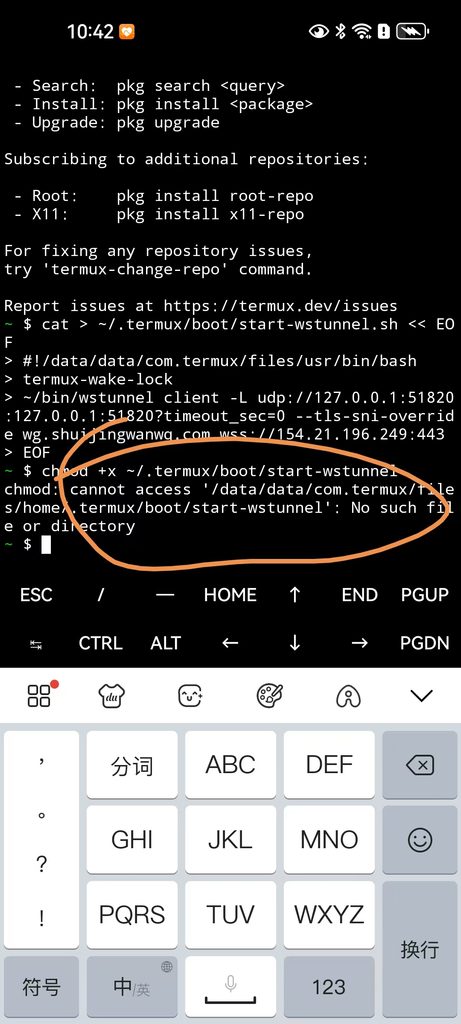
The user then encountered an error when executing chmod +x ~/.termux/boot/start-wstunnel, missing the .sh suffix.
I promptly reminded them in the chat:
Me:
chmod +x ~/.termux/boot/start-wstunnel.sh
Me: You are missing.sh
After the user corrected it, the chmod command executed successfully.
4. wstunnel Process Disappears Shortly After Startup
The user executed sh ~/.termux/boot/start-wstunnel.sh, and the terminal printed the following logs (Screenshot 5):
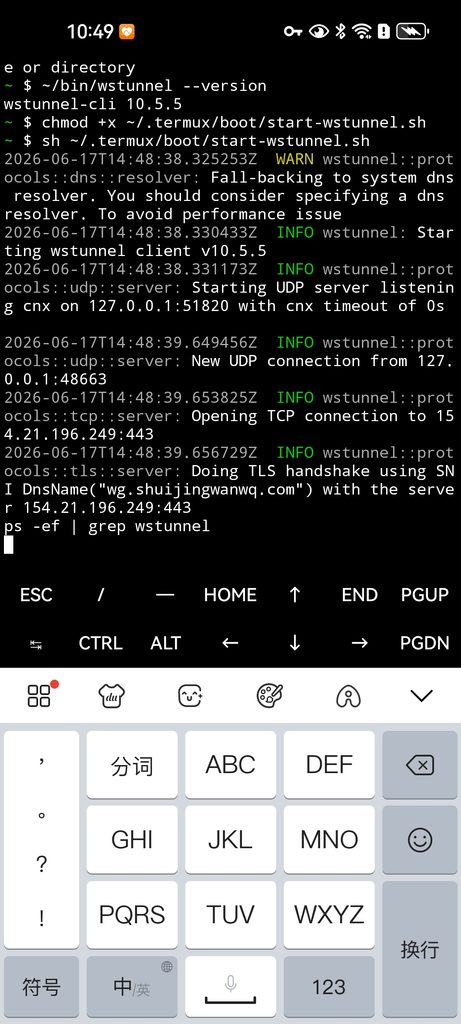
Note: The logs show INFO Starting wstunnel client, UDP server listening, TLS handshake using SNI wg.shuijingwanwq.com, making it look like the connection succeeded.
However, when the user executed ps -ef | grep wstunnel, they could not see the process running and felt confused.
Real cause: Although the TLS handshake logs were printed, the client IP configured in the YAML file (10.7.0.3) did not match the IP actually assigned by the server (10.7.0.4), causing the WireGuard virtual network adapter to fail to initialize its routing properly. After attempting to establish the full UDP tunnel, the wstunnel client crashed and exited automatically due to the underlying configuration error, rather than because the user pressed Ctrl+C.
Therefore, ps showed no resident wstunnel process.
5. FIClash Built-in WireGuard Protocol
At this point, the user launched FIClash and imported the YAML configuration file I sent.
(Note: FIClash itself already has built-in WireGuard protocol support as one of the proxy node types, so the user did not need to install a separate WireGuard application.)
But the dashboard showed almost no traffic (Screenshot 6):
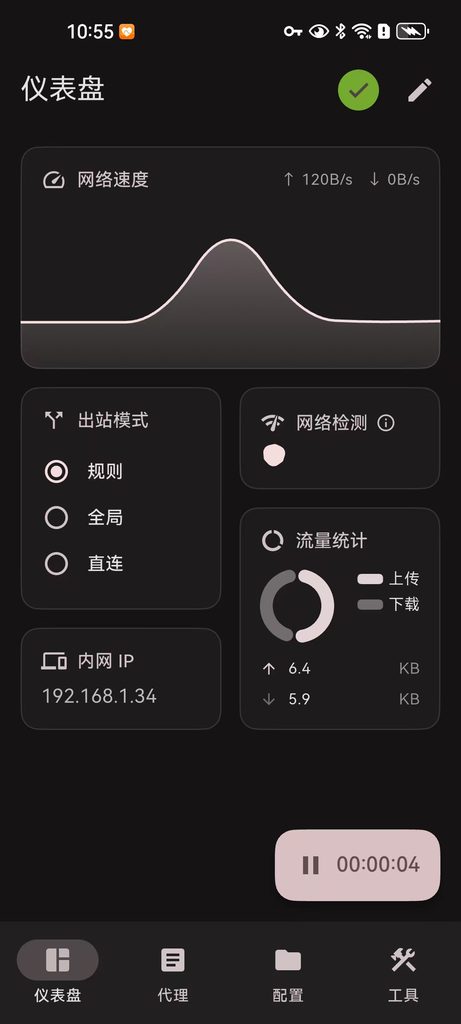
Note: Upload/download speeds are extremely low, the internal IP shows as the WiFi IP (192.168.1.34), and no traffic is going through the proxy.
The phone’s home screen looked like this (Screenshot 7), with only tools like Termux, FIClash, and Termux Boot installed.
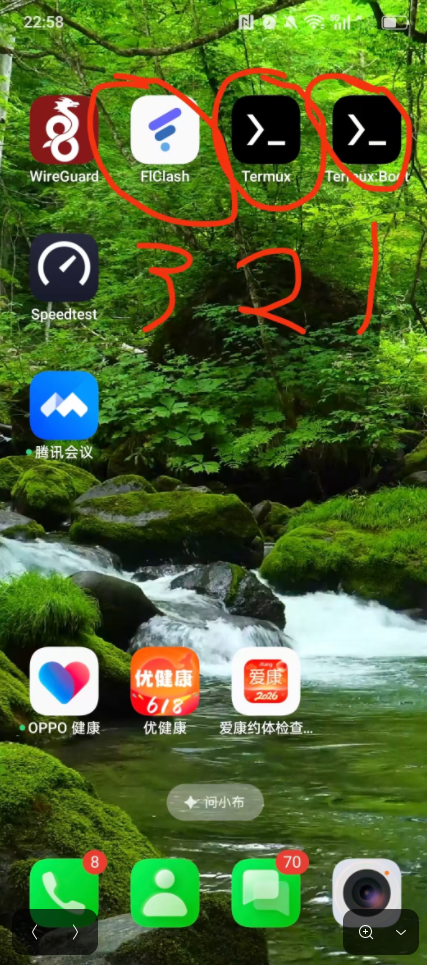
Restarting the phone did not fix the issue.
6. Ultimate Troubleshooting: IP Address Mismatch is the Culprit
1. Reproducing with the Same File
Since this YAML file was sent directly by me to the user, I asked the user to send the whole set of files back to me. I tested it directly on my own phone using the exact same files and indeed reproduced the exact same issue—proving that the problem lay in the configuration file itself, not the user’s operating environment.
2. Checking client.conf on the Server (Screenshot 8)
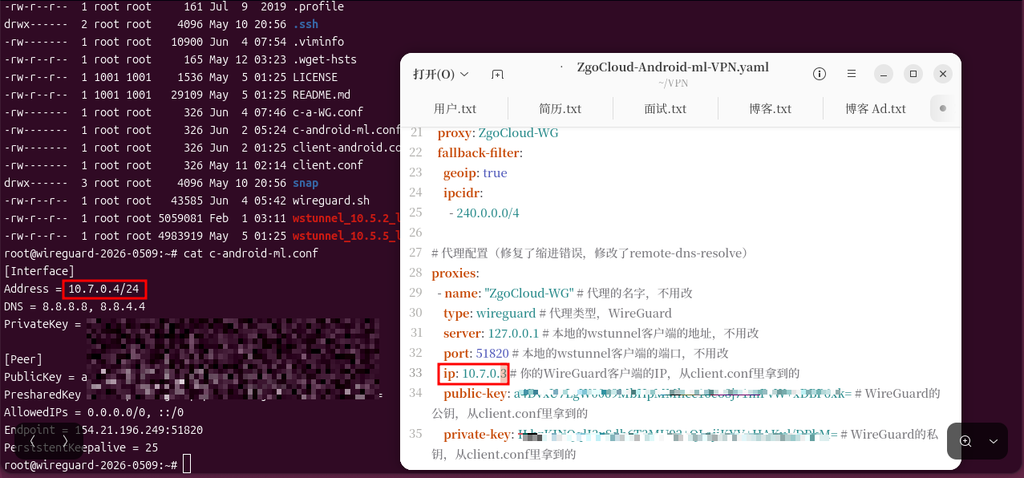
Note: Key content ——
[Interface]
Address = 10.7.0.4/24
DNS = 8.8.8.8, 8.8.4.4
...The virtual IP assigned by the server to this client is 10.7.0.4.
3. Checking the YAML File Sent to the User
The WireGuard section under proxies in the YAML reads:
ip: 10.7.0.3 # Error! Should be 10.7.0.4I mistakenly wrote this IP when preparing the example file, making it inconsistent with the IP actually assigned by the server.
WireGuard requires the local virtual IP to match the Address in the server’s [Interface] (or at least be in the same subnet and be unique). Otherwise, although the UDP tunnel might be established, routing and packet forwarding will fail, and traffic will not be able to flow properly. This was also the fundamental reason for the wstunnel process crashing and exiting.
4. Instant Recovery After Changing to the Correct IP (Screenshot 9)
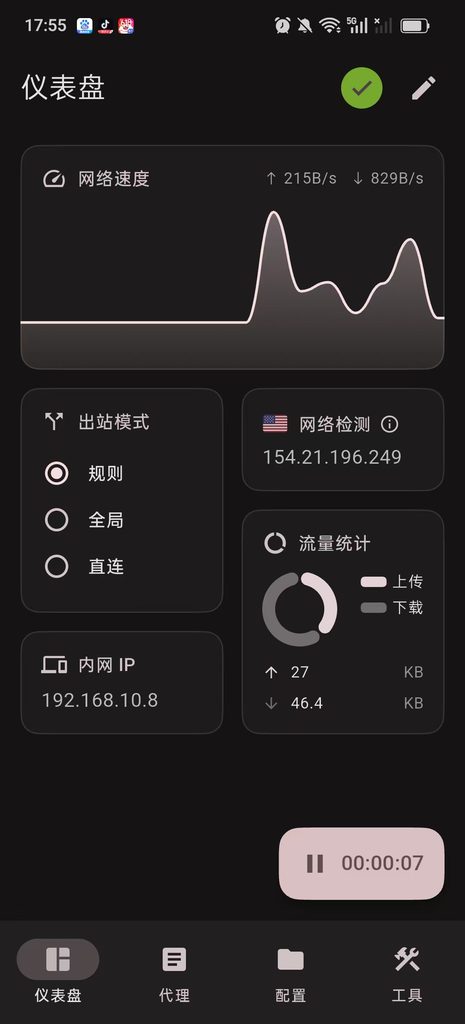
Note: Changed ip: 10.7.0.3 to ip: 10.7.0.4, re-imported the YAML and connected. The dashboard immediately showed normal upload/download traffic, and the phone successfully accessed the internet.
7. Summary and Pitfall Avoidance Guide
Root Cause Review
- Direct cause: The WireGuard client IP in the YAML file did not match the one assigned by the server (
10.7.0.3vs10.7.0.4). - Indirect cause: The script creation process was delayed by blog escaping issues, unreplaced placeholders, and mistyped permission commands, which prolonged the troubleshooting time.
- Trigger: The example YAML file I sent contained an error itself (hardcoding
10.7.0.3without syncing it with the actual server).
Lessons Learned
- Script creation: Always use the correct
<<heredoc syntax, and verify that the file was actually generated (usels -lto confirm). When publishing a tutorial, provide commands with real values already replaced to prevent users from missing placeholders. - Process diagnosis: When
psshows no process, do not just assume “the user exited the terminal.” It is highly likely that a configuration error caused the client to crash actively. You should check the system logs (logcatordmesg) or the runtimestrace. - Configuration consistency: The IP, endpoint, and keys of any VPN client must exactly match the server side. Never blindly copy examples without verifying them.
- Awareness of built-in protocols: Clients like FIClash now have built-in WireGuard support, eliminating the need to install a separate app. However, this also means that the
ipfield in the configuration must be extremely accurate. - When providing example files: Always use placeholders (like
YOUR_CLIENT_IP) and label them separately, or personally run through the entire process before sending it to the user to ensure there are no errors.
Appendix: Final Correct Startup Script (For Reference)
#!/data/data/com.termux/files/usr/bin/bash
termux-wake-lock
~/bin/wstunnel client -L udp://127.0.0.1:51820:127.0.0.1:51820?timeout_sec=0 --tls-sni-override wg.shuijingwanwq.com wss://154.21.196.249:443(Note: Please replace the domain and IP with your actual server information)
Postscript: This troubleshooting effort took nearly a whole day, only to find out in the end that it was a small numerical error in the configuration file. I hope this record helps everyone avoid similar detours. When encountering similar issues, approaching them from both “configuration file consistency” and “process survival status” often allows for quick localization. If you have any other questions, feel free to leave a comment for discussion.