

Problem Background
After switching this site from the Hueman theme to the official WordPress 2025 theme (Twenty Twenty-Five), the site needed to support both Chinese and English, so I used the Polylang plugin for internationalization. After the switch, I noticed a strange issue: links in components like the tag cloud and category list correctly included the /en/ language directory, but the calendar widget links were “left behind”.
On the English page (https://www.shuijingwanwq.com/en/), the links for each date clicked in the calendar still took the form of https://www.shuijingwanwq.com/2026/06/08/, instead of the expected https://www.shuijingwanwq.com/en/2026/06/08/.
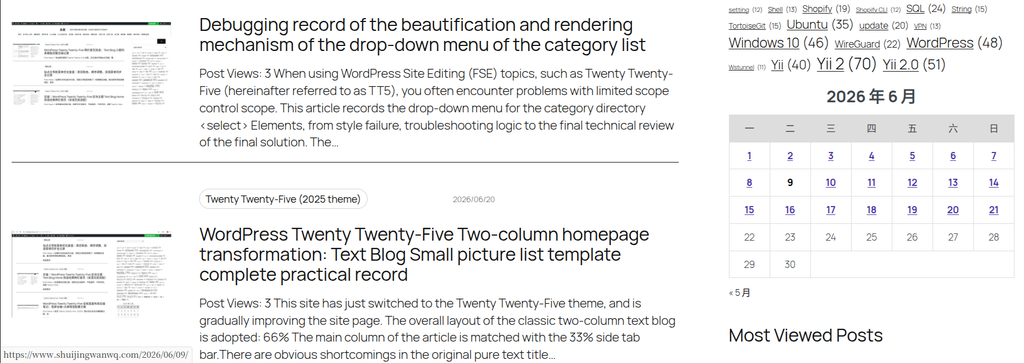
This issue causes users who click a date in the English calendar to be redirected to the Chinese (default language) date archive page instead of the corresponding English date archive, severely impacting the user experience of the multilingual site.
Root Cause Analysis
Why was only the calendar “left behind”?
Upon investigation, I found that when generating date links, the default WordPress calendar widget does not use the standard, multilingual-compatible home_url() function. Instead, it uses lower-level functions like get_day_link() and get_month_link(). When generating links, these functions do not actively account for the language directory prefix (such as /en/) added by plugins like Polylang.
Other components like the tag cloud and category list work normally because they correctly use functions that recognize the current language environment to generate links. Therefore, regardless of how Polylang is configured, the calendar stubbornly generates links without the language code.
Polylang Configuration Confirmation
Before taking action, I confirmed that the basic Polylang settings were correct:
- Permalink structure:
设置 > 固定链接selected “Custom Structure”https://www.shuijingwanwq.com /%year%/%monthnum%/%day%/%post_id%/ - URL modifications settings: In
语言 > 设置 > 网址修改, “The language is set from the directory name in the permalink” was checked - Default language: Chinese (
zh) is set as the default language, and the/zh/directory is not displayed in the URL
Debug code also verified that language detection was working normally:
- Chinese homepage:
<!-- Polylang Current Language: zh --> - English homepage:
<!-- Polylang Current Language: en -->
Since the Polylang settings were correct, the problem lay in the calendar widget itself—I needed to manually fix the calendar links via code.
Solution: Use the WPCode Plugin to Add Custom Code
While directly modifying the theme’s functions.php file is feasible, the modifications would be lost during theme updates. It is recommended to use the WPCode plugin to safely add custom code snippets.
Step 1: Install the WPCode Plugin
In the WordPress dashboard, go to Plugins > Add New, search for WPCode, and once found, click “Install Now” and activate it.
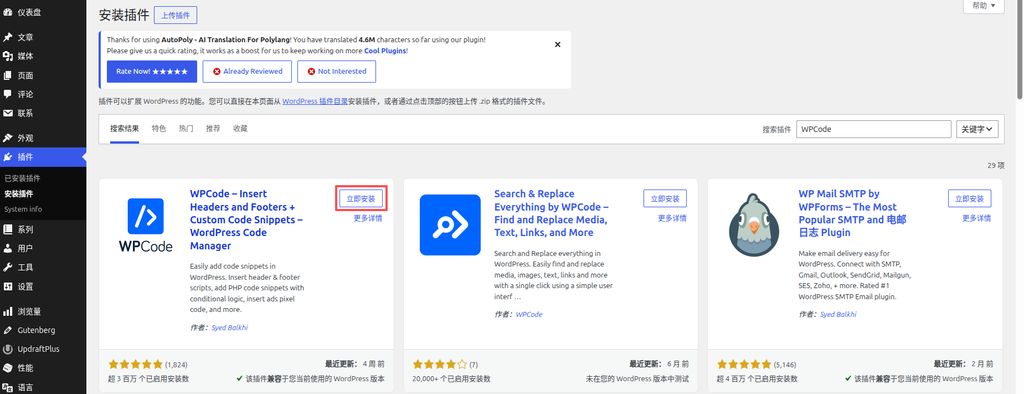
WPCode is a code management plugin that lets you safely add various code snippets (PHP, CSS, JavaScript, HTML, etc.) in WordPress without directly modifying theme files.
Step 2: Go to Code Snippets and Add a New Snippet
After activating WPCode, go to Code Snippets in the left-hand menu, and click the Add Snippet button at the top.
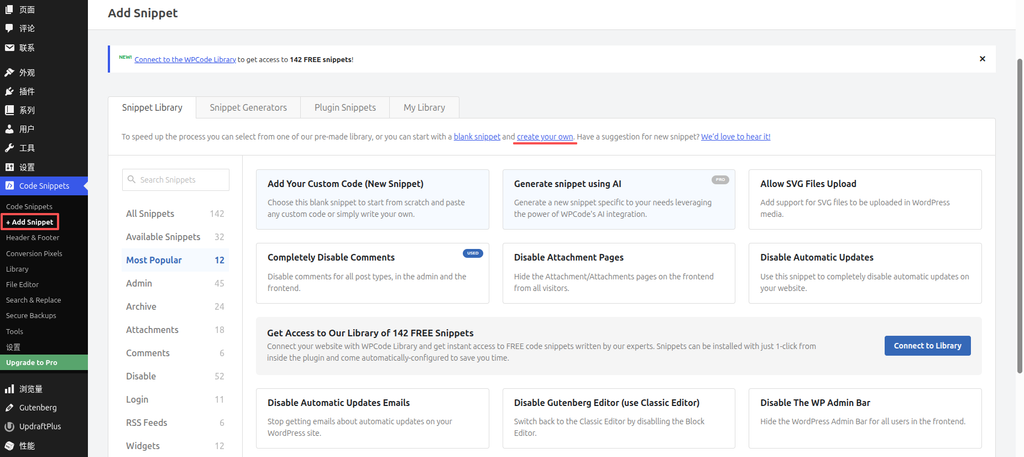
On the page, find and click the Add Your Custom Code (New Snippet) card, which is the entry point for “create your own”.
Step 3: Select the PHP Snippet Type
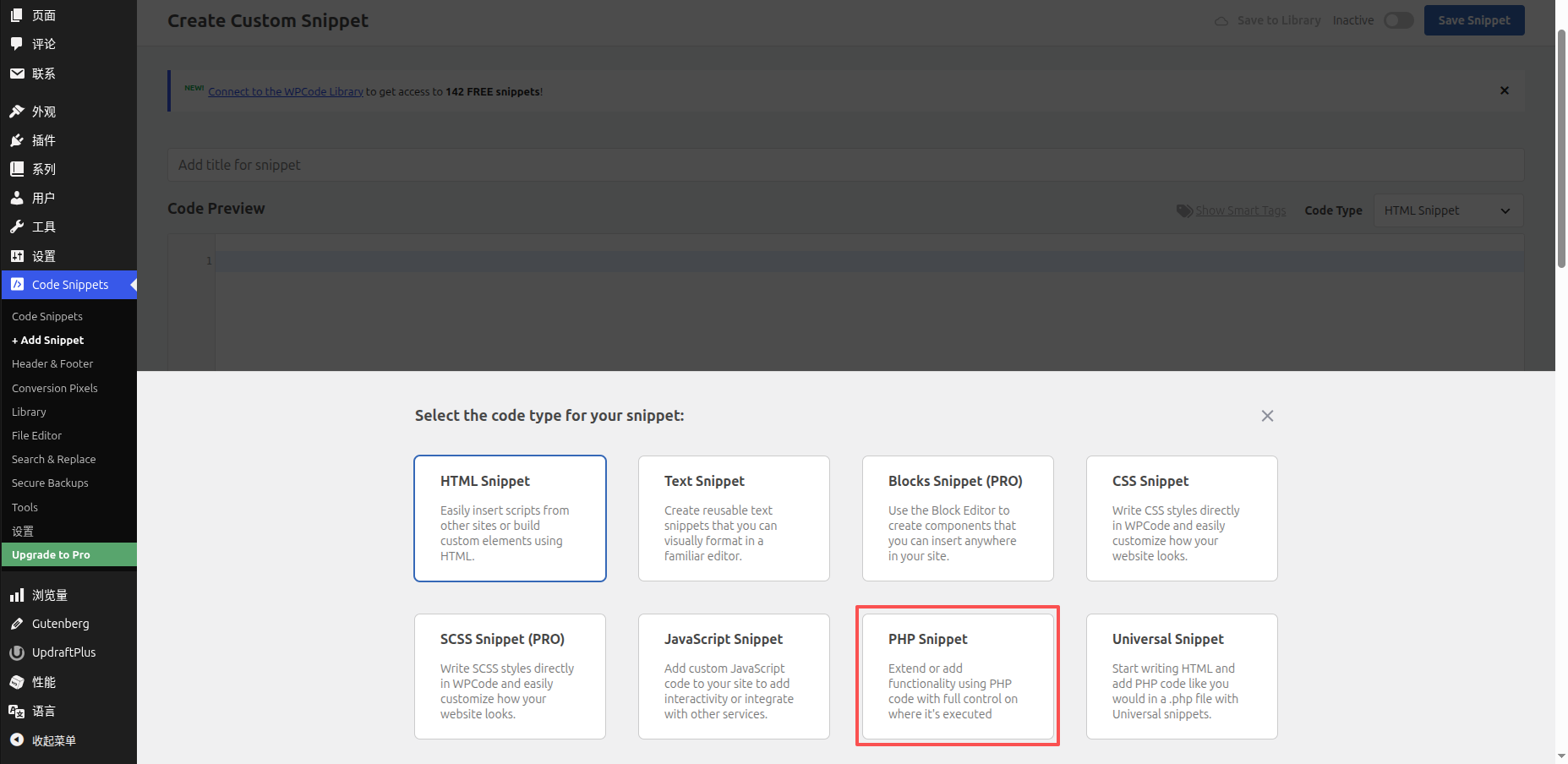
Upon clicking, the Create Custom Snippet window will pop up. In this window, you will see multiple code type cards, such as HTML Snippet, Text Snippet, CSS Snippet, JavaScript Snippet, PHP Snippet, Universal Snippet, etc.
Click the PHP Snippet card directly to select the PHP code snippet type.
Step 4: Paste the Fix Code and Configure Settings
In the editing interface, fill in the Title (e.g., “Fix Multilingual Calendar Links”), then paste the following fix code completely into the Code Preview box:
<?php
/**
 * 为 WordPress 默认日历小工具的所有日期链接添加 Polylang 语言前缀
 * 仅在英文(en)页面生效,中文页面保持原样
 */
function fix_calendar_links_with_polylang( $calendar_output ) {

    // 1. 检查 Polylang 函数是否存在,且不在后台
    if ( function_exists( 'pll_current_language' ) && ! is_admin() ) {

        // 2. 获取当前语言
        $current_lang = pll_current_language();

        // 3. 只在英文页面进行替换
        if ( $current_lang === 'en' ) {

            // 4. 获取不带语言前缀的主页 URL(用于匹配旧链接)
            $home_url = home_url( '/' );

            // 5. 构建包含 /en/ 的正确主页 URL
            $correct_home_url = str_replace( 'https://www.shuijingwanwq.com/', 'https://www.shuijingwanwq.com/en/', $home_url );

            // 6. 在日历HTML中,将所有旧链接替换为新的
            $calendar_output = str_replace( $home_url, $correct_home_url, $calendar_output );
        }
    }

    return $calendar_output;
}
add_filter( 'get_calendar', 'fix_calendar_links_with_polylang' );Code Explanation:
- Line 3,
if ( $current_lang === 'en' ), ensures that the replacement operation is only executed on English pages, leaving Chinese pages unaffected - Line 5 builds the correct link containing
/en/ - Line 6 performs the link replacement
Insertion Location Settings:
In the Insertion area below the editing interface:
- Insert Method: Select Auto Insert
- Location: Select Frontend Only to ensure the code only takes effect on the front end of the site, which is safer
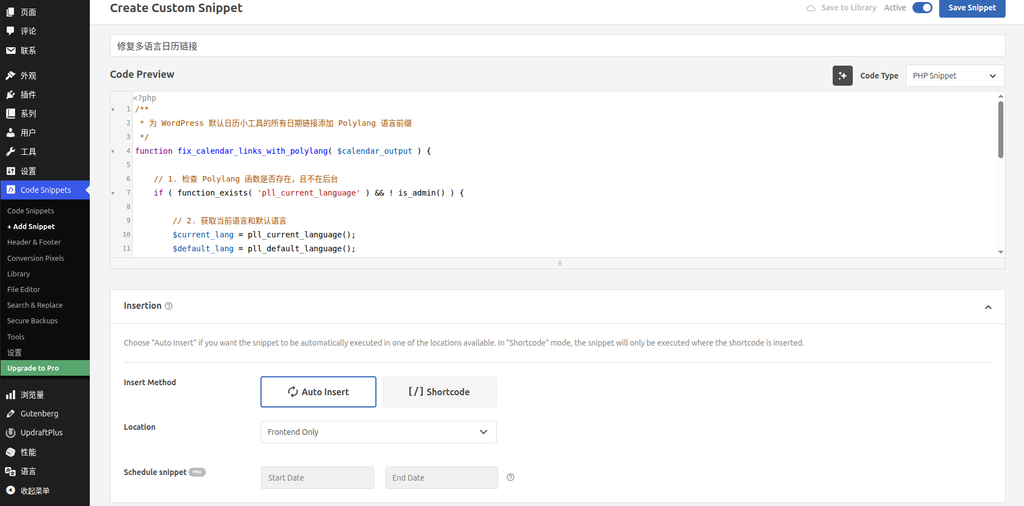
After completing the settings, toggle the switch in the top right corner from Inactive to Active, and click Save Snippet.
Step 5: Clear the Cache
Once the code takes effect, be sure to clear all caches:
- WPCode requires no extra action; the code takes effect immediately upon saving
- W3 Total Cache: Go to the plugin settings and click “Empty All Caches”
- Browser cache: Force refresh by pressing
Ctrl + Shift + R(Windows/Linux) orCmd + Shift + R(Mac) - If you use a CDN (like Cloudflare), clear the CDN cache as well
Final Verification Results
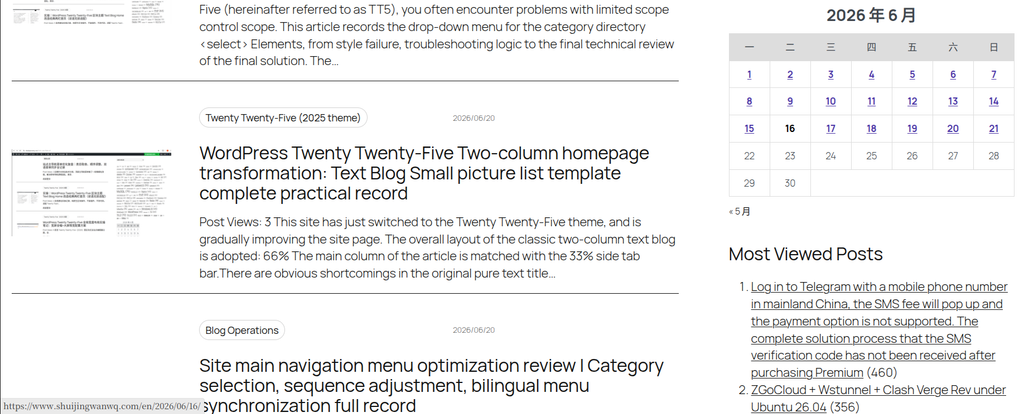
After the fix was completed, I visited the Chinese and English homepages respectively to verify the calendar links:
| Page | Before Fix | After Fix |
|---|---|---|
Chinese homepage (/) | https://.../2026/06/16/ ✅ | https://.../2026/06/16/ ✅ |
English homepage (/en/) | https://.../2026/06/16/ ❌ | https://.../en/2026/06/16/ ✅ |
Pitfall Records and Key Takeaways
Pitfall 1: The First Version of Code Caused /en/en/ Duplication
The initial version of the code did not check whether the current page already included the language directory during replacement. This caused links on the English page to be incorrectly replaced from https://.../en/2026/... to https://.../en/en/2026/... again.
Solution: In the replacement logic, only process links that do not contain the language prefix.
Pitfall 2: Chinese Pages Incorrectly Added /en/
Because Chinese (zh) is the default language, its URL does not include the /zh/ directory. The previous code did not restrict the fix to English pages only, which caused the calendar links on Chinese pages to be incorrectly appended with /en/ as well.
Solution: Add a if ( $current_lang === 'en' ) check to only execute the replacement operation on English pages.
Key Takeaways Summary
- The default WordPress calendar widget generates links that are incompatible with Polylang’s language directory, requiring manual correction via the
get_calendarfilter - Using the WPCode plugin to add code is safer and easier to manage than directly modifying
functions.php - Always check the current language, and only perform the replacement on the language that needs fixing (e.g., English) to avoid affecting default language pages
- Remember to clear all caches after modifying code, including plugin cache, browser cache, and CDN cache
评论
一条对“WordPress 2025 Theme With Polylang: Fixing Missing Language Directories in Calendar Links”的回复
[…] […]