Create React App under Windows 10 64
1. On the official website:https://nodejs.org/zh-cn/Download the recommended version: 8.10.0 LTS, as shown in Figure 1
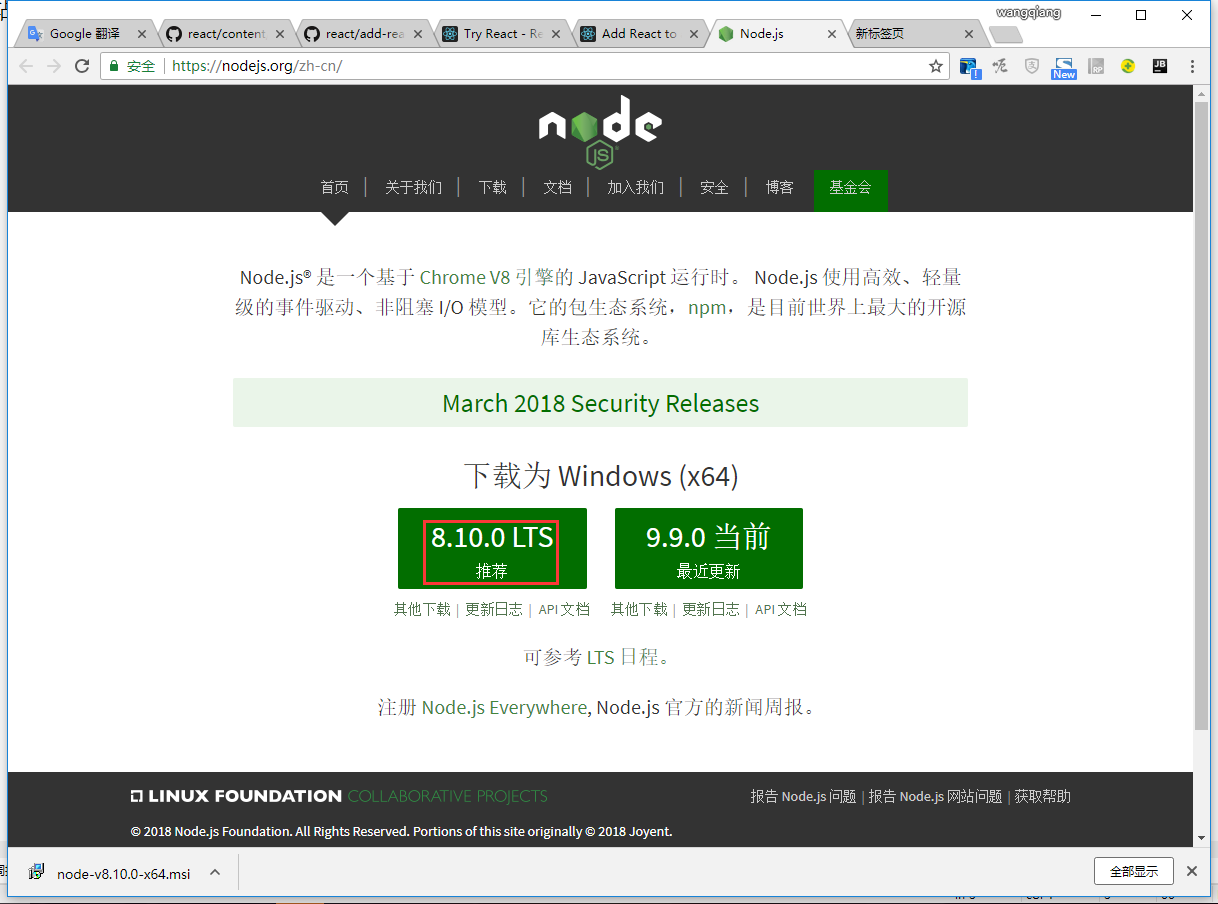
Figure 1
2. Right-click to install, prompt: Windows SmartScreen CanT Be Reached Right Now, click the RUN button, as shown in Figure 2
Windows SmartScreen CanT Be Reached Right Now
Check your Internet connection.Windows SmartScreen is unreachable and canT help you decide if this app is okay to run.
publisher: node.js
App: node-v8.10.0-x64.msi
Windows SmartScreen can’t reach now
Check your internet connection. Windows SmartScreen cannot be accessed and cannot help you decide if this app will work.
Publisher: node.js
Application: node-v8.10.0-x64.msi
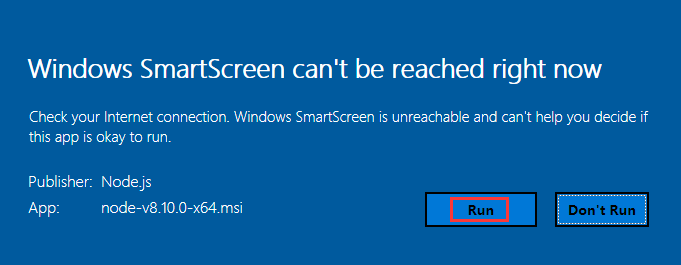
Figure 2
3. Node.js Setup, click the Next button, as shown in Figure 3
Welcome to the node.js setup wizard
The setup Wizard will install node.js on your computer.
Welcome to Node.js installation wizard
The installation wizard will install Node.js on your computer.
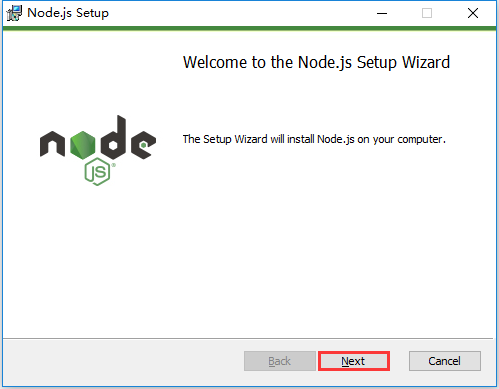
Figure 3
4. Node.js setup, check I accept the terms in the license agreement, and click the next button, as shown in Figure 4
end-user license agreement
Please read the following license agreement
I accept the terms in the license agreement
End User License Agreement
Please read the following license agreement carefully
I accept terms in the license agreement
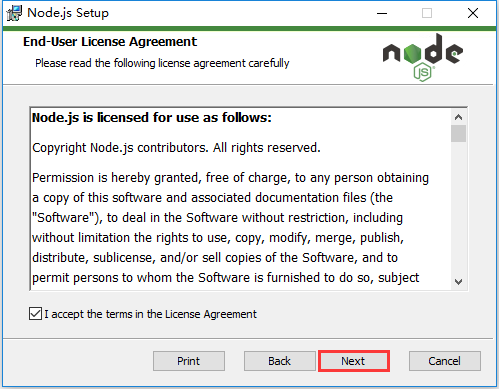
Figure 4
5. Node.js Setup, click the Next button, as shown in Figure 5
destination folder
Choose a custom location or click next to install.
install node.js to:
C:\Program Files\NodeJS\
change
destination folder
Select a custom location or click Next to install.
Install Node.js to:
C:\Program Files\NodeJS\
Change
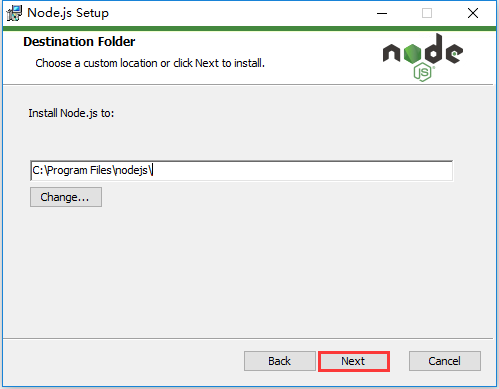
Figure 5
6. Node.js setup, the default settings are good, click the Next button, as shown in Figure 6
custom setup
Select the way you want features to be installed.
Click the icons in the tree below to change the way features will be installed.
custom settings
Choose how you want to install the function.
Click the icon in the tree below to change the way the function you want to install.
Node.js runtime: install the core node.js runtime(node.exe). This feature frees up 117kb on your hard drive.it has 2 Of 2 subfeatures selected.The subfeatures require 0kb on your hard drive.
Will be installed on local hard drive
Entire featurn will be installed on local hard drive
Feature will be installed when required
Node.js runtime: install the core node.js runtime (node.exe). This function can release 117KB on the hard disk. It has 2 of 2 sub-functions. The sub-function on the hard disk requires 0KB.
will be installed on the local hard drive
The entire function will be installed on the local hard disk
Features will be installed when needed
performance counters: install support for node.js-specific performance counters.this feature requires 0kb on your hard drive.
Will be installed on local hard drive
Entire feature will be installed on local hard drive
Feature will be installed when required
Entire feature will be unavailable
Performance counters: Install support for Node.js specific performance counters. This feature requires 0KB on the hard drive.
will be installed on the local hard drive
The entire function will be installed on the local hard disk
Features will be installed when needed
The entire function will not be available
Event Tracing(ETW): Install Support for Event Tracing(ETW) Events Generated by Node.js.This Feature requires 0KB on Your hard drive.
Will be installed on local hard drive
Entire feature will be installed on local hard drive
Feature will be installed when required
Entire feature will be unavailable
Event Tracking (ETW): Install support for event tracking (ETW) events generated by Node.js. This feature requires 0KB on the hard drive.
will be installed on the local hard drive
The entire function will be installed on the local hard disk
Features will be installed when needed
The entire function will not be available
npm package manager: install npm, the recommended package manager for node.js.this feature requires 1053kb on your hard drive.
Will be installed on local hard drive
Entire feature will be installed on local hard drive
Feature will be installed when required
Entire feature will be unavailable
npm package manager: the recommended package manager for installing npm, node.js. This function requires 1053KB on the hard disk.
will be installed on the local hard drive
The entire function will be installed on the local hard disk
Features will be installed when needed
The entire function will not be available
Online documentation shortcuts: add start menu entries that link the online documentation for node.js and the node.js website.this FEATURE REQUIRES 1KB on your hard drive.
Will be installed on local hard drive
Entire feature will be installed on local hard drive
Feature will be installed when required
Entire feature will be unavailable
Online document shortcut: Add links to the Node.js online documentation and the start menu entry for the Node.js website. This feature requires a 1KB hard drive.
will be installed on the local hard drive
The entire function will be installed on the local hard disk
Features will be installed when needed
The entire function will not be available
Add to path: add node.js, npm and modules that were globally installed by npm to the path environment variable.this Feature requires 0KB on your hard drive.it has 2 or 2 subfeatures selected.The subfeatures require 2KB on Your hard drive.
Will be installed on local hard drive
Entire feature will be installed on local hard drive
Will be installed to run from network
Entire feature will be installed to run from network
Feature will be installed when required
Entire feature will be unavailable
Add to PATH: Add Node.js, npm and modules globally installed by npm to the PATH environment variable. This feature requires 0KB on the hard drive. It has 2 or 2 sub-features. The sub-function of the hard drive requires 2KB.
will be installed on the local hard drive
The entire function will be installed on the local hard disk
will install from the network
The entire function will be installed from the network to run
Features will be installed when needed
The entire function will not be available
Node.js and npm: add node.js and npm(if installed) to the path environment variable.this feature requires 1kb on Your hard drive.
Will be installed on local hard drive
Entire feature will be installed on local hard drive
Feature will be installed when required
Entire feature will be unavailable
Node.js and npm: Add node.js and npm (if installed) to the PATH environment variable. This function requires 1KB on the hard disk.
will be installed on the local hard drive
The entire function will be installed on the local hard disk
Features will be installed when needed
The entire function will not be available
NPM Modules: Add modules that are installed globally by npm to the path environment variable. This option works for the current User only; other users need to update their…this feature requires 1kb on your hard drive.
Will be installed on local hard drive
Entire feature will be installed on local hard drive
Feature will be installed when required
Entire feature will be unavailable
npm module: Add the modules installed globally to the NPM to the PATH environment variable. This option is only available to the current user; other users need to update their… This feature requires a 1KB hard drive.
will be installed on the local hard drive
The entire function will be installed on the local hard disk
Features will be installed when needed
The entire function will not be available
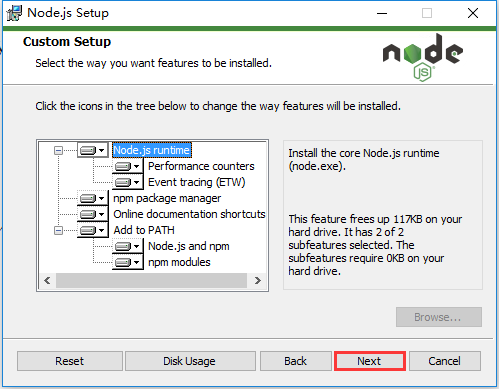
Figure 6
7. Node.js Setup, click the Install button, as shown in Figure 7
ready to install node.js
Click install to begin the installation.click back to review or change any of your installation settings.click cancel to exit the wizard.
Ready to install Node.js
Click Install to start the installation. Click Return to view or change any installation settings. Click Cancel Exit Wizard.
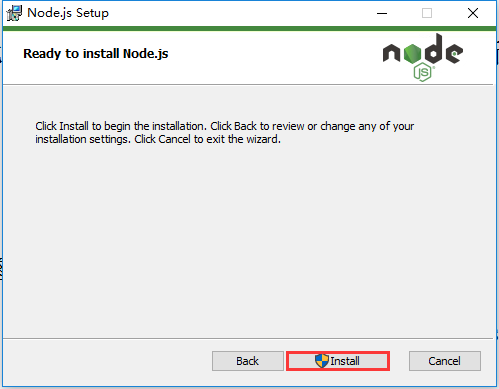
Figure 7
8. Node.js Setup, click the Finish button, as shown in Figure 8
Completed the node.js setup wizard
Click the Finish button to exit the setup wizard.
Node.js has been successfully installed.
Completed the Node.js installation wizard
Click the Finish button to exit the installation wizard.
Node.js has been successfully installed.
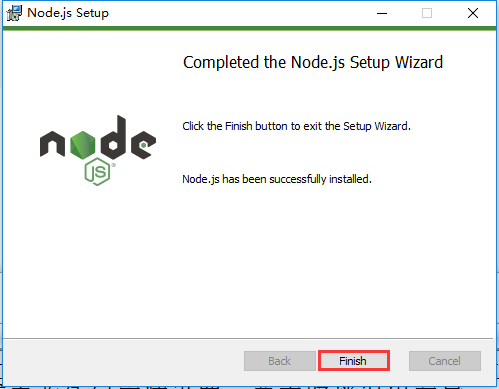
8
9. Use React to develop a new project, refer to the website:https://doc.react-china.org/docs/add-react-to-a-new-app.html
10. Run Windwos PowerShell as an administrator, execute the following commands in sequence, and report an error: npm ERR! ERROR: EPERM: Operation not permitted, as shown in Figure 9
npm install -g create-react-app
create-react-app my-app
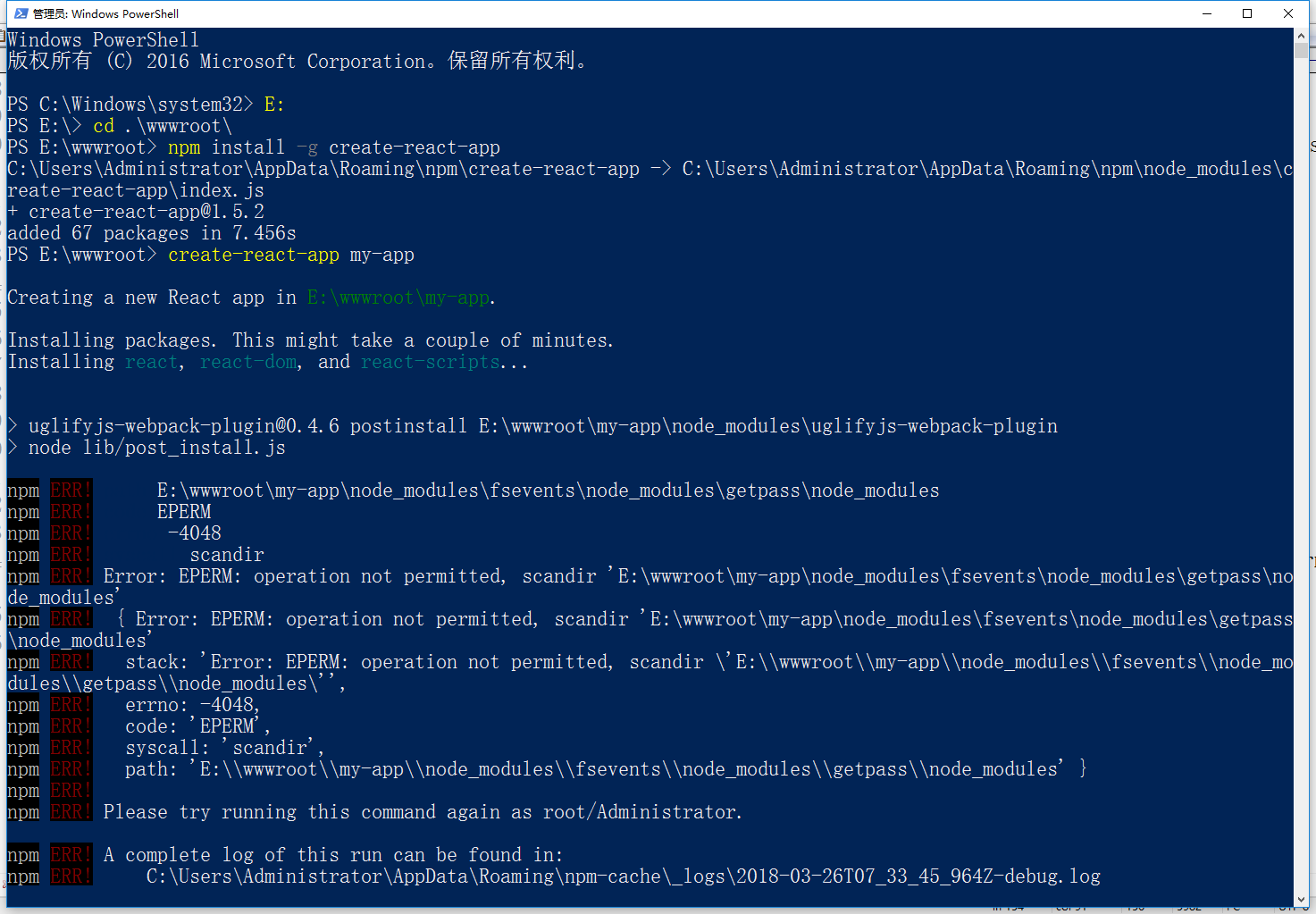
Figure 9
Creating a new React app in E:\wwwroot\my-app.

Installing packages. This might take a couple of minutes.
Installing react, react-dom, and react-scripts...


> uglifyjs-webpack-plugin@0.4.6 postinstall E:\wwwroot\my-app\node_modules\uglifyjs-webpack-plugin
> node lib/post_install.js

npm ERR! path E:\wwwroot\my-app\node_modules\fsevents\node_modules\getpass\node_modules
npm ERR! code EPERM
npm ERR! errno -4048
npm ERR! syscall scandir
npm ERR! Error: EPERM: operation not permitted, scandir 'E:\wwwroot\my-app\node_modules\fsevents\node_modules\getpass\no
de_modules'
npm ERR!  { Error: EPERM: operation not permitted, scandir 'E:\wwwroot\my-app\node_modules\fsevents\node_modules\getpass
\node_modules'
npm ERR!   stack: 'Error: EPERM: operation not permitted, scandir \'E:\\wwwroot\\my-app\\node_modules\\fsevents\\node_mo
dules\\getpass\\node_modules\'',
npm ERR!   errno: -4048,
npm ERR!   code: 'EPERM',
npm ERR!   syscall: 'scandir',
npm ERR!   path: 'E:\\wwwroot\\my-app\\node_modules\\fsevents\\node_modules\\getpass\\node_modules' }
npm ERR!
npm ERR! Please try running this command again as root/Administrator.

npm ERR! A complete log of this run can be found in:
npm ERR!     C:\Users\Administrator\AppData\Roaming\npm-cache\_logs\2018-03-26T07_47_26_461Z-debug.log

Aborting installation.
  npm install --save --save-exact --loglevel error react react-dom react-scripts has failed.

Deleting generated file... node_modules
Deleting generated file... package.json
Deleting my-app / from E:\wwwroot
Done.
11. Execute the following commands in sequence: verify the contents of the cache folder, garbage collect any unwanted data, and verify the integrity of the cache index and all cached data. As shown in Figure 10
npm cache verify
create-react-app my-app
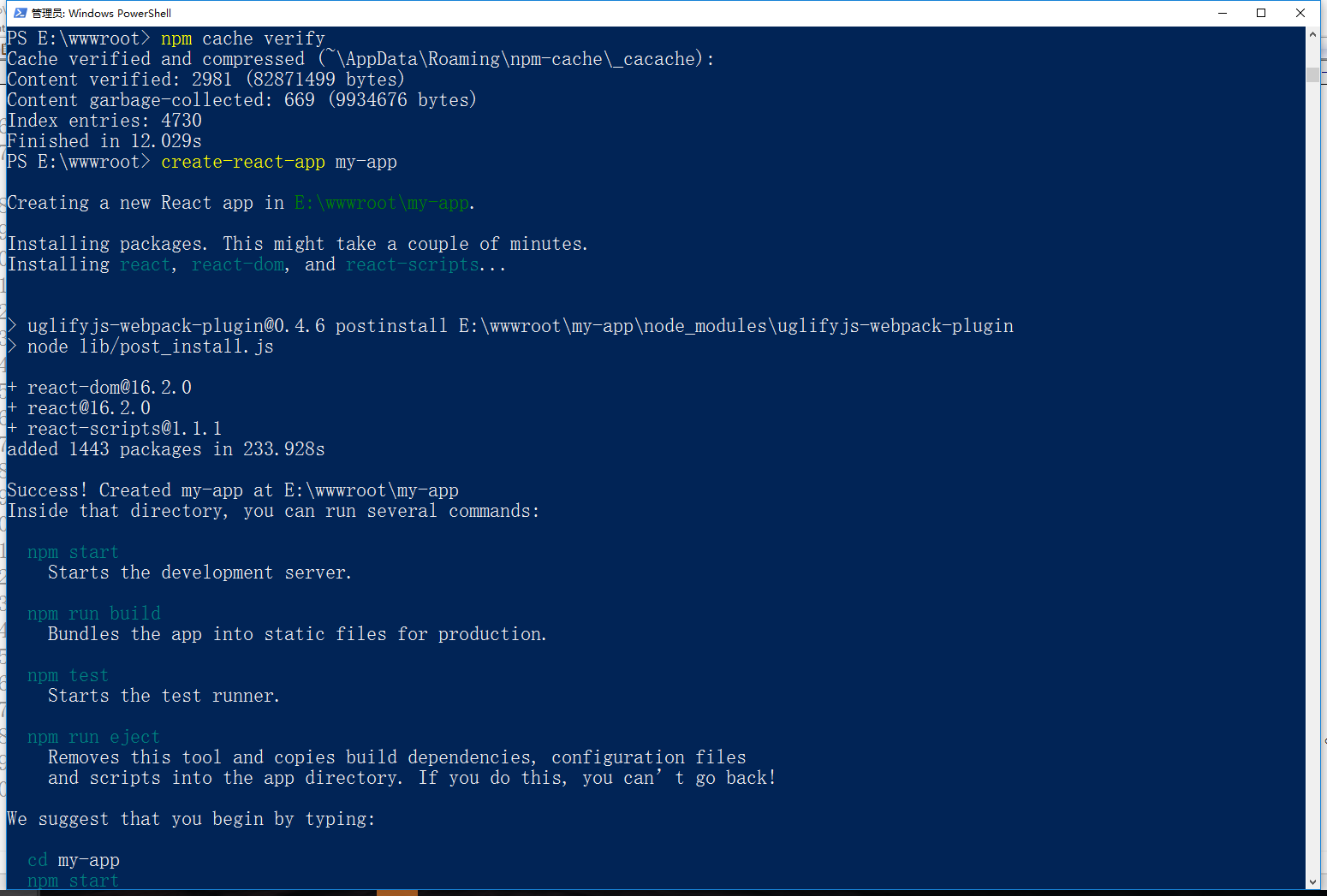
Figure 10
Creating a new React app in E:\wwwroot\my-app.

Installing packages. This might take a couple of minutes.
Installing react, react-dom, and react-scripts...


> uglifyjs-webpack-plugin@0.4.6 postinstall E:\wwwroot\my-app\node_modules\uglifyjs-webpack-plugin
> node lib/post_install.js

+ react-dom@16.2.0
+ react@16.2.0
+ react-scripts@1.1.1
added 1443 packages in 233.928s

Success! Created my-app at E:\wwwroot\my-app
Inside that directory, you can run several commands:

  npm start
    Starts the development server.

  npm run build
    Bundles the app into static files for production.

  npm test
    Starts the test runner.

  npm run eject
    Removes this tool and copies build dependencies, configuration files
    and scripts into the app directory. If you do this, you can’t go back!

We suggest that you begin by typing:

  cd my-app
  npm start

Happy hacking!
12. Execute the following commands in sequence: Now you can view my application in the browser, as shown in Figure 11
cd my-app
npm start
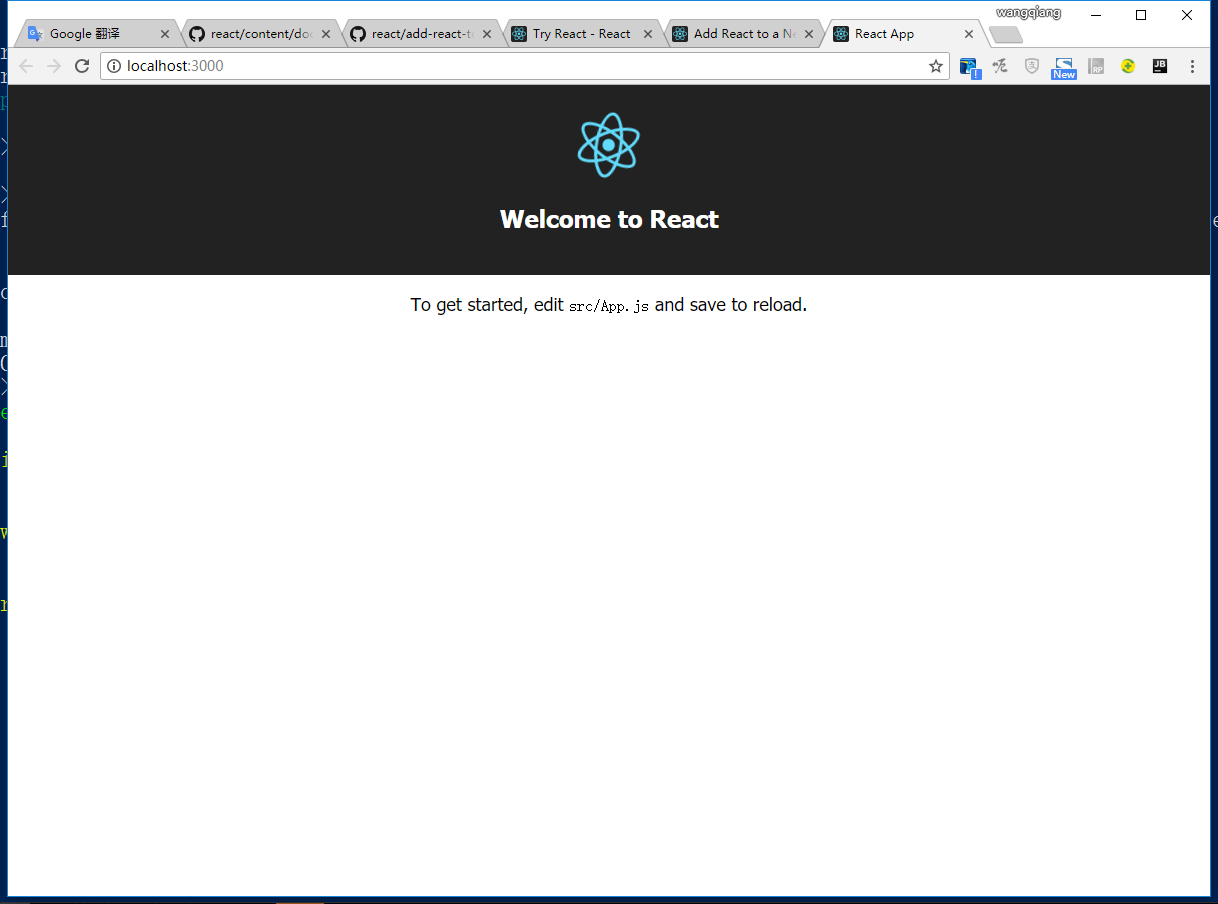
Figure 11
![Lighthouse 大量使用 SDL 并利用模式指令。为了改善您的编辑体验,您可以使用 artisan 命令生成定义文件。报错:Illuminate\Contracts\Container\BindingResolutionException : Target [Modules\ThemeStore\View\ViewStorageInterface] is not instantiable while building [Modules\ThemeStore\Resolver\OnlineStoreThemeResolver].](https://www.shuijingwanwq.com/wp-content/uploads/2022/05/1-6-520x245.png)