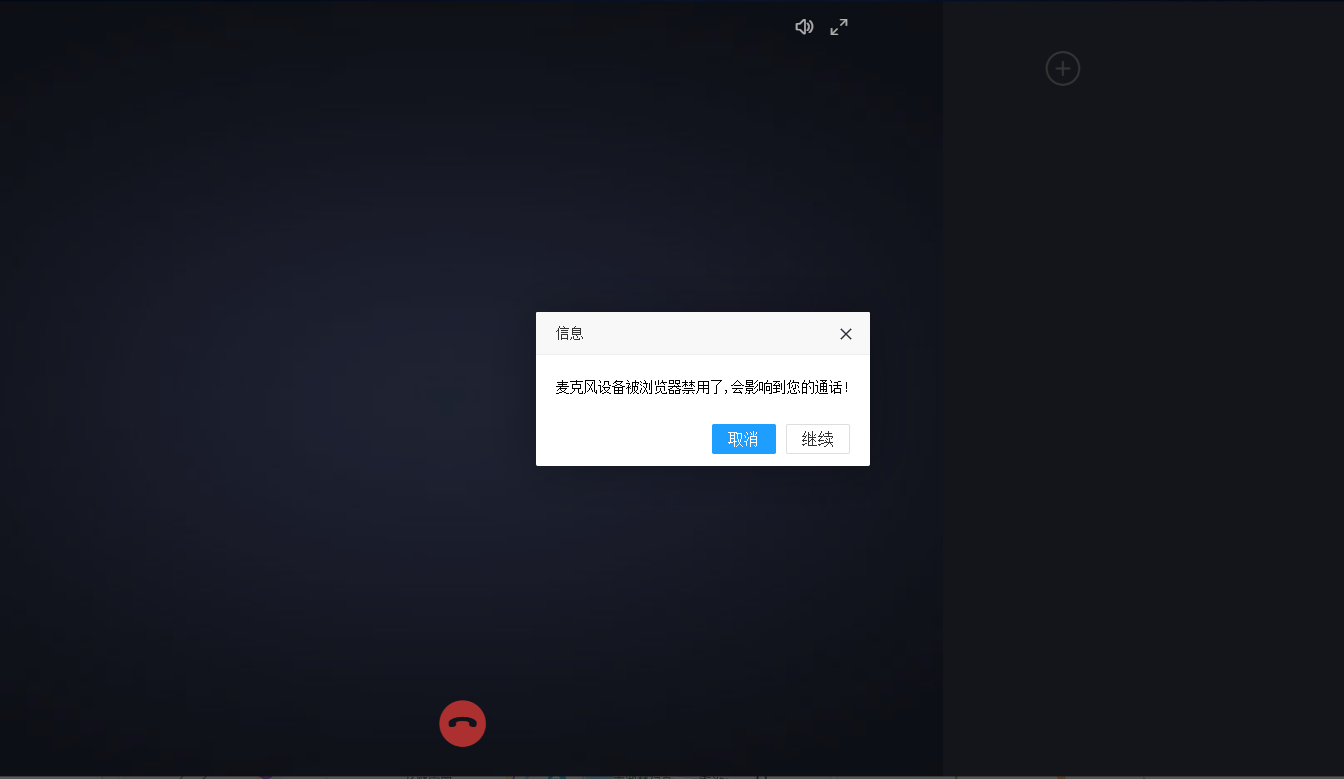
1. The microphone device is disabled by the browser, which will affect your call!. as shown in Figure 1
2. In the Edge browser, the site permissions / microphone, the query before access (recommendation) will be blocked (if closed), the default is turned on. as shown in Figure 2

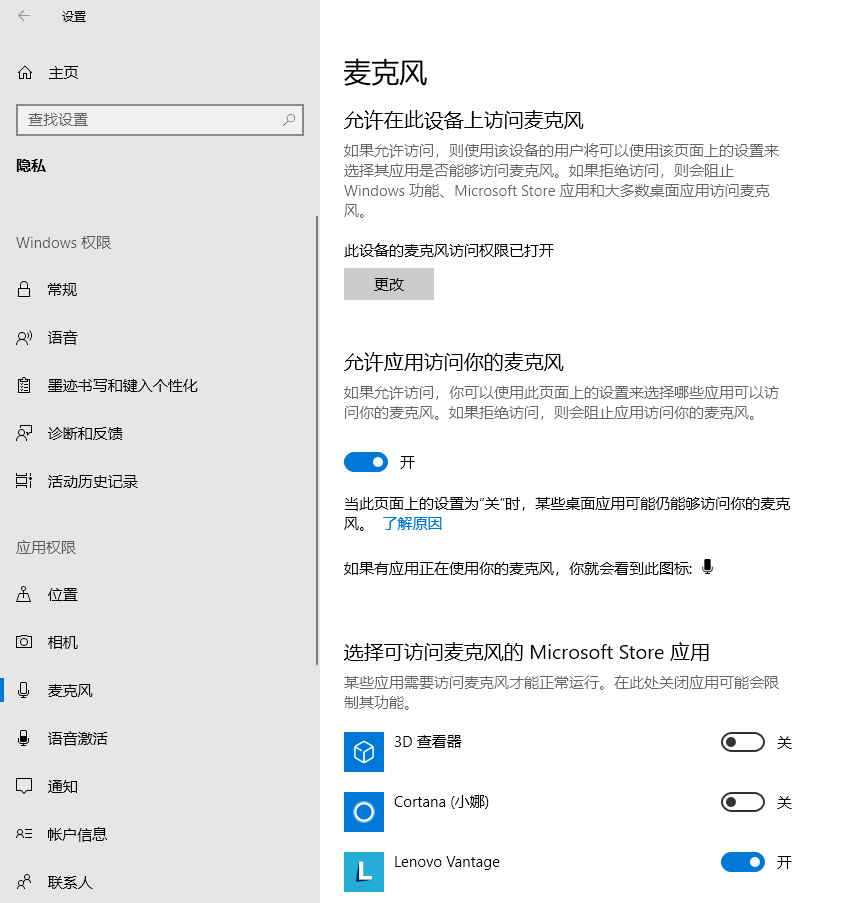
3. It is suspected that the computer itself does not have the permission to turn on the microphone. Windows Settings – Privacy – App Permissions – Microphone. Microphone access for this device is turned on. as shown in Figure 3
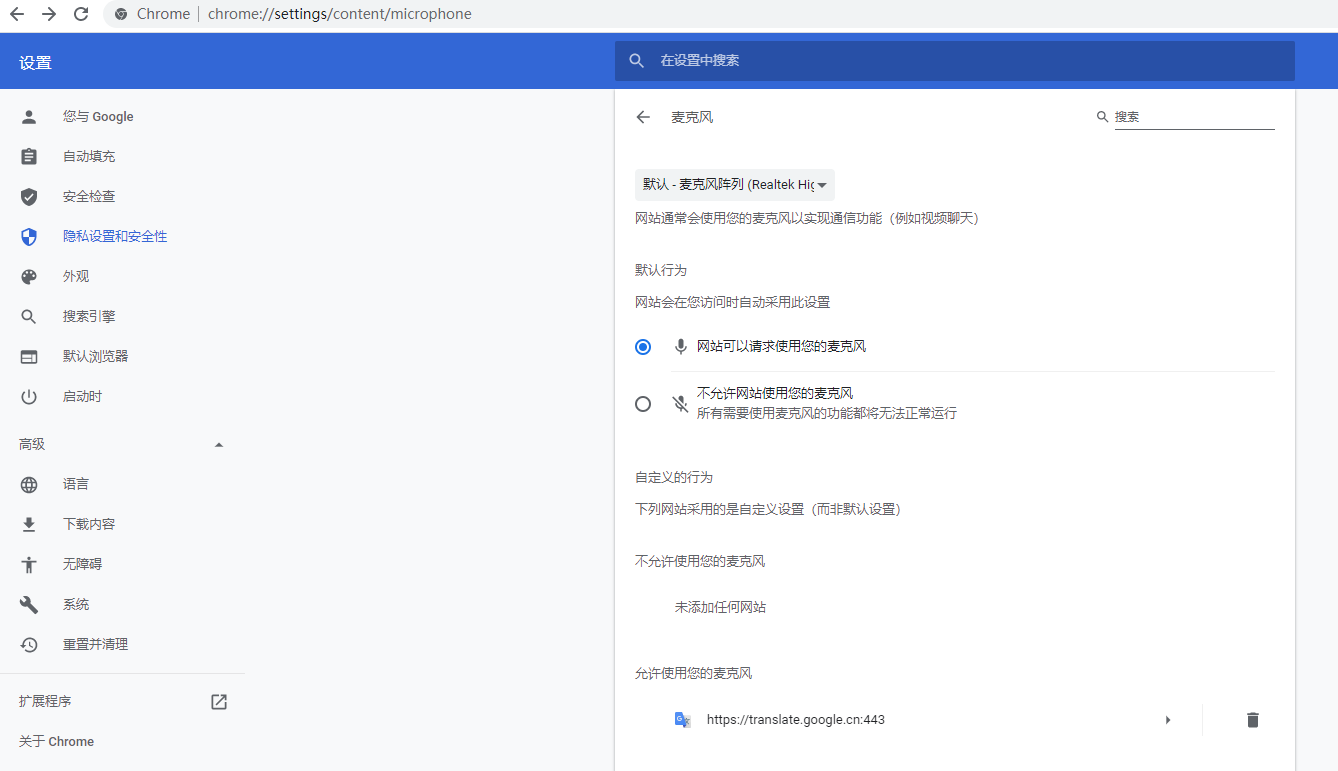
4. The microphone cannot be used in Chrome browser either. View related settings. as shown in Figure 4
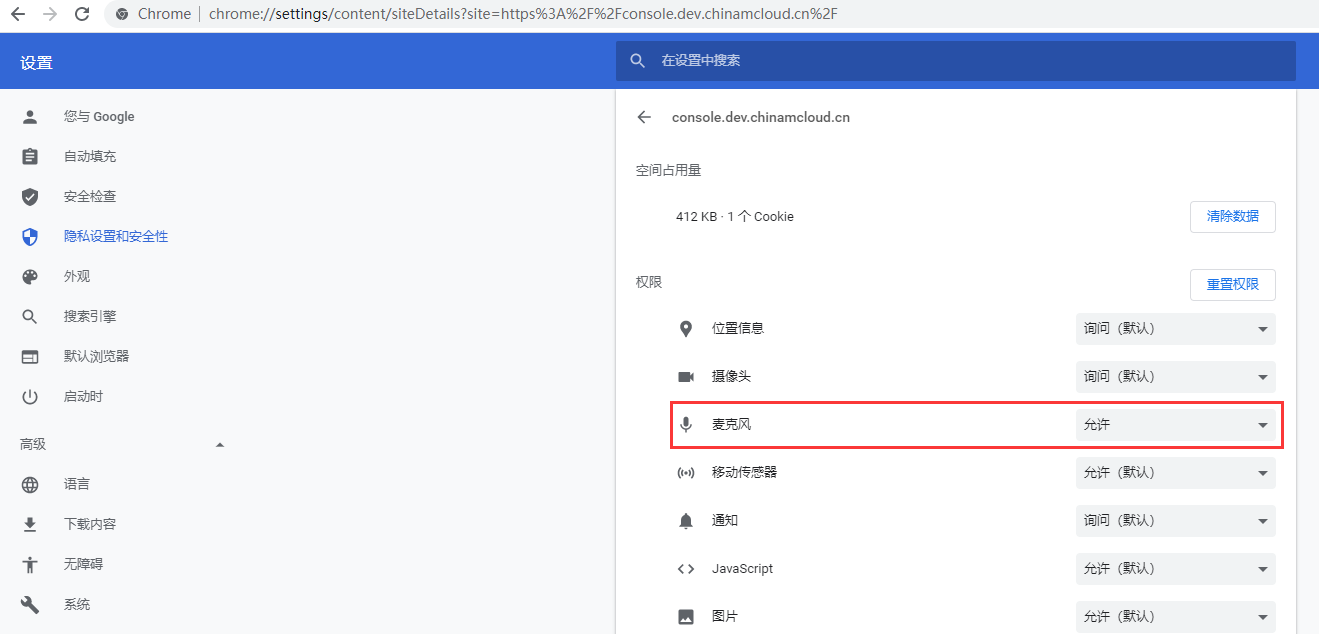
5. On all websites – console.dev.chinamcloud.cn – Permissions – Microphone – Allowed. as shown in Figure 5
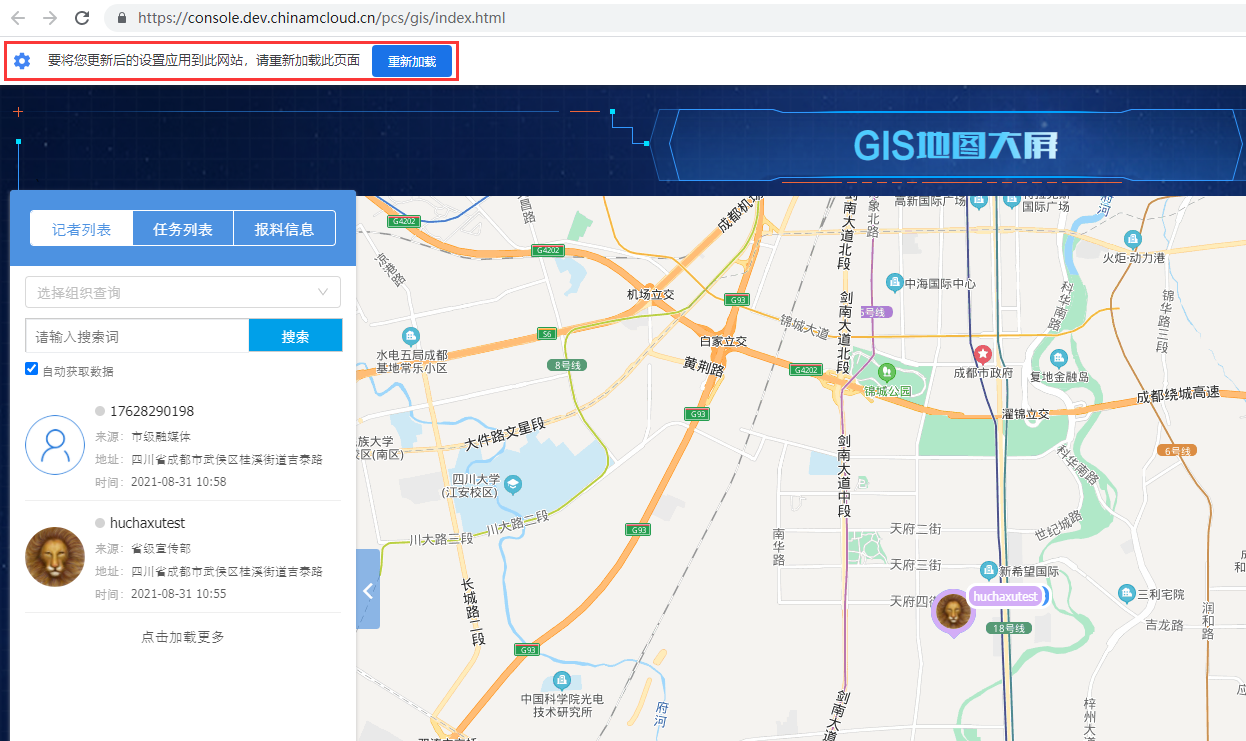
6. To apply your updated settings to this website, please reload this page. reload. as shown in Figure 6
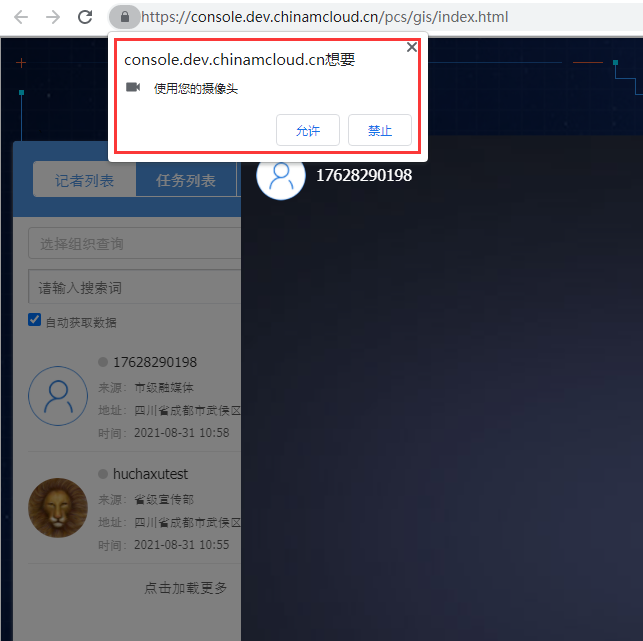
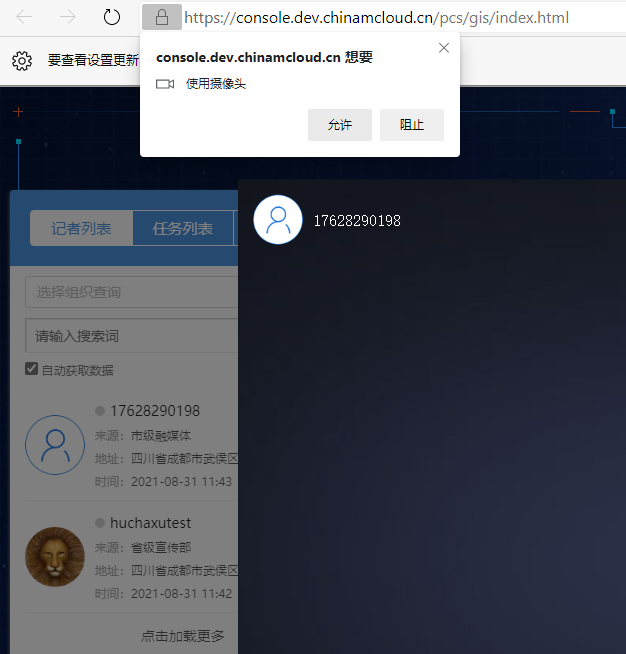
7. After reloading, the browser prompts that the website wants to use your camera, click Allow. as shown in Figure 7
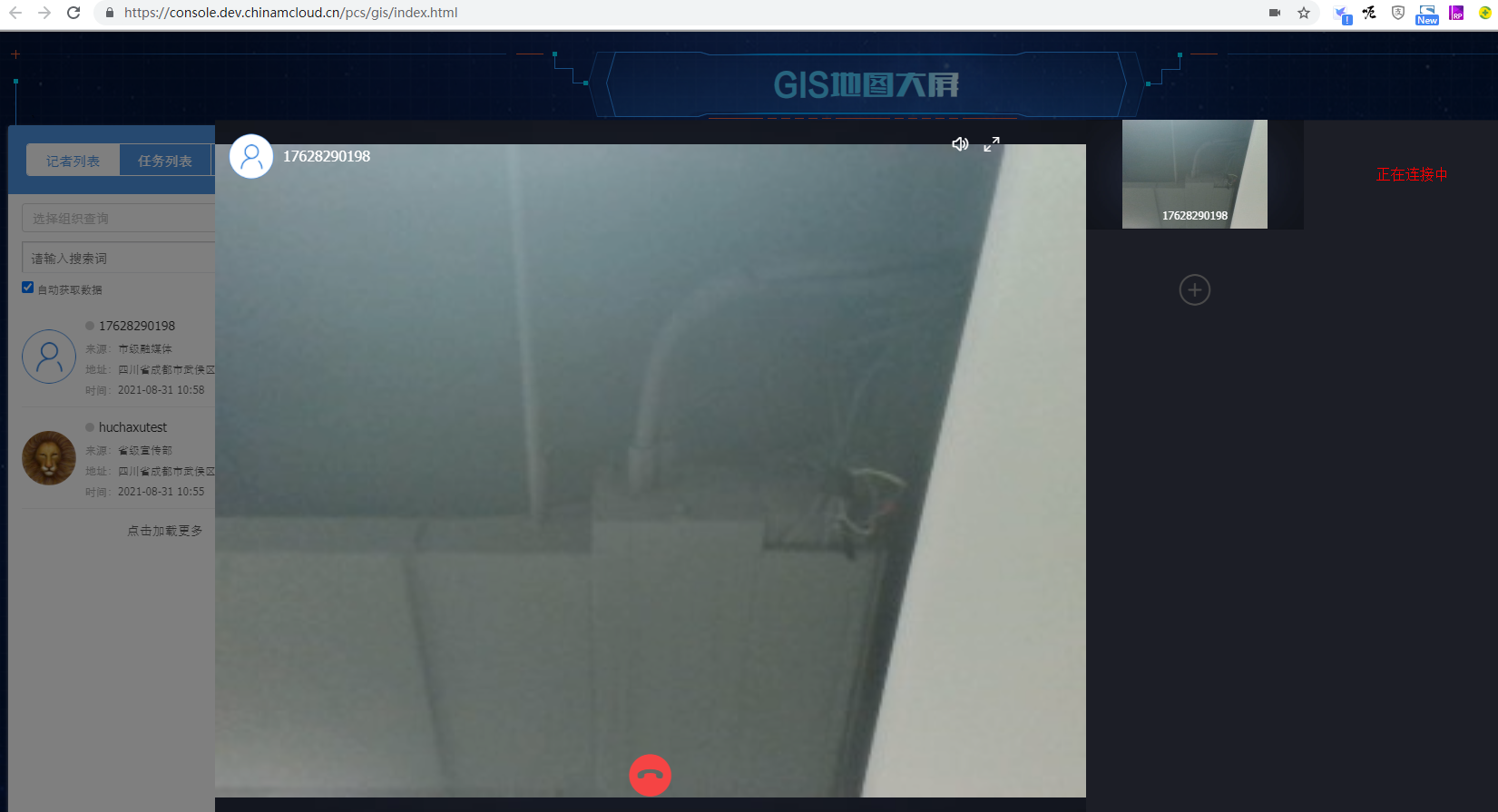
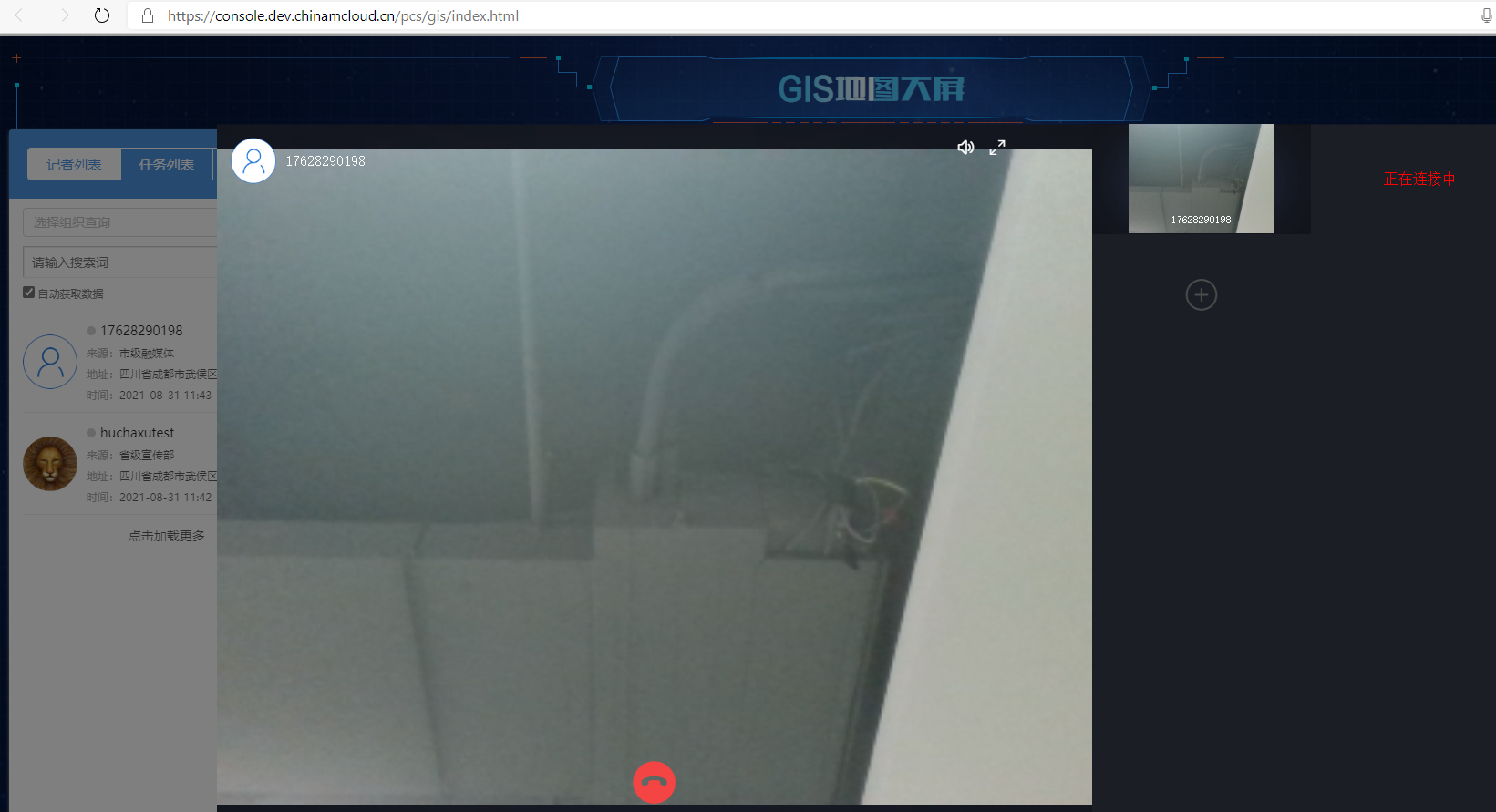
8. After clicking Allow, the microphone and camera are successfully turned on. as shown in Figure 8
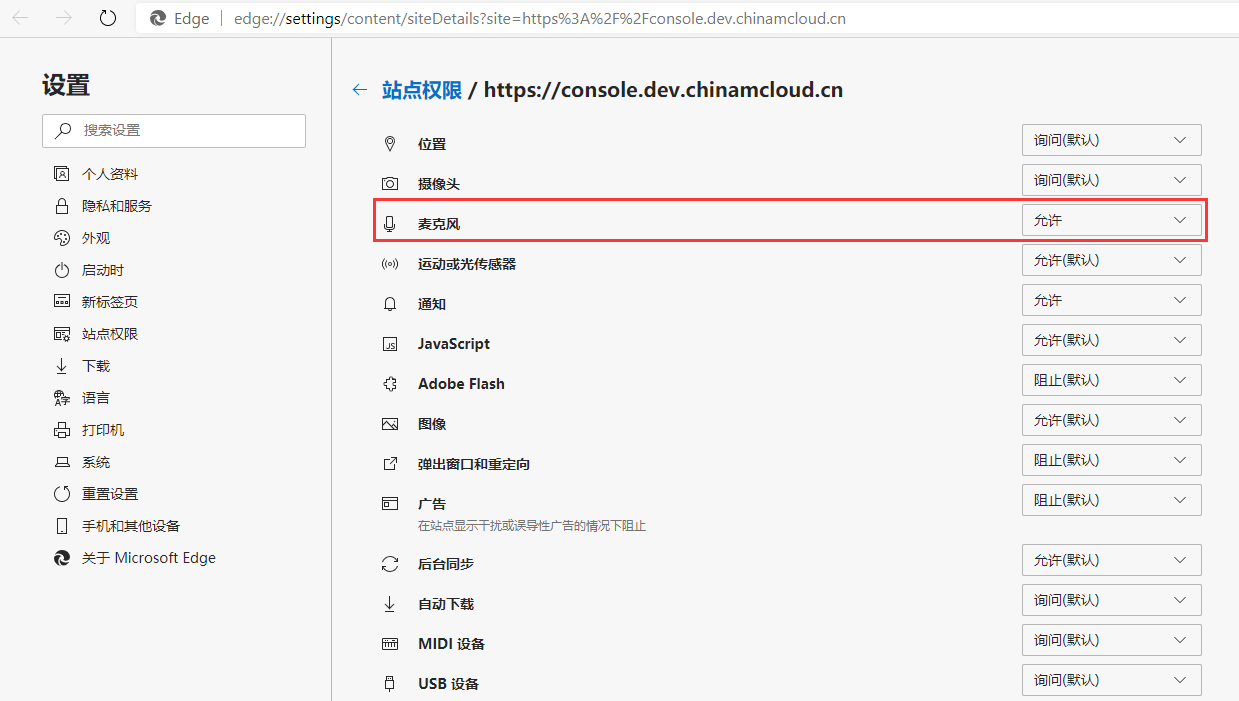
9. In the Edge browser, view site information – site permissions. as shown in Figure 9
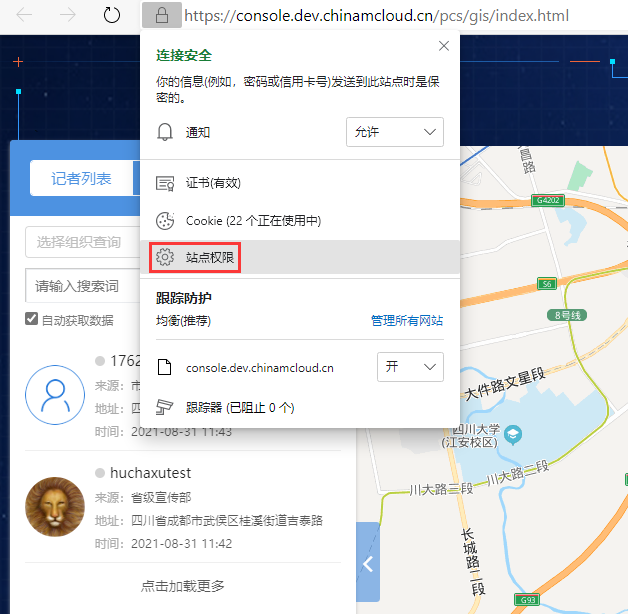
10. Site permissions / https://console.dev.chinamcloud.cn – Allowed. As shown in Figure 10
11. The browser prompts that the website wants to use the camera, click Allow. as shown in Figure 11
12. After clicking Allow, the microphone and camera are successfully turned on. as shown in Figure 12
Leave a Reply