

Hyper-V allows you to run multiple operating systems as a virtual machine on Windows. Reference:https://docs.microsoft.com/zh-cn/virtualization/hyper-v-on-windows/about/.
2. Hyper-V is built into the Windows professional version as an optional function – no need to download Hyper-V. Enable the Hyper-V role via Settings.
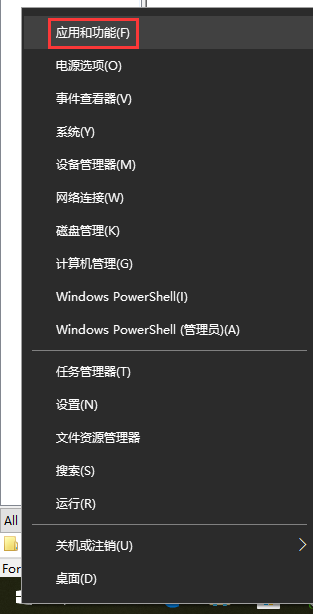
3. Right-click the Windows button and select “Apps and Features”. as shown in Figure 1
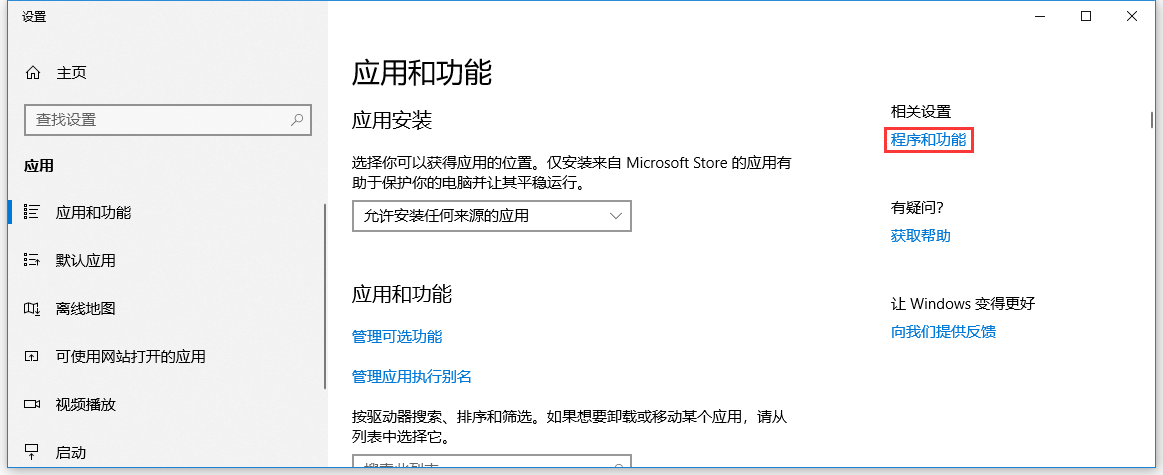
4. Select the “Programs and Functions” on the right under the relevant settings. as shown in Figure 2
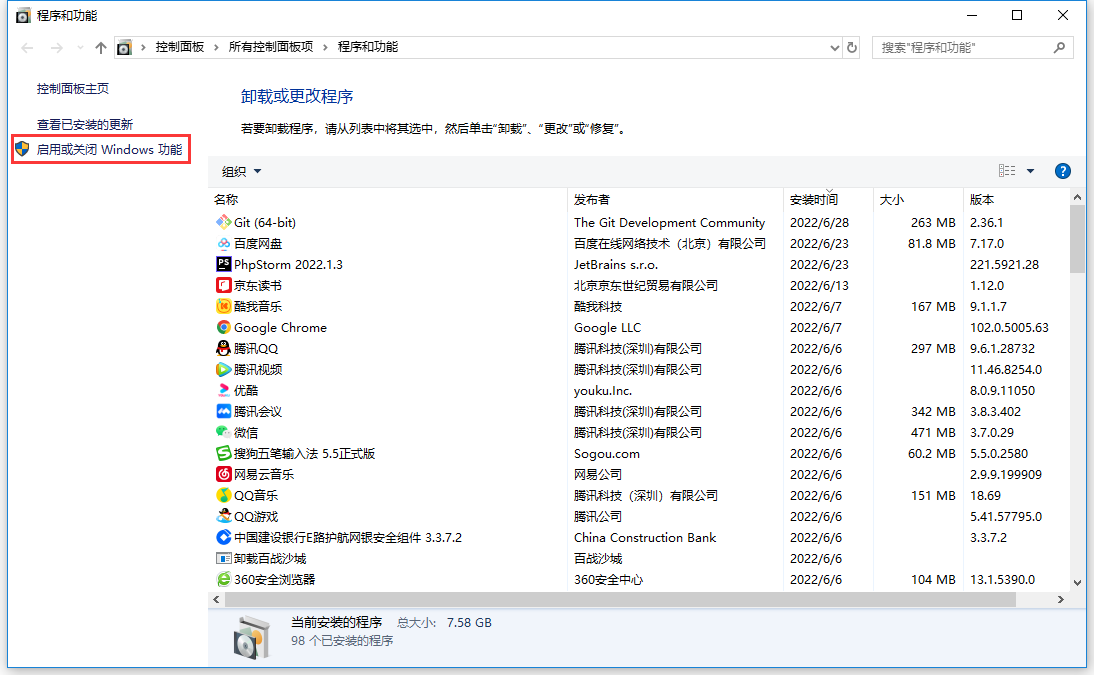
5. Select “Enable or turn off Windows features”. as shown in Figure 3
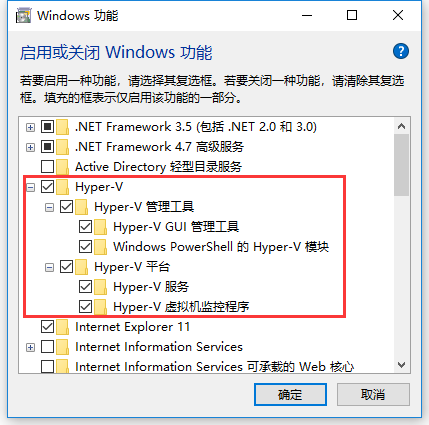
6. Select “Hyper-V” and click “OK”. as shown in Figure 4
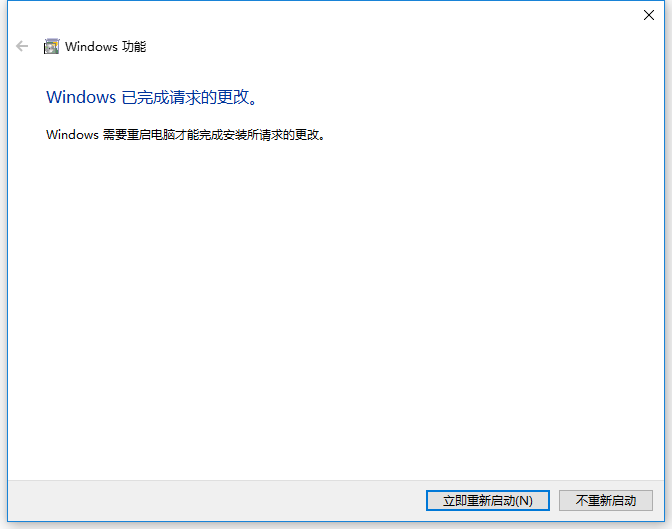
7. After the installation is complete, the system will prompt you to restart the computer. as shown in Figure 5
8. Reference:https://docs.microsoft.com/zh-cn/virtualization/hyper-v-on-windows/quick-start/quick-create-virtual-machine. Select your operating system for the appropriate set of instructions. Reference: Which Windows operating system version am I running? URL:https://support.microsoft.com/zh-cn/windows/%E6%88%91%E8%BF%90%E8%A1%8C%E7%9A%84%E6%98%AF%E5%93%AA%E4%B8%AA-windows-%E6%93%8D%E4%BD%9C%E7%B3%BB%E7%BB%9F%E7%89%88%E6%9C%AC-628bec99-476a-2c13-5296-9dd081cdd808. Select the “Start” button> “Settings”> “System” > “About”. Open the “About” settings. Under “Device Specifications” > “System Type”, check whether your Windows is 32-bit or 64-bit version. Under Windows Specifications, view the Windows version and version number of the device running: 1803. as shown in Figure 6
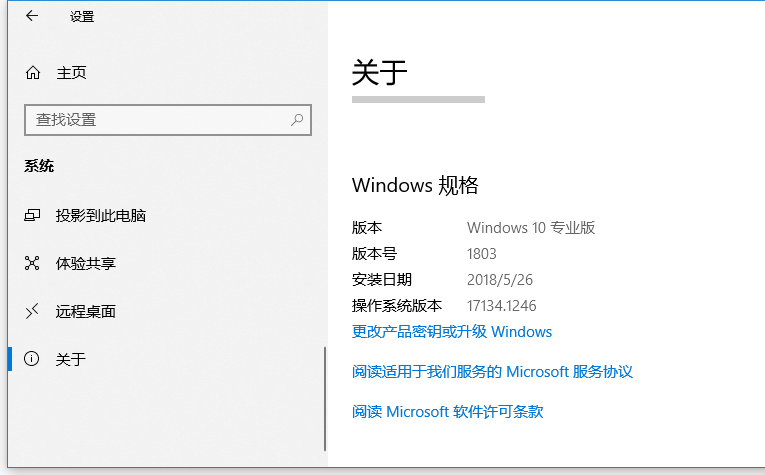
9. Version number: 1803, so select the description: Windows 10 Fall Creators Update (V1709) and later.
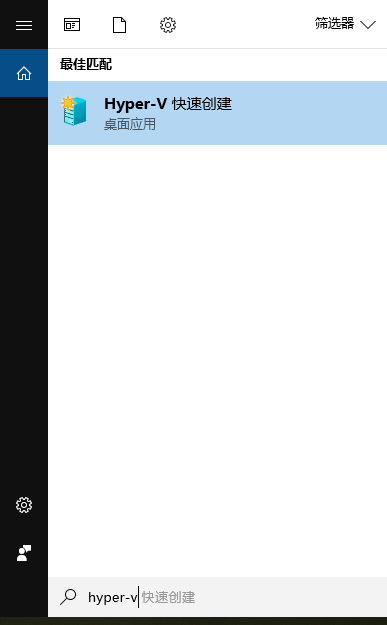
10. Open Hyper-V Quick Create from the Start menu. Search: Hyper-V, Appears: Hyper-V Created quickly. as shown in Figure 7
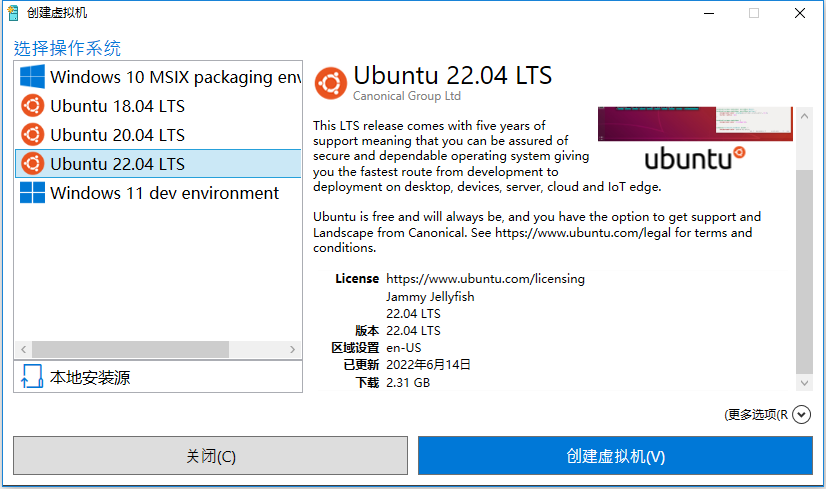
11. Select an operating system: Ubuntu 22.04 LTS. as shown in Figure 8
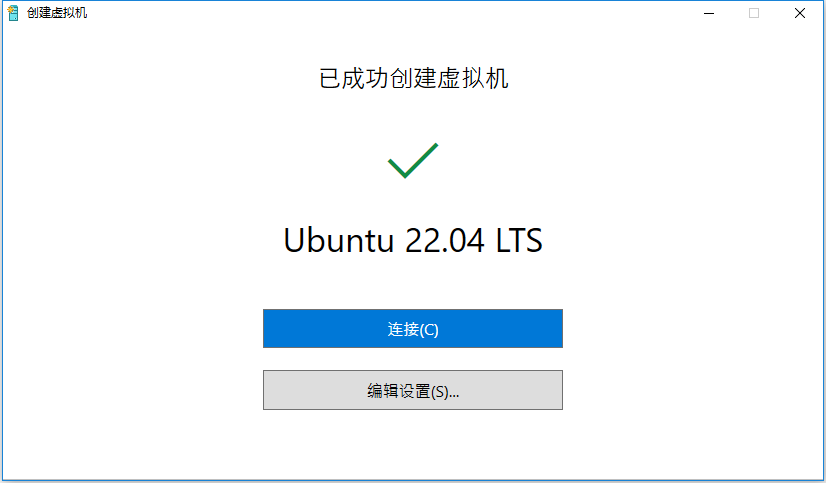
12. The virtual machine has been successfully created. connect. as shown in Figure 9
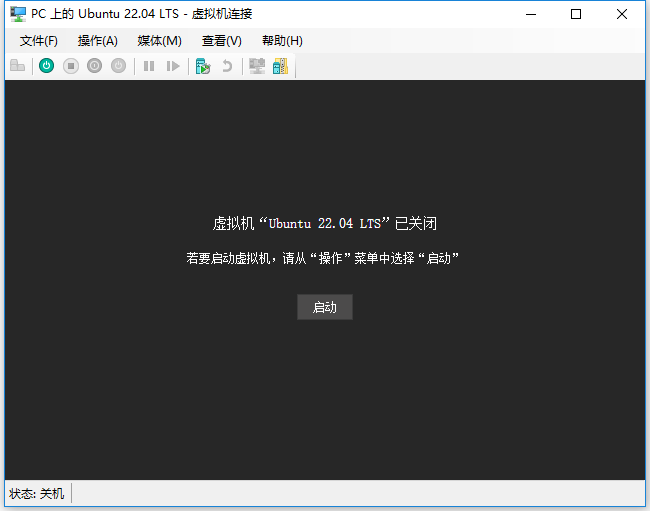
13. The virtual machine Ubuntu 22.04 LTS has been turned off, click Start. As shown in Figure 10
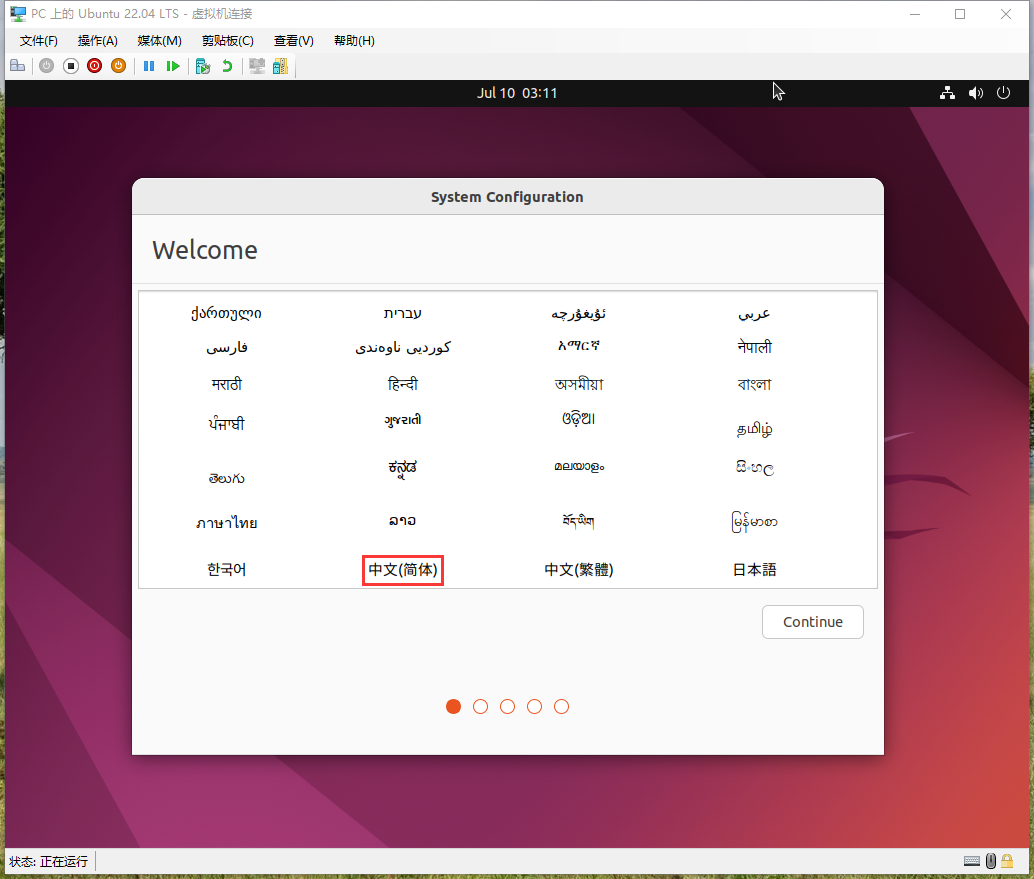
14. The virtual machine Ubuntu 22.04 LTS starts successfully. Select Chinese (Simplified). as shown in Figure 11
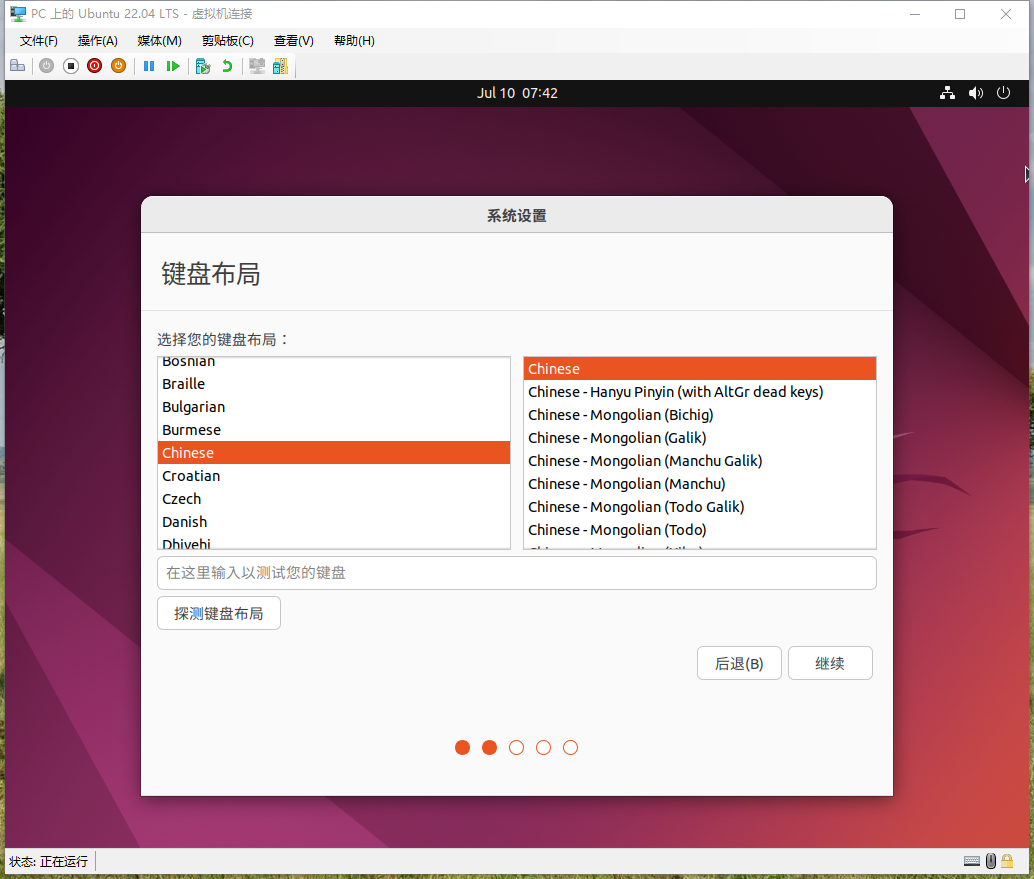
15. Keyboard layout selection: Chinese. as shown in Figure 12
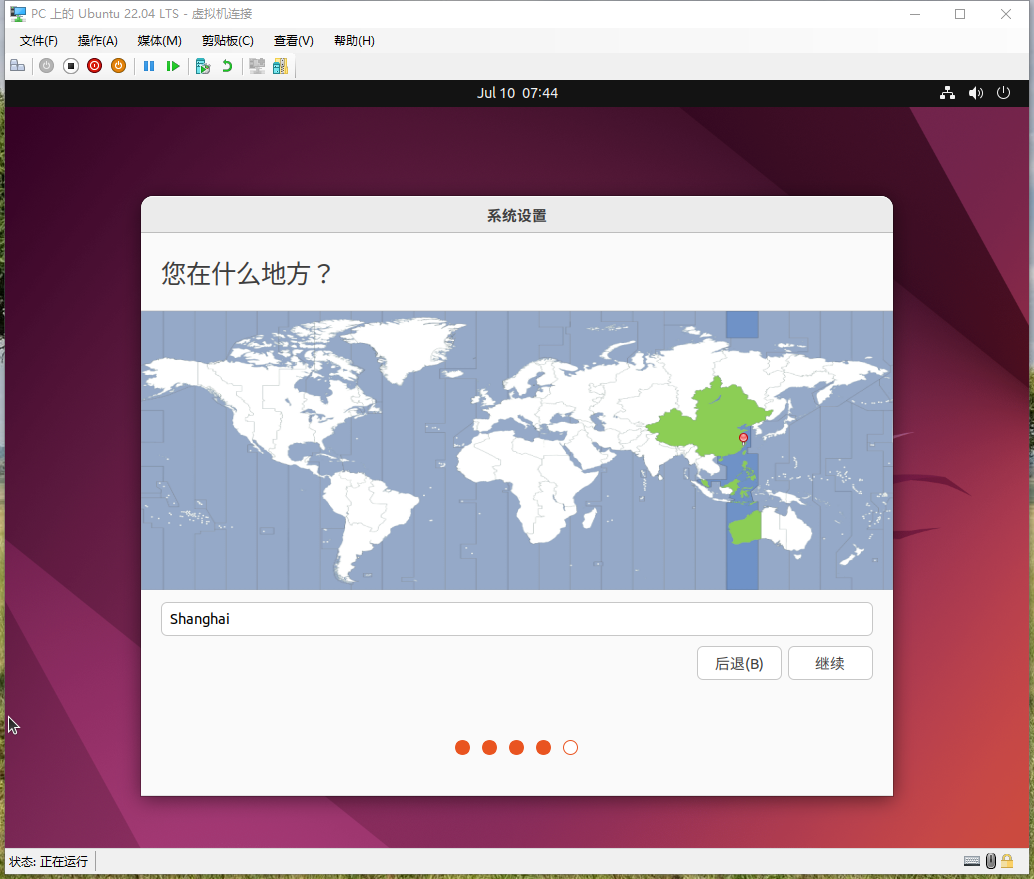
16. Where are you? shanghai. as shown in Figure 13
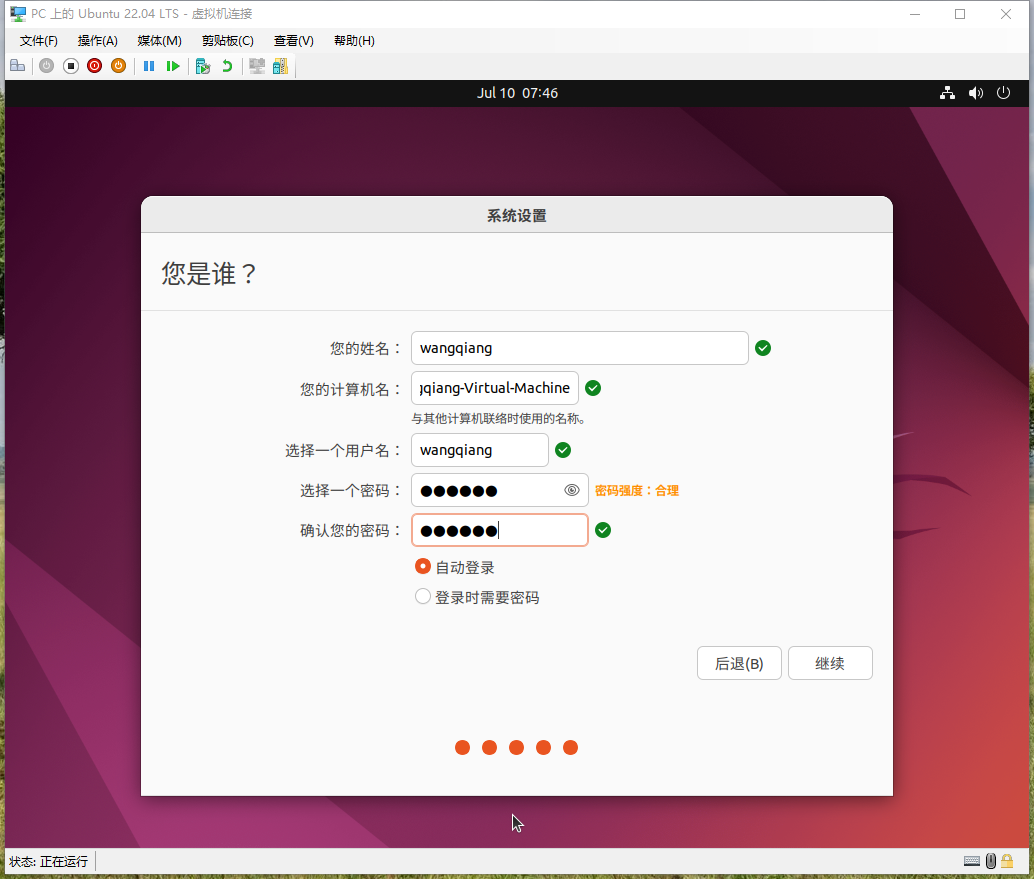
17. Who are you? Figure 14
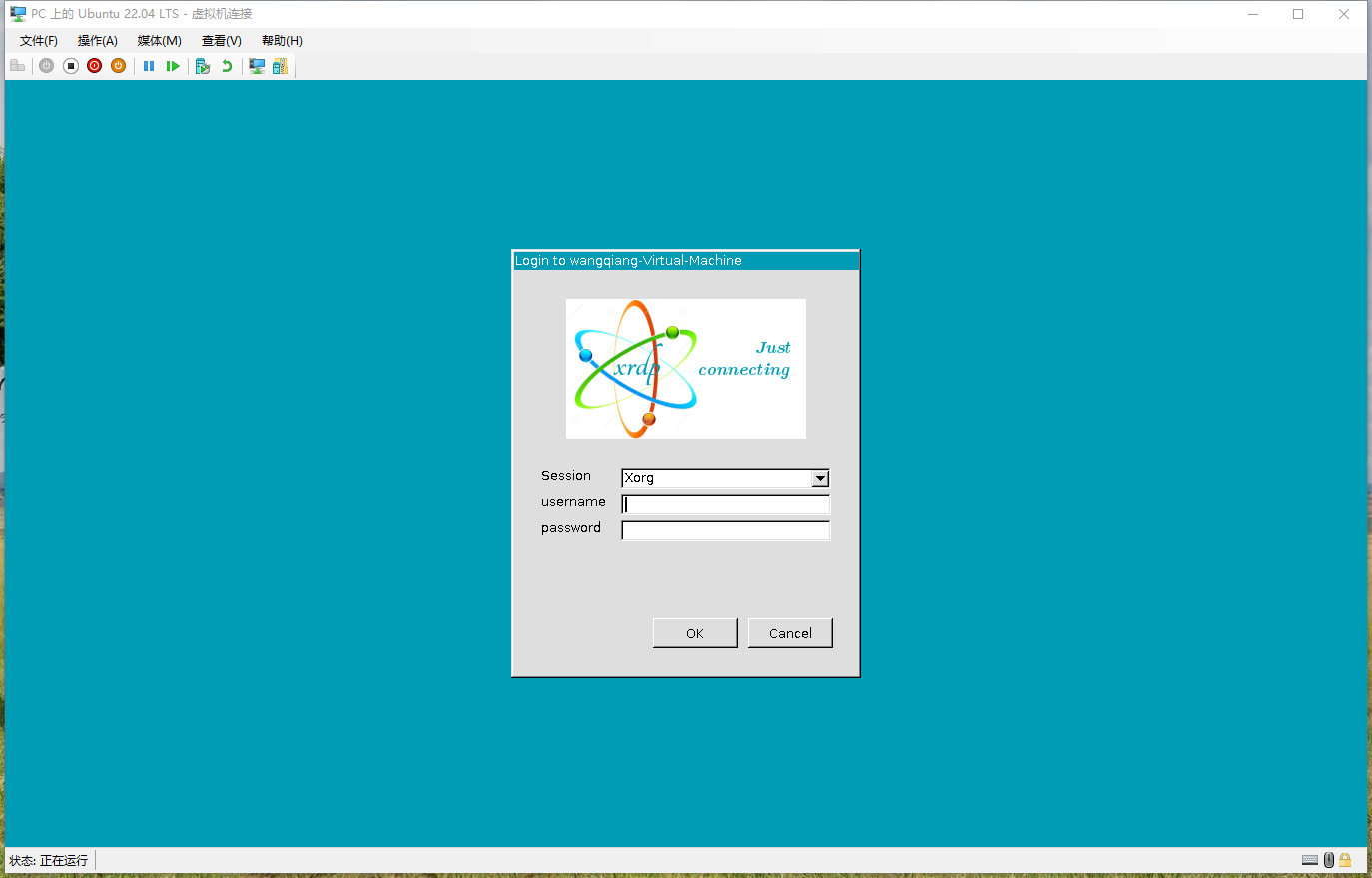
18. When the session is enhanced, when logging in. as shown in Figure 15
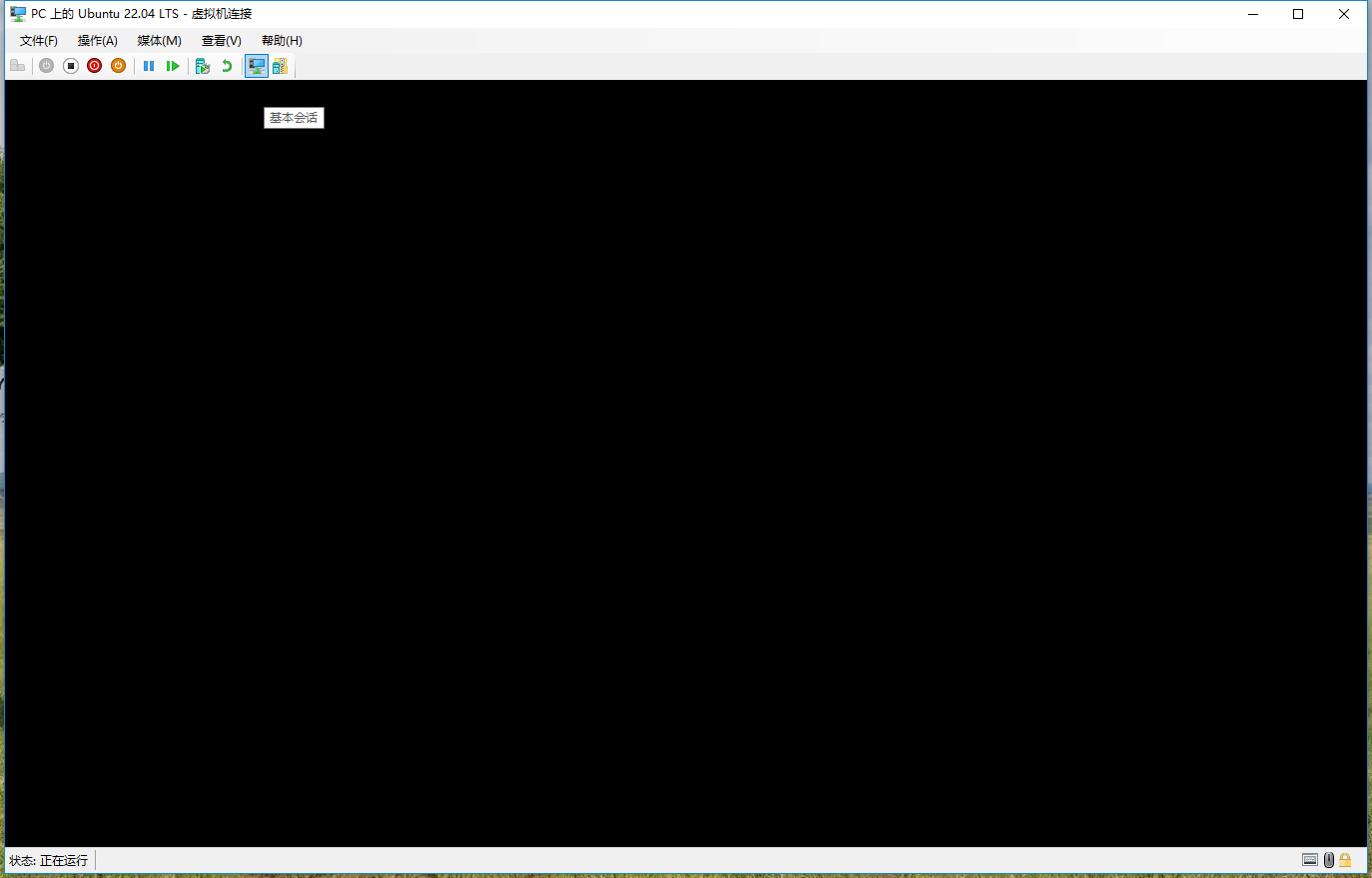
19. After logging in, it is blank and can be switched to the basic session, or it takes a longer time. as shown in Figure 16
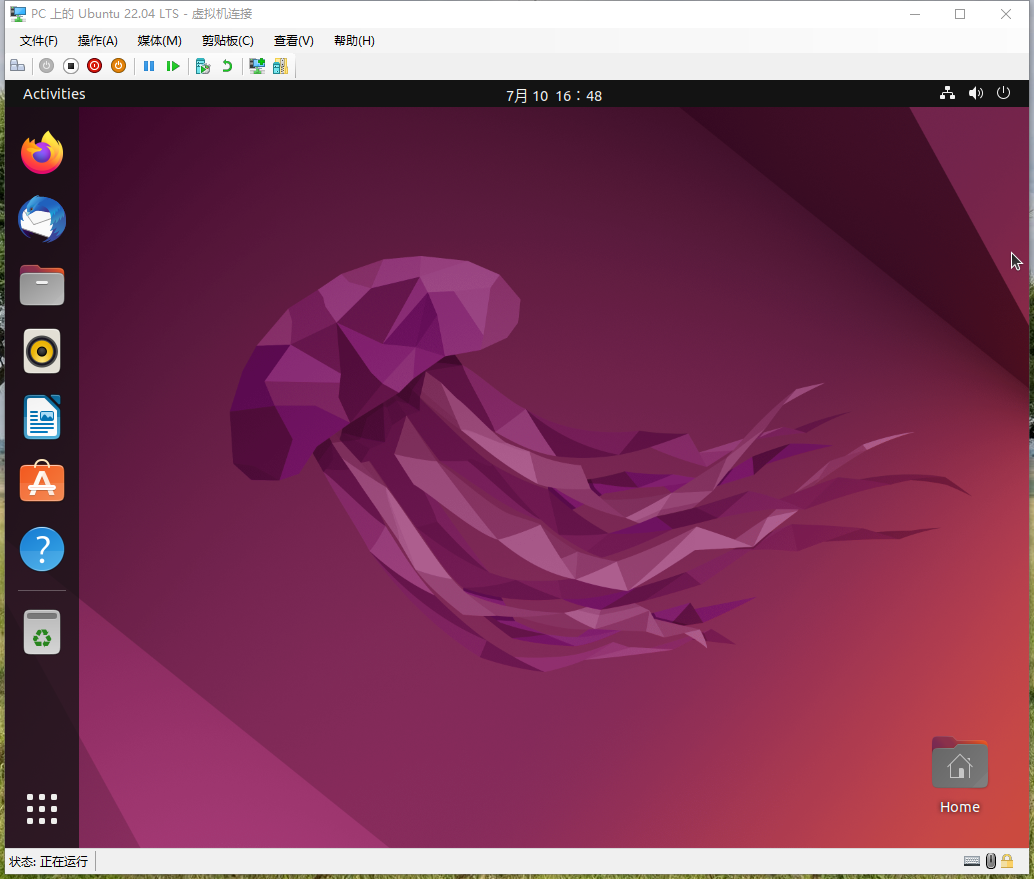
20. After logging in, the interface is normal. as shown in Figure 17
Linux Server Operations, Deployment & Production Troubleshooting
If your website or backend service runs on a Linux server and you are facing unstable access, Nginx configuration issues, MySQL / Redis errors, Docker service failures, full disk usage, or high CPU / memory usage, feel free to contact me for remote troubleshooting.
Ideal For:
✅ Website downtime or unstable access
✅ Nginx / PHP-FPM configuration issues
✅ MySQL / Redis performance or connection problems
✅ Docker service deployment and maintenance
✅ Server migration and environment setup
✅ CPU / memory / disk usage investigation
What I Offer:
✅ Linux environment inspection
✅ Website migration and deployment
✅ Nginx / PHP-FPM / MySQL / Redis troubleshooting
✅ Docker configuration and maintenance
✅ Server performance analysis
✅ Long-term remote operations support
Please contact me and mention: Linux Operations Consultation.
Contact Me:
Telegram: @shuijingwan
WeChat: 13980074657
Email: shuijingwanwq@gmail.com
Leave a Reply