There is no problem not worth solving, and no technology not worth learning!
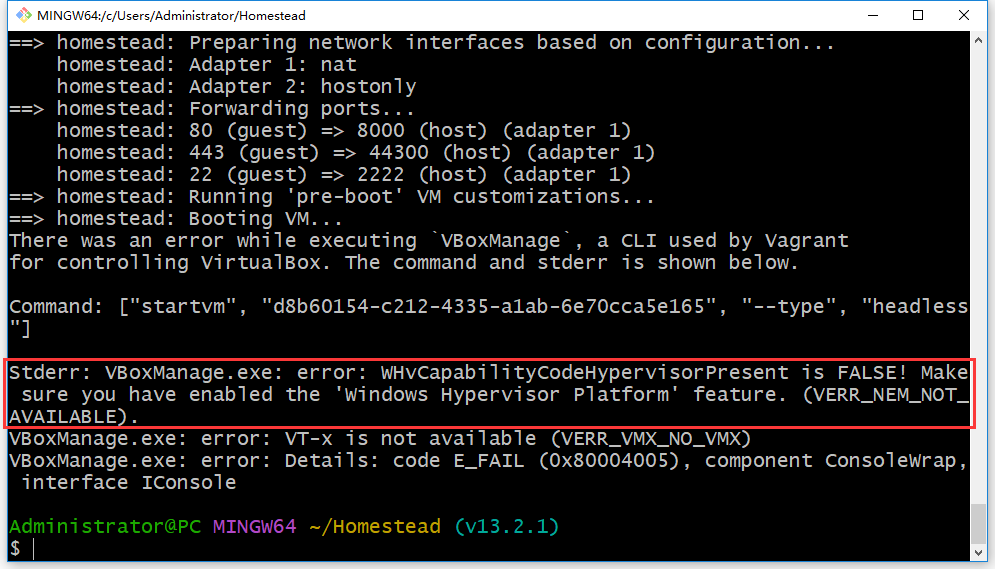
When starting vagrant, an error is reported: stderr: vboxmanage.exe: error: whvCapabilityCodeHypervisorPresent is false! make sure you have Enabled theWindows Hypervisor Platformfeature. (verr_nem_not_available).
1. When starting vagrant, an error is reported: stderr: vboxmanage.exe: error: whvCapabilityCodeHypervisorPresent is false! make sure you have enabled theWindows Hypervisor Platformfeature. (verr_nem_not_available).. as shown in Figure 1
Figure 1
$ vagrant up
Bringing machine 'homestead' up with 'virtualbox' provider...
==> homestead: Importing base box 'lc/homestead'...
==> homestead: Matching MAC address for NAT networking...
==> homestead: Checking if box 'lc/homestead' version '12.0.0' is up to date...
==> homestead: Setting the name of the VM: homestead
Vagrant is currently configured to create VirtualBox synced folders with
the `SharedFoldersEnableSymlinksCreate` option enabled. If the Vagrant
guest is not trusted, you may want to disable this option. For more
information on this option, please refer to the VirtualBox manual:

  https://www.virtualbox.org/manual/ch04.html#sharedfolders

This option can be disabled globally with an environment variable:

  VAGRANT_DISABLE_VBOXSYMLINKCREATE=1

or on a per folder basis within the Vagrantfile:

  config.vm.synced_folder '/host/path', '/guest/path', SharedFoldersEnableSymlinksCreate: false
==> homestead: Clearing any previously set network interfaces...
==> homestead: Preparing network interfaces based on configuration...
    homestead: Adapter 1: nat
    homestead: Adapter 2: hostonly
==> homestead: Forwarding ports...
    homestead: 80 (guest) => 8000 (host) (adapter 1)
    homestead: 443 (guest) => 44300 (host) (adapter 1)
    homestead: 22 (guest) => 2222 (host) (adapter 1)
==> homestead: Running 'pre-boot' VM customizations...
==> homestead: Booting VM...
There was an error while executing `VBoxManage`, a CLI used by Vagrant
for controlling VirtualBox. The command and stderr is shown below.

Command: ["startvm", "d8b60154-c212-4335-a1ab-6e70cca5e165", "--type", "headless"]

Stderr: VBoxManage.exe: error: WHvCapabilityCodeHypervisorPresent is FALSE! Make sure you have enabled the 'Windows Hypervisor Platform' feature. (VERR_NEM_NOT_AVAILABLE).
VBoxManage.exe: error: VT-x is not available (VERR_VMX_NO_VMX)
VBoxManage.exe: error: Details: code E_FAIL (0x80004005), component ConsoleWrap, interface IConsole
2. Standard error: vboxmanage.exe: error: whvCapabilityCodeHypervisorPresent is false! Make sure you have the “Windows Hypervisor Platform” feature enabled. (verr_nem_not_available). Right-click the Windows button and select “Apps and Features”. Select “Programs and Functions” on the right under the relevant settings. Select “Turn on or off Windows Features”. Select the Windows Virtual Machine Monitoring Program Platform and click OK. as shown in Figure 2
Figure 2
3. After the installation is complete, the system will prompt you to restart the computer.
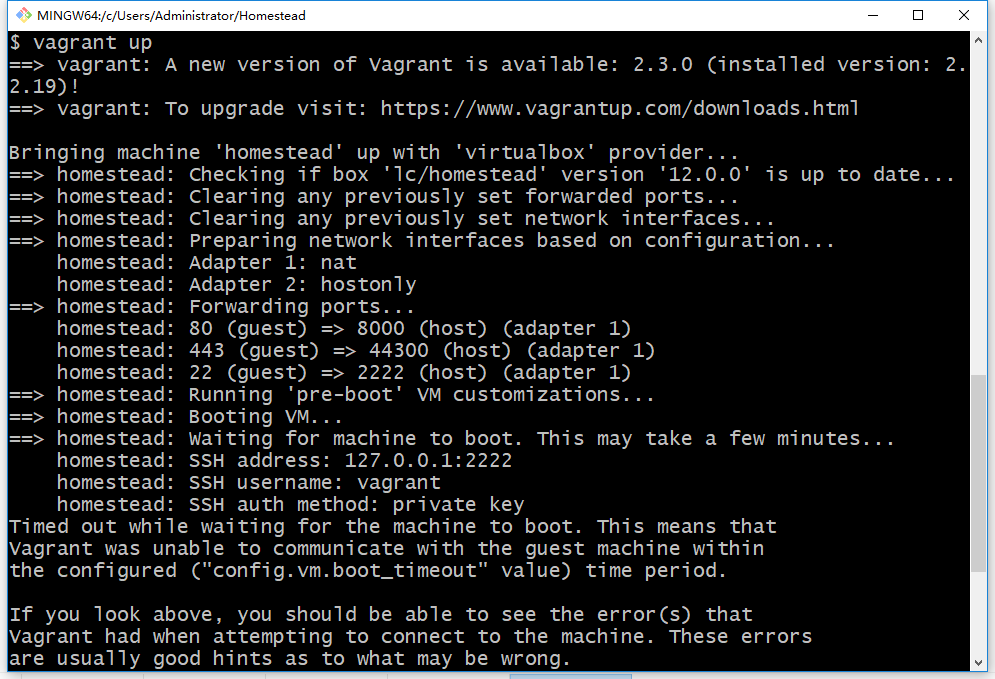
4. When vagrant is started again, an error will not be reported. as shown in Figure 3
Figure 3
$ vagrant up
==> vagrant: A new version of Vagrant is available: 2.3.0 (installed version: 2.2.19)!
==> vagrant: To upgrade visit: https://www.vagrantup.com/downloads.html

Bringing machine 'homestead' up with 'virtualbox' provider...
==> homestead: Checking if box 'lc/homestead' version '12.0.0' is up to date...
==> homestead: Clearing any previously set forwarded ports...
==> homestead: Clearing any previously set network interfaces...
==> homestead: Preparing network interfaces based on configuration...
    homestead: Adapter 1: nat
    homestead: Adapter 2: hostonly
==> homestead: Forwarding ports...
    homestead: 80 (guest) => 8000 (host) (adapter 1)
    homestead: 443 (guest) => 44300 (host) (adapter 1)
    homestead: 22 (guest) => 2222 (host) (adapter 1)
==> homestead: Running 'pre-boot' VM customizations...
==> homestead: Booting VM...
==> homestead: Waiting for machine to boot. This may take a few minutes...
    homestead: SSH address: 127.0.0.1:2222
    homestead: SSH username: vagrant
    homestead: SSH auth method: private key
Timed out while waiting for the machine to boot. This means that
Vagrant was unable to communicate with the guest machine within
the configured ("config.vm.boot_timeout" value) time period.

If you look above, you should be able to see the error(s) that
Vagrant had when attempting to connect to the machine. These errors
are usually good hints as to what may be wrong.

If you're using a custom box, make sure that networking is properly
working and you're able to connect to the machine. It is a common
problem that networking isn't setup properly in these boxes.
Verify that authentication configurations are also setup properly,
as well.

If the box appears to be booting properly, you may want to increase
the timeout ("config.vm.boot_timeout") value.

Administrator@PC MINGW64 ~/Homestead (v13.2.1)
$

Leave a Reply