Capturing Shopify CLI 3.x after installing Fiddler Classic in Windows 10
1. Open the URL:Download: Download Fiddler Classic and install. as shown in Figure 1
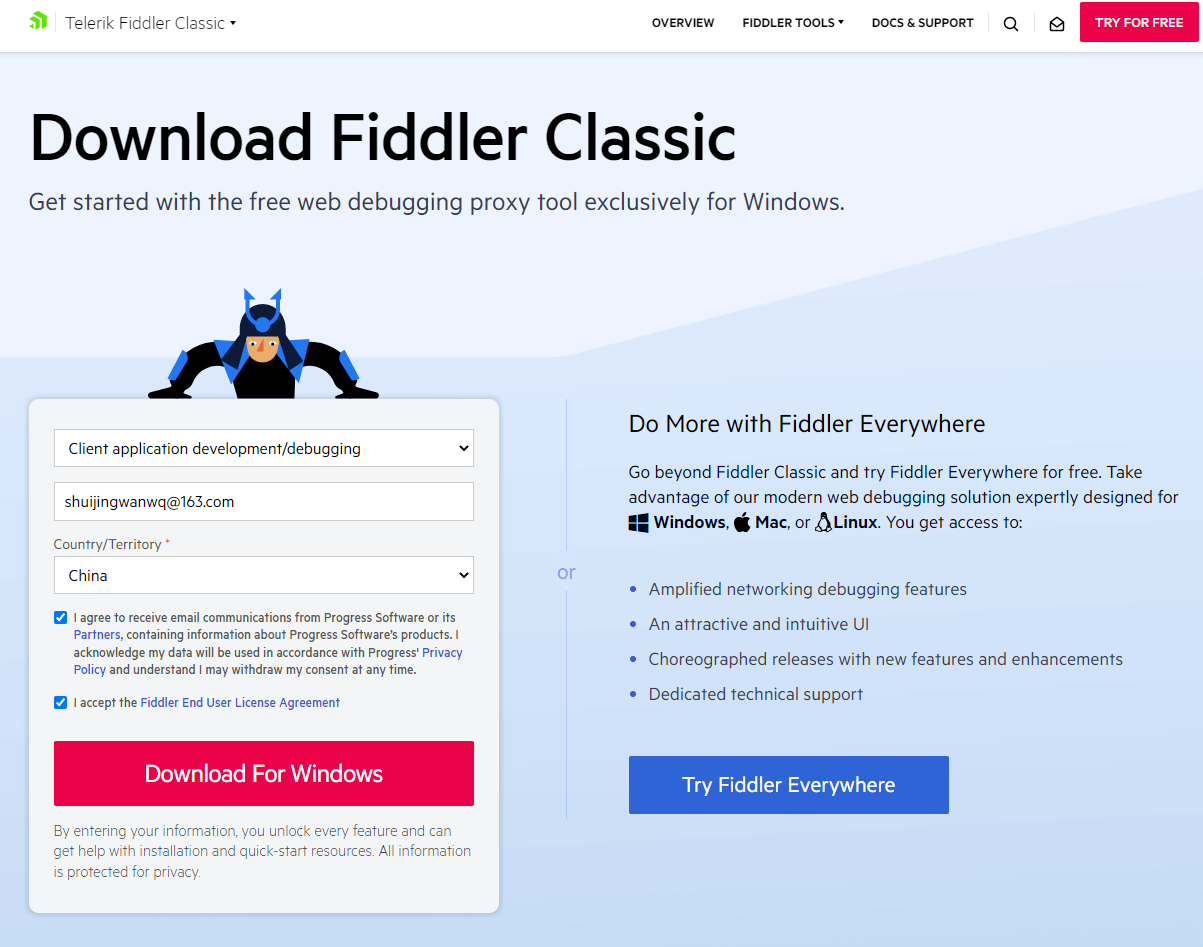
Figure 1
2. When opening Fiddler, a prompt pops up: Windows uses an isolation technology called “AppContainer”, which may interfere with traffic capture from immersive applications and Edge browsers. Use the WinConfig button in the Progress Telerik Fiddler Classic toolbar to enable traffic capture. Click Yes. as shown in Figure 2
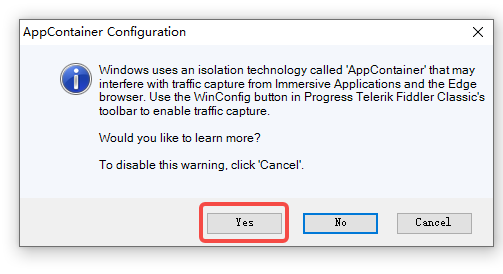
Figure 2
AppContainer configuration

Windows Uses An Isolation Technology CalledAppContainerUse the winconfig button in progress Telerik Fiddler ClassicS Toolbar to Enable Traffic Capture.
Would you like learning more?
To disable this warning. Clickcancel.
3. Click WinConfig in the toolbar, and a prompt will pop up: orphaned exemption record found. Click Yes. as shown in Figure 3

Figure 3
orphaned exemption record found

A loopback exists for sid:
.. but no appcontainer with that sid could be found.
Warn if other orphaned exemptions are found in this session?
4. Fiddler only grabs the HTTP protocol by default, so the session to crawl the HTTPS protocol needs to open the configuration and installation certificate. Tools – Options – HTTPS – Check Decrypt HTTPS Traffic. Then a dialog box will pop up, just click YES. as shown in Figure 4
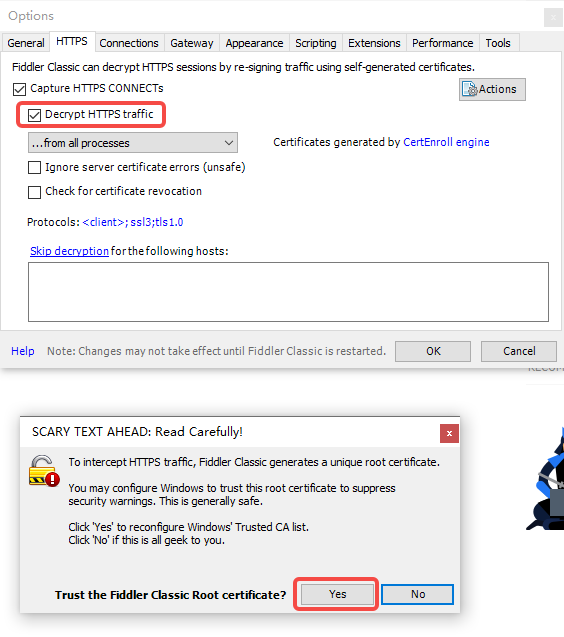
Figure 4
5. Note that you are installing Fiddler for the first time, then the relevant prompts for the certificate installation will pop up under normal circumstances. Click Yes, Yes, and OK. as shown in Figure 5
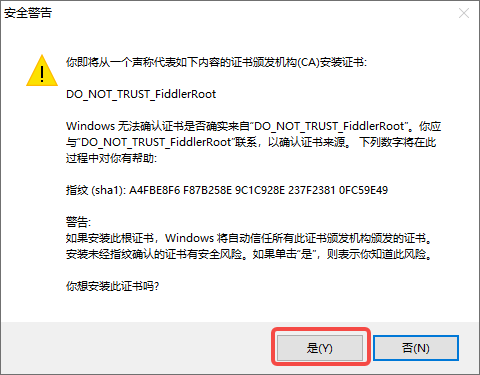
Figure 5
6. Finally, check Ignore Server Certificate Errors (Unsafe), Check for Certificate Revocation. as shown in Figure 6
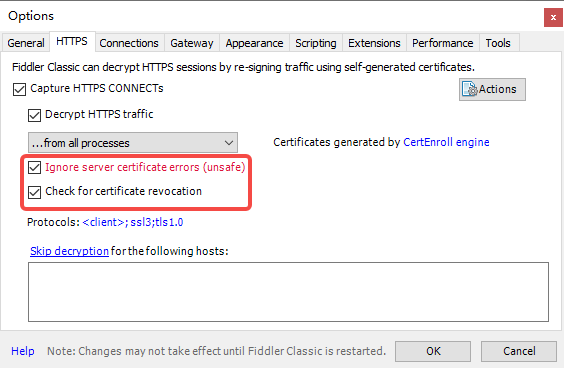
Figure 6
7. Select Open Windows Certificate Manager from Actions, open the Windows Certificate Manager to see if the installation has been successful. as shown in Figure 7
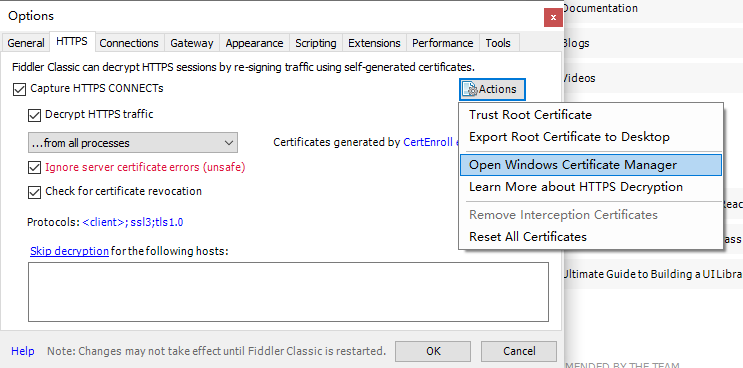
Figure 7
8. After opening the Windows Certificate Manager, click Actions on the menu bar – find the certificate, and then enter the Fiddler to find the certificate. If it does not indicate that the installation failed. as shown in Figure 8

8
9. At this time, check the records of the packet capture, and confirm that the Shopify.com related records of the https protocol already exist. as shown in Figure 9
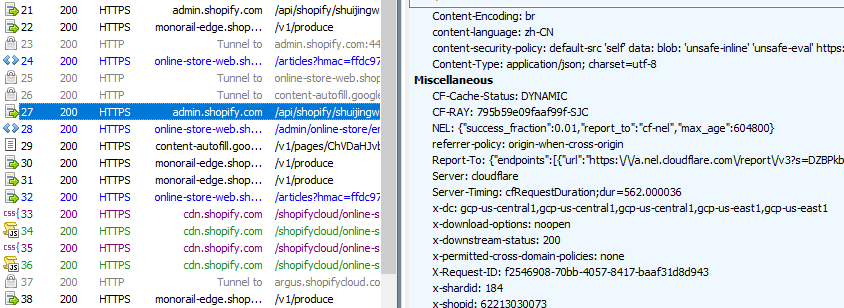
Figure 9
10. Start capturing the packet, file – capture traffic is enough, after opening, there will be capturing in the status bar in the lower left corner. As shown in Figure 10
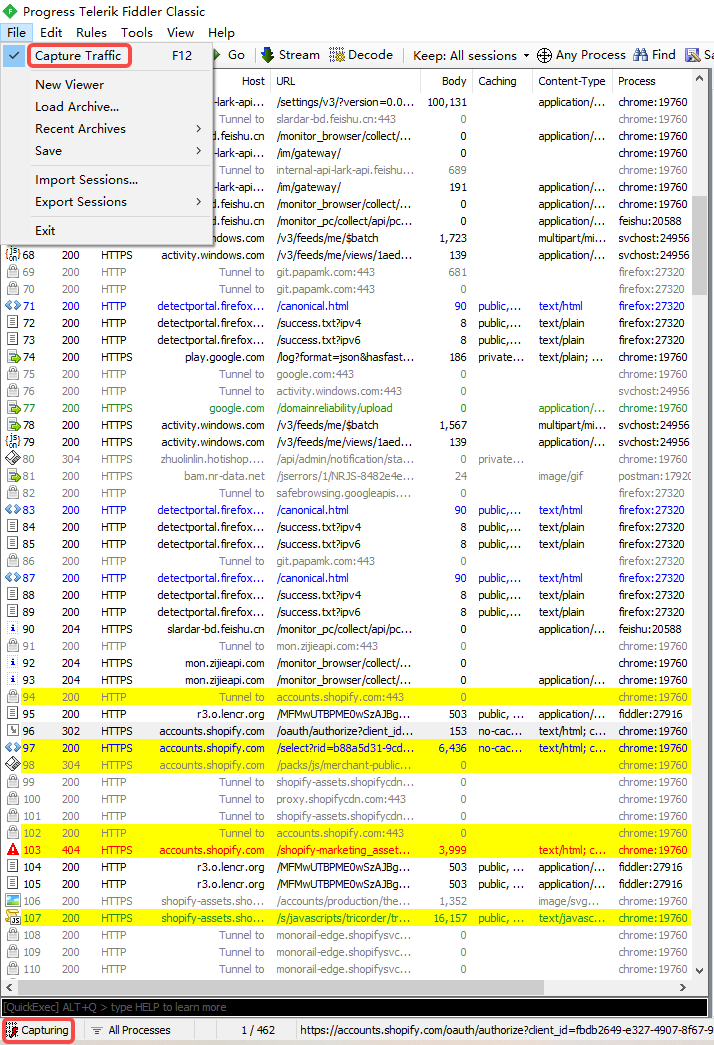
Figure 10
11. Enter the directory of the topic to be downloaded: e:\wwwroot\shopify-theme , when executing the command, it prompts: To run this command, please log in to the Shopify partner. 👉Press any key to open the login page on the browser. as shown in Figure 11
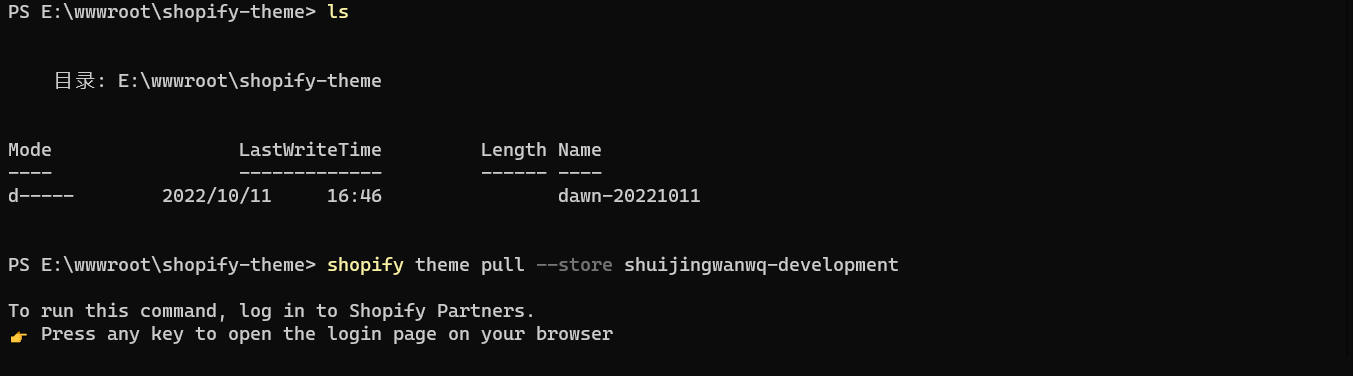
Figure 11
PS e:\wwwroot\shopify-theme> shopify theme pull --store shuijingwanwq-development

To run this command, log in to Shopify Partners.
👉Press any key to open the login page on your browser
12. After opening the default browser and logging in successfully, you will be prompted: You have successfully logged in to Shopify CLI! You can close this tab and go back to your terminal. Its jump address is:http://127.0.0.1:3456/?code=3d1e20fba559104b4239bee72be873312f304dcd51535e463013b192fde9c434&state=4afd9774649e18803abc80237b0bfed53c0f41ef533eb4d73d0dafa0260e. as shown in Figure 12
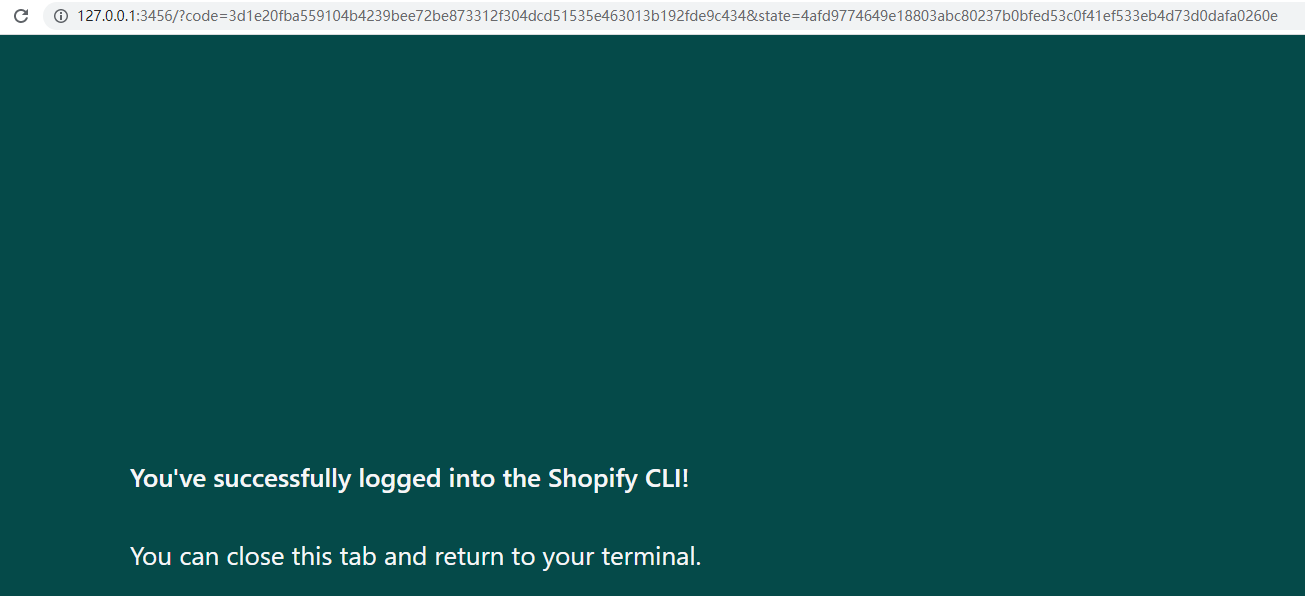
Figure 12
youVE Successfully Logged into the Shopify CLI!
You can close this tab and return to your terminal.
13. The login is successful in the terminal, and then prompts: ? You don’t seem to run this command in the theme directory. Are you sure you want to continue? (Use “K” to navigate up, use “J” to navigate down, and press Enter to select), select Yes, and enter 2. Select the topic to pull from shuijingwanwq-development.myshopify.com (usekNavigate up, usejNavigate down, press ENTER to select, useFfilter, useeEnter options), select Dawn (Shopify CLI)[unpublished], enter 2. as shown in Figure 13
![在终端中登录成功,然后提示:? 您似乎没有在主题目录中运行此命令。 您确定要继续吗? (使用“k”向上导航,使用“j”向下导航,按 Enter 键选择),选择 Yes,输入 2。从 shuijingwanwq-development.myshopify.com 选择要拉取的主题(使用 'k' 向上导航,使用 'j' 向下导航,按 Enter 键选择,使用 'f' 过滤,使用 'e' 输入选项),选择 Dawn (Shopify CLI) [unpublished],输入 2](https://www.shuijingwanwq.com/wp-content/uploads/2023/11/13.png)
Figure 13
PS e:\wwwroot\shopify-theme> shopify theme pull --store shuijingwanwq-development

To run this command, log in to Shopify Partners.
👉Press any key to open the login page on your browser

Auto-open timed out.http://accounts.shopify.com/oauth/authorize?client_id=fbdb2649-e327-4907-8f67-908d24cfd7e3&scope=openid+https%3A%2F%2Fapi.shopify.com%2Fauth%2Fshop.admin.graphql+https%3A%2F%2Fapi.shopify.com%2Fauth%2Fshop.admin.themes+https%3A%2F%2Fapi.shopify.com%2Fauth%2Fpartners.collaborator-relationships.readonly+https%3A%2F%2Fapi.shopify.com%2Fauth%2Fshop.storefront-renderer.devtools+https%3A%2F%2Fapi.shopify.com%2Fauth%2Fpartners.app.cli.access&redirect_uri=http%3A%2F%2F127.0.0.1%3A3456&state=4afd9774649e18803abc80237b0bfed53c0f41ef533eb4d73d0dafa0260e&response_type=code&code_challenge_method=S256&code_challenge=rCXVzEXgBGYErEXJXmsaJmH-oefd3xIjDSaBlWq4s10)

✔ Logged in.
? It doesn't seem like you're running this command in a theme directory. ? It doesn't seem like you're running this command in a theme directory. chocolate: yes)
? Select a theme to pull from shuijingwanwq-development.myshopify.com (Navigate up withkand down withj, press enter to select, filter withF, enter option withe)
> 1. Dawn[live]
2. Dawn (Shopify CLI)[unpublished]
3. The updated copy of the updated copy of the updated version of the Taste , the updated copy of the updated copy of the updated copy of the copy...[unpublished]
4. Updated copy of the updated copy of the new version of the update version of the updated copy of the updated copy of the updated version of the copy[unpublished]
5. Updated copy of the updated copy of the new version of the updated version of the updated copy of the updated version of the copy[unpublished]
6. Updated Copy of Studio[unpublished]
7. Copy of Studio[unpublished]
8. Dawn[unpublished]
9. First-shopify-theme[unpublished]
10. Taste[unpublished]
11. Shopify-Theme-Dawn-20221011/main[unpublished]
12. Dawn Customize[unpublished]
13. ColorBlock[unpublished]
14. Refresh[unpublished]
15. Crave Rename[unpublished]
16. Sense[unpublished]
17. Craft[unpublished]
PS e:\wwwroot\shopify-theme> shopify theme pull --store shuijingwanwq-development

To run this command, log in to Shopify Partners.
👉Press any key to open the login page on your browser

Auto-open timed out.http://accounts.shopify.com/oauth/authorize?client_id=fbdb2649-e327-4907-8f67-908d24cfd7e3&scope=openid+https%3A%2F%2Fapi.shopify.com%2Fauth%2Fshop.admin.graphql+https%3A%2F%2Fapi.shopify.com%2Fauth%2Fshop.admin.themes+https%3A%2F%2Fapi.shopify.com%2Fauth%2Fpartners.collaborator-relationships.readonly+https%3A%2F%2Fapi.shopify.com%2Fauth%2Fshop.storefront-renderer.devtools+https%3A%2F%2Fapi.shopify.com%2Fauth%2Fpartners.app.cli.access&redirect_uri=http%3A%2F%2F127.0.0.1%3A3456&state=4afd9774649e18803abc80237b0bfed53c0f41ef533eb4d73d0dafa0260e&response_type=code&code_challenge_method=S256&code_challenge=rCXVzEXgBGYErEXJXmsaJmH-oefd3xIjDSaBlWq4s10)

✔ Logged in.
? It doesn't seem like you're running this command in a theme directory. ? It doesn't seem like you're running this command in a theme directory. chocolate: yes)
? Select a theme to pull from shuijingwanwq-development.myshopify.com (Navigate up withkand down withj, press ent? select a theme to pull from shuijingwanwq-development.myshopify.com (you choose: dawn (shopify cli)[unpublished])
┏━━Pulling Theme Files from Dawn (Shopify CLI) (#133492932793) on shuijingwanwq-development.myshopify.com
┃ 100%
┗━━━━━━━━━━━━━━━└━━━━━━━━━━━━━━━━━━━━━━━━━━━━━ (159.12s) ━━━The new version of the copy...[unpublished]
√ Theme Pulled Successfully. New version of the copy[unpublished]
PS E:\wwwroot\shopify-theme>
14. Toolbar – find , search: Shopify.com, Shopify.com related records will be displayed on a yellow background. Figure 14
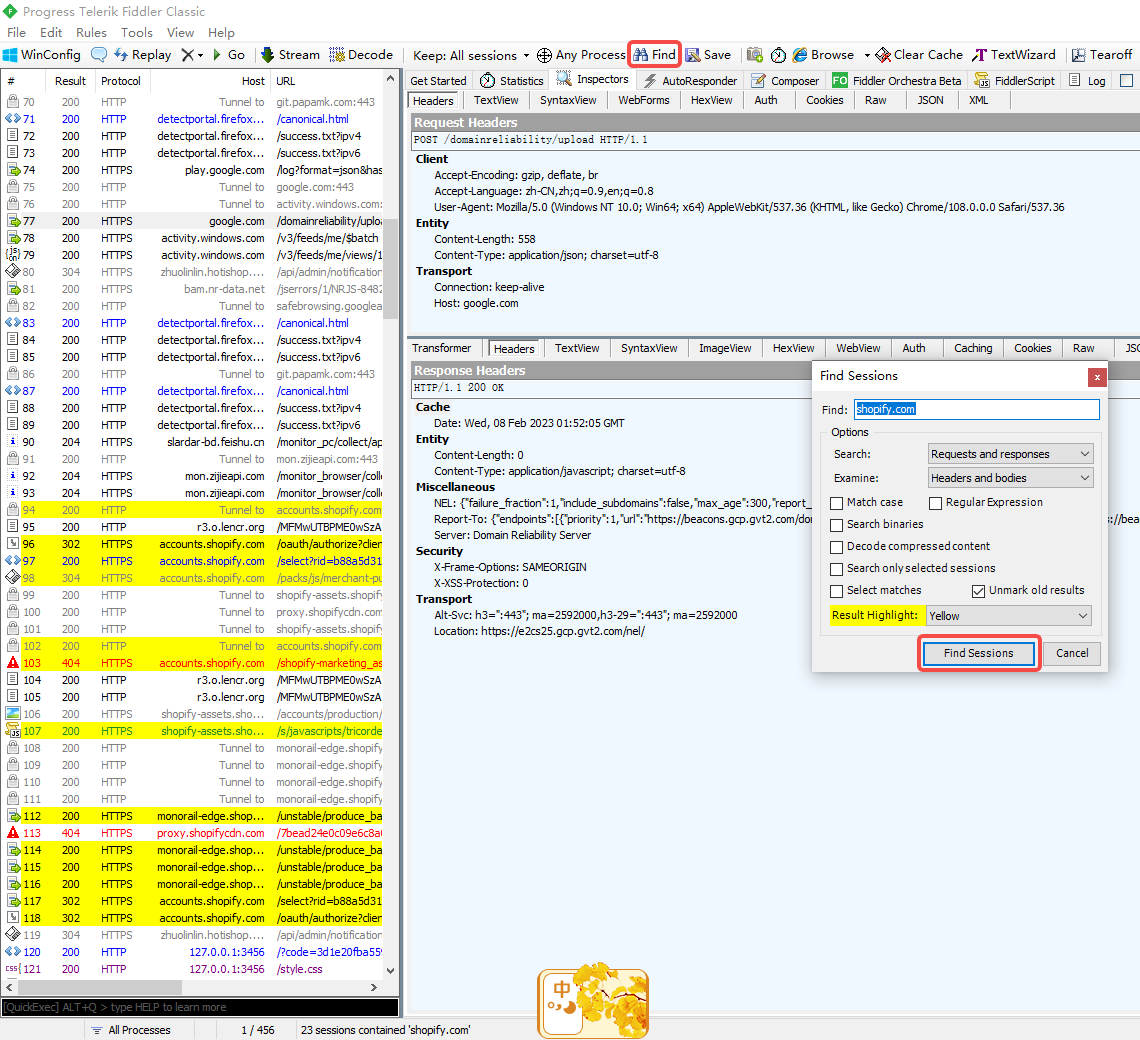
Figure 14
15. However, it was finally found that the traffic in the terminal was not captured. Reference: The packet capture process for Shopify CLI 3.x after installing HTTP Toolkit in Windows 10. Capture traffic was successful.