

From the bottom of the menu to the top-right corner: a hands-on record of tweaking a block theme layout
Recently, I switched my website theme from Hueman to the official WordPress 2025 theme (Twenty Twenty-Five), a modern block-based theme. The site needs to support bilingual Chinese and English content, so I use the Polylang plugin along with the TMS Extensions for Polylang enhancement pack.
After switching themes, I ran into an issue that seemed simple but took a while to sort out:
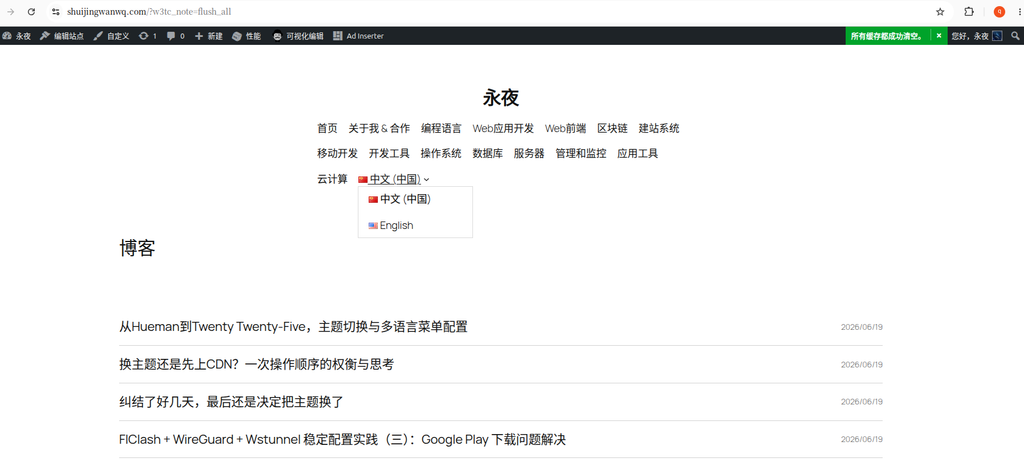
The language switcher appears at the bottom of the menu by default, but I wanted to place it in the top-right corner of the page.
Figure 1 shows the language switcher added to the end of the menu in the old theme. After switching to the new theme, the default behavior still places the language switcher inside the menu. (See Figure 1)
This article documents the entire process from being completely clueless to finally resolving the issue.
1. Why is the position of the language switcher important?
Before diving into the steps, let me briefly explain why I insisted on adjusting this position.
User experience research from the Nielsen Norman Group points out that for non-native users, a language switcher is a “primary need” rather than a “secondary option”. Placing it at the bottom of the page or deep inside a menu directly increases the bounce rate.
The convention on most international websites is to place it in the top-right corner of the page, and users have already developed a habit of looking for it there.
2. My environment
| Item | Version/Name |
|---|---|
| WordPress theme | Twenty Twenty-Five (2025 theme, block theme) |
| Multilingual plugin | Polylang |
| Enhancement plugin | TMS Extensions for Polylang |
| Language switcher | TMS “Language Switcher Advanced” block |
Note: Polylang comes with its own language switcher, while TMS Extensions provides an enhanced “Language Switcher Advanced” block. The method for adding them is similar.
3. Attempted solutions (record of dead ends)
Option 1: Add via “Appearance → Menus”
This is the most frequently recommended method in many tutorials: go to 外观 → 菜单, check “Language Switcher” in the “Screen Options”, and then add it to the menu.
Problem: The 2025 theme is a block theme, so the traditional “Menus” editing interface is nowhere to be found under the “Appearance” menu—that is only available for classic themes.
Option 2: Use the “Widgets” area
In 外观 → 小工具, I found the “Polylang Language Switcher” widget and dragged it to the top widget area.
Problem: No widget area is reserved at the top of the page, so the language switcher could not appear where I wanted it.
Option 3: Add the block directly in the header
I entered the Site Editor, added the Language Switcher Advanced block directly in the header template, and then tried to set it to “Align Right”.
Problem: Although the block was indeed in the header area, its width was constrained by the parent container, and the entire row block only took up about 2/3 of the page width. After setting it to “Align Right”, the language switcher only moved to the right side of this container, rather than the far right of the page.
4. Final solution (step by step)
Step 1: Enter the Site Editor
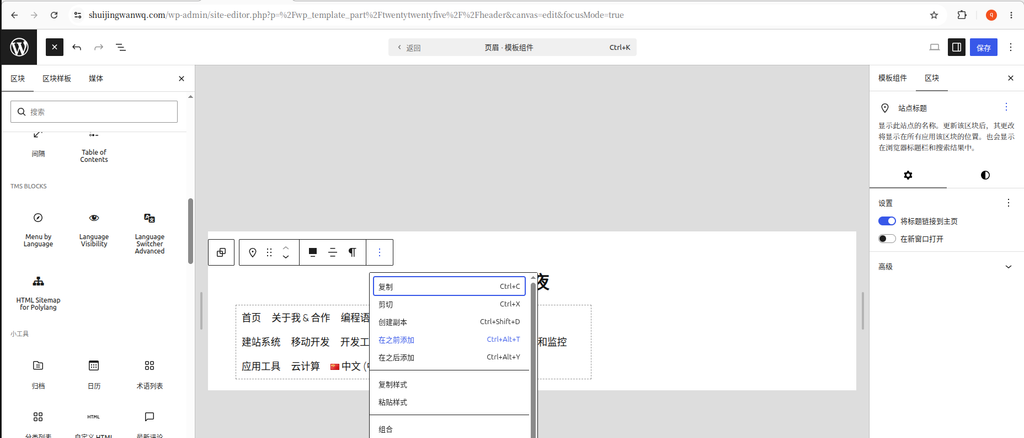
From the WordPress dashboard, click 外观 → 编辑器, and in the context menu of the Site Title block, select “Add Before”. (See Figure 2)
Step 2: Add a “Row” block
In the header template, find the position where you want to place the language switcher and add a “Row” block. (See Figure 3)
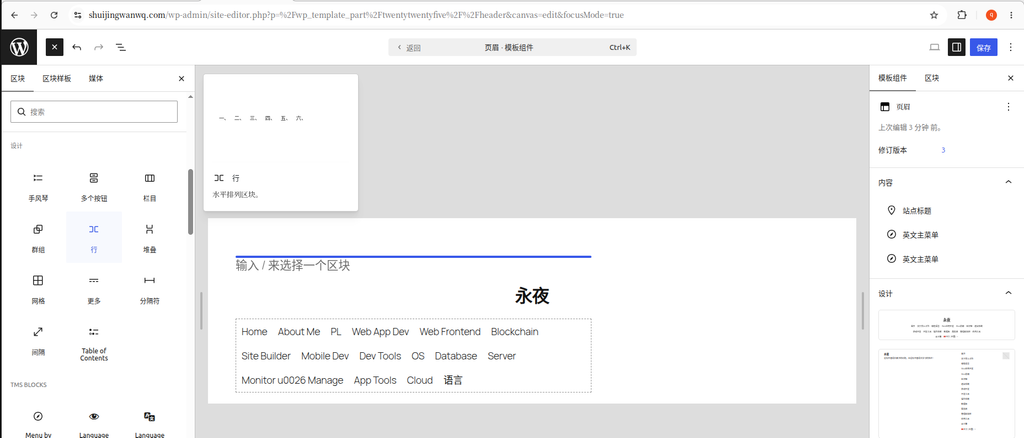
Why use a “Row” block instead of adding the language switcher directly? Because a “Row” block is a container that controls the overall alignment of everything inside it. If you add the language switcher separately, it is difficult to precisely control its position.
Step 3: Place the language switcher into the Row block and configure the layout
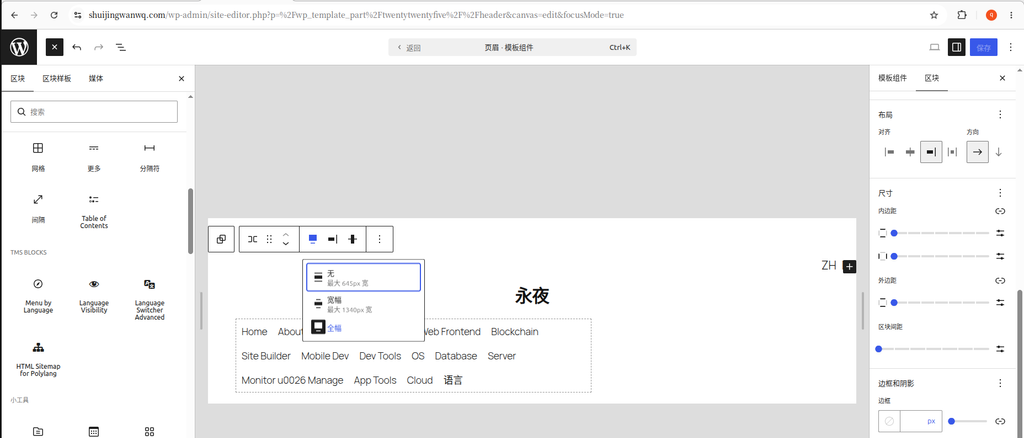
Add the “Language Switcher Advanced” block inside the Row block, then select the Row block and in the layout settings:
- Set the width to “Full width”
- Set the horizontal alignment to “Align Top Right” (See Figure 4)
Step 4: Fix the line-wrap issue in the language switcher dropdown list
After completing the setup, I opened the /en English page and clicked “English”. I noticed that “中文(中国)” in the dropdown list wrapped to a new line, which was not the intended behavior. (See Figure 5)
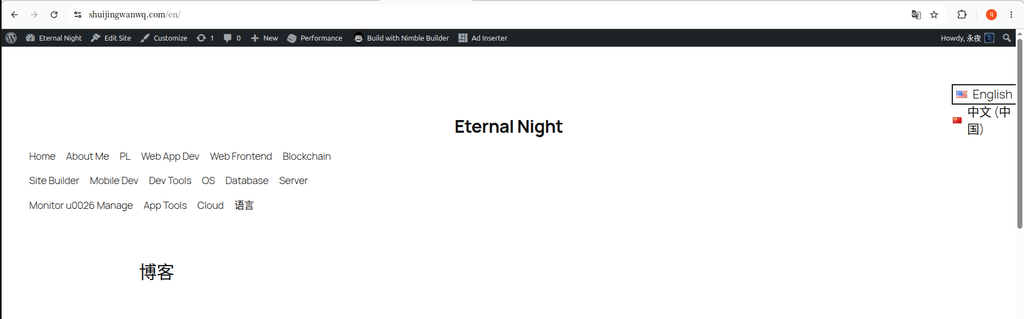
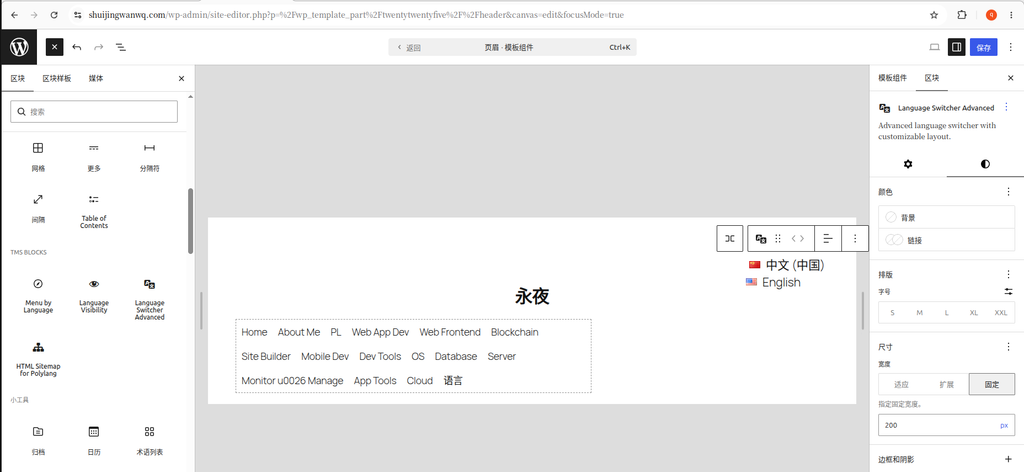
Solution: Select the language switcher block, and in the dimensions settings, set the width to a fixed 200px. (See Figure 6)
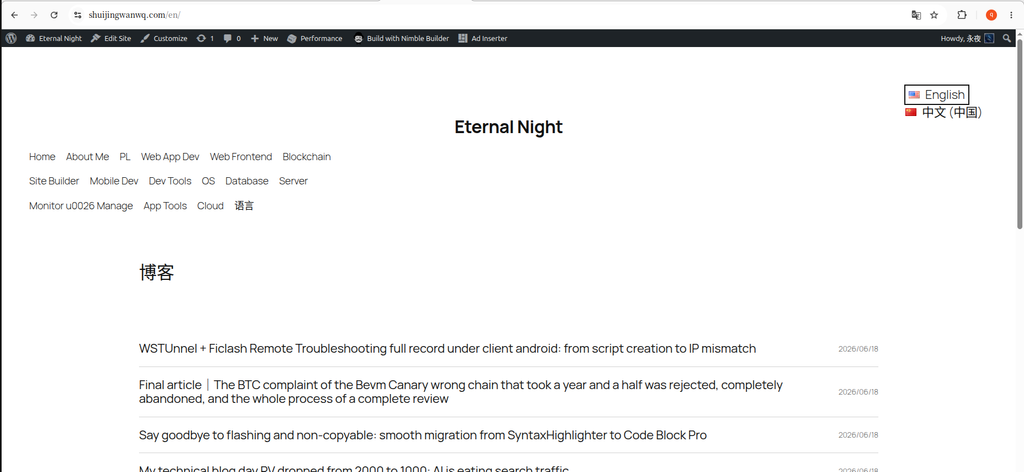
Open the /en page again and click “English”. The text “中文(中国)” in the dropdown list now displays on a single line, as expected. (See Figure 7)
Step 5: (Optional) Add a background color to make the top bar more visible
To visually separate the language switcher, I gave it a light background color.
Steps: Select the Row block → Right panel → “Color” → “Background”, and choose a color from the default theme palette. (See Figure 8)
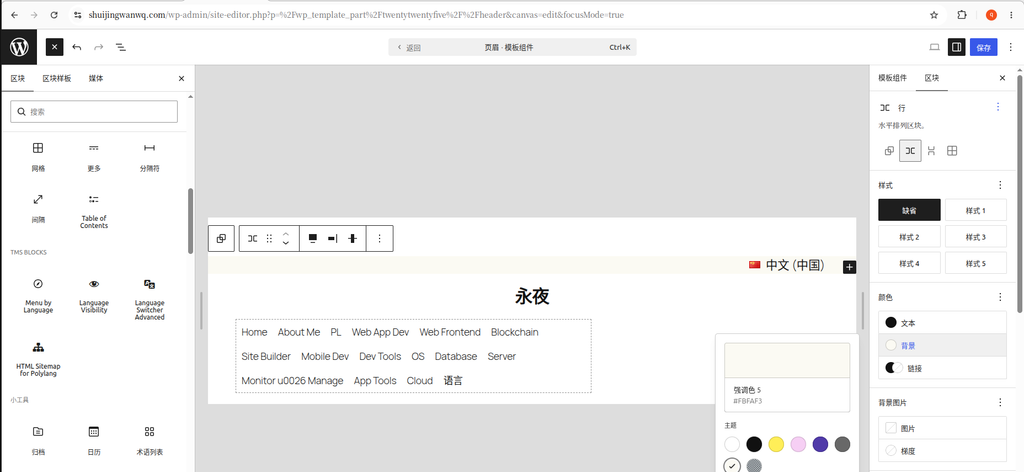
A quick aside: the theme color scheme preset only has 8 colors, and light gray is not one of them. I chose a light pink
#FFBAF3, and the effect was surprisingly good—soft, unobtrusive, yet clearly distinguishing the top bar area.
At the same time, in the “Dimensions” settings, I added some padding (e.g., 8-12px) to the top and bottom of the Row block so the top bar wouldn’t look so cramped.
Step 6: Save and clear the cache
Click the “Save” button in the top-right corner.
If you use a caching plugin (like W3 Total Cache), remember to clear all caches, then refresh the front-end page to check the result.
5. Final result
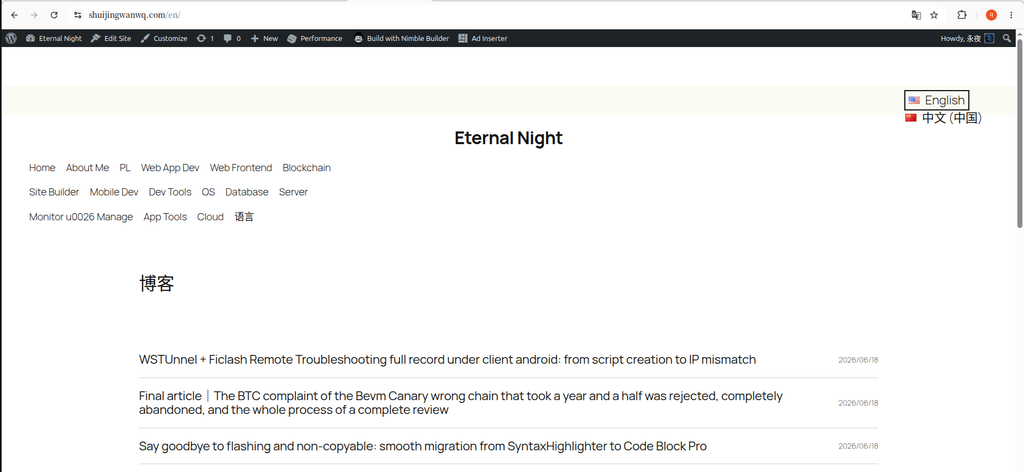
After following the steps above, the language switcher finally appears on the page as expected. (See Figure 9)
6. Summary of pitfalls
| Issue | Cause | Solution |
|---|---|---|
| Cannot find the “Menus” interface | 2025 is a block theme and has no traditional menus | Use the Site Editor |
| Row block width is only 2/3 | Default width is constrained by the parent container | Set the Row block to “Full width” |
| Language switcher position is incorrect | Alignment was not set correctly | Select “Align Top Right” |
| Dropdown list wraps to a new line | Block width is insufficient | Set a fixed width of 200px |
| Limited color choices | Theme presets only 8 colors | Choose a suitable color from the theme palette |
7. Summary of technical key points
Through this tweaking process, I summarized a few takeaways regarding block theme layouts:
1. Understand the role of the “Row” block
A Row block arranges its inner elements horizontally, making it suitable for top bars, navigation, and other horizontal layouts. The requirement here was “horizontal arrangement + right alignment”, so using a “Row” block was the correct choice.
2. “Full width” is the key to breaking through parent constraints
In a block theme, each block inherits the width of its parent container by default. To make a block span the full screen width, you must explicitly set it to “Full width”.
3. Fixing the dropdown list line-wrap issue
The display width of the language switcher dropdown list is affected by the block width. If line wrapping occurs, you can fix it by setting a fixed width.
4. Three ways to add the Polylang language switcher
| Method | Applicable scenario |
|---|---|
| Standalone “Row” block + language switcher | Requires precise positioning in the top bar (used in this article) |
| Place into the navigation menu | Switcher appears as a menu item in the navigation bar |
Shortcode [polylang_language_switcher] | Anywhere, maximum compatibility |
5. Choosing between Polylang vs TMS Extensions
| Scenario | Recommendation |
|---|---|
| Only need basic switching functionality | Polylang built-in language switcher |
| Need more style customization | TMS “Language Switcher Advanced” |
| Need to configure different menus for different languages | TMS “Menu by Language” |
My approach was to use the TMS “Language Switcher Advanced” block for the switcher, while using the “Menu by Language” feature to create different menu structures for Chinese and English respectively.
8. Afterword
If you are also using a WordPress block theme + Polylang, I hope this article saves you some time. Although it is just a small switcher, tweaking it gave me a deeper understanding of the layout logic in block themes.