Switch actual combat with a theme with backup as the premise and multi-language menu configuration as the core.
1. Why change the theme?
my blog shuijingwanwq.com Always use hueman The theme, this is a classic, stable and functional theme, which has been with me for a long time. But as the blog content increases and the visitor device changes, I’ve gradually discovered some problems.
The most critical data comes from website statistics:More than 35% of visitors have a screen width above 1680px. The Hueman theme’s support for ultra-wide screen is not ideal, and the maximum width of the content area is limited, resulting in a large number of blank margins, and the reading experience is not comfortable enough.
In addition, WordPress has enteredBlock ThemeIn the era, Site Editor (FSE) provides a more flexible and more visual customization method. I want to switch blogs to a topic that is more widescreen, more modern and more active in maintenance.
After some research, I chose Twenty Twenty-Five ——It is the latest default theme of WordPress (2025), which is specially optimized for blogging and content creation. It natively supports full-site editing, and has a good adaptation to widescreen.
2. Preparations before switching
Any topic switching, the first step must be Backup.
I use UpdraftPlus The plugin has a complete backup of the website’s files and databases.
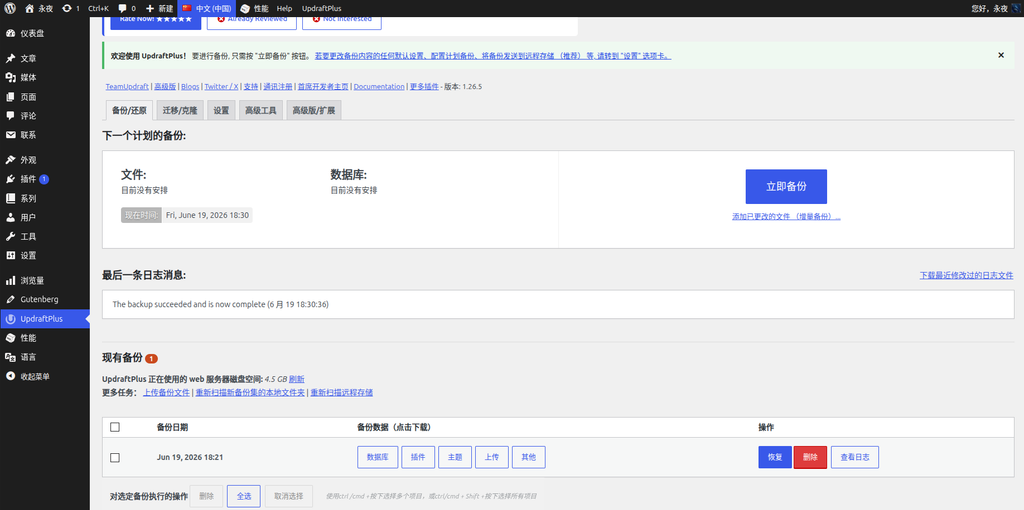
In addition to backup, I also did a few things:
- Customize your custom code to record old themes: Hueman’s
functions.phpThere are a lot of functional codes I added myself, and I need to migrate them later. - Screenshot recording gadgets and menu settings: Although I decided to abandon the old gadget layout, the menu structure needs to be preserved.
- Prepare a new theme configuration idea: Clarify the width of the content to be adjusted, the display method of the home page, the multi-language menu, etc.
3. Consideration of Twenty Twenty-Five
Twenty Twenty-Five is the default theme for WordPress 6.7 and later, which has the following advantages:
- Full support for site editing: All layout adjustments can be visualized in the Site Editor.
- Friendly blog: The layout is exquisite, and the reading experience is excellent.
- Widescreen fits well: You can freely adjust the content width and width width in the style settings.
- light and fast: No extra dependencies, excellent performance.
- Official long-term maintenance: As the default theme, the update is guaranteed.
Of course, it also has a learning cost – for users who are accustomed to classic themes (such as Hueman), the menu management of block themes, gadgets, and template structures need to be re-adapted. This is exactly what this blog is about to record.
4. Follow-up plans for custom code for old themes
in Huemanfunctions.php, I added the following custom codes (see old theme file editing screenshot):
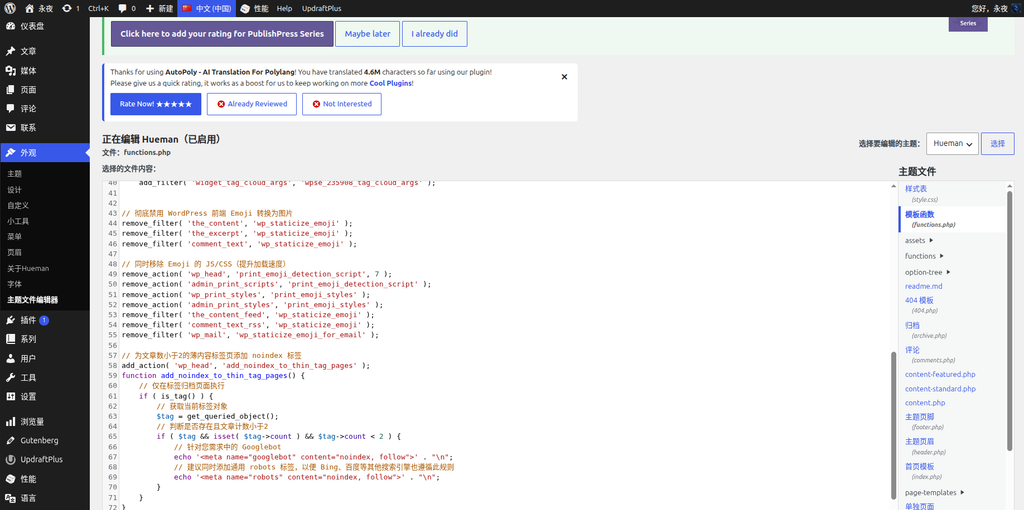
These codes include:
- Disabling WordPress Emoji Features: Remove the js/css of emmoji to increase the loading speed.
- Add noindex for thin content tab: When the number of articles under a label is less than 2, it will automatically output
<meta name='robots' content='noindex, follow'>, to prevent low-quality pages from being indexed. - Adjust the number of tag cloud displays: Change the upper limit of the label widget to 300.
These functions have nothing to do with the theme itself, belong toSite level function, so the best practice is to strip it from the theme and put it into aSite Exclusive Pluginin, or use Code Snippets Plugin management.
I plan to use it later Code Snippets Plugin, separate each function as a code snippet and set it to ‘run only on the front end’. In this way, no matter what theme you change in the future, these functions will not be lost.
Note: Hueman theme comes with
load_template( get_template_directory() ./functions/init-core.php);and version checking code is the subject internal dependency and cannot be migrated.
5. Configuration homepage display method
When Twenty Twenty-Five is enabled, the homepage may display a static page or some kind of template by default, and what I need is Latest article list, and only display the abstract and not the full text.
Enter Set > read, check ‘Your latest article’ in ‘Your Homepage Display’, and change ‘For each article in the feed’ to ‘Summary’.
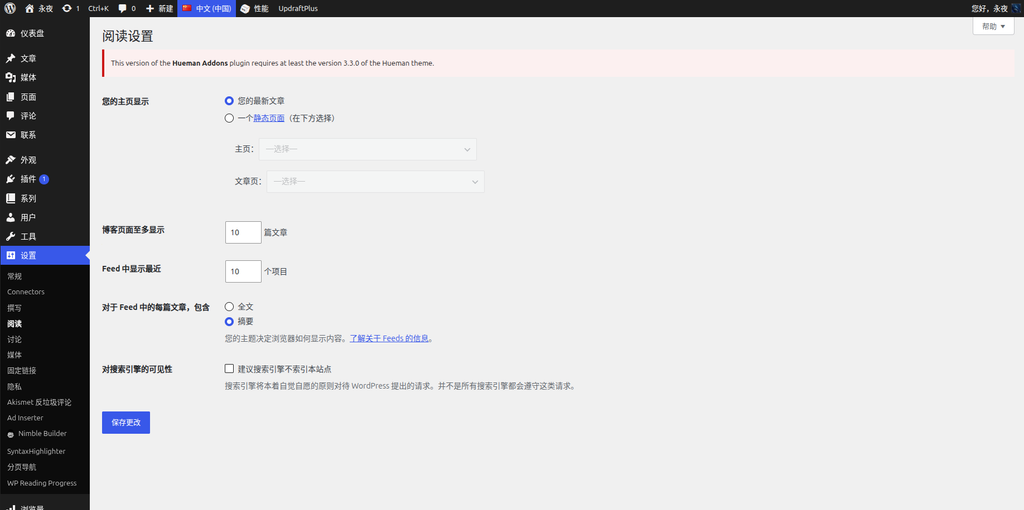
In this way, the homepage will be displayed as a list of articles, and each article will only show the abstract, which is in line with the reading habits of the technical blog.
Six, the configuration process of multi-language menu (emphasis)
My blog supports both Chinese and English, using Polylang Free Edition implementation. In Hueman (Classic Theme), I can Appearance > Menu Specify the display language for each menu, which is very simple.
But in the Twenty Twenty-Five (block theme), things get complicated:
- The menu display position of the block theme is no longer controlled by the ‘Appearance > Menu’ page, but bySite Editor‘Navigation’ block control.
- The Polylang free version will not display the ‘Language Assignment’ drop-down box on the menu editing page under the theme of the block.
- This means: I can’t directly tell Polylang which language the ‘Chinese main menu’ and ‘English main menu’ correspond to.
I evaluated several options:
- Create two navigation blocks in the Site Editor, bind different menus, and try to display them with conditions – But the navigation block of the block theme does not have the built-in ‘display by language’ conditional logic.
- Conditional Menus plugin – However, some users have reported that the plugin has a known compatibility problem with Polylang, and the ‘language’ cannot be recognized as a condition, so it is not used.
- Site Editor Classic Features plugin officially recommended by Polylang ——You can restore classic gadgets in block themes, but the operation is slightly cumbersome and not adopted.
Eventually, I found a lightweight plugin:TMS extensions for polylang. It provides a ‘menu by language’ blocks, dedicated to displaying different navigation menus for each language in the block theme, and completely free.
Operation steps:
- install and activate TMS extensions for polylang.
- Enter Appearance > Editor, edit ‘header’ template.
- Find in the block inserter ‘menu by language’ block, added to the appropriate place in the header.
- Click this block, in the settings panel on the right, respectively ‘Chinese (China)’ And ‘English’ Select the corresponding menu (Chinese main menu, English main menu).
- Save the template.
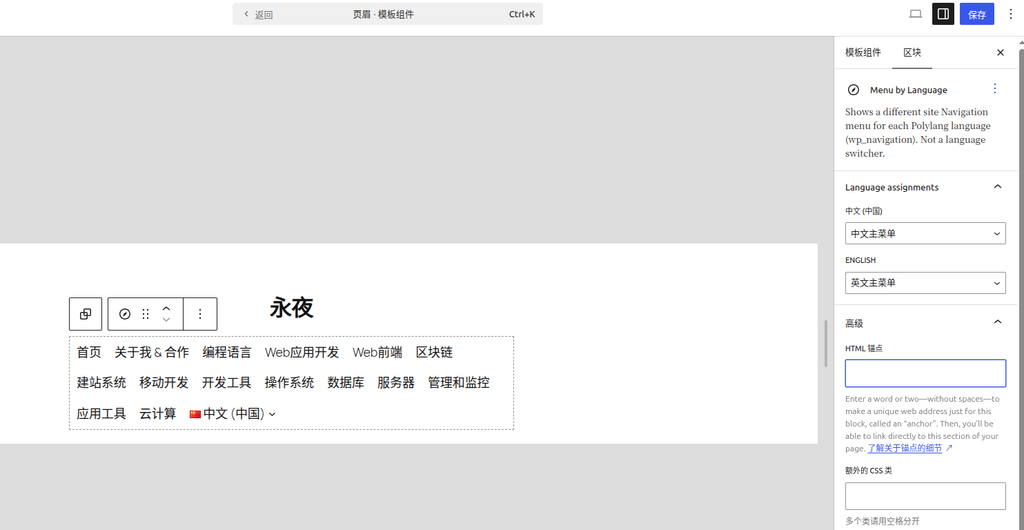
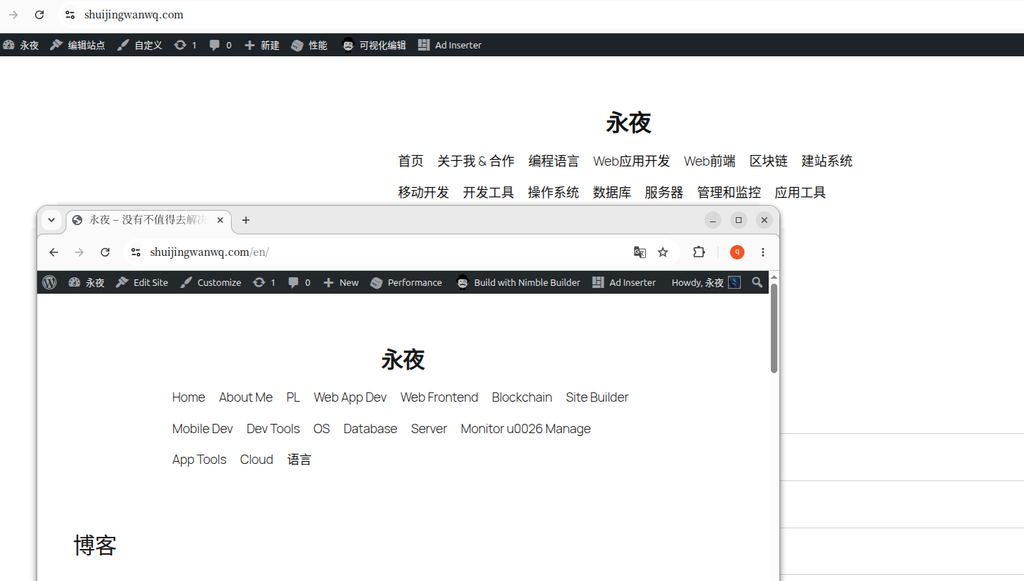
After completing the above configuration, the front header will automatically switch the menu according to the current page language.
7. Summary
The core work of this theme switching can be summarized into three things:
- Backup: Use UpdraftPlus to complete the full site backup to ensure that it can be rolled back.
- Choose topic: According to the characteristics of the high proportion of widescreen visitors, choose Twenty Twenty-Five.
- Configure multilingual menus: Through the TMS Extensions for Polylang plugin, the problem of Polylang free version cannot be allocated to different languages under the block theme.
This experience also made me realize that separating the functional code from the theme (such as using Code Snippets) is worth investing in the time to do, and it will be gradually improved in the future.
Leave a Reply