In git bash, when executing git pull on github.com, it prompts unknown ssl protocol error in connection to github.com: 443, deprecate the connection method https, let it support the solution process of ssh
1. Execute the command: git pull –progress –no-rebase -v “origin”, report an error, as shown in Figure 1
Fatal: Unable to accesshttps://github.com/shuijingwan/yii2-starter-kit.git/: Unknown SSL protocol error in connection to github.com:443

Fatal: Unable to accesshttps://github.com/shuijingwan/yii2-starter-kit.git/: Unknown SSL protocol error in connection to github.com:443
2. Decided to use ssh to connect, since both git bash and tortoisegit are possible, use the puttygen tool that comes with TortoiseGit to generate the key, as shown in Figure 2

Decided to use ssh to connect, since both git bash and tortoisegit are possible, use the puttygen tool that comes with TortoiseGit to generate the key
3. After opening, click the Generate button, and then you need to move the mouse in the key box during the generation process, the purpose is to generate some random numbers, as shown in Figure 3

After opening, click the Generate button, and then you need to move the mouse in the key box during the generation process, the purpose is to generate some random numbers
Add the generated public key to github, as shown in Figure 4

Add the generated public key to github
5. List of public keys added on github, as shown in Figure 5

List of public keys added on GitHub
6. Select Save Private Key, the following dialog box will pop up, select Yes, as shown in Figure 6
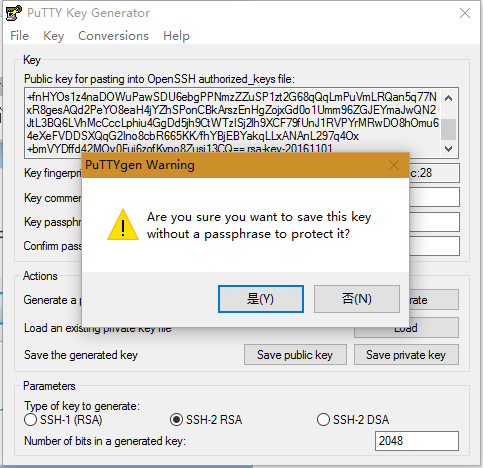
Select Save Private Key, the following dialog box will pop up, select Yes
7. Save the private keys supported by TortoiseGit to C:\Users\administrator\.ssh\private.ppk, as shown in Figure 7

Save the private keys supported by TortoiseGit to C:\Users\administrator\.ssh\private.ppk
8. Select Save Public Key and save the public key supported by TortoiseGit to C:\Users\administrator\.ssh\Authorized_Keys (no extension), as shown in Figure 8

Select Save Public Key and save the public key supported by TortoiseGit to C:\Users\administrator\.ssh\Authorized_Keys (without extension)
9. Run the Pageant program in the TortoiseGit package, as shown in Figure 9

Run the Pageant program in the TortoiseGit package
10. Right-click and select the icon in the lower right corner of the Windows desktop (notification area), and the following menu will appear, as shown in Figure 10

Right-click the icon in the lower right corner of the Windows desktop (notification area), and the following menu will appear
11. Select the Add Key menu bar, and the Select Private Key File selection box will appear, select the corresponding private key file (.ppk) file generated before, and the configuration is complete, as shown in Figure 11

Select the Add Key menu bar, the Select Private Key File selection box will appear, select the corresponding private key file (.ppk) file generated before, and the configuration is complete.
12. At this point, the SSH connection supported by TortoiseGit has been configured, and then continue to configure the connection supported by Git Bash
13. Now you have the Putty private key supported by TortoiseGit. If you want to use it under git bash, you need to have the private key of openssh, and you only need to perform the conversion.
14. Click the menu Conversions->Export OpenSSH key, as shown in Figure 12

Click the menu Conversions->export openssh key
15. Save the private key supported by Git Bash to C:\Users\administrator\.ssh\id_rsa, as shown in Figure 13

Save the private keys supported by Git Bash to C:\Users\administrator\.ssh\id_rsa
16. Test the support in TortoiseGit, modify the URL of origin to: git@github.com: shuijingwan/yii2-starter-kit.git, save, as shown in Figure 14

Test the support in TortoiseGit, modify the URL of origin to: git@github.com:shuijingwan/yii2-starter-kit.git, save
17. TortoiseGit performs the pull operation, as shown in Figure 15

TortoiseGit performs pull operation
18. TortoiseGit pulls successfully, as shown in Figure 16

TortoiseGit pulls successfully
19. In git bash, execute the git pull on github.com again, the pull is successful, as shown in Figure 17
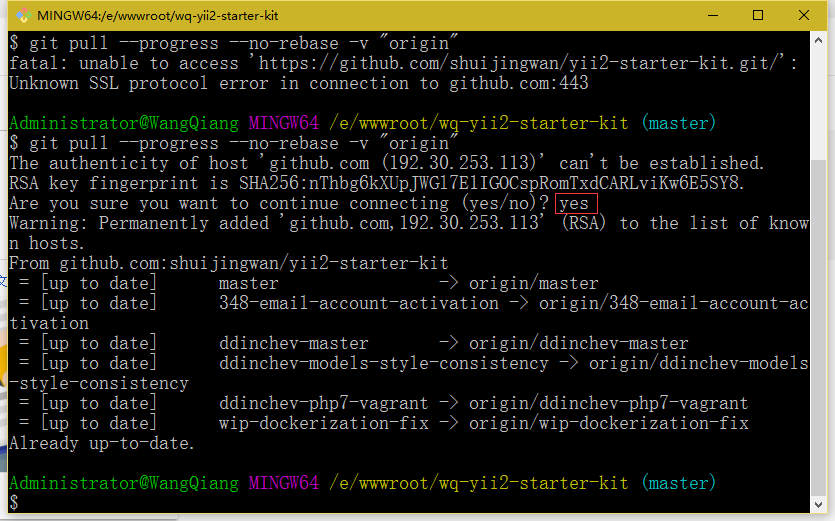
In git bash, execute git pull on github.com again, the pull is successful
![查看 Nginx 日志文件,morefunresty.dev.chinamcloud.cn.error.log,module 'lib.redis' not found: no field package.preload['lib.redis']。](https://www.shuijingwanwq.com/wp-content/uploads/2021/09/2-14-520x245.png)