Install memcached under Windows 10 64, install the memcache extension for PHP 7.0.22
1. I wrote a blog under PHP 5.6.27 before:https://www.shuijingwanwq.com/en/2017/09/11/10209/, this time under PHP 7.0.22, as shown in Figure 1
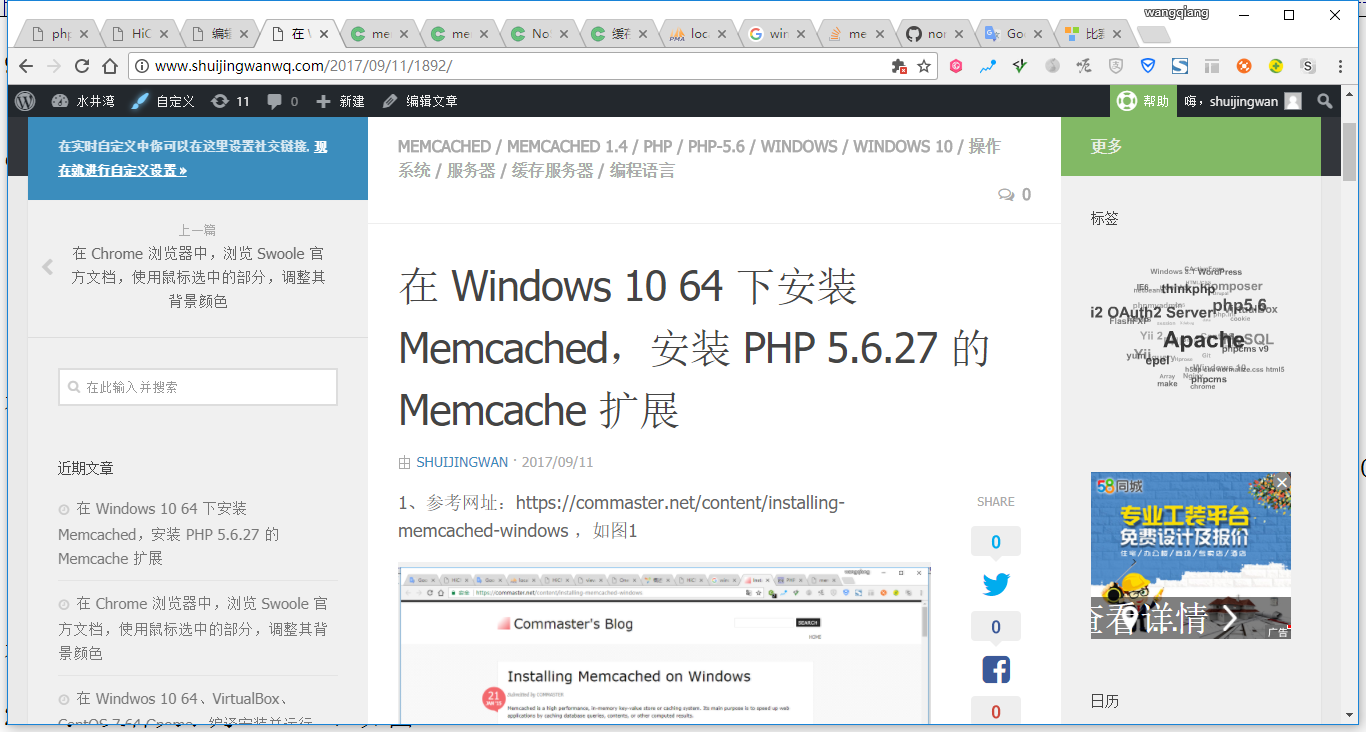
Figure 1
2. Uninstall memcached, you can use the following command: as shown in Figure 2
schtasks /delete /tn memcached
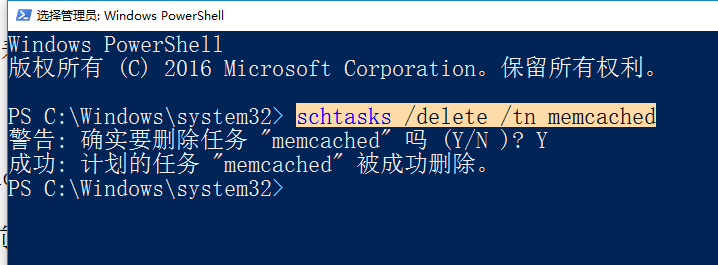
Figure 2
3. Delete the directory: C:\memcached-1.4.5, as shown in Figure 3
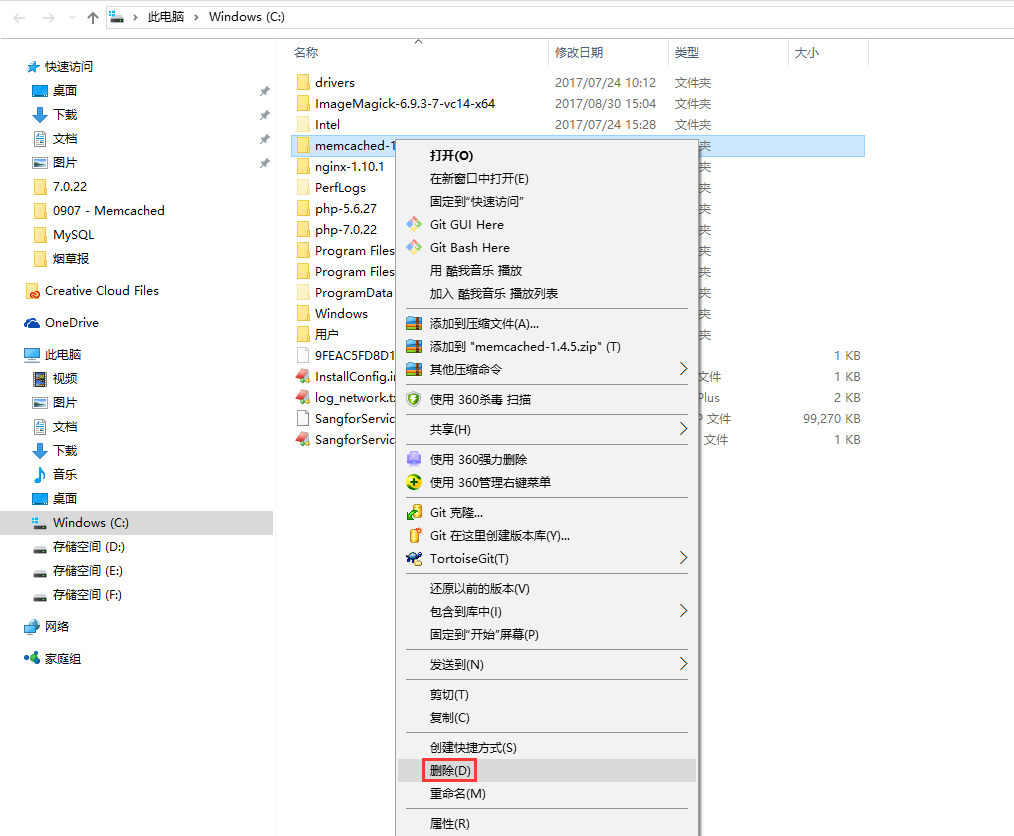
Figure 3
4. Open the URL:https://github.com/nono303/memcached/tree/master/cygwin/x64, download: cygevent-2-0-5.dll, cygwin1.dll, memcached-1.5.1.exe, as shown in Figure 4
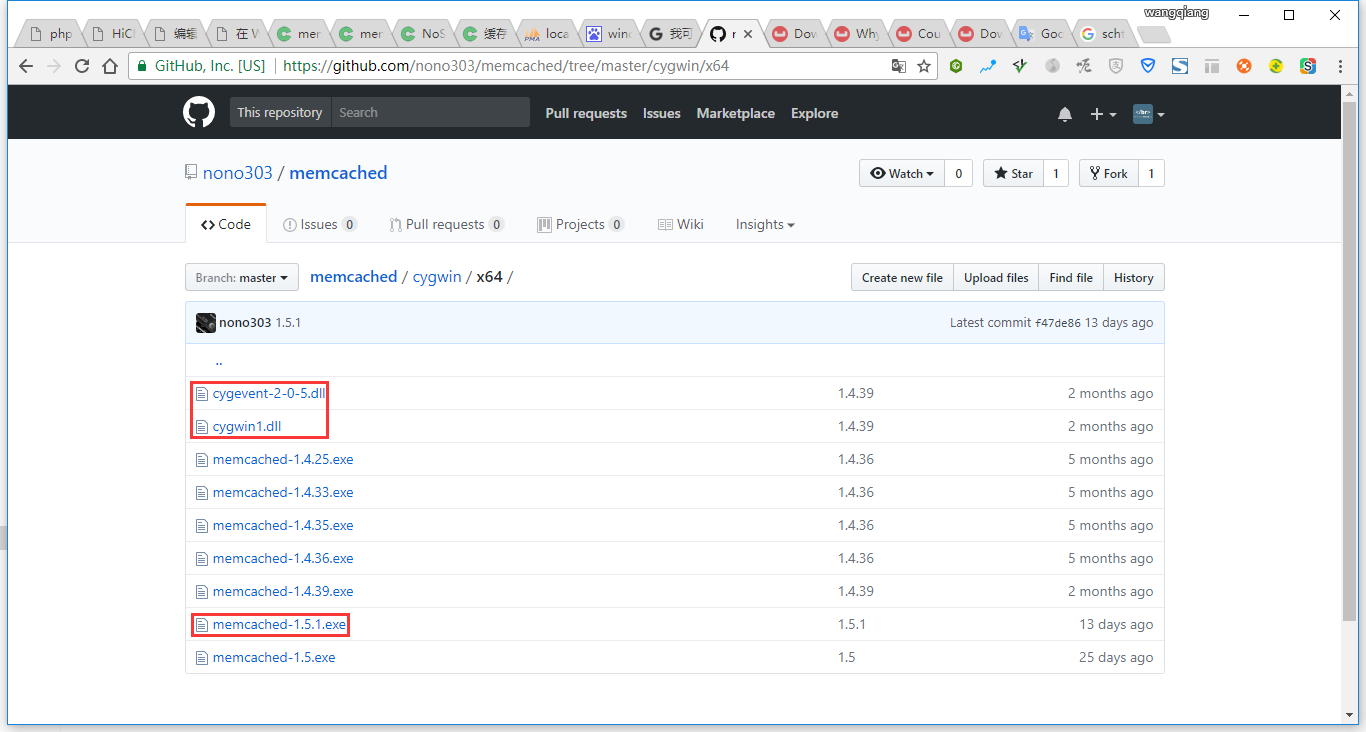
Figure 4
5. After the download is successful, copy it to: C:\Memcached-1.5.1, as shown in Figure 5
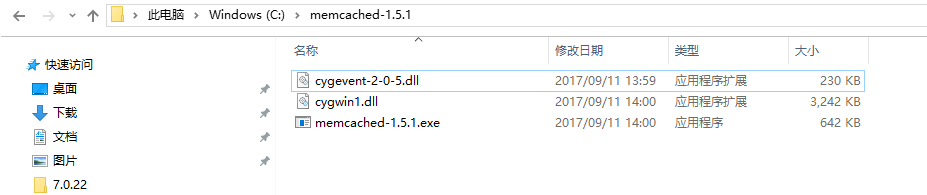
Figure 5
6. Run Windows PowerShell as an administrator, as shown in Figure 6
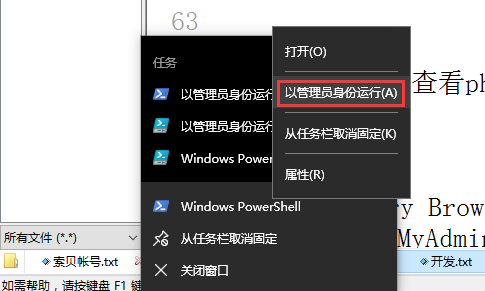
Figure 6
7. Execute the following command to add memcached to the task schedule: as shown in Figure 7
schtasks /create /sc onstart /tn memcached /tr “C:\memcached-1.5.1\memcached-1.5.1.exe-M 512”

Figure 7
8. Open the URL:https://github.com/nono303/PHP7-memcache-dll, select VC14, as shown in Figure 8
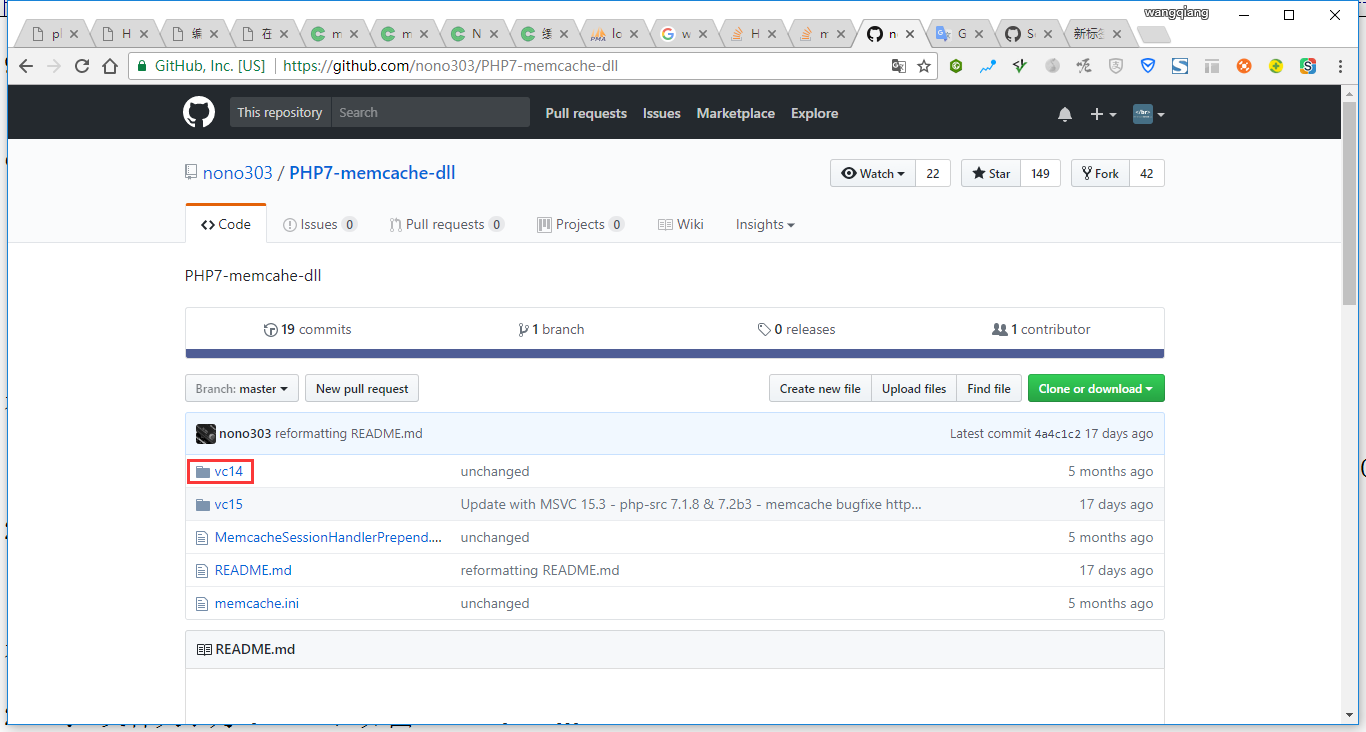
8
9. Check phpinfo, the compiler is msvc14, and the thread is safe, as shown in Figure 9
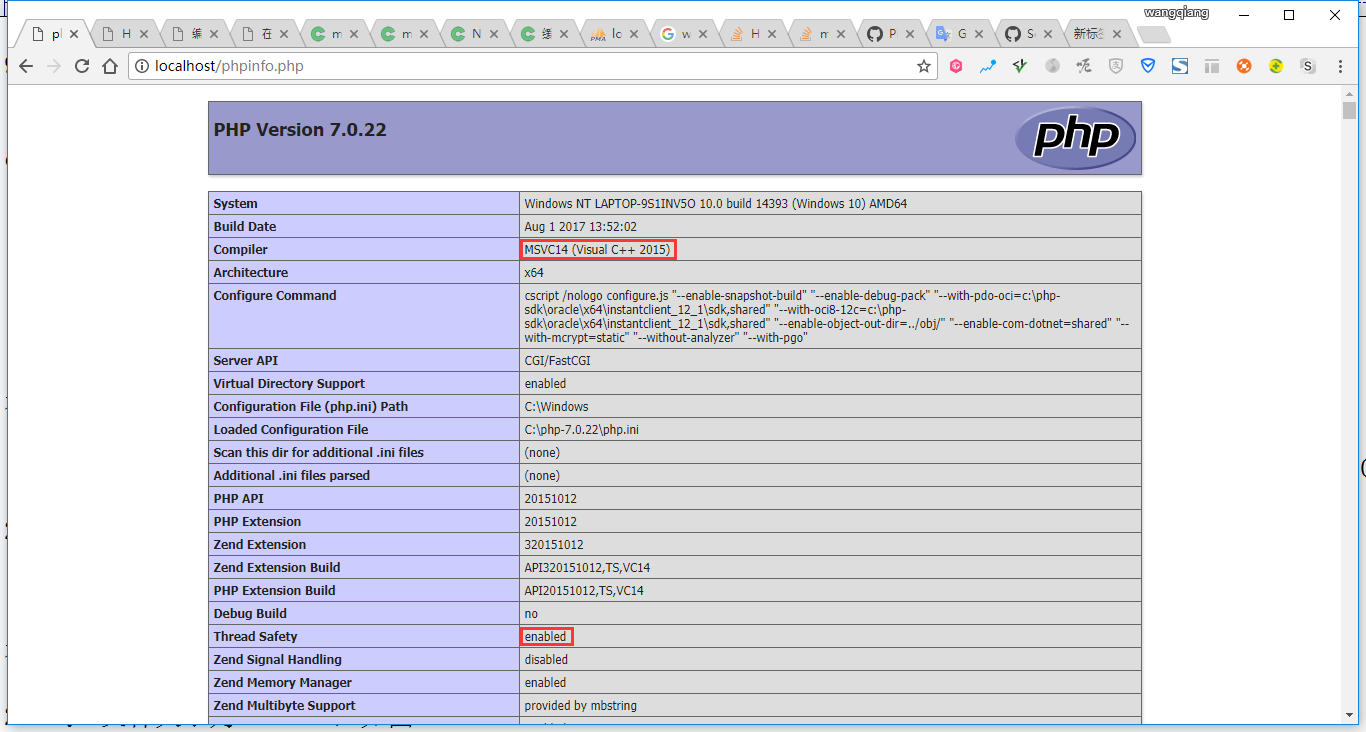
Figure 9
10. Open the URL:https://github.com/nono303/PHP7-memcache-dll/tree/master/vc14/x64/ts, download: php-7.0.x_memcache.dll, as shown in Figure 10
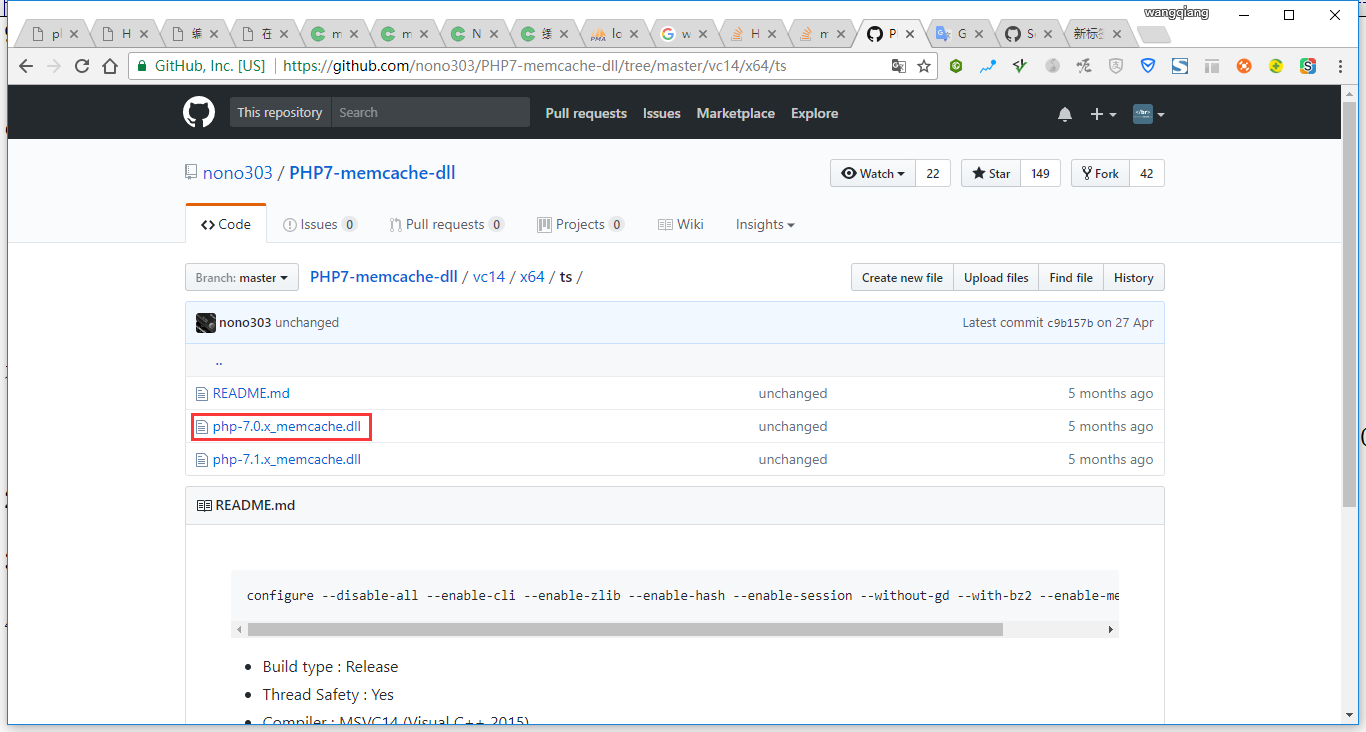
Figure 10
11. Copy php-7.0.x_memcache.dll to: c:\php-7.0.22\ext\php_memcache.dll, as shown in Figure 11
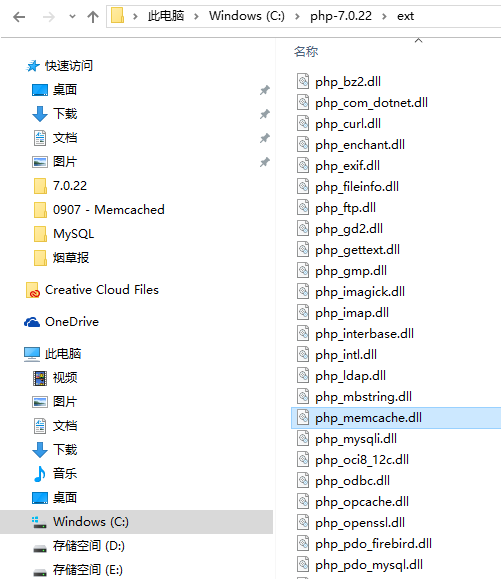
Figure 11
12. Add the following line in C:\php-7.0.22\php.ini to enable the memcache extension, as shown in Figure 12
extension=php_memcache.dll
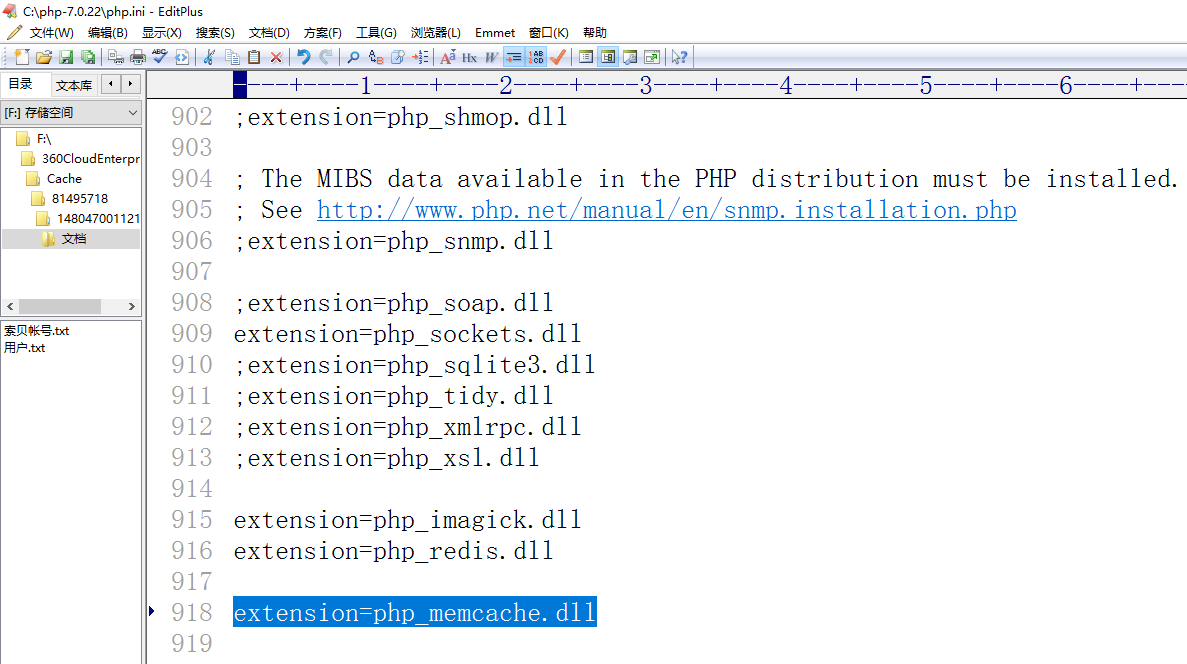
Figure 12
13. Check phpinfo, memcache already exists, as shown in Figure 13
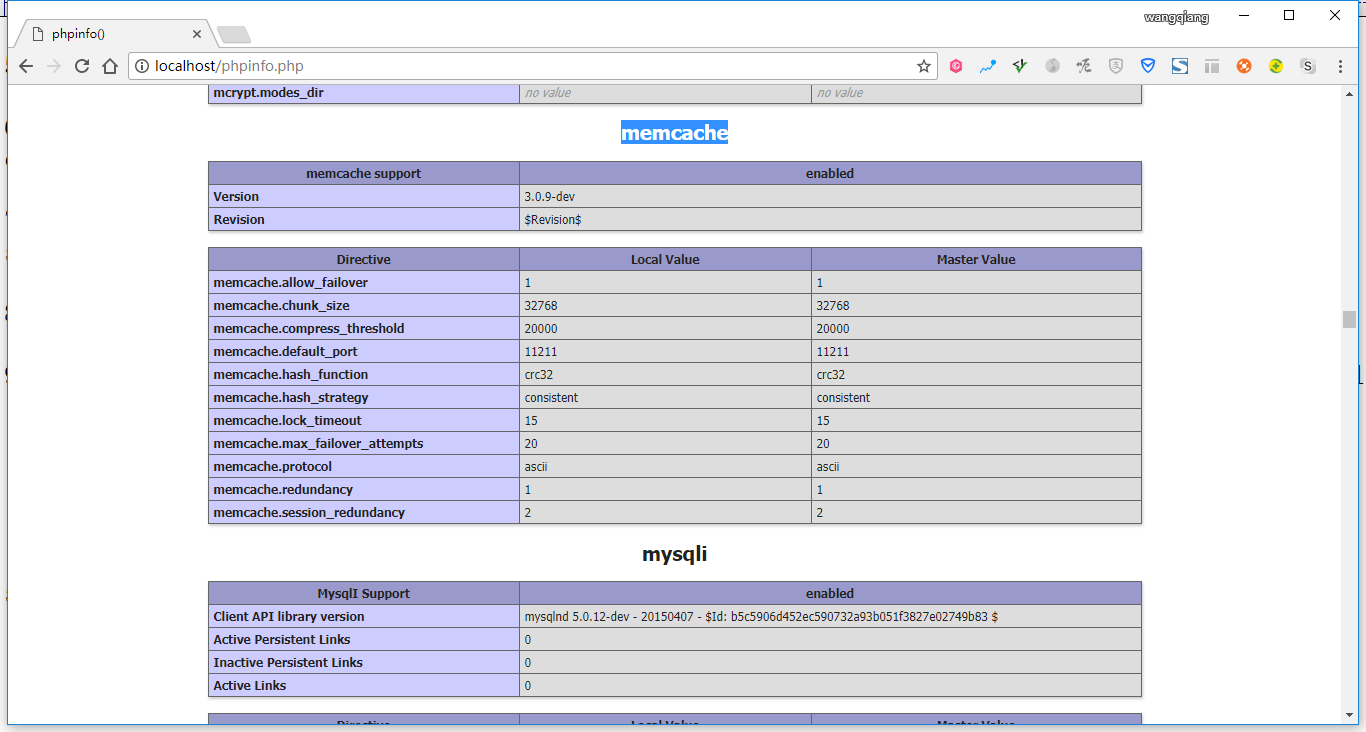
Figure 13
14. Create a new test program: memcached.php, as shown in Figure 14
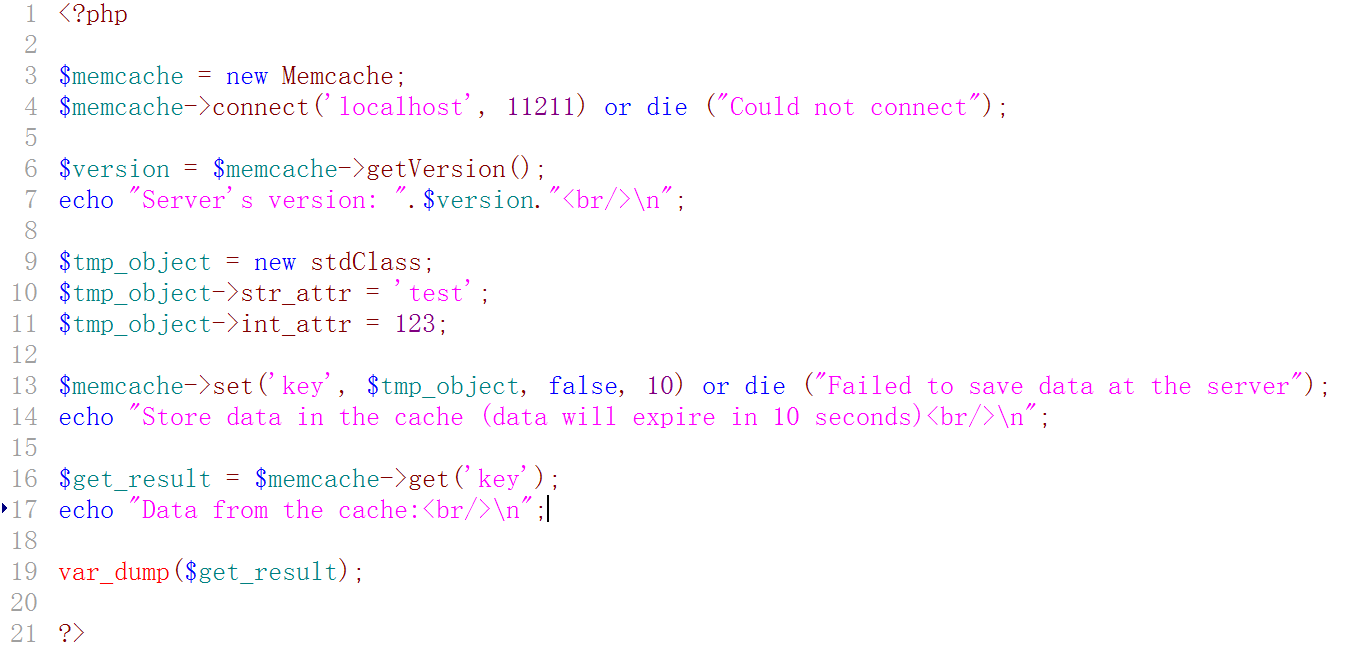
Figure 14
connect('localhost', 11211) or die ("Could not connect");

$version = $memcache->getVersion();
echo "Server's version: ".$version."\n";

$tmp_object = new stdClass;
$tmp_object->str_attr = 'test';
$tmp_object->int_attr = 123;

$memcache->set('key', $tmp_object, false, 10) or die ("Failed to save data at the server");
echo "Store data in the cache (data will expire in 10 seconds)\n";

$get_result = $memcache->get('key');
echo "Data from the cache:\n";

var_dump($get_result);

?>
15. After restarting the machine, run the test program and report an error: notice: memcache::connect(): server localhost (TCP 11211, udp 0) failed with:, as shown in Figure 15
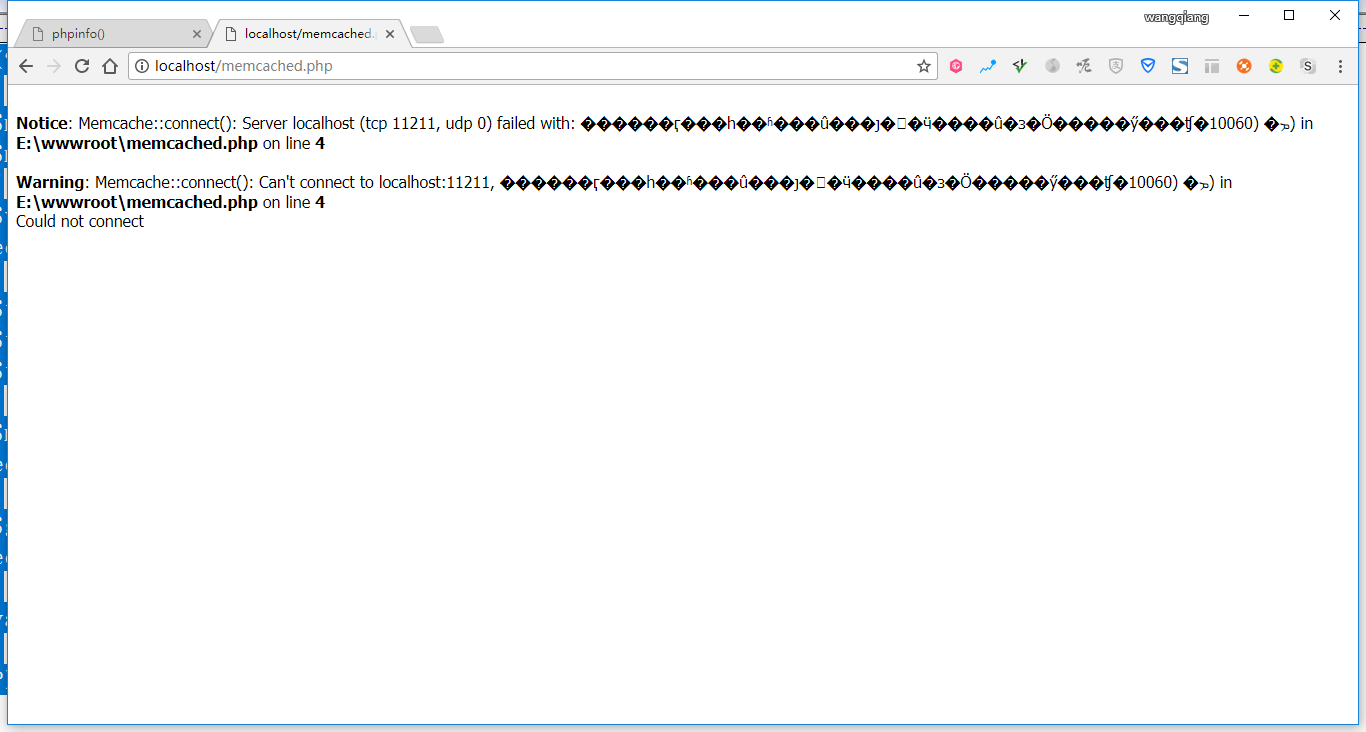
Figure 15
16. Open the task scheduler and edit the trigger of memcached, from when starting to login, as shown in Figure 16
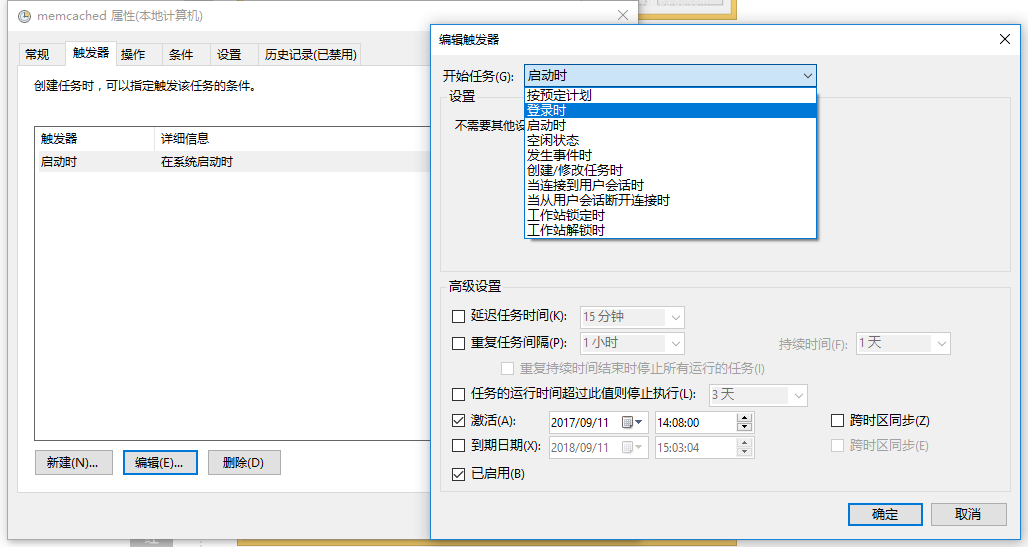
Figure 16
17. At this time, the trigger of memcached is already: when any user logs in, as shown in Figure 17
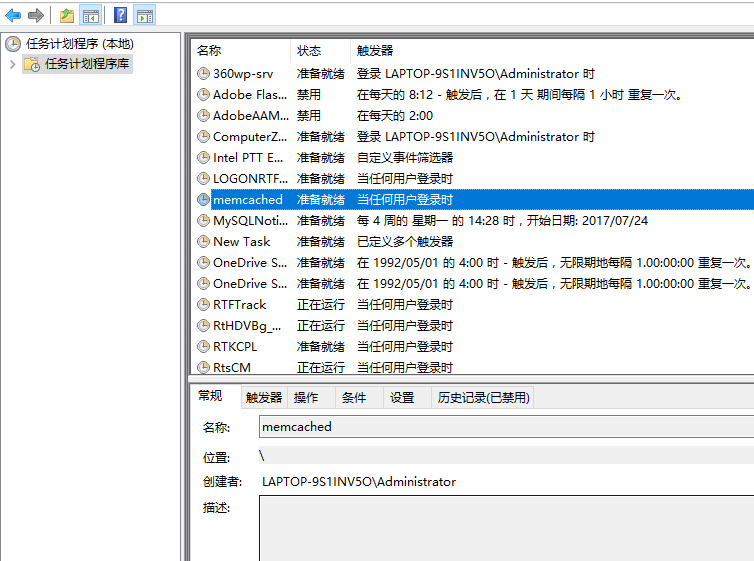
Figure 17
18. After restarting the machine, it will display: C:\memcached-1.5.1\memcached-1.5.1.exe command line window, indicating that the planned task was successfully executed, as shown in Figure 18
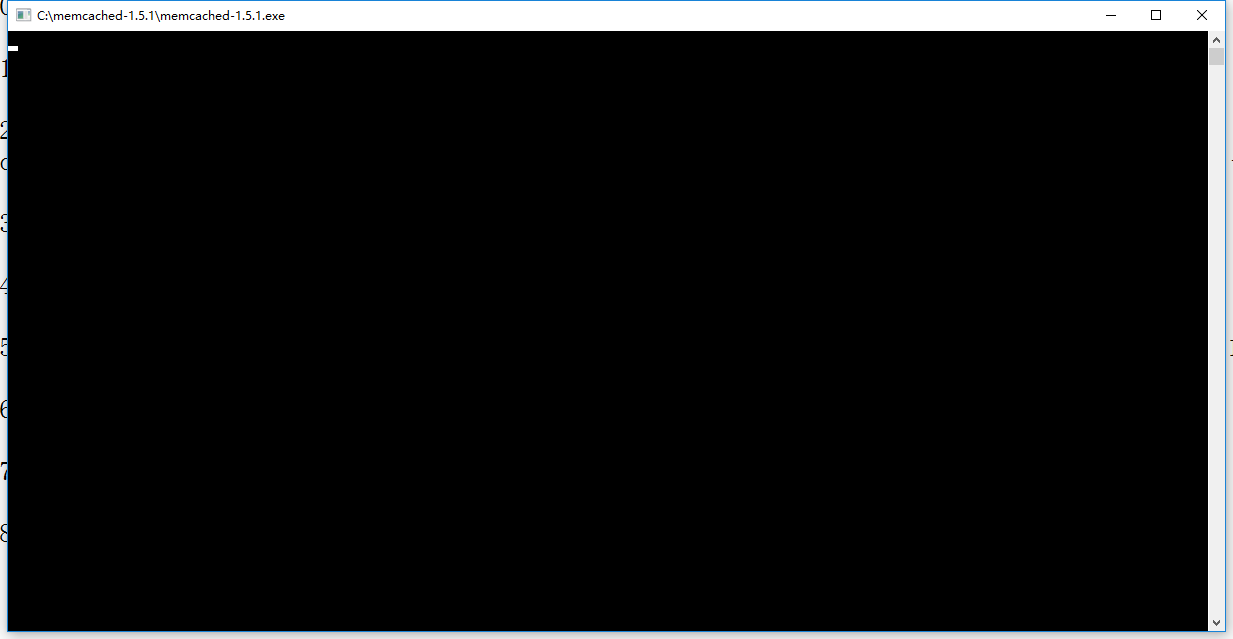
18
19. Run the test program, normal, as shown in Figure 19
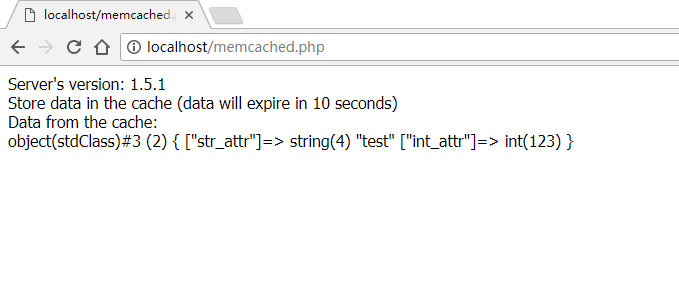
Figure 19
20. I hope that when the system starts, do not display the command line window, change the user or group, as shown in Figure 20
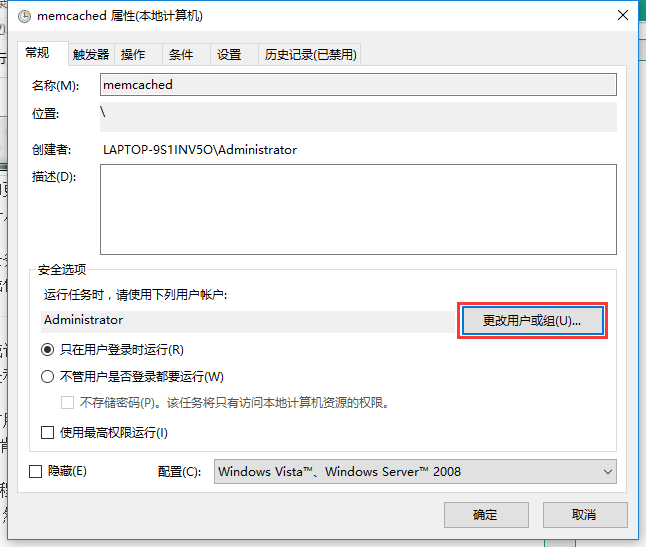
Figure 20
21. In the pop-up selection user or group window, we select Advanced – Find Now – Select System, click OK, as shown in Figure 21
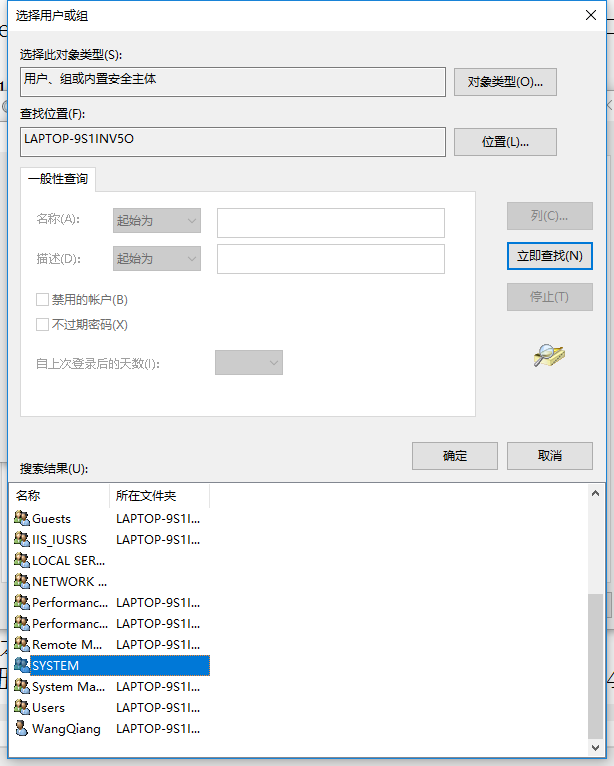
Figure 21
22. When running the task, please use the following user accounts, already: SYSTEM, as shown in Figure 22
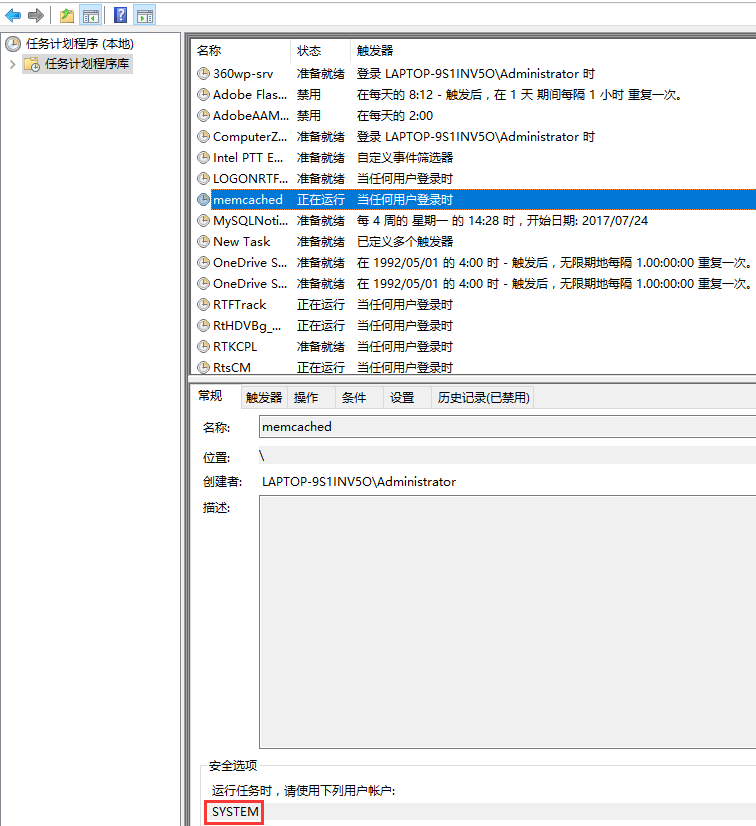
Figure 22
23. After restarting the machine, it is not displayed: C:\memcached-1.5.1\memcached-1.5.1.exe command line window, and run the test program, normal, as shown in Figure 23
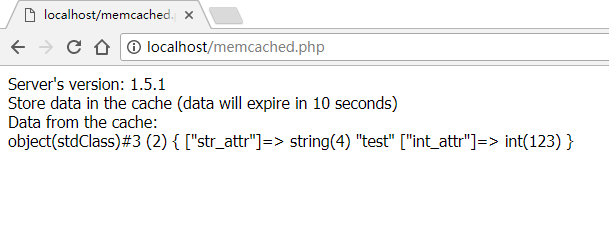
Figure 23
![如果勾选自动登录,则设置COOKIE['autologin']](https://www.shuijingwanwq.com/wp-content/uploads/2015/05/10-520x245.png)