How to use Yii2 debugger when developing RESTful application?
1. Open in the browser:http://frontend.cmcp-api.localhost/, a debugger toolbar will appear at the bottom of the page, you can click to expand, as shown in Figure 1

Figure 1
2. In Postman, gethttp://www.cmcp-api.localhost/v1/pages, 200 responses, but no debugger toolbar appears, as shown in Figure 2

Figure 2
3. Continue to step 1, click the Yii logo on the debugger toolbar, you can open the available debugging data, as shown in Figure 3

Figure 3
4. The URL of the debugger of the front-end application:http://frontend.cmcp-api.localhost/debug/default/index, as shown in Figure 4

Figure 4
5. Analyze the URL of the debugger of the front-end application, you only need to replace frontend with www, which is the URL of the debugger of the interface application, open:http://www.cmcp-api.localhost/debug/default/index, as shown in Figure 5

Figure 5
6. To view in Postman, gethttp://www.cmcp-api.localhost/v1/pagesDebugging data, click the tag link corresponding to the corresponding URL, as shown in Figure 6
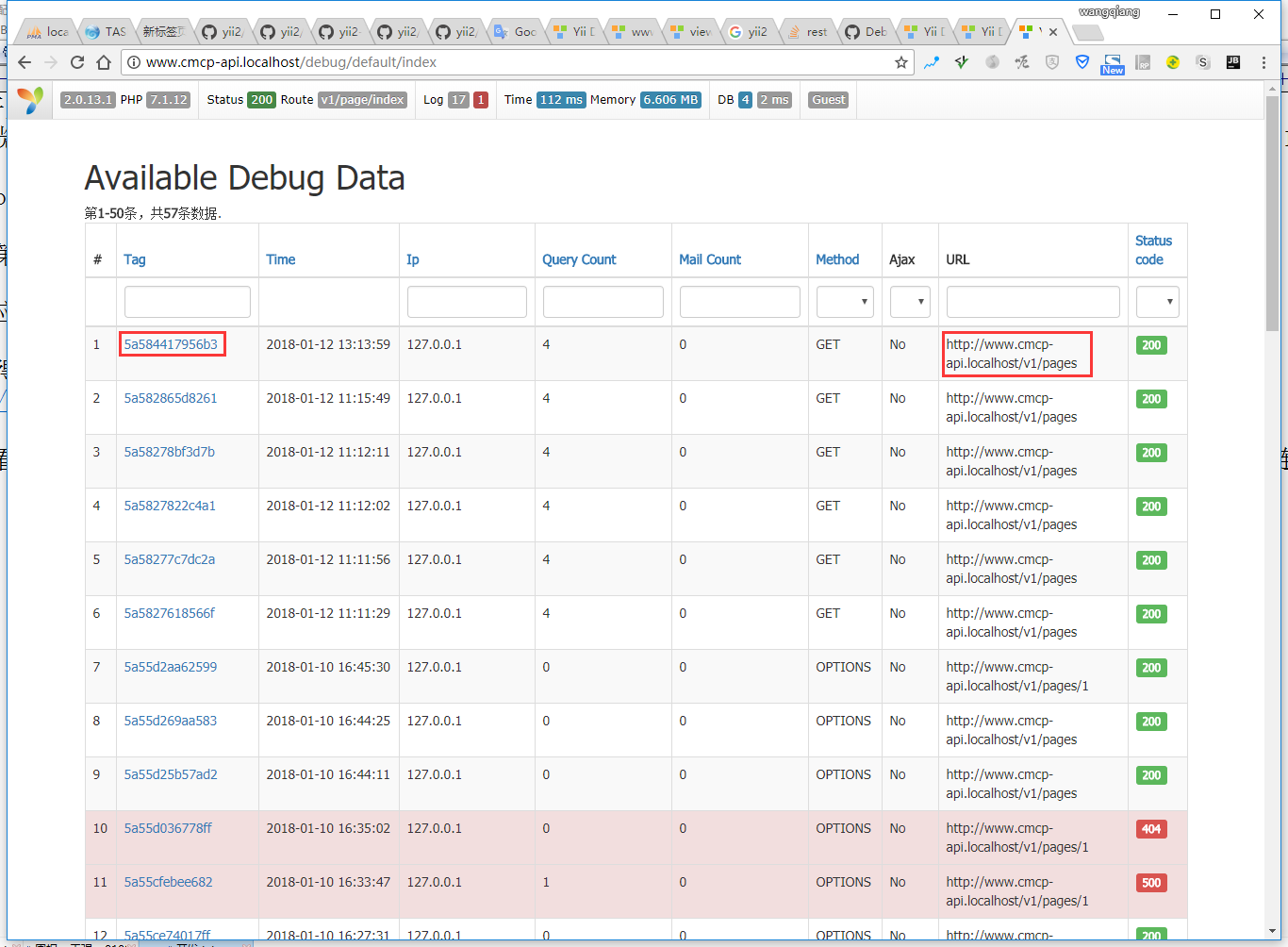
Figure 6
7. Log Messages page, which is in Postman, gethttp://www.cmcp-api.localhost/v1/pagesdebugging data, as shown in Figure 7

Figure 7
8. There is an error in the log, click to enter, as shown in Figure 8

8
9. Reference URL:https://www.shuijingwanwq.com/2018/01/10/2206/, step 65, need to be adjusted, missingmodel/*, as shown in Figure 9
        'i18n' => [
            'translations' => [
                'model/*'=> [
                    'class' => 'yii\i18n\PhpMessageSource',
                    'forceTranslation' => true,
                    'basePath'=>'@common/messages',
                    'fileMap'=>[
                    ],
                ],
                'app'=> [
                    'class' => 'yii\i18n\PhpMessageSource',
                    'forceTranslation' => true,
                    'basePath'=>'@api/messages',
                    'fileMap'=>[
                    ],
                ],
                '*'=> [
                    'class' => 'yii\i18n\PhpMessageSource',
                    'forceTranslation' => true,
                    'basePath'=>'@api/messages',
                    'fileMap'=>[
                    ],
                ],
            ],
        ],

Figure 9
10. Request again in Postman, open again:http://www.cmcp-api.localhost/debug/default/index, select the last record, click to enter, and find that the error in the log has been fixed, as shown in Figure 10

Figure 10
![报错:[2024-09-28 02:59:09] local.ERROR: preg_replace(): Unknown modifier '�' {"exception":"[object] (ErrorException(code: 0): preg_replace(): Unknown modifier '�' at )](https://www.shuijingwanwq.com/wp-content/uploads/2024/09/1-3-520x143.png)