1. URL: http://openresty.org/cn/download.html , download and install: 64-bit Windows: openresty-1.19.9.1-win64.zip.
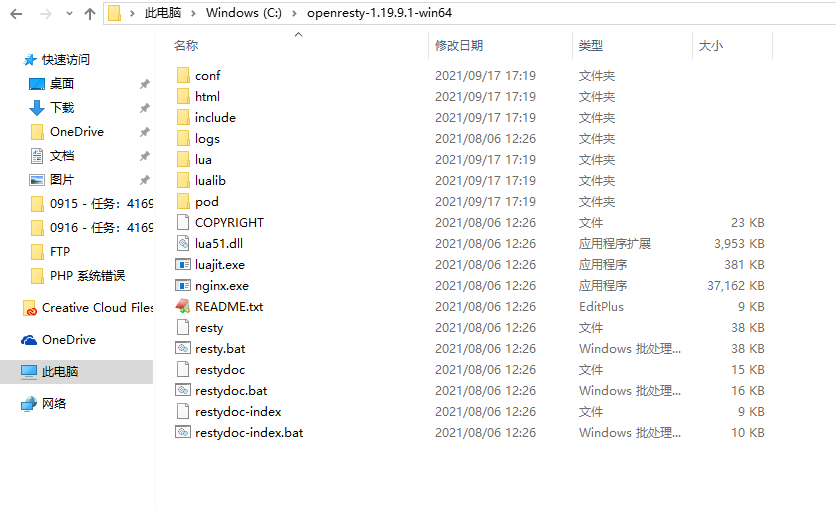
2. Unzip to the directory: C:\OpenResty-1.19.9.1-Win64. as shown in Figure 1
Figure 1
3. Usage documentation for Windows version of OpenResty: https://github.com/openresty/openresty/blob/master/doc/readme-windows.md . Start the Nginx server of the Win64 binary distribution of Openresty.
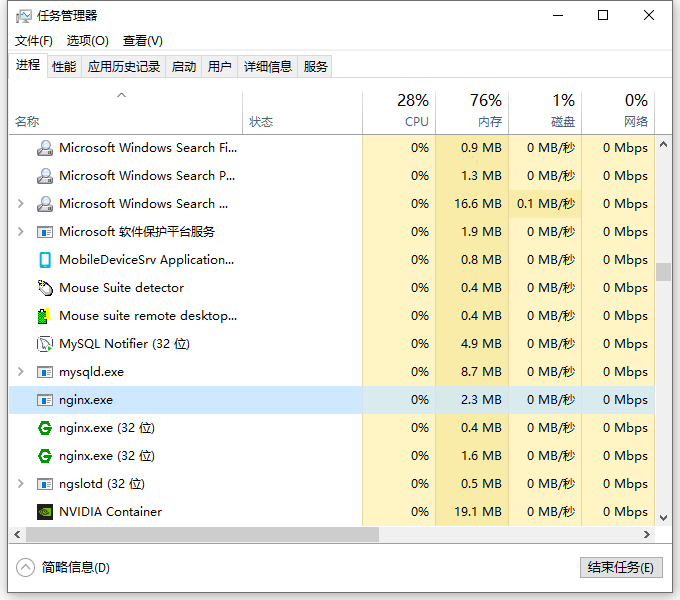
4. Check the task manager, in addition to the native Nginx software, it has also added: nginx.exe. as shown in Figure 2
Figure 2
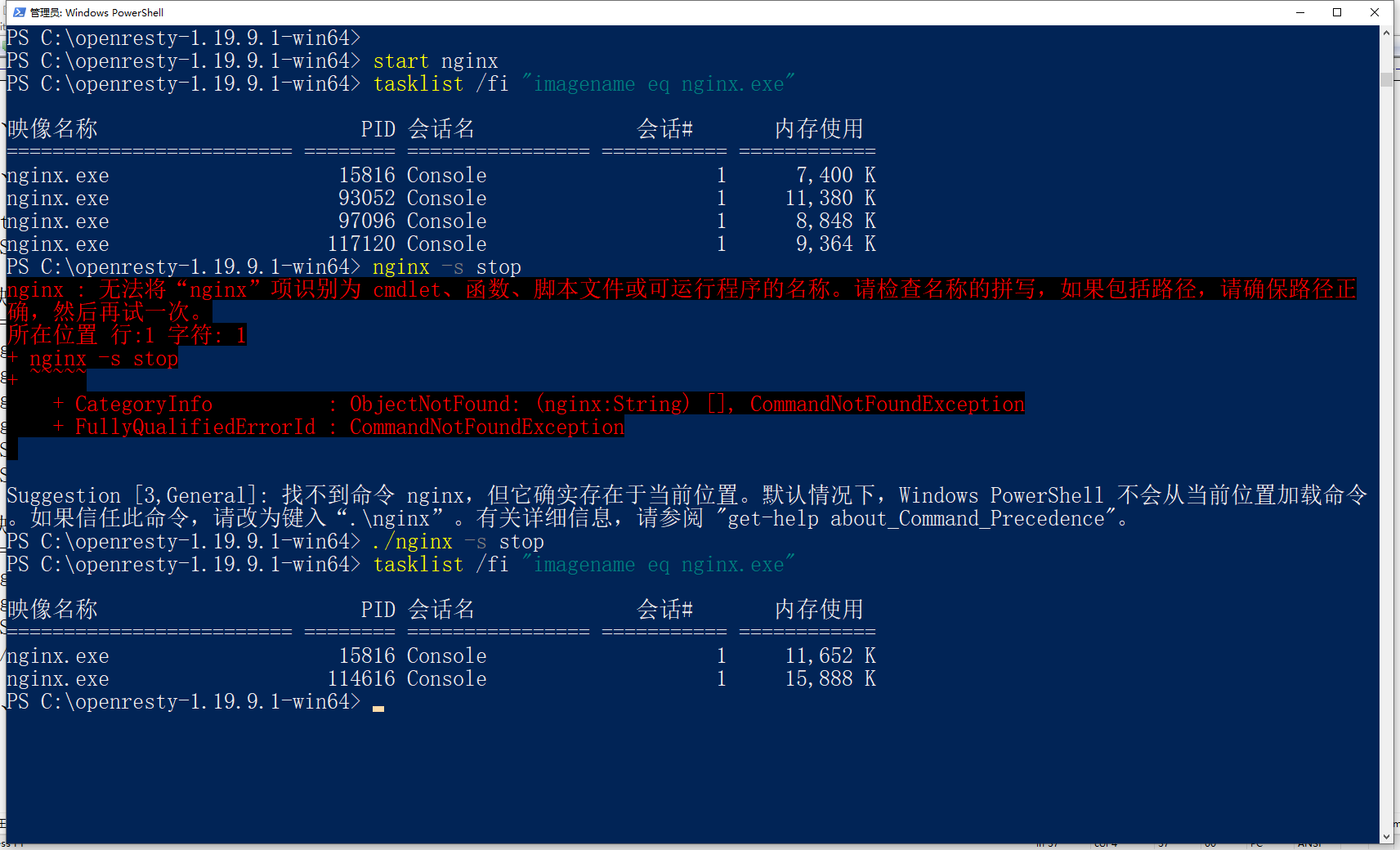
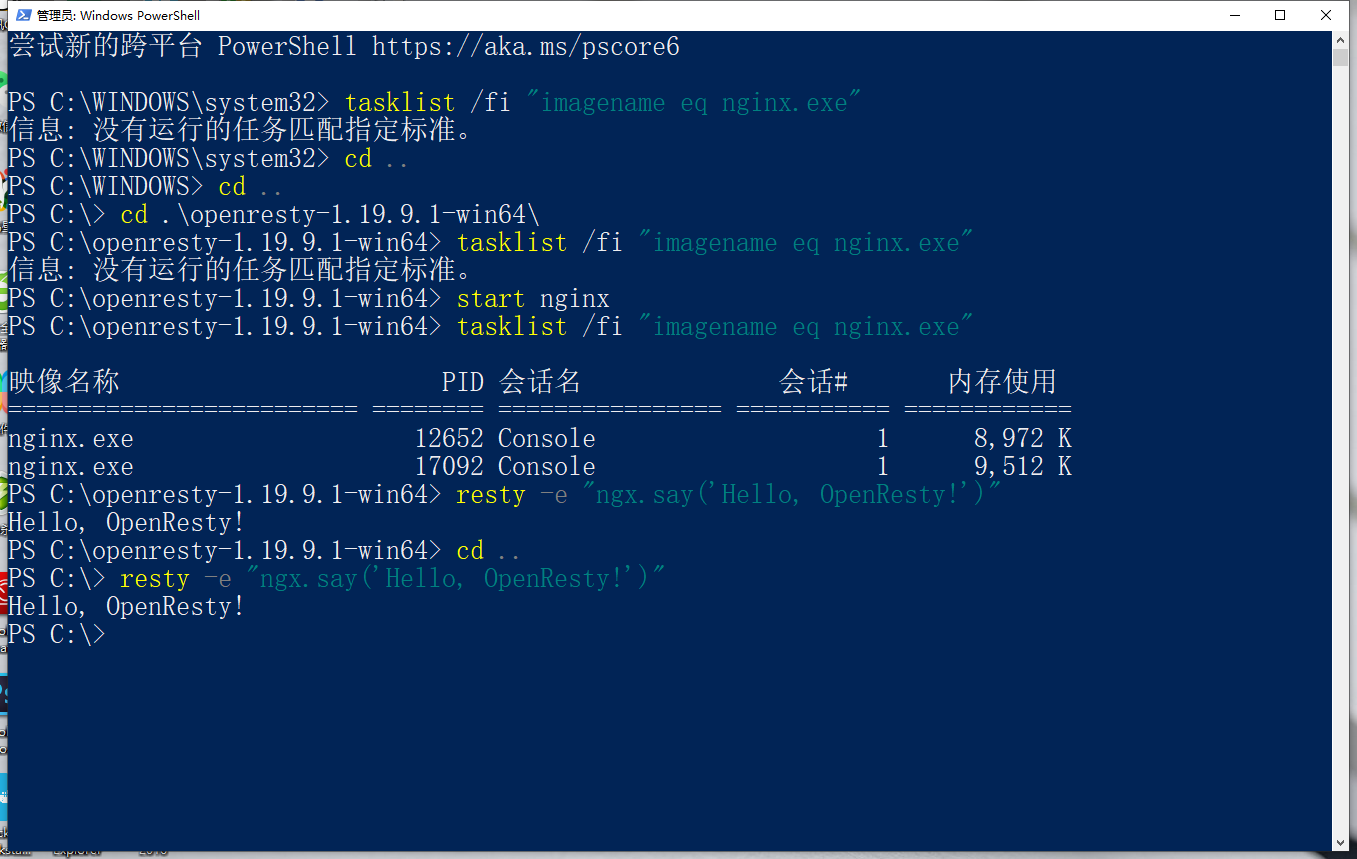
5. Then you can use the tasklist command to view the nginx process running in the background. 2 of them are native Nginx software. as shown in Figure 3
Figure 3
6. The Resty command line utility requires the Perl interpreter to be installed on your system and visible to your PATH environment. Any Perl distribution should work, including StrawberryPerl, ActivePerl, and MSYS2 Perl. URL: https://strawberryperl.com/ . Perl for MS Windows, free! Download and install Strawberry-Perl-5.32.1.1-64bit.msi.
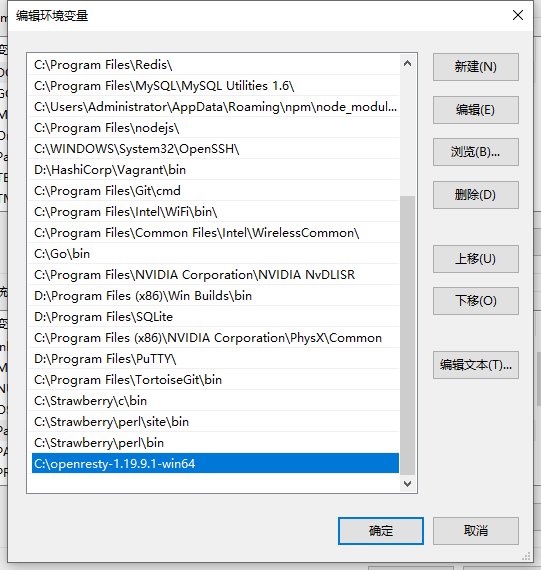
7. Edit the PATH environment variable, create a new: C:\OpenResty-1.19.9.1-Win64 . as shown in Figure 4
Figure 4
8. Restart the computer. Run the Resty script. It is planned to uninstall the native Nginx software in the future. Because the functions of the two overlap a lot. as shown in Figure 5
Figure 5
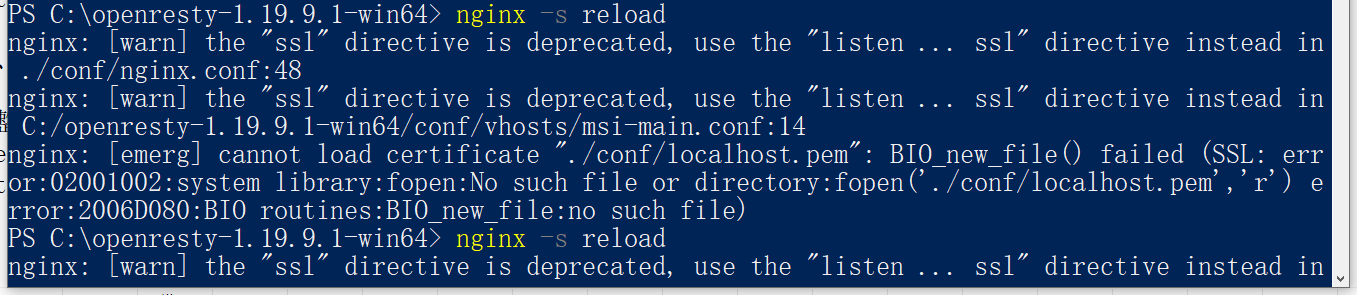
9. Migrate the configuration item of the native nginx software nginx.conf to the nginx.conf of openresty. Reload, report an error. as shown in Figure 6
Figure 6
PS C:\openresty-1.19.9.1-win64> nginx -s reload
nginx: [warn] the "ssl" directive is deprecated, use the "listen ... ssl" directive instead in ./conf/nginx.conf:48
nginx: [warn] the "ssl" directive is deprecated, use the "listen ... ssl" directive instead in C:/openresty-1.19.9.1-win64/conf/vhosts/msi-main.conf:14
nginx: [emerg] could not build server_names_hash, you should increase server_names_hash_bucket_size: 64
PS C:\openresty-1.19.9.1-win64>
10. After editing nginx.conf, reload, no more errors. as shown in Figure 7
Figure 7
Before adjustment:
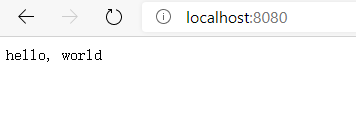
14. Refer to the entry document: https://openresty.org/cn/getting-started.html . Run the Lua program and respond normally. in line with expectations. as shown in Figure 9
Figure 9

Leave a Reply