Capturing the Android App after installing Fiddler in Windows 10
1. Open the URL:https://www.telerik.com/download/fiddler, download FiddlerSetup.exe . as shown in Figure 1
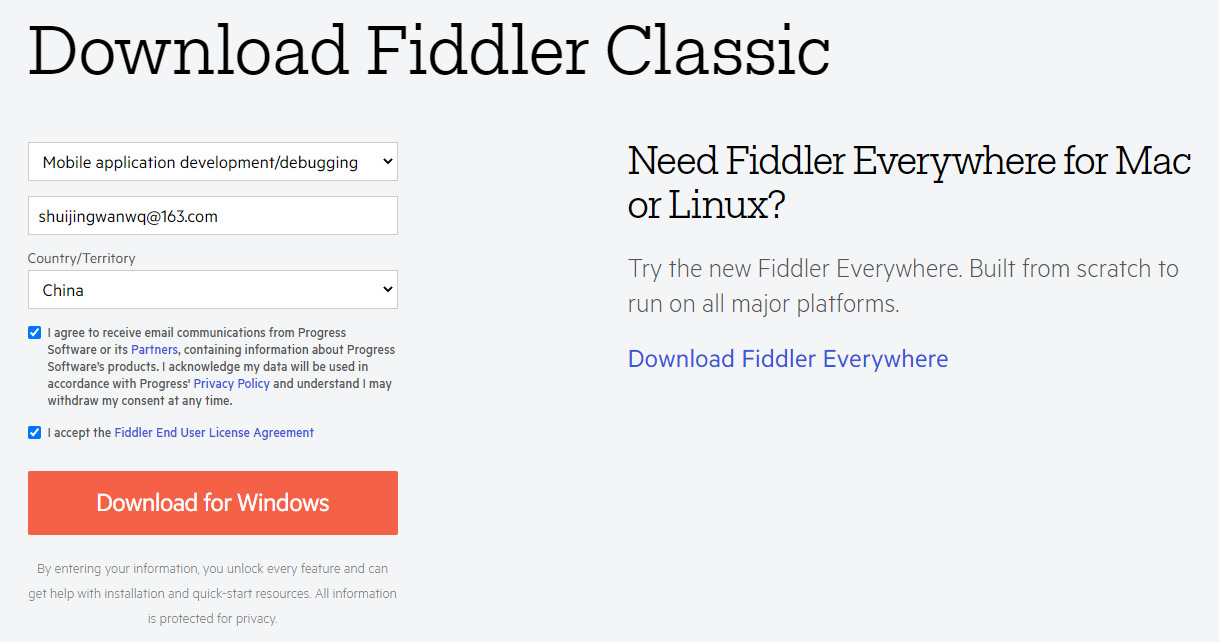
Figure 1
2. The problem encountered now is that in the Android App, call the interface to obtain the list data, a single data item in the list, it will appear and disappear for a while. Therefore, it is decided to determine whether the interface response data is changing by means of packet capture. as shown in Figure 2
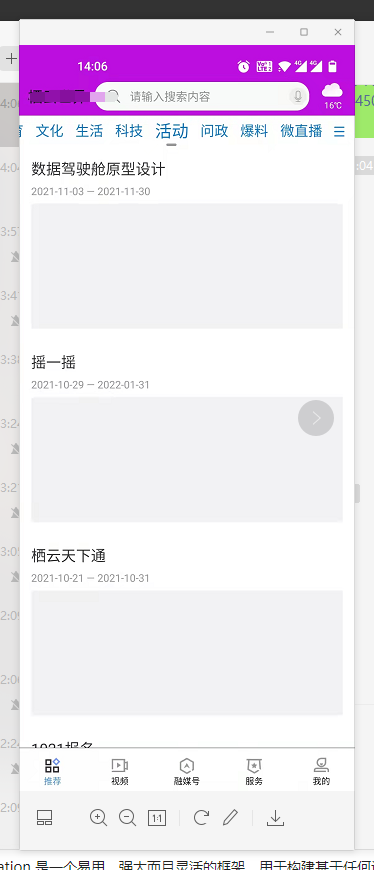
Figure 2
3. Reference URL:https://www.jianshu.com/p/6858a25674b4. Fiddler sets the phone to grab HTTPS requests. Set to allow remote connections to Fiddler. tools – options – https . Check: Decrypt HTTPS Traffic, Ignore Server Certificate Errors (Unsafe). as shown in Figure 3
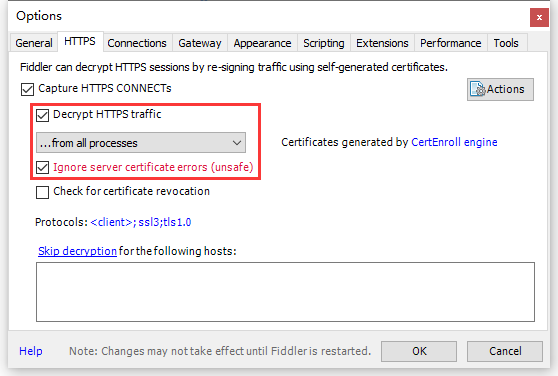
Figure 3
4. Fiddler sets the mobile phone to grab HTTPS requests. Set up connections that allow remote computers to connect. tools – options – connections. Check: Allow Remote Computers to Connect. After restarting Fiddler, the settings take effect. as shown in Figure 4
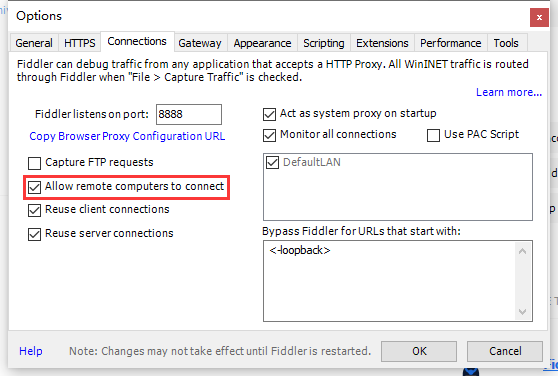
Figure 4
5. Set up a mobile phone agent. The mobile phone needs to be in the same local area network as the computer, so run it as an administrator on the computer through cmd, and execute the command ipcofig to view the IPv4 address. as shown in Figure 5
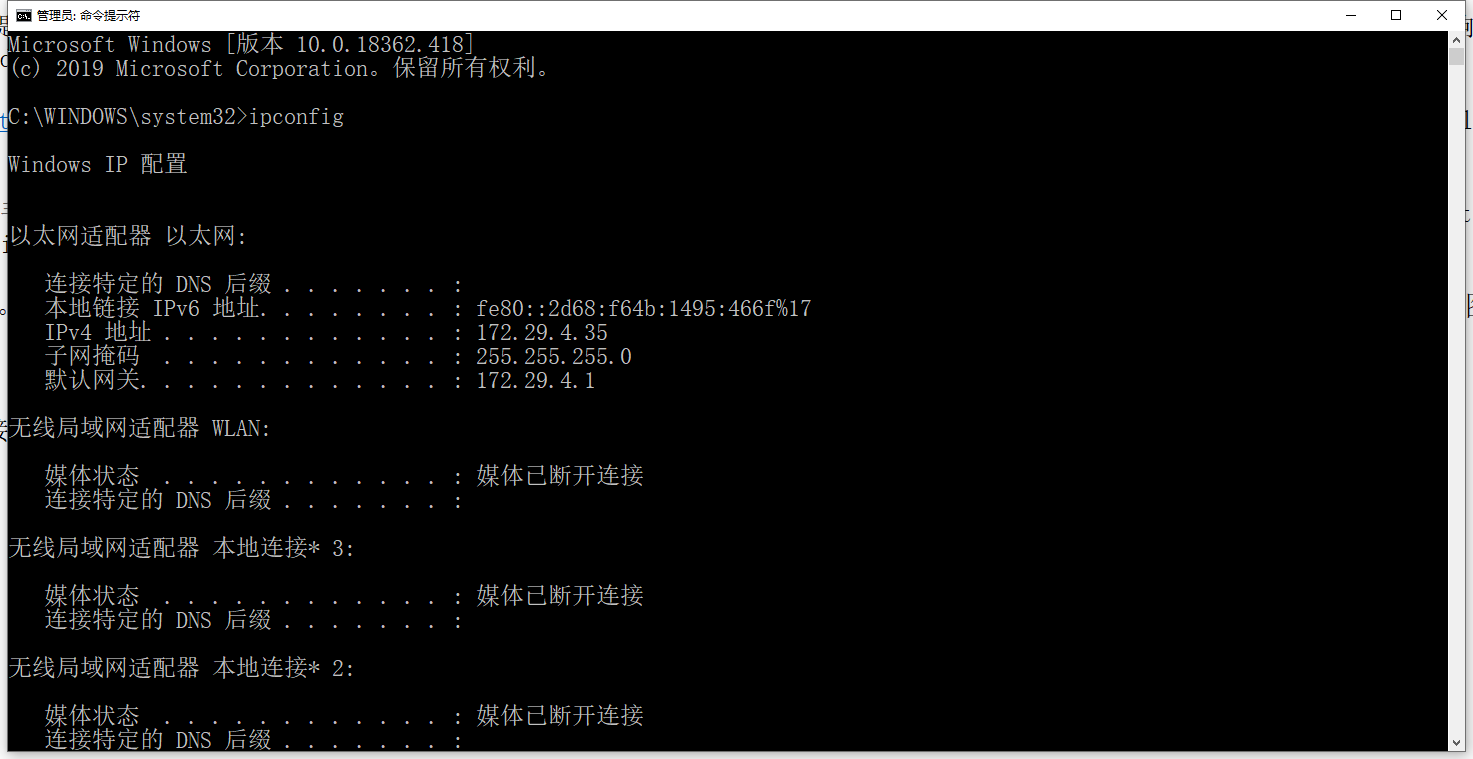
Figure 5
C:\WINDOWS\system32>ipconfig

Windows IP 配置


以太网适配器 以太网:

   连接特定的 DNS 后缀 . . . . . . . :
   本地链接 IPv6 地址. . . . . . . . : fe80::2d68:f64b:1495:466f%17
   IPv4 地址 . . . . . . . . . . . . : 172.29.4.35
   子网掩码  . . . . . . . . . . . . : 255.255.255.0
   默认网关. . . . . . . . . . . . . : 172.29.4.1

无线局域网适配器 WLAN:

   媒体状态  . . . . . . . . . . . . : 媒体已断开连接
   连接特定的 DNS 后缀 . . . . . . . :

无线局域网适配器 本地连接* 3:

   媒体状态  . . . . . . . . . . . . : 媒体已断开连接
   连接特定的 DNS 后缀 . . . . . . . :

无线局域网适配器 本地连接* 2:

   媒体状态  . . . . . . . . . . . . : 媒体已断开连接
   连接特定的 DNS 后缀 . . . . . . . :

以太网适配器 蓝牙网络连接:

   媒体状态  . . . . . . . . . . . . : 媒体已断开连接
   连接特定的 DNS 后缀 . . . . . . . :
6. Turn on the WIFI that the mobile phone is connecting to, and modify the network settings. Agent: None, modified to Agent: Manual. The host name is the IPv4 address that has just been viewed on the computer terminal, and the port is 8888, click Save. as shown in Figure 6
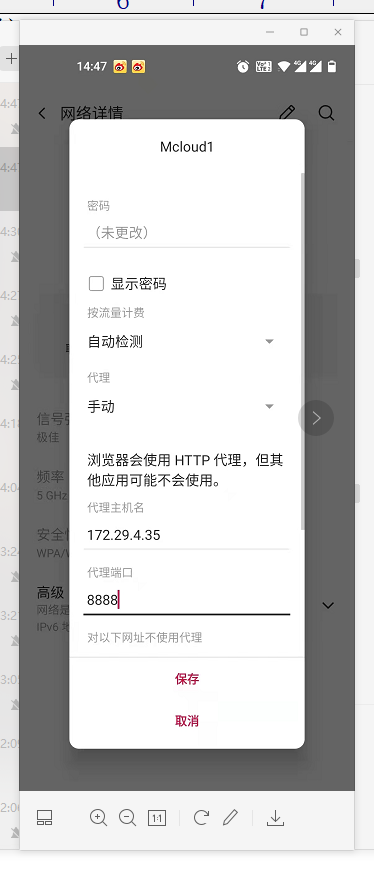
Figure 6
7. Download and install the Fidder certificate. Use your mobile browser to accesshttp://【电脑IPv4 address]: [port number set by fiddler], such ashttp://172.29.4.35:8888. Download the certificate. as shown in Figure 7
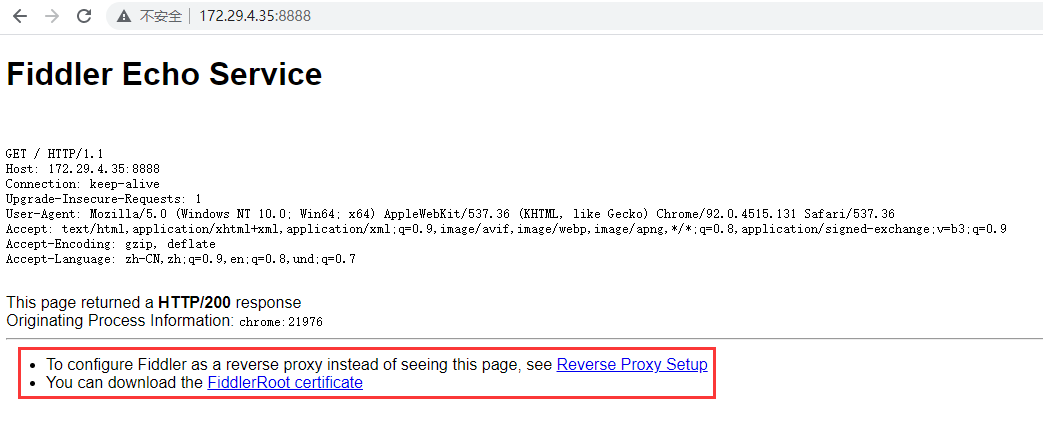
Figure 7
Fiddler Echo Service

GET / HTTP/1.1
Host: 172.29.4.35:8888
Connection: keep-alive
Upgrade-Insecure-Requests: 1
User-Agent: Mozilla/5.0 (Windows NT 10.0; Win64; x64) AppleWebKit/537.36 (KHTML, like Gecko) Chrome/92.0.4515.131 Safari/537.36
Accept: text/html,application/xhtml+xml,application/xml;q=0.9,image/avif,image/webp,image/apng,*/*;q=0.8,application/signed-exchange;v=b3;q=0.9
Accept-Encoding: gzip, deflate
Accept-Language: zh-CN,zh;q=0.9,en;q=0.8,und;q=0.7

This page returned a HTTP/200 response
Originating Process Information: chrome:21976
To configure Fiddler as a reverse proxy instead of seeing this page, see Reverse Proxy Setup
You can download the FiddlerRoot certificate
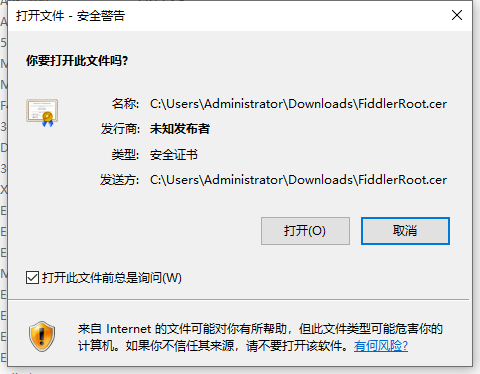
8. Right-click the file: fiddlerRoot.cer, install the certificate. as shown in Figure 8
8
9. The final determination is that there is a problem with the interface response data. as shown in Figure 9
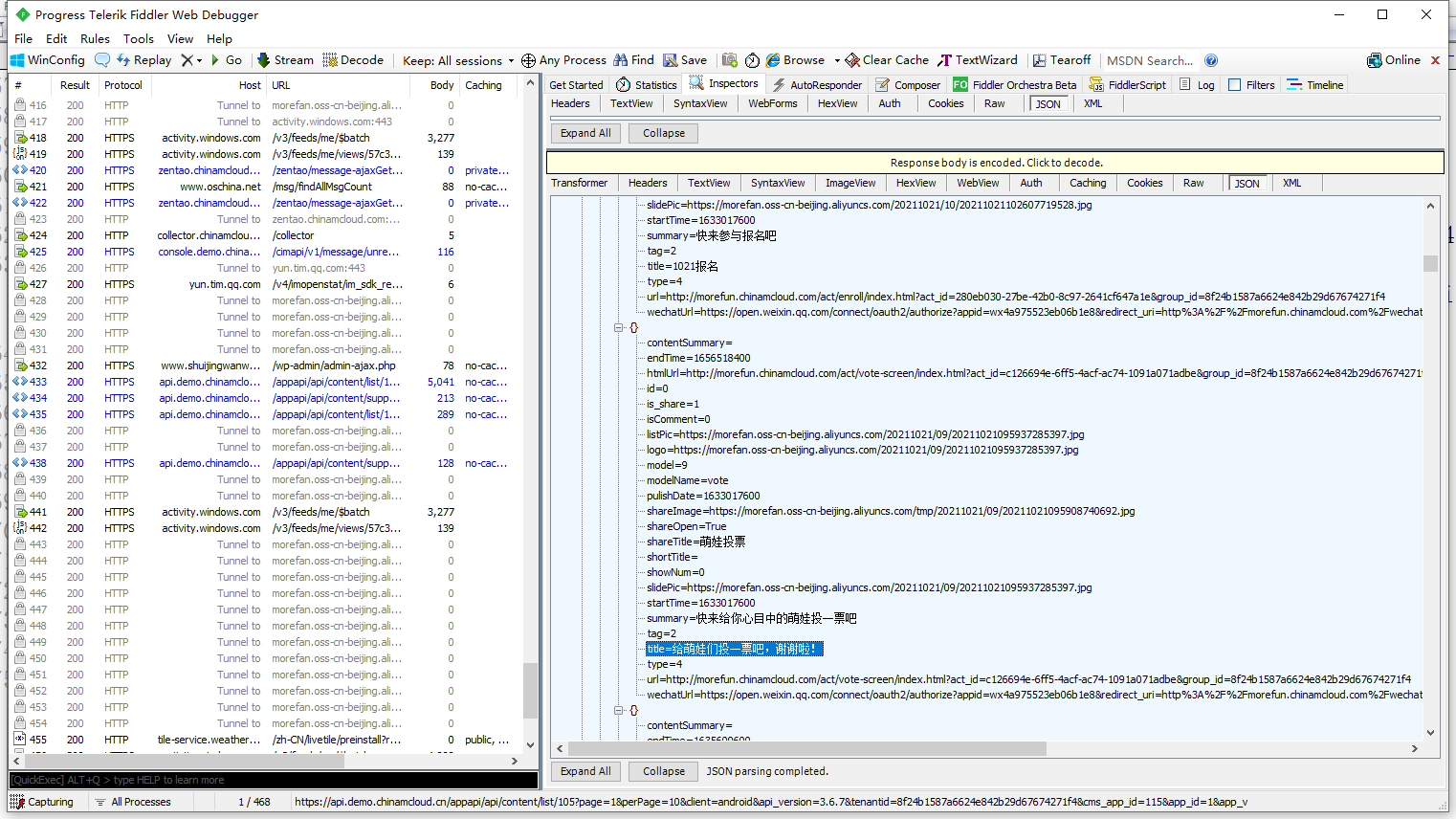
Figure 9