In the Markdown document, clicking the anchor point cannot jump to the corresponding position, editing the solution in phpstorm
1. Click the anchor point in the Markdown document to jump to the corresponding position. as shown in Figure 1
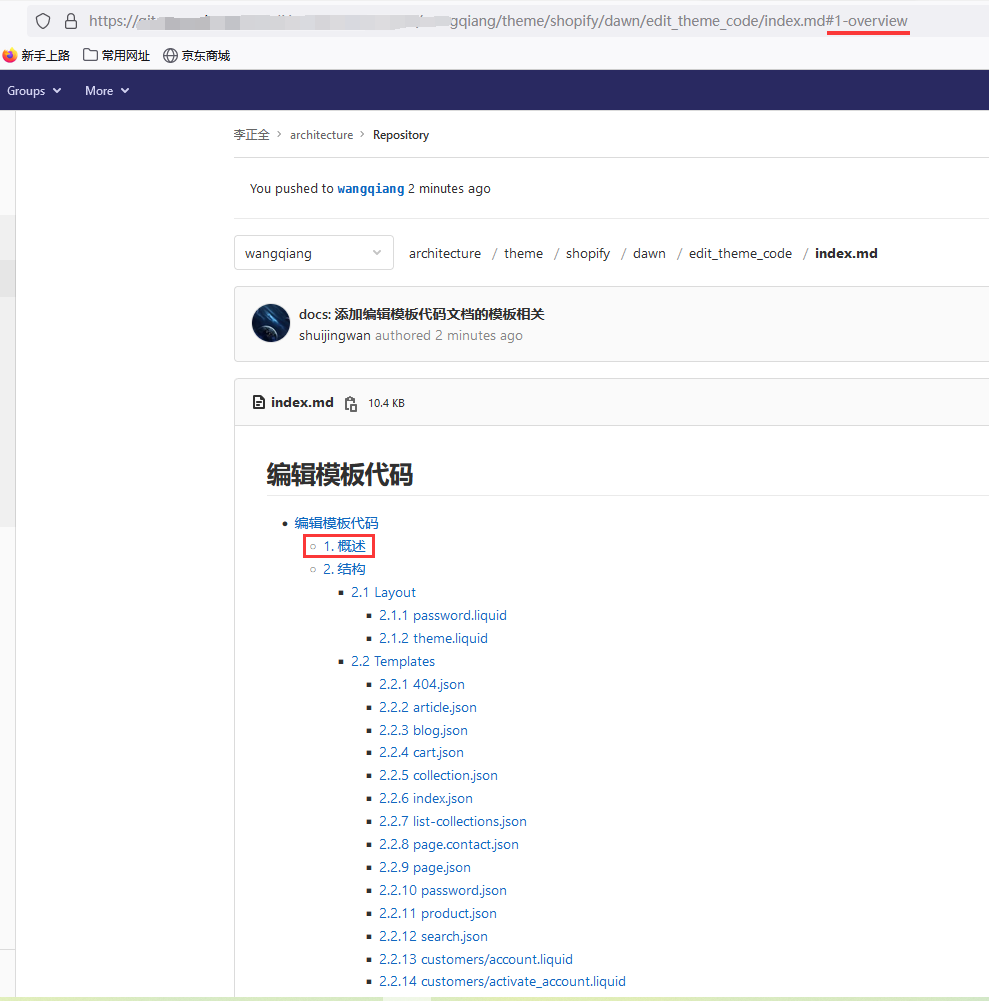
Figure 1
2. In phpstorm, open the editor. When the mouse is placed on #1-overview, it prompts: The targeting tag #1-overview cannot be resolved. as shown in Figure 2

Figure 2
3. When entering #1, the IDE will be completed automatically, select 1- . as shown in Figure 3
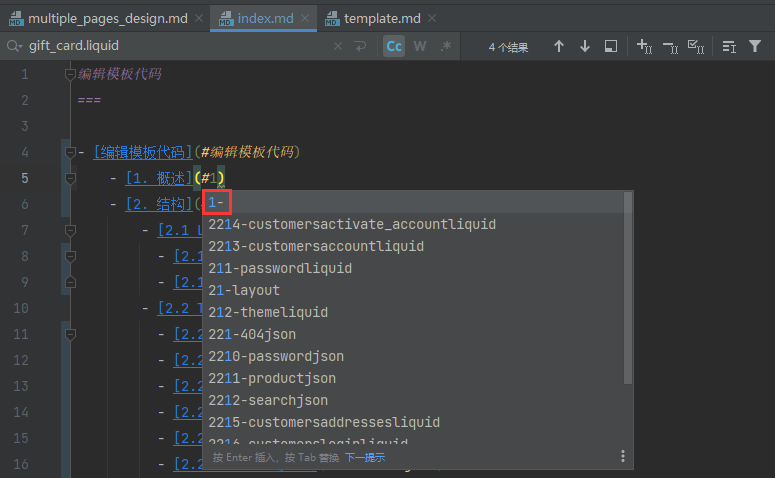
Figure 3
4. Then when Ctrl + mouse is placed on #1-, the prompt: 1. Overview. And when Ctrl + click , it can be automatically positioned to ## 1. Overview. If the method is concocted, it is finally ensured that all anchor links have no wavy prompts. as shown in Figure 4
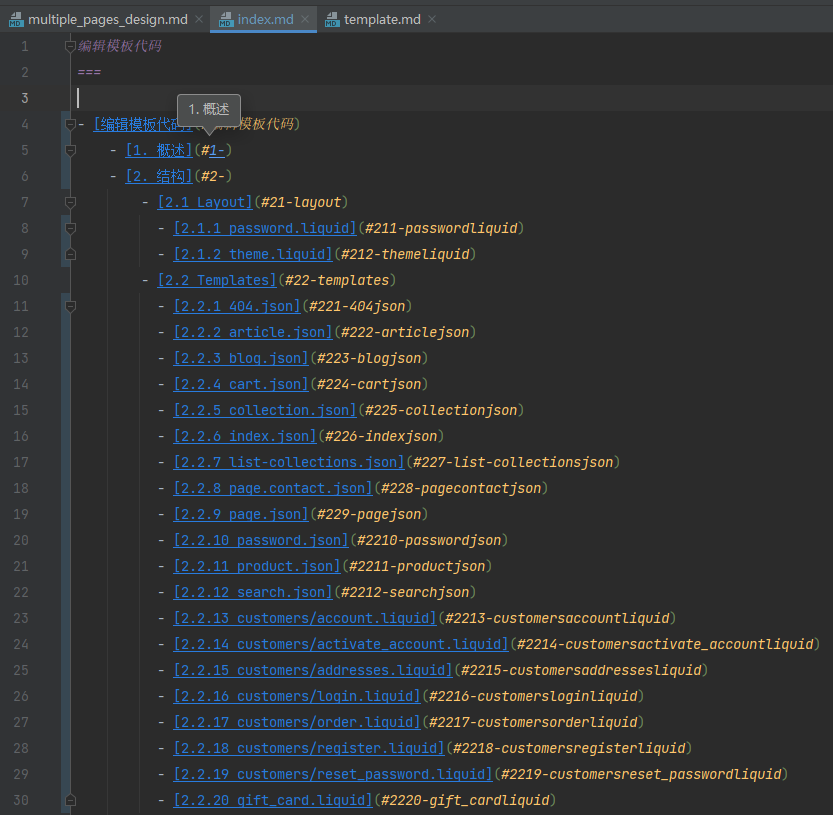
Figure 4
5. Click the anchor point in the Markdown document: #1-, still cannot jump to the corresponding position. as shown in Figure 5
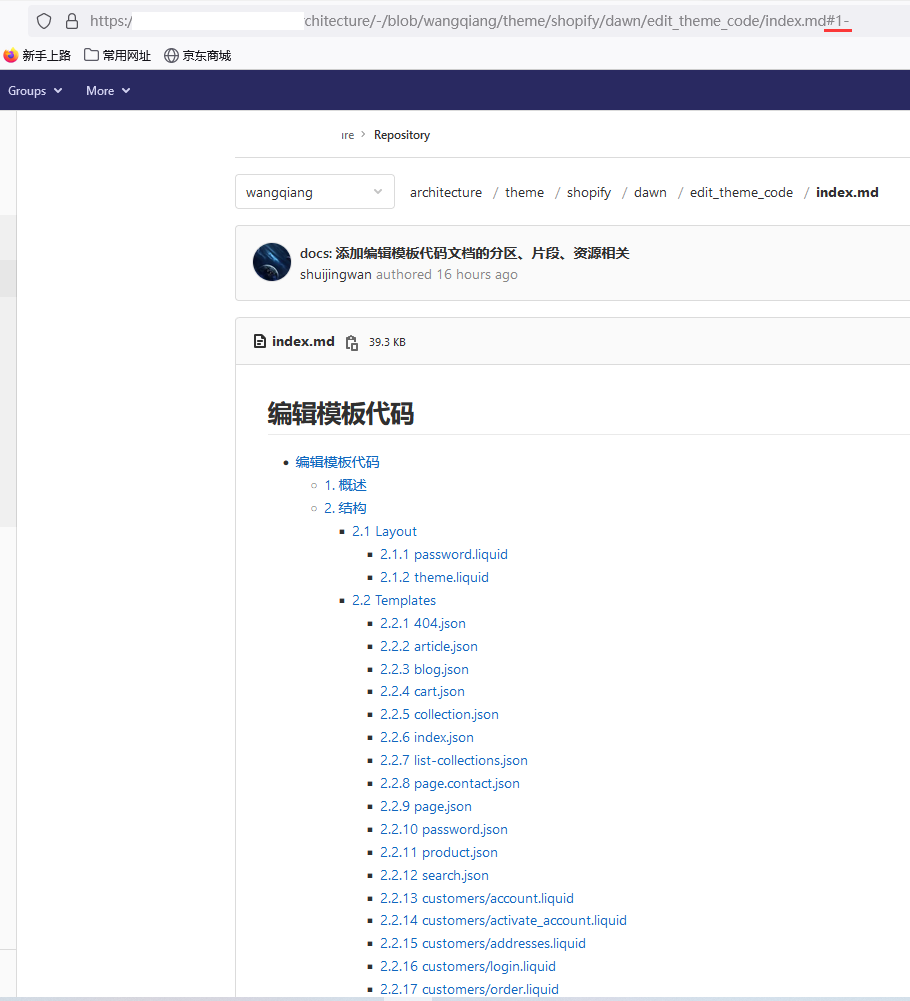
Figure 5
6. Change #1- to #1- overview. Although it is prompted in the IDE that the targeting tag #1 – Overview cannot be resolved, click the anchor point in the Markdown document of GitLab: #1 – Overview, you can jump to the corresponding position. as shown in Figure 6
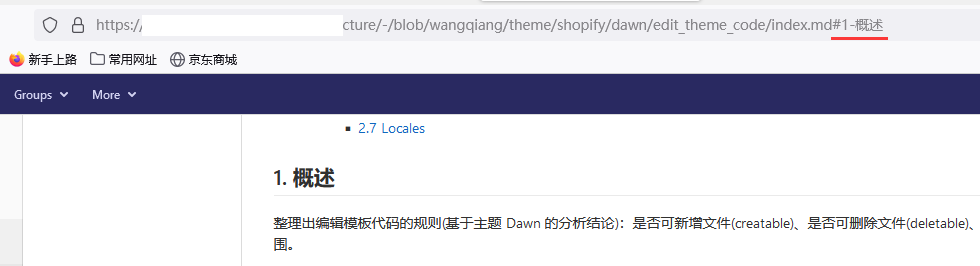
Figure 6
7. It is recommended that the anchor name should use English as much as possible. In this case, the routing is more semantic. as shown in Figure 7
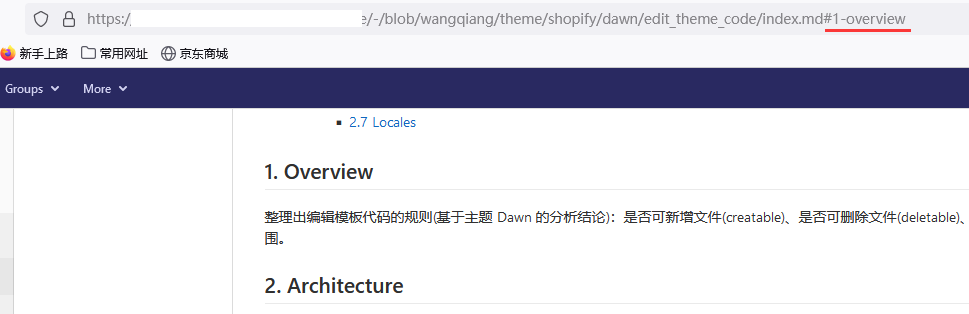
Figure 7