1. Reference: Use of git cherry-pick on the command line
2. Reference: https://tortoisegit.org/docs/tortoisegit/tgit-dug-cherrypick.html .
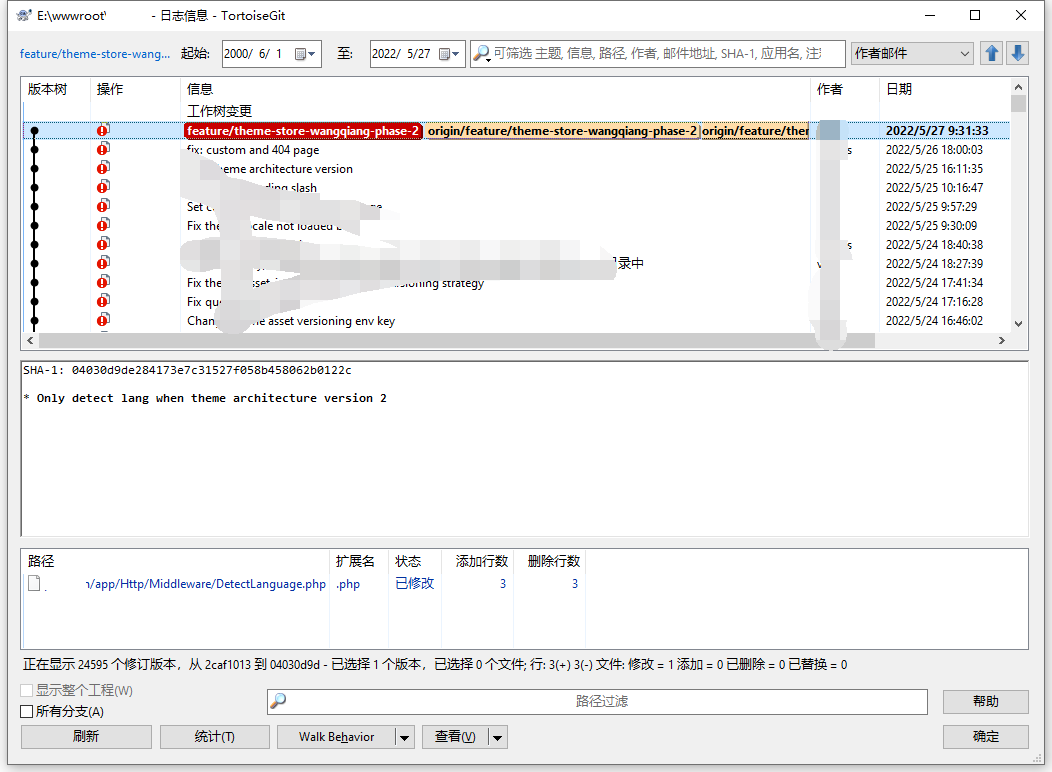
3. Switch to branch B and extract the commit of branch A to branch B. Display logs. as shown in Figure 1
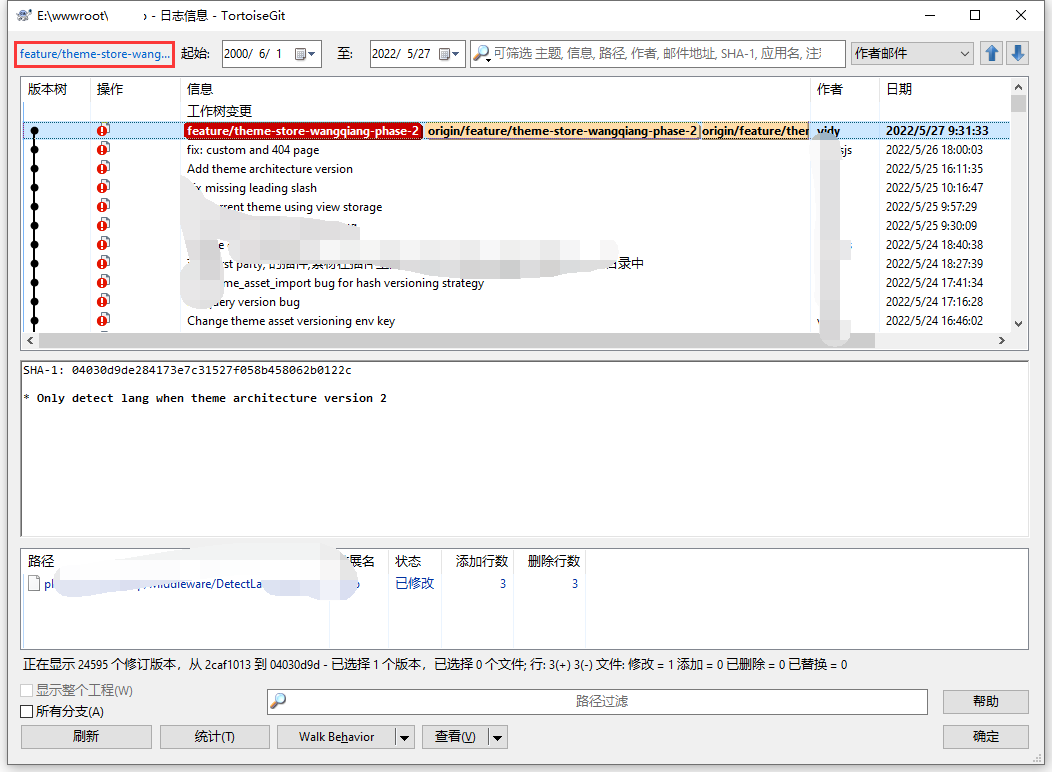
4. Click Branch B to select Branch A. as shown in Figure 2
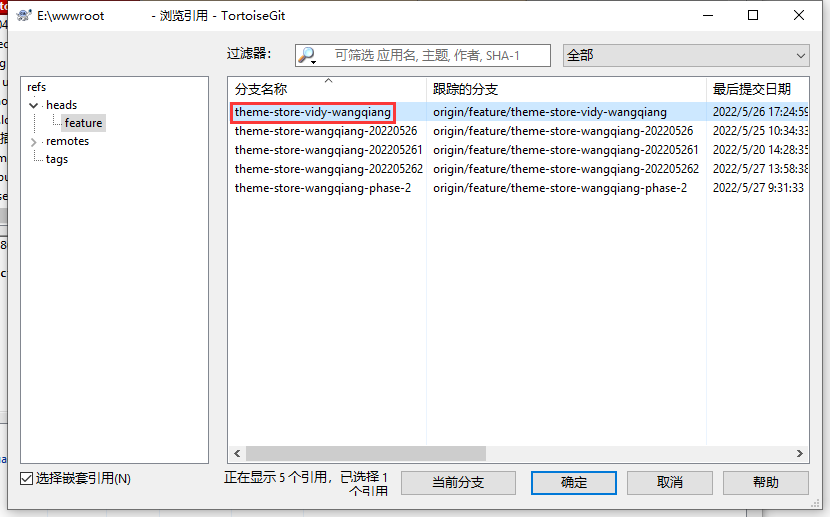
5. Select Branch A, and then select Submit ID from this branch to extract to Branch B. At this point the current branch is still branch B. as shown in Figure 3
6. Select the commit ID to be picked in Branch A. as shown in Figure 4
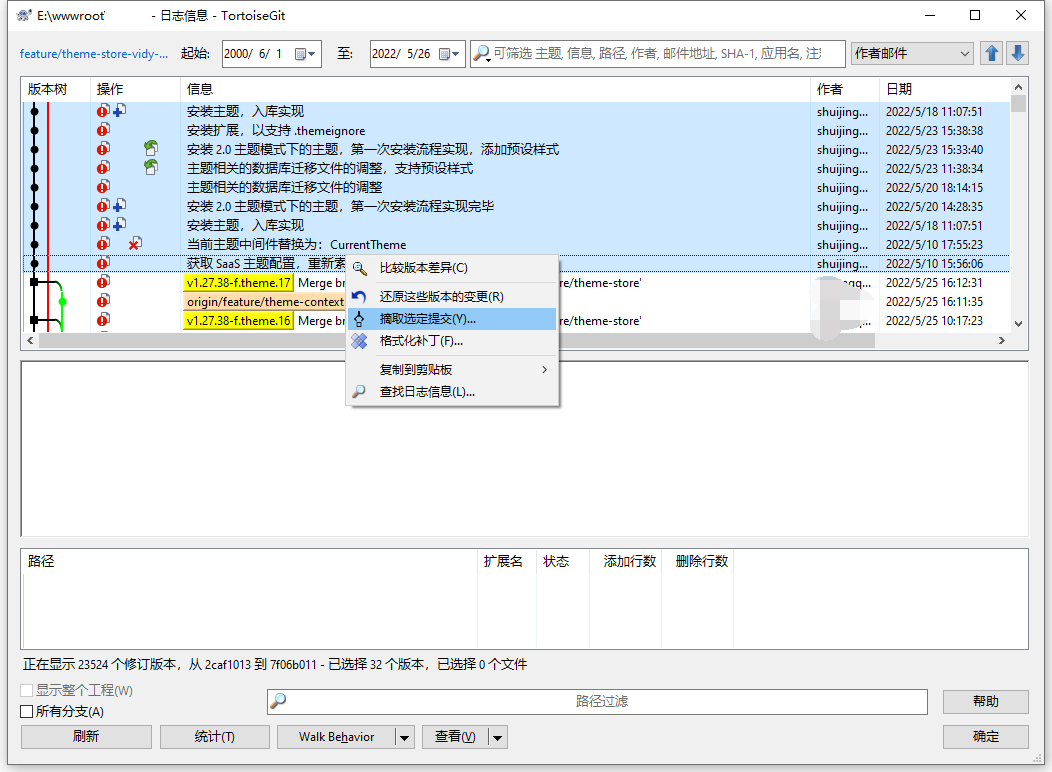
7. Select all and click Continue. as shown in Figure 5

8. There is a conflict in the process, as shown in Figure 6
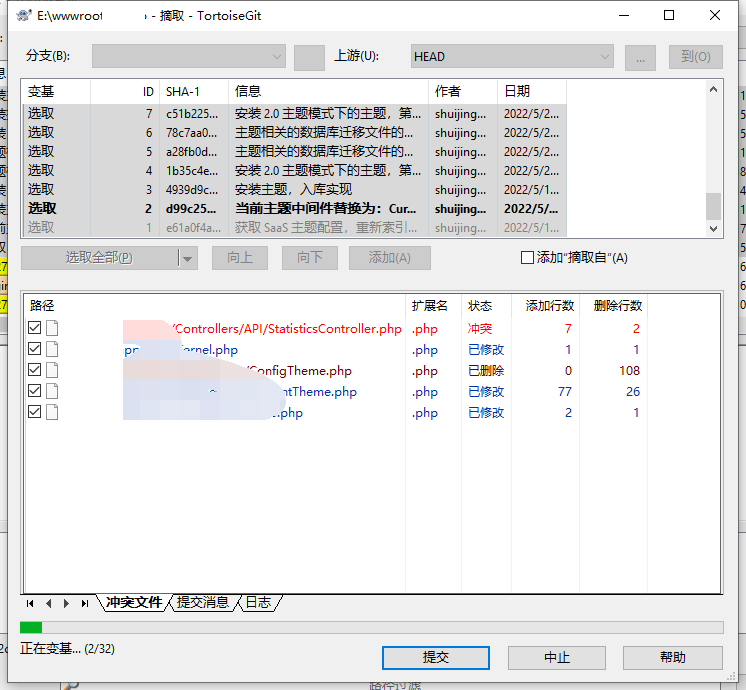
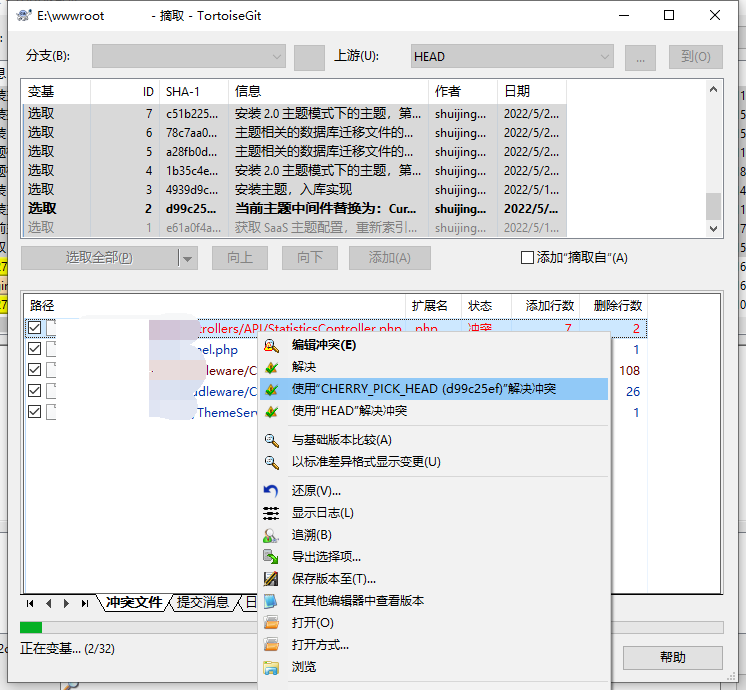
9. Right-click the conflict file and use the commit ID to resolve the conflict. Are you sure you label the conflicting file as resolved? Yes. as shown in Figure 7
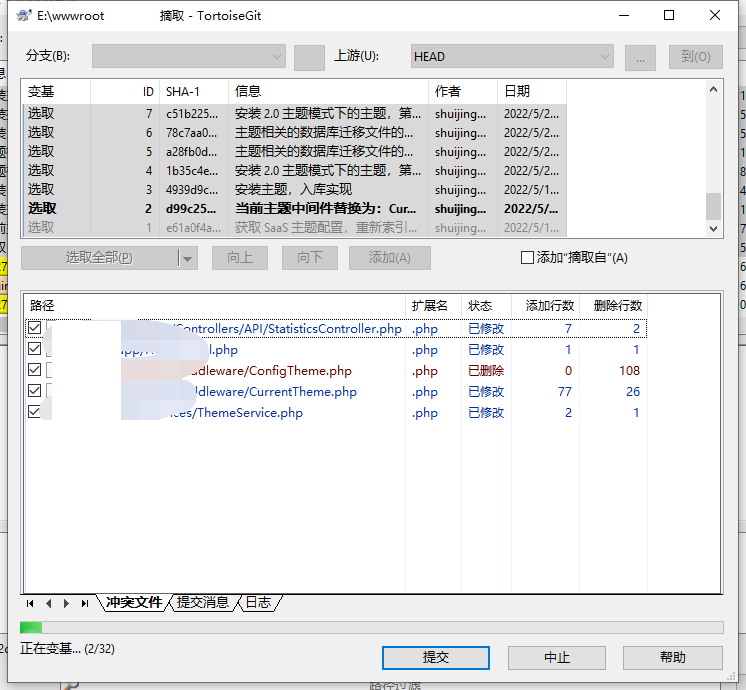
10. Click Submit, as shown in Figure 8
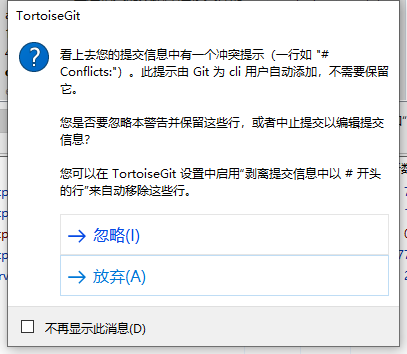
11. Selection is ignored, as shown in Figure 9
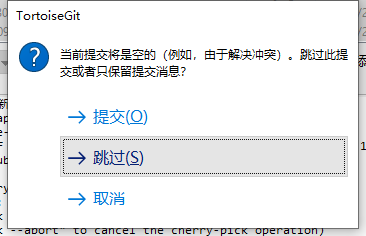
12. The current commit will be empty (for example, due to conflict resolution). Skip this commit or just keep the submission information? skip. As shown in Figure 10
13. During conflicts, some conflict files may need to be resolved manually, and step 9 does not apply to all conflict files. For example, a conflicting file already contains some code implementations of other commit IDs. Figure 11, Figure 12
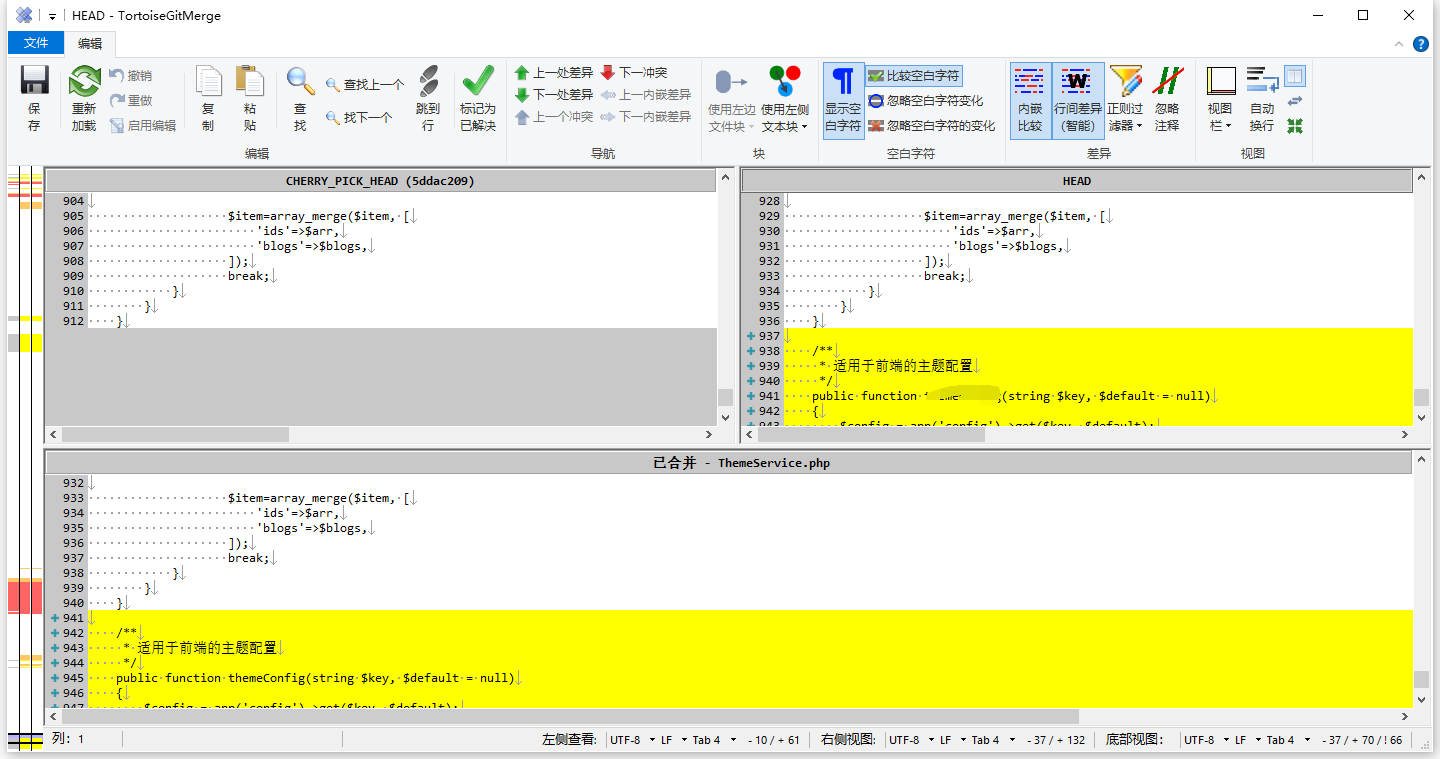

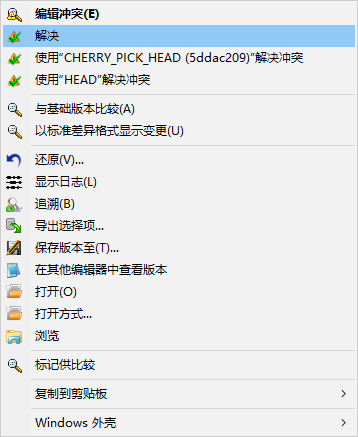
14. After manually solving the conflict, right-click to solve and submit. as shown in Figure 13
15. It is a merge submission. Which parent node do you want to choose? Figure 14
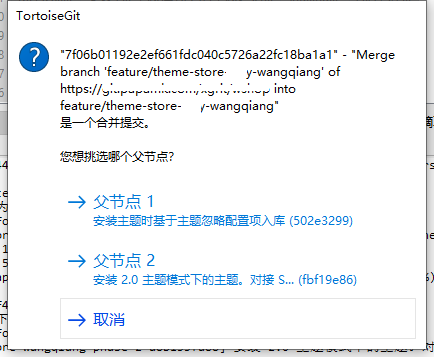
16. Parent node 1 should be selected: When installing the theme, the configuration item is ignored based on the theme. as shown in Figure 15

17. Overwrite push to the server.
Leave a Reply