1. Background: Why do this environment
In order to learn AI programming tools (such as Tongyi Spirit Code), I am going to implement a ‘Music Alarm Clock’ small project.
Before starting coding, I set up a reusable python dev container development environment.
2. Description of the technology stack
- Windows 10
- WSL2 (Ubuntu)
- docker
- vs code
- Python 3.10 (Alpine)
- dev container
3. Project catalog structure (core focus)
music-alarm/
├── .devcontainer/
│ └── devcontainer.json
├── docker-compose.yml
├── main.py
├── requirements.txt
├── .gitignore
└── readme.md
✔ Explain each file function
📁 .devcontainer/devcontainer.json
VS Code Dev Container profile
to define:
- which docker service to use
- working directory
- plugin
- Automatically install dependencies
📁 docker-compose.yml
Define the python runtime container - python image
- code mount
- working directory /app
- keep the container running
📁 main.py
Music Alarm Clock Core Logic Entrance
It will be implemented here later: - timing task
- Play music
📁 Requirements.txt (reserved)
Future AI / Music Alarm Clock Dependency Management File
For example:
schedule
PlaySound
📁 .gitignore
to ignore: - python cache
- IDE file
- environmental variable
4. Dev container configuration instructions (emphasis).devcontainer/devcontainer.json
{
  "name": "Python Music Alarm Dev Container",

  "dockerComposeFile": ["../docker-compose.yml"],
  "service": "python",
  "workspaceFolder": "/app",

  "shutdownAction": "stopCompose",

  "customizations": {
    "vscode": {
      "extensions": [
        "ms-python.python",
        "ms-python.vscode-pylance",
        "ms-azuretools.vscode-docker",
        "eamodio.gitlens"
      ],
      "settings": {
        "terminal.integrated.defaultProfile.linux": "sh",
        "python.defaultInterpreterPath": "/usr/local/bin/python"
      }
    }
  },

  "remoteUser": "root",

  "postCreateCommand": "apk update && apk add git && pip install --upgrade pip"
}
5. Docker-compose.yml Description (emphasis)
This file is used to start the Python development container and mount the local code:
volumes:
- ./:/app
👉 Core meaning:
Guaranteed that the code is saved in the host (WSL) and will not be lost as the container is destroyed
services:
  python:
    image: python:3.10-alpine
    container_name: python-music-alarm

    working_dir: /app

    volumes:
      - ./:/app

    tty: true
    stdin_open: true

    command: tail -f /dev/null

    # ✔ 关键:保证 Git / VS Code 兼容
    environment:
      - PYTHONDONTWRITEBYTECODE=1
      - PYTHONUNBUFFERED=1
6. How to use VS CODE (operation steps)
Step 1: Open the project
code .
Step 2: Go to Dev Container
Ctrl + Shift + P
→ dev containers: reopen in containers
Step 3: Confirm the environment
python –version
git –version
Step 4: Open Git UI
ctrl + shift + g
Step 5: File – Save the workspace as C:\Users\ThinkPad\VSCodeWorkSpaces\python-music-alarm-app.code-workspace, which is convenient for opening the workspace directly from the file in the later stage
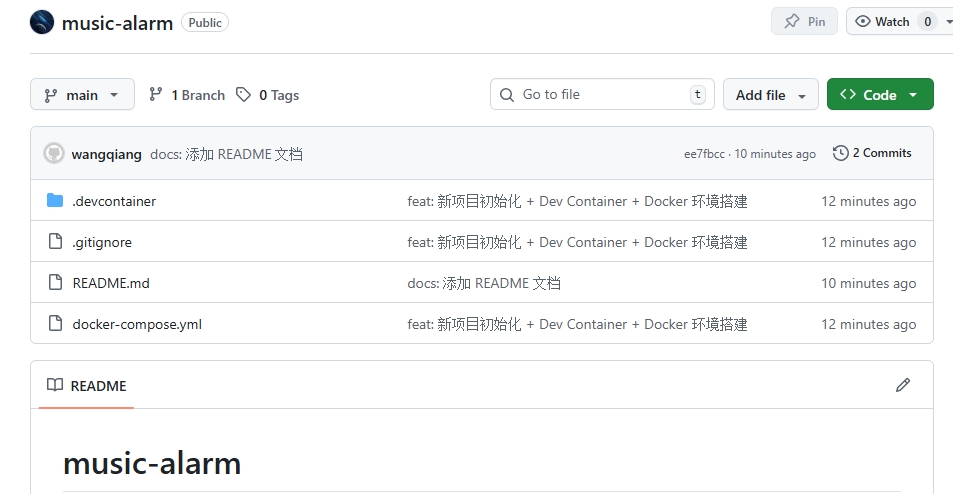
7. Verify whether the environment is successful, the directory structure on GitHub is shown in Figure 1
✔ python runs
✔ Git available
✔ VS Code into Dev Container
✔ The code is persistent (don’t lose)
8. Summary of this article
With Docker + Dev Container, I have completed a standardized Python development environment.
This has laid the foundation for the follow-up use of Tongyi Spirit Code to realize the ‘Music Alarm Clock’ project.
Leave a Reply