
The correct display of code blocks is critical when writing a technical blog. Recently, I’m having trouble with code blocks using the WordPress Gutenberg editor, and I’m struggling to find a better solution. After repeated exploration, I finally summed up a complete set of ‘from manual to automatic’ complete plan, which can not only solve the problem of error reporting, but also greatly improve efficiency. Now share my experience and solutions. If you are also troubled by the code block, you might as well give it a try! Previous scheme:Practice record of resolving instability problems in WordPress Gutenberg multi shortcode
1. Current solution: Inefficient but feasible ‘manual three-step method’
Currently, my process of processing code blocks is:
1. Step 1: Paste
[go][/go]
sketch
In the visual editor, paste first
[go]你的代码块内容[/go]
. The editor will automatically convert it to predefined shortcode blocks (such as <!-- wp:shortcode --> block).
2. Step 2: Manually delete the shortcode block (as shown in Figure 1) and replace it with the SyntaxHighlighter block
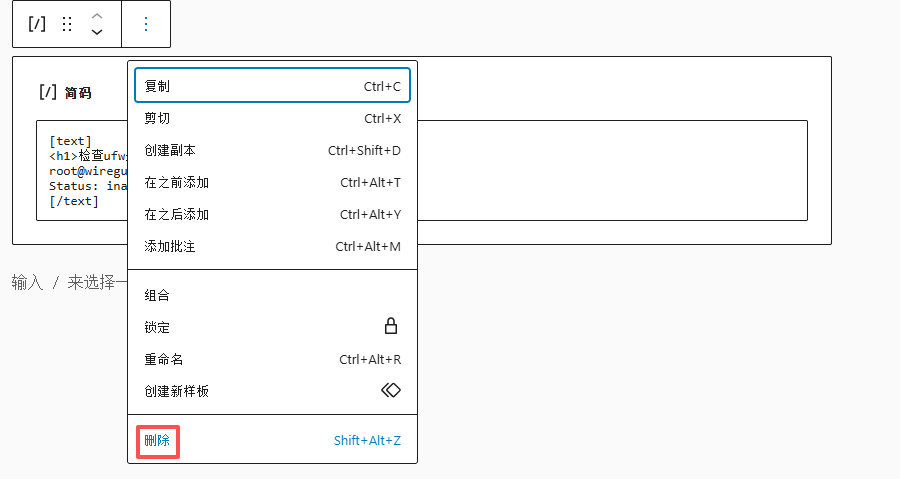
Find the one you just converted <!-- wp:shortcode --> block, delete it manually, and replace it with (as shown in Figure 2):
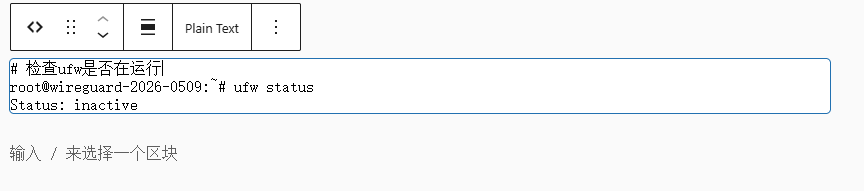
<!-- wp:syntaxhighlighter/code {"language":"go"} -->

<pre class="wp-block-syntaxhighlighter-code">你的代码块内容</pre>

<!-- /wp:syntaxhighlighter/code -->
3. Step 3: Adjust the language properties
If the syntax highlighting is required, it is not the default plain text, you need to add it manually {'Language':'Go'} and other properties.
Problem: Very inefficient, especially when the article contains multiple code blocks
If an article has more than 10 code blocks, it will take a lot of time to repeat the above three steps, and it is easy to make errors. I need a more efficient method.
2. Exploration and frustration: pasting the code directly but encountering an error
In order to improve efficiency, I try to refer to the code editor in the code editor <!-- wp:syntaxhighlighter/code --> block (as shown in Figure 3). For example:
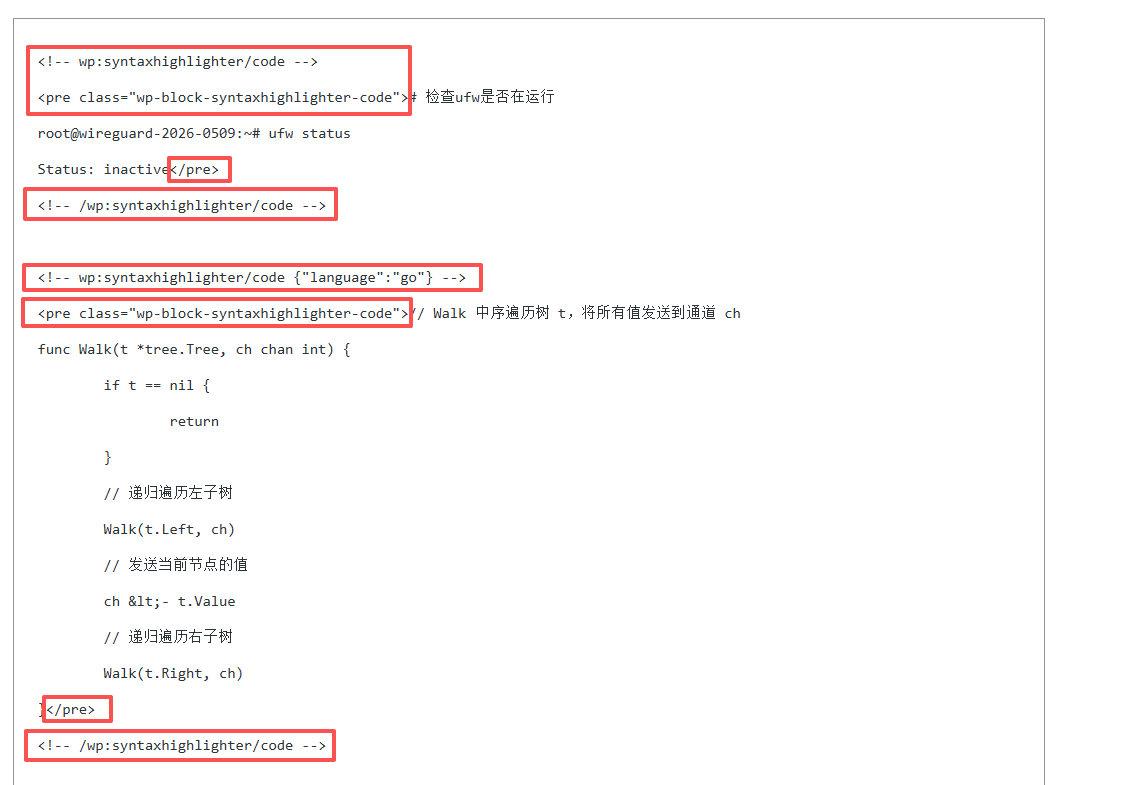
<!-- wp:syntaxhighlighter/code {"language":"go"} -->
<pre class="wp-block-syntaxhighlighter-code">
// Walk 中序遍历树 t
func Walk(t *tree.Tree, ch chan int) {
    ch <- t.Value // 这里包含 < 符号!
}
</pre>
<!-- /wp:syntaxhighlighter/code -->
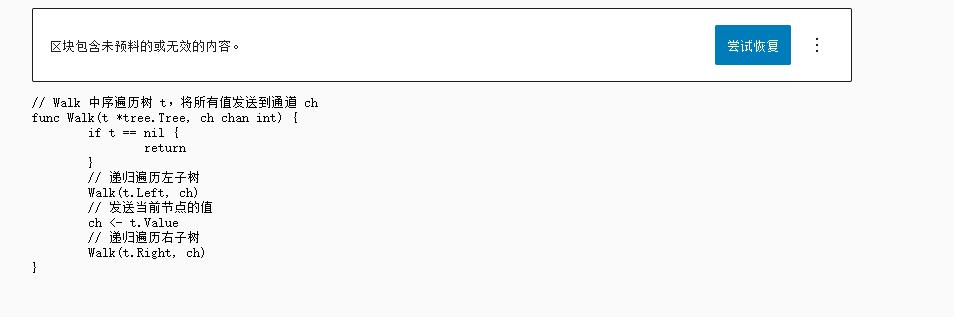
However, when the code contains unescaped `<` or `>` symbols (such as `ch <- t.value` ), the editor will report an error:
The block contains unanticipated or invalid content (as shown in Figure 4)
Cause: WordPress misjudged `<` or `>` as HTML tag, causing resolution to fail.
3. Core Solutions: Automation Escape Workflow
After many tests, I found an automation solution with ‘zero manual escape’, which perfectly solves the problem of error reporting and efficiency. The core idea is to replace the special characters in the code in batches with EditPlus, while keeping the block annotation syntax unchanged.
4. Detailed operation steps (the whole process is completed in the notepad)
1. Step 1: Write the original content in Notepad
Separate code blocks with custom tags (such as text, go) to keep the original code format:
我正在学习 Go 语言的并发编程。

[text]
# 检查ufw是否在运行
root@wireguard-2026-0509:~# ufw status
Status: inactive
[/text]

[go]
// Walk 中序遍历树 t
func Walk(t *tree.Tree, ch chan int) {
    ch <- t.Value // 这里包含 < 符号!
}
[/go]
2. Step 2: Batch Replacement Marked as Code Block Template
replace `[text]` is:
<!– wp:syntaxhighlighter/code –>
<pre class=”wp-block-syntaxhighlighter-code”>
replace `[/text]` is:
</pre>
<!– /wp:syntaxhighlighter/code –>
replace `[go]` is:
<!– wp:syntaxhighlighter/code {“language”:”go”} –>
<pre class=”wp-block-syntaxhighlighter-code”>
replace `[/go]` is:
</pre>
<!– /wp:syntaxhighlighter/code –>
3. Step 3: Precisely escape the special characters in the content of the code (as shown in Figure 5)
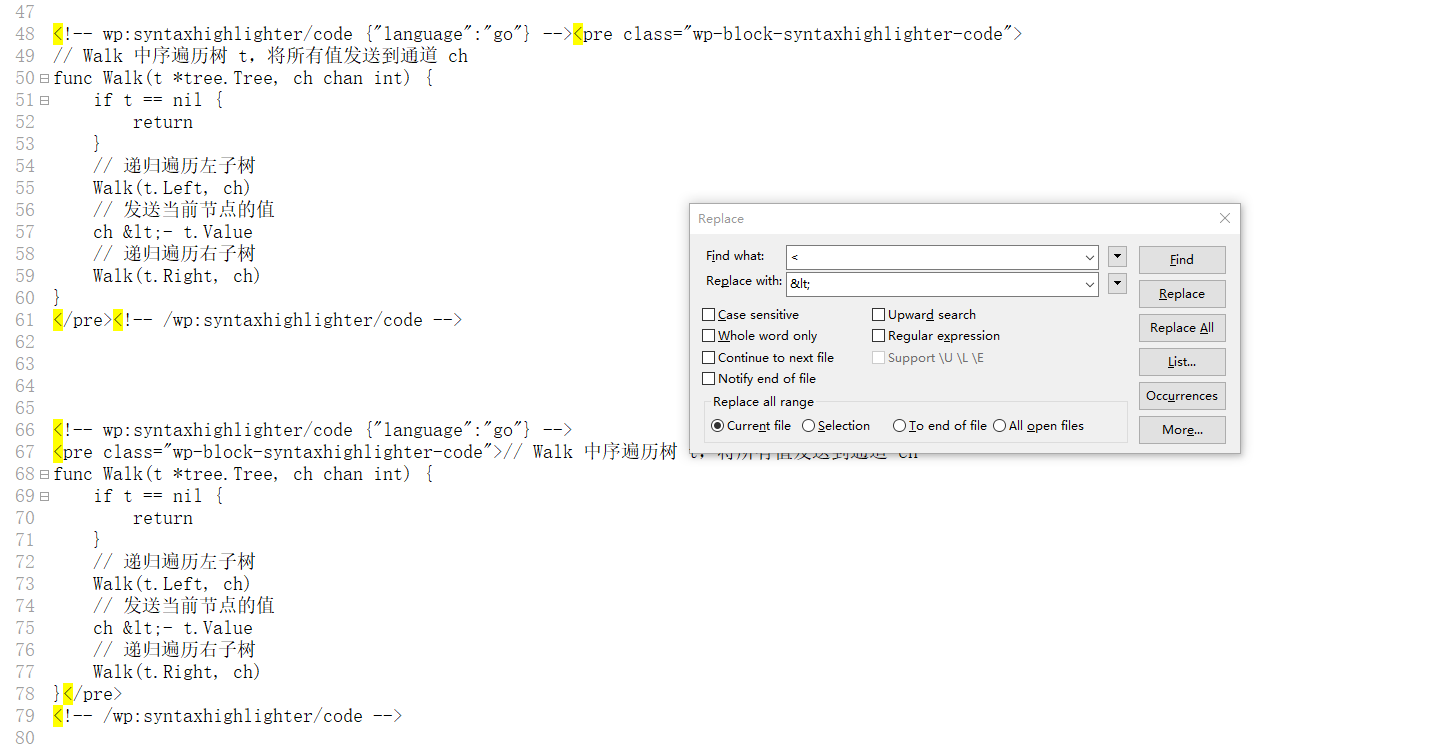
– Key Skills: Only selected
<pre>
The code content inside the label (without block comments) performs the following replacements:
<!-- wp:syntaxhighlighter/code {"language":"go"} -->
<pre class="wp-block-syntaxhighlighter-code">
func Walk(t *tree.Tree, ch chan int) {
    ch <- t.Value // 报错!
}
</pre>
<!-- /wp:syntaxhighlighter/code -->
After replacement (show correctly) (as shown in Figure 6):
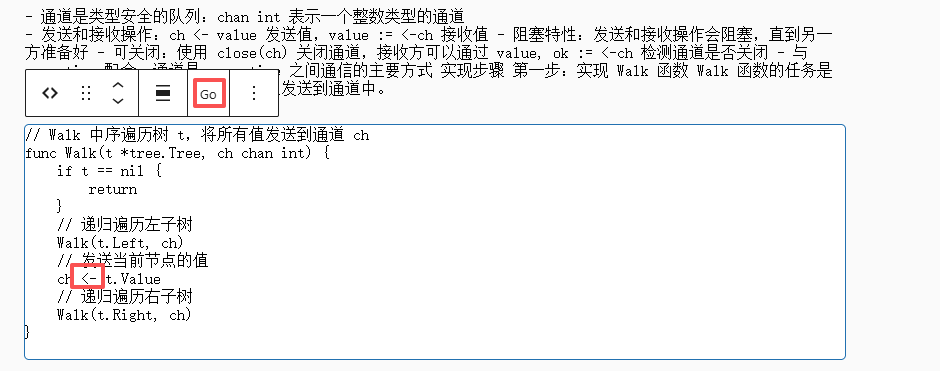
<!-- wp:syntaxhighlighter/code {"language":"go"} -->
<pre class="wp-block-syntaxhighlighter-code">
func Walk(t *tree.Tree, ch chan int) {
ch <- t.Value // 转义后正确解析
}
</pre>
<!-- /wp:syntaxhighlighter/code -->
6. Important precautions
1. Only escape the code content, do not escape block comments! (i.e. do not escape
<!– wp:… –>
any character in the label)
2. The front-end display is normal: although the code is displayed as <, but the browser will automatically render as <, what the reader sees is the correct code.
3. Efficiency improvement: Compared to manually adjust each code block (5-10 minutes/10 blocks), this scheme only takes 30 seconds/10 blocks.
7. Summary and suggestions
1. From manual to automatic qualitative change: Through the batch replacement of notepad, the error reporting problem is completely solved, and at the same time, the processing efficiency is greatly improved.
2. Recommended workflow: It is recommended to save the replacement template to Notepad, paste the template directly every time you write a blog, and follow the steps.
3. Applicable scenarios: It is especially suitable for technical bloggers to write articles with a large number of code blocks. I hope this solution can help you get rid of tedious manual operations and make blog writing more efficient!
I am a PHP / Go backend engineer with 15+ years of experience. If you need any of the following services, feel free to contact me (more details: About Me & Collaboration):
- ✅ PHP / Go project development and maintenance
- ✅ System architecture design and technical consulting
- ✅ Performance optimization and troubleshooting
- ✅ Linux server deployment and operations
- ✅ Network environment optimization and remote support
- ✅ Long-term technical consulting
WeChat: 13980074657
Email: shuijingwanwq@gmail.com
Telegram: @shuijingwan
GitHub: https://github.com/shuijingwan
Leave a Reply