Solve the problem that the Linux WeChat “Save As” dialog box only displays two folders
problem
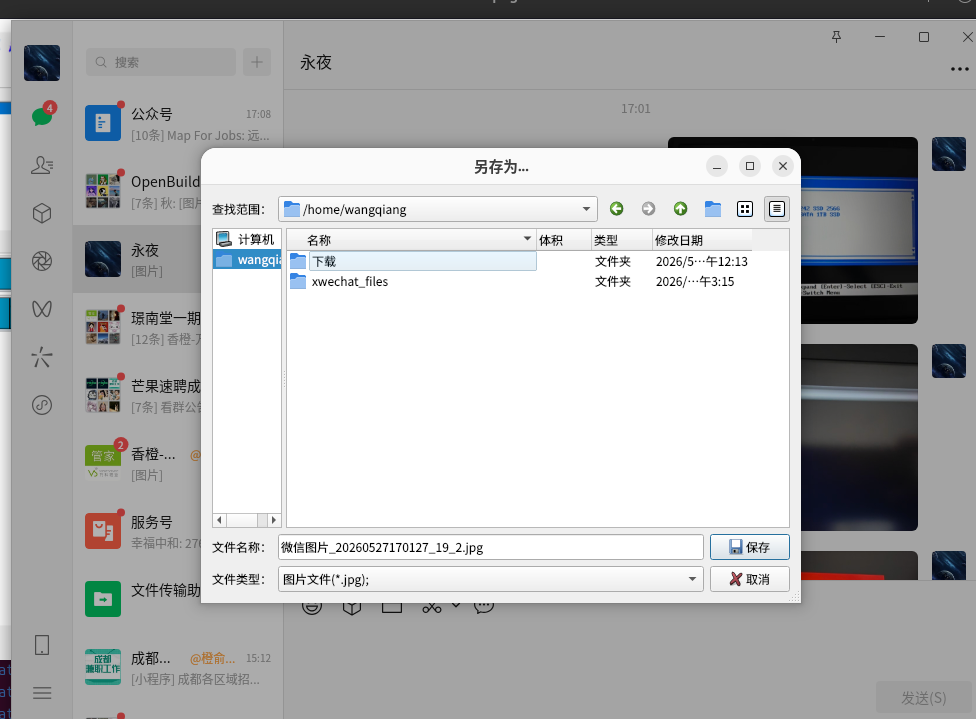
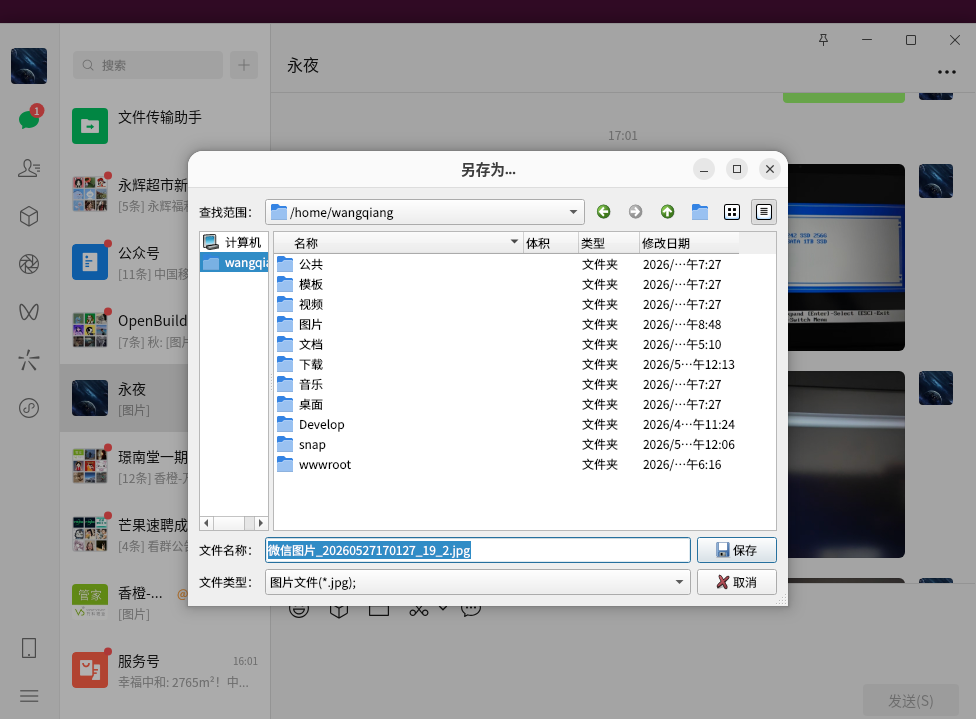
In the Ubuntu system, use the native Linux version of WeChat (usually the Flatpak version), when you receive the picture or file and click ‘Save As’, you can only see two directories in the pop-up file saving dialog box:
- Download
- xwechat_files
What I originally expected to see is all folders in the entire user directory, such as: documents, pictures, videos, desktops, etc. As shown in the figure below, the dialog box is almost empty, with only two items.
Cause analysis
This is because the Linux version of WeChat usually uses flatpak Sandbox runs. To improve security, Flatpak restricts applications to only a very small number of system directories (e.g. ~ download and apply your own data directory ~/xwechat_files). Other such as computer file,Image,Desktop For directories, WeChat does not have permission to access, so it is naturally not visible in the ‘Save As’ dialog box.
This is not a bug in WeChat, but the permission isolation mechanism of Flatpak. The advantage is that WeChat cannot read all your personal files at will, and the disadvantage is that it is very inconvenient to save files.
Solution
There are two ways to solve: graphical tools (recommended for newbies) or terminal commands (recommended users who are familiar with the command line).
Scenario 1: Use FlatSeal graphical interface
- Install FlatSeal
Open the terminal and execute:
flatpak install flathub com.github.tchx84.Flatseal
- Start FlatSeal
Find and open in the application menu flatseal. - Authorized for WeChat
- Find in the app list on the left wechat(or
com.tencent.wechat) and click. - On the right filesystem area, open All user files Switch (allowing WeChat to access the entire user directory).
- Or more finely, click the plus sign next to ‘Other Files’ to add
/home/wangqiang/document,/home/wangqiang/pictureand other specific directories.
- Restart WeChat
Close WeChat and then reopen it, click ‘Save As’ again, you will find that all commonly used directories have appeared.
Option 2: Use the command line (one-time authorization)
If you are more accustomed to using the terminal, you can directly execute the following commands to grant WeChat access to the entire user home directory:
sudo flatpak override com.tencent.WeChat --filesystem=home
If you only want to authorize specific directories (such as documents and pictures):
sudo flatpak override com.tencent.WeChat --filesystem=/home/wangqiang/文档
sudo flatpak override com.tencent.WeChat --filesystem=/home/wangqiang/图片
It is also necessary after executionRestart WeChat.
Temporary workaround (do not modify permissions)
If you don’t want to modify the permissions of WeChat, you can also do this:
- In the WeChat chat window,Right click on the file → Select ‘Download File’.
- Right-click the same file again → select Show in Folder.
- file manager will open
~/xwechat_filesThe directory, which is the downloaded file, can be manually copied from here to any other location.
This method does not require any configuration, but requires a few more steps each time.
Extended discovery: the saved file may not have an extension
After solving the above problems, you may encounter another small trouble: the file name saved from WeChat is often just a string of numbers or a no-suffix name like ‘1’ and ‘2’. For example, save a picture, the file name is 1(rather than 1.jpg). When trying to upload to some web pages (such as DeepSeek), even if the file content itself is JPEG, it may be filtered out by the file selector because of the lack of extensions, resulting in ‘unseen files’.
Solution: Add batches to images without extensions .jpg suffix. Use the following commands (safe version, only deal with unpointed files):
cd /path/to/your/images
for f in *; do
    [ -f "$f" ] && [[ "$f" != *.* ]] && mv -- "$f" "$f.jpg"
done
This allows the image to be recognized normally when uploading.
Summary
| Problem | Reason | Solution |
|---|---|---|
| WeChat saves only two folders to display | Flatpak Sandbox Permission Restriction | Open file system permissions using flatseal or command line |
| The saved image has no extension | WeChat Linux version saves logic is not perfect | Batch rename added .jpg |
Through the above settings, Linux WeChat can freely choose the save path like the Windows version. I hope this experience will be helpful to friends who also use Ubuntu + WeChat.
This article is based on Ubuntu 22.04/24.04 + Flatpak version of WeChat (com.tencent.wechat). Different versions may vary slightly, but the principle is the same.