Ubuntu 26.04 Input Method Tossing Notes: From FcitX5 Self-Starting Failed to Wubi Pinyin Stable Use
write in front
Recently upgraded the ThinkPad T570 to Ubuntu 26.04 (habited for abbreviated as Ubuntu 26), using Wayland by default. As a Wubi user, what I need most isWubi Pinyin mixed input——Can play five strokes, and spell it directly when you forget to code. I tried Ibus, Sogou, fcitx5 and other solutions before and after, and finally chose fcitx5 + built-in Wubi pinyin, and solved the annoying problem that the input method icon does not appear after restarting. Follow the timeline of my screenshot, share the entire investigation and solution process, and also give a reference to friends who are also troubled.
1. Discover the problem: the input method icon disappears
After the system is installed and fcitx5 and fcitx5-chinese-addons are installed, the keyboard input method system is changed to fcitx5 in ‘Language and Support’, which can also type normally. ButAfter restarting the computer, the upper right corner is blank (as shown in Figure 1).
Open the FCITX configuration tool, a red prompt pops up: ‘Unable to connect to Fcitx via dbus, is fcitx running?’ (Figure 2). Apparently, fcitx5 didn’t start at all.
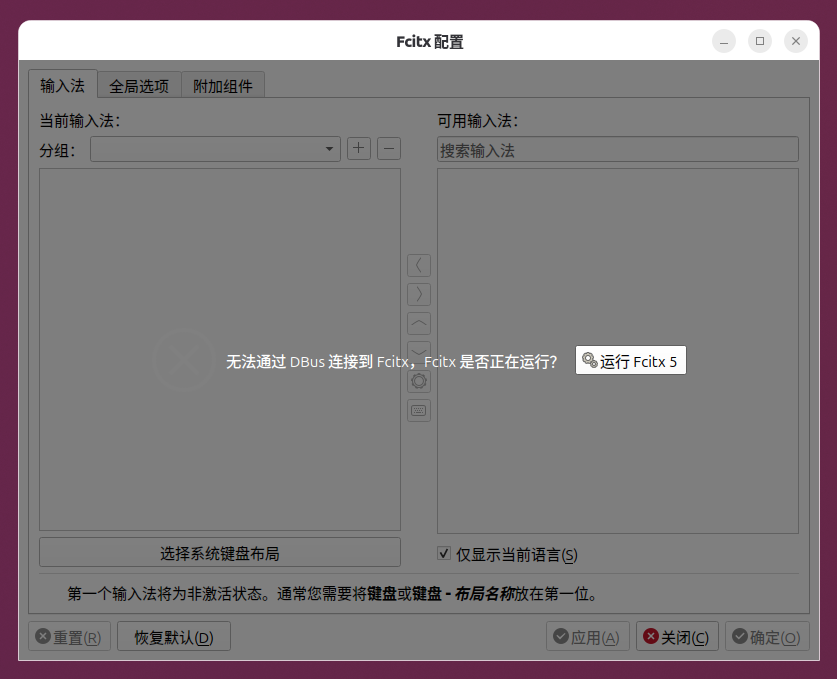
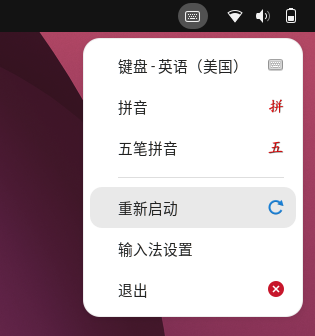
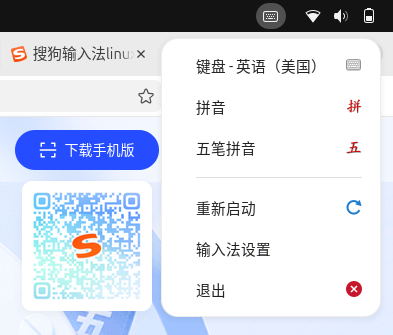
I had to click ‘Run FcitX 5’ to start manually. After startup, an input method icon appears in the upper right corner, and you can see the options ‘Pinyin’ and ‘Wubi Pinyin’ (as shown in Figure 3) by clicking the icon. At this time, it can be input normally, but every time it restarts, it has to be run manually, which is too troublesome.
2. Check the framework configuration: im-config display is normal
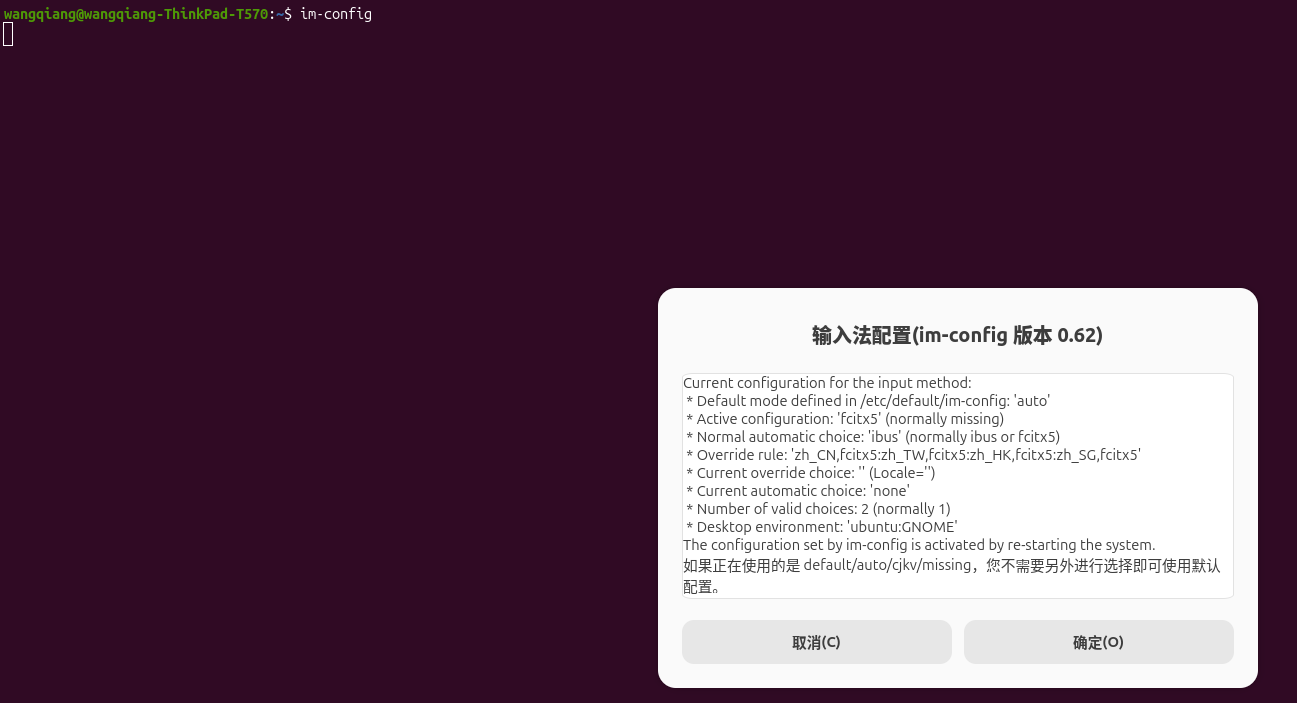
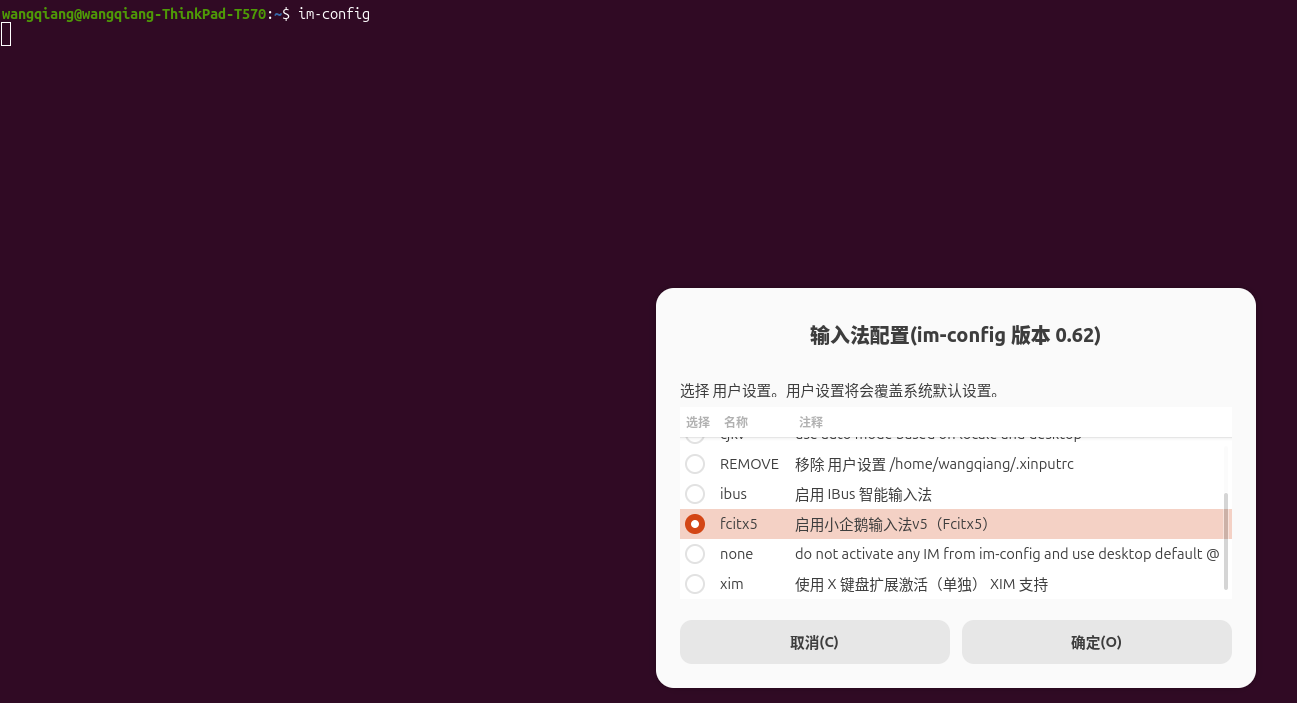
First of all, I wonder if the input method framework is not correct. Open the terminal to run im-config, the output is shown in Figure 4. You can see the Active Configuration display fcitx5, which shows that the framework settings are correct.
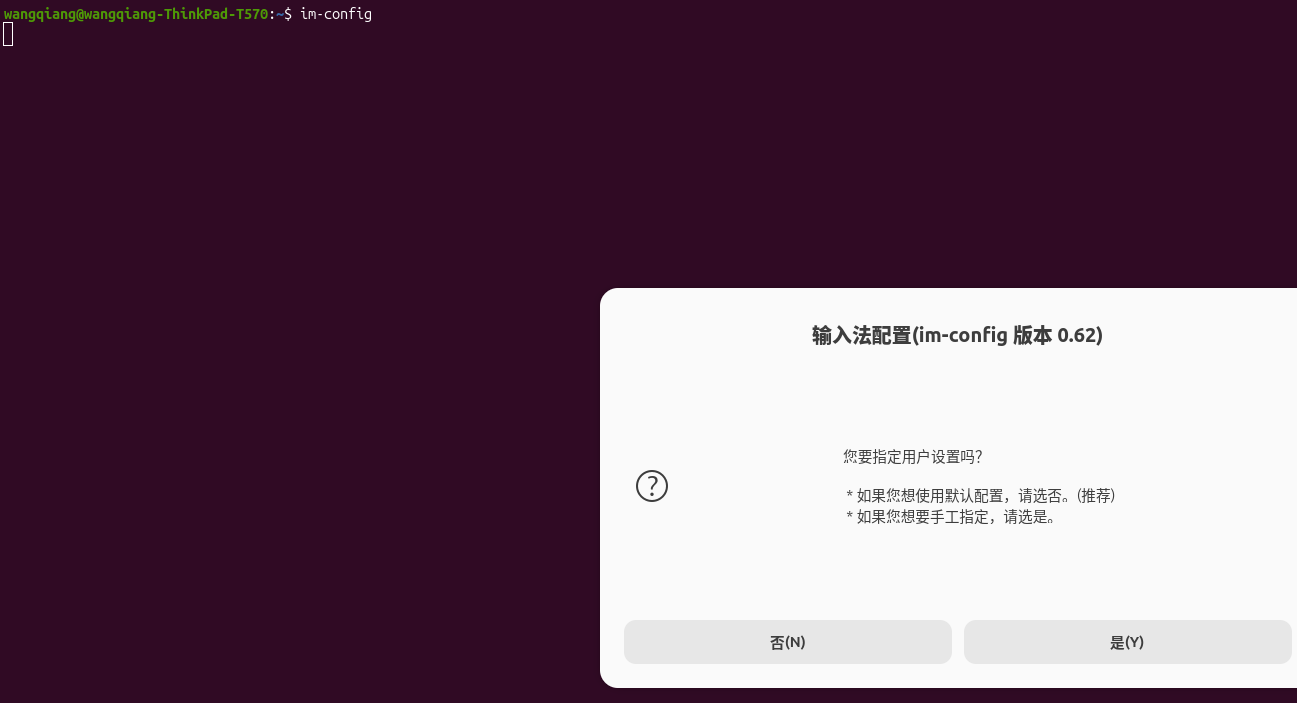
Continue to the next step, im-config pops up a dialog box, asks if you want to specify user settings (as shown in Figure 5). I chose ‘yes’.
Then the interface for selecting the input method frame (as shown in Figure 6) appears, which lists ibus, fcitx5, none, and xim. Confirm that fcitx5 has been selected, no problem.
Now that the framework is configured correctly, the problem should beself-startOrTray icons under Wayland supporton.
The solution: three steps of complete repair
1. Add boot self-start
Ubuntu’s ‘Start Applications’ tool can add self-start items. I open the system menu (as shown in Figure 7), log out first and then log in? No, first configure self-start.
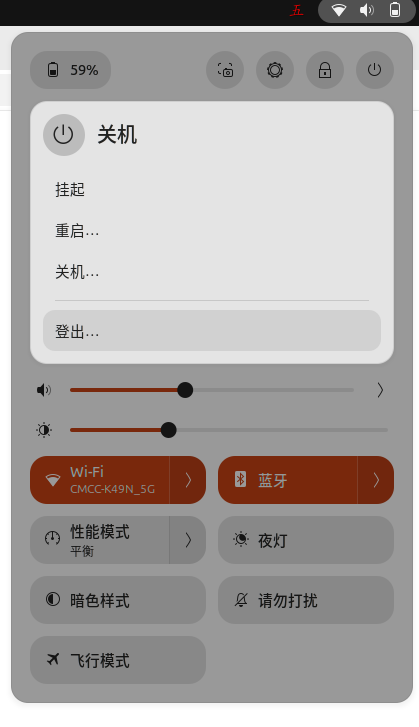
Specific operation:
- Press
superkey to search for ‘Start Applications’ and open. - Add one: name
fcitx5, commandfcitx5. - Or use the command line directly (in one step):
  mkdir -p ~/.config/autostart
  cp /usr/share/applications/org.fcitx.Fcitx5.desktop ~/.config/autostart/
2. Enable the AppIndicator extension under Wayland
Because Ubuntu 26 uses Wayland by default, and the system tray icon under Wayland requires Gnome shell extension support. execute:
gnome-extensions enable ubuntu-appindicators@ubuntu.com
ThenLogout and re-register.
3. Configure environment variables
Edit ~/.pam_environment, join:
GTK_IM_MODULE DEFAULT=fcitx
QT_IM_MODULE DEFAULT=fcitx
XMODIFIERS DEFAULT=@im=fcitx
INPUT_METHOD DEFAULT=fcitx
SDL_IM_MODULE DEFAULT=fcitx
After saving, log out and re-register.
Complete the above three steps, log out and log in, and the input method icon in the upper right cornerautomatic emergence, Wubi Pinyin can also be switched normally. So far the problem is solved. As shown in Figure 10
4. Why didn’t you choose Sogou input method?
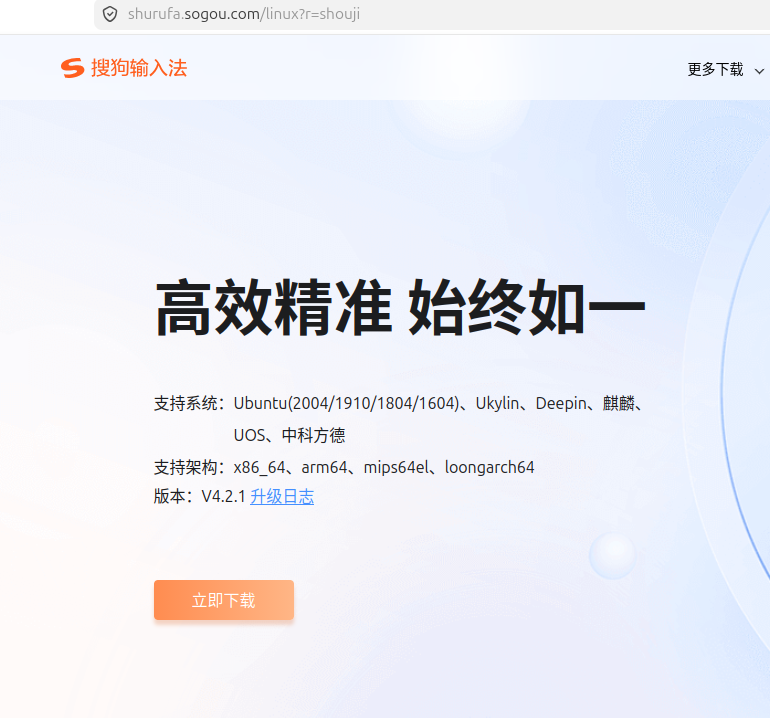
During the tossing process, I also went to the Sogou official website to see the Linux version (Figure 8). The latest version V4.2.1 was released in 2023 (pictured 9), which supports Ubuntu 20.04/18.04/16.04, and is not known for new systems such as 26.04. Moreover, Sogou is based on the old version of FcitX 4, which is not compatible with FcitX 5, and forced installation can easily lead to crashes. Considering stability, give up temporarily.
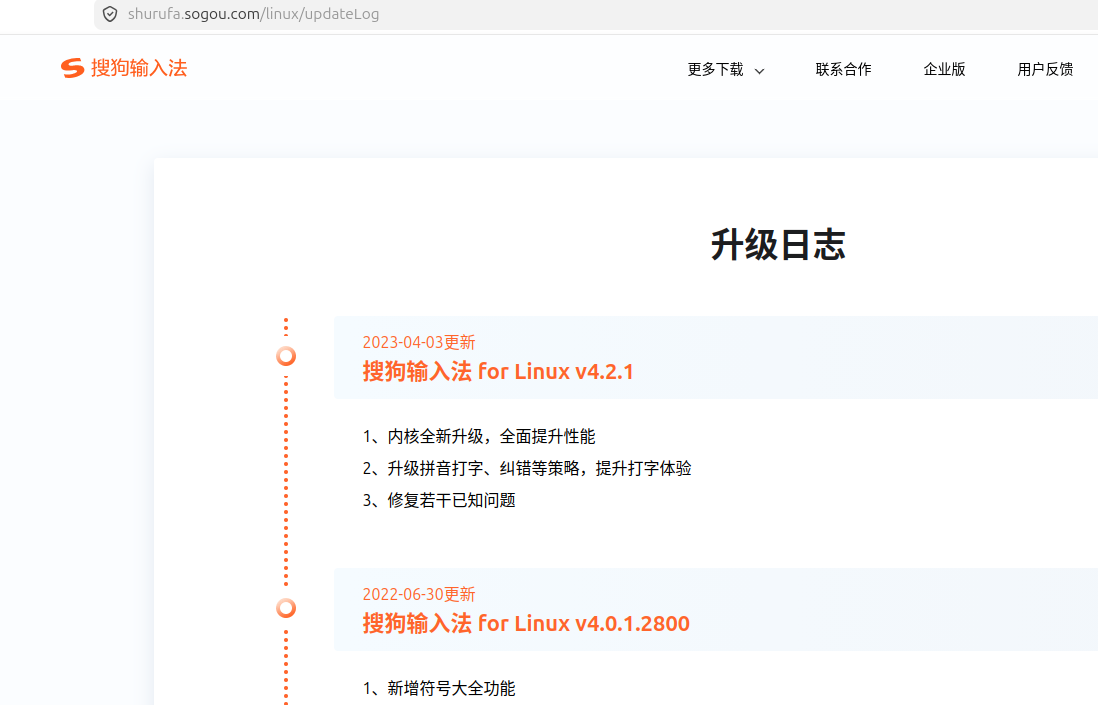
If one day Sogou officially launches a new version based on FcitX 5, I may try again.
5. Comparison of each input method plan (personal subjective evaluation)
| Program | Wubi Pinyin Mix | The thesaurus richness | Stability (Ubuntu 26) | Cloud synchronization | Recommended degree |
|---|---|---|---|---|---|
| fcitx5 + Wubi Pinyin | ✅ | medium (enough) | ⭐⭐⭐⭐⭐ | ❌ | ⭐⭐⭐⭐⭐ |
| IBus + IBus-LibPinyin | ❌ | High | ⭐⭐⭐⭐ | ❌ | ⭐ (no five strokes) |
| ibus + ibus-table-wubi | ❌ (Pure Wubi) | Medium | ⭐⭐⭐⭐ | ❌ | ⭐ (cannot mix and lose) |
| Sogou input method Linux | ✅ | extremely high | ⭐ (Easy to crash) | ✅ | ⭐⭐ |
| FcitX5 + Rime | ✅ (requires configuration) | customizable | ⭐⭐⭐⭐ | ❌ (can be synchronized manually) | ⭐⭐⭐ (suitable for tossing) |
6. Next plan: tossing RIME
Although the Wubi Pinyin that comes with fcitx5 is stable, thesaurus is not ‘smart’ enough, and there is no cross-device synchronization. RIME (Zhongzhou Yun) is a highly customizable input method engine, which supports Wubi Pinyin mixed and loses, and can also import Sogou Cell Thesaurus. I am already planning:
- Install on FcitX5
fcitx5-rime. - Configure the ‘Smog Pinyin’ scheme (an excellent RIME configuration set).
- Try to import your own thesaurus to achieve a memory effect similar to Sogou.
After the tossing is successful, I will write a detailed configuration blog for RIME.
7. Summary
If you also encounter the problem that fcitx5 does not start after restarting and the icon disappears on Ubuntu 26.04, check in the following order:
- Confirm the input method framework:
im-configSet to fcitx5, and click ‘Apply to the entire system’ in ‘Language and Support’. - Add boot self-start: copy
.desktopFile to~/.config/autostart/. - Enable AppIndicator extensions under Wayland:
gnome-extensions enable ubuntu-appindicators@ubuntu.com. - Configure environment variables(optional but helpful for compatibility): Edit
~/.pam_environment.
After doing this, log out and re-register, everything will be normal. I hope this record in the order of screenshots can help you who are equally confused.