Windows 10 Home Edition Install Docker and configure the image accelerator as Alibaba Cloud Accelerator
1. Windows version, it is Windows 10 home Chinese version, does not support Hyper-V, as shown in Figure 1

Figure 1
2. Open the URL:https://docs.docker.com/docker-for-windows/install/#what-to-know-before-you-install, if your system doesn’t meet the requirements to run Docker for Windows, you can install Docker Toolbox, Dockbox Toolbox uses Oracle Virtual Box instead of Hyper-V, as shown in Figure 2

Figure 2
3. Click the Docker Toolbox link to enter:https://docs.docker.com/toolbox/overview/, as shown in Figure 3

Figure 3
4. Download Toolbox for Windows, as shown in Figure 4

Figure 4
To run Docker, make sure your Windows system supports hardware virtualization technology and enables virtualization. In the performance tab of the Task Manager, under the CPU, the virtualization is enabled, as shown in Figure 5

Figure 5
6. Since the virtualbox has been installed, it is necessary to check whether the virtual box is running, if it is running, it must be closed before the installer is run, as shown in Figure 6

Figure 6
7. Start the installation. When the selection component prompt box appears, uncheck VirtualBox, other steps, accept all the default options, as shown in Figure 7

Figure 7
8. On the desktop, find the Docker QuickStart terminal icon. as shown in Figure 8

8
9. Verify your installation, double-click the Docker QuickStart icon to start the pre-configured Docker Toolbox terminal. If the system displays the user account control prompt, the virtualbox is allowed to change your computer, select Yes, start initialization, and the terminal displays the $ prompt. as shown in Figure 9

Figure 9
10. Type Docker run hello-world Command and press Enter. If all goes well, the output of the command is as follows:, as shown in Figure 10

Figure 10
11. Open the Oracle VM VirtualBox and find that the virtual computer named Default is running, as shown in Figure 11

Figure 11
12. Sometimes you encounter difficulties in accessing Docker Hub in China. At this time, you can configure the image accelerator. Open URL:https://github.com/yeasy/docker_practice/blob/master/install/mirror.md, select Alibaba Cloud Accelerator, click the link, as shown in Figure 12

Figure 12
13. Open the Docker Hub image site, as shown in Figure 13

Figure 13
14. View the environment configuration of the machine, configure it to the local, and access the Docker service through the Docker client. Run the command:Docker-machine env default, as shown in Figure 14

Figure 14
15. Follow the prompts, run this command to configure your shell:, run the command:eval “$(docker-machine env default)”, as shown in Figure 15
# run this command to configure your shell:
# eval $(“C:\Program Files\Docker Toolbox\Docker-Machine.exe” env default)

Figure 15
16. Run the command:docker info, as shown in Figure 16

Figure 16
17. Log in to the machine to modify the configuration and run the command:docker-machine ssh default, as shown in Figure 17

Figure 17
18. Modify the /var/lib/boot2docker/profile file, and –registry-mirror=<your accelerate address> added to EXTRA_ARGS, as shown in Figure 18
For the content of the Docker Toolbox configuration, refer to the documentation from DaoCloud: Docker Accelerator (http://guide.daocloud.io/dcs/daocloud-9153151.html#docker-toolbox)
sudo sed -i “s|extra_args=|extra_args=–registry-mirror=https://52itiznk.mirror.aliyuncs.com|g” /var/lib/boot2docker/profile

18
19. Run the command:cat /var/lib/boot2docker/profile, the modification is successful, as shown in Figure 19

Figure 19
20. Exit and restart the Docker service, as shown in Figure 20
exit
Docker-Machine restart default

Figure 20
21. Run the command again:docker info, it is found that the configuration of the image accelerator is successful, as shown in Figure 21
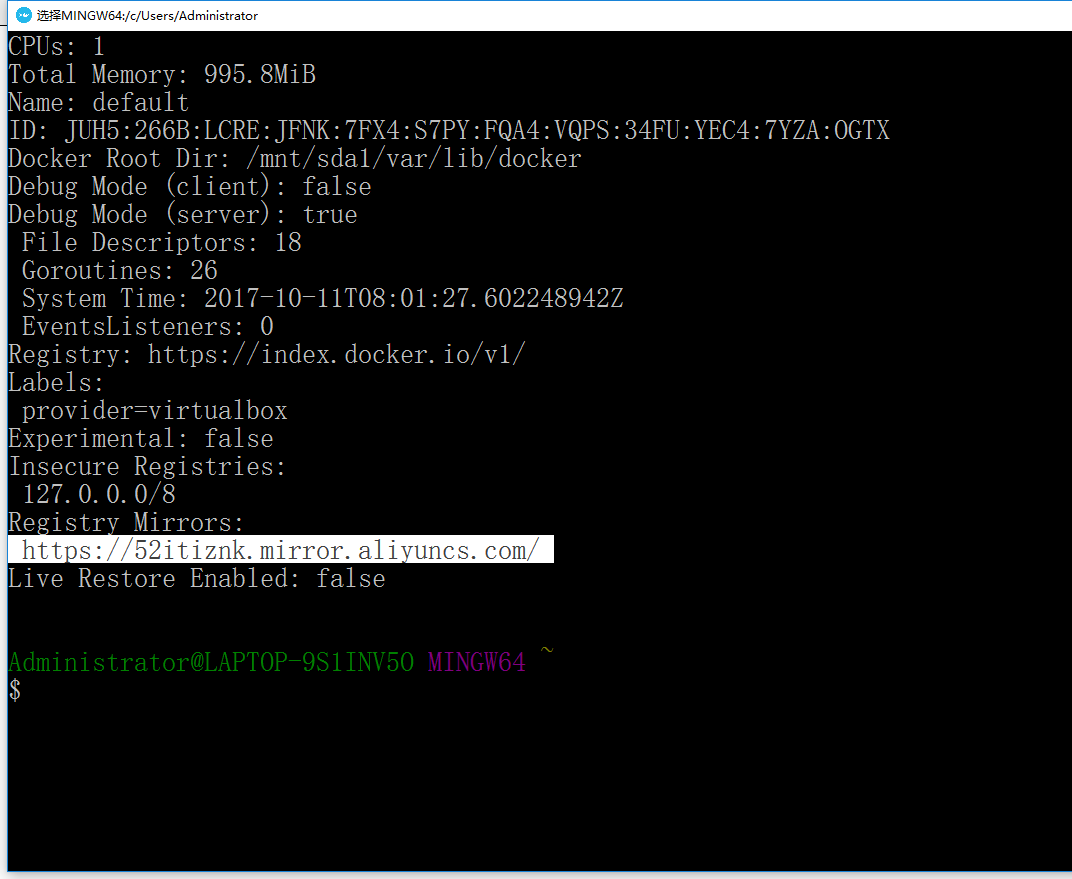
Figure 21
22. Check whether the accelerator is effective, and run the command:docker info|grep “registry mirrors” -a 1, as shown in Figure 22

Figure 22
23. Open Kitematic (Alpha), click Use VirtualBox, as shown in Figure 23

Figure 23
24. Click skip for now, because the image accelerator has been configured, there is no need to connect to the official image warehouse, as shown in Figure 24

Figure 24
25. Click Docker CLI to enter the client, as shown in Figure 25

Figure 25
26. In fact, start Windows PowerShell and enter C:\Program Files\Docker Toolbox> The operation in the middle is the same, and I choose according to my preferences, as shown in Figure 26

Figure 26