Capturing Shopify CLI 3.x after installing Wireshark in Windows 10
1. Reference:Capturing Shopify CLI 3.x after installing Fiddler Classic in Windows 10 . Reference:Capturing Shopify CLI 3.x after installing Fiddler Everywhere in Windows 10. All ended in failure.
2. Select the network interface: From the main window of Wireshark, select the network interface that Shopify CLI traffic will pass through. Since mine is a laptop, connected to the network via Wi-Fi, I choose WLAN and click the button: Start capturing the grouping. as shown in Figure 1

Figure 1
3. Execute the Shopify CLI command in the terminal to request a list of topics. as shown in Figure 2
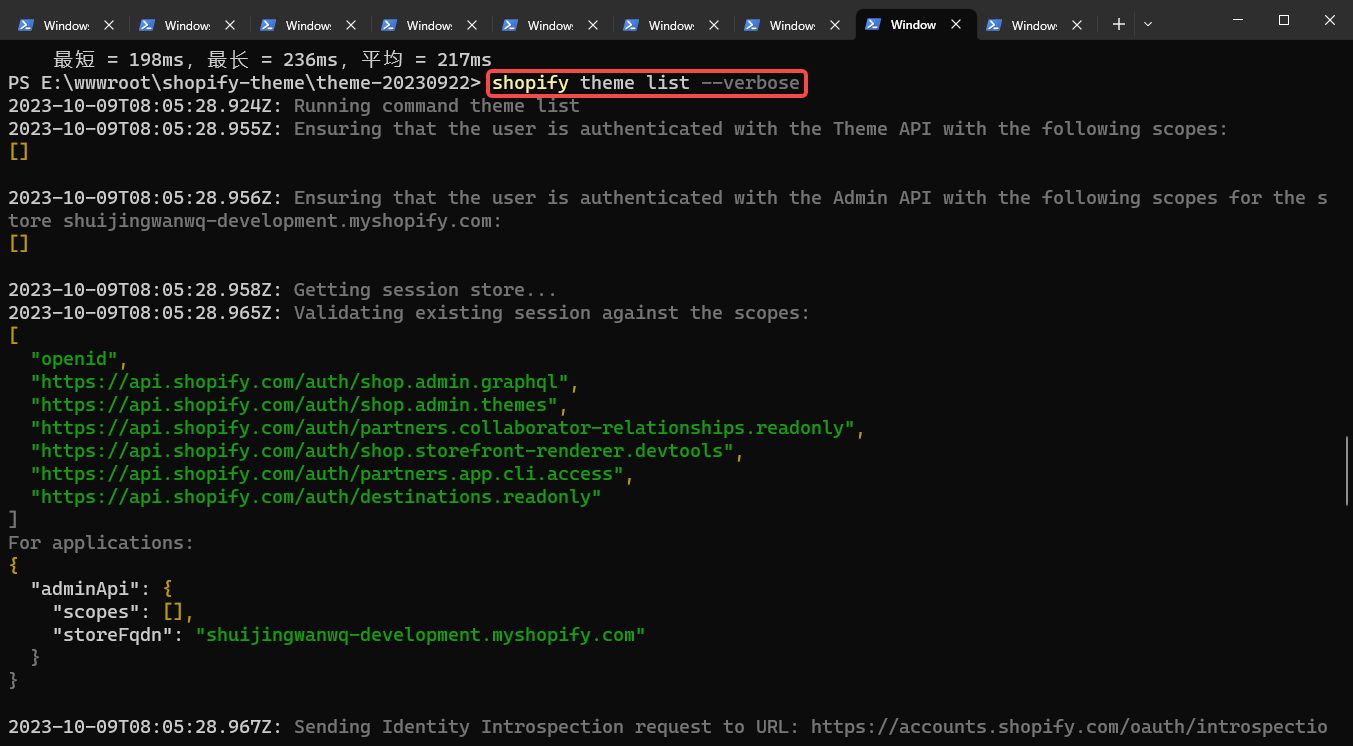
Figure 2
PS E:\wwwroot\shopify-theme\theme-20230922> shopify theme list --verbose
2023-10-09T08:05:28.924Z: Running command theme list
2023-10-09T08:05:28.955Z: Ensuring that the user is authenticated with the Theme API with the following scopes:
[]

2023-10-09T08:05:28.956Z: Ensuring that the user is authenticated with the Admin API with the following scopes for the store shuijingwanwq-development.myshopify.com:
[]

2023-10-09T08:05:28.958Z: Getting session store...
2023-10-09T08:05:28.965Z: Validating existing session against the scopes:
[
  "openid",
  "https://api.shopify.com/auth/shop.admin.graphql",
  "https://api.shopify.com/auth/shop.admin.themes",
  "https://api.shopify.com/auth/partners.collaborator-relationships.readonly",
  "https://api.shopify.com/auth/shop.storefront-renderer.devtools",
  "https://api.shopify.com/auth/partners.app.cli.access",
  "https://api.shopify.com/auth/destinations.readonly"
]
For applications:
{
  "adminApi": {
    "scopes": [],
    "storeFqdn": "shuijingwanwq-development.myshopify.com"
  }
}

2023-10-09T08:05:28.967Z: Sending Identity Introspection request to URL: https://accounts.shopify.com/oauth/introspection
2023-10-09T08:05:28.969Z: Sending POST request to URL https://accounts.shopify.com/oauth/introspection
With request headers:
 - User-Agent: Shopify CLI; v=3.49.3
 - Keep-Alive: timeout=30
 - Sec-CH-UA-PLATFORM: win32
 - Content-Type: application/json

2023-10-09T08:05:30.037Z: Request to https://accounts.shopify.com/oauth/introspection completed in 1044 ms
With response headers:
 - cache-control: no-cache, no-store, private, must-revalidate, max-age=0
 - content-type: application/json; charset=utf-8
 - etag: W/"7d98625ff90e9b2d78e0e2a444b14481"
 - x-request-id: 72585f47-91c2-4944-81b7-8349d2ab8cbf

2023-10-09T08:05:30.057Z: The identity token is valid: true
2023-10-09T08:05:30.058Z:
The validation of the token for application/identity completed with the following results:
- It's expired: false
- It's invalid in identity: false

2023-10-09T08:05:31.155Z: Request to https://shuijingwanwq-development.myshopify.com/admin/api/unstable/themes.json?fields=id%2Cname%2Crole%2Cprocessing completed in 1089 ms
With response headers:
 - content-type: application/json; charset=utf-8
 - x-request-id: bb9a9fa0-d8e7-4374-ba47-4d9a6c0b10d0

2023-10-09T08:05:31.166Z: Getting development theme...
2023-10-09T08:05:31.170Z: Getting host theme...
name                                             role                   id
───────────────────────────────────────────────  ─────────────────────  ─────────────
Dawn 的更新版副本                                      [live]                 #133644189881
Dawn                                             [unpublished]          #130440429753
Sense                                            [unpublished]          #130698641593
Crave 重命名                                        [unpublished]          #130935947449
Refresh                                          [unpublished]          #131376218297
Colorblock                                       [unpublished]          #131376251065
Dawn Customize                                   [unpublished]          #130580054201
Taste 的更新版副本 的更新版副本 的更新版副本 的更新版副本 的更新版副本 的更新版副本 [unpublished]          #132350771385

shopify-theme-dawn-20221011/main                 [unpublished]          #133060722873
Dawn                                             [unpublished]          #133474844857
Copy of Studio                                   [unpublished]          #133474975929
Dawn (Shopify CLI) 9                             [unpublished]          #133492932793
Dawn 的副本 的副本 1                                   [unpublished]          #133635932345
Colorblock                                       [unpublished]          #130698510521
Taste                                            [unpublished]          #130698543289
Craft                                            [unpublished]          #130698576057
Development (639b5c-DESKTOP-QLPK8QM)             [development] [yours]  #134109462713
2023-10-09T08:05:31.442Z:
Running system process:
  · Command: ruby -v
  · Working directory: E:/wwwroot/shopify-theme/theme-20230922

2023-10-09T08:05:33.063Z: Request to https://monorail-edge.shopifysvc.com/v1/produce completed in 1582 ms
With response headers:
 - x-request-id: 73b18bad-4378-4711-b2de-05386d867fa3

2023-10-09T08:05:33.066Z: Analytics event sent: {
  "command": "theme list",
  "time_start": 1696838728927,
  "time_end": 1696838731391,
  "total_time": 2464,
  "success": true,
  "cli_version": "3.49.3",
  "ruby_version": "3.1.1",
  "node_version": "18.18.0",
  "is_employee": false,
  "uname": "windows amd64",
  "env_ci": false,
  "env_plugin_installed_any_custom": false,
  "env_plugin_installed_shopify": "[\"@shopify/cli\",\"@shopify/plugin-did-you-mean\",\"@shopify/theme\"]",
  "env_shell": "cmd.exe",
  "env_device_id": "eb479d42673daf065d783e808d3de3b4870a4c02",
  "env_cloud": "localhost",
  "env_package_manager": "unknown",
  "cmd_all_launcher": "unknown",
  "cmd_all_topic": "theme",
  "cmd_all_plugin": "@shopify/theme",
  "cmd_all_verbose": true,
  "cmd_all_path_override": false,
  "args": "--verbose",
  "env_plugin_installed_all": "[\"@shopify/cli\",\"@shopify/plugin-did-you-mean\",\"@shopify/theme\"]",
  "metadata": "{\"extraPublic\":{},\"extraSensitive\":{}}"
}
2023-10-09T08:05:33.071Z: Completed command theme list
PS E:\wwwroot\shopify-theme\theme-20230922>
4. Click the button: stop capturing the group. as shown in Figure 3
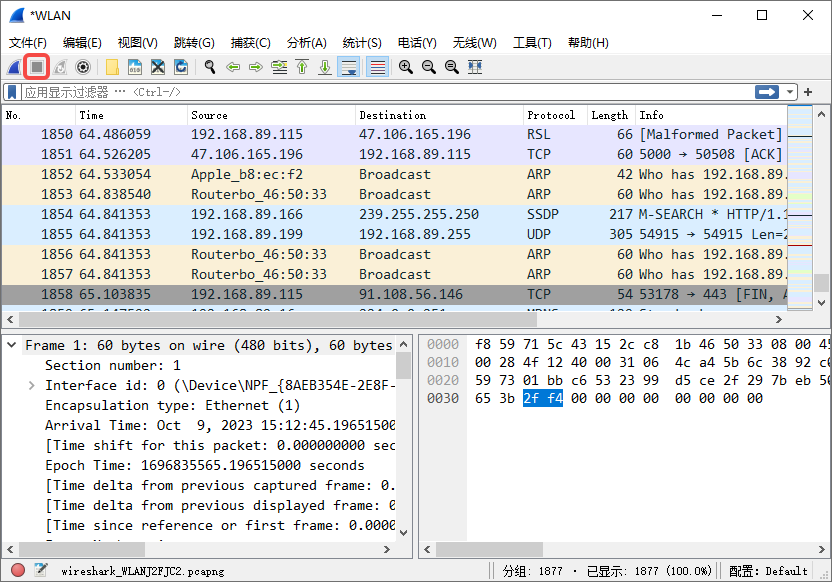
Figure 3
5. Get the corresponding IP address through ping shuijingwanwq-development.myshopify.com: 23.227.38.74. as shown in Figure 4
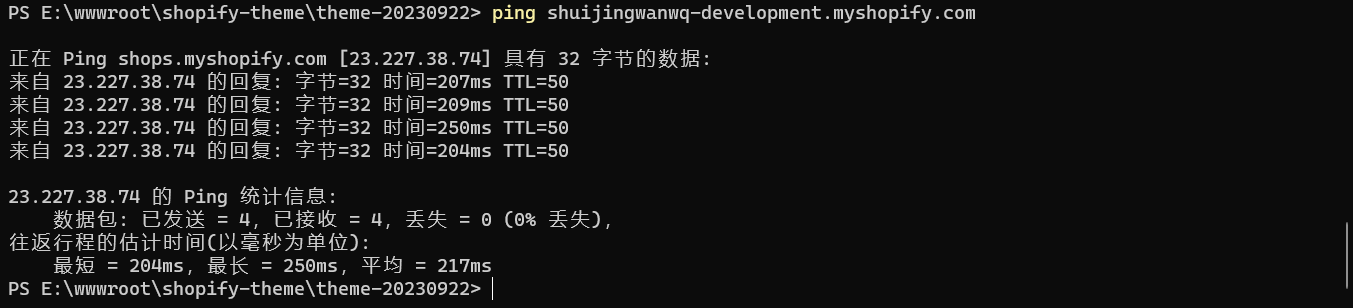
Figure 4
PS E:\wwwroot\shopify-theme\theme-20230922> ping shuijingwanwq-development.myshopify.com

正在 Ping shops.myshopify.com [23.227.38.74] 具有 32 字节的数据:
来自 23.227.38.74 的回复: 字节=32 时间=207ms TTL=50
来自 23.227.38.74 的回复: 字节=32 时间=209ms TTL=50
来自 23.227.38.74 的回复: 字节=32 时间=250ms TTL=50
来自 23.227.38.74 的回复: 字节=32 时间=204ms TTL=50

23.227.38.74 的 Ping 统计信息:
    数据包: 已发送 = 4,已接收 = 4,丢失 = 0 (0% 丢失),
往返行程的估计时间(以毫秒为单位):
    最短 = 204ms,最长 = 250ms,平均 = 217ms
6. Find in source: 23.227.38.74, right-click – apply as a filter – check. as shown in Figure 5
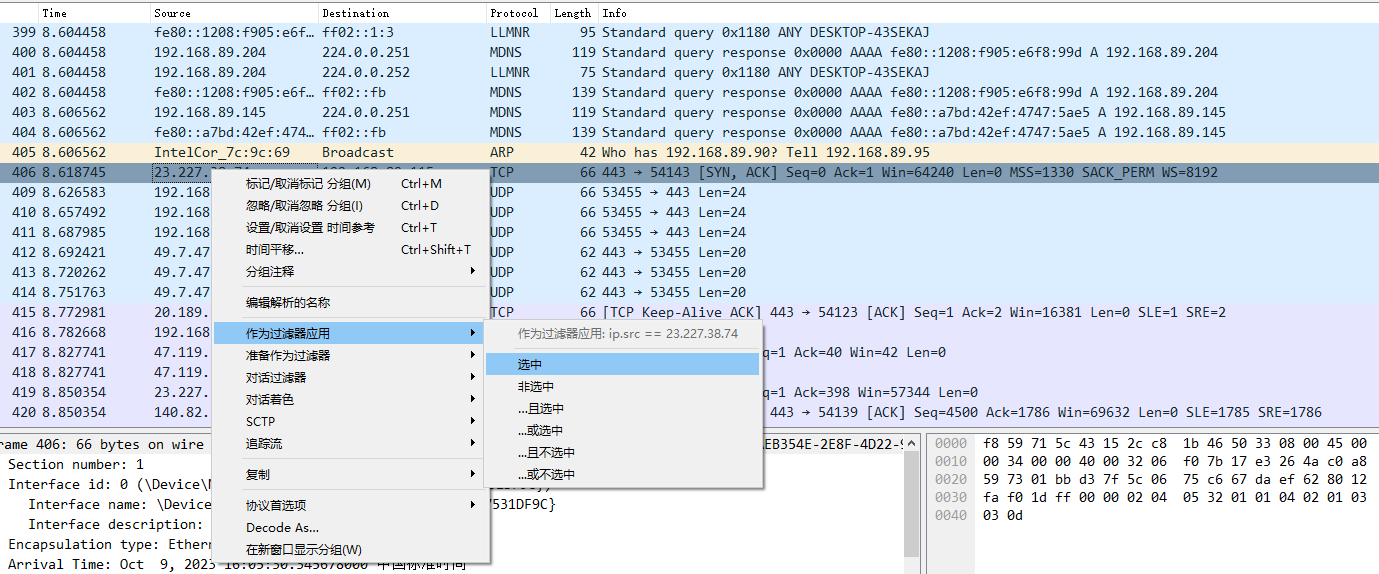
Figure 5
7. Only the request record with source is 23.227.38.74. There is no HTTP in the protocol, it is TCP and TLSv1.3, and the response is ciphertext. as shown in Figure 6
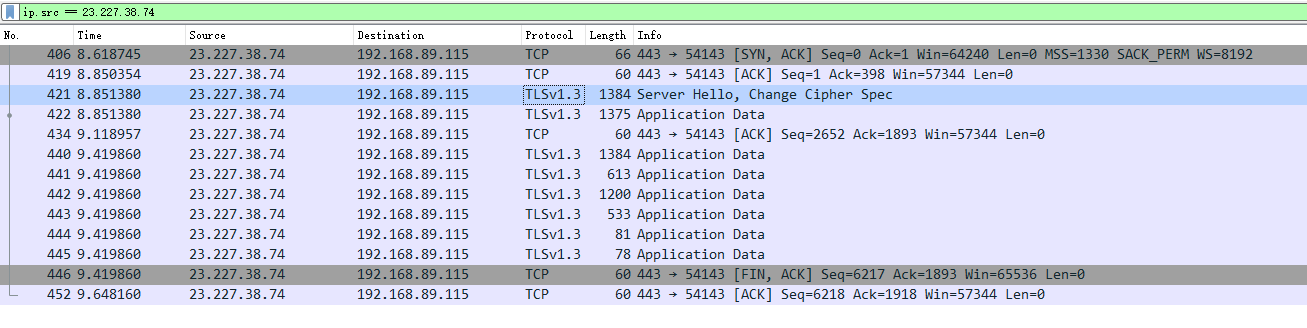
Figure 6
8. Reference:Transport Layer Security (TLS). The key log file is a general mechanism that is always able to decrypt even when using Diffie-Hellman (DH) key exchange.
9. Add SSLKeyLogFile user variable, you can specify that the browser is accessing SSL/TLS When the website is saved, the corresponding key is saved to the local file, and its value is: E:\develop\sslKeylogfile\key.log. This mechanism is not currently available (2019) for Safari, Microsoft Edge, and other browsers, because their TLS libraries (Microsoft Schannel/Apple SecureTransport) do not support this mechanism. This mechanism also applies to applications other than web browsers, but it relies on the TLS library used by the application. Note: Chrom-based Edge version (version 79+) should also work. as shown in Figure 7
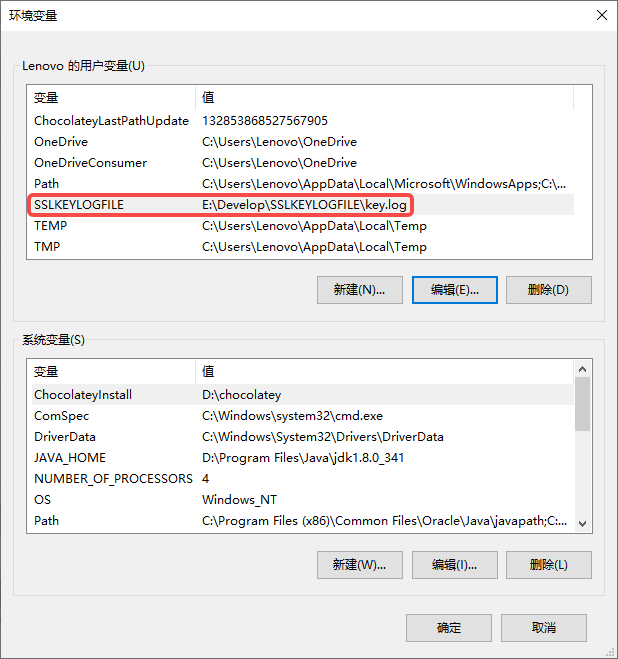
Figure 7
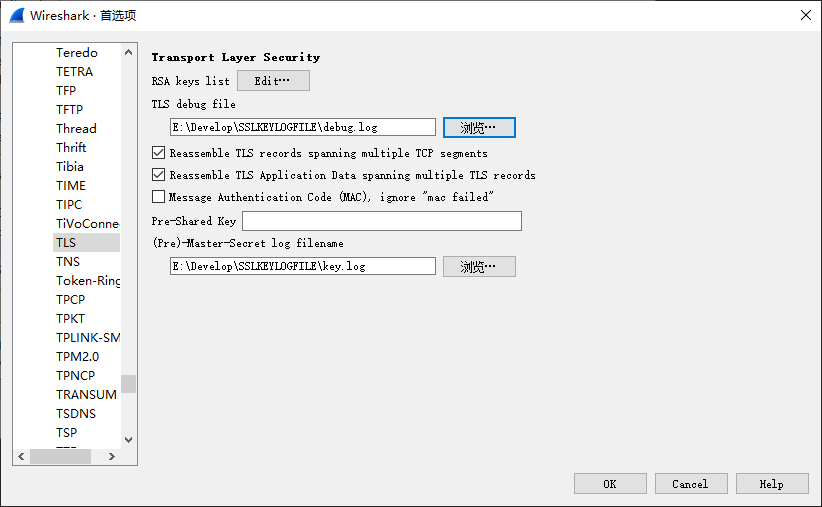
10. Configure Wireshark, Edit – Preferences – ProtoCLs – TLS. (pre)-master-secret Log file name (tls.keylog_file): The path to read the TLS keylog file for decryption. TLS debug file (tls.debug_logfile): The path to the internal details of the decryption process. Will contain the decryption results and the keys used in this process. This can be used to diagnose the cause of the decryption failure. as shown in Figure 8
8
11. To enable TLS decryption also requires the following TCP protocol preferences: Allow Subdissector to Reassemble TCP Streams (allow the subdivider to reassemble the TCP stream). Enabled by default. Reassemble out-of-order segments (re-assembled for unsequential segments) (from Wireshark 3.0, disabled by default) needs to be enabled. as shown in Figure 9
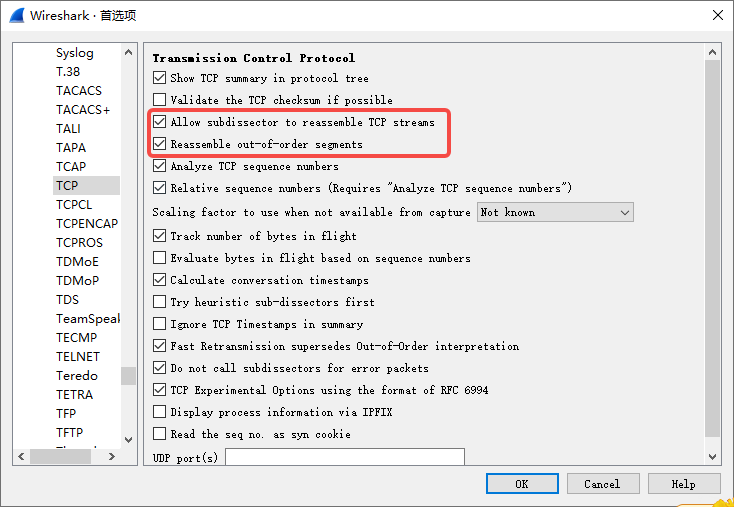
Figure 9
12. Confirm that the browser has been completely closed, and you can confirm it again by checking the task manager. After executing the corresponding command in the terminal, the captured traffic is still similar to step 7, and the TLS is not decrypted. Although the update time of the two logs has changed. As shown in Figure 10
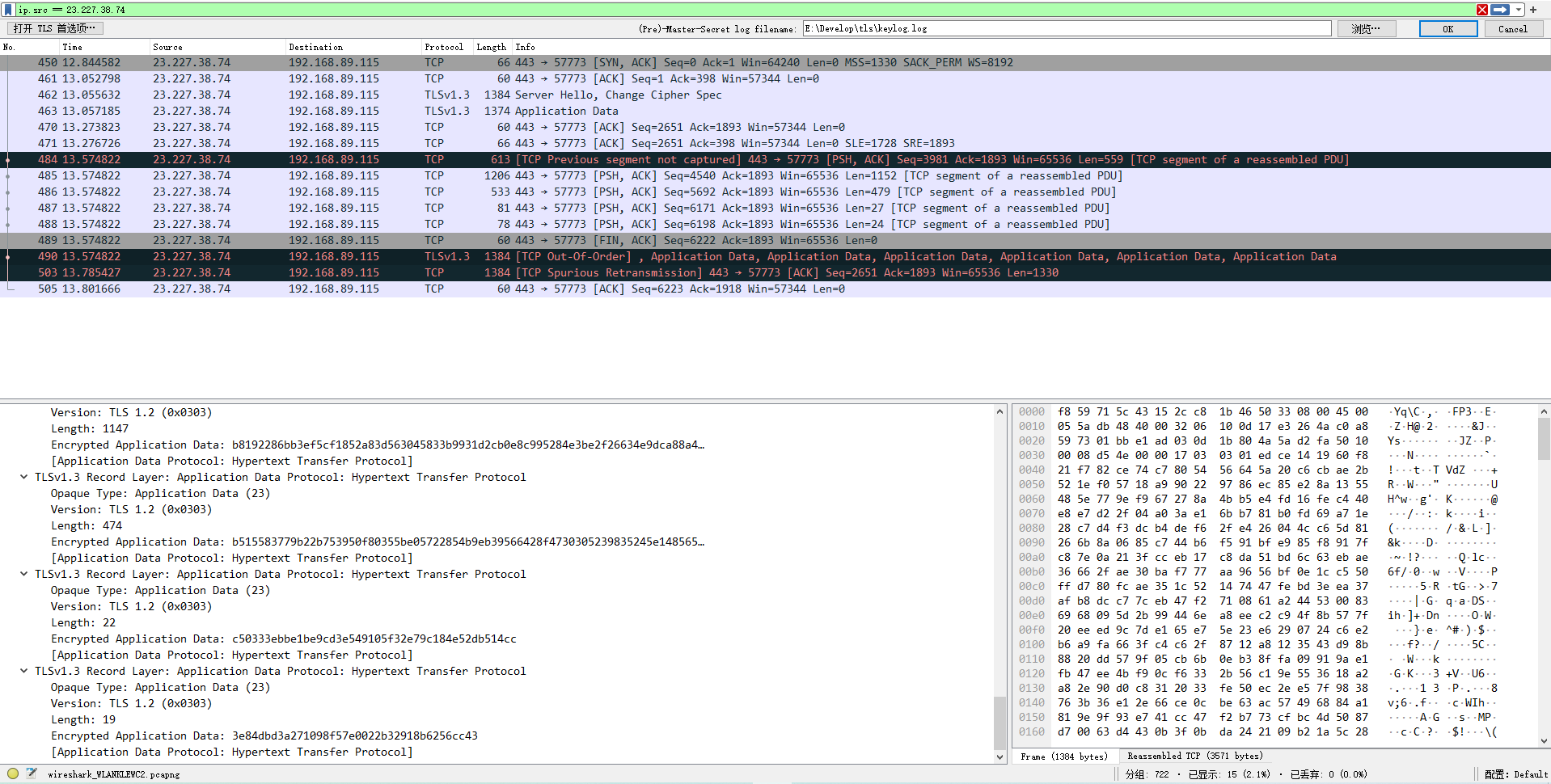
Figure 10
13. But in the Chrome browser: shuijingwanwq-development.myshopify.com . View captured traffic, which has been displayed as HTTP3, although it is still ciphertext. Not as expected. as shown in Figure 11
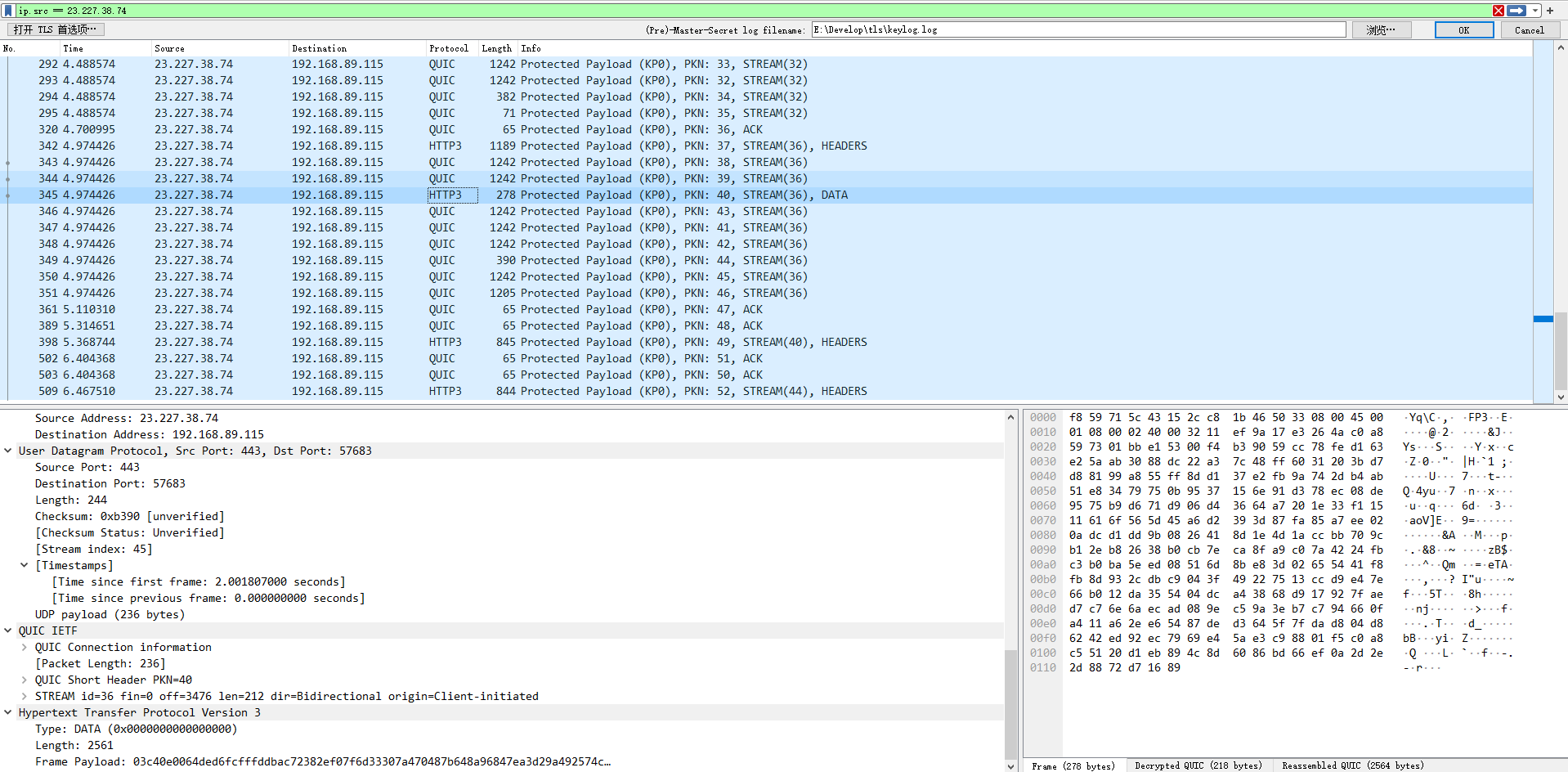
Figure 11
14. Now you need to decrypt HTTP3 and export the certificate in the browser. as shown in Figure 12
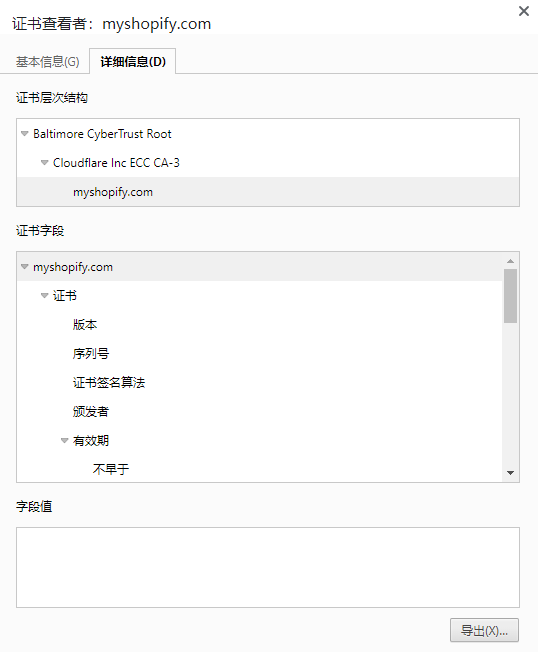
Figure 12
15. Configure Wireshark, Edit – Preferences – ProtoCLs – TLS. Decided to put this plan on hold for the time being, because a more suitable plan has been found. Reference:Capturing Shopify CLI 3.x after installing HTTP Toolkit in Windows 10
![在 Spatie\QueryBuilder ,请求参数中包含 "," 报错:SQLSTATE[HY093]: Invalid parameter number: number of bound variables does not match number of tokens (SQL: select count(*) as aggregate from `table` where `table`.`shipping_type` = 2 and `shipping_at_gmt` >= 2024-05-21 08:54:14 and `shipping_at_gmt`](https://www.shuijingwanwq.com/wp-content/uploads/2024/09/1-520x245.png)