From Siyuan to Mengyuan: Understand the “toss” of the Song Dynasty on Ubuntu 26.04
Recently, I feel that the system default Noto Serif CJK SC (Siyuan Song Style) is a little bland to read on the screen. I heard that ‘Mengyuan Song Style’ is Siyuan’s ‘enhanced version’ – 27 kinds of characters are heavy, optimized screen rendering, and correcting the line height. So I decided to put it on myself. This article records the whole process from stepping on the pit to solving it.
1. Initial status: Siyuan Song type is used in chrome
At the beginning, the font setting of Chrome was NOTO SERIF CJK SC. The effect is not bad, but I always feel that it is almost ‘Song Wei’.
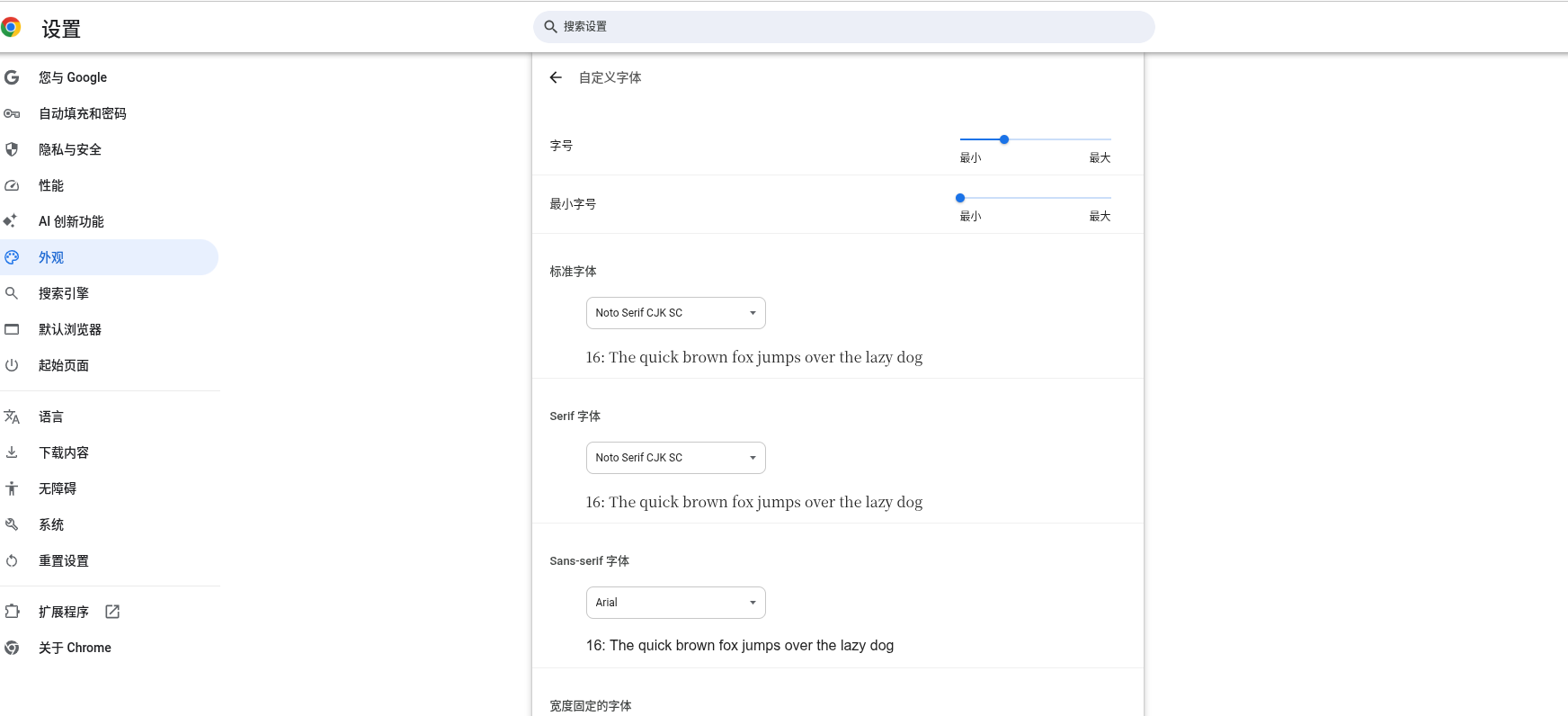
Figure 1: Chrome font settings (before the change)
2. Recognize the font tool: the ‘font’ application of the system
Ubuntu comes with a tool called ‘fonts’, which can preview and manage installed fonts, and also support the installation of new fonts.
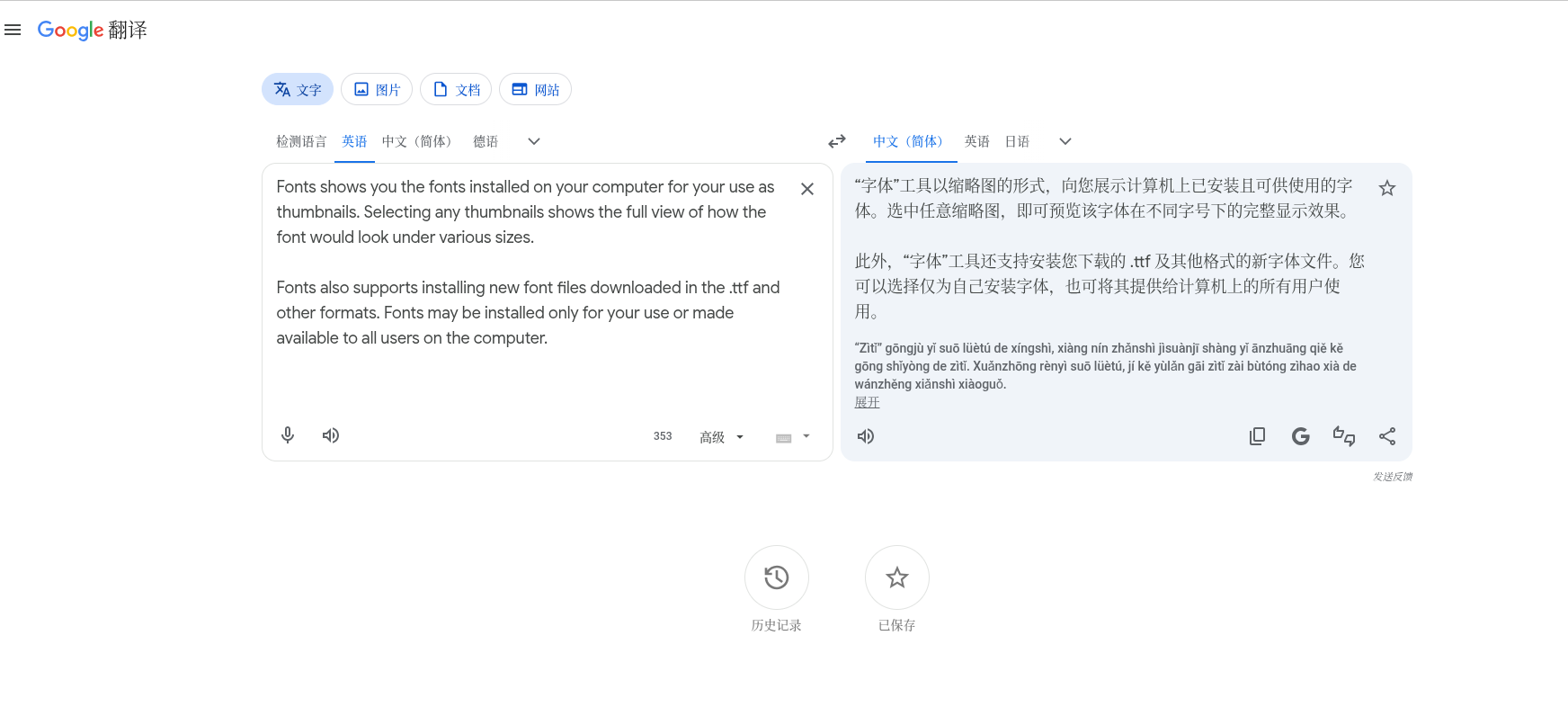
Figure 2: Introduction to the font tool (from the description of Google Translate), and you can view the display effect of the existing font Noto Serif CJK SC
3. Download Mengyuan Song Dynasty
Downloaded from the project’s GitHub Release page dreamhanserifcn.zip(256 MB, containing all 27 character weights).
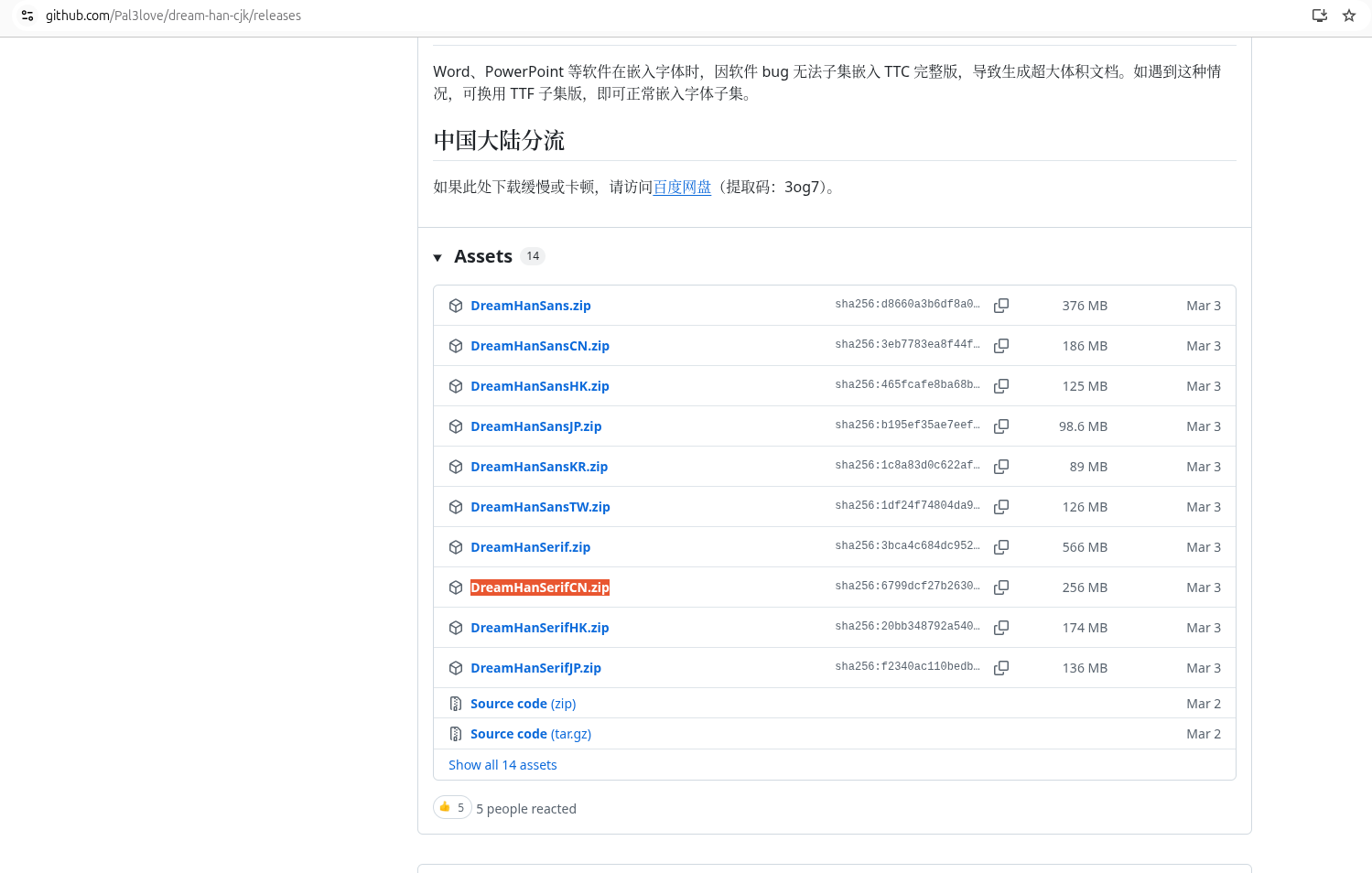
Figure 3: Github release page Assets list
4. The first attempt: the graphical batch installation failed (step on the pit)
After decompression, I tried the most intuitive method: select all .ttf File → Right-click → ‘Open with font’.
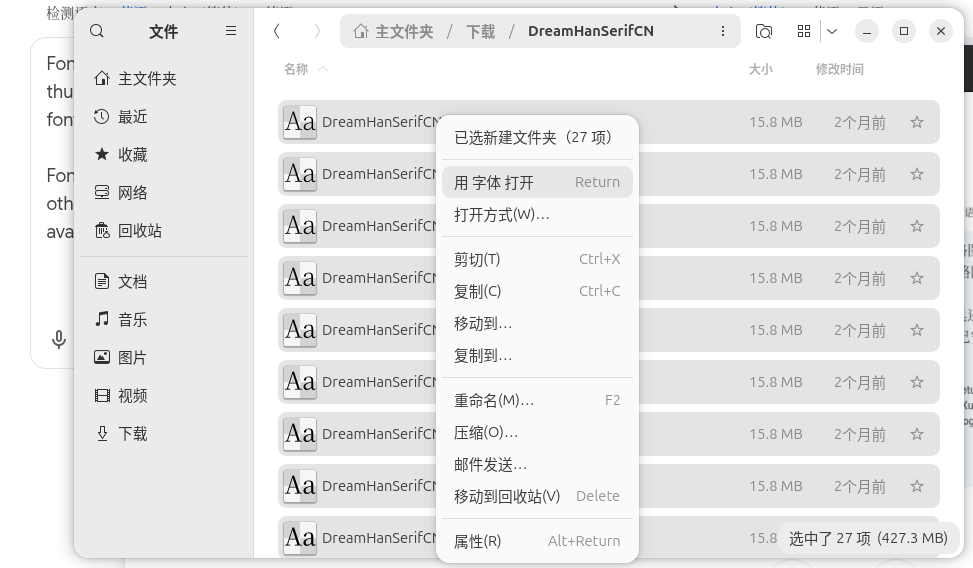
Figure 4: Select all files, right-click and select ‘Open with font’
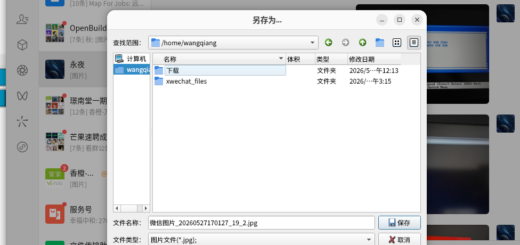
As a result, only one W1 font installation window popped up. Only the first file was installed, and the other 26 were ignored.
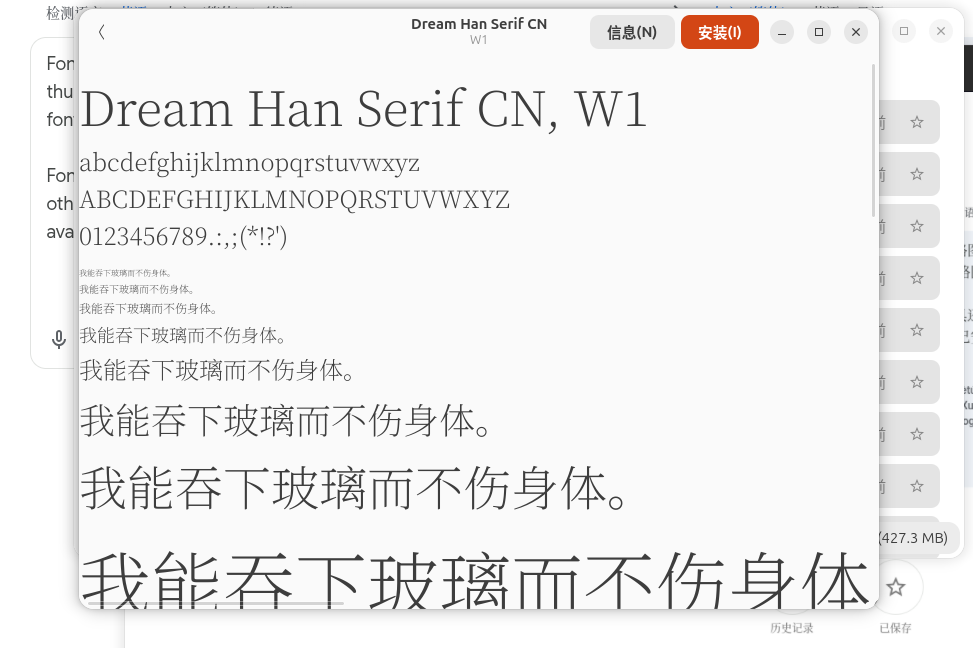
Figure 5: Click to install
After installation, search for ‘Dream’ in the ‘Font’ application, and it is blank. I was a little confused at the time – is the graphic interface unreliable?
5. Terminal Check: Discover the ‘Ghost’ that is repeatedly installed
Use FC-list | grep -i dream At first glance, good man, W1 was installed four times (DreamHanseriFCN-W1.ttf,1DreamHan...,2...,3...). Each duplicate right-click installation leaves a copy with a number prefix.
So manually clean:
cd ~/.local/share/fonts
rm -f 1Dream* 2Dream* 3Dream*
Then copy all 27 characters in one go:
cp ~/下载/DreamHanSerifCN/DreamHanSerifCN-W*.ttf ~/.local/share/fonts/
fc-cache -fv
When you see the terminal output ‘Add cache content: 27 fonts’, you know it’s done.
6. The browser was successfully replaced with Mengyuan Song type
After restarting chrome, chrome://settings/fonts Found in ‘Mengyuan Song Style CN’.
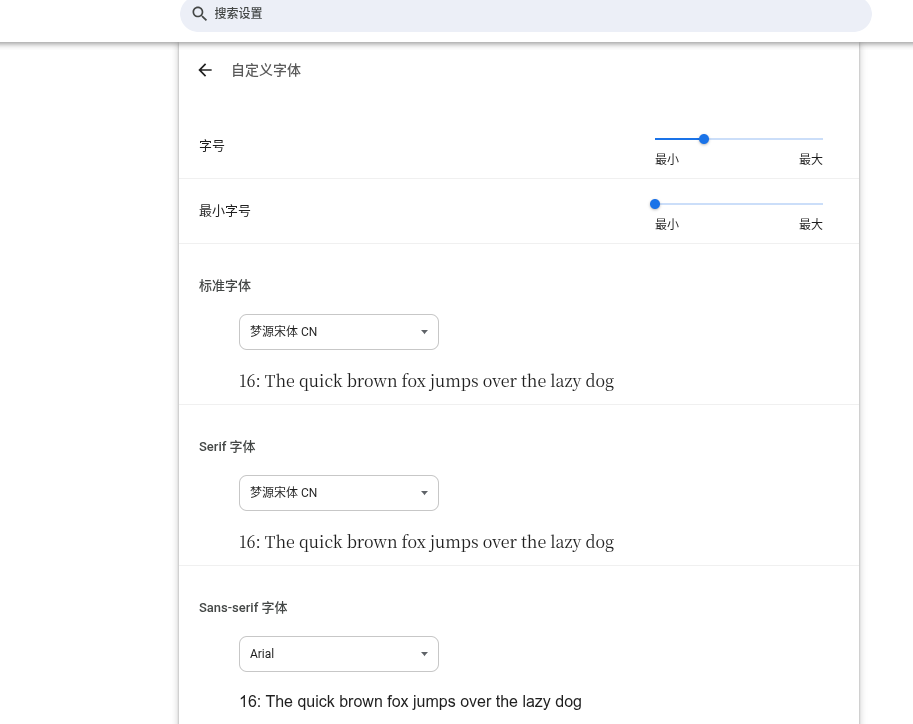
Figure 6: Chrome font settings (after change)
Refresh the web page, the effect is immediate.
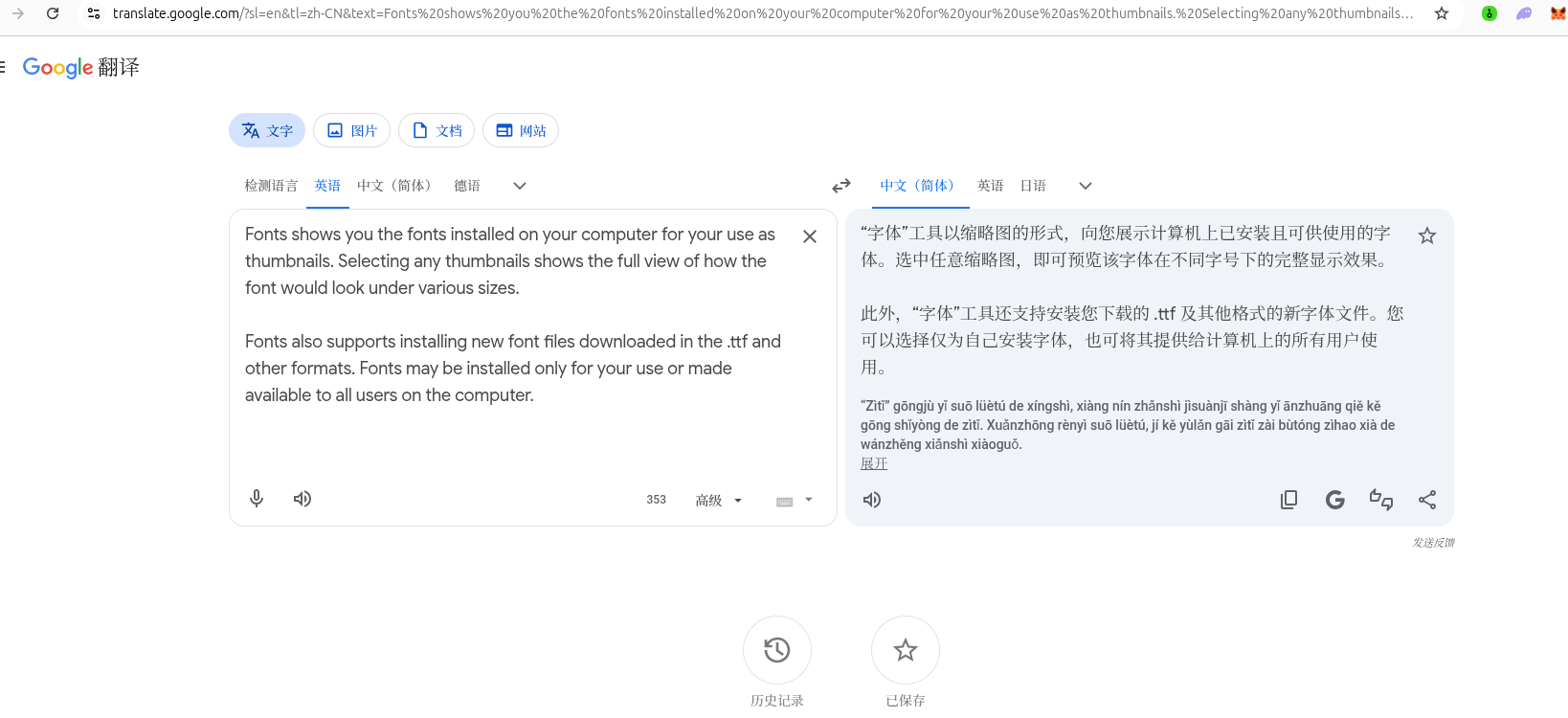
Figure 7: The actual effect of fonts under Google Translate pages
Compared with the previous screenshots of Siyuan Song Dynasty, Mengyuan’s glyphs are sharper and more solid, and the reading experience is significantly improved.
7. The system interface also wants to be unified: install Gnome Tweaks
I want to make the system menu and title bar become Mengyuan Song. Ubuntu does not provide the option to modify the system font by default, and you need to install ‘optimization’ (Gnome Tweaks).
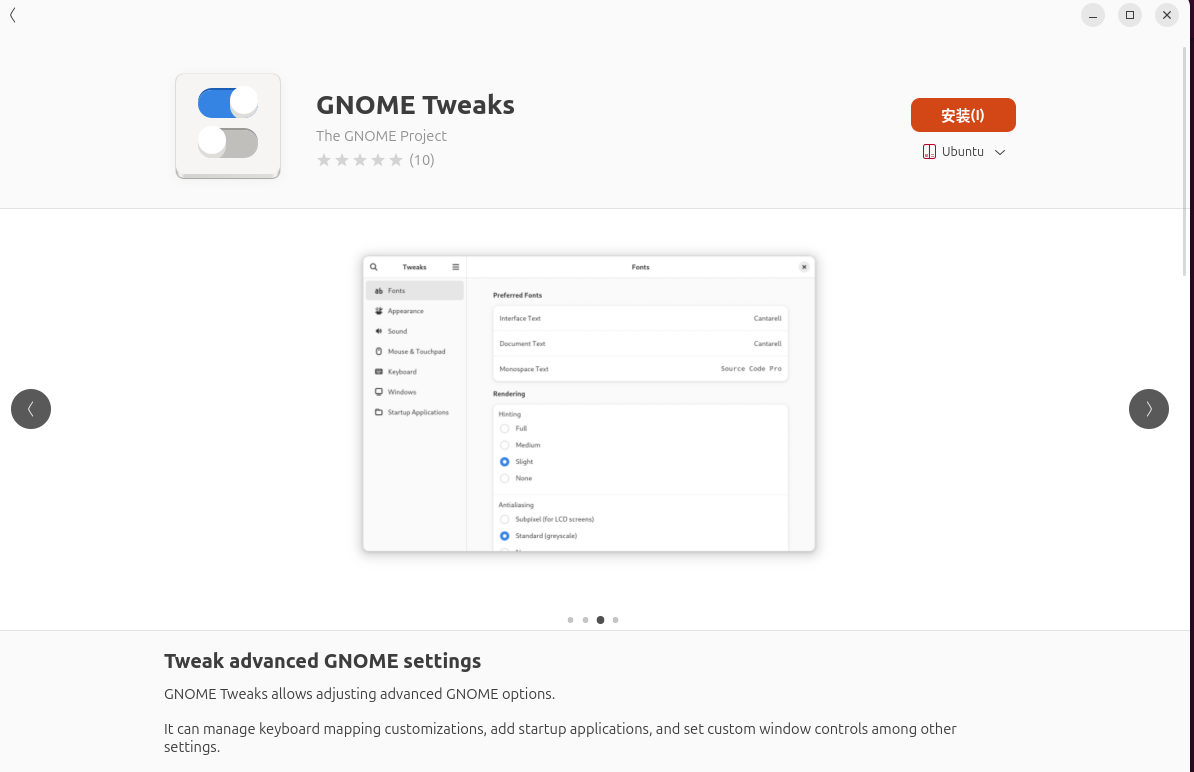
Figure 8: Status of Gnome Tweaks in Software Center (not installed)
Install via command line:
sudo apt update && sudo apt install gnome-tweaks
After installation, open the software center again, and the button becomes ‘open’.
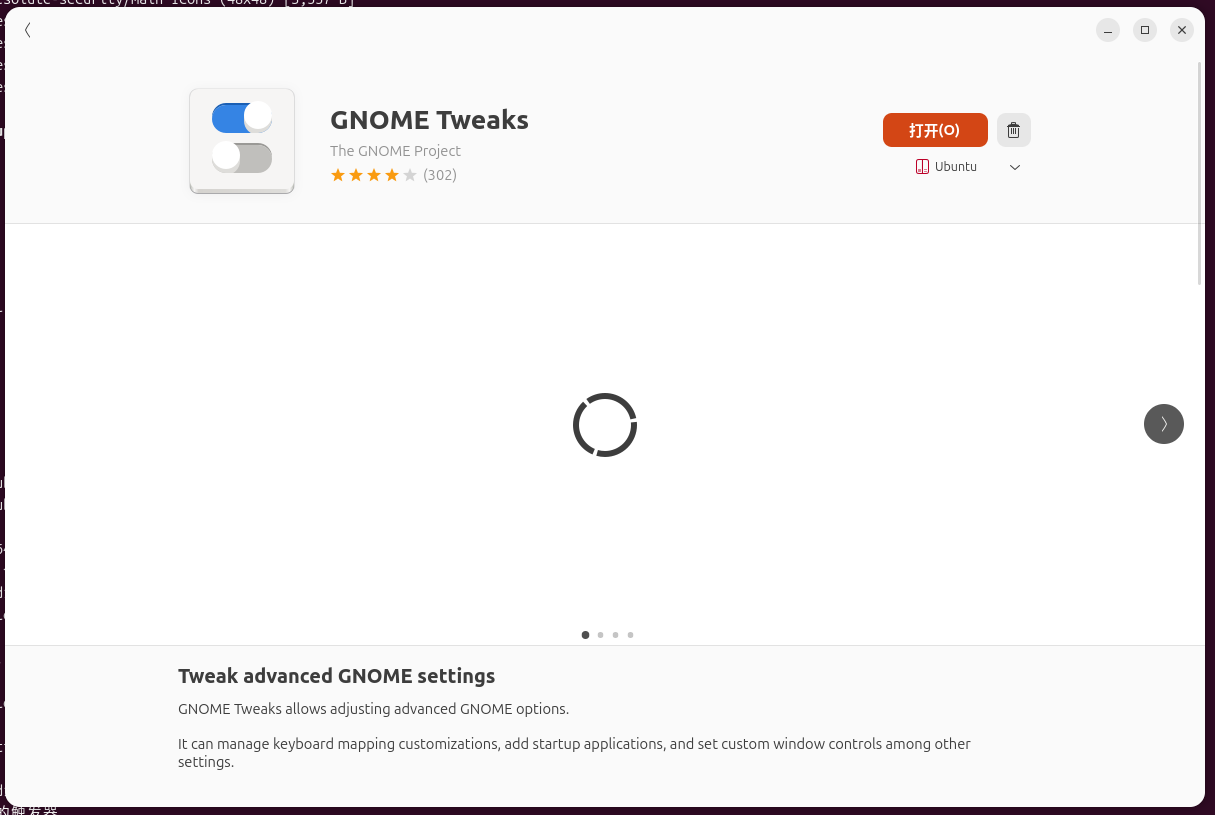
Figure 9: Gnome Tweaks is installed, showing ‘Open’
If it is not synchronized, you can execute the following command:
killall gnome-software
- Forces its background process to close.
- Then open the software store from the application menu, you should be able to see the button change to ‘start’
8. Select the weight: W10 is just right
Open Tweaks → ‘Font’ on the left, and you can see all the weights (W1 to W27) in the ‘Interface Text’ drop-down menu.
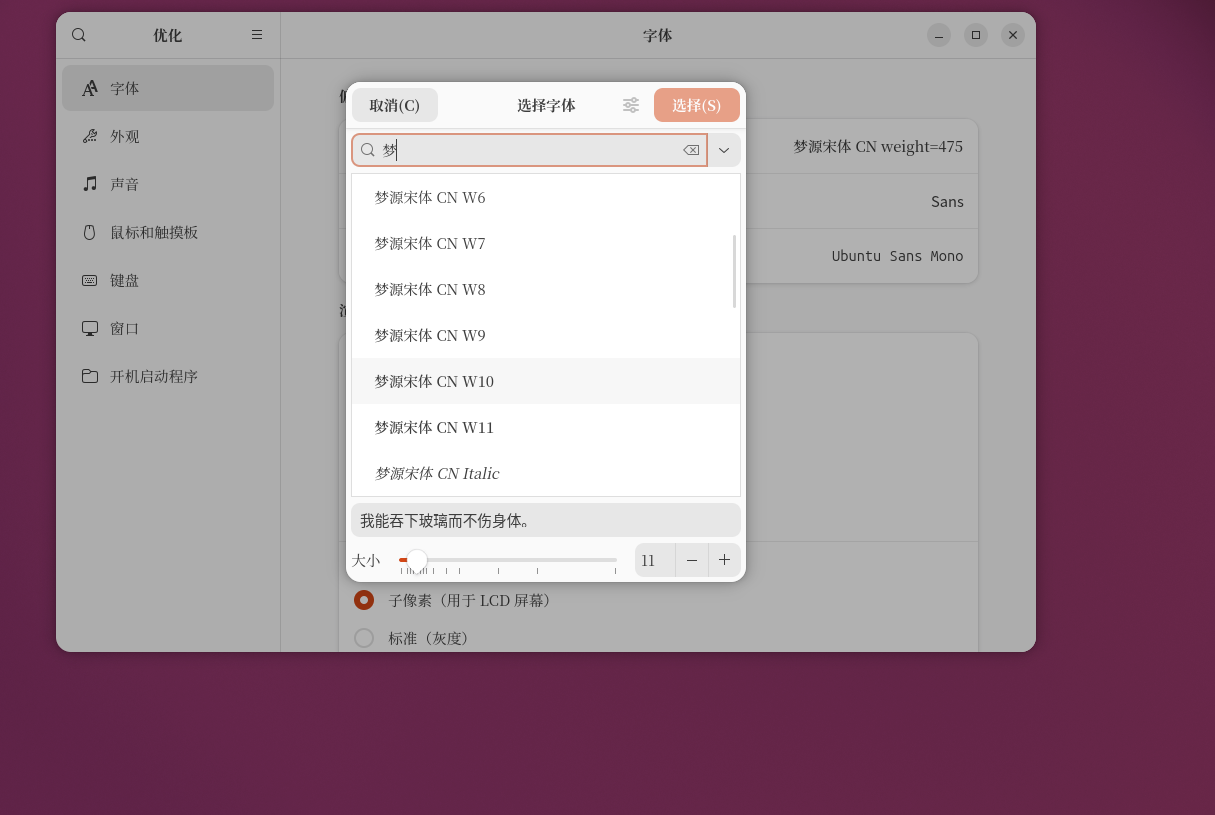
Figure 10: Select Mengyuan Song type CN W10
‘Document Text’ is also changed to W10 synchronously, and the ‘Modithin font’ is kept default (Ubuntu Mono or Cousin), preventing terminal and code editor alignment from confusing.
9. Leftovers of small regrets: file manager sidebar
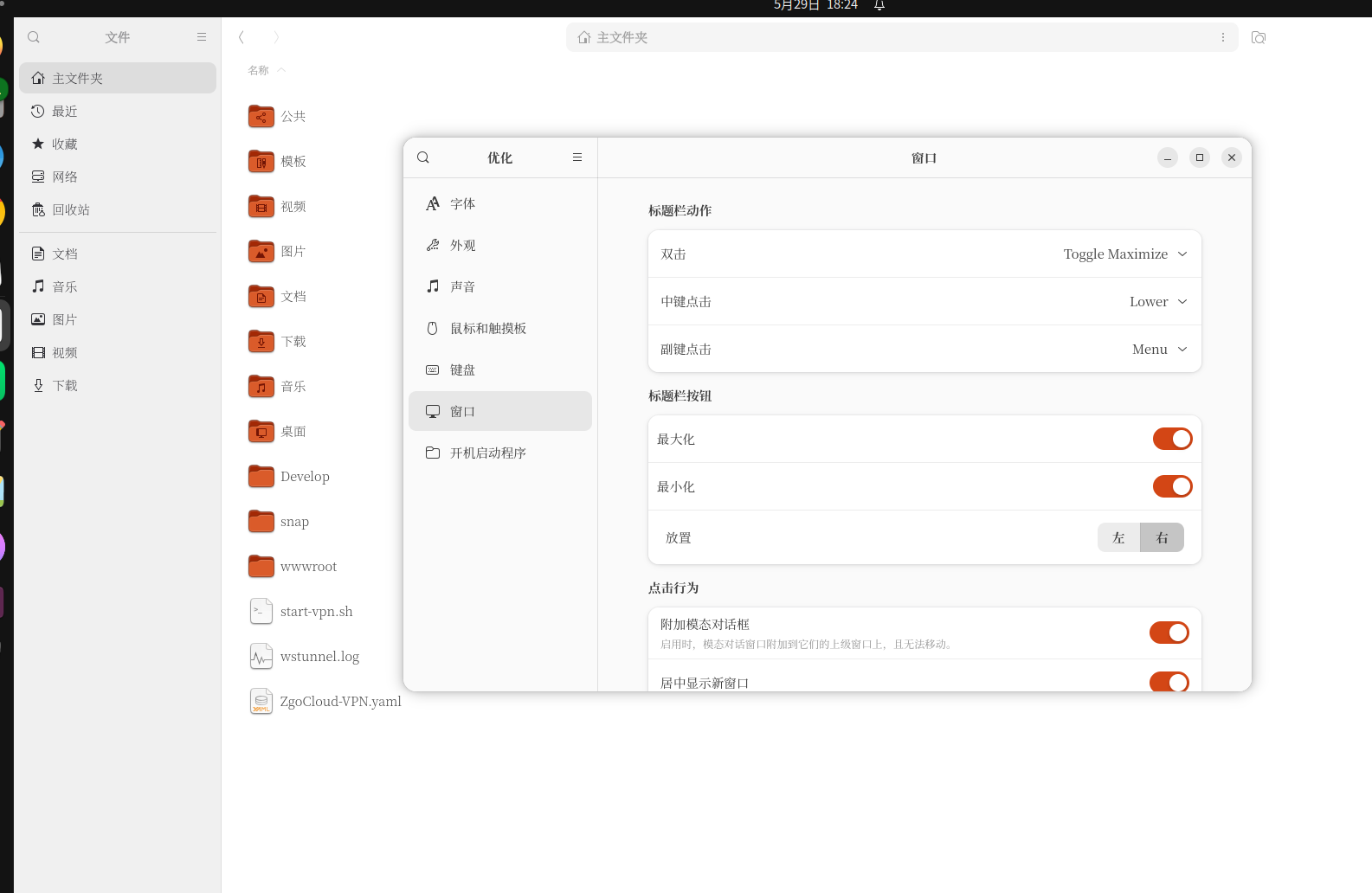
After changing most of the system interface, the text such as ‘Main Folder’, ‘Document’, ‘Download’ on the left side of the Nautilus file manager is still the original font (but I am not sure). Looking at the data, it is found that the font of the sidebar may be controlled separately by the GTK theme, and has not been adjusted for the time being. It does not affect daily use, please write it down first.
10. Summary
The biggest insight of the whole process:
- Batch installing fonts in the graphical interface is a trap– GNOME font viewer only has one file at a time.
- Duplicate installation will produce multiple copies, with the command line
RMClean up the most thoroughly. - Browser + system interface unified font, the reading experience has improved significantly.
- W10 weightIt performs very well on the laptop screen, it is recommended to try.
If you also want to put Mengyuan Songwu on Ubuntu, follow my steps directly: Download → Unzip → Command Line Copy → fc-cache → Tweaks settings. Avoid the pit I stepped on and it will be done in half an hour.
Finally, the current configuration is attached:
- System interface text: Mengyuan Song type CN W10
- chrome standard/serif font: Mengyuan Song type CN
- Equal width font: Ubuntu Mono (terminal/code)
If you have a way to solve the font problem of the nautilus sidebar, please leave a message to exchange~