Ubuntu 26.04 Mail Client Tossing Notes: From NetEase Mailbox Master to Thunderbird, add 8 mailboxes in one go
From NetEase Mail Master to Thunderbird, from dependency conflict to agent rollover, record a one-day-long Linux mail client tossing experience.
Origin
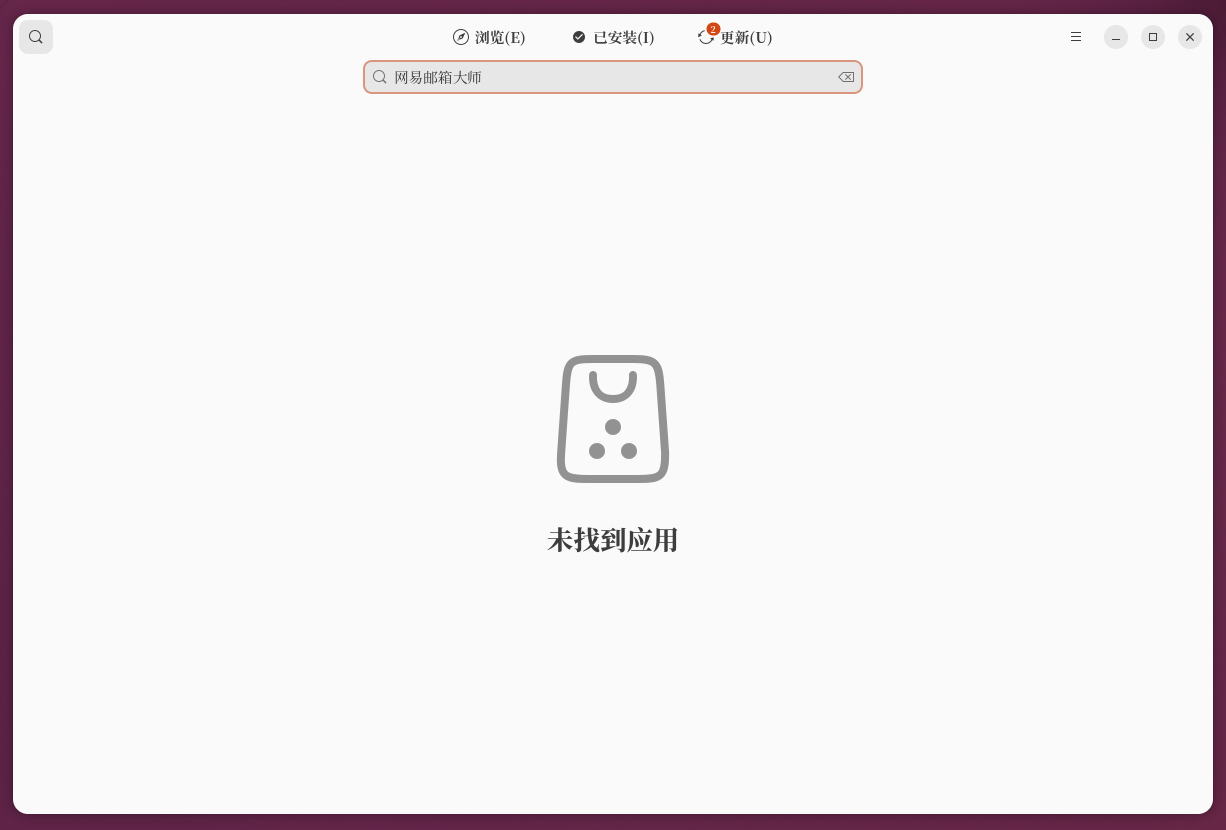
Recently, the main system was upgraded to Ubuntu 26.04, thinking of unified management of mailboxes scattered in various places. NetEase Mail Master has a good reputation in China, and the interface is also familiar, so just open the Gnome Software Center to search——
as shown in Figure 1: The search results are empty, ‘Apps not found’. It seems that the official source is not included.
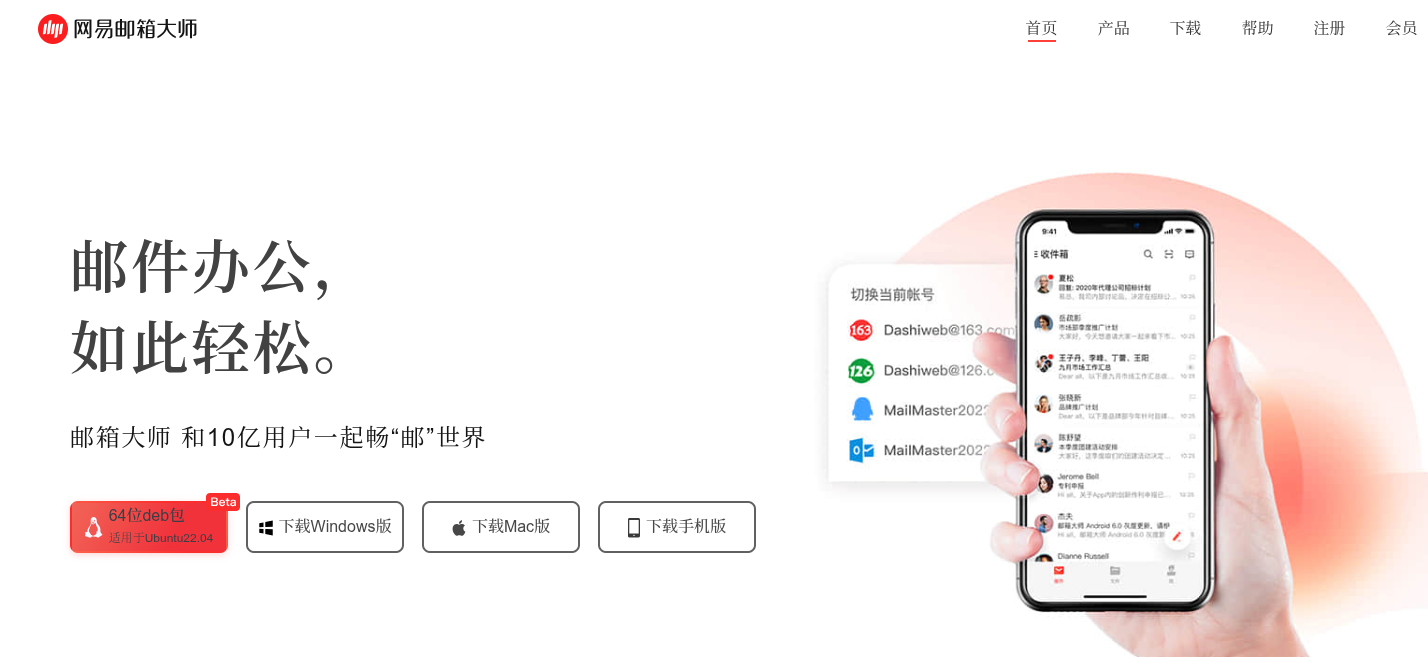
Since the software center can’t find it, go to the official website to download it. Access https://dashi.163.com/, found that NetEase provides the Linux version of the installation package, but it is a .deb package for Ubuntu 22.04.
as shown in Figure 2: downloaded mail.deb The file, marked ‘NetEase Mail Master 64-bit Deb package is applicable to Ubuntu 22.04’.
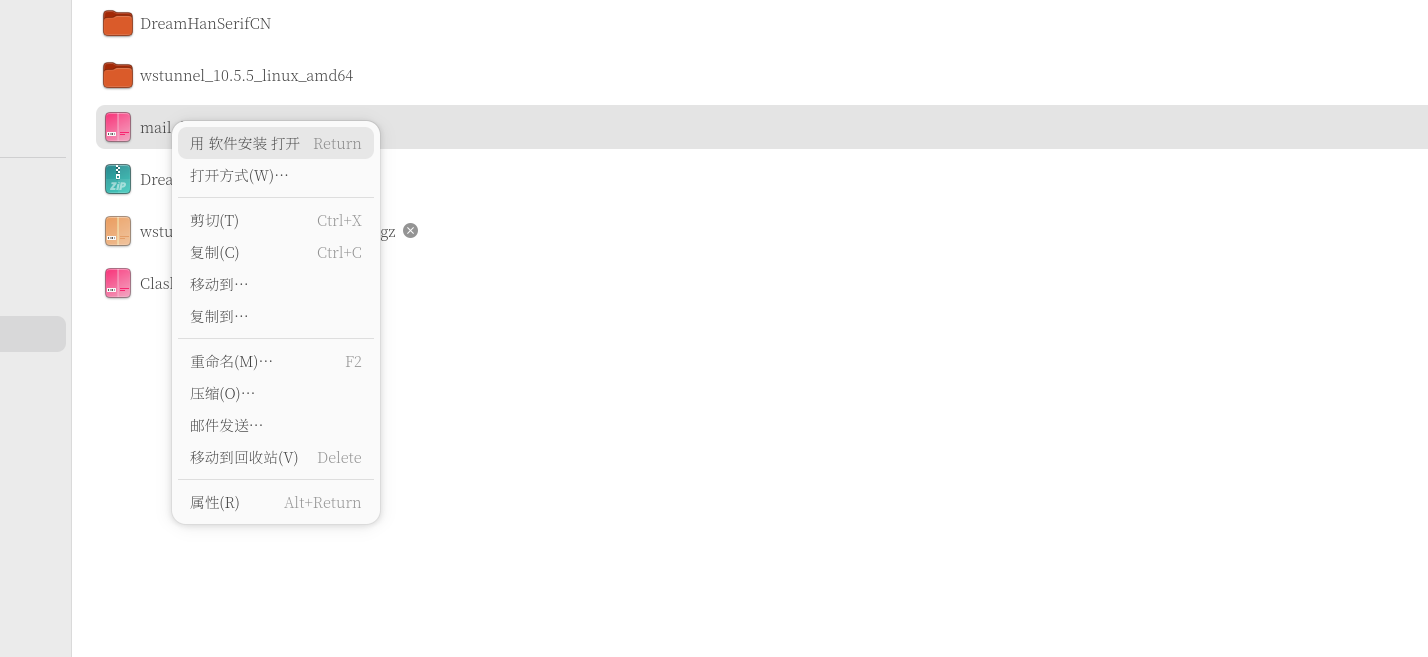
Find the downloaded package in the file manager, right-click and select ‘Open with software installation’——as shown in Figure 3.
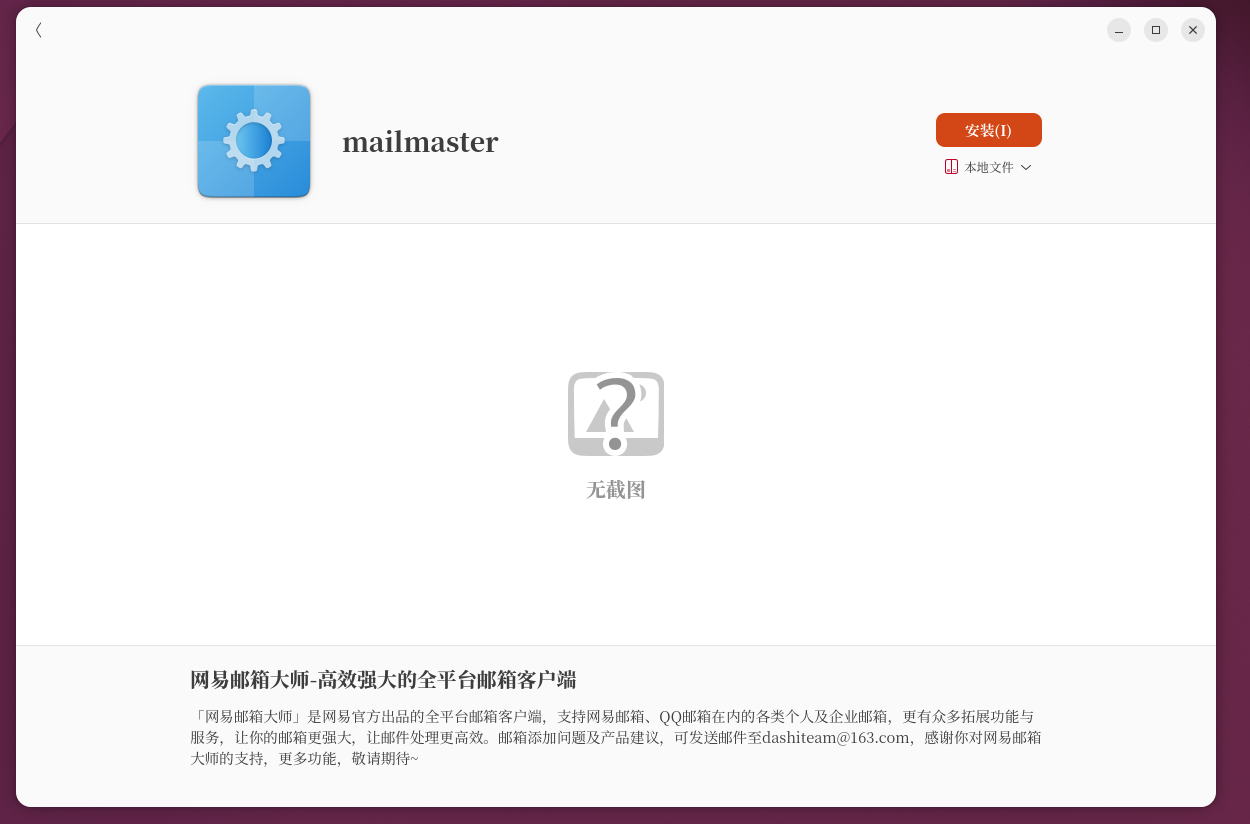
as shown in Figure 4: The software installation interface displays ‘NetEase Mailbox Master – an efficient and powerful all-platform mailbox client’, it seems that everything is normal. Click ‘Install’.
as shown in Figure 5: However, the installation failed. Error details:
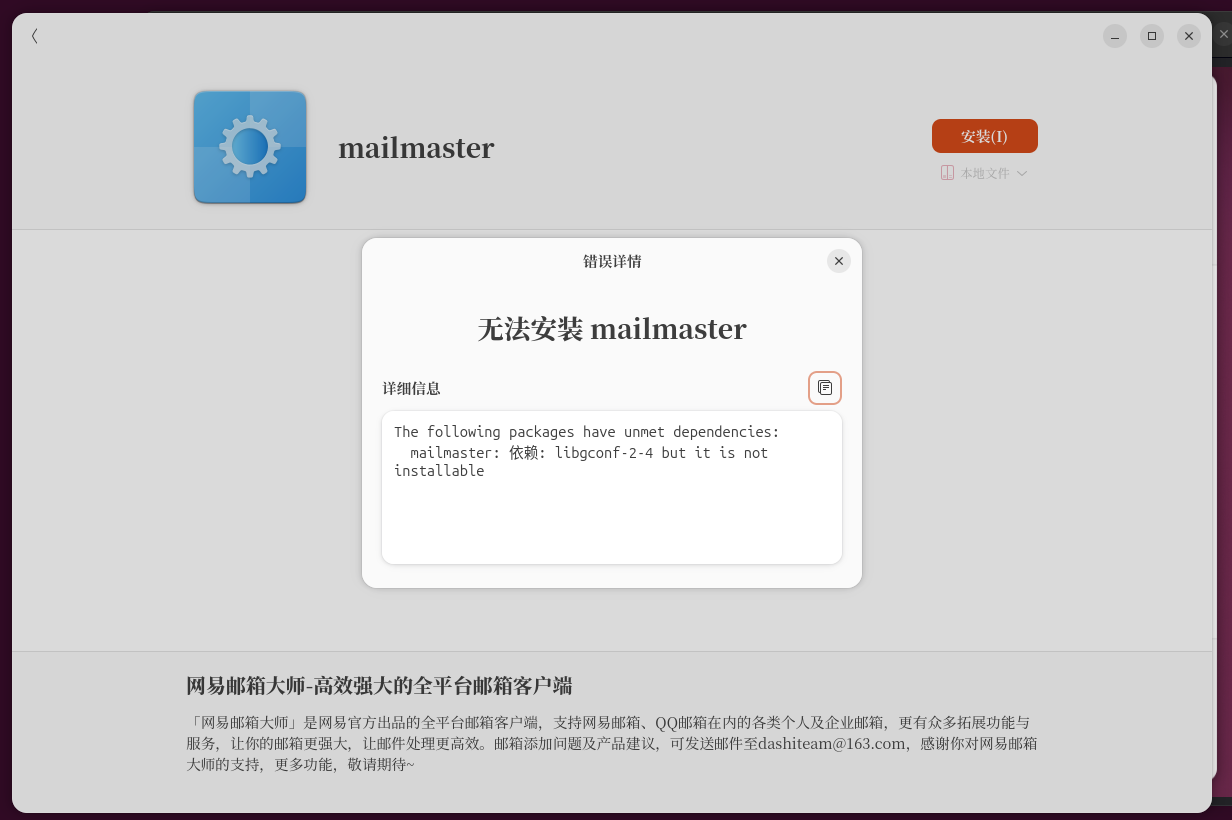
Unable to install mailmaster
Details: The following packages have unmet dependencies:
mailmaster: dependency: libgconf-2-4 but it is not installable
Ubuntu 26.04 has removed this ancient GCONF library, and NetEase’s .deb package also relies on it. Trying to install dependencies manually is fruitless, and decisively gave up NetEase mailbox master.
Tips: If you insist on using NetEase Mail Master, you can install it in the Ubuntu 22.04 environment, or try to use the Flatpak version (if it exists). But for 26.04 users, this road is basically impossible.
Why choose Thunderbird?
Netease mailbox master can’t get through this road, then change it. I ended up choosing Thunderbird, here are some comparison analysis to help you understand why it is the best choice at the moment.
Mainstream Linux mail client horizontal comparison
| Client | Location | Advantage | Shortcoming | suitable for the crowd |
|---|---|---|---|---|
| thunderbird | All-round PIM | Comprehensive functions, rich plug-ins, continuous update, cross-platform | The interface is slightly traditional and has many settings | the vast majority of users |
| Geary | Gnome Minimalist | Modern interface, dialogue view, seamless integration with GNOME | Slow function and slow update | GNOME Desktop, Mild Mail Users |
| Evolution | Enterprise type | Calendar/Contact/Task Integration, Exchange Support Good | The interface is like the old version of Outlook | Enterprise users, need Exchange |
| Kmail | KDE native | KDE has high integration and rich functions | Depends on a large number of KDE libraries | KDE desktop users |
| Claws mail | light weight | Extremely fast and resource usage is very low | Simple interface, steep learning curve | Old devices, users who pursue speed |
| mailspring | modern commerce | Beautiful interface, modern function | Some functions are paid, closed source | Users willing to pay |
Why is Thunderbird finally chosen?
1. Stable and reliable, continuous update
Thunderbird originated from the Mozilla Foundation and has the same origin as Firefox, and has a history of more than 20 years. After independence in 2020, MZLA Technologies Corporation was established, and it has obtained greater autonomy and more focused development resources. In recent years, especially the 2023 ‘Supernova’ major version update, Thunderbird has undergone a modernization of rebirth.
2. Comprehensive function, one stop to get it
It is not only a mail client, but also a personal information management center (PIM) that integrates functions such as calendar, task management, RSS subscription, and Matrix chat. This one-stop solution is very convenient for users who need to manage multiple mailboxes.
3. Gmail OAuth2 native support
Since 2024, Google has mandated all third-party clients to use OAuth2 authentication, and the ordinary username/password method has completely expired. Thunderbird has complete native support for OAuth2, which is the basic premise of using Gmail.
4. Ubuntu defaults, the community is huge
As Ubuntu’s default mail client pre-installed, Thunderbird has a huge user base and rich document resources, making it easier to find solutions when encountering problems.
5. Excellent multi-account management ability
Thunderbird can easily manage multiple mailbox accounts, support IMAP/POP3 protocol, and also has built-in calendar, contacts, openPGP encryption and other functions, with strong scalability, which is the safest and most reliable choice for most users.
Summary in one sentence: Thunderbird may not be the lightest and not the best looking, but it is the mostSafeThe choice – comprehensive function, huge community, continuous update, suitable for most Ubuntu users.
Move to Thunderbird
as shown in Figure 6: Search for Thunderbird in the software center, click Install, and the installation is complete.

as shown in Figure 7: Open Thunderbird and start adding mailboxes. After entering the email address and password, the automatic configuration wizard is very intelligent, and automatically recognizes imap.163.com and smtp.163.com, and connects security SSL/TLS, and completes it in one step.
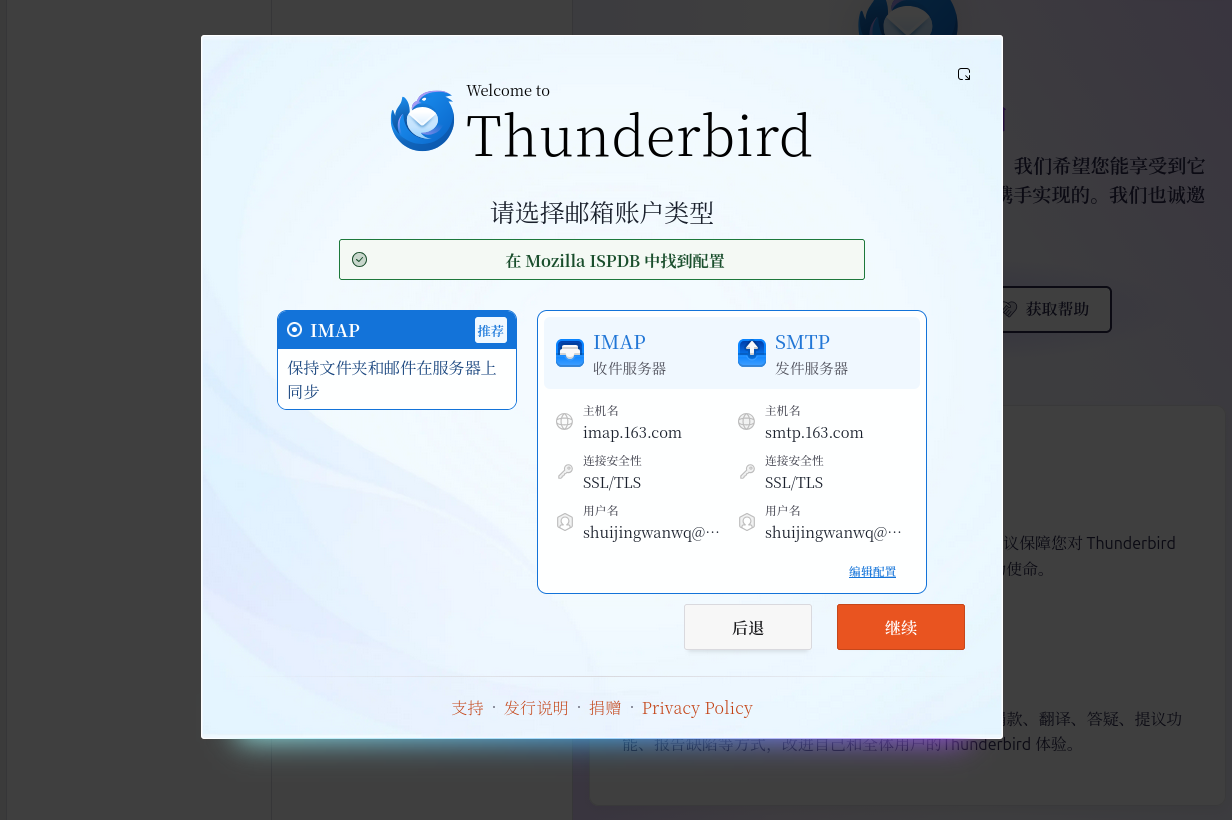
📌 Authorization code configuration of NetEase Department mailbox (126/163/YEAH)
as shown in Figure 8, here is a key point: if you are using 126, 163, yeah.net and other NetEase department mailboxes,Can’t log in directly using email password, you need to get the authorization code first.
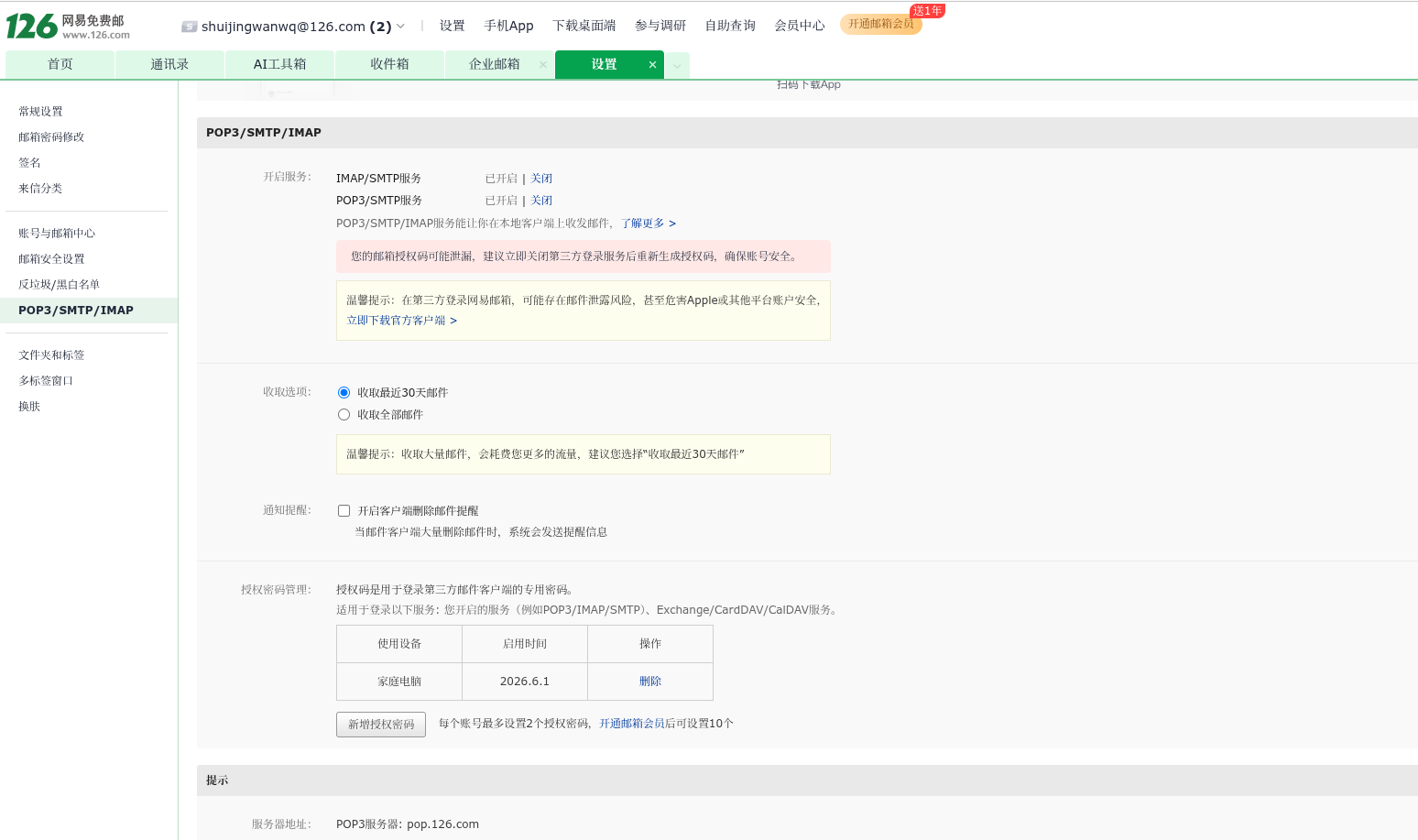
Specific steps:
- Log in to the web version of NetEase mailbox and enter Set up → POP3/SMTP/IMAP setup page.
- Turn on IMAP/SMTP service(Recommended IMAP, which can synchronize mail status between multiple devices).
- The system will prompt ‘Your email authorization code may be leaked, it is recommended to close the third-party login service immediately and regenerate the authorization code’ – follow the guidelinesGenerate a new authorization code.
- Each account can set up to 2 authorized passwords, and 10 can be set after opening a member.
- Copy the generated authorization code, go back to Thunderbird to add an account, paste this authorization code in the password bar.
Prompt: The IMAP protocol port is set to 993 (SSL/TLS), the SMTP port is set to 994 or 465 (SSL/TLS), and the complete email address is filled as the user name.
OAuth2 and proxy configuration for Gmail
When adding a Gmail account, the real test came.
as shown in Figure 9: After entering shuijingwanwq@gmail.com, Thunderbird prompts ‘Waiting for authorization in the login pop-up window’.
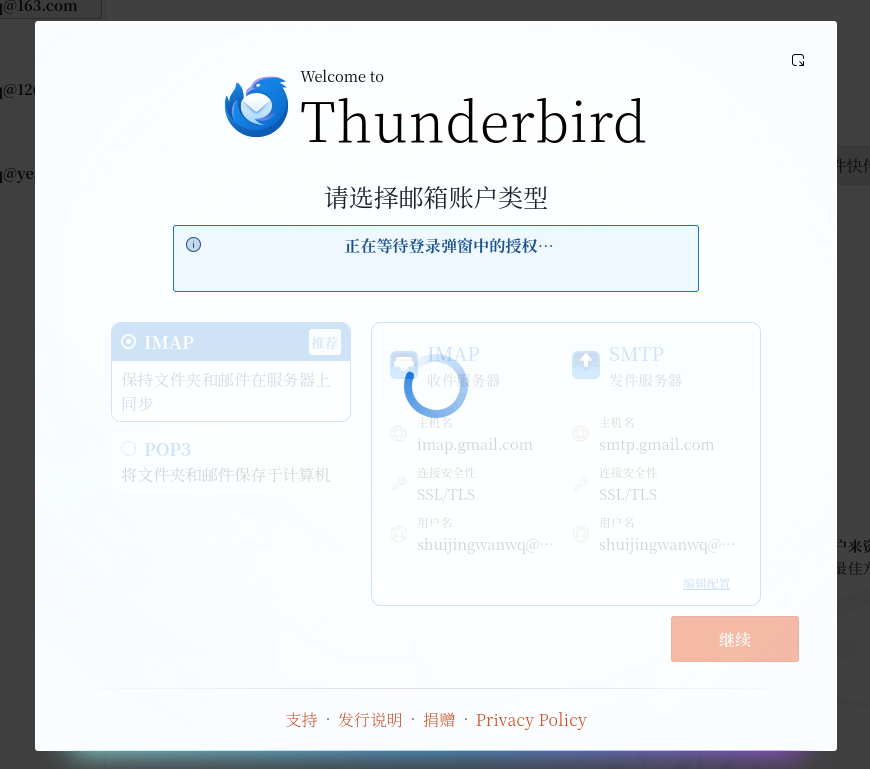
Since Google has forced OAuth2 authentication since 2024, the ordinary password login method is no longer available. Thunderbird will pop up a Google Authorization window, allowing you to log in and authorize in a browser-style interface.
However, after waiting for nearly 1 minute, the pop-up window finally appeared, but it prompted ‘connection timeout’ – as shown in Figure 10.
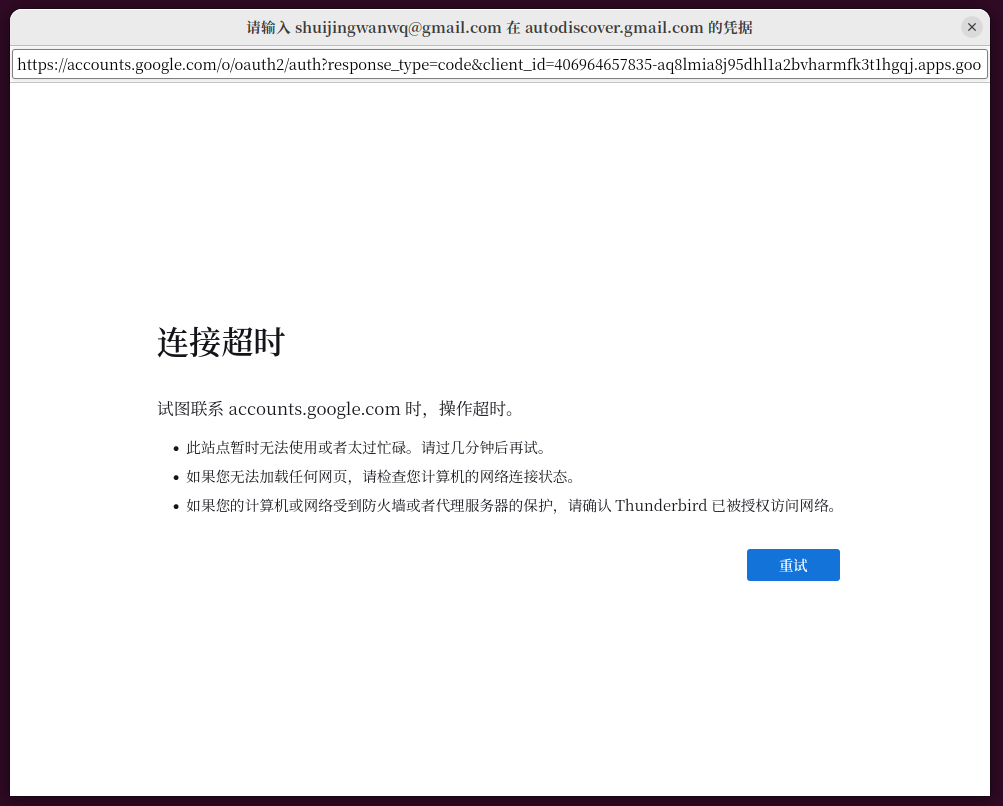
as shown in Figure 11: I am using the Clash Verge proxy client. In the Clash Verge settings, the hybrid proxy port is 7897, and the SOCKS5 port is not enabled by default.
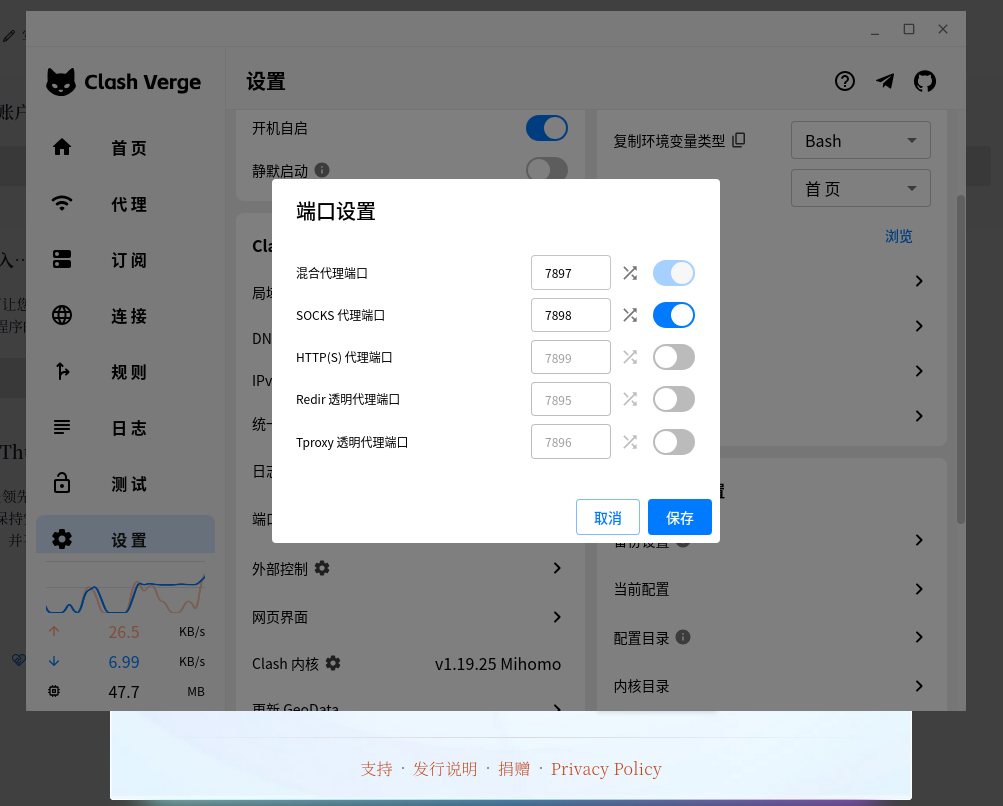
🧪 First attempt: SOCKS5 proxy – directly failed
as shown in Figure 12: I try to configure the socks5 proxy first. In Thunderbird’s ‘Connection Settings’, select Manually Configure Agents and fill in the SOCKS host 127.0.0.1, the port fills the Socks5 port of the Clash Verge (eg 7898), and checks ‘DNS passes when using SOCKS V5’.
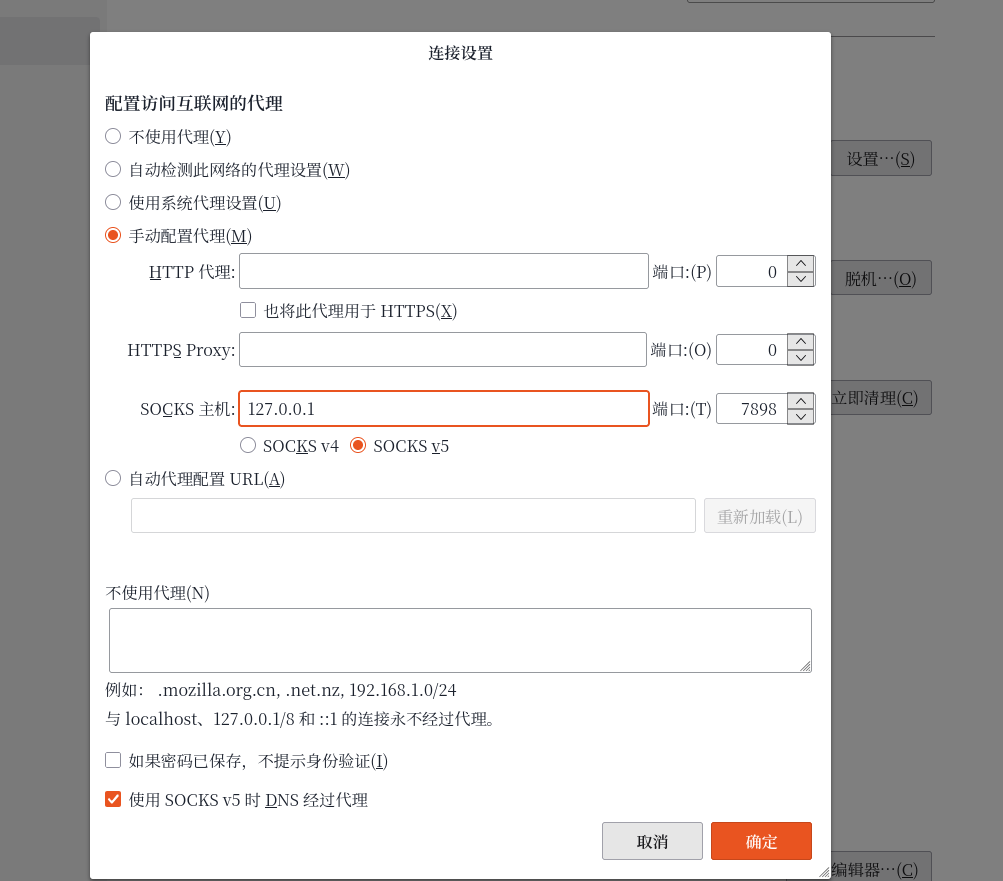
Result: After saving, restart Thunderbird, and add the Gmail account again. This time, the pop-up window does not appear, and it directly prompts ‘Authentication error’.
Cause analysis: In the SOCKS5 proxy environment, the OAuth2 authorization process of Thunderbird may be blocked. Some users have found that the IMAP can work normally through the SOCKS5 proxy, but the SMTP part will fail. More importantly, the OAuth pop-up window of Thunderbird is essentially a built-in browser page, which communicates through the HTTPS protocol, which is a different network channel with the standard mail protocol (IMAP/SMTP). Under SOCKS5, the HTTPS request for this built-in browser is likely to be handled correctly, causing the authorization process to be stuck.
✅ Second attempt: HTTP proxy – success!
as shown in Figure 13: Use the HTTP proxy scheme instead. In Thunderbird connection settings:
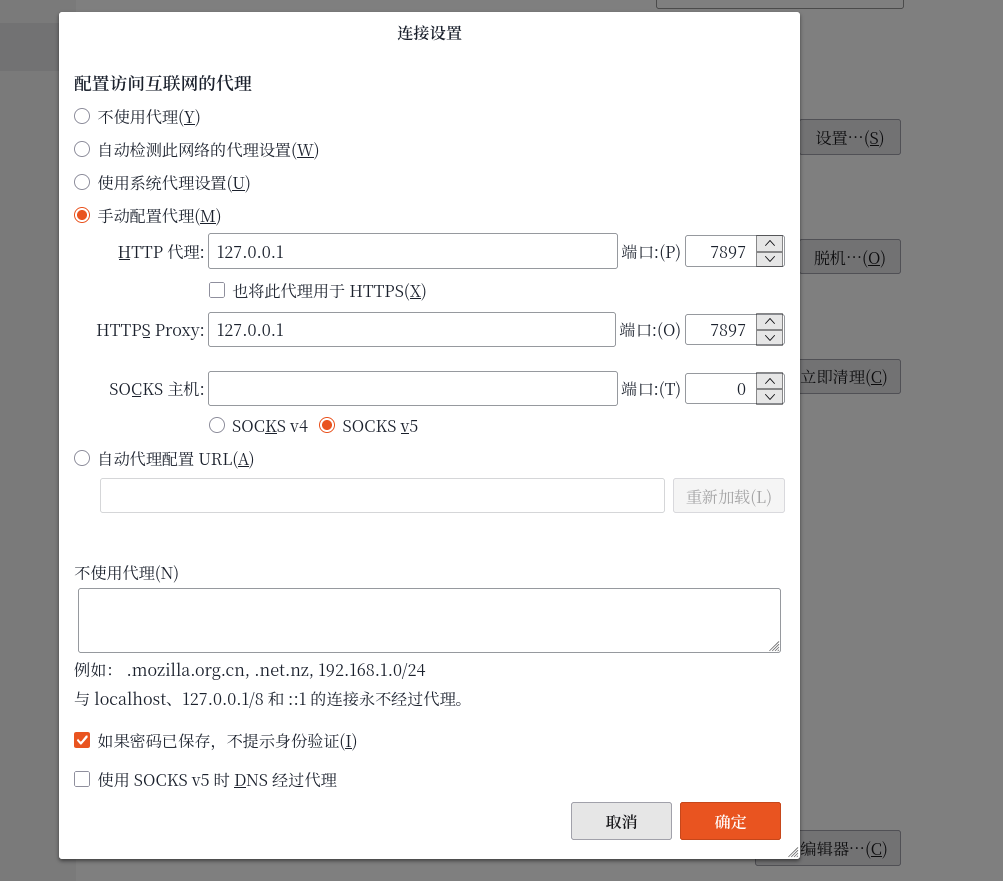
- HTTP proxy:
127.0.0.1, port7897(Hybrid proxy port of Clash Verge) - HTTPS proxy:
127.0.0.1, port7897 - SOCKS host is left blank
- Uncheck ‘DNS is proxyed when using SOCKS v5’
After saving, restart Thunderbird and add a Gmail account again.
Figure 14: This time, Google’s authorization page has successfully popped up! Enter your email or mobile number, click Next, enter your password, and then authorize Thunderbird to access your Google account.
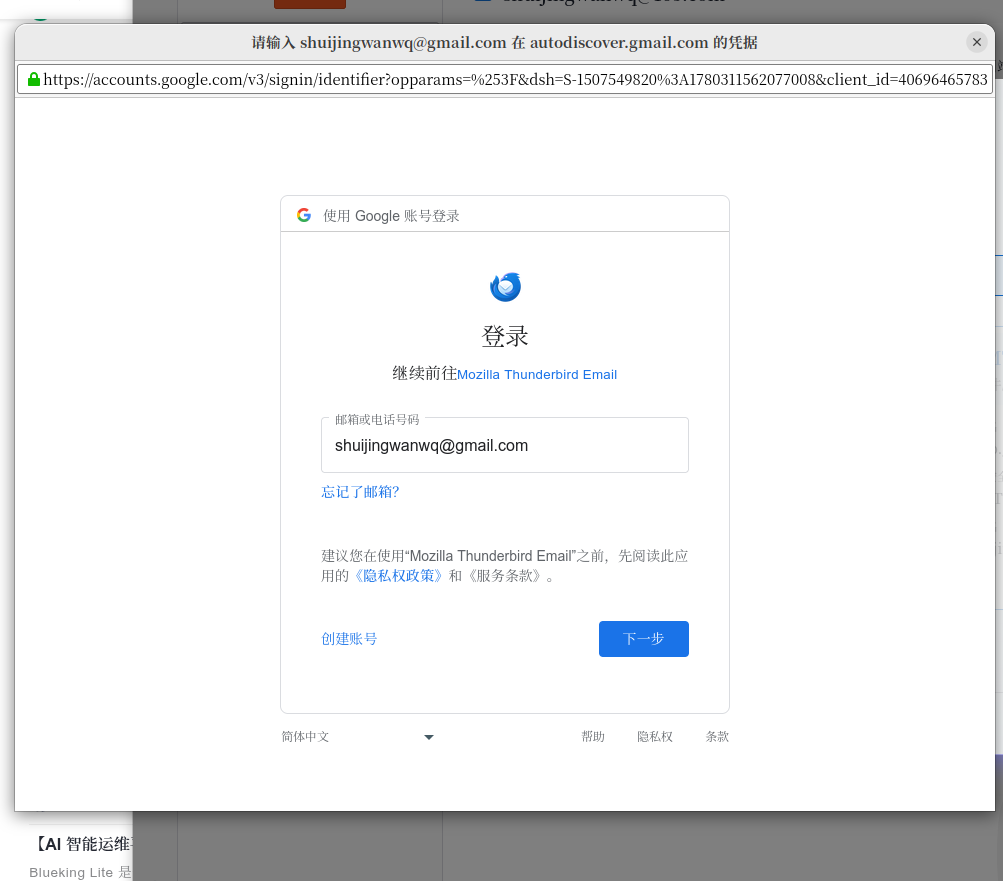
as shown in Figure 15: After the authorization is completed, the Gmail account is successfully added. In the end, a total of 8 mailboxes were added to the Thunderbird account list.
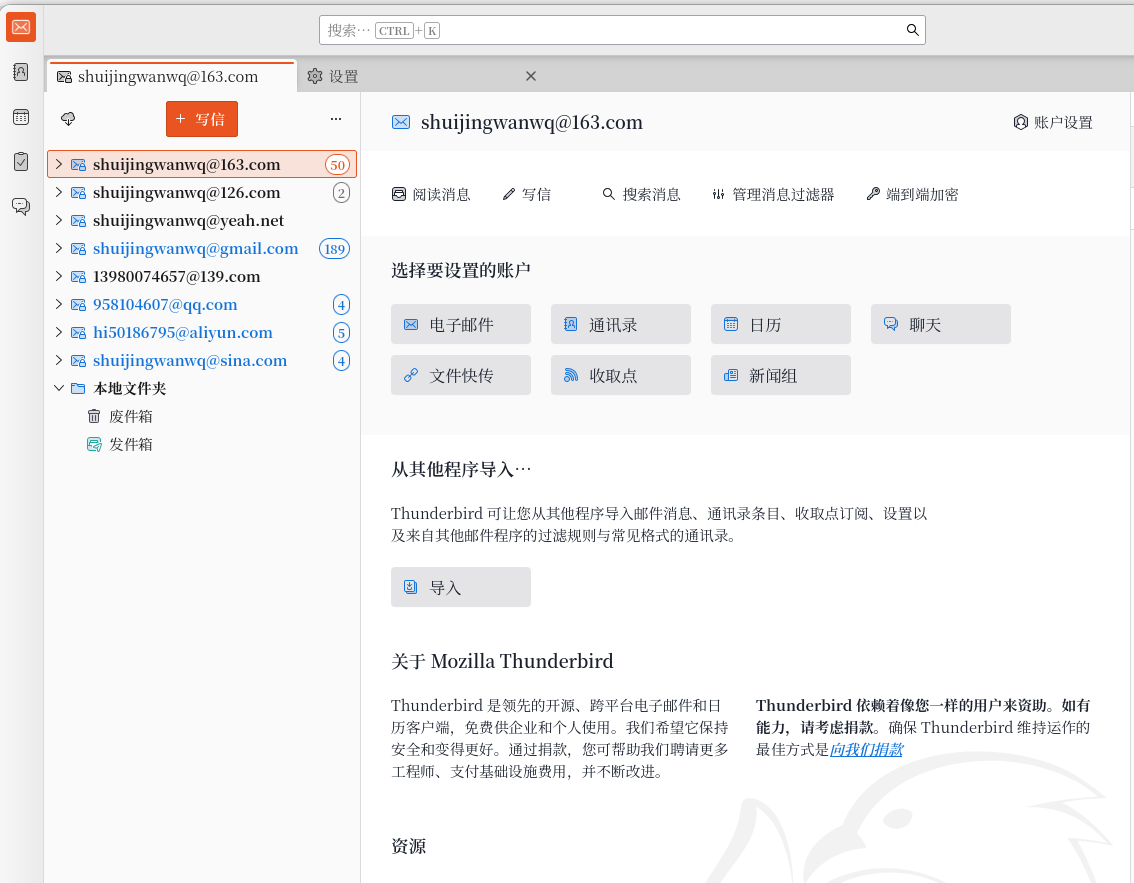
📋 Final result: 8 mailboxes gathered
Include:
- shuijingwanwq@163.com
- shuijingwanwq@126.com
- shuijingwanwq@yeah.net
- shuijingwanwq@gmail.com
- 13980074657@139.com
- 958104607@qq.com
- hi50186795@aliyun.com
- shuijingwanwq@sina.com
All mailboxes can send and receive emails normally, and Thunderbird is managed in a unified manner, and there is no need to log in to the pages to view emails one by one.
💎 Experience summary
| Problem | Reason | Solution |
|---|---|---|
| Netease mailbox master installation failed | Rely libgconf-2-4 removed in the new system | Give up NetEase and use Thunderbird instead |
| Netease mailbox login failed | Requires an authorization code instead of a password | Open IMAP/SMTP on the web page to generate an authorization code |
| Gmail authorization timeout | The proxy configuration is improper, and the OAuth traffic does not go to the proxy | Use HTTP proxy instead of SOCKS5 |
| No pop-up window under SOCKS5 | HTTPS requests for OAuth built-in browser are blocked | Use HTTP Proxy + Hybrid Port instead |
| Gmail OAuth2 certification | Google mandates OAuth2 | Make sure that the Thunderbird authentication method is OAuth2 |
🚀 Written at the end
If you also configure mail clients on Ubuntu 26.04, my suggestion is:
- Preferred Thunderbird: Ubuntu is recommended by default, comprehensive functions, continuous update, and a huge community, which is the safest choice for most users.
- NetEase Department Mailbox: Remember to use the authorization code to log in, do not use the password directly.
- gmail: OAuth2 is the only way, if you encounter a proxy problem, try the HTTP proxy (hybrid port), do not use socks5.
- One configuration, long-term benefit: Now open Thunderbird every day to view the emails of all mailboxes, no need to log in to the web pages one by one.
I hope this record can help you who also toss the mail client on Ubuntu. If you have a better plan, please share~