systemd user service 203/exec error troubleshooting: wstunnel self-starting configuration record
Background
In the domestic network environment, operators often limit the speed of UDP traffic or directly block the UDP traffic, resulting in unstable or unusable UDP-based VPN connections such as WireGuard. To solve this problem, I use wstnnel Encapsulate WireGuard’s UDP traffic as WSS (WebSocket Secure over TLS) flow. WSS is essentially a WebSocket based on TLS, with a port of 443, which looks exactly the same as ordinary HTTPS traffic, and it is difficult for operators to identify and interfere, thus ensuring the stability of VPN connections.
For convenience, I wrote a startup script start-vpn.sh, and use systemd user service to configure self-start at boot, and everything is running normally.
Problem phenomenon: vpn does not work after computer restart
After the computer restarted one day, I found that the VPN was not working properly. So check the status of the wstunnel service:
systemctl --user status wstunnel.service
The output is as follows:
● wstunnel.service - Wstunnel Client for VPN
     Loaded: loaded (/home/wangqiang/.config/systemd/user/wstunnel.service; enabled)
     Active: activating (auto-restart) (Result: exit-code) since ...
    Process: 12780 ExecStart=/home/wangqiang/start-vpn.sh (code=exited, status=203/EXEC)
   Main PID: 12780 (code=exited, status=203/EXEC)
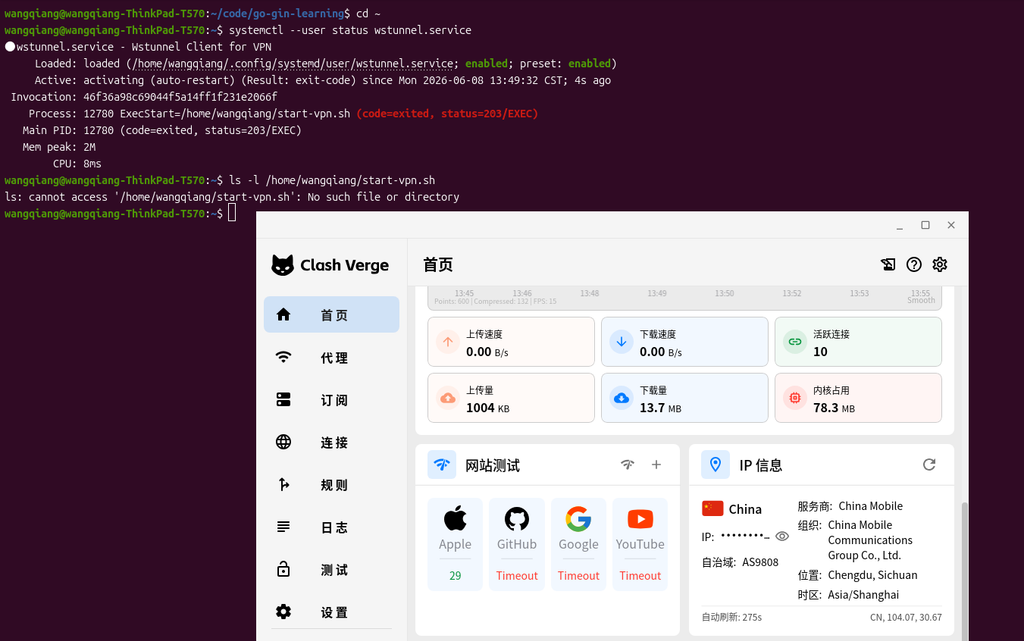
The key information is code=exited, status=203/exec. This exit code means that systemd cannot execute the specified program.
Troubleshoot 203/exec errors
203/exec is usually caused by the following reasons:
- The file specified by execstart does not exist
- File does not have executable permissions
- SHEBANG of scripts (such as
#!/bin/bash) error or the corresponding interpreter does not exist - The file system where the script is located is mounted as
noexec
Since the previous service was normal, I first thought whether the file was moved or deleted. Check the original path:
ls -l /home/wangqiang/start-vpn.sh
Result:
ls: cannot access '/home/wangqiang/start-vpn.sh': No such file or directory
Sure enough, the file is gone. In retrospect, I moved the script to ~/vpn/ below:
ls -l /home/wangqiang/VPN/start-vpn.sh
output:
-rwxrwxr-x 1 wangqiang wangqiang 163 May 28 16:41 /home/wangqiang/VPN/start-vpn.sh
the root of the problem: Moved the script, but the systemd service file ExecStart also point to the old path. The script was not found when systemd tried to start the service after restarting, so it reported a 203/exec error and kept restarting automatically.
repair steps
1. Modify the path in the service file
Edit user service files:
nano ~/.config/systemd/user/wstunnel.service
Will ExecStart line change to:
ExecStart=/home/wangqiang/VPN/start-vpn.sh
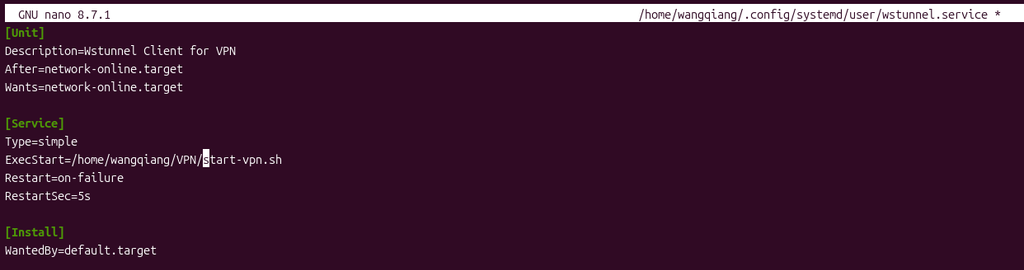
Exit after saving (press in Nano Ctrl+O, press Enter, press ctrl+x).
2. Confirm that the script has executable permissions (existing, no need to modify)
ls -l /home/wangqiang/VPN/start-vpn.sh
Included in permissions x, no extra chmod.
3. Reload systemd and restart the service
systemctl --user daemon-reload
systemctl --user restart wstunnel.service
4. Check the service status
systemctl --user status wstunnel.service
Now the output becomes active (running):
● wstunnel.service - Wstunnel Client for VPN
     Loaded: loaded (/home/wangqiang/.config/systemd/user/wstunnel.service; enabled)
     Active: active (running) since Mon 2026-06-08 14:01:52 CST; 8s ago
   Main PID: 13932 (start-vpn.sh)
      Tasks: 6 (limit: 18198)
     Memory: 3.7M
        CPU: 122ms
     CGroup: /user.slice/user-1000.slice/user@1000.service/app.slice/wstunnel.service
             ├─13932 /bin/bash /home/wangqiang/VPN/start-vpn.sh
             └─13935 /usr/local/bin/wstunnel client -L "udp://127.0.0.1:51820:127.0.0.1:51820?timeout_sec=0" --tls-sni-override wg.shuijingwanwq.com wss://154.21.196.249:443
And the log shows that wstunnel successfully started, listens to the UDP port, and establishes a TLS connection:
6月 08 14:01:52 ... Started wstunnel.service.
6月 08 14:01:52 ... INFO wstunnel: Starting wstunnel client v10.5.5
6月 08 14:01:52 ... INFO wstunnel::protocols::udp::server: Starting UDP server listening on 127.0.0.1:51820
6月 08 14:02:00 ... INFO wstunnel::protocols::udp::server: New UDP connection from 127.0.0.1:46144
6月 08 14:02:00 ... INFO wstunnel::protocols::tcp::server: Opening TCP connection to 154.21.196.249:443
6月 08 14:02:00 ... INFO wstunnel::protocols::tls::server: Doing TLS handshake using SNI DnsName("wg.shuijingwanwq.com")
5. Verify port monitoring
Finally, confirm that the UDP forwarding port has been normally listened to:
ss -lun | grep 51820
output:
UNCONN 0 0 127.0.0.1:51820 0.0.0.0:*
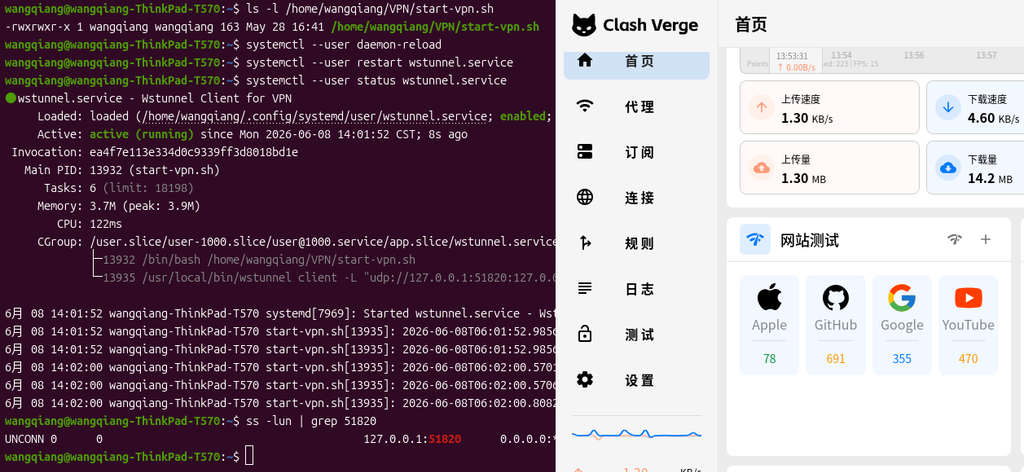
Everything is back to normal. Now wstnnel The client will automatically start with the user login, and automatically retry when accidentally logged out (restart=on-failure).
Why use wstunnel to encrypt Wireguard traffic?
Operators generally implement QoS speed limits or direct discards on UDP traffic, causing WireGuard connections to often time out or disconnect.wstnnel Encapsulate UDP packets in WSS (WebSocket Secure over TLS) In the stream – WSS uses port 443 and TLS encryption, which is exactly the same as normal HTTPS requests from the network characteristics. The DPI device of the operator cannot distinguish whether this is a normal web page access or a VPN tunnel, so the traffic is not specially processed, which ensures the stability and bandwidth of the connection.
In the startup command:
wstunnel client \
  -L "udp://127.0.0.1:51820:127.0.0.1:51820?timeout_sec=0" \
  --tls-sni-override wg.shuijingwanwq.com \
  wss://154.21.196.249:443
wss://Indicates that using WebSocket over TLS, the server side must configure a valid TLS certificate.--tls-sni-overrideUsed to specify the SNI name, so that when the TLS handshake is usedwg.shuijingwanwq.comAs a server name indication, the normal HTTPS request is further simulated.
In this way, WireGuard’s UDP traffic is ‘disguised’ to standard HTTPS traffic, successfully avoiding operator interference.
Summary and Pits Guide
| common mistakes | Solution |
|---|---|
status=203/exec | Inspection of execStart= Whether the path is correct, whether the file exists and has +x Competence |
| The script is manually run but systemd fails | Check the script shebang (first line) to avoid using ~ relative path |
| The configuration does not take effect after systemd modification | Must execute systemctl --user daemon-reload |
Service has been auto-restart | Examine journalctl --user -u service name -f Get detailed error log |
Special reminder: if you move the location of the script,Remember to update the path in the systemd service file synchronouslyOtherwise, the 203/exec error described in this article will appear. It needs to be executed after modification daemon-reload to take effect.
In addition, if it isuser service((--user), please ensure that the service starts with the user login:systemctl --user enable service name. User services depend on the user’s systemd instance (generally by systemd --user Automatically start when logging in).
reference material
- systemd.exec manual – understand
ExecStartand exit code journalctl --user -u wstunnel.service -f– View user service logs in real time
Through the above steps, I quickly positioned and solved the 203/exec error caused by the moving script, and restored the self-starting of wstunnel. I hope this blog can help friends who encounter similar problems to avoid detours.
happy tunneling!