Farewell to WeChat window restrictions: use Flameshot to bind global ALT+A screenshots in Ubuntu 26.04
In Ubuntu 26.04, the function of the screenshot tool that comes with the system is really weak, and only supports simple screenshots and recording screens, which cannot meet the needs of daily annotation.
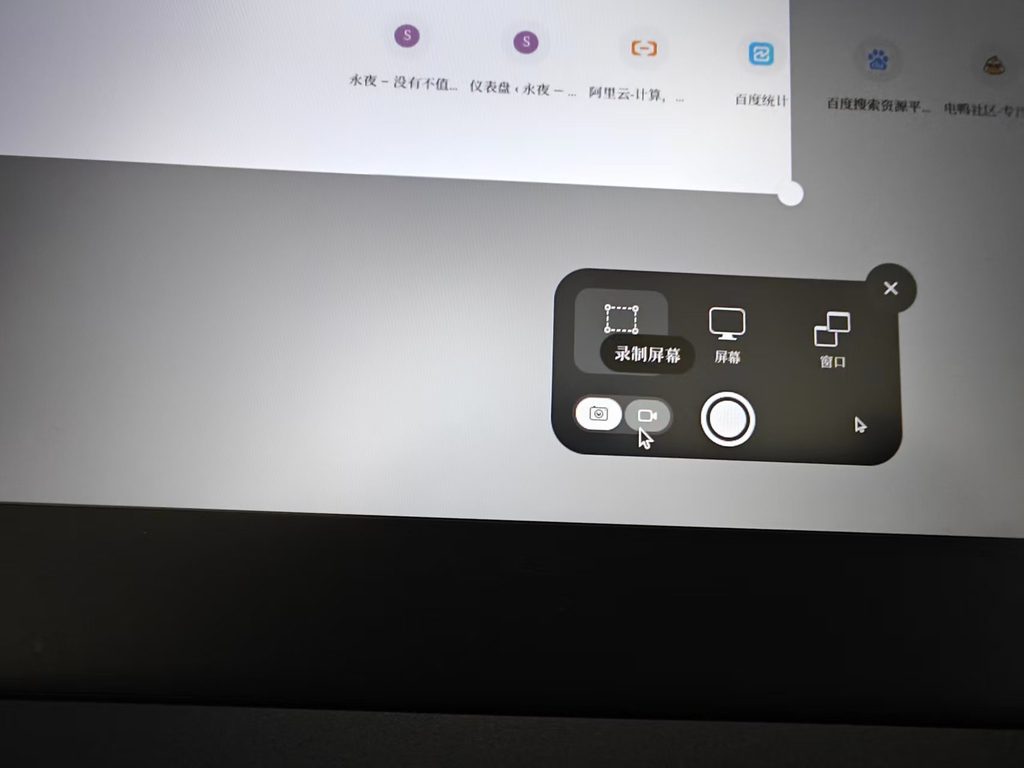
In contrast, WeChat’s screenshot tool is very powerful, and supports various annotations and frame selection, which is the first choice for many people.
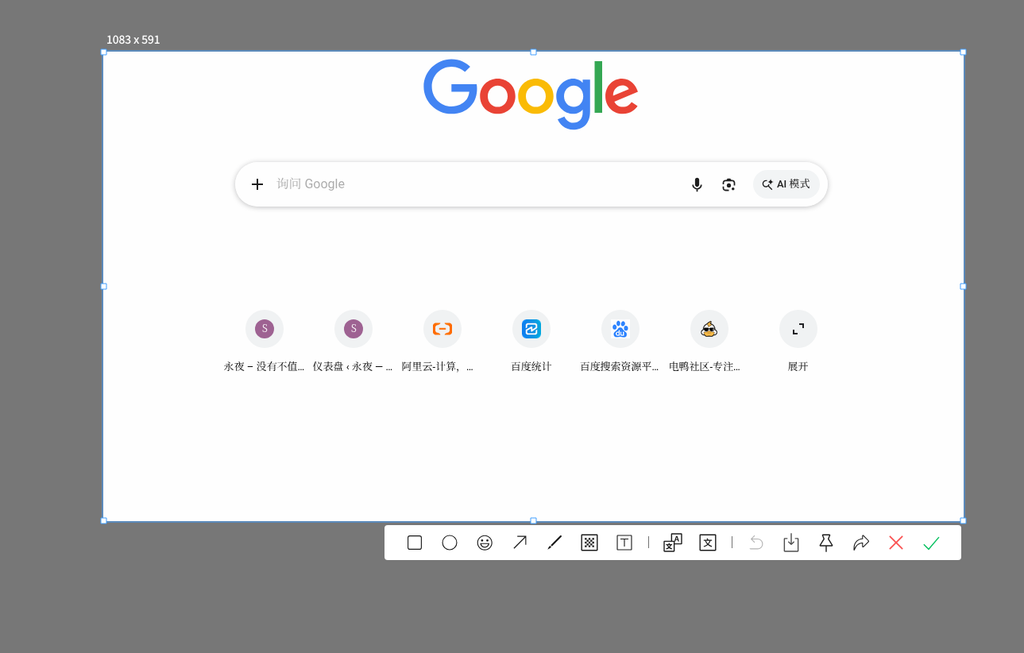
But WeChat screenshots have a fatal pain point: the shortcut keys can only take effect when the WeChat window is at the top and gets the focus. Before each screenshot, you must first click out the WeChat window, which greatly affects the efficiency.
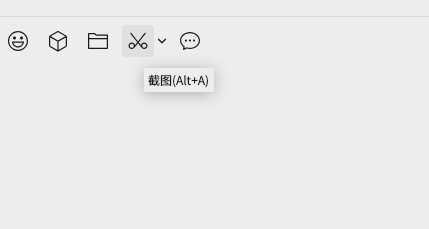
To solve this, I found the perfect alternative: use FlameShot and bind the global shortcut to Alt+a. Here is the specific configuration tutorial:
1. Native installation of FlameShot
It is recommended to use the native installation of APT to prevent the Flatpak sandbox from causing restricted permissions in the Wayland environment:
sudo apt update
sudo apt install flameshot
2. Set global shortcut keys
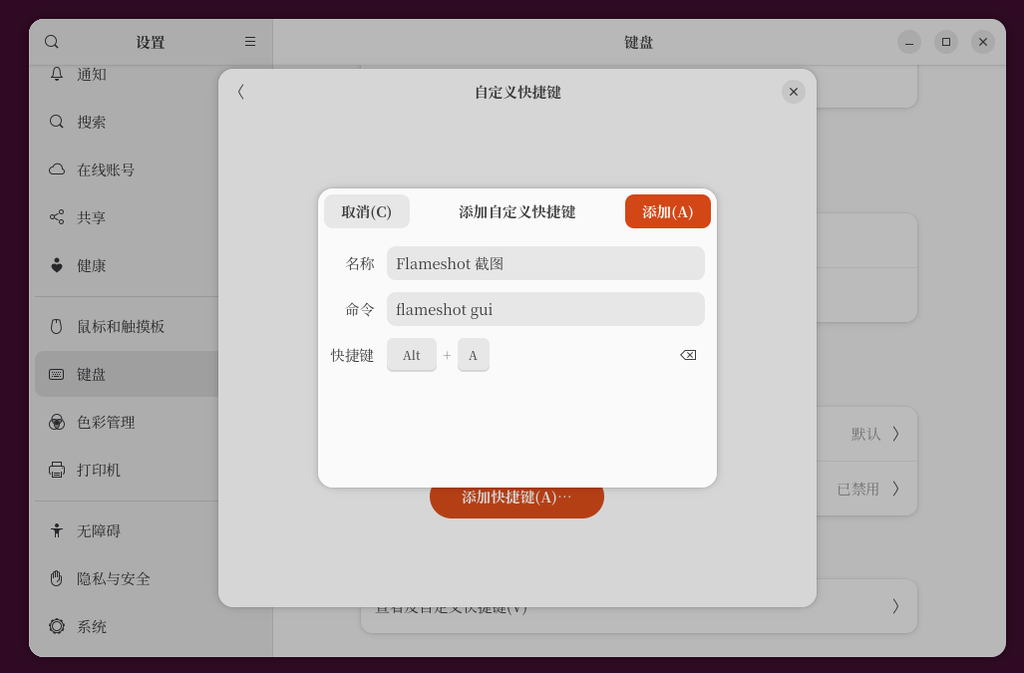
Open system Set up -> Keyboard -> View and customize shortcuts -> custom shortcut keys, click ‘Add Shortcuts’ at the bottom.
- Name: Flameshot screenshot
- Command:
Flameshot GUI - Shortcut keys: pressed
Alt + A
3. Grant screenshot permissions
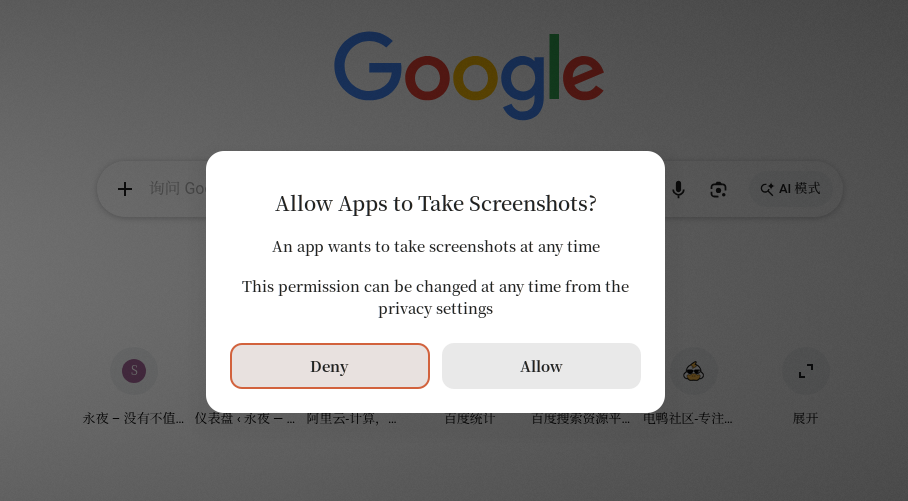
Since Ubuntu 26.04 uses the Wayland display protocol by default, the screen capture control is strict. First press Alt + A The system will pop up a privacy authorization prompt.Be sure to click ‘allow’ to allow, otherwise Flameshot cannot capture the screen.
4. Experience the Power of FlameShot
After the authorization is completed, you can use it on any interface Alt+a Evoke screenshots. The operation logic of FlameShot is very clear, providing detailed shortcut key description, which greatly improves the operation efficiency.
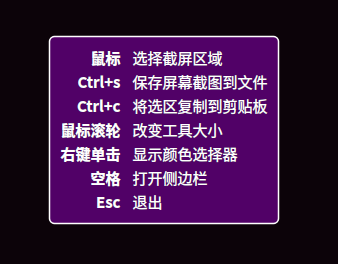
At the same time, FlameShot provides a rich function panel, which can accurately display the geometric information (such as size and coordinates) of the screenshot area, and supports various annotation tools, which is a perfect replacement for WeChat screenshots.
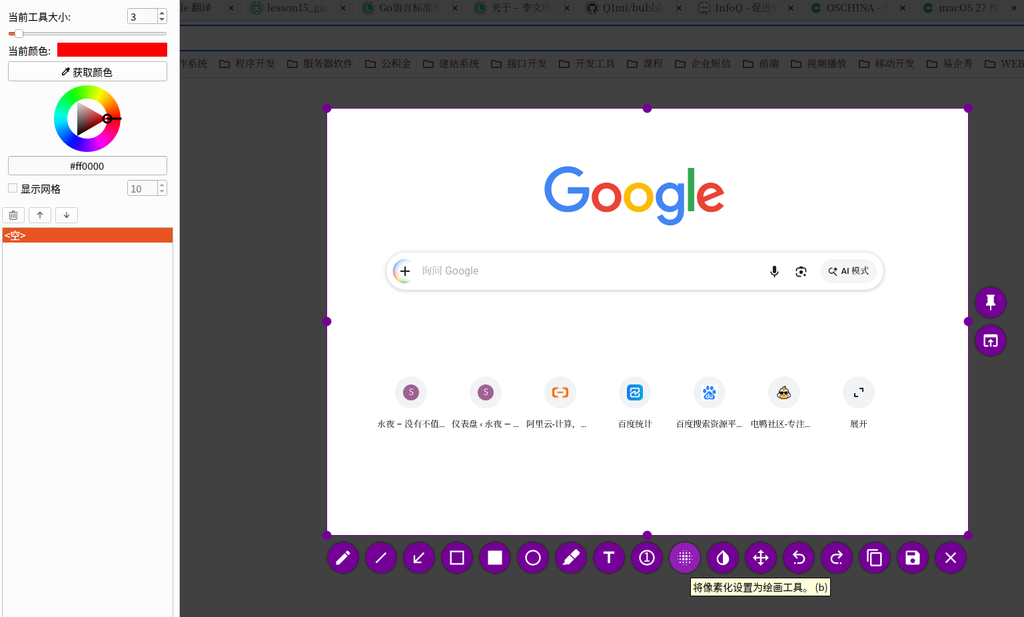
At this point, the configuration is all complete! Now you can press on any interface Alt + A, enjoy the unrestrained and efficient screenshot experience.