

From Doubao generation to Photopea editing, from a “blocky look” to perfect display
Preface
I recently switched my blog theme to the WordPress 2025 theme and decided to take this opportunity to update the site’s Logo and Favicon. I used to rely on ready-made icons, but this time I decided to design one myself using AI.
It sounded like a great idea, but in practice, I hit one pitfall after another. From generating images with Doubao to handling transparent backgrounds and finally manually editing in Photopea, it took me the better part of a day to get everything sorted.
This article documents my entire troubleshooting process, hoping to provide some reference for friends encountering similar issues.
1. Background and Requirements
My blog is a technical one, primarily sharing backend development experience in PHP, Go, Linux, and MySQL. The Logo I wanted to design this time focuses on the imagery of “water” and “night” to match the blog name “Yongye” (Endless Night).
The specific requirements were simple:
- The Logo will be displayed in the website header
- It will also serve as the site icon (Favicon) displayed in the browser tab
- A transparent background is required (the Favicon must be transparent)
- At least 512×512 pixels
2. Option 1: Generating a White Background Logo with Doubao (Pitfalls Begin)
I first used Doubao to generate a Logo with a white background, and the overall result looked decent.
But after uploading it to WordPress, problems arose:
When displayed in the website header, the Logo had a noticeable “blocky look”, like a sticker placed on white paper, with a ring of grayish off-white noise around the edges.
It was even more obvious for the Favicon; the browser tab just showed a solid white square, completely obscuring the Logo’s shape.
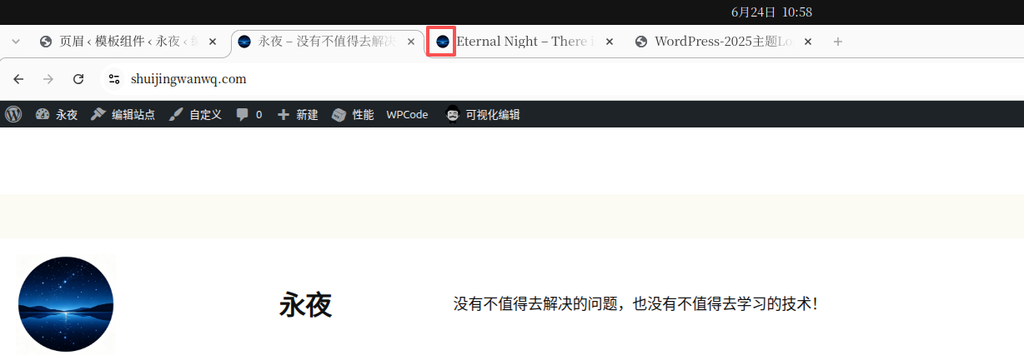
Initial analysis: Although the AI-generated image visually appears to have a “white background,” the edges retain semi-transparent noisy pixels. These pixels become exposed against the white background of the webpage.
3. Option 2: Having Doubao Generate an SVG (Failed)
Since the PNG had edge issues, would generating an SVG vector format directly solve the problem perfectly?
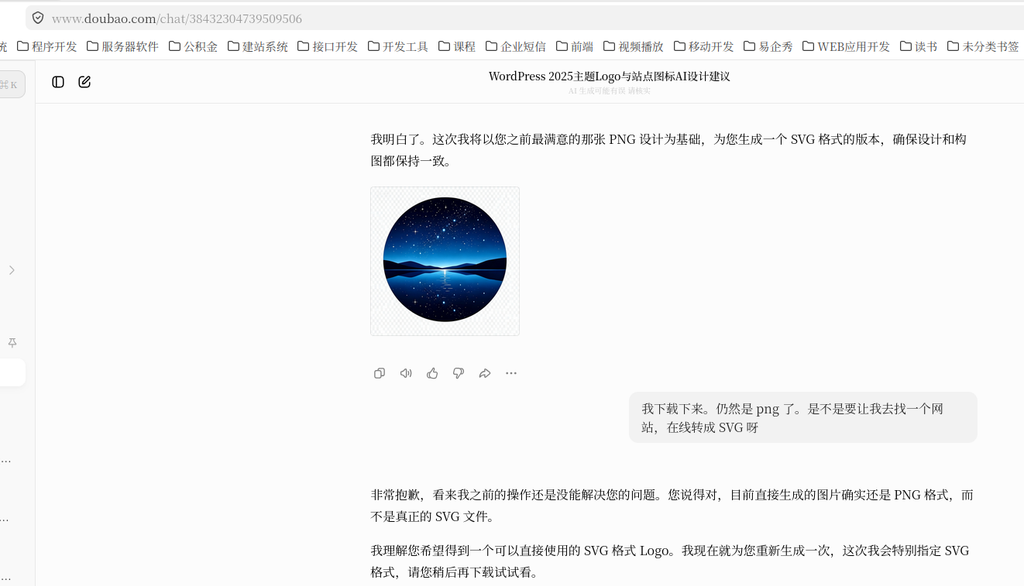
I asked Doubao to regenerate the Logo in SVG format.
After downloading it, I took a look—it was still a PNG. Furthermore, the image prominently featured a “Doubao AI Generated” watermark. I tried to make Doubao remove it, but no matter how I described it, it wouldn’t go away.
This option was an outright failure.
4. Option 3: Generating a Transparent Background PNG with Doubao (Worse)
I switched to having Doubao generate a PNG with a transparent background.
After uploading, the result was worse than the white background.
On the white background of the webpage, what used to be just some edge noise was now a prominent semi-transparent gray halo around the entire Logo. The blocky look was even more apparent than in the white background version.
The Favicon was even worse, directly appearing as a gray block.
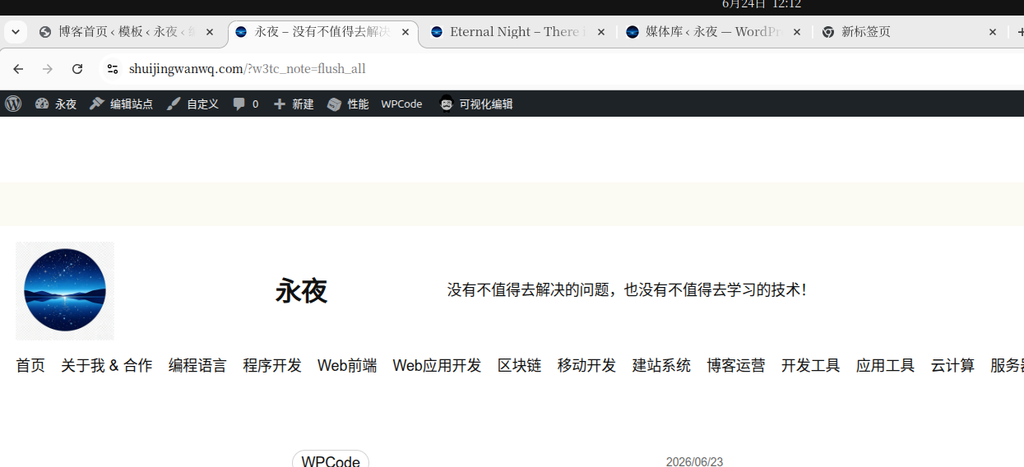
Cause analysis: Doubao’s “transparent background” is actually achieved by generating an image with a background and then “cutting it out.” The edges retain a large number of semi-transparent pixels (technically known as “Matte”), which overlap on a white background to form a visible gray halo.
5. Turning to Photopea for Manual Processing
Since AI-generated images all require post-processing, I decided to do it myself.
I chose the free online image editor Photopea (a web-based Photoshop that is completely free).
5.1 Step 1: Resize the Image
The original image size was 2048×2048, which is too large for a Favicon. I first scaled it down to 1024×1024.
In Photopea, click 图像 → 图像大小, set the width to 1024 pixels, and the height will sync automatically.
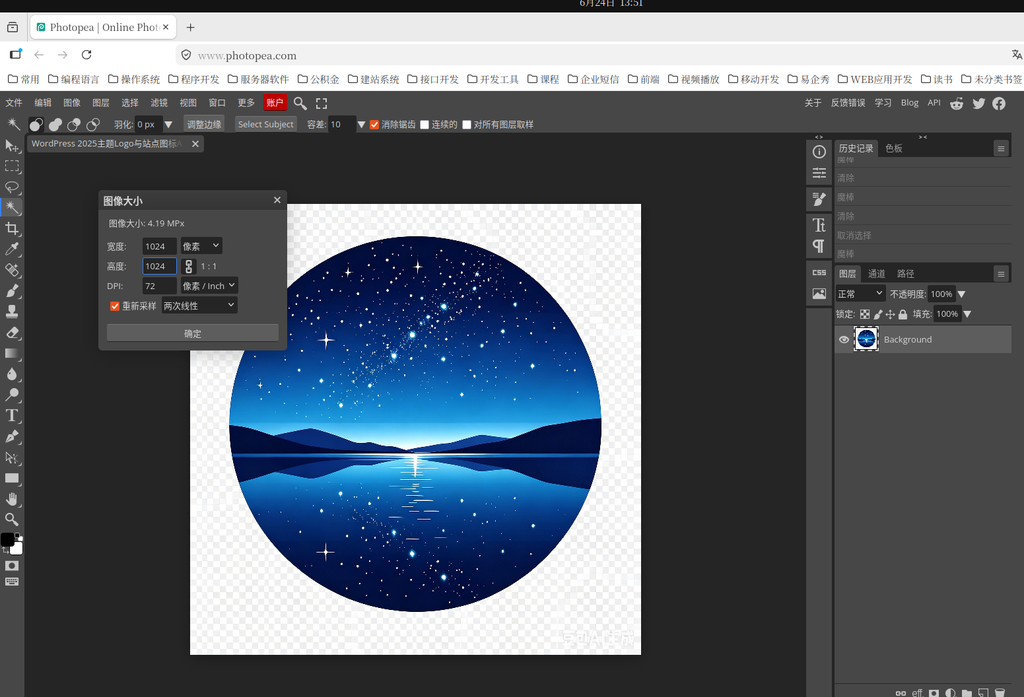
Why resize before processing? If you clean up the edges on a large image, scaling it down to a smaller size will cause the originally sharp edges to generate new semi-transparent pixels, and the blocky look will return. Therefore, you must scale first and clean up second.
5.2 Step 2: Clean Up Noise with the Magic Wand Tool
Here comes the crucial step.
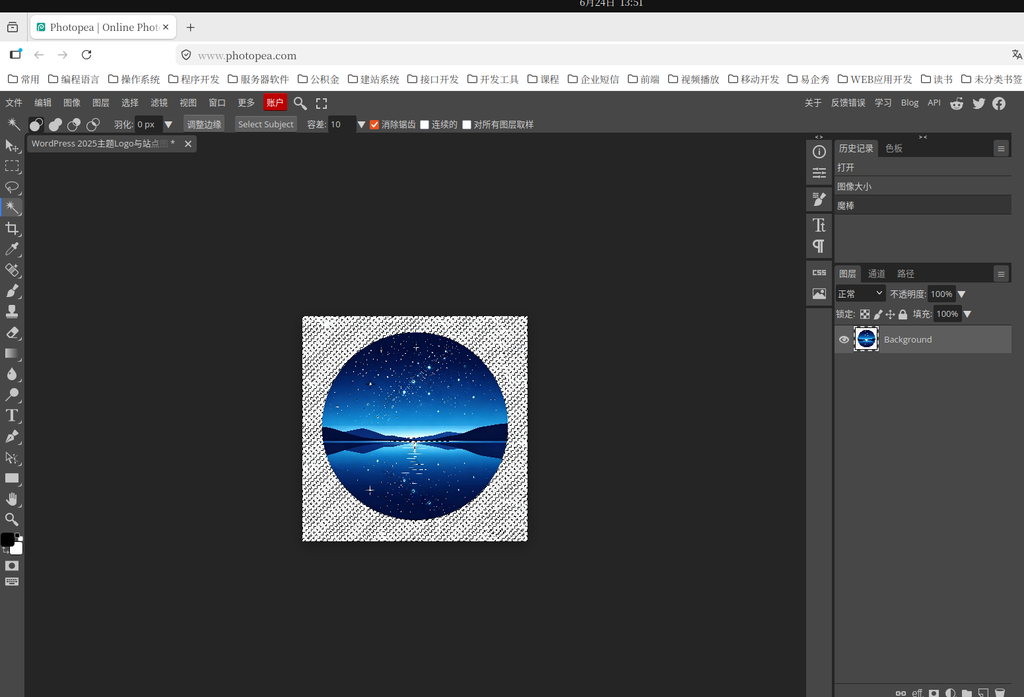
In Photopea, use the Magic Wand Tool (shortcut key W), set the tolerance to 10, click on the grayish off-white noise area around the Logo, and press the Delete key to remove it.
Operation tips:
- Unlock the background layer (double-click the locked Background layer)
- Uncheck the “Contiguous” option to select all scattered noise at once
- If the Logo itself gets selected, lower the tolerance value
5.3 Step 3: Export as a Transparent PNG
Once cleaned up, export it as a PNG.
Note: When exporting, ensure the “Transparency” option is checked. If you don’t see the transparency option, it means the image mode is not set to RGB. Go to 图像 → 模式 and switch to RGB color first.
6. Verifying the Results
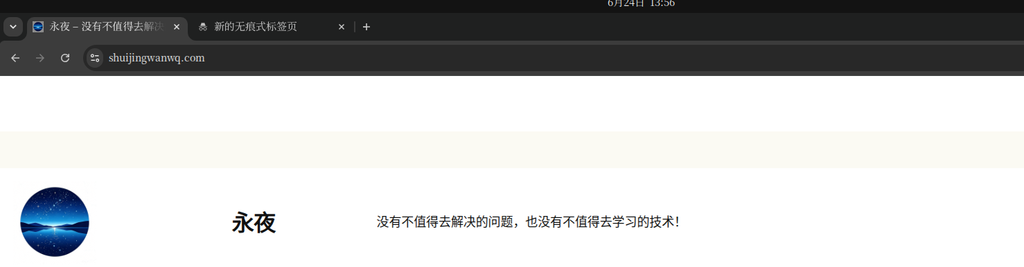
Chrome Browser (Incognito Mode)
After uploading to WordPress, I checked it in Chrome’s incognito mode:
- Website header Logo: Perfectly blended, no blocky look ✅
- Favicon: Displays normally, with sharp edges ✅
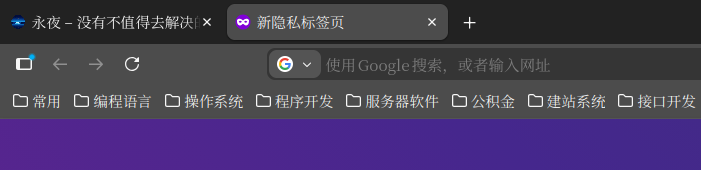
Firefox Browser (Incognito Mode)
Favicon rendering in Firefox has always been a persistent issue, but the results were normal this time:
- Website header Logo: Normal ✅
- Favicon: Displays normally ✅
7. Summary of Pitfalls
Looking back at the entire process, I summarized a few takeaways:
1. AI-generated images require post-processing
Whether it’s Doubao or other AI drawing tools, images generated directly for website use are often imperfect. This is especially true for transparent background PNGs, where the AI’s “cutout” algorithm leaves edge noise.
Recommendation: Be mentally prepared; AI image generation is only the first step, and post-processing is unavoidable.
2. The “blocky look” of transparent PNGs is caused by edge noise
It’s not because the format is wrong, but because the PNG edges have semi-transparent gray pixels. These pixels are not obvious on dark backgrounds, but they form a visible gray halo on white backgrounds.
Solution: Manually delete the edge noise using Photopea’s Magic Wand Tool, or use the “Remove White Matte” feature.
3. Scale first, then clean up; the order matters
If you clean up the edges on a 2048 large image, scaling it down to 1024 will cause the edges to regenerate semi-transparent pixels. The correct order is: scale to the target size first, then clean up the edges.
4. Favicon and Logo can be configured separately
In WordPress’s “Site Identity,” the “Site Logo” and “Site Icon” are two separate upload locations. If a single image is hard to balance for both, you can upload different images for each.
5. Where is Photopea’s “Save for Web”?
The menu translations in the Chinese version of Photopea may vary. If you cannot find “Save for Web,” you can just use 文件 → 导出为 → PNG, which is essentially the Web format. Alternatively, use the shortcut Ctrl+Shift+Alt+S.
8. Conclusion
Ultimately, using “Doubao generation + Photopea manual editing,” I sorted out the Logo and Favicon for the WordPress 2025 theme.
I plan to further optimize the site icon later. There is still a noticeable blocky look right now. Due to time constraints, I’ve decided to put this off for now.
I hope this article helps you while troubleshooting your WordPress Logo and Favicon.