WordPress Classic Editor Block Non-Destructive Migration: Batch Convert SyntaxHighlighter Shortcodes to Gutenberg Blocks
1. Discover problems
Recently, when I was using the Polylang + AutoPoly plugin to multilingually translate the blog, I found a strange phenomenon:
– The code block inserted by the Gutenberg editor (SyntaxHighlighter block), the code format in the translated English article is intact, and the indentation, angle brackets, etc. are all normal.
– The code blocks inserted through short codes with classic editors, such as `php`, have a serious problem after translation: the angle brackets are escaped into `<` and `>`, indentation is lost, and even the code structure is destroyed. (Fig. 1 and Figure 2)
![Code blocks inserted through shortcodes with a classic editor, such as `[php]...[/php]`, there is a serious problem after translation: the angle brackets are escaped into `<` and `>`, indents are lost, and even the code structure is destroyed. (as shown in Figure 1)](https://www.shuijingwanwq.com/wp-content/uploads/2026/06/1-11.png)
![Code blocks inserted through shortcodes with a classic editor, such as `[php]...[/php]`, there is a serious problem after translation: the angle brackets are escaped into `<` and `>`, indents are lost, and even the code structure is destroyed. (as shown in Figure 2)](https://www.shuijingwanwq.com/wp-content/uploads/2026/06/2-8.png)
After comparative analysis, I found the root cause: the AutoPoly translation plugin can correctly identify the block tags of Gutenberg when parsing the content of the article (
wp:syntaxhighlighter/code
), so that the internal code is not translated or escaped; but for the short codes (`php`, etc.) in the classic editor, the plugin cannot accurately judge its boundaries, so it tries to translate the content in the short code, causing the code to be destroyed. (as shown in Figure 3)
![For shortcodes in classic editors (`[php][/php]` etc.), the plugin cannot accurately determine its boundaries, so it tries to translate the content in the short code, causing the code to be destroyed. (as shown in Figure 3)](https://www.shuijingwanwq.com/wp-content/uploads/2026/06/3-9.png)
2. Manually verify the alternative
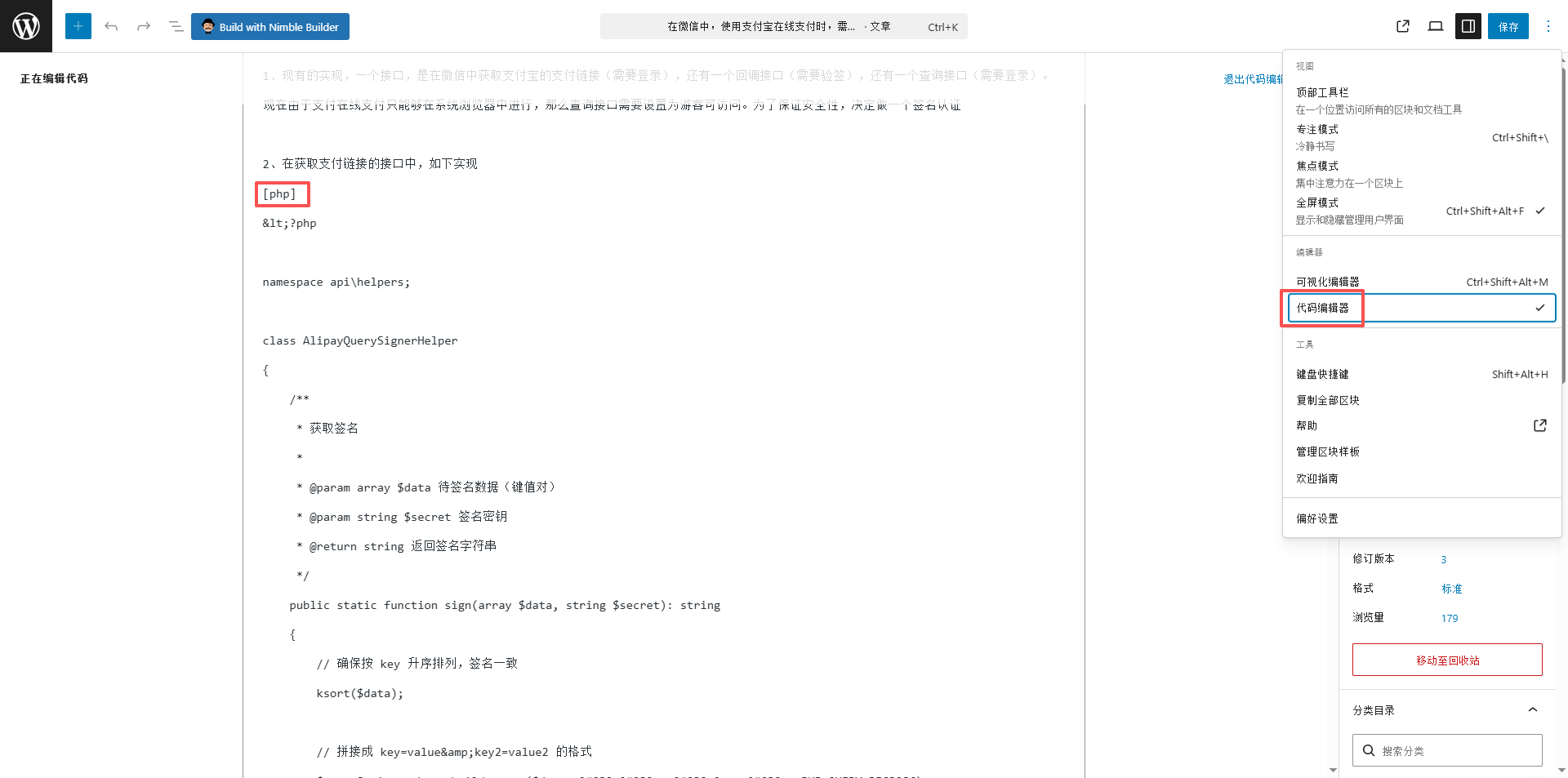
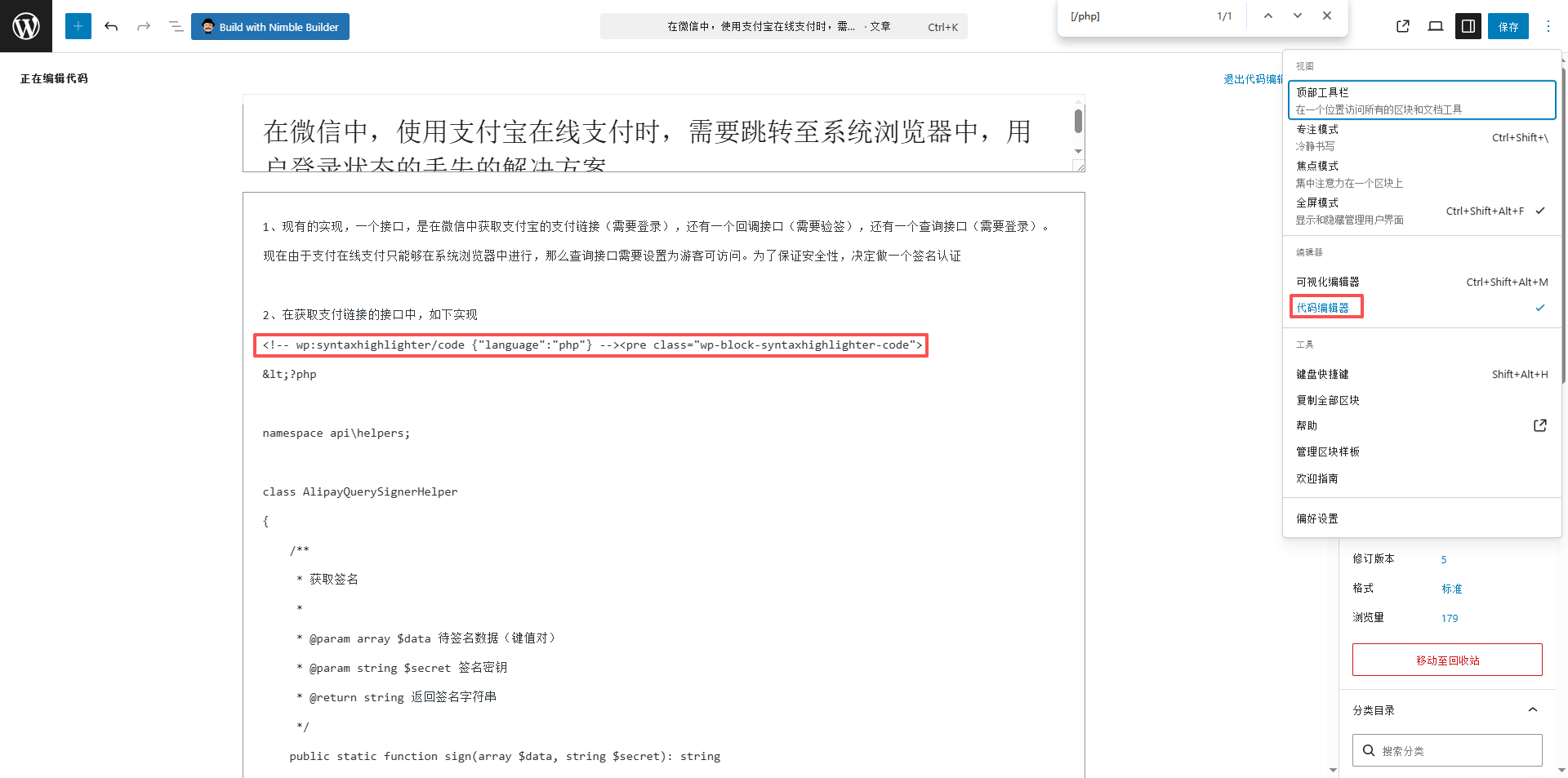
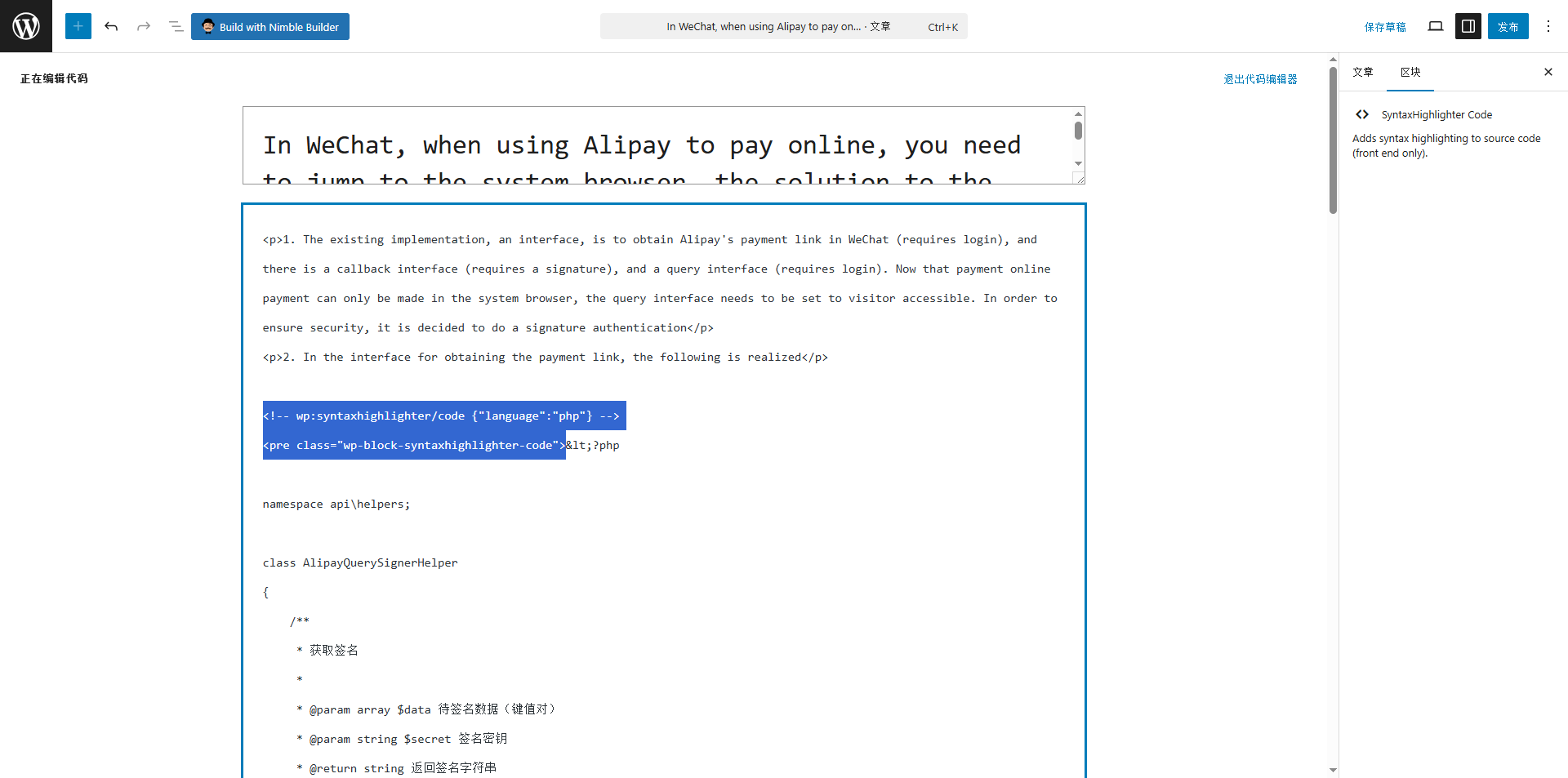
In order to confirm whether the solution is feasible, I decided to manually test an article first. I have selected a Chinese article with `php` code blocks, and manually replaces the shortcode with the Gutenberg block tag in the code editor.
Original short code form: (Figure 4)
Replaced Gutenberg block tags: (Figure 5)
After saving the article, I deleted the corresponding English article and asked AutoPoly to re-translate. The results are satisfactory: in the newly generated English article, the format of the code block is exactly the same as that of Chinese, and there is no escape or confusion. (Fig. 7, Figure 9)
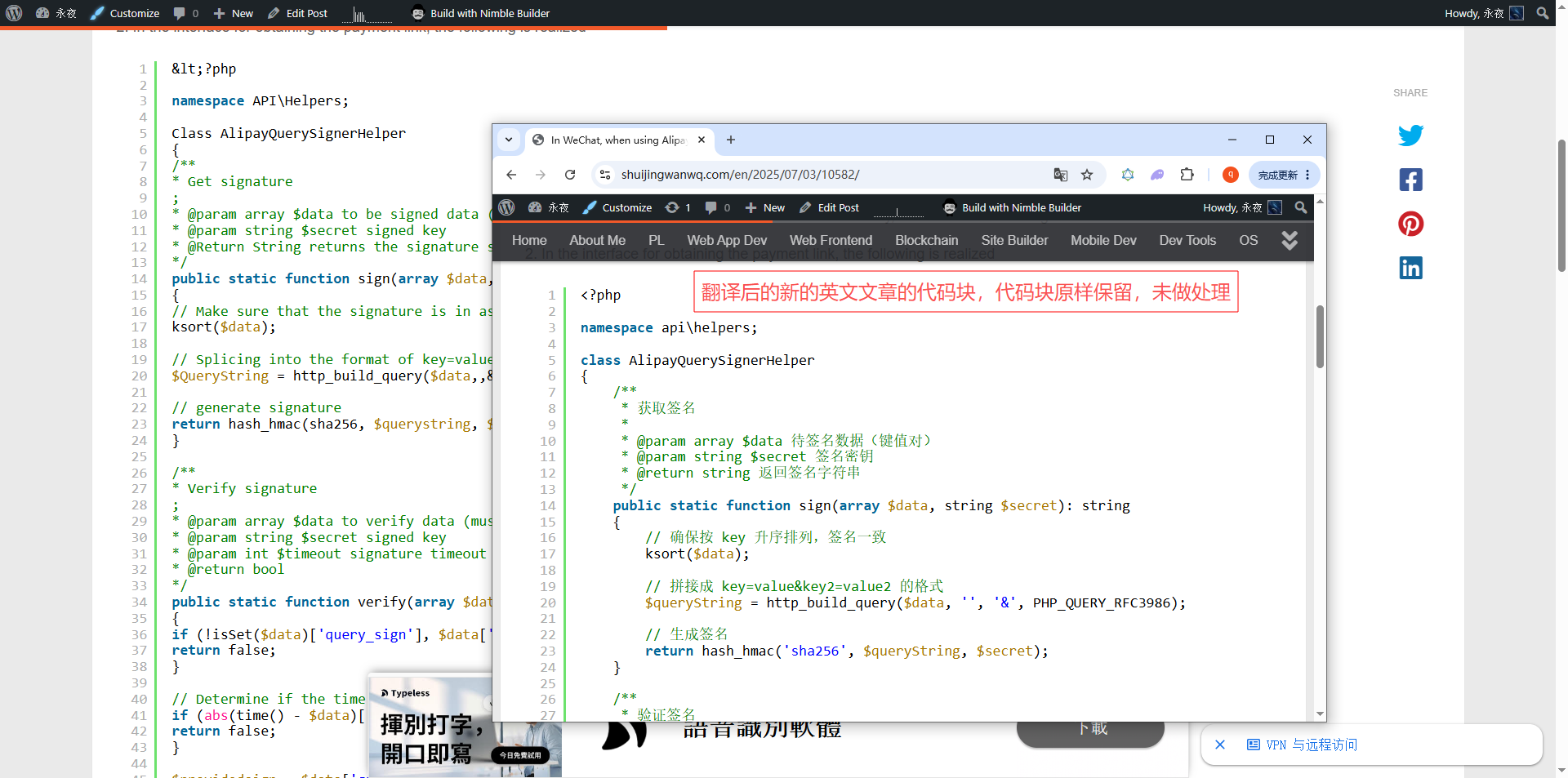
I use again python,go,Text The same manual tests were carried out for the short codes, and the results were all passed. This proves that replacing the short code with the Gutenberg block tag can completely solve the problem of the code block being broken when translated.
However, I have hundreds of articles using the classic editor, and it is obviously unrealistic to replace them manually one by one. So I decided to write a batch processing scheme. After research, I implemented the method of ‘PHP function + wordpress batch operation’, you can manually check the articles that need to be converted on the article list page, and complete the replacement with one click.
The complete plan will be shared with you below.
The solution overview
Put all SyntaxHighlighter shortcodes in the article (such as php,python) Convert batches to Gutenberg block tags, and then have the translation plugin regenerate English articles. This method supports 30+ programming languages, and can automatically handle alias mappings (such as golang → go, javascript → js).
The steps of operation
Step 1: Backup the database (very important)
Always make a backup of your WordPress database before doing any bulk operations. It is recommended to use the UpdraftPlus plugin, or export in the phpmyadmin of the host management panel.
Step 2: Add the following code to the functions.php of the theme
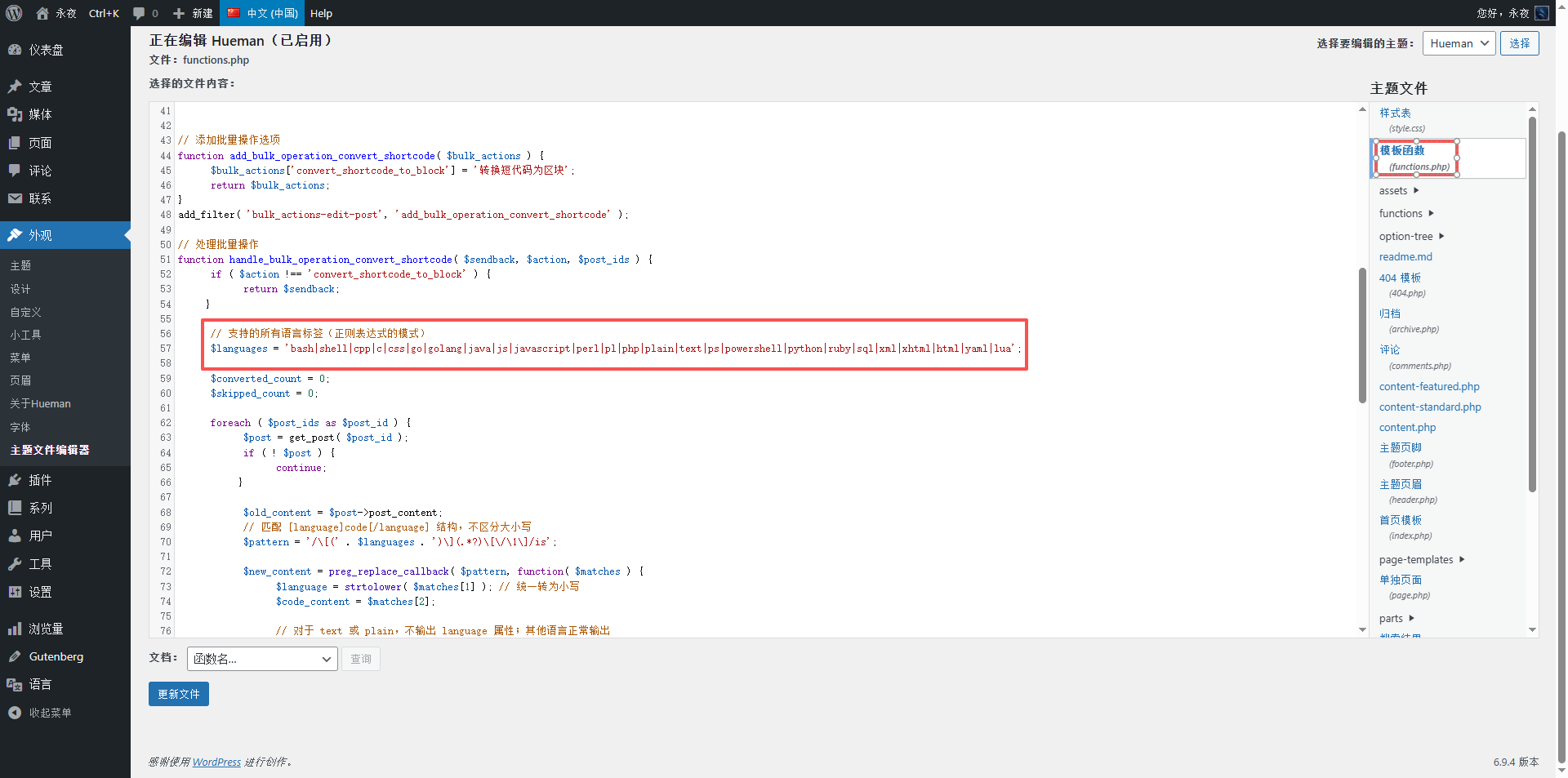
Log in to the WordPress background, go to the Appearance → Theme File Editor, find the functions.php file, and paste the following code to the end of the file (Note: If there is a ?> tag at the end of the file, please put the code in ?> before). (Fig. 12)
// 添加批量操作选项
function add_bulk_operation_convert_shortcode( $bulk_actions ) {
    $bulk_actions['convert_shortcode_to_block'] = '转换短代码为区块';
    return $bulk_actions;
}
add_filter( 'bulk_actions-edit-post', 'add_bulk_operation_convert_shortcode' );

function handle_bulk_operation_convert_shortcode( $sendback, $action, $post_ids ) {
    if ( $action !== 'convert_shortcode_to_block' ) return $sendback;
    global $wpdb;

    $languages = ['bash','shell','cpp','c','css','go','golang','java','js','javascript','perl','pl','php','plain','text','ps','powershell','python','ruby','sql','xml','xhtml','html','yaml','lua'];
    $converted_count = 0;
    $skipped_count = 0;

    foreach ( $post_ids as $post_id ) {
        $post = get_post( $post_id );
        if ( ! $post ) continue;

        $old_content = $post->post_content;
        $new_content = $old_content;
        $changed = false;

        foreach ( $languages as $lang ) {
            $open  = '[' . $lang . ']';
            $close = '[/' . $lang . ']';
            $pos = 0;
            while ( ($open_pos = strpos( $new_content, $open, $pos )) !== false ) {
                $close_pos = strpos( $new_content, $close, $open_pos );
                if ( $close_pos === false ) break;

                $code_start = $open_pos + strlen( $open );
                $code = substr( $new_content, $code_start, $close_pos - $code_start );
                $code = html_entity_decode( $code, ENT_QUOTES | ENT_HTML5, 'UTF-8' );

                if ( in_array( $lang, ['text','plain'] ) ) {
                    $block = "<!-- wp:syntaxhighlighter/code -->\n<pre class=\"wp-block-syntaxhighlighter-code\">\n{$code}\n</pre>\n<!-- /wp:syntaxhighlighter/code -->";
                } else {
                    $alias = $lang;
                    if ( $alias === 'golang' )    $alias = 'go';
                    if ( $alias === 'javascript' ) $alias = 'js';
                    if ( $alias === 'pl' )        $alias = 'perl';
                    $block = "<!-- wp:syntaxhighlighter/code {\"language\":\"{$alias}\"} -->\n<pre class=\"wp-block-syntaxhighlighter-code\">\n{$code}\n</pre>\n<!-- /wp:syntaxhighlighter/code -->";
                }

                $new_content = substr_replace( $new_content, $block, $open_pos, $close_pos + strlen( $close ) - $open_pos );
                $changed = true;
                $pos = $open_pos + strlen( $block );
            }
        }

        if ( $changed ) {
            $wpdb->update( $wpdb->posts, ['post_content' => $new_content], ['ID' => $post_id], ['%s'], ['%d'] );
            $converted_count++;
        } else {
            $skipped_count++;
        }
    }

    $sendback = add_query_arg( ['converted_count' => $converted_count, 'skipped_count' => $skipped_count], $sendback );
    return $sendback;
}
add_filter( 'handle_bulk_actions-edit-post', 'handle_bulk_operation_convert_shortcode', 10, 3 );

function bulk_operation_convert_shortcode_notices() {
    if ( isset( $_REQUEST['converted_count'] ) || isset( $_REQUEST['skipped_count'] ) ) {
        $converted = intval( $_REQUEST['converted_count'] ?? 0 );
        $skipped   = intval( $_REQUEST['skipped_count'] ?? 0 );
        echo '<div class="notice notice-success is-dismissible"><p>' .
             sprintf( '转换完成!%d 篇文章已更新,%d 篇文章无需更新。', $converted, $skipped ) .
             '</p></div>';
    }
}
add_action( 'admin_notices', 'bulk_operation_convert_shortcode_notices' );
update file.
Step 3: Perform batch conversion on the article list page
1. Refresh the ‘All Articles’ page in the WordPress background.
2. Check the articles you need to convert (you can choose multiple). (Fig. 13)
3. In the ‘Batch Operations’ drop-down menu at the top, select ‘Convert short code to block’.
4. Click the ‘Apply’ button.
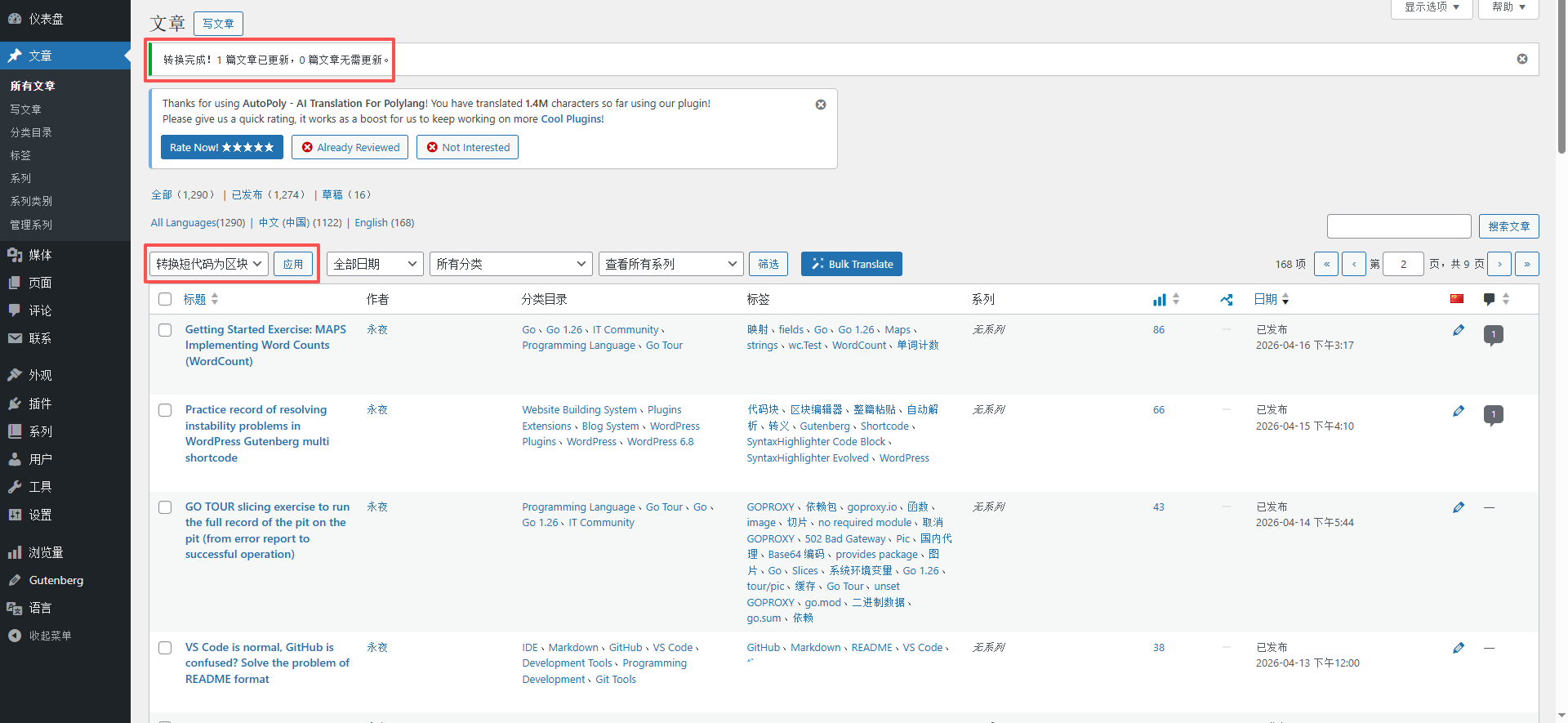
The system will automatically process it, and the conversion result will be displayed at the top of the page after completion (for example: the conversion is complete! 1 article has been updated, 0 articles do not need to be updated.).
Step 4: Trailer record: Backslash loss and `>` double escape
In the process of realizing batch conversion, I encountered three typical ‘traps’, and it took a lot of time to completely solve it. Record it, hoping to help readers with similar problems.
Pit 1: Backslash `\` Mysterious disappearance
There is a PowerShell path in my test article: `ps e:\wwwroot\object> bash test.sh`. After performing the batch conversion, the backslashes all disappeared and became `ps e:wwwRootObject> bash test.sh`.
After repeated investigations, there are two reasons:
1. Regular expression: When capturing the contents of the code using `preg_replace_callback`, the php’s regular engine will escape the backslash. If the original content contains a combination of `\w`, it may be interpreted as an escape sequence and lost.
2. WordPress automatic escaping: When using `WP_UPDATE_POST` to save an article, WordPress will automatically call `WP_SLASH` The backslash in the content is escaped again, resulting in a double backslash or lost directly after saving.
Solution: give up the regular expression and use `strpos` + `substr_replace` for a string lookup replacement instead. At the same time, use `$wpdb->update` to write directly to the database, completely bypassing the automatic escape mechanism of `wp_update_post`.
Pit 2: `>` becomes `>`
The common `>` (represents a greater than sign) in the code block becomes `>` after conversion, and the browser displays as `>` text instead of `>`.
The reason is: `> in the original article content is an HTML entity, and when saved to the database, WordPress or the browser will escape the `&` characters as `&`, resulting in double escape.
Solution: Before generating the Gutenberg block, perform `HTML_ENTITY_DECODE` on the content of the captured code, and restore all HTML entities to original characters. After saving, `>` becomes `>`, and the browser can display it correctly as `>`.
Final code points:
– String lookup substitution (avoid the regular backslash problem)
– `html_entity_decode` (resolves entity double escape)
– `$wpdb->update` (bypass WordPress automatic slash processing)
After the above corrections, the format of the code block after batch conversion is complete, and the backslash and special symbols can be properly retained.
Pit 3: The format of the code block after batch conversion is as expected, but `wp-block-syntaxhighlighter-code` will be displayed in some code blocks in the web page. View in the code editor, no problems are found. as shown in Figure 16
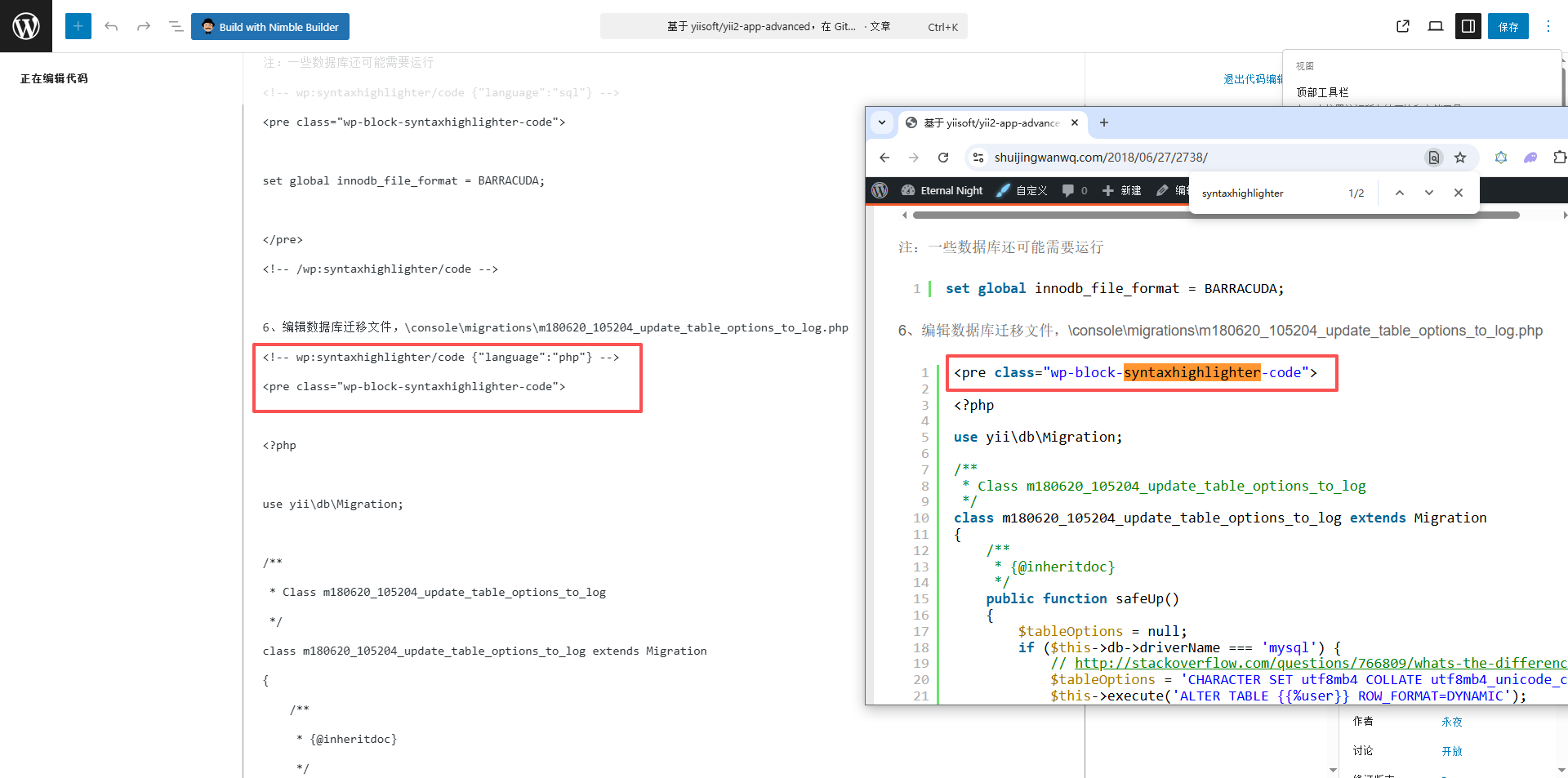
View in the Visual Editor . Tip: The block contains unanticipated or invalid content. Click Try Recovery, and the recovered code is inconsistent with the original code.
The original code is as follows:
<?php

use yii\db\Migration;

/**
 * Class m180620_105204_update_table_options_to_log
 */
class m180620_105204_update_table_options_to_log extends Migration
{
    /**
     * {@inheritdoc}
     */
    public function safeUp()
    {
        $tableOptions = null;
        if ($this->db->driverName === 'mysql') {
            // http://stackoverflow.com/questions/766809/whats-the-difference-between-utf8-general-ci-and-utf8-unicode-ci
            $tableOptions = 'CHARACTER SET utf8mb4 COLLATE utf8mb4_unicode_ci ENGINE=InnoDB';
            $this->execute('ALTER TABLE {{%user}} ROW_FORMAT=DYNAMIC');
            $this->execute('ALTER TABLE {{%user}} CONVERT TO CHARACTER SET utf8mb4 COLLATE utf8mb4_unicode_ci');
            $this->execute('ALTER TABLE {{%log}} ROW_FORMAT=DYNAMIC');
            $this->execute('ALTER TABLE {{%log}} CONVERT TO CHARACTER SET utf8mb4 COLLATE utf8mb4_unicode_ci');
        }

        $this->addCommentOnTable('{{%user}}', '用户', $tableOptions);
        $this->addCommentOnTable('{{%log}}', '日志', $tableOptions);
    }

    /**
     * {@inheritdoc}
     */
    public function safeDown()
    {
        echo "m180620_105204_update_table_options_to_log cannot be reverted.\n";

        return false;
    }

    /*
    // Use up()/down() to run migration code without a transaction.
    public function up()
    {

    }

    public function down()
    {
        echo "m180620_105204_update_table_options_to_log cannot be reverted.\n";

        return false;
    }
    */
}
The code after recovery is as follows, some code is lost:
db->driverName === 'mysql') {
            // http://stackoverflow.com/questions/766809/whats-the-difference-between-utf8-general-ci-and-utf8-unicode-ci
            $tableOptions = 'CHARACTER SET utf8mb4 COLLATE utf8mb4_unicode_ci ENGINE=InnoDB';
            $this->execute('ALTER TABLE {{%user}} ROW_FORMAT=DYNAMIC');
            $this->execute('ALTER TABLE {{%user}} CONVERT TO CHARACTER SET utf8mb4 COLLATE utf8mb4_unicode_ci');
            $this->execute('ALTER TABLE {{%log}} ROW_FORMAT=DYNAMIC');
            $this->execute('ALTER TABLE {{%log}} CONVERT TO CHARACTER SET utf8mb4 COLLATE utf8mb4_unicode_ci');
        }

        $this->addCommentOnTable('{{%user}}', '用户', $tableOptions);
        $this->addCommentOnTable('{{%log}}', '日志', $tableOptions);
    }

    /**
     * {@inheritdoc}
     */
    public function safeDown()
    {
        echo "m180620_105204_update_table_options_to_log cannot be reverted.\n";

        return false;
    }

    /*
    // Use up()/down() to run migration code without a transaction.
    public function up()
    {

    }

    public function down()
    {
        echo "m180620_105204_update_table_options_to_log cannot be reverted.\n";

        return false;
    }
    */
}
The temporary solution is to copy the original code from the web page source code to the visual editor and save it.
Step 5: Remove the temporary code
After the batch conversion is complete, be sure to go back to functions.php and delete all the code you just added. There are two advantages to doing this:
– Avoid future misoperation;
– Keep the theme file clean.
Step 6: Regenerate the translated article
If you use Polylang + AutoPoly:
1. Delete the English article (or move it to the recycle bin) that was previously caused by a short code problem.
2. Re-execute the translation (AutoPoly will automatically generate the English version according to the content of the new Chinese article).
3. At this time, you will find that the format of the code block in the English article is exactly the same as the Chinese, and there will be no escape or confusion problem.
5. List of supported languages
The following languages are already included in the code (you can add or delete them according to your needs):
bash, shell, cpp, c, css, go, go, java, js, javascript, perl, pl, php, plain, text, ps, Powershell, python, ruby, sql, xml, xhtml, html, yaml, lua
Note: Plain and Text are converted to plain text blocks that do not specify the Language attribute; Golang is automatically mapped to Go, JavaScript is mapped to JS, and PL is mapped to Perl.
6. Frequently asked questions
Q1: After performing batch operations, the content of the article has not changed?
Maybe the article itself does not use shortcodes, or the language tags of shortcodes are not in the support list. You can check the $languages variable in your code to make sure all the tags you use are included.
Q2: The syntax highlighting of the code block after conversion fails?
Make sure you still have the SyntaxHighlighter Evolved plugin installed, and the version supports the Gutenberg block. The plugin is already compatible with block editors since version 3.x.
Q3: My code block is code, which is a language-free form, what should I do?
You can change the language list in the code to code, and then uniformly process the block with no language attribute in the replacement callback.
Q4: Can I just replace articles under a specific category?
Yes. In the third step of ‘checking articles’, you can filter through the classification first, then select all the current page, and then perform batch operations.
7. Summary
Through the PHP function + WordPress native batch operation, we have realized the accurate and batch conversion of SyntaxHighlighter shortcodes in the classic editor. The whole process does not need to install additional plug-ins, which is safe and controllable, which perfectly solves the problem of confusing code block format in multilingual translation.